2013 MERCEDES-BENZ CLS-Class register
[x] Cancel search: registerPage 183 of 274

Your COMAND equipment
................182
Radio mode ........................................ 182
Satellite radio .................................... 186
Audio CD/DVD and MP3 mode ........191
Music search ..................................... 204
MUSIC REGISTER .............................. 207
Bluetooth ®
audio mode .................... 211
Media Interface mode ......................217
Audio AUX mode ............................... 223 181Audio
Page 189 of 274

R
locations inside or next to buildings
R locations in the vicinity of other
structures
i SIRIUS XM Radio offers more than 130
radio stations in digital quality, for example
100% commercial-free music, sports, news
and entertainment.
SIRIUS XM Radio employs a fleet of high-
performance satellites to broadcast around
the clock throughout the USA and Canada.
The satellite radio program is available for
a monthly fee. Details are available from
the SIRIUS XM Service Center and at
http://www.sirius.com (USA) or
http://www.siriuscanada.com
(Canada). Registering satellite radio
Service information screen
0043
Provider's phone number (SIRIUS XM)
0044 SIRIUS XM ID of your satellite receiver
X Switch on satellite radio mode
(Y page 187).
The satellite radio main menu appears,
showing the weather channel. You cannot
select any other stations.
X In the lower menu line, select Sat Satand press
00A1 to confirm.
X Select Service
Service and press 00A1to confirm.
The service information screen appears. Once the connection has been established:
X
Follow the instructions of the service staff.
The activation process may take up to
ten minutes. If the activation is completed
successfully, the No Service
No Service message
appears in the display, followed by the
satellite radio main menu.
i You can also have the satellite service
activated online. To do so, visit the SIRIUS
XM Radio website at
http://www.sirius.com (USA) or
http://www.siriuscanada.com
(Canada).
i If registration is not included when
purchasing the system, your credit card
details will be required to activate your
account.
If the satellite receiver is not installed or is
not installed correctly, the Device Device
Unavailable
Unavailable message will appear. Switching on satellite radio mode
Notes For example, to select a channel or scroll in
the lists, you can also use the
00590065
00630064 buttons on the multifunction
steering wheel, see the separate vehicle
Operator's Manual.
Important information on registering the
satellite radio (Y page 187).
Option 1 X
Press the 002Afunction button.
The No Service No Service message appears after
switching on or if no signal is being
received. Once COMAND receives the
signal, the satellite radio display appears.
The station last selected is played.
i Repeatedly pressing this function button
switches through the wavebands in this
order: FM, AM, WB and subsequently
switches on the satellite radio. Pressing the Satellite radio
187Audio
Page 197 of 274
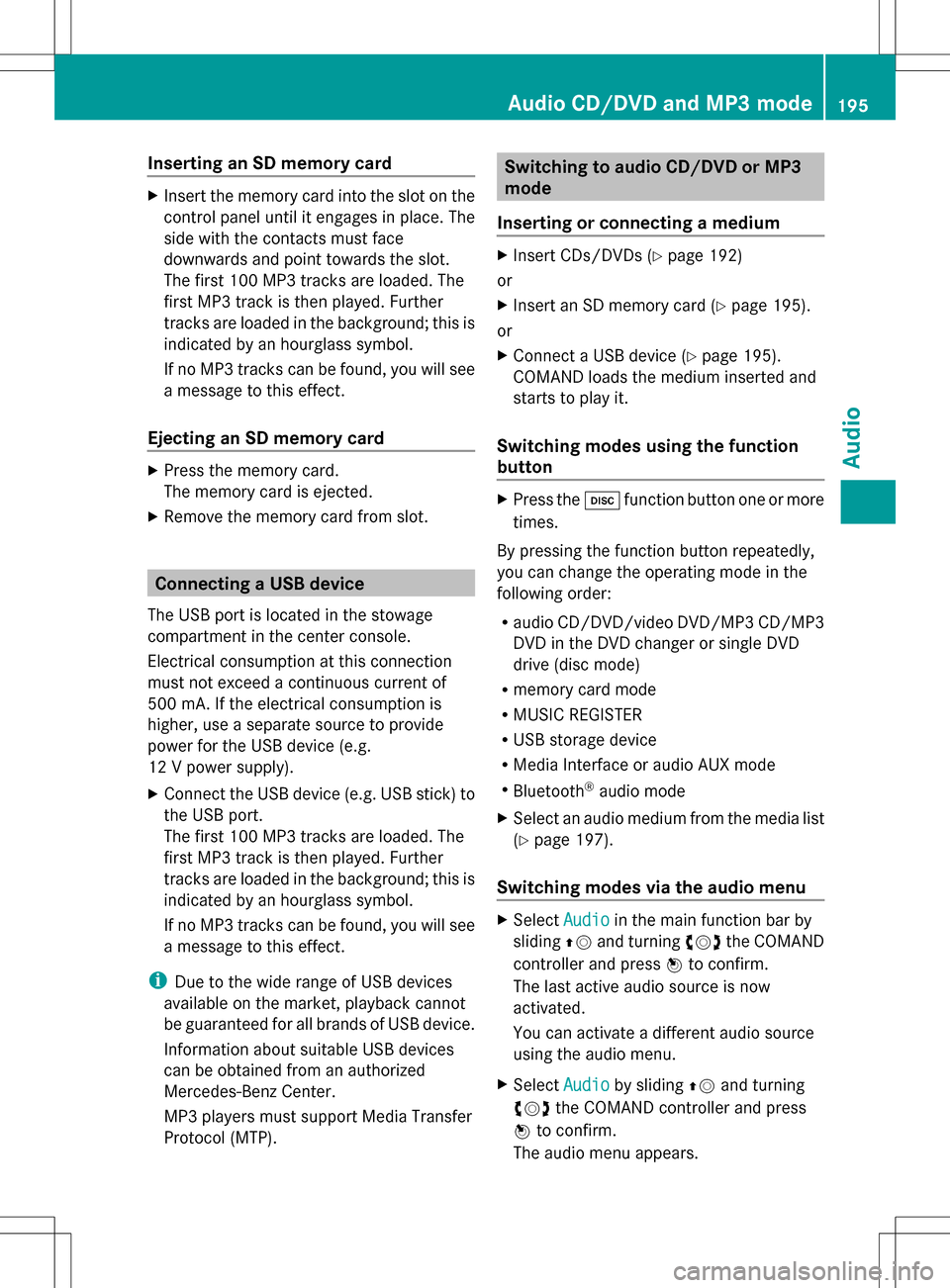
Inserting an SD memory card
X
Insert the memory card into the slot on the
control panel until it engages in place. The
side with the contacts must face
downwards and point towards the slot.
The first 100 MP3 tracks are loaded. The
first MP3 track is then played. Further
tracks are loaded in the background; this is
indicated by an hourglass symbol.
If no MP3 tracks can be found, you will see
a message to this effect.
Ejecting an SD memory card X
Press the memory card.
The memory card is ejected.
X Remove the memory card from slot. Connecting a USB device
The USB port is located in the stowage
compartment in the center console.
Electrical consumption at this connection
must not exceed a continuous current of
500 mA. If the electrical consumption is
higher, use a separate source to provide
power for the USB device (e.g.
12 V power supply).
X Connect the USB device (e.g. USB stick) to
the USB port.
The first 100 MP3 tracks are loaded. The
first MP3 track is then played. Further
tracks are loaded in the background; this is
indicated by an hourglass symbol.
If no MP3 tracks can be found, you will see
a message to this effect.
i Due to the wide range of USB devices
available on the market, playback cannot
be guaranteed for all brands of USB device.
Information about suitable USB devices
can be obtained from an authorized
Mercedes-Benz Center.
MP3 players must support Media Transfer
Protocol (MTP). Switching to audio CD/DVD or MP3
mode
Inserting or connecting a medium X
Insert CDs/DVDs (Y page 192)
or
X Insert an SD memory card (Y page 195).
or
X Connect a USB device (Y page 195).
COMAND loads the medium inserted and
starts to play it.
Switching modes using the function
button X
Press the 003Afunction button one or more
times.
By pressing the function button repeatedly,
you can change the operating mode in the
following order:
R audio CD/DVD/video DVD/MP3 CD/MP3
DVD in the DVD changer or single DVD
drive (disc mode)
R memory card mode
R MUSIC REGISTER
R USB storage device
R Media Interface or audio AUX mode
R Bluetooth ®
audio mode
X Select an audio medium from the media list
(Y page 197).
Switching modes via the audio menu X
Select Audio Audioin the main function bar by
sliding 00A0005Band turning 0082005B0083the COMAND
controller and press 00A1to confirm.
The last active audio source is now
activated.
You can activate a different audio source
using the audio menu.
X Select Audio Audioby sliding 00A0005Band turning
0082005B0083 the COMAND controller and press
00A1 to confirm.
The audio menu appears. Audio CD/DVD and MP3 mode
195Audio Z
Page 198 of 274

X
Select Disc
Disc,Memory Card
Memory Card, Music
Music
Register
Register ,USB Storage
USB Storage orMedia
Media
Interface
Interface and press00A1to confirm.
This switches to the desired audio source.
X Select an audio medium from the media list
(Y page 197).
Example display: audio CD mode 0043
CD cover (if available)
0044 Gracenote data is read, then the elapsed
track time
0087 Track number and track name (if stored
on the disc as CD text or if Gracenote ®
data is available)
0085 Graphic time and track display
0083 Disc type, disc position in the media list
and disc name (if stored on the disc as CD
text or if Gracenote ®
data is available)
0084 Artist (if stored on the disc as CD text or
if Gracenote ®
data is available)
006B CD mode menu Example display: audio DVD mode 0043
Cover (if available)
0044 Track time
0087 Track number
0085 Graphic time and track display
0083 Disc type, disc position in the media list,
disc name (only if stored on the disc)
0084 Audio DVD mode menu
Example display: MP3 mode 0043
Cover (if available)
0044 Track time
0087 Track number and name
0085 Graphic time and track display
0083 Medium type, position of medium in the
media list, current folder
0084 Artist (if available)
006B MP3 mode menu 196
Audio CD/DVD and MP3 modeAudio
Page 200 of 274

X
To change the display: select1...6
1...6
Changer
Changer by turning 0082005B0083the COMAND
controller and press 00A1to confirm.
Depending on the previous setting, the
magazine trays are shown or not shown.
i If a disc cannot be read, an entry appears
next to the corresponding magazine tray. Media list showing all magazine trays
X
Select the data medium by turning 0082005B0083
the COMAND controller and press 00A1to
confirm.
The following tables list the selection options
in the media list for the respective equipment
variants. For DVD changer
Magazine trays, positions 1 to 6: readable
data media are audio CDs, MP3 CDs or MP3
DVDs, audio DVDs and video DVDs. Memory card, position 7
MUSIC REGISTER, position 8
USB storage device, position 9
Media Interface, position 0
Bluetooth
®
audio Equipped with a single DVD drive
DVD drive, position 1: readable data media
are audio CDs, MP3 CDs or MP3 DVDs,
audio DVDs and video DVDs. Memory card, position 2 MUSIC REGISTER, position 3
USB storage device: position 4
Media Interface: position 5
Bluetooth
®
audio: position 6 i
If you select a video DVD, the system
switches to video DVD mode
(Y page 226).
Selecting a track using the number
keypad X
When the display/selection window is
active, press a number key, e.g. 008D.
The medium at the corresponding position
in the media list is loaded and then played. Selecting a track
Selecting by skipping to a track X
To skip forwards or back to a track: turn
0082005B0083 the COMAND controller when the
display/selection window is active.
or
X Press the 0048or0049 button.
The skip forward function skips to the next
track.
The skip back function skips to the
beginning of the current track if the track
has been playing for more than
eight seconds. If the track has been playing
for less than eight seconds, it skips to the
start of the previous track.
If the Random Tracks
Random Tracks orRandom Folder Random Folder
playback option has been selected, the
track order is random. 198
Audio CD/DVD and MP3 modeAudio
Page 201 of 274

Selecting a track using the number
keypad
X
Press the 0056key on the number keypad.
A numerical entry field appears. The
number of positions offered corresponds to
the number of tracks on the CD/DVD. Only
numbers that correspond to a track
number on the CD/DVD can be entered.
X Enter the desired track number using the
number keys.
The track plays after the last possible
number is entered.
i Pressing and holding a number key for
more than two seconds completes the
entry, and the corresponding track is
played.
Selecting a track using music search X
Select Current Tracklist
Current Tracklist ,Folder Folder or a
category and press 00A1to confirm.
Select music via categories (e.g. album,
artist) with the music search function.
If you select a category, COMAND starts a
search for track information if the following
conditions are fulfilled:
R the data carriers are inserted or connected
R the track information from these data
carriers is not yet contained in the
COMAND music database.
COMAND imports track information from the
following data carriers:
R disc (audio CD/DVD/MP3)
R memory card R
MUSIC REGISTER
R USB storage device
The Track information is complete.
Track information is complete.
message appears once the search is
completed. COMAND stores the music data
in its own database. You can now select the
available music data within the desired
category.
You will find further information on searching
for music in the "Music search" section
(Y page 204).
X In CD/audio DVD/MP3 mode, select
Search Search by sliding 005B0064and turning 0082005B0083the
COMAND controller and press 00A1to
confirm.
The category list appears. Example: current track list
X
Select the track by turning 0082005B0083the
COMAND controller and press 00A1to
confirm.
The basic display appears and the track is
played. Fast forwarding/rewinding
X While the display/selection window is
active, slide 009E005B009Fand hold the COMAND
controller until the desired position has
been reached.
or
X Press and hold the 0048or0049 button
until the desired position is reached. Audio CD/DVD and MP3 mode
199Audio Z
Page 203 of 274
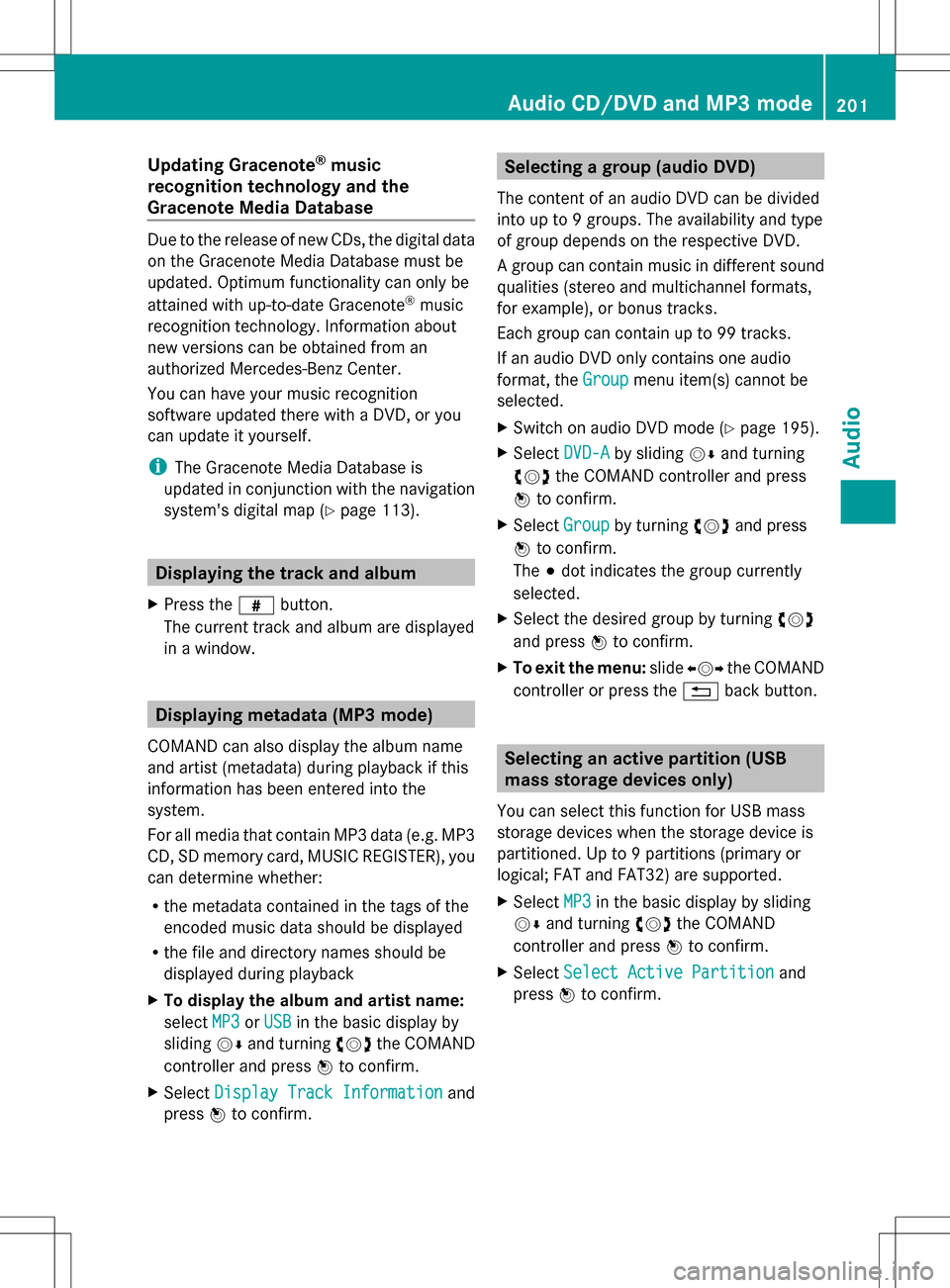
Updating Gracenote
®
music
recognition technology and the
Gracenote Media Database Due to the release of new CDs, the digital data
on the Gracenote Media Database must be
updated. Optimum functionality can only be
attained with up-to-date Gracenote ®
music
recognition technology. Information about
new versions can be obtained from an
authorized Mercedes-Benz Center.
You can have your music recognition
software updated there with a DVD, or you
can update it yourself.
i The Gracenote Media Database is
updated in conjunction with the navigation
system's digital map (Y page 113).Displaying the track and album
X Press the 0099button.
The current track and album are displayed
in a window. Displaying metadata (MP3 mode)
COMAND can also display the album name
and artist (metadata) during playback if this
information has been entered into the
system.
For all media that contain MP3 data (e.g. MP3
CD, SD memory card, MUSIC REGISTER), you
can determine whether:
R the metadata contained in the tags of the
encoded music data should be displayed
R the file and directory names should be
displayed during playback
X To display the album and artist name:
select MP3
MP3 orUSB USB in the basic display by
sliding 005B0064and turning 0082005B0083the COMAND
controller and press 00A1to confirm.
X Select Display Track Information
Display Track Information and
press 00A1to confirm. Selecting a group (audio DVD)
The content of an audio DVD can be divided
into up to 9 groups. The availability and type
of group depends on the respective DVD.
A group can contain music in different sound
qualities (stereo and multichannel formats,
for example), or bonus tracks.
Each group can contain up to 99 tracks.
If an audio DVD only contains one audio
format, the Group Groupmenu item(s) cannot be
selected.
X Switch on audio DVD mode (Y page 195).
X Select DVD-A DVD-Aby sliding 005B0064and turning
0082005B0083 the COMAND controller and press
00A1 to confirm.
X Select Group
Groupby turning 0082005B0083and press
00A1 to confirm.
The 003Bdot indicates the group currently
selected.
X Select the desired group by turning 0082005B0083
and press 00A1to confirm.
X To exit the menu: slide009E005B009F the COMAND
controller or press the 0041back button. Selecting an active partition (USB
mass storage devices only)
You can select this function for USB mass
storage devices when the storage device is
partitioned. Up to 9 partitions (primary or
logical; FAT and FAT32) are supported.
X Select MP3 MP3in the basic display by sliding
005B0064 and turning 0082005B0083the COMAND
controller and press 00A1to confirm.
X Select Select Active Partition
Select Active Partition and
press 00A1to confirm. Audio CD/DVD and MP3 mode
201Audio Z
Page 207 of 274

R
MUSIC REGISTER
R USB storage device X
Select a category in the category list by
turning 0082005B0083the COMAND controller and
press 00A1to confirm.
The Reading Data...
Reading Data... message appears.
The search may take some time, depending
on the number of tracks available.
The Track information is complete Track information is complete
message appears once the search is
completed. Playback then starts with the
previously active audio source.
X To cancel the music search: confirm
Cancel
Cancel by pressing 00A1.
Selecting artists X
Select Artists
Artists in the category list by
turning 0082005B0083the COMAND controller and
press 00A1to confirm.
The available artists are displayed
alphabetically.
Selecting an album X
Select Albums Albums in the category list by
turning 0082005B0083the COMAND controller and
press 00A1to confirm.
The available albums are displayed
alphabetically. If there is a cover available
for an album, it is displayed in front of the
album name.
Selecting a track X
Select Tracks Tracks in the category list
(Y page 204) by turning 0082005B0083the COMAND
controller and press 00A1to confirm.
The available tracks are displayed.
Selecting a year of publication X
Select Year
Yearin the category list
(Y page 204) by turning 0082005B0083the COMAND
controller and press 00A1to confirm.
X Select an entry and press 00A1to confirm.
The genre list is displayed. Music search
205Audio Z