2013 MERCEDES-BENZ CL CLASS reset
[x] Cancel search: resetPage 122 of 496

Functions with the E and F button
You can use the remote control to execute the same functions as the COMAND control panel.
ModeFunctionAudio modeSelects a station using the station search function ( Y page 200)Selects a track by skipping to a track ( Y page 213)Fast forward/rewind ( Y page 214)Video modeSelects a scene or chapter (video DVD mode) ( Y page 231)Fast-forward/rewind (video DVD mode) ( Y page 231)
Functions of the number keypad
You can use the remote control to execute the same functions as the COMAND control panel.
ModeFunctionAudio modeSelects stations via the station presets ( Y page 200)Sets stations by entering the frequency manually ( Y page 201)Stores stations manually ( Y page 201)Selects a track ( Y page 213)Selects a data medium via the media list ( Y page 212)Telephone modeTelephone number entry ( Y page 188)Character entryEnters characters (direct entry) ( Y page 123)Operating COMAND
Selecting a main function
Initial situation
You would like to change from the telephone
menu to the vehicle settings, for example.
XSlide ZV the COMAND controller and
switch to the main function bar.XSelect Vehicle in the main function bar by
turning cVd the COMAND controller and
press W to confirm.
The "Vehicle" menu appears.:"Vehicle" menu;Display/selection window120At a glanceCOMAND
Page 123 of 496

Calling up the menu of a main function:To call up the audio menu;Main function bar
If one of the main functions navigation, audio,
telephone or video is switched on,
triangle : appears next to the entry. You can
now select an associated menu.
The following example illustrates how to call
up the audio menu.
XPress the R function button.
or
XSelect Audio in the main function bar by
sliding ZV the COMAND controller and
press W to confirm.
The Audio menu appears.:Current audio operating mode;Main function bar=Audio menu
The # dot indicates the current audio mode.
XSelect another audio mode, e.g. Radio, by
turning cVd the COMAND controller and
press W to confirm.Selecting a menu item
The following example describes how to
select a station from the station presets in
radio mode.
XPress the R function button.XSelect Presets by sliding VÆ and turning
cVd the COMAND controller and press
W to confirm.
The station preset memory appears.:Selection barXSelect a station by turning cVd the
COMAND controller and press W to
confirm.
The station is set.
Example of operation
Initial situation
You would like to switch from the vehicle
function to the radio function and select a
station from the station list, for example.
The following operating example describes
how to:
R call up the audio function
R switch on radio mode
R set a station.
At a glance121COMANDZ
Page 139 of 496

XSelect Details and press W to confirm.
The detailed display for this device
appears.XTo close the detailed view: turn cVd or
slide XVY the COMAND controller.
De-authorizing (de-registering) a
Bluetooth ®
device
Mercedes-Benz USA, LLC recommends de-
authorization in both COMAND and the
Bluetooth ®
device, e.g. the mobile phone.
Subsequent authorization may otherwise fail.
XIn the Bluetooth ®
device list, select the
authorized device by turning cVd the
COMAND controller.XSelect Options by sliding VY the
COMAND controller and press W to
confirm.XSelect De-authorize and press W to
confirm.
A prompt appears asking whether you
really wish to de-authorize this device.XSelect Yes or No and press W to confirm.
If you select Yes, the authorization for the
device will be revoked.
If you select No, the process will be aborted.
i
If a Bluetooth ®
device has been de-
authorized and is out of range, when a new
search is carried out it will not appear in the
Bluetooth ®
device list.
System language settings
This function allows you to determine the
language for the menu displays and the
navigation messages. The selected language
affects the characters available for entry.
When you set the system language, the
language of the Voice Control System will
change accordingly. If the selected language
is not supported by the Voice Control System,
"English" will be selected.
XSelect Vehicle by turning cVd the
COMAND controller and press W to
confirm.XSelect System and press W to confirm.XSelect Language and press W to confirm.
The list of languages appears. The # dot
indicates the current setting.XSelect the language by turning cVd the
COMAND controller and press W to
confirm.
COMAND loads the selected language and
sets it.
Reset function
You can reset COMAND to the factory
settings. Amongst other things, this will
delete all personal data (e.g. station presets,
address book entries, entries in the
destination memory and in the list of previous
destinations in the navigation system).
Resetting is recommended before selling or
transferring ownership of your vehicle, for
example.
XSelect Vehicle in the main function bar by
turning cVd the COMAND controller and
press W to confirm.XSelect System by turning cVd the
COMAND controller and press W to
confirm.XSelect Reset and press W to confirm.
A prompt appears asking whether you wish
to reset.XSelect Yes or No and press W to confirm.
If you select No, the process will be aborted.
If you select Yes, another prompt appears
asking whether you really wish to reset.XSelect Yes or No and press W to confirm.
If you select Yes, a message will be shown.
COMAND is reset and restarted.
If you select No, the process will be aborted.System settings137COMANDZ
Page 191 of 496
iThe redialing function is also available
using the on-board computer
( Y page 347).
Calling voicemail
This function is only available if it is supported
by the mobile phone network provider.
You can only call voicemail if the voicemail
number is stored as preset 1 on the SIM card.XPress and hold the 4 button on the
telephone keypad.
or
XUse the COMAND controller to select 1 and
confirm until dialing commences.
Connecting a call to an entry in a call list
or in the COMAND phone book
XOpen a call list and select an entry
( Y page 197).
or
XCall up the COMAND phone book and
select an entry ( Y page 193).
Functions available during a call
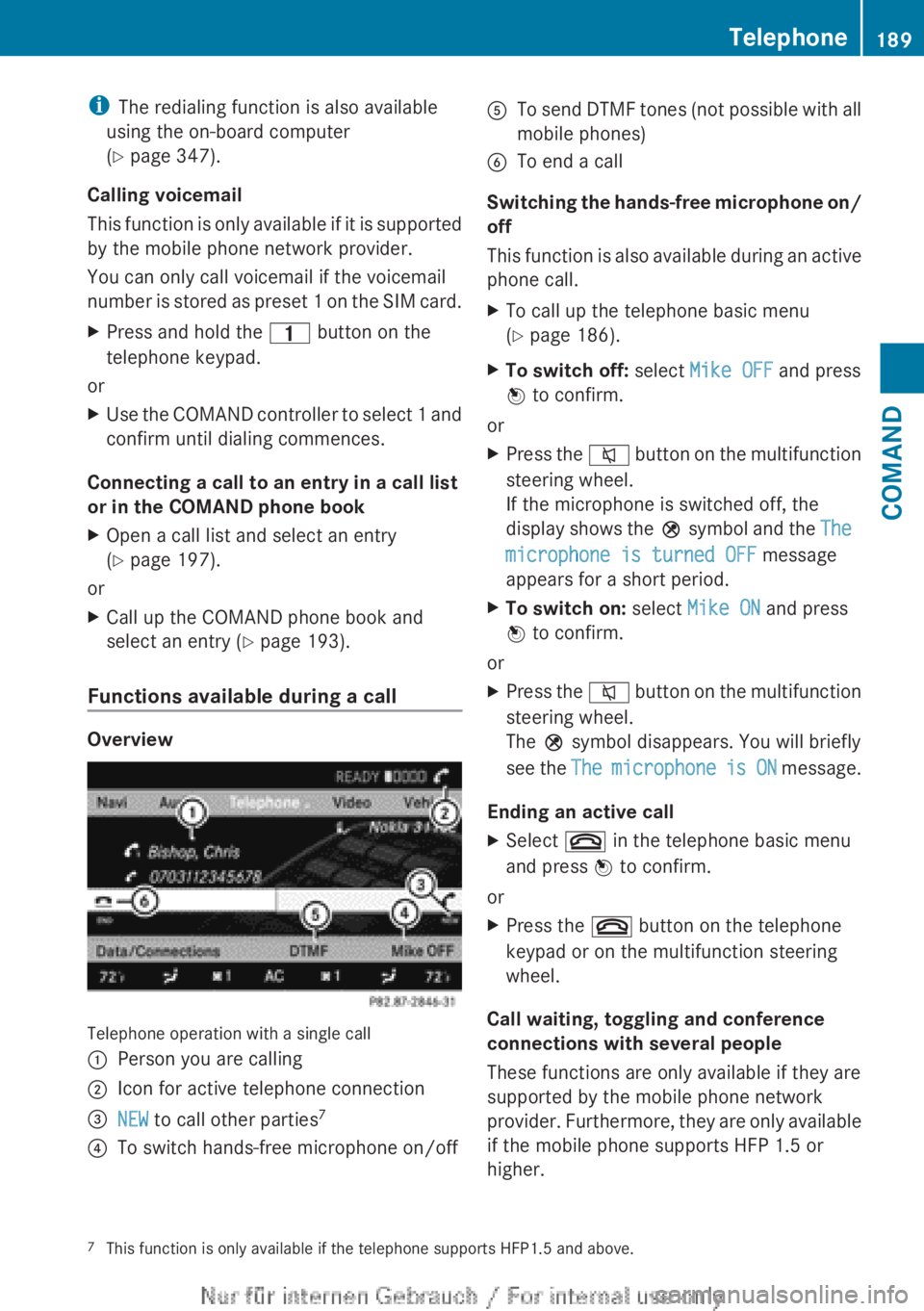
Overview
Telephone operation with a single call
:Person you are calling;Icon for active telephone connection=NEW to call other parties 7?To switch hands-free microphone on/offATo send DTMF tones (not possible with all
mobile phones)BTo end a call
Switching the hands-free microphone on/
off
This function is also available during an active
phone call.
XTo call up the telephone basic menu
( Y page 186).XTo switch off: select Mike OFF and press
W to confirm.
or
XPress the 8 button on the multifunction
steering wheel.
If the microphone is switched off, the
display shows the Q symbol and the The
microphone is turned OFF message
appears for a short period.XTo switch on: select Mike ON and press
W to confirm.
or
XPress the 8 button on the multifunction
steering wheel.
The Q symbol disappears. You will briefly
see the The microphone is ON message.
Ending an active call
XSelect ~ in the telephone basic menu
and press W to confirm.
or
XPress the ~ button on the telephone
keypad or on the multifunction steering
wheel.
Call waiting, toggling and conference
connections with several people
These functions are only available if they are
supported by the mobile phone network
provider. Furthermore, they are only available
if the mobile phone supports HFP 1.5 or
higher.
7 This function is only available if the telephone supports HFP1.5 and above.Telephone189COMANDZ
Page 197 of 496

:Entry mark (cursor);Data field=Two-line character barB To select the languagep To select the character set*/E To select uppercase and
lowercase letters% BackF To delete your selection¬ To confirm your selection?Preset phone categoryXEnter the respective data in the data fields.XTo enter data in the data field: select the
respective characters from character bar
= .XTo move the cursor in the data field:
select the respective characters from
character bar =.XTo change data fields: slide ZV the
COMAND controller until the character bar
is hidden.XSlide ZVÆ the COMAND controller and
press W to confirm.
or
XPress Æ in the character bar.XTo cancel data entry: select the %
symbol in character bar = and press W to
confirm.
If one of the data fields contains data, a
prompt will appear asking whether you
wish to store the entry.XTo save data entry: select the ¬
symbol in character bar = and press W to
confirm.
The entry is created in the phone book and
in the address book.
Deleting contacts
XTo delete a group of contacts: select
Data/Connections in the telephone basic
menu by sliding VÆ and turning cVd the
COMAND controller and press W to
confirm.XSelect Delete Contacts and press W to
confirm.
You can select and delete the following types
of contact here:
R Internal Contacts
R Imported from memory card
R Imported via Bluetooth
R Delete All
XConfirm the selection by pressing W.
A prompt appears asking whether the data
should be deleted.XSelect Yes and press W to confirm.Telephone195COMANDZ
Page 202 of 496

If another audio mode is switched on, you
can now switch to radio mode in the audio
menu.XSelect Audio by sliding ZV the COMAND
controller and pressing W to confirm.
The audio menu appears.
Example display: audio menu
:Current audio operating mode;Main function bar=Audio menuXSelect FM/AM radio by turning cVd the
COMAND controller and press W to
confirm.
Example display, FM radio
:Display window with station settings;Frequency of the selected station=Name of the selected station?Display bar for frequency settingASound settingsBWavebandCStation informationDPreset functionsERadio functions
Switching wavebands
XSelect FM, AM or WB in the radio display by
sliding VÆ and turning cVd the COMAND
controller and press W to confirm.
Waveband submenu is opened.1The waveband submenu (the # dot
shows the waveband currently set)XSelect a waveband and press W to confirm.
You will hear the last station played on the
selected waveband.
Selecting a station
Selecting a station using the station
search function
XTurn cVd or slide XVY the COMAND
controller while the display/selection
window in the radio display is active.
Station search scans up or down and stops
at the next station found.
Using the multifunction steering wheel
XPress = or ; to select the Audio
menu.XPress 9 or : briefly.
Selecting stations via the station presets
XQuick setting: press a number key, e.g.
l .200AudioCOMAND
Page 203 of 496

XDirectly in the station presets: select
Presets by sliding VÆ and turning cVd
the COMAND controller and press W to
confirm.
or
XPress W the COMAND controller when the
display/selection window is active.
The station preset memory appears. The
# dot indicates under which preset the
currently selected station is stored.XSelect a station by turning cVd and
pressing W to confirm or press a number
key, e.g. l.
Using the multifunction steering wheel
XPress = or ; to select the Audio
menu.XPress 9 or : briefly.
Selecting stations by entering the
frequency manually
XOption 1: press the Ä button.XOption 2: select Radio in the radio display
by sliding VÆ and turning cVd the
COMAND controller and press W to
confirm.XSelect Enter Frequency and press W to
confirm.
Irrespective of the option chosen, an input
menu will appear.XEnter a frequency using the number keys.
COMAND tunes in to the frequency
entered.WavebandFrequencyAM (MF)530 – 1700 kHzFM (VHF)87.7 – 107.9 MHzWB (Weather Band)Weather report
channels
i You can only enter currently permitted
numbers.
i If you enter a frequency in the FM or AM
wavebands which is outside the frequency
range, COMAND tunes in to the next lower
frequency.
Storing stations
Storing stations manually
There are twenty presets available for the FM
and AM wavebands.
XQuick save: press and hold a number key,
e.g. l , until you hear a tone.
The station is stored.XDirectly in the station presets: press W
the COMAND controller when the display/
selection window is active.
or
XSelect Presets by sliding VÆ and turning
cVd the COMAND controller and press
W to confirm.
In both cases, the station presets appear.
The # dot indicates under which preset
the currently selected station is stored.
Example display: station presets
XSelect a preset by turning cVd the
COMAND controller and press and hold
W until you hear a tone.
The station is stored under the preset.
Storing stations automatically
This function automatically stores stations
with adequate reception under the presets.
The search starts at the lowest frequency.
COMAND stores any stations found,
Audio201COMANDZ
Page 204 of 496

beginning with preset 1. The storing process
ends once the highest frequency has been
reached or once ten stations have been
found. Any stations stored manually under
the presets will be lost. COMAND may not
occupy all memory slots when storing.XOption 1: press W the COMAND controller
when the display/selection window is
active.
The station preset memory appears.XOption 2: select Presets by sliding VÆ
and turning cVd the COMAND controller
and press W to confirm.
The station preset memory appears.XIrrespective of the option, select
Autostore and press W to confirm.
In both cases, COMAND searches for
stations that can be received. You will see
a message to this effect. The available
stations are automatically stored in the
preset positions.XTo cancel storing: select Cancel and
press W to confirm.
Weather Band
Switching on
XSelect the currently set waveband FM or
AM by sliding VÆ and turning cVd the
COMAND controller and press W to
confirm.XSelect WB from the menu and press W to
confirm.:Display window with the channel setting;Currently received channel=Channel list?Weather Band switched onASound settings
Searching for a channel
XQuick select: turn cVd or slide XVY the
COMAND controller while the display/
selection window is active.
Channel search scans up or down and
stops at the next channel found.
Using the multifunction steering wheel
XPress = or ; to select the Audio
menu.XPress 9 or : .
Selecting a channel from the channel list
XSelect Channel by sliding VÆ and turning
cVd the COMAND controller and press
W to confirm.
The channel list appears.202AudioCOMAND