Page 310 of 862

GS450h_U (OM30D01U)
3094-5. Using the driving support systems
4
Driving
■When there is a malfunction in the system
If a system malfunction is detected due to any of the following reasons, warning mes-
sages will be displayed: (→P. 7 2 7 )
●There is a malfunction with the sensors
●The sensors have become dirty
●The outside temperature is extremely high or low
●The sensor voltage has become abnormal
■Certification for the BSM
XFor vehicles sold in the U.S.A.
FCC ID: OAYBSDTX
This device complies with part 15 of the FCC Rules. Operation is subject to the fol-
lowing three conditions:
(1) This device may not cause harmful interference.
(2) This device must accept any interference received, including interference that may cause undesired operation.
(3) This device may only work when the vehicle is in operation pursuant to § 15.252 (a) (4).
FCC WARNING
Changes or modifications not expressly approved by the party responsible for com-
pliance could void the user’s authority to operate the equipment.
XFor vehicles sold in Canada
IC: 4135A-BSDTX
This device complies with the radio standards specification RSS-220 of Industry
Canada. Operation is subject to the following two conditions:
(1) This device may not cause harmful interference.
(2) This device must accept any interference received, including interference that may cause undesired operation.
NOTE
During printing time of this user manual the approvals listed below are granted. Fur-
ther countries may become available or actual certification identifiers may be sub-
ject to change or update.
WA R N I N G
Changes or modifications not expressly approved by the party responsible for com-
pliance could void the user’s authority to operate the equipment.
GS450h_U.book Page 309 Monday, January 23, 2012 10:20 AM
Page 311 of 862

310
GS450h_U (OM30D01U)
4-5. Using the driving support systems
CAUTION
■Cautions regarding the use of the system
The driver is solely responsible for safe driving. Always drive safely, taking care to
observe your surroundings.
The Blind Spot Monitor is a supplementary system which alerts the driver that a
vehicle is present in the blind spot. Do not overly rely on the Blind Spot Monitor
system. The system cannot judge if it is safe to change lanes, therefore over reli-
ance could cause an accident resulting in death or serious injury. According to
conditions, the system may not function correctly. Therefore the driver’s own visual
confirmation of safety is necessary.
■Handling the radar sensor
One Blind Spot Monitor sensor is installed inside the left and right side of the vehi-
cle rear bumper respectively. Observe the following to ensure the Blind Spot
Monitor system can function correctly.
●Do not subject the sensor or surrounding area on the bumper to a strong impact.
If the sensor moves even slightly off position, the system may malfunction and
vehicles that enter the detection area may not be detected. If the sensor or sur-
rounding area is subject to a strong impact, always have the area inspected by
your Lexus dealer.
●Do not disassemble the sensor.
●Do not attach accessories or stickers to the sensor or surrounding area on the
bumper.
●Do not modify the sensor or surrounding area on the bumper.
●Do not paint the sensor or surrounding area on the bumper.
●Keep the sensor and its surrounding area
on the bumper clean at all times.
GS450h_U.book Page 310 Monday, January 23, 2012 10:20 AM
Page 313 of 862
312
GS450h_U (OM30D01U)
4-5. Using the driving support systems
■When displaying on the “Main Display” (→P. 3 3 0 )
Lexus night view screen
“Side Display” switching button
If this button is selected using the Remote Touch when the Lexus night view is
being shown on the “Main Display”, the “Side Display” will change to a map dis-
play. ( →P. 3 2 8 )
If the button is selected again, the screen will return to its previous display.
Brightness adjustment button
The brightness of the display can be
adjusted by selecting this button using
Remote Touch.
Make sure to select the “OK” after
adjusting the brightness.
“-”: Darker
“+”: Brighter
The Lexus night view display
1
2
3
GS450h_U.book Page 312 Monday, January 23, 2012 10:20 AM
Page 316 of 862
GS450h_U (OM30D01U)
3154-5. Using the driving support systems
4
Driving
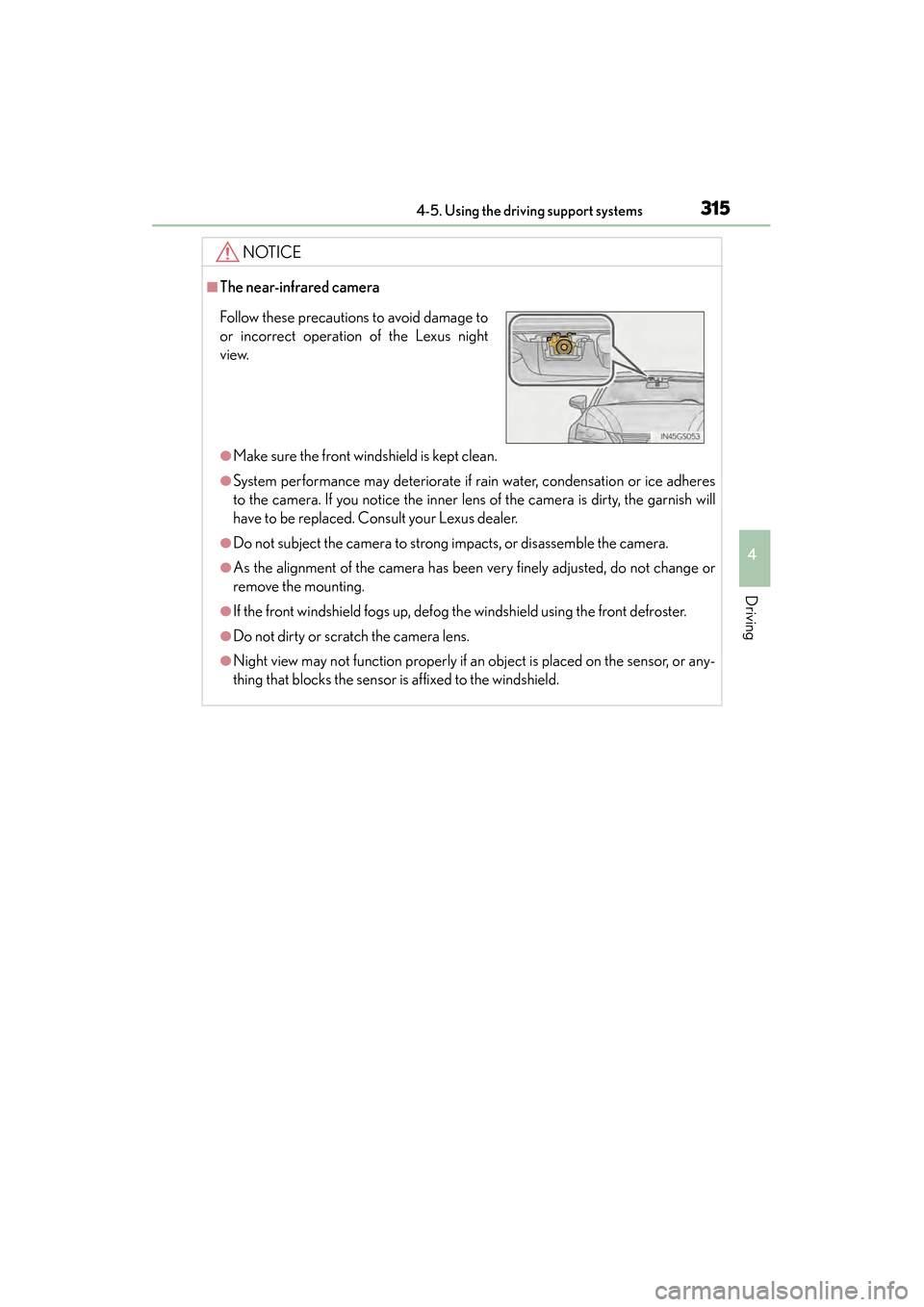
NOTICE
■The near-infrared camera
●Make sure the front windshield is kept clean.
●System performance may deteriorate if rain water, condensation or ice adheres
to the camera. If you notice the inner lens of the camera is dirty, the garnish will
have to be replaced. Consult your Lexus dealer.
●Do not subject the camera to strong impacts, or disassemble the camera.
●As the alignment of the camera has been very finely adjusted, do not change or
remove the mounting.
●If the front windshield fogs up, defog the windshield using the front defroster.
●Do not dirty or scratch the camera lens.
●Night view may not function properly if an object is placed on the sensor, or any-
thing that blocks the sensor is affixed to the windshield.
Follow these precautions to avoid damage to
or incorrect operation of the Lexus night
view.
GS450h_U.book Page 315 Monday, January 23, 2012 10:20 AM
Page 329 of 862
328
GS450h_U (OM30D01U)
5-1. Remote Touch screen
Remote Touch
“∧ •∨ ” button
Press this button to change map scale and scroll through lists.
“COMPASS” button
Press this button to display the compass mode screen.
Remote Touch knob
Use this knob to move the cursor and select items on the screen.
Feedback force, pointer sound volume, on or off of selection sounds etc. can be
changed.
“MENU” button
Press to display the “Menu” screen.
The Remote Touch can be used to operate the Remote Touch screens.
Owners of models equipped with a na vigation system should refer to
the “Navigation System Owner’s Manual”.
The illustration below is for ve hicles without navigation system.
1
2
3
4
GS450h_U.book Page 328 Monday, January 23, 2012 10:20 AM
Page 330 of 862

GS450h_U (OM30D01U)
3295-1. Remote Touch screen
5
Interior features
CAUTION
■When using the Remote Touch
●Do not allow fingers, fingernails or hair to become caught in the Remote Touch as
this may cause an injury.
●Be careful when selecting the Remote Touch in extreme temperatures as it may
become very hot or cold due to the temperature inside the vehicle.
NOTICE
■To prevent damage to the Remote Touch
●Do not allow the Remote Touch to come into contact with food, liquid, stickers or
lit cigarettes as doing so may cause it to change color, emit a strange odor or stop
functioning.
●Do not subject the Remote Touch to excessive pressure or strong impact as the
knob may bend or break off.
●Do not allow coins, contact lenses or other such items to become caught in the
Remote Touch as this may cause it to stop functioning.
●Items of clothing may rip if they become caught on the Remote Touch knob.
●If your hand or any object is on the Remote Touch knob when the power switch is
turned to ACCESSORY mode, the Remote Touch knob may not operate prop-
erly.
GS450h_U.book Page 329 Monday, January 23, 2012 10:20 AM
Page 332 of 862
GS450h_U (OM30D01U)
3315-1. Remote Touch screen
5
Interior features
If the power switch is turned to
ACCESSORY or ON mode, the
initial screen will be displayed for a
few seconds as the system starts up.
Images shown on the initial screen can
be changed to suit individual prefer-
ences. (→P. 3 4 1 )
SwitchPa g e
“Destination”Navigation System Owner’s Manual
“Info/Apps” or “Info”P. 1 0 9 /
Navigation System Owner’s Manual
“Setup”P. 3 3 6
“Radio”P. 3 8 6 , 4 0 9
“Media”P. 3 8 6 , 4 3 5
“Climate”P. 3 6 4
“Phone”P. 5 0 6
“Display”P. 3 3 2
Initial screen
GS450h_U.book Page 331 Monday, January 23, 2012 10:20 AM
Page 334 of 862

GS450h_U (OM30D01U)
3335-1. Remote Touch screen
5
Interior features
■When using the Remote Touch screen
●If the screen is cold, the display may be dark, or the system may seem to be operat-
ing slightly slower than normal.
●When the screen is viewed through polarized sunglasses, a rainbow pattern may
appear on the screen due to optical characteristics of the screen. If this is disturb-
ing, please operate the screen without polarized sunglasses.
●Dimmed screen buttons cannot be operated.
■Changing between day mode and night mode
The display condition is not changed to night mode even if the headlight switch is
turned on when the vehicle is in a bright area such as daytime.
■To t u r n o f f t h e d i s p l a y
The display goes off when “Screen Off” is selected. To turn the “Display” screen back
on, select any button. The selected screen appears. To display the screen in day mode, even with
the headlight switch on, select “Day Mode”
for brightness and contrast control.
If the screen is set to day mode with the
headlight switch turned on, this condition is
memorized even with the hybrid system
turned off.
NOTICE
■To avoid damaging the Remote Touch screen
Wipe off fingerprints using a glass cleaning cloth. Do not use chemical cleaners to
clean the screen, as they may damage the Remote Touch screen.
GS450h_U.book Page 333 Monday, January 23, 2012 10:20 AM