2013 KIA CEED radio
[x] Cancel search: radioPage 337 of 1168
Features of your vehicle
258
4
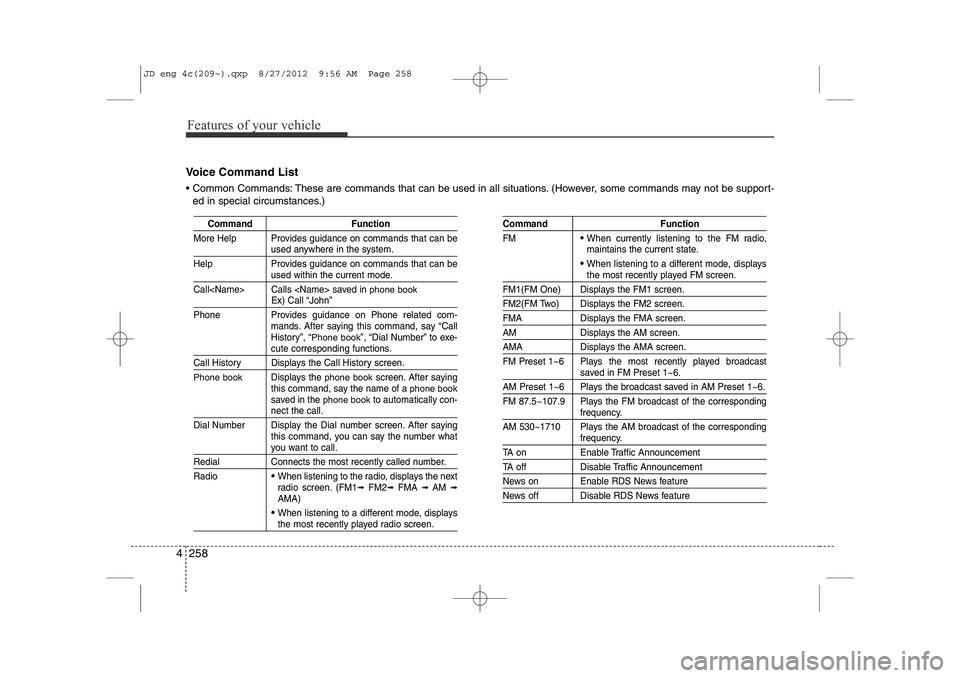
Command Function
More Help Provides guidance on commands that can be
used anywhere in the system.
Help Provides guidance on commands that can be
used within the current mode.
Call
phone bookEx) Call “John”
Phone Provides guidance on Phone related com- mands. After saying this command, say “Call
History”, “
Phone book”, “Dial Number” to exe-cute corresponding functions.
Call History Displays the Call History screen.
Phone bookDisplays the phone bookscreen. After saying
this command, say the name of a phone booksaved in the phone bookto automatically con-nect the call.
Dial Number Display the Dial number screen. After saying this command, you can say the number what
you want to call.
Redial Connects the most recently called number. Radio
When listening to the radio, displays the next
radio screen. (FM1 ➟FM2 ➟FMA ➟ AM ➟
AMA)
When listening to a different mode, displaysthe most recently played radio screen.
Command Function FM
When currently listening to the FM radio,
maintains the current state.
When listening to a different mode, displaysthe most recently played FM screen.
FM1(FM One) Displays the FM1 screen.
FM2(FM Two) Displays the FM2 screen.
FMA Displays the FMA screen.
AM Displays the AM screen.
AMA Displays the AMA screen.
FM Preset 1~6 Plays the most recently played broadcast
saved in FM Preset 1~6.
AM Preset 1~6 Plays the broadcast saved in AM Preset 1~6.
FM 87.5~107.9 Plays the FM broadcast of the corresponding
frequency.
AM 530~1710 Plays the AM broadcast of the corresponding
frequency.
TA on Enable Traffic Announcement
TA off Disable Traffic Announcement
News on Enable RDS News feature
News off Disable RDS News feature
Voice Command List
Common Commands: These are commands that can be used in all situations. (However, some commands may not be support- ed in special circumstances.)
JD eng 4c(209~).qxp 8/27/2012 9:56 AM Page 258
Page 338 of 1168
4 259
Features of your vehicle
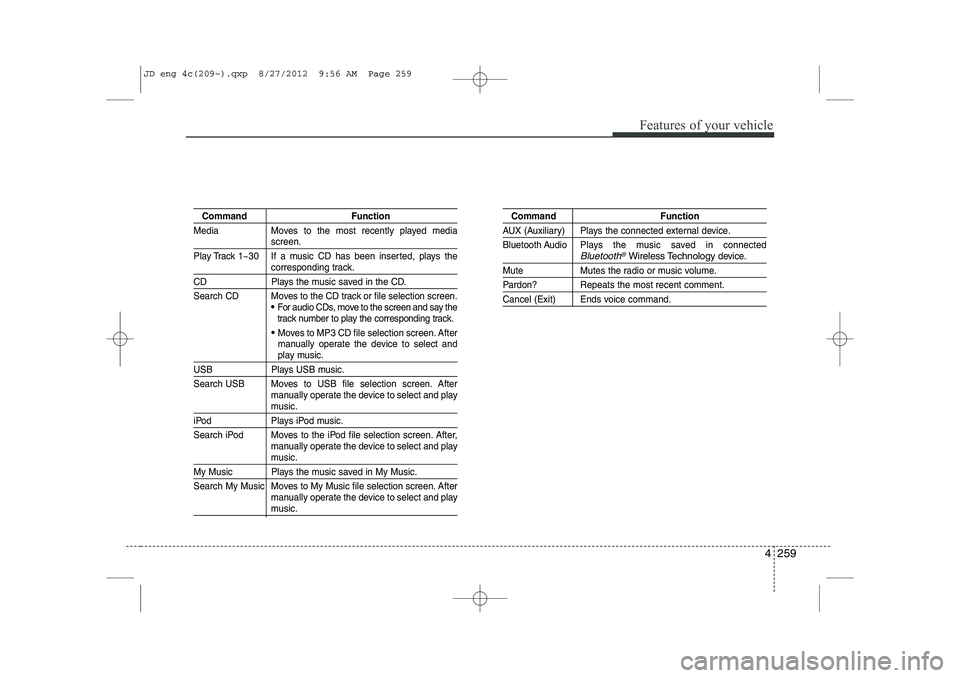
Command Function
Media Moves to the most recently played media
screen.
Play Track 1~30 If a music CD has been inserted, plays the
corresponding track.
CD Plays the music saved in the CD.
Search CD Moves to the CD track or file selection screen.
For audio CDs, move to the screen and say the
track number to play the corresponding track.
Moves to MP3 CD file selection screen. After
manually operate the device to select and
play music.
USB Plays USB music.
Search USB Moves to USB file selection screen. After manually operate the device to select and play
music.
iPod Plays iPod music.
Search iPod Moves to the iPod file selection screen. After,manually operate the device to select and play
music.
My Music Plays the music saved in My Music.
Search My Music Moves to My Music file selection screen. Aftermanually operate the device to select and play
music.
Command Function
AUX (Auxiliary) Plays the connected external device.
Bluetooth Audio Plays the music saved in connected
Bluetooth®Wireless Technologydevice.
Mute Mutes the radio or music volume.
Pardon? Repeats the most recent comment.
Cancel (Exit) Ends voice command.
JD eng 4c(209~).qxp 8/27/2012 9:56 AM Page 259
Page 339 of 1168
Features of your vehicle
260
4
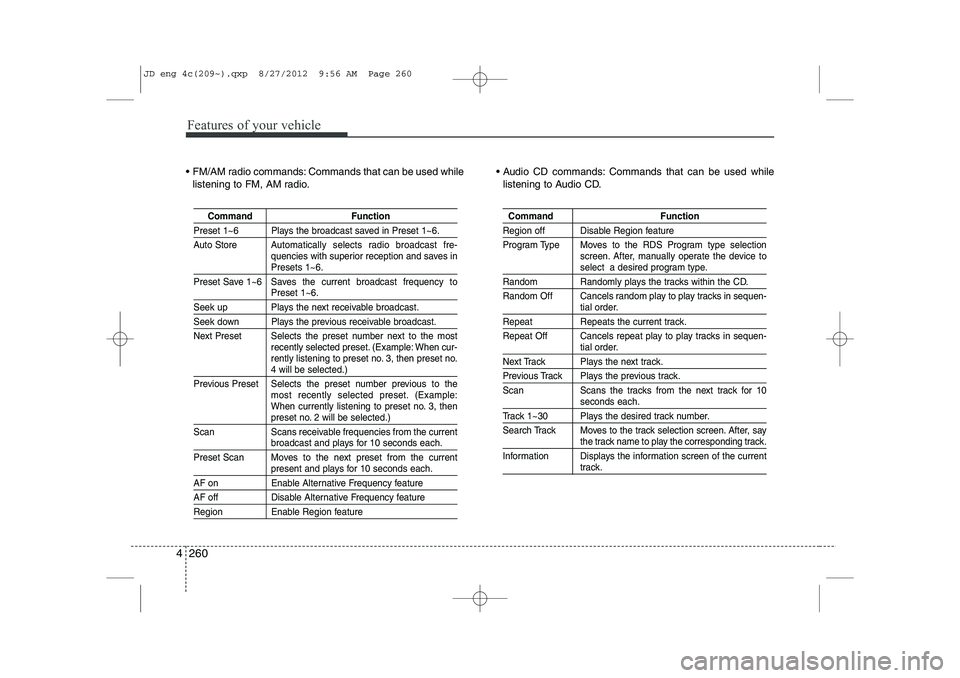
FM/AM radio commands: Commands that can be used while
listening to FM, AM radio. Audio CD commands: Commands that can be used while
listening to Audio CD.
Command Function
Preset 1~6 Plays the broadcast saved in Preset 1~6.
Auto Store A utomatically selects radio broadcast fre-
quencies with superior reception and saves in
Presets 1~6.
Preset Save 1~6 Saves the current broadcast frequency to
Preset 1~6.
Seek up Plays the next receivable broadcast.
Seek down Plays the previous receivable broadcast.
Next Preset Selects the preset number next to the most recently selected preset. (Example: When cur-
rently listening to preset no. 3, then preset no.
4 will be selected.)
Previous Preset Selects the preset number previous to the most recently selected preset. (Example:
When currently listening to preset no. 3, then
preset no. 2 will be selected.)
Scan Scans receivable frequencies from the current
broadcast and plays for 10 seconds each.
Preset Scan Moves to the next preset from the current
present and plays for 10 seconds each.
AF on Enable Alternative Frequency feature
AF off Disable Alternative Frequency feature
Region Enable Region feature
Command Function
Region off Disable Region feature
Program Type Moves to the RDS Program type selection screen. After, manually operate the device to
select a desired program type.
Random Randomly plays the tracks within the CD.
Random Off Cancels random play to play tracks in sequen-
tial order.
Repeat Repeats the current track.
Repeat Off Cancels repeat play to play tracks in sequen-
tial order.
Next Track Plays the next track.
Previous Track Plays the previous track.
Scan Scans the tracks from the next track for 10
seconds each.
Track 1~30 Plays the desired track number.
Search Track Moves to the track selection screen. After, say
the track name to play the corresponding track.
Information Displays the information screen of the current
track.
JD eng 4c(209~).qxp 8/27/2012 9:56 AM Page 260
Page 447 of 1168

What to do in an emergency
26
6
Changing a tire with TPMS
If you have a flat tire, the low Tire
Pressure and Position telltales will
come on. We recommend that the
system be checked by an authorized
Kia dealer. Each wheel is equipped with a tire pressure sensor mounted inside the
tire behind the valve stem. You must
use TPMS specific wheels. It is rec-
ommended that you have your tires
serviced by an authorized Kia dealer. If you drive the vehicle for about 10
minutes at speeds above 25 km/h
after replaceing the low pressure tire
with the spare tire, one of the follow-ing will happen:
The TPMS malfunction indicator
may blink for approximately 1
minute and then remain continuous-
ly illuminated because the TPMSsensor is not mounted on the spare
wheel. (changed tire equipped with
a sensor not in the vehicle)
The TPMS malfunction indicator will remain continuously illuminated
while driving because the TPMSsensor is not mounted on the spare
wheel. (changed tire equipped with
a sensor in the vehicle)CAUTION
The TPMS malfunction indica-
tor may blink for approximate-ly 1 minute and then remaincontinuously illuminated if thevehicle is moving around elec- tric power supply cables orradios transmitter such as atpolice stations, government and public offices, broadcast-ing stations, military installa-tions, airports, or transmitting towers, etc. This can interferewith normal operation of theTire Pressure Monitoring System (TPMS).
The TPMS malfunction indica- tor may blink for approximate-ly 1 minute and then remaincontinuously illuminated if snow chains are used or someseparate electronic devicessuch as notebook computer, mobile charger, remote starteror navigation etc., are used inthe vehicle. This can interfere with normal operation of theTire Pressure MonitoringSystem (TPMS).
CAUTION
We recommend that you use thesealant approved by Kia.
The sealant on the tire pressuresensor and wheel shall be elem-inated when you replace the tire with a new one.
JD eng 6.QXP 7/17/2012 10:47 AM Page 26
Page 833 of 1168
Features of your vehicle
170
4
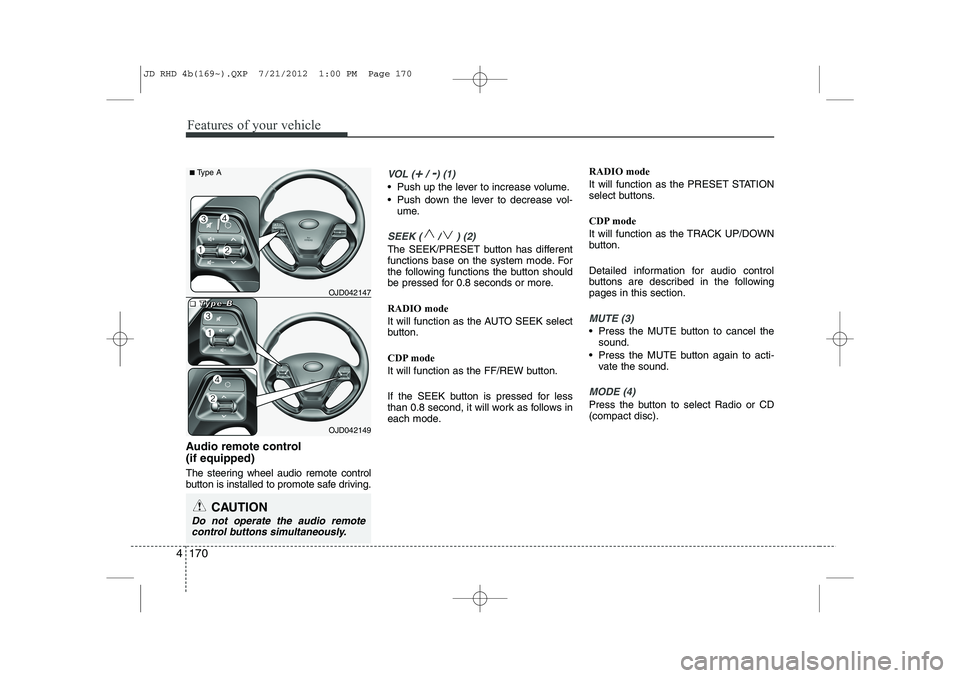
Audio remote control (if equipped)
The steering wheel audio remote control
button is installed to promote safe driving.
VOL (+/ -) (1)
• Push up the lever to increase volume.
Push down the lever to decrease vol-
ume.
SEEK ( / ) (2)
The SEEK/PRESET button has different
functions base on the system mode. For
the following functions the button should
be pressed for 0.8 seconds or more. RADIO mode
It will function as the AUTO SEEK select
button.
CDP mode
It will function as the FF/REW button.
If the SEEK button is pressed for less
than 0.8 second, it will work as follows in
each mode. RADIO mode
It will function as the PRESET STATION
select buttons.
CDP mode
It will function as the TRACK UP/DOWN
button.
Detailed information for audio control
buttons are described in the followingpages in this section.
MUTE (3)
Press the MUTE button to cancel the
sound.
Press the MUTE button again to acti- vate the sound.
MODE (4)
Press the button to select Radio or CD (compact disc).
CAUTION
Do not operate the audio remote
control buttons simultaneously.
OJD042149
■
■■■TTTTyyyyppppeeee BBBBOJD042147
■
Type A
JD RHD 4b(169~).QXP 7/21/2012 1:00 PM Page 170
Page 834 of 1168
4 171
Features of your vehicle
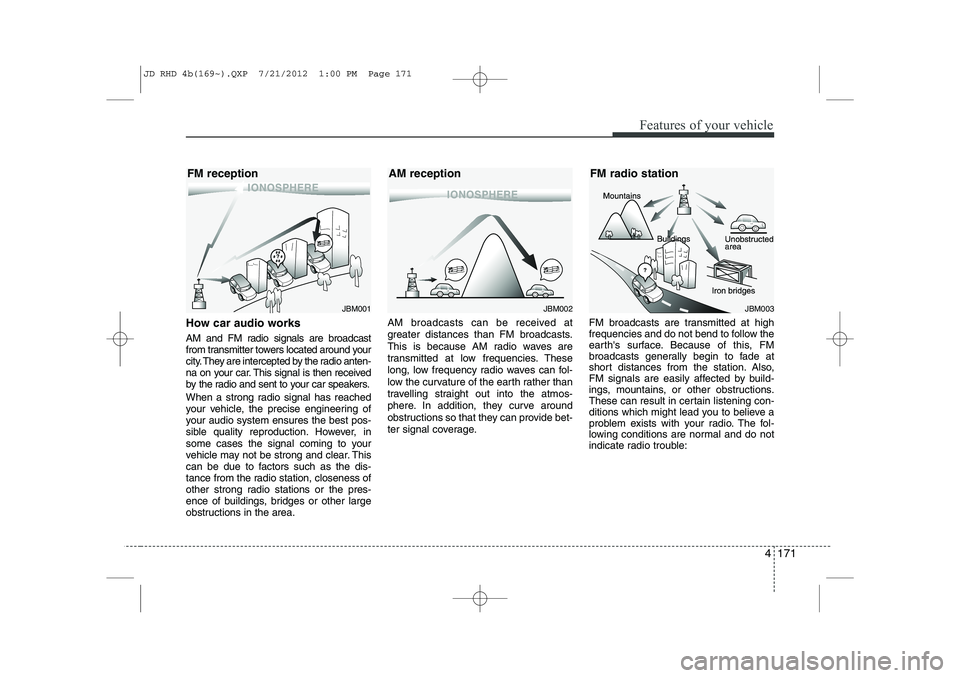
How car audio works
AM and FM radio signals are broadcast
from transmitter towers located around your
city. They are intercepted by the radio anten-
na on your car. This signal is then received
by the radio and sent to your car speakers.
When a strong radio signal has reached
your vehicle, the precise engineering of
your audio system ensures the best pos-
sible quality reproduction. However, in
some cases the signal coming to your
vehicle may not be strong and clear. This
can be due to factors such as the dis-
tance from the radio station, closeness of
other strong radio stations or the pres-
ence of buildings, bridges or other large
obstructions in the area.AM broadcasts can be received at
greater distances than FM broadcasts.
This is because AM radio waves are
transmitted at low frequencies. These
long, low frequency radio waves can fol-
low the curvature of the earth rather than
travelling straight out into the atmos-
phere. In addition, they curve around
obstructions so that they can provide bet-
ter signal coverage.
FM broadcasts are transmitted at high
frequencies and do not bend to follow the
earth's surface. Because of this, FM
broadcasts generally begin to fade at
short distances from the station. Also,
FM signals are easily affected by build-
ings, mountains, or other obstructions.
These can result in certain listening con-
ditions which might lead you to believe a
problem exists with your radio. The fol-
lowing conditions are normal and do not
indicate radio trouble:
JBM001JBM002JBM003
FM reception AM reception FM radio station
JD RHD 4b(169~).QXP 7/21/2012 1:00 PM Page 171
Page 835 of 1168
Features of your vehicle
172
4
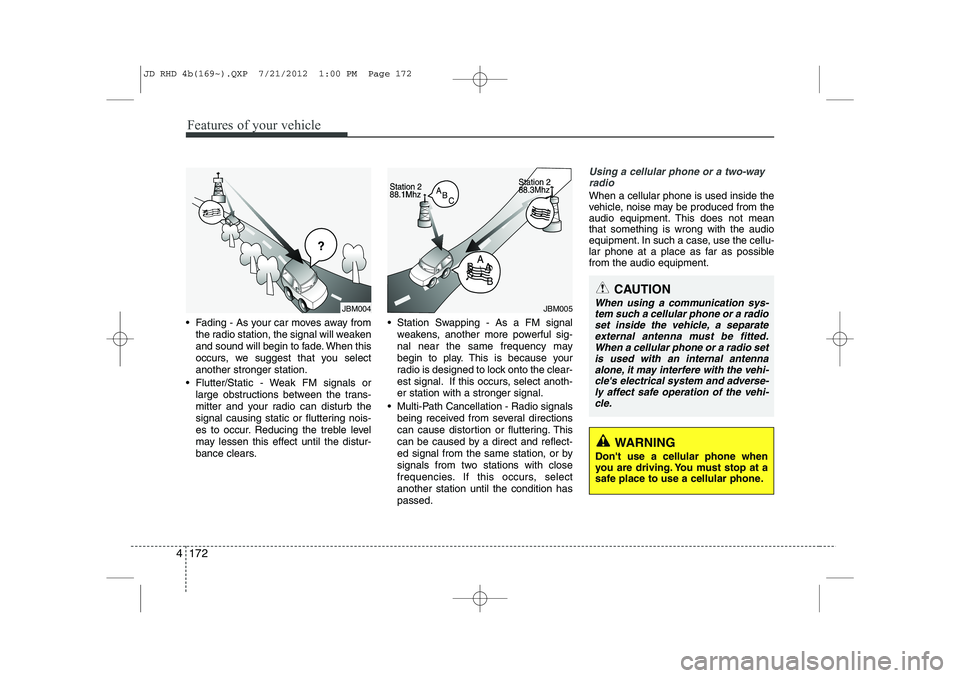
Fading - As your car moves away from
the radio station, the signal will weaken
and sound will begin to fade. When this
occurs, we suggest that you selectanother stronger station.
Flutter/Static - Weak FM signals or large obstructions between the trans-
mitter and your radio can disturb the
signal causing static or fluttering nois-
es to occur. Reducing the treble level
may lessen this effect until the distur-
bance clears. Station Swapping - As a FM signal
weakens, another more powerful sig-
nal near the same frequency may
begin to play. This is because your
radio is designed to lock onto the clear-
est signal. If this occurs, select anoth-er station with a stronger signal.
Multi-Path Cancellation - Radio signals being received from several directions
can cause distortion or fluttering. This
can be caused by a direct and reflect-
ed signal from the same station, or by
signals from two stations with close
frequencies. If this occurs, selectanother station until the condition haspassed.
Using a cellular phone or a two-wayradio
When a cellular phone is used inside the
vehicle, noise may be produced from the
audio equipment. This does not meanthat something is wrong with the audio
equipment. In such a case, use the cellu-
lar phone at a place as far as possiblefrom the audio equipment.
JBM004JBM005
CAUTION
When using a communication sys-
tem such a cellular phone or a radio set inside the vehicle, a separateexternal antenna must be fitted.
When a cellular phone or a radio setis used with an internal antenna alone, it may interfere with the vehi-cle's electrical system and adverse-
ly affect safe operation of the vehi- cle.
WARNING
Don't use a cellular phone when
you are driving. You must stop at a
safe place to use a cellular phone.
JD RHD 4b(169~).QXP 7/21/2012 1:00 PM Page 172
Page 839 of 1168
Features of your vehicle
176
4
USING YOUR USB DEVICE
To use an external USB device,
make sure the device is not connect-
ed when starting up the vehicle.
Connect the device after starting up.
If you start the engine when the USB device is connected, it may damage
the USB device. (USB flashdrives
are very sensitive to electric shock.)
If the engine is started up or turned off whilst the external USB device is
connected, the external USB device
may not work.
It may not play inauthentic MP3 or WMA files.
1) It can only play MP3 files with the compression rate between
8Kbps~320Kbps.
2) It can only play WMA music files with the compression rate
between 8Kbps~320Kbps.
Take precautions for static electricity when connecting or disconnecting the
external USB device.
An encrypted MP3 PLAYER is not recognizable. Depending on the condition of the
external USB device, the connected
external USB device can be unrec-
ognizable.
When the formatted byte/sector set- ting of External USB device is noteither 512BYTE or 2048BYTE, then
the device will not be recognized.
Use only a USB device formatted to FAT 12/16/32.
USB devices without USB I/F authentica-
tion may not be recognizable.
Make sure the USB connection termi- nal does not come in contact with the
human body or other objects.
If you repeatedly connect or discon- nect the USB device in a short peri-
od of time, it may break the device.
You may hear a strange noise when connecting or disconnecting a USB
device.
If you disconnect the external USB device during playback in USB mode,
the external USB device can be dam-
aged or may malfunction. Therefore,
disconnect the external USB device
when the audio is turned off or in
another mode. (e.g, Radio, CD)
Depending on the type and capacity ofthe external USB device or the type of
the files stored in the device, there is a
difference in the time taken for recogni-
tion of the device.
Do not use the USB device for purposes other than playing music files.
Playing videos through the USB is not supported.
Use of USB accessories such as rechargers or heaters using USB I/F
may lower performance or cause
trouble.
If you use devices such as a USB hub purchased separately, the vehi-
cle’s audio system may not recog-
nize the USB device. In that case,
connect the USB device directly to
the multimedia terminal of the vehi-
cle.
If the USB device is divided by logi- cal drives, only the music files on the
highest-priority drive are recognized
by car audio.
Devices such as MP3 Player/ Cellular phone/Digital camera can be
unrecognizable by standard USB I/F
can be unrecognizable.
(Continued)
JD RHD 4b(169~).QXP 7/21/2012 1:00 PM Page 176