Page 134 of 1168
455
Features of your vehicle
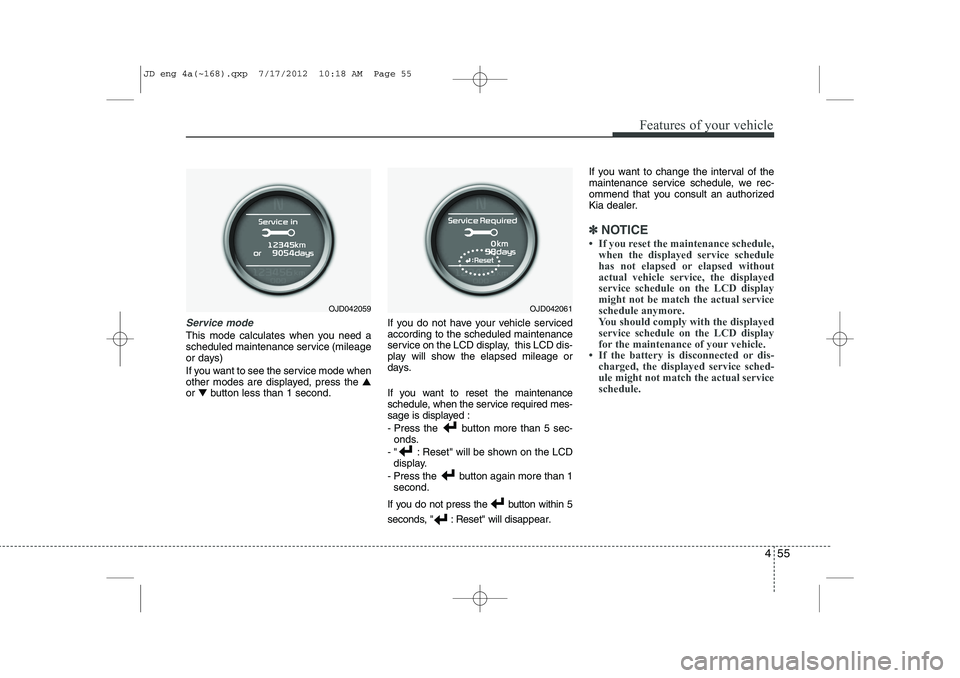
Service mode
This mode calculates when you need a
scheduled maintenance service (mileage
or days)
If you want to see the service mode when
other modes are displayed, press the ▲
or ▼ button less than 1 second. If you do not have your vehicle servicedaccording to the scheduled maintenance
service on the LCD display, this LCD dis-
play will show the elapsed mileage or
days.
If you want to reset the maintenance
schedule, when the service required mes-
sage is displayed :
- Press the button more than 5 sec-
onds.
- " : Reset" will be shown on the LCD display.
- Press the button again more than 1 second.
If you do not press the button within 5
seconds, " : Reset" will disap pear.If you want to change the interval of the
maintenance service schedule, we rec-
ommend that you consult an authorized
Kia dealer.
✽✽
NOTICE
Page 135 of 1168
Features of your vehicle
56
4
If service mode is not activated, the LCD
display shows, like the above picture.
In this case, we recommend that you
consult an authorized Kia dealer.User Settings
In this mode there are 3 kinds of the sub-
menu. 1. Stop the vehicle with the ignition
switch in the ON position or engine
running.
2. Press the ▲ or ▼ button until the User
setting mode is displayed.
3. With the User setting mode displayed, press the button until the screenis changed.
4. You can change the item by pressing the ▲ or ▼ button and select an item
by pressing the button.
OJD042063OJD042064OJD042060
JD eng 4a(~168).qxp 7/17/2012 10:18 AM Page 56
Page 143 of 1168
Features of your vehicle
64
4
Trip computer
The trip computer is a microcomputer-
controlled driver information system that
displays information related to driving
when the ignition switch is in the ONposition. Press the button for less than 1 sec-
ond to select any group as follows :
OJD042172
Engine coolant temperature gauge
User setting mode
Service mode
LANE DEPARTURE WARNING
SYSTEM*
Trip mode
* : if equipped
Trip mode A
Trip mode B
Driving information mode
Press the▼button for less than 1
second to select in Trip mode group
as follows :
JD eng 4a(~168).qxp 7/17/2012 10:19 AM Page 64
Page 147 of 1168
Features of your vehicle
68
4
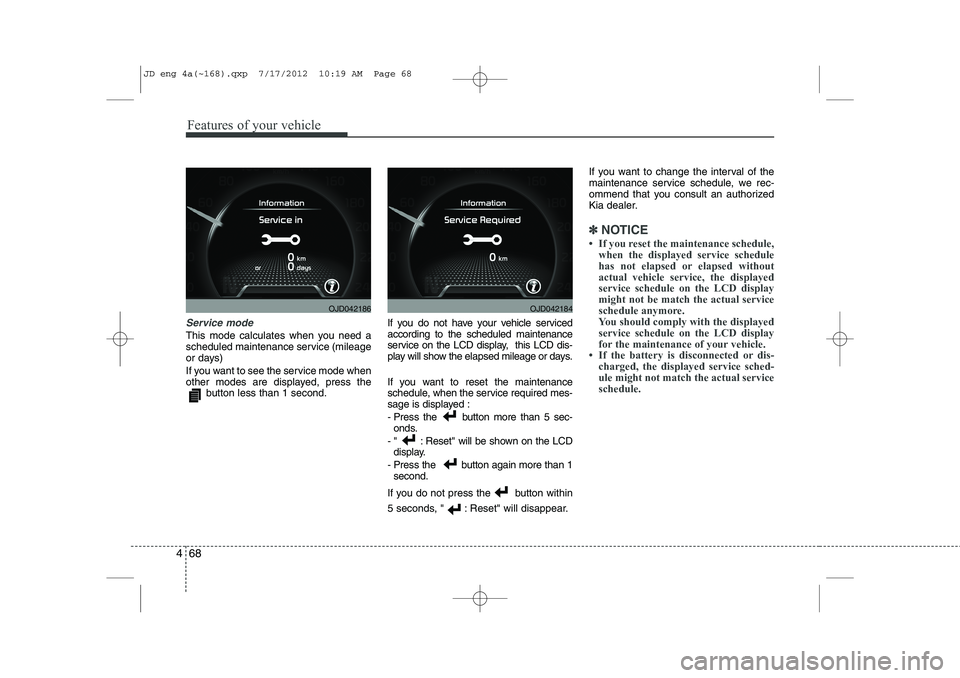
Service mode
This mode calculates when you need a
scheduled maintenance service (mileage
or days)
If you want to see the service mode when
other modes are displayed, press the
button less than 1 second. If you do not have your vehicle servicedaccording to the scheduled maintenance
service on the LCD display, this LCD dis-
play will show the elapsed mileage or days.
If you want to reset the maintenance
schedule, when the service required mes-
sage is displayed :
- Press the button more than 5 sec-
onds.
- " : Reset" will be shown on the LCD display.
- Press the button again more than 1 second.
If you do not press the button within
5 seconds, " : Reset" will disappear. If you want to change the interval of the
maintenance service schedule, we rec-
ommend that you consult an authorized
Kia dealer.
✽✽
NOTICE
Page 148 of 1168
469
Features of your vehicle
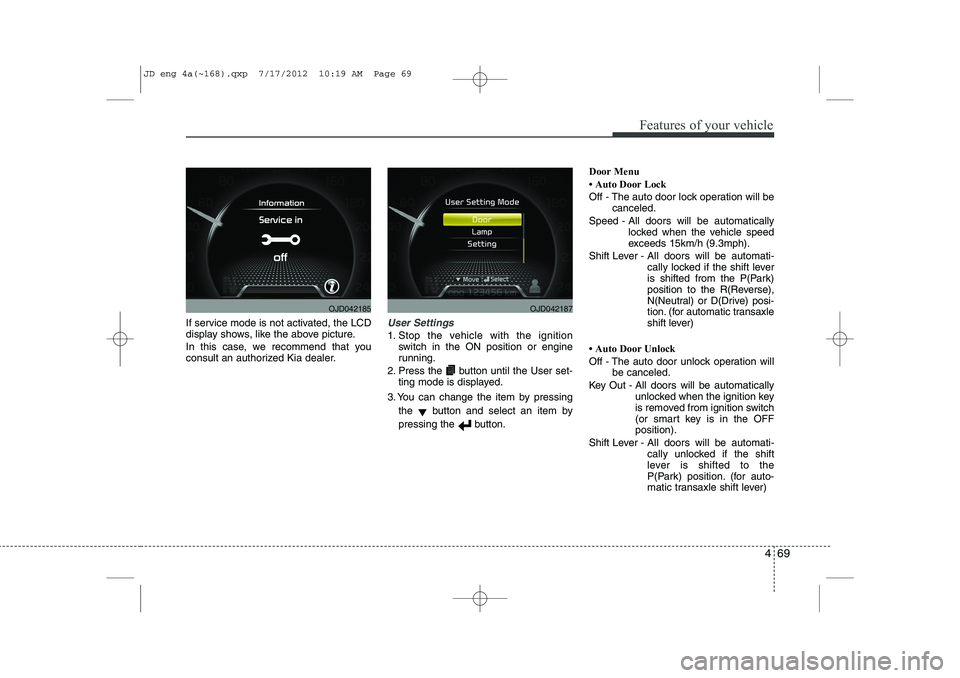
If service mode is not activated, the LCD
display shows, like the above picture.
In this case, we recommend that you
consult an authorized Kia dealer.User Settings
1. Stop the vehicle with the ignitionswitch in the ON position or engine
running.
2. Press the button until the User set- ting mode is displayed.
3. You can change the item by pressing the ▼button and select an item by
pressing the button. Door Menu
Page 252 of 1168

4 173
Features of your vehicle
CAUTION
Operating the device while driv-ing could lead to accidents due to
a lack of attention to external sur- roundings. First park the vehiclebefore operating the device.
Adjust the volume to levels that allow the driver to hear soundsfrom outside of the vehicle. Driving in a state where external sounds cannot be heard may lead
to accidents.
Pay attention to the volume set- ting when turning the device on.A sudden output of extreme vol-
ume upon turning the device oncould lead to hearing impairment. (Adjust the volume to a suitablelevels before turning off the
device.)
If you want to change the position of device installation, pleaseinquire with your place of pur-chase or service maintenance
center. Technical expertise isrequired to install or disassemble the device.
(Continued)
WARNING
Do not stare at the screen whiledriving. Staring at the screen for
prolonged periods of time couldlead to traffic accidents.
Do not disassemble, assemble, or modify the audio system. Such
acts could result in accidents, fire, or electric shock.
Using the phone while driving may lead to a lack of attention of trafficconditions and increase the likeli-
hood of accidents. Use the phone feature after parking thevehicle.
Heed caution not to spill water or introduce foreign objects into thedevice. Such acts could lead tosmoke, fire, or product malfunc-tion.
Please refrain from use if the screen is blank or no sound canbe heard as these signs may indi-cate product malfunction.Continued use in such conditions
could lead to accidents(fires,electric shock) or product mal-functions.
(Continued)
(Continued) Do not touch the antenna during thunder or lightening as suchacts may lead to lightninginduced electric shock.
Do not stop or park in parking- restricted areas to operate theproduct. Such acts could lead to traffic accidents.
Use the system with the vehicle ignition turned on. Prolonged usewith the ignition turned off could result in battery discharge.
JD eng 4b(169~).qxp 7/19/2012 3:45 PM Page 173
Page 253 of 1168

Features of your vehicle
174
4
(Continued)
Turn on the car ignition before using this device. Do not operatethe audio system for long periods of time with the ignition turned off
as such operations may lead to battery discharge.
Do not subject the device to severe shock or impact. Direct
pressure onto the front side ofthe monitor may cause damage to the LCD or touch screen.
When cleaning the device, make sure to turn off the device anduse a dry and smooth cloth.Never use tough materials, chem- ical cloths, or solvents (alcohol,
benzene, thinners, etc.) as suchmaterials may damage the devicepanel or cause color/quality dete-rioration
Do not place beverages close to the audio system. Spilling bever-ages may lead to system mal-function.
(Continued)(Continued) In case of product malfunction, please contact your place of pur-chase or After Service center.
Placing the audio system within an electromagnetic environmentmay result in noise interference.
JD eng 4b(169~).qxp 7/19/2012 3:45 PM Page 174
Page 280 of 1168

4 201
Features of your vehicle
NOTE:
If you need more information about
Kia’s
Bluetooth® Wireless Technology.
Contact kia website “www.kia.com”
(OWNERS>General Info>
Bluetooth®
Wireless Technology
).
What is
Bluetooth® Wireless
Technology?
Bluetooth®Wireless Technology that
allows multiple devices to be connected
in a short range, low-powered devices
like hands-free, stereo headset, wireless
remote controller, etc. For more information,visit
the Bluetooth®Wireless Technologywebsite at www.Bluetooth.com
Bluetooth®Wireless Technology fea-
tures can be used only when the mobile phone has been paired and connected
with the device. For more information
on pairing and connecting
Bluetooth®
Wireless Technology endbled mobile
phones, refer to the “Phone Setup” sec-tion.
When a
Bluetooth®Wireless
Technology mobile phone is connected,
a ( ) icon will appear at the top of the
screen. If a ( ) icon is not displayed,this indicates that a
Bluetooth®
Wireless Technology enabled device
has not been connected. Your must
connect the device before use. For
more information on
Bluetooth®
Wireless Technology mobile phones,
refer to the “Phone Setup” section.
Pairing and connecting a
Bluetooth®
Wireless Technology enabled mobile
phone will work only when the
Bluetooth®Wireless Technology option
within your mobile phone has been
turned on. (Methods of turning on the
Bluetooth®Wireless Technology
enabled feature may differ depending
on the mobile phone.)
In some mobile phones, starting the ignition while talking through
Bluetooth®
Wireless Technology handsfree call willresult in the call becoming disconnect-
ed. (Switch the call back to your mobile
phone when starting the ignition.) Some features may not be supported in
some
Bluetooth®Wireless Technology
enabled mobile phone and devices.
Bluetooth®Wireless Technology func-
tions may operate unstably depending
on the communication state.
Do not use a cellular phone or perform
Bluetooth®Wireless Technologysettings
(e.g. pairing a phone) while driving.
Some
Bluetooth®Wireless Technology-
enabled phones ma y not be recognized
by the system or fully compatible withthe system.
Before using
Bluetooth®Wireless
Technologyrelated features of the audio
system, refer your phone’s User’s
Manual for phone-side
Bluetooth®
Wireless Technologyoperations.
The phone must be paired to the audiosystem to use Bluetooth®Wireless
Technologyrelated features.
You will not be able to use the hands- free feature when your phone (in the
car) is outside of the cellular service
area (e.g. in a tunnel, in a underground,in a mountainous area, etc.).
(Continued)
JD eng 4b(169~).qxp 7/19/2012 3:46 PM Page 201