Page 202 of 433
201
uuAudio System Basic OperationuPlaying the AM/FM Radio
Continued
Features
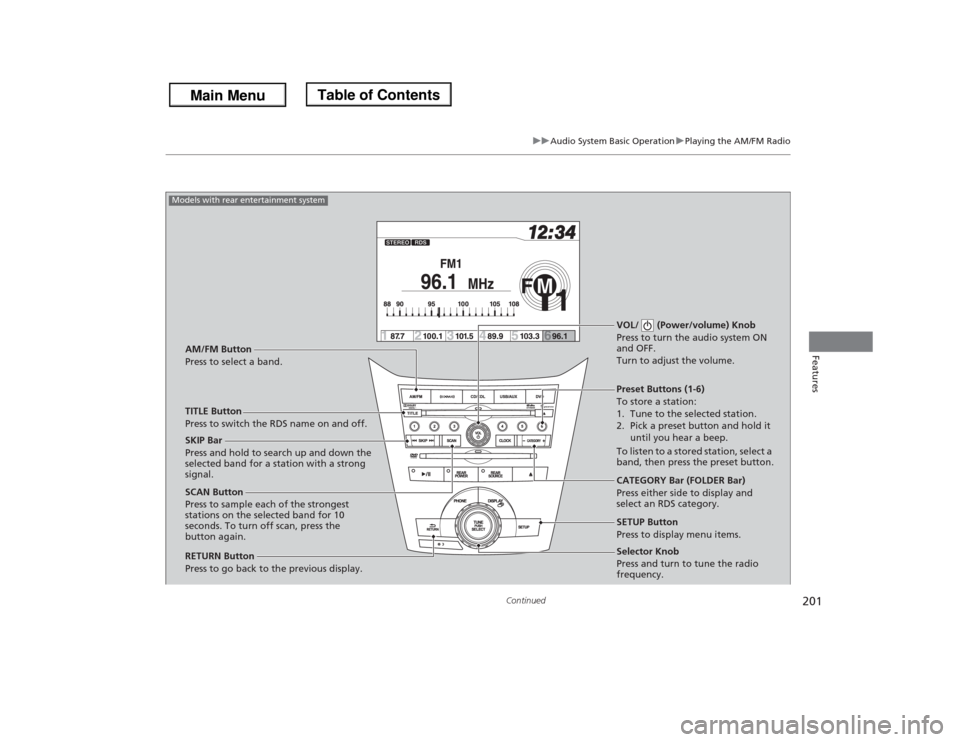
Selector Knob
Press and turn to tune the radio
frequency. SCAN Button
Press to sample each of the strongest
stations on the selected band for 10
seconds. To turn off scan, press the
button again.VOL/ (Power/volume) Knob
Press to turn the audio system ON
and OFF.
Turn to adjust the volume.Preset Buttons (1-6)
To store a station:
1. Tune to the selected station.
2. Pick a preset button and hold it
until you hear a beep.
To listen to a stored station, select a
band, then press the preset button. SKIP Bar
Press and hold to search up and down the
selected band for a station with a strong
signal.
CATEGORY Bar (FOLDER Bar)
Press either side to display and
select an RDS category. TITLE Button
Press to switch the RDS name on and off. AM/FM Button
Press to select a band.
RETURN Button
Press to go back to the previous display.SETUP Button
Press to display menu items.
Models with rear entertainment system
Page 203 of 433
uuAudio System Basic OperationuPlaying the AM/FM Radio
202Features
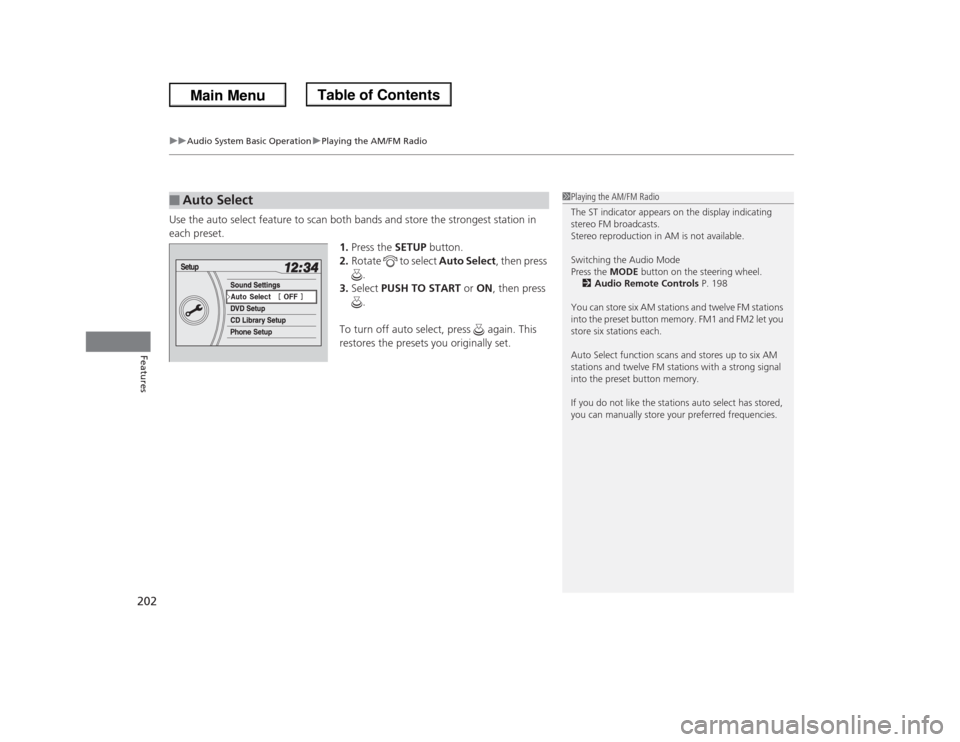
Use the auto select feature to scan both bands and store the strongest station in
each preset.
1.Press the SETUP button.
2.Rotate to select Auto Select, then press
.
3.Select PUSH TO START or ON, then press
.
To turn off auto select, press again. This
restores the presets you originally set.■
Auto Select
1Playing the AM/FM Radio
The ST indicator appears on the display indicating
stereo FM broadcasts.
Stereo reproduction in AM is not available.
Switching the Audio Mode
Press the MODE button on the steering wheel.
2Audio Remote Controls P. 198
You can store six AM stations and twelve FM stations
into the preset button memory. FM1 and FM2 let you
store six stations each.
Auto Select function scans and stores up to six AM
stations and twelve FM stations with a strong signal
into the preset button memory.
If you do not like the stations auto select has stored,
you can manually store your preferred frequencies.
Page 204 of 433
203
uuAudio System Basic OperationuPlaying the AM/FM Radio
Features
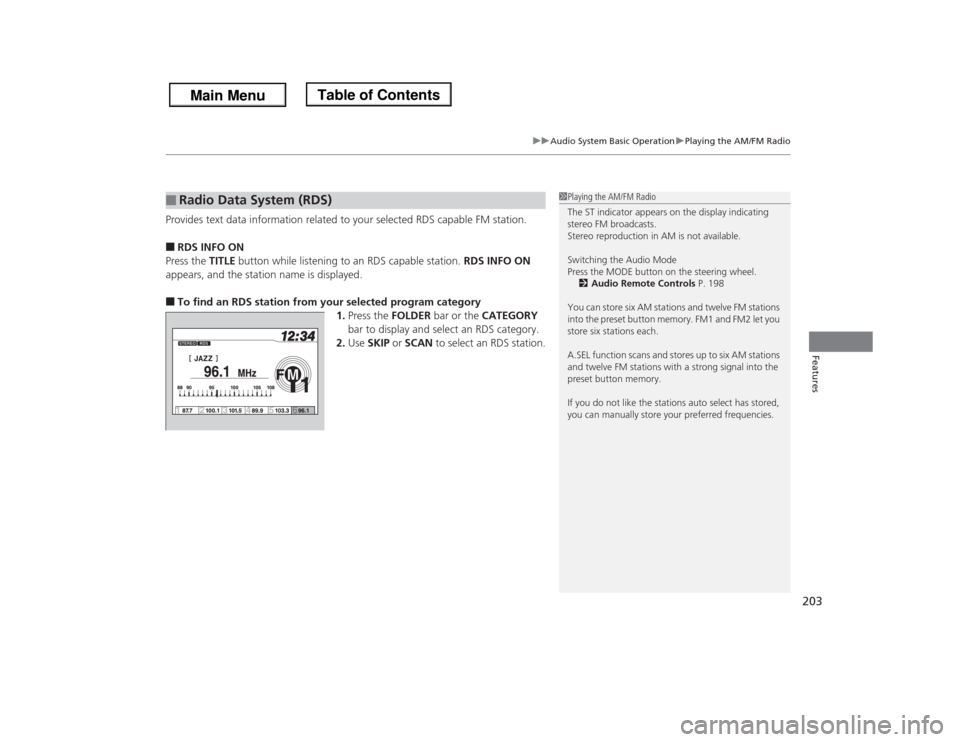
Provides text data information related to your selected RDS capable FM station.■RDS INFO ON
Press the TITLE button while listening to an RDS capable station. RDS INFO ON
appears, and the station name is displayed.■To find an RDS station from your selected program category
1.Press the FOLDER bar or the CATEGORY
bar to display and select an RDS category.
2.Use SKIP or SCAN to select an RDS station.■
Radio Data System (RDS)
1Playing the AM/FM Radio
The ST indicator appears on the display indicating
stereo FM broadcasts.
Stereo reproduction in AM is not available.
Switching the Audio Mode
Press the MODE button on the steering wheel.
2Audio Remote Controls P. 198
You can store six AM stations and twelve FM stations
into the preset button memory. FM1 and FM2 let you
store six stations each.
A.SEL function scans and stores up to six AM stations
and twelve FM stations with a strong signal into the
preset button memory.
If you do not like the stations auto select has stored,
you can manually store your preferred frequencies.
Page 205 of 433
204
uuAudio System Basic OperationuPlaying the XM® Radio
*
Features
Playing the XM® Radio
*
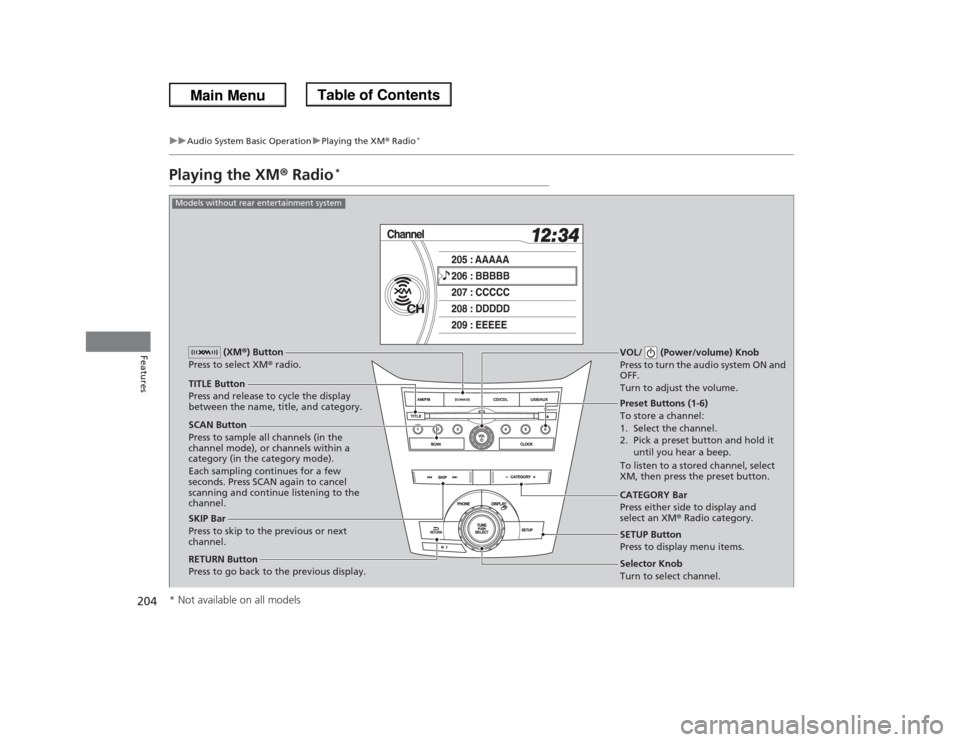
SCAN Button
Press to sample all channels (in the
channel mode), or channels within a
category (in the category mode).
Each sampling continues for a few
seconds. Press SCAN again to cancel
scanning and continue listening to the
channel.VOL/ (Power/volume) Knob
Press to turn the audio system ON and
OFF.
Turn to adjust the volume.
Preset Buttons (1-6)
To store a channel:
1. Select the channel.
2. Pick a preset button and hold it
until you hear a beep.
To listen to a stored channel, select
XM, then press the preset button.
SKIP Bar
Press to skip to the previous or next
channel.CATEGORY Bar
Press either side to display and
select an XM® Radio category. TITLE Button
Press and release to cycle the display
between the name, title, and category. (XM®) Button
Press to select XM® radio.
RETURN Button
Press to go back to the previous display.
Selector Knob
Turn to select channel. SETUP Button
Press to display menu items.
Models without rear entertainment system* Not available on all models
Page 206 of 433
205
uuAudio System Basic OperationuPlaying the XM® Radio
*
Continued
Features
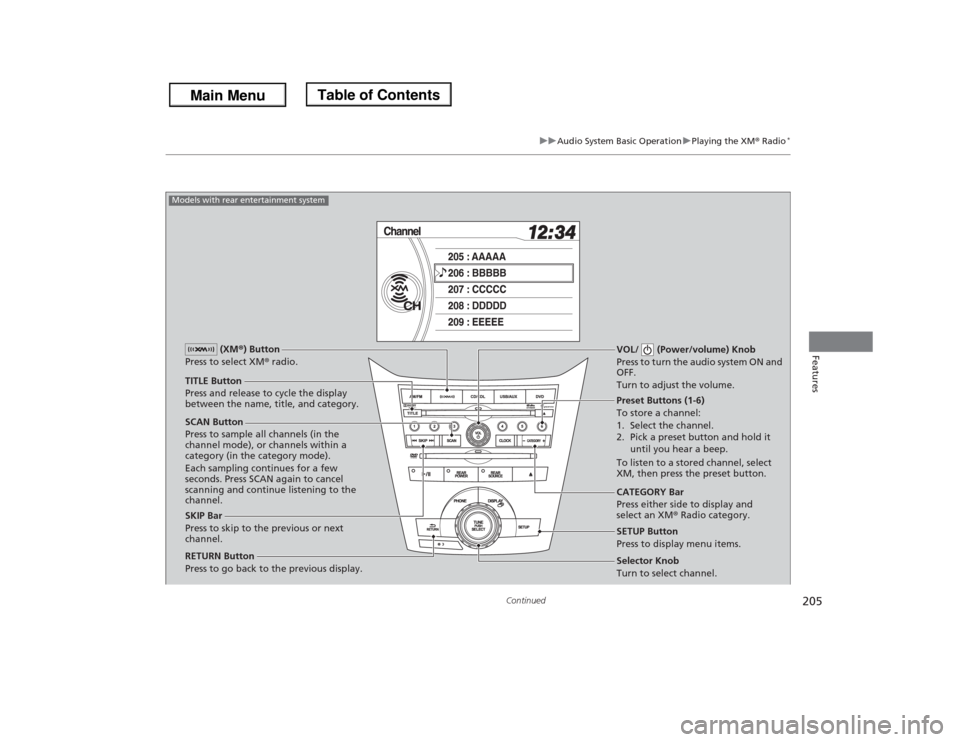
SCAN Button
Press to sample all channels (in the
channel mode), or channels within a
category (in the category mode).
Each sampling continues for a few
seconds. Press SCAN again to cancel
scanning and continue listening to the
channel.VOL/ (Power/volume) Knob
Press to turn the audio system ON and
OFF.
Turn to adjust the volume.
Preset Buttons (1-6)
To store a channel:
1. Select the channel.
2. Pick a preset button and hold it
until you hear a beep.
To listen to a stored channel, select
XM, then press the preset button.
SKIP Bar
Press to skip to the previous or next
channel.CATEGORY Bar
Press either side to display and
select an XM® Radio category. TITLE Button
Press and release to cycle the display
between the name, title, and category. (XM®) Button
Press to select XM® radio.
RETURN Button
Press to go back to the previous display.
Selector Knob
Turn to select channel. SETUP Button
Press to display menu items.
Models with rear entertainment system
Page 207 of 433
uuAudio System Basic OperationuPlaying the XM® Radio
*
206Features
1.Press the button to select the XM® radio band (XM1 or XM2).
2.Press and hold the TITLE button to switch between the channel mode and
category mode.
If you press the SETUP button, rotate to select XM Mode, and press . You
can select channel mode or category mode by turning and pressing the selector
knob.
3.Select a channel using the TUNE ( ), SKIP, CATEGORY, SCAN, or preset buttons.
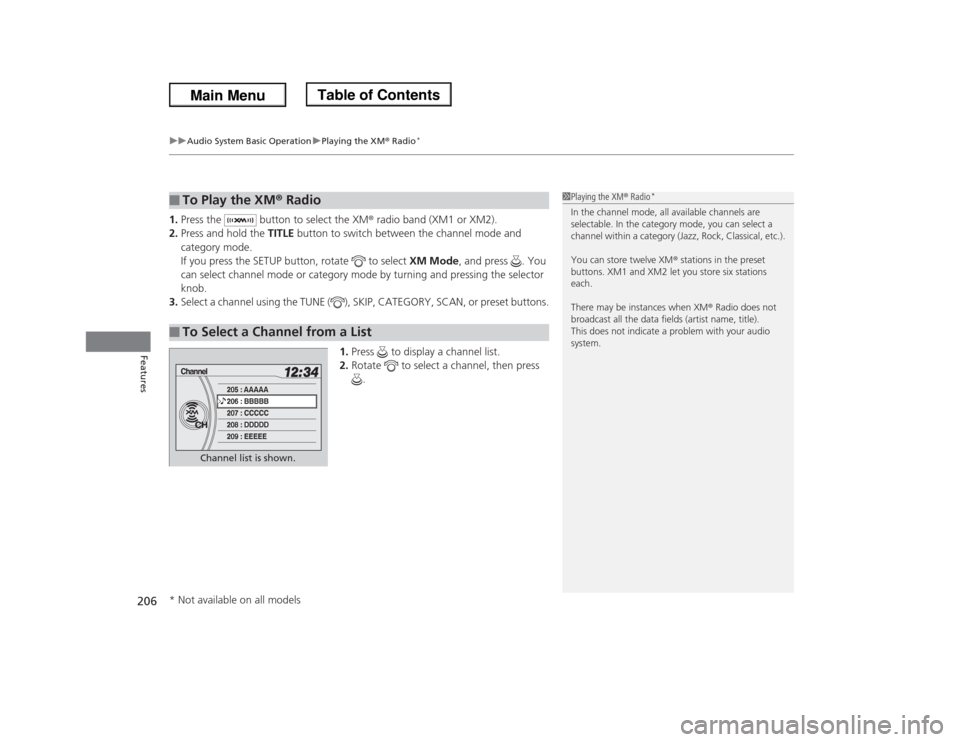
1.Press to display a channel list.
2.Rotate to select a channel, then press
.■
To Play the XM® Radio
■
To Select a Channel from a List
1Playing the XM® Radio
*
In the channel mode, all available channels are
selectable. In the category mode, you can select a
channel within a category (Jazz, Rock, Classical, etc.).
You can store twelve XM® stations in the preset
buttons. XM1 and XM2 let you store six stations
each.
There may be instances when XM® Radio does not
broadcast all the data fields (artist name, title).
This does not indicate a problem with your audio
system.
Channel list is shown.
* Not available on all models
Page 233 of 433
232Features
General Information on the Audio SystemXM® Radio Service
*
1.You need your radio ID ready before registering for subscription.
To see the ID on the display: Turn the selector knob until 0 appears.
2.Have your radio ID and credit card number ready, and either call or visit the XM®
website to subscribe.
Press the (XM®) button and stay in this mode for about 30 minutes until the
service is activated. Make sure your vehicle is in an open area with good reception.
LOADING: XM® is loading the audio or program information.
OFF AIR: The channel is not currently broadcasting.
UNAUTHORIZED: The encryption code is being updated. Channels 0 and 1 still
work normally.
NO SIGNAL: The signal is too weak in the current location.
UNAVAILABLE: No such channel exists, the channel is not part of your subscription,
or the artist or title information is unavailable.
CHECK ANTENNA: There is a problem with the XM® antenna. Contact a dealer.■
Subscribing to XM® Radio
■
Receiving XM® Radio
■
XM® Radio Display Messages
1Subscribing to XM® RadioContact Information for XM
® Radio:
US: XM® Radio at www.siriusxm.com or (800) 852-
9696
Canada: XM® Canada at www.xmradio.ca, or (877)
209-00791Receiving XM® RadioThe XM
® satellites are in orbit over the equator,
therefore, objects south of the vehicle may cause
satellite reception interruptions. Satellite signals are
more likely to be blocked by tall buildings and
mountains the farther north you travel from the
equator.
You may experience reception problems under the
following circumstances:•In a location with an obstruction to the south of
your vehicle.•In tunnels•On the lower level of a multi-tiered road•Large items carried on the roof rack
* Not available on all models
Page 237 of 433
236Features
Rear Entertainment System
*
For models with the navigation system, see the Navigation System Manual for how
to operate the rear entertainment system.
Allows the rear passengers to enjoy a different entertainment source, such as DVD,
CD, CD Library, and radio, than the front passengers.
The rear seat passengers can listen to audio from the rear entertainment system by
a wireless headphone that comes with your vehicle.
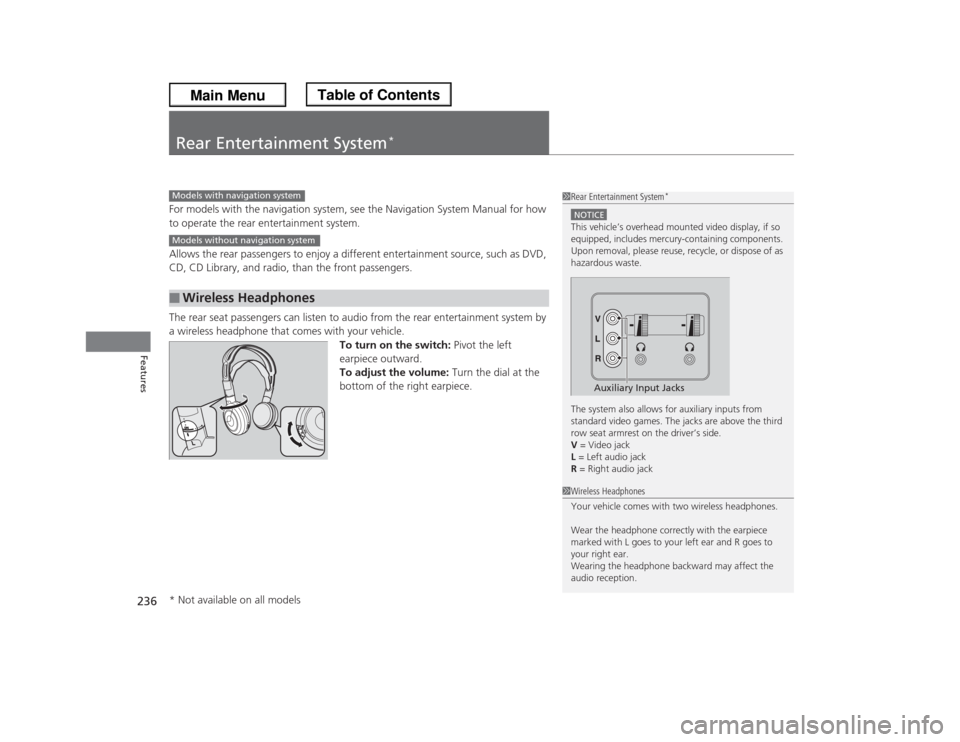
To turn on the switch: Pivot the left
earpiece outward.
To adjust the volume: Turn the dial at the
bottom of the right earpiece.■
Wireless Headphones
1Rear Entertainment System
*
NOTICEThis vehicle’s overhead mounted video display, if so
equipped, includes mercury-containing components.
Upon removal, please reuse, recycle, or dispose of as
hazardous waste.
The system also allows for auxiliary inputs from
standard video games. The jacks are above the third
row seat armrest on the driver’s side.
V = Video jack
L = Left audio jack
R = Right audio jack
Auxiliary Input Jacks
Models with navigation systemModels without navigation system
1Wireless Headphones
Your vehicle comes with two wireless headphones.
Wear the headphone correctly with the earpiece
marked with L goes to your left ear and R goes to
your right ear.
Wearing the headphone backward may affect the
audio reception.
* Not available on all models