Page 247 of 433
246
uuRear Entertainment System
*uOperating the System
Features
■
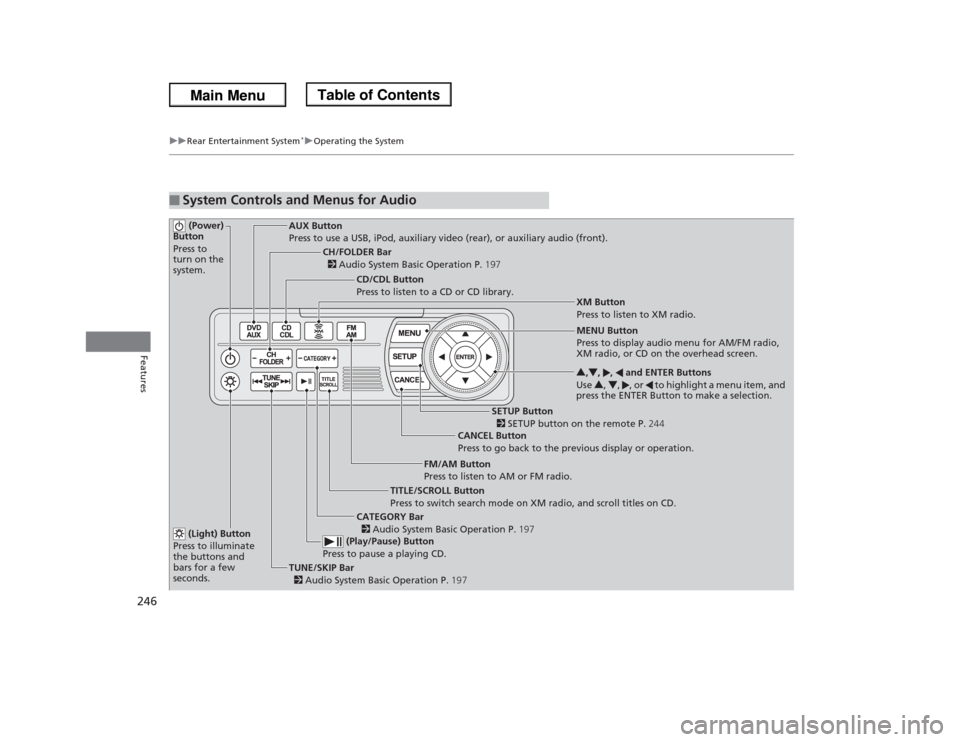
System Controls and Menus for Audio (Power)
Button
Press to
turn on the
system.
AUX Button
Press to use a USB, iPod, auxiliary video (rear), or auxiliary audio (front).
(Light) Button
Press to illuminate
the buttons and
bars for a few
seconds.TUNE/SKIP Bar
2 Audio System Basic Operation P.197 (Play/Pause) Button
Press to pause a playing CD.
TITLE/SCROLL Button
Press to switch search mode on XM radio, and scroll titles on CD.CANCEL Button
Press to go back to the previous display or operation.3,4, , and ENTER Buttons
Use 3, 4, , or to highlight a menu item, and
press the ENTER Button to make a selection.
CATEGORY Bar
2 Audio System Basic Operation P.197
CH/FOLDER Bar
2 Audio System Basic Operation P.197
CD/CDL Button
Press to listen to a CD or CD library.
FM/AM Button
Press to listen to AM or FM radio.
SETUP Button
2 SETUP button on the remote P.244 XM Button
Press to listen to XM radio.
MENU Button
Press to display audio menu for AM/FM radio,
XM radio, or CD on the overhead screen.
Page 248 of 433
Continued
247
uuRear Entertainment System
*uOperating the System
Features
■Playing AM/FM radio in the rear
Press the AM/FM button.
When you press the MENU button while the radio is playing, the audio menu
appears on the overhead screen. The available functions are the same as those of
the front audio system. The TUNE/SKIP bar on the control panel works the same as
the TUNE or SKIP bar on the front panel for AM/FM radio operation.2Playing the AM/FM Radio P. 200■Playing XM radio in the rear
Press the XM button.
When you press the MENU button while the radio is playing, the audio menu
appears on the overhead screen. The available functions are the same as those of
the front audio system. The TUNE/SKIP bar on the control panel works the same as
the TUNE or SKIP bar on the front panel for XM radio operation.2Playing the XM® Radio
* P. 204
To change the mode between category and channel, press and hold the TITLE/
SCROLL button for five seconds.
1System Controls and Menus for Audio
If you press the button on the front panel, you
can operate the rear entertainment system from the
front display.
2 button on the front panel P. 237
* Not available on all models
Page 249 of 433
uuRear Entertainment System
*uOperating the System
248Features
■Playing a CD, and CD Library
Press the CD/CDL button.
The available options appear on the overhead screen are Repeat, Random, and Scan.
These functions are the same as those of the front audio system.2Playing a CD P. 207
2Playing CD Library P. 211To scroll your audio data title, press the TITLE/SCROLL button for five seconds.■Playing iPod® and a USB flash drive
Press the AUX button.
The available options appear on the overhead screen are Repeat, Random, and Scan.
These functions are the same as those of the front audio system.2Playing an iPod® P. 217
2Playing a USB Flash Drive P. 221To scroll your audio data title, press the TITLE/SCROLL button for five seconds.
1System Controls and Menus for Audio
If you press the button on the front panel, you
can operate the rear entertainment system from the
front display.
2 button on the front panel P. 237
You can also insert an audio CD compatible with the
system, or recorded in MP3/WMA/AAC formats into
the lower slot and play. The front passengers can
listen to the same CD, or select another audio source.
2Playable Discs P. 250
2Audio Sources for Front and Rear Seats
P. 249
Page 256 of 433
255
uuBluetooth® HandsFreeLink®uUsing HFL
Features
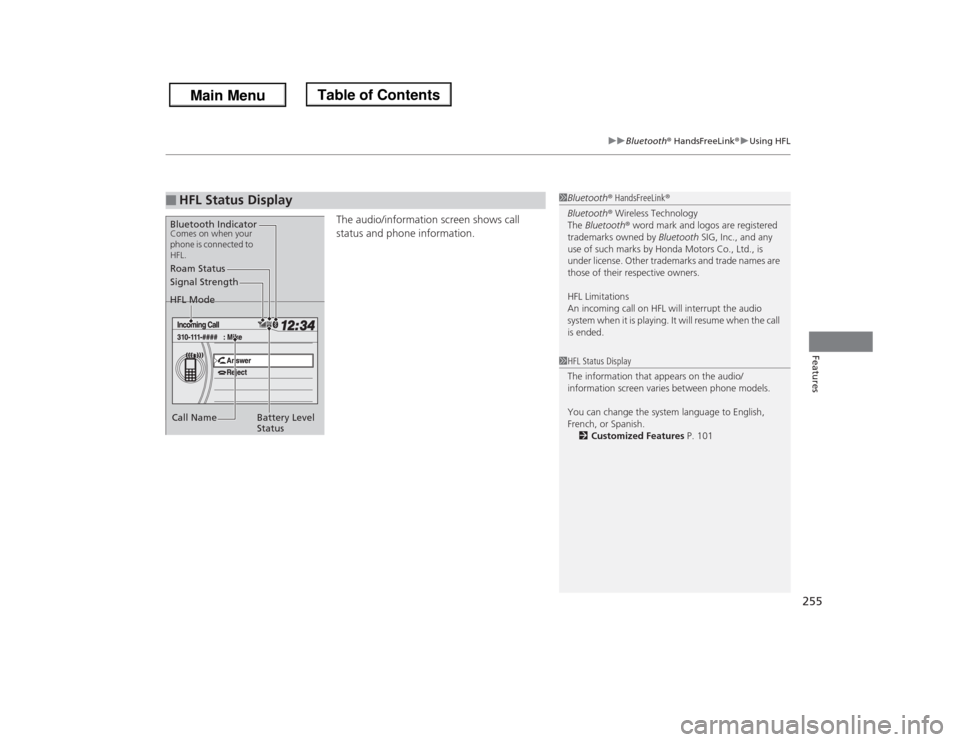
The audio/information screen shows call
status and phone information.
■
HFL Status Display
1Bluetooth® HandsFreeLink®
Bluetooth® Wireless Technology
The Bluetooth® word mark and logos are registered
trademarks owned by Bluetooth SIG, Inc., and any
use of such marks by Honda Motors Co., Ltd., is
under license. Other trademarks and trade names are
those of their respective owners.
HFL Limitations
An incoming call on HFL will interrupt the audio
system when it is playing. It will resume when the call
is ended.
Signal Strength
HFL Mode
Battery Level
Status Roam Status
Call NameBluetooth IndicatorComes on when your
phone is connected to
HFL.
1HFL Status Display
The information that appears on the audio/
information screen varies between phone models.
You can change the system language to English,
French, or Spanish.
2Customized Features P. 101
Page 257 of 433
256
uuBluetooth® HandsFreeLink®uHFL Menus
Features
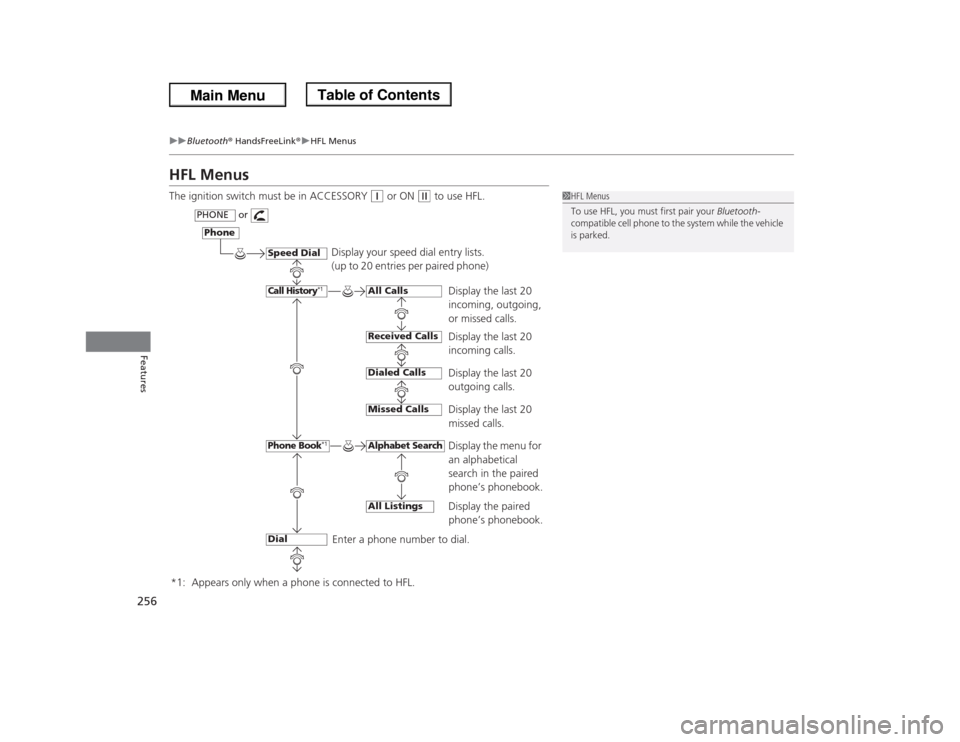
HFL MenusThe ignition switch must be in ACCESSORY
(q
or ON
(w
to use HFL.
1HFL Menus
To use HFL, you must first pair your Bluetooth-
compatible cell phone to the system while the vehicle
is parked.
Display your speed dial entry lists.
(up to 20 entries per paired phone)
Display the last 20
incoming, outgoing,
or missed calls.
Display the last 20
incoming calls.
Display the last 20
outgoing calls.
Display the menu for
an alphabetical
search in the paired
phone’s phonebook.
Enter a phone number to dial.
Phone
Speed DialCall History
*1
PHONE
or
Phone Book
*1
Dial
All CallsReceived CallsDialed Calls
*1: Appears only when a phone is connected to HFL.
Missed CallsAll Listings
Display the paired
phone’s phonebook.
Alphabet Search
Display the last 20
missed calls.
Page 275 of 433
uuBluetooth® HandsFreeLink®uHFL Menus
274Features
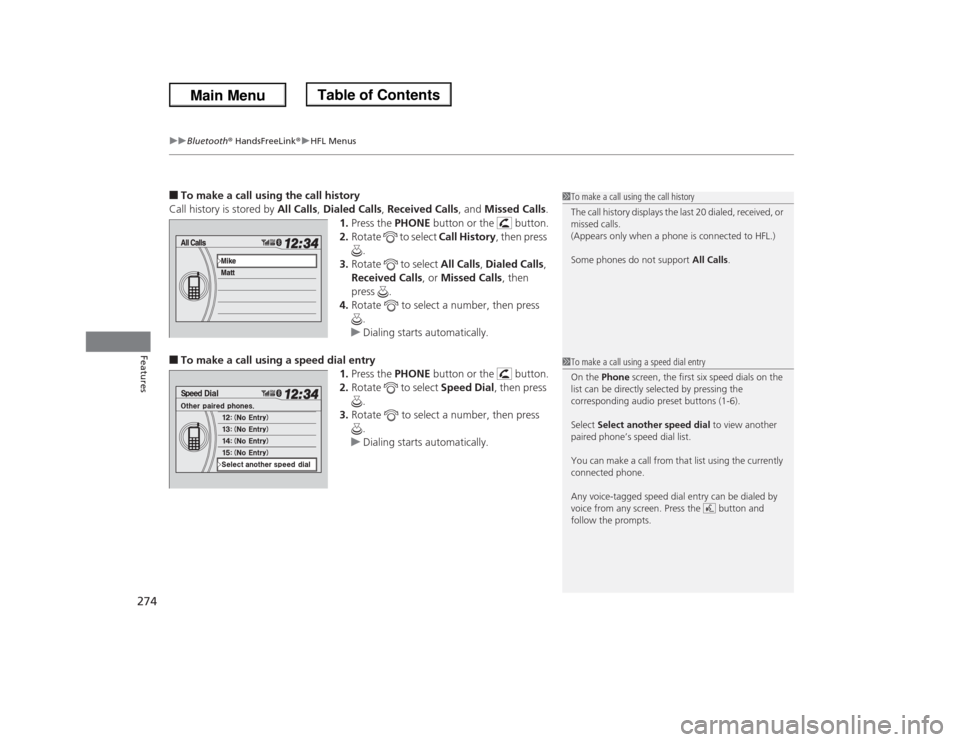
■To make a call using the call history
Call history is stored by All Calls, Dialed Calls, Received Calls, and Missed Calls.
1.Press the PHONE button or the button.
2.Rotate to select Call History, then press
.
3.Rotate to select All Calls, Dialed Calls,
Received Calls, or Missed Calls, then
press .
4.Rotate to select a number, then press
.
uDialing starts automatically.■To make a call using a speed dial entry
1.Press the PHONE button or the button.
2.Rotate to select Speed Dial, then press
.
3.Rotate to select a number, then press
.
uDialing starts automatically.
1To make a call using the call history
The call history displays the last 20 dialed, received, or
missed calls.
(Appears only when a phone is connected to HFL.)
Some phones do not support All Calls.1To make a call using a speed dial entry
On the Phone screen, the first six speed dials on the
list can be directly selected by pressing the
corresponding audio preset buttons (1-6).
Select Select another speed dial to view another
paired phone’s speed dial list.
You can make a call from that list using the currently
connected phone.
Any voice-tagged speed dial entry can be dialed by
voice from any screen. Press the button and
follow the prompts.
Page 278 of 433
277Features
Compass
*
When you turn the ignition switch to ON
(w
, the compass self-calibrates, and the
compass display appears.
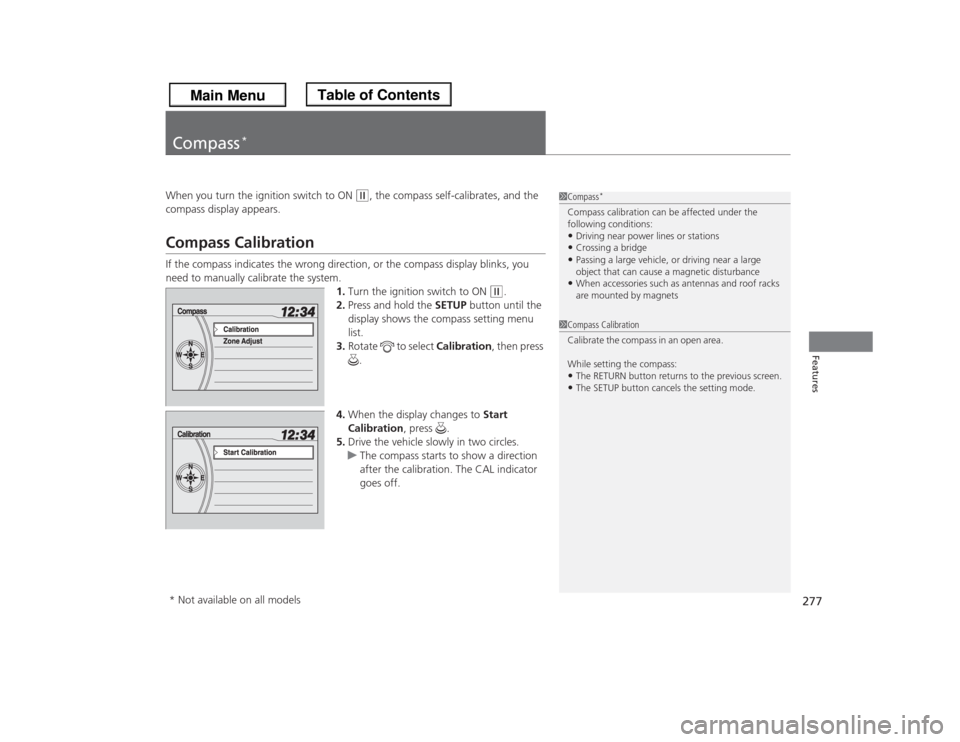
Compass CalibrationIf the compass indicates the wrong direction, or the compass display blinks, you
need to manually calibrate the system.
1.Turn the ignition switch to ON
(w
.
2.Press and hold the SETUP button until the
display shows the compass setting menu
list.
3.Rotate to select Calibration, then press
.
4.When the display changes to Start
Calibration, press .
5.Drive the vehicle slowly in two circles.
uThe compass starts to show a direction
after the calibration. The CAL indicator
goes off.
1Compass
*
Compass calibration can be affected under the
following conditions:•Driving near power lines or stations•Crossing a bridge•Passing a large vehicle, or driving near a large
object that can cause a magnetic disturbance•When accessories such as antennas and roof racks
are mounted by magnets
1Compass Calibration
Ca libra te the comp as s in a n ope n are a .
While setting the compass:•The RETURN button returns to the previous screen.•The SETUP button cancels the setting mode.
* Not available on all models
Page 279 of 433
278
uuCompass
*uCompass Zone Selection
Features
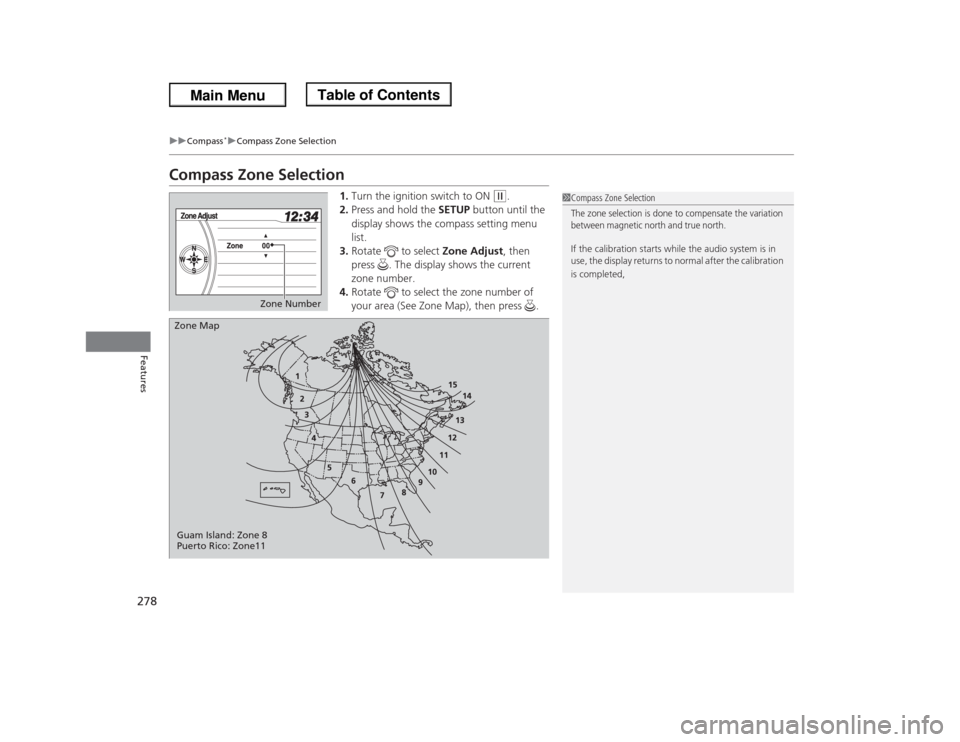
Compass Zone Selection
1.Turn the ignition switch to ON
(w
.
2.Press and hold the SETUP button until the
display shows the compass setting menu
list.
3.Rotate to select Zone Adjust, then
press . The display shows the current
zone number.
4.Rotate to select the zone number of
your area (See Zone Map), then press .
1Compass Zone SelectionThe zone selection is done to compensate the variation
between magnetic north and true north. If the calibration starts while the audio system is in
use, the display returns to normal after the calibration
is completed,
Zone Number
Zone Map
Guam Island: Zone 8
Puerto Rico: Zone11