Page 6 of 286
5
Quick Reference Guide
❙Seat Belt to Secure a Child Seat (P57)
❙Seat Belt (Installing a Child Seat) (P56)
❙Sun Visors
❙Vanity Mirrors
❙Map Lights*
(P111)
❙USB Adapter Cable *
(P123)
❙Seat Belts (P26)
❙Side Airbags (P41)
❙Side Curtain Airbags (P44)
❙Coat Hook (P116)
❙Grab Handle
❙Ceiling Light (P111)
❙Seat Belt with Detachable Anchor (P31)
❙Rear Seat (P108)
❙LATCH to Secure a Child Seat (P54)
❙Front Seat
(P103)
❙Rear Side Pocket (Right Side)
❙Cargo Floor Box *
(P115)
❙Cargo Area Light (P112)
* Not available on all models
Main Menu
Page 122 of 286
121
Features
This chapter describes how to operate technology features.
Audio System About Your Audio System................ 122
USB Adapter Cable *
........................ 123
Auxiliary Input Jack .......................... 123
Audio Antenna ................................ 124
Audio System Theft Protection ......... 124
Audio System Basic Operation ........ 125
Adjusting the Sound ........................ 126
Playing the FM/AM Radio ................. 127
Playing a CD .................................... 129
Playing an iPod ®*
............................. 131
Playing a USB Flash Drive *
............... 133 Audio Error Messages
CD Player......................................... 135
iPod ®/USB Flash Drive *
..................... 136
General Information on the Audio
SystemRecommended CDs ......................... 137
Compatible iPod ® and USB Flash Drives *
. 139
Bluetooth ® HandsFreeLink ®*
Using HFL ........................................ 140
HFL Menus ...................................... 142
* Not available on all models
Main Menu
Main Menu
Page 123 of 286
122
Features
Audio System
About Your Audio System
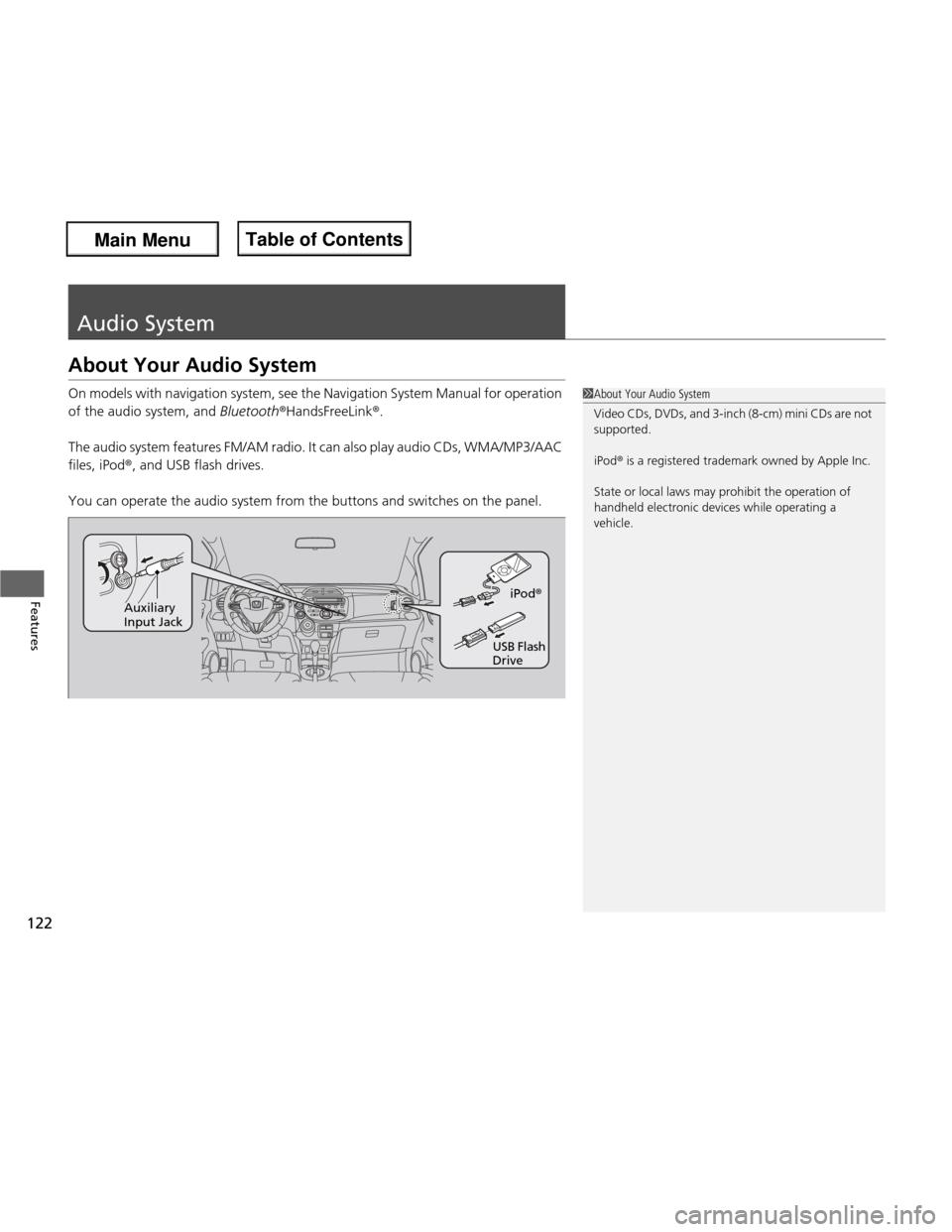
On models with navigation system, see the Navigation System Manual for operation
of the audio system, and Bluetooth®HandsFreeLink ®.
The audio system features FM/AM radio. It can also play audio CDs, WMA/MP3/AAC files, iPod ®, and USB flash drives.
You can operate the audio system from the buttons and switches on the panel.
1About Your Audio System
Video CDs, DVDs, and 3-inch (8-cm) mini CDs are not
supported.
iPod® is a registered trademark owned by Apple Inc.
State or local laws may prohibit the operation of
handheld electronic devices while operating a
vehicle.
iPod ®
USB Flash Drive
Auxiliary Input Jack
Main Menu
Main MenuTable of Contents
Page 124 of 286
123
uuAudio SystemuUSB Adapter Cable*
Features
USB Adapter Cable *
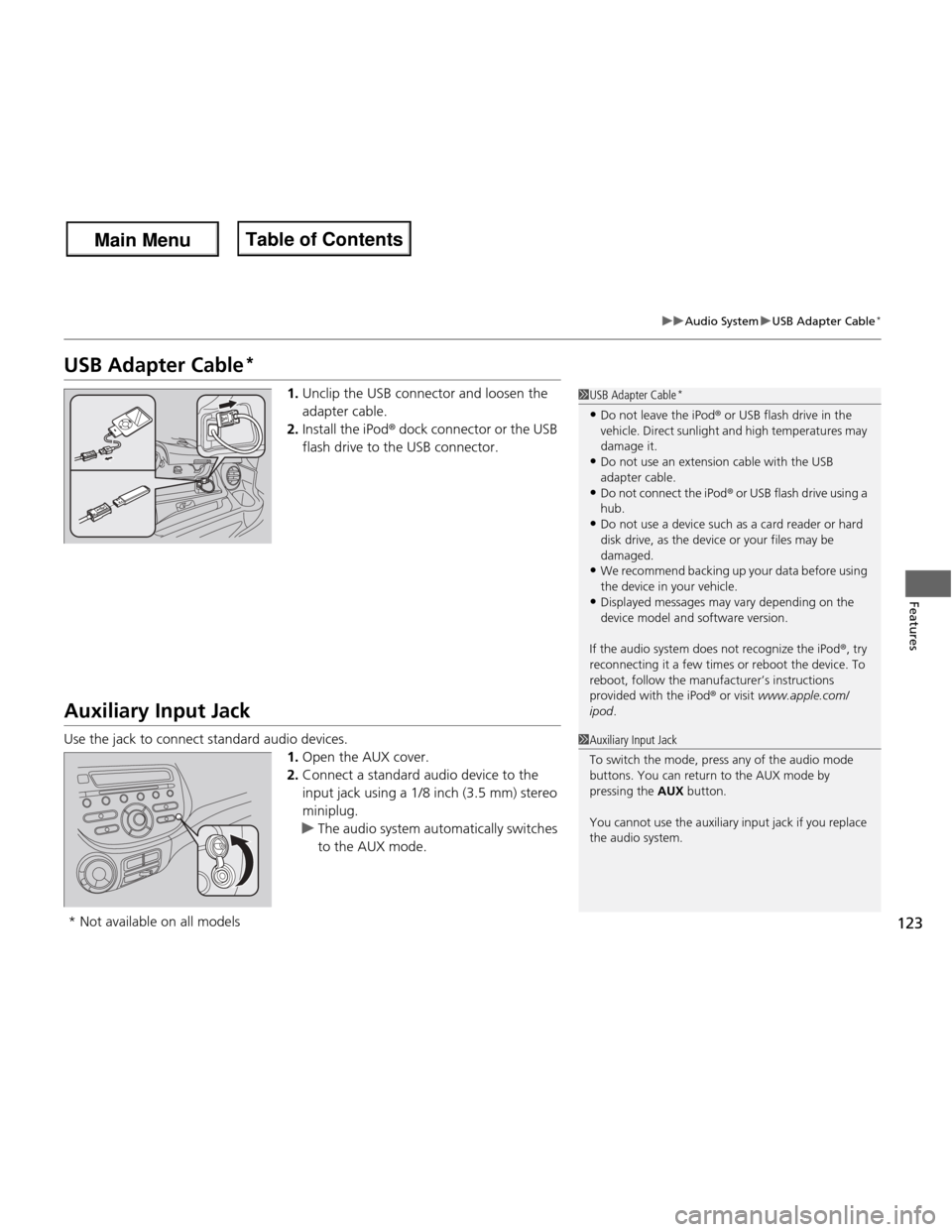
1.Unclip the USB connector and loosen the adapter cable.
2. Install the iPod ® dock connector or the USB
flash drive to the USB connector.
Auxiliary Input Jack
Use the jack to connect standard audio devices. 1.Open the AUX cover.
2. Connect a standard audio device to the
input jack using a 1/8 inch (3.5 mm) stereo
miniplug.
uThe audio system automatically switches
to the AUX mode.
1USB Adapter Cable *
• Do not leave the iPod ® or USB flash drive in the
vehicle. Direct sunlight and high temperatures may damage it.
• Do not use an extension cable with the USB
adapter cable.
• Do not connect the iPod ® or USB flash drive using a
hub.
• Do not use a device such as a card reader or hard
disk drive, as the device or your files may be damaged.
• We recommend backing up your data before using
the device in your vehicle.
• Displayed messages may vary depending on the
device model and software version.
If the audio system does not recognize the iPod ®, try
reconnecting it a few times or reboot the device. To
reboot, follow the manufacturer’s instructions
provided with the iPod ® or visit www.apple.com/
ipod .
1Auxiliary Input Jack
To switch the mode, press any of the audio mode
buttons. You can return to the AUX mode by pressing the AUX button.
You cannot use the auxiliary input jack if you replace
the audio system.
* Not available on all models
Main Menu
Main MenuTable of Contents
Page 132 of 286

131
uuAudio System Basic OperationuPlaying an iPod®*
Continued
Features
Playing an iPod
®*
Connect the iPod ® using your dock connector to the USB adapter cable, then press
the AUX button.
2 USB Adapter Cable *
P. 123
/ Buttons
Press to go back to the
previous display.
Press to set your
selection.
(Power) Button
Press to turn the audio
system on and off.
/ (Seek) Buttons
Press to change songs.RPT (Repeat) Button ● Press to replay a file continuously.
● To turn off repeat, press the
button again.
Selector Knob Turn to adjust the volume.
Press and turn to select an item,
then press to set your selection.
AUX Button
Press to select iPod
® (if connected).
USB Indicator
Comes on when an iPod ® is
connected. RDM (Random) Button
● Press to play all available files in a
selected list (playlists, artists, albums
or songs) in random order.
● Press two times to play all available
albums in a selected list (playlists,
artists, albums or songs) in random order.
● To turn off shuffle mode, press and
hold the button.
TITLE Button Press to display the text data.
* Not available on all models
Main Menu
Main MenuTable of Contents
Page 133 of 286
uuAudio System Basic OperationuPlaying an iPod®*
132
Features
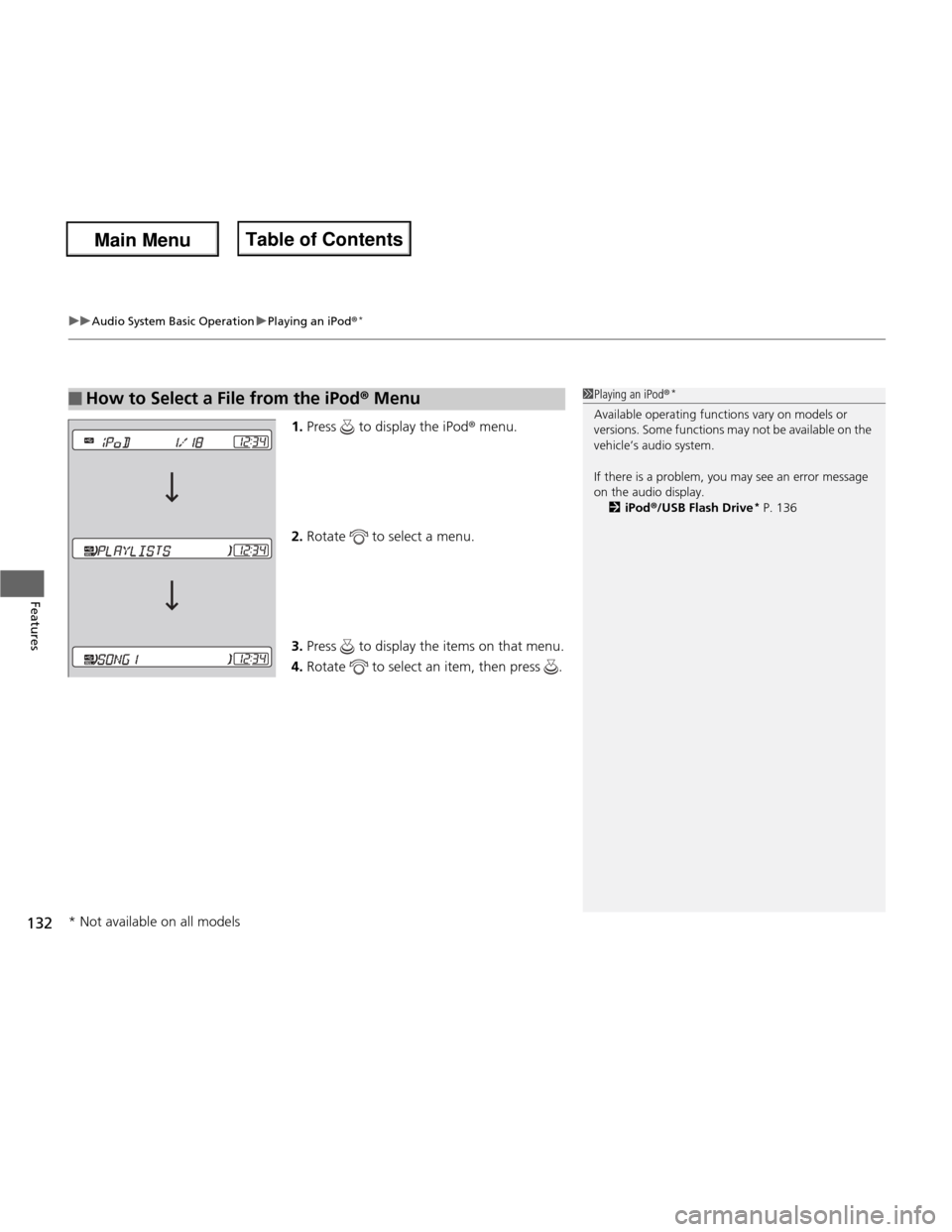
1. Press to display the iPod ® menu.
2. Rotate to select a menu.
3. Press to display the items on that menu.
4. Rotate to select an item, then press .
■How to Select a File from the iPod ® Menu1Playing an iPod ®*
Available operating functions vary on models or
versions. Some functions may not be available on the
vehicle’s audio system.
If there is a problem, you may see an error message
on the audio display. 2 iPod ®/USB Flash Drive *
P. 136
* Not available on all models
Main Menu
Main MenuTable of Contents
Page 134 of 286

133
uuAudio System Basic OperationuPlaying a USB Flash Drive*
Continued
Features
Playing a USB Flash Drive *
Your audio system reads and plays sound files on a USB flash drive in either MP3,
WMA or AAC *1
format.
Connect your USB flash drive to the USB adapter cable, then press the AUX button.
2 USB Adapter Cable *
P. 123
*1:Only AAC format files recorded with iTunes ® are playable on this unit.
/ Buttons
Press to skip to the next
folder, and to skip to the
beginning of the previous
folder.
(Power) Button
Press to turn the audio
system on and off.
/ (Seek) Buttons
Press to change files.
RDM (Random) Button ● Press to play all files in random order.
● Press two times to play all files in the
current folder in random order.
● To turn off random, press and hold the
button.
Selector Knob
Turn to adjust the volume.
Press and turn to select an item,
then press to set your selection.
AUX Button
Press to select USB flash drive (if connected).
USB Indicator
Comes on when a USB
flash drive is connected. SCAN Button You will get a 10-second
sampling of each file.
● Press to sample all files in the current folder.
● Press two times to sample the first file in each of the main folders.
● To turn off scan, press and hold the button.
RPT (Repeat) Button ●Press to replay a file continuously.
● Press two times to replay all files in the
current folder.
● To turn off repeat, press and hold the
button.
* Not available on all models
Main Menu
Main MenuTable of Contents
Page 135 of 286
uuAudio System Basic OperationuPlaying a USB Flash Drive*
134
Features
1. Press to switch the display to a folder list.
2. Rotate to select a folder.
3. Press to change the display to a list of
files in that folder.
4. Rotate to select a file, then press .
■How to Select a File from a Folder with the Selector Knob1Playing a USB Flash Drive *
Use the recommended USB flash drives. 2 General Information on the Audio System
P. 137
Files in WMA format protected by digital rights
management (DRM) are not played.
The audio system displays UNPLAYABLE FILE, and
then skips to the next file.
If there is a problem, you may see an error message
on the audio display.
2 iPod ®/USB Flash Drive *
P. 136
Track Selection
Folder Selection
* Not available on all models
Main Menu
Main MenuTable of Contents