Page 162 of 573
161
uuClimate Control System*uSynchronized Mode
Controls
Synchronized Mode
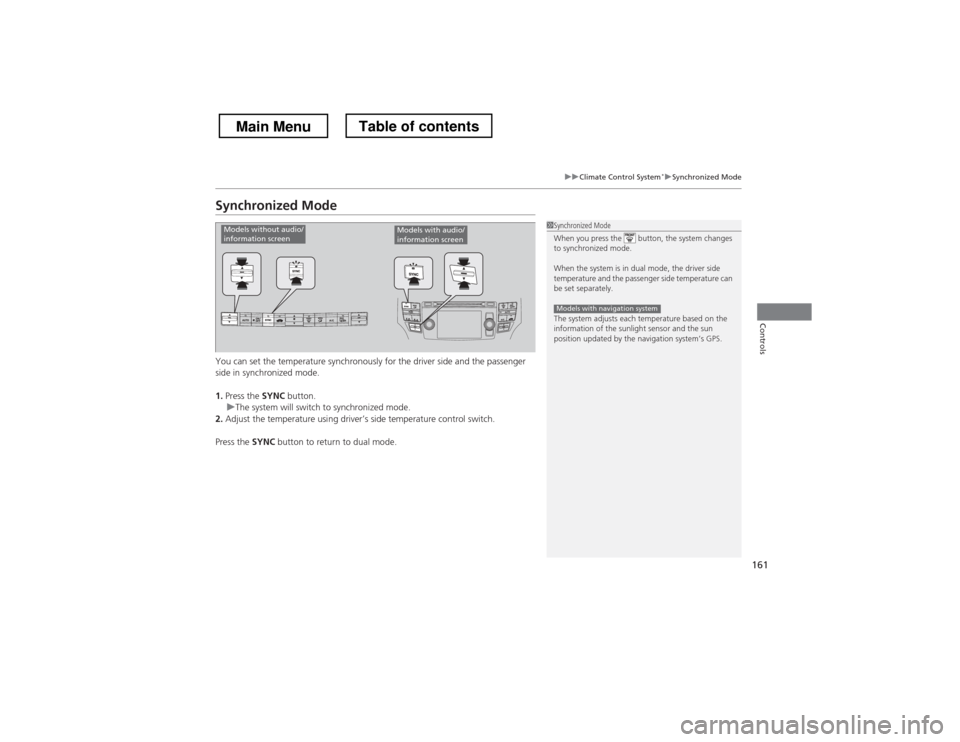
You can set the temperature synchronously for the driver side and the passenger
side in synchronized mode. 1.
Press the SYNC button.
uThe system will switch to synchronized mode.
2. Adjust the temperature using driver’s side temperature control switch.
Press the SYNC button to return to dual mode.
1Synchronized Mode
When you press the button, the system changes
to synchronized mode.
When the system is in dual mode, the driver side
temperature and the passenger side temperature can
be set separately.
The system adjusts each temperature based on the
information of the sunlight sensor and the sun
position updated by the navigation system’s GPS.
Models with navigation system
Models without audio/
information screenModels with audio/
information screen
Main MenuTable of contents
Page 166 of 573
165
uuAudio SystemuUSB Adapter Cable
Features
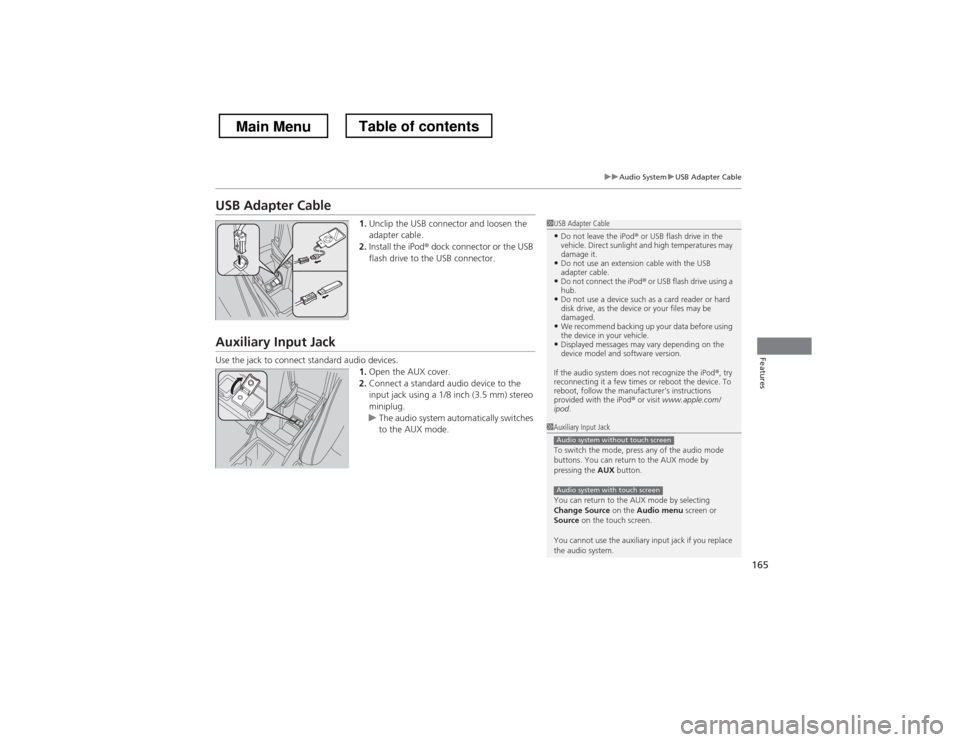
USB Adapter Cable1.Unclip the USB connector and loosen the
adapter cable.
2. Install the iPod ® dock connector or the USB
flash drive to the USB connector.
Auxiliary Input Jack
Use the jack to connect standard audio devices. 1.Open the AUX cover.
2. Connect a standard audio device to the
input jack using a 1/8 inch (3.5 mm) stereo
miniplug.
uThe audio system automatically switches
to the AUX mode.
1USB Adapter Cable
• Do not leave the iPod ® or USB flash drive in the
vehicle. Direct sunlight and high temperatures may damage it.
• Do not use an extension cable with the USB
adapter cable.
• Do not connect the iPod ® or USB flash drive using a
hub.
• Do not use a device such as a card reader or hard
disk drive, as the device or your files may be damaged.
• We recommend backing up your data before using
the device in your vehicle.
• Displayed messages may vary depending on the
device model and software version.
If the audio system does not recognize the iPod ®, try
reconnecting it a few times or reboot the device. To
reboot, follow the manufacturer's instructions provided with the iPod ® or visit www.apple.com/
ipod .
1Auxiliary Input Jack
To switch the mode, press any of the audio mode
buttons. You can return to the AUX mode by
pressing the AUX button.
You can return to the AUX mode by selecting
Change Source on the Audio menu screen or
Source on the touch screen.
You cannot use the auxiliary input jack if you replace
the audio system.
Audio system without touch screen
Audio system with touch screen
Main MenuTable of contents
Page 225 of 573
224
uuAudio System Basic OperationuVoice Control Operation
Features
Voice Control Operation
Your vehicle has a voice control system that allows hands-free operation of most of
the navigation system functions.
The voice control system uses the (Talk) and (hang-up/back) buttons on the
steering wheel and a microphone near the map lights on the ceiling.
To achieve optimum voice recognition when using the navigation voice control system:•Make sure the correct screen is displayed for the voice command that you are
using.
• Close the windows and moonroof.
• Adjust the dashboard and side vents so air does not blow onto the microphone
on the ceiling.
• Speak clearly in a clear, natural speaking voice without pausing between words.
• Reduce any background noise if possible. The system may misinterpret your
command if more than one person is speaking at the same time.
• Refer to the Voice Help feature.
2 Refer to the navigation System Manual
■Voice Recognition
1Voice Control Operation
When you press the button, a helpful prompt asks
what you would like to do. Press and release the
button again to bypass this prompt and give a command.
1Voice Recognition
The voice control system can only be used from the
driver’s seat because the microphone unit removes
noises from the front passenger’s side.
Main MenuTable of contents
Page 245 of 573
uuAudio System Basic OperationuPlaying Hard Disc Drive (HDD) Audio
244
Features
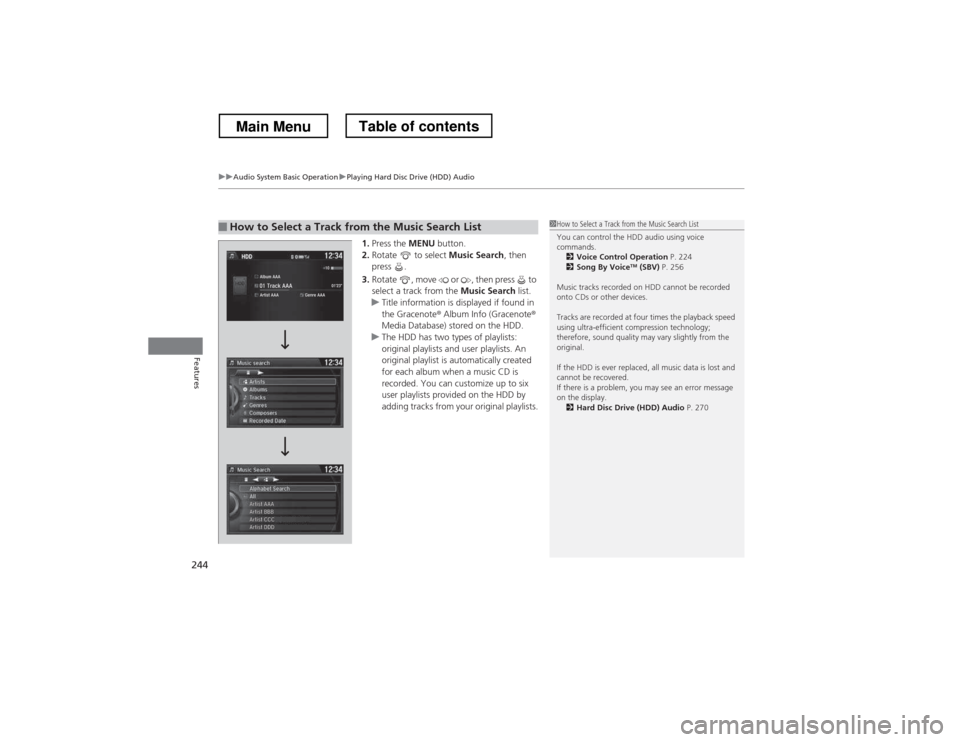
1. Press the MENU button.
2. Rotate to select Music Search, then
press .
3. Rotate , move or , then press to
select a track from the Music Search list.
uTitle information is displayed if found in
the Gracenote® Album Info (Gracenote ®
Media Database) stored on the HDD.
uThe HDD has two types of playlists:
original playlists and user playlists. An
original playlist is automatically created
for each album when a music CD is
recorded. You can customize up to six
user playlists provided on the HDD by
adding tracks from your original playlists.
■How to Select a Track from the Music Search List1How to Select a Track from the Music Search List
You can control the HDD audio using voice commands.
2 Voice Control Operation P. 224
2 Song By Voice TM
(SBV) P. 256
Music tracks recorded on HDD cannot be recorded
onto CDs or other devices.
Tracks are recorded at four times the playback speed
using ultra-efficient compression technology;
therefore, sound quality may vary slightly from the original.
If the HDD is ever replaced, all music data is lost and
cannot be recovered.
If there is a problem, you may see an error message
on the display. 2 Hard Disc Drive (HDD) Audio P. 270
Main MenuTable of contents
Page 279 of 573
uuGeneral Information on the Audio SystemuRecommended CDs
278
Features
■ Protecting CDs
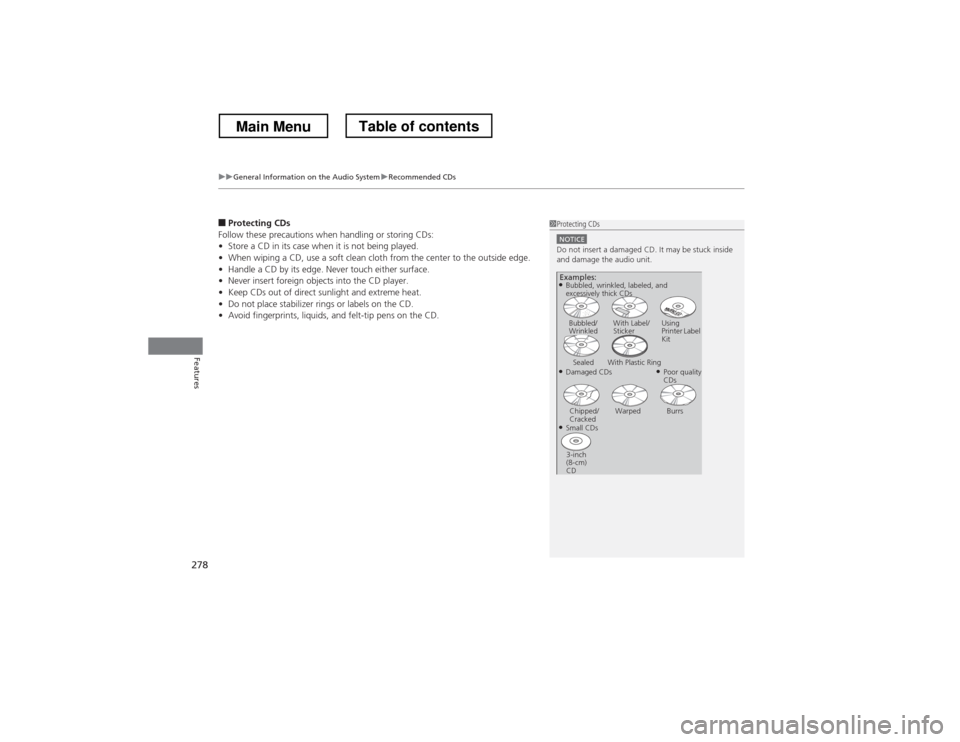
Follow these precautions when handling or storing CDs: • Store a CD in its case when it is not being played.
• When wiping a CD, use a soft clean cloth from the center to the outside edge.
• Handle a CD by its edge. Never touch either surface.
• Never insert foreign objects into the CD player.
• Keep CDs out of direct sunlight and extreme heat.
• Do not place stabilizer rings or labels on the CD.
• Avoid fingerprints, liquids, and felt-tip pens on the CD.1Protecting CDs
NOTICEDo not insert a damaged CD. It may be stuck inside
and damage the audio unit.
Examples:
● Damaged CDsBubbled/
Wrinkled
With Label/Sticker Using
Printer Label Kit
Sealed With Plastic Ring ●Poor quality
CDs
Chipped/
Cracked Warped Burrs
● Small CDs
3-inch
(8-cm) CD
●
Bubbled, wrinkled, labeled, and
excessively thick CDs
Main MenuTable of contents
Page 285 of 573
284
uuCustomized Features*u
Features
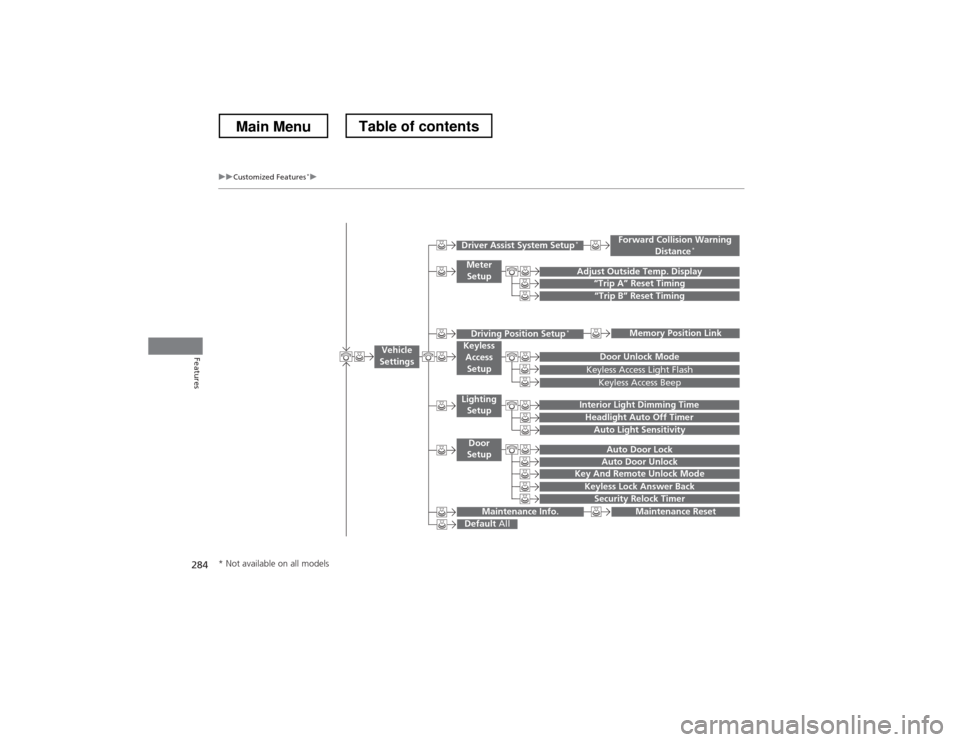
“Trip B” Reset Timing
Adjust Outside Temp. Display“Trip A” Reset Timing
Keyless Access Light Flash
Auto Light Sensitivity
Auto Door Lock
Auto Door Unlock
Forward Collision Warning
Distance *
Door Unlock Mode
Interior Light Dimming Time
Headlight Auto Off Timer
Memory Position Link
Key And Remote Unlock Mode
Keyless Lock Answer Back
Security Relock Timer
Maintenance Reset
Default
All
Vehicle
Settings
Driver Assist System Setup *
Meter
Setup
Driving Position Setup *Keyless
Access Setup
Lighting
Setup
Door
Setup
Maintenance Info.
Keyless Access Beep
* Not available on all models
Main MenuTable of contents
Page 290 of 573
289
uuCustomized Features*u
Continued
Features
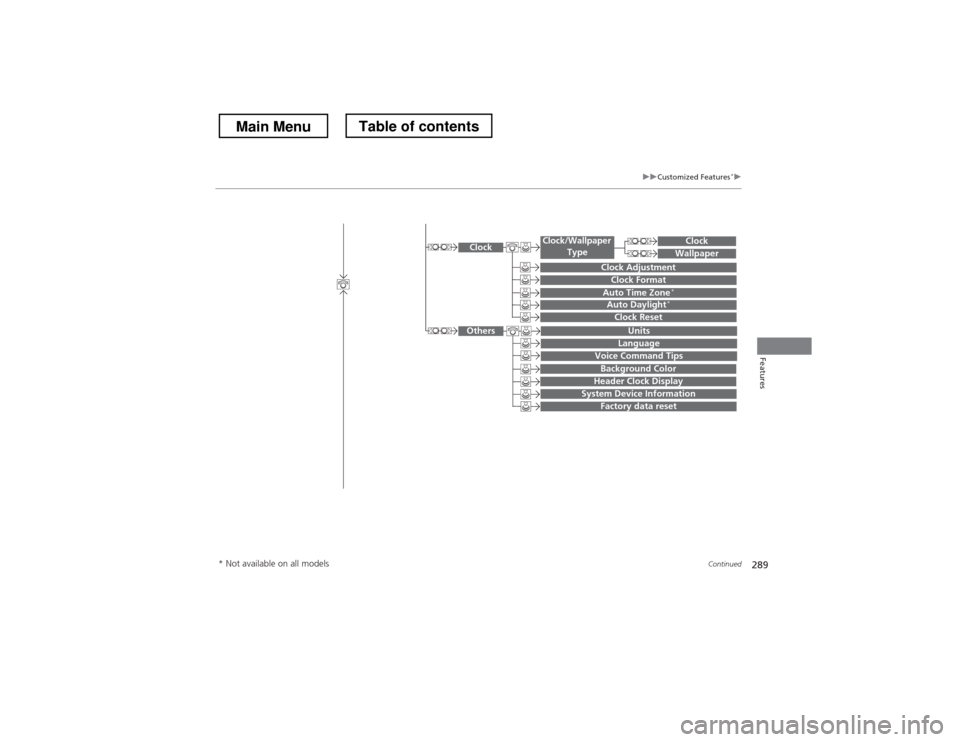
System Device Information
Factory data reset
Background Color
Header Clock Display
Clock Reset
Auto Time Zone*Auto Daylight*
Clock
Clock Adjustment
Clock Format
Clock
Units
Language
Voice Command Tips
Others
Wallpaper
Clock/Wallpaper
Type
* Not available on all models
Main MenuTable of contents
Page 291 of 573
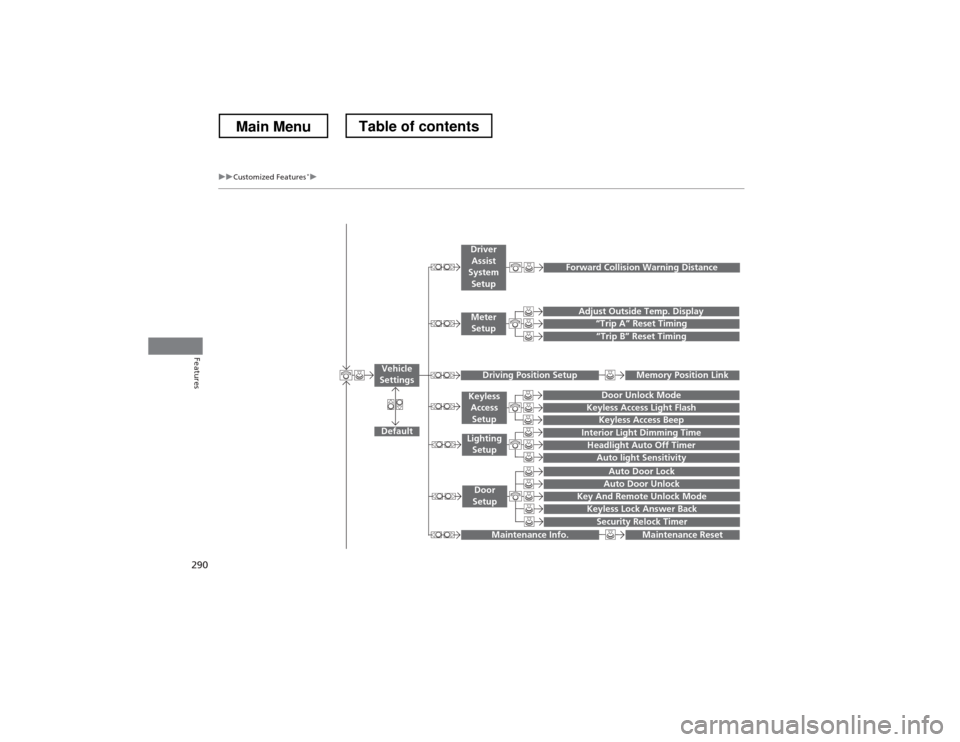
290
uuCustomized Features*u
Features
“Trip A” Reset Timing
“Trip B” Reset Timing
Adjust Outside Temp. Display
Forward Collision Warning Distance
Default
Memory Position Link
Door Unlock Mode
Keyless Access Light Flash
Interior Light Dimming Time
Headlight Auto Off Timer
Auto light Sensitivity
Key And Remote Unlock Mode
Keyless Lock Answer Back
Security Relock Timer
Auto Door Lock
Auto Door Unlock
Maintenance Reset
Vehicle
Settings
Meter Setup
Driver Assist
System Setup
Driving Position Setup
Keyless
Access Setup
Lighting
Setup
Door
Setup
Maintenance Info.
Keyless Access Beep
Main MenuTable of contents