Page 92 of 325
91
uuGauges and Multi-Information DisplayuMulti-Information Display
Continued
Instrument Panel
■Customization flow
Press the button.
DEFAULT ALL
EXIT
DOOR SETUP
ADJUST OUTSIDE TEMP. DISPLAY
TRIP A RESET with REFUEL
ELAPSED TIME RESET
INTERIOR LIGHT DIMMING TIME
AUTO LIGHT SENSITIVITY *
AUTO DOOR UNLOCK
DOOR LOCK MODE
KEYLESS LOCK ACKNOWLEDGMENT
SECURITY RELOCK TIMER
AUTO DOOR LOCK
LANGUAGE SELECTIONSEL/RESET
SEL/RESET
SEL/RESET
SEL/RESET
SEL/RESET
SEL/RESET
METER SETUP
LIGHTING SETUP
CHG SETTING
EXIT
CUSTOMIZE SETTINGS
HOLD ECON MODE
METER COLOR CHANGE
DISPLAY KM/MILES
Auto Light Sensitivity
*
4
3
4
3
4
3
4
3
4
3
4
3
4
3
* Not available on all models
Main MenuTable of Contents
Page 95 of 325
94
uuGauges and Multi-Information DisplayuMulti-Information Display
Instrument Panel
■Example of customizing settings
The steps for changing TRIP A RESET with REFUEL setting to ON are shown below.
The default setting for TRIP A RESET with REFUEL is OFF.
1. Press the button until CUSTOMIZE
SETTINGS appears on the display, then
press the SEL/RESET button.
2. Press the SEL/RESET button.
3. Press the SEL/RESET button again.
Main MenuTable of Contents
Page 96 of 325
95
uuGauges and Multi-Information DisplayuMulti-Information Display
Instrument Panel
4.Press the button until TRIP A
RESET with REFUEL appears on the
display, then press the SEL/RESET button.
5. Press the button and select ON,
then press the SEL/RESET button.
6. Press the button until EXIT
appears in the display, then press the SEL/
RESET button.
7. Repeat step 6 until you return to the normal
screen.
Main MenuTable of Contents
Page 99 of 325
98
Controls
Setting the Clock
Clock
You can adjust the time in the clock display, using the CLOCK (AM /FM ) button with
the ignition switch in ON
(w .
1. Press and hold the CLOCK button until the clock dis play begins to blink.
2. Press the
(1 (Hour) button to change the hours.
3. Press the
(2 (Minute) button to change the minutes.
4. Press the CLOCK button to go back to the normal display.
■Adjusting the Time
1Clock
To set the time to the nearest hour:
Press and hold the CLOCK button until the clock
display begins to blink, then press the
(3 (Reset)
button.
Depending on the displayed time, the clock sets
forward or backward.
Example: 1:06 will reset to 1:001:53 will reset to 2:00
The clock is automatically updated through the navigation system, so the time does not need to be
adjusted.
Models with navigation system
Models without navigation system
(2 Button
(1 Button
(3 Button
CLOCK ButtonClock Display
Main MenuTable of Contents
Page 142 of 325
141
uuAudio SystemuAudio System Theft Protection
Features
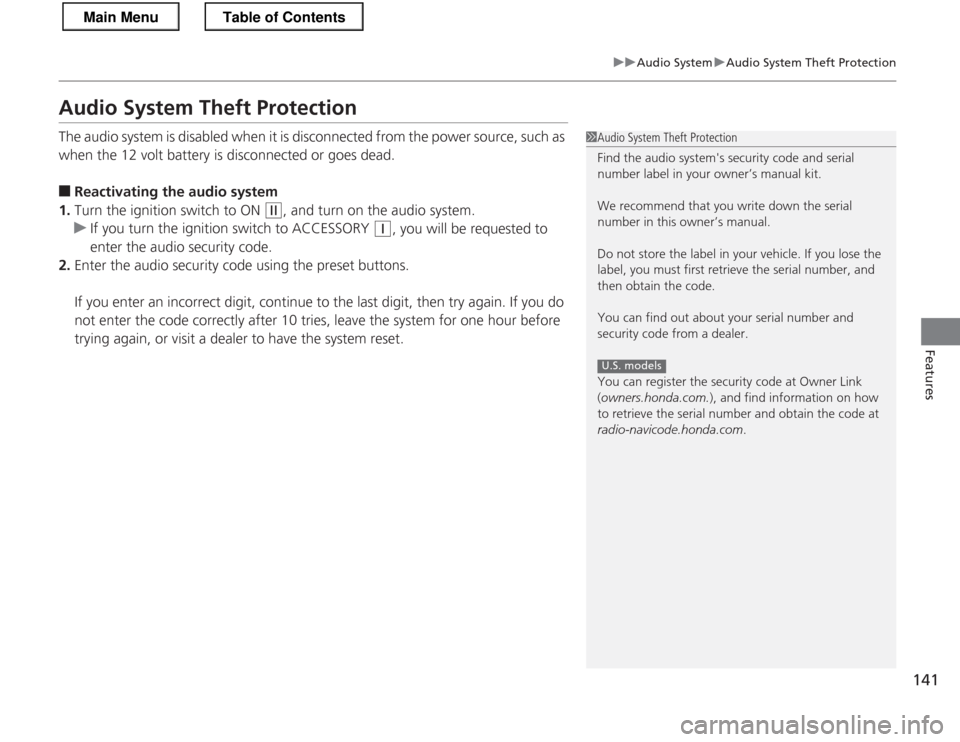
Audio System Theft Protection
The audio system is disabled when it is disconnected from the power source, such as
when the 12 volt battery is disconnected or goes dead. ■Reactivating the audio system
1. Turn the ignition switch to ON
(w , and turn on the audio system.
uIf you turn the ignition switch to ACCESSORY (q, you will be requested to
enter the audio security code.
2. Enter the audio security code using the preset buttons.
If you enter an incorrect digit, continue to the last digit, then try again. If you do
not enter the code correctly after 10 tries, leave the system for one hour before
trying again, or visit a dealer to have the system reset.
1Audio System Theft Protection
Find the audio system's security code and serial
number label in your owner’s manual kit.
We recommend that you write down the serial
number in this owner’s manual.
Do not store the label in your vehicle. If you lose the
label, you must first retrieve the serial number, and
then obtain the code.
You can find out about your serial number and
security code from a dealer.
You can register the security code at Owner Link (owners.honda.com. ), and find information on how
to retrieve the serial number and obtain the code at
radio-navicode.honda.com .
U.S. models
Main MenuTable of Contents
Page 143 of 325
142
uuAudio SystemuAudio Remote Controls
Features
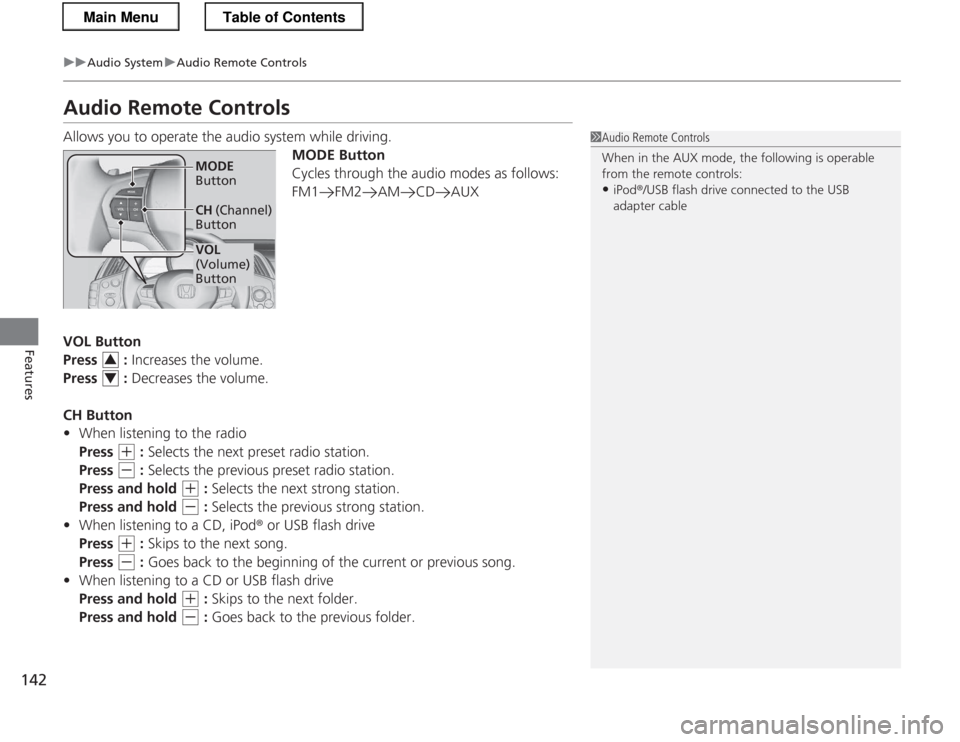
Audio Remote Controls
Allows you to operate the audio system while driving.MODE Button
Cycles through the audio modes as follows:
FM1 FM2 AM CD AUX
VOL Button
Press : Increases the volume.
Press : Decreases the volume.
CH Button • When listening to the radio
Press
(+ : Selects the next preset radio station.
Press
(- : Selects the previous preset radio station.
Press and hold
(+ : Selects the next strong station.
Press and hold
(- : Selects the previous strong station.
• When listening to a CD, iPod ® or USB flash drive
Press
(+ : Skips to the next song.
Press
(- : Goes back to the beginning of the current or previous song.
• When listening to a CD or USB flash drive
Press and hold
(+ : Skips to the next folder.
Press and hold
(- : Goes back to the previous folder.
1Audio Remote Controls
When in the AUX mode, the following is operable
from the remote controls:
• iPod ®/USB flash drive connected to the USB
adapter cable
VOL
(Volume) Button
MODE
Button
CH (Channel)
Button
3
4
Main MenuTable of Contents
Page 146 of 325

145
uuAudio SystemuPlaying the AM/FM Radio
Continued
Features
Playing the AM/FM Radio
SCAN Button
Press to sample each of the strongest stations
on the selected band for 10 seconds.
To turn off scan, press the button again.
(Power) Button
Press to turn the audio
system on and off.
Preset Buttons (1-6)
To store a station:
1. Tune to the selected station.
2. Pick a preset button and hold it until you hear a beep.
To listen to a stored station, select a
band, then press the preset button.
Selector Knob
Turn to adjust the volume.
Press and turn to tune the radio frequency. FM/AM Button
Press to select a band.
A.SEL (Auto Select) Button
Press to scan both bands and store the
strongest station in each preset. To turn
off auto select, press the button again.
This restores the presets you originally set.
/ Button
Press to display and select an RDS category.
/ SEEK Buttons
● Press to change a station.
● Press and hold to search up and
down the selected band for a station with a strong signal.
TITLE Button
Press to switch the RDS name
on and off.
Main MenuTable of Contents
Page 147 of 325

uuAudio SystemuPlaying the AM/FM Radio
146
Features
Use the auto select feature to scan both band s and store the strongest station in
each preset. Press the A.SEL button to activate the feature.
To turn off auto select, press the A.SEL button again. This restores the presets you
originally set.
Provides text data information related to your selected RDS capable FM station. ■ RDS INFO ON
Press the TITLE button while listening to an RDS capable station. RDS INFO ON
appears, and the station name is displayed.
1.Press the / button to
display and select an RDS category.
2. Use SEEK or SCAN to select an RDS station.
■Auto Select (A.SEL)
■Radio Data System (RDS)
■To find an RDS station from your selected program category
1Playing the AM/FM Radio
The ST indicator appears on the display indicating
stereo FM broadcasts.
Stereo reproduction in AM is not available. Switching the Audio Mode
Press the MODE button on the steering wheel.
2 Audio Remote Controls P. 142
You can store six AM stations and twelve FM stations
into the preset button memory. FM1 and FM2 let you store six stations each.
Auto Select function scans and stores up to six AM
stations and twelve FM stations with a strong signal
into the preset button memory.
If you do not like the stations auto select has stored,
you can manually store your preferred frequencies.
1Radio Data System (RDS)
The display shows up to 31 characters of text data.
Press and hold the TITLE button to see additional
characters. indica tes that the text data continues.
The display goes back to the previous screen if you
press and hold the button again.
RDS Category
Main MenuTable of Contents


