Page 1 of 346

ContentsThis owner’s manual should be considered a permanent part of the
vehicle and should remain with the vehicle when it is sold.
This owner’s manual covers all models of your vehicle. You may find
descriptions of equipment and features that are not on your
particular model.
Images throughout this owner’s manual (including the front cover)
represent features and equipment that are available on some, but
not all, models. Your particular model may not have some of these
features.
This owner’s manual is for vehicles sold in the United States and
Canada.
The information and specifications included in this publication were
in effect at the time of approval for printing. Honda Motor Co., Ltd.
reserves the right, however, to discontinue or change specifications
or design at any time without notice and without incurring any
obligation.
2Safe Driving P. 27For Safe Driving P. 28 Seat Belts P. 32 Airbags P. 392Instrument Panel P. 67Indicators P. 68
Gauges and intelligent Multi-Information Display (i-MID) P. 82
2Controls P. 103Setting the Clock P. 104 Locking and Unlocking the Doors P. 105
Operating the Switches Around the Steering Wheel P. 119
Interior Lights/Interior Convenience Items P. 1342Features P. 143Audio System P. 144 Audio System Basic Operation P. 147
Bluetooth® HandsFreeLink® P. 1752Driving P. 207Before Driving P. 208 Towing a Trailer P. 213
Rearview Camera P. 245 Refueling P. 246 Fuel Economy P. 2492Maintenance P. 251Before Performing Maintenance P. 252 Maintenance Minder
TM P. 255
Checking and Maintaining Wiper Blades P. 277
Climate Control System Maintenance P. 290
2Handling the Unexpected P. 295Tools P. 296 If a Tire Goes Flat P. 297
Overheating P. 315 Indicator, Coming On/Blinking P. 3172Information P. 325Specifications P. 326 Identification Numbers P. 328
Emissions Testing P. 331 Warranty Coverages P. 333
Page 4 of 346
3Quick Reference Guide
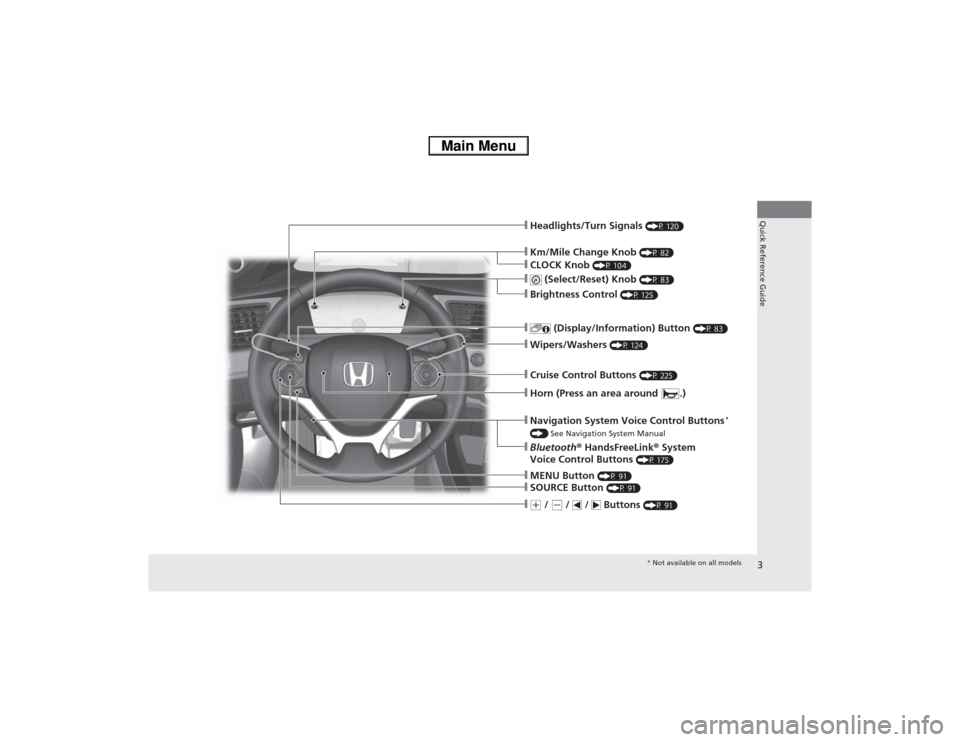
❙Km/Mile Change Knob
(P 82)
❙Headlights/Turn Signals
(P 120)
❙
(Select/Reset) Knob
(P 83)
❙
(Display/Information) Button
(P 83)
❙Wipers/Washers
(P 124)
❙Cruise Control Buttons
(P 225)
❙MENU Button
(P 91)
❙SOURCE Button
(P 91)
❙(+ / (- / / Buttons
(P 91)
❙Navigation System Voice Control Buttons
*
() See Navigation System Manual❙Bluetooth® HandsFreeLink® System
Voice Control Buttons
(P 175)
❙Horn (Press an area around .)❙Brightness Control
(P 125)
❙CLOCK Knob
(P 104)
* Not available on all models
Page 9 of 346
8Quick Reference Guide
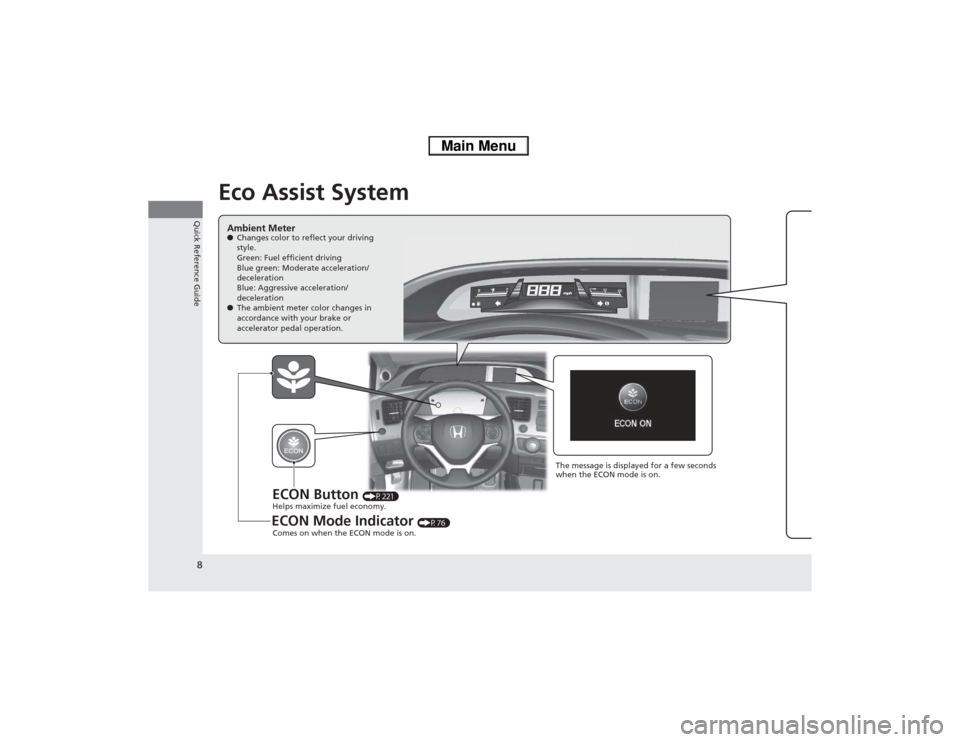
Eco Assist SystemAmbient Meter●Changes color to reflect your driving
style.
Green: Fuel efficient driving
Blue green: Moderate acceleration/
deceleration
Blue: Aggressive acceleration/
deceleration
●The ambient meter color changes in
accordance with your brake or
accelerator pedal operation.
ECON Button
(P221)
ECON Mode Indicator
(P76) Helps maximize fuel economy.
Comes on when the ECON mode is on.
The message is displayed for a few seconds
when the ECON mode is on.
Page 18 of 346
17Quick Reference Guide
Features
(P143)
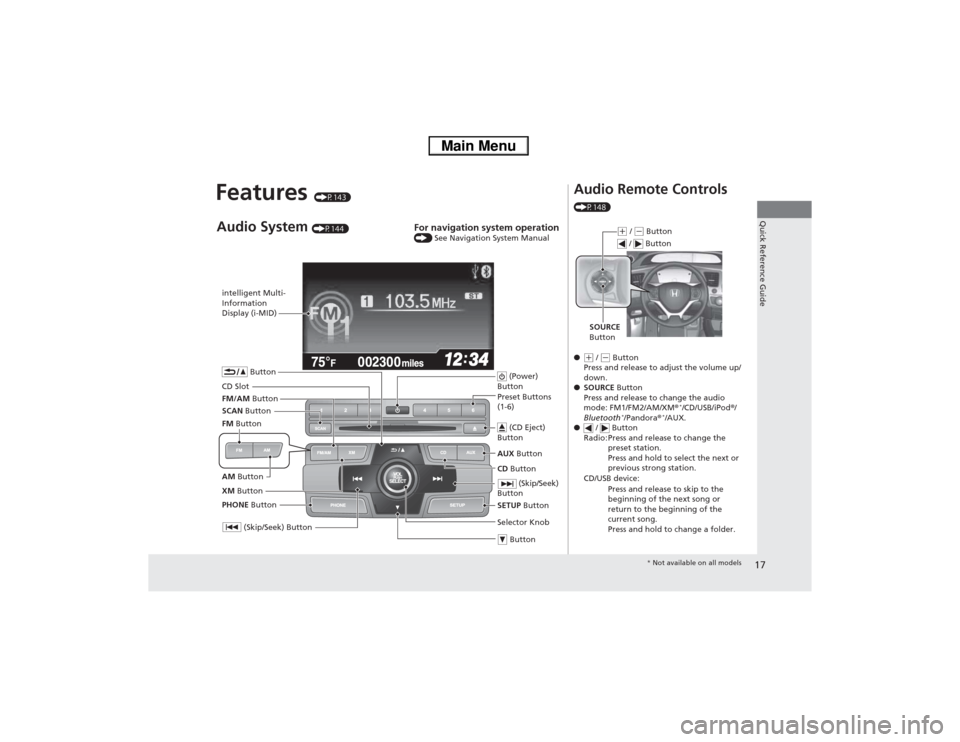
intelligent Multi-
Information
Display (i-MID)
SCAN Button
(Skip/Seek) Button
Selector Knob Button (Power)
ButtonCD Button AUX Button (CD Eject)
ButtonPreset Buttons
(1-6)
ButtonSETUP Button (Skip/Seek)
Button
PHONE ButtonAudio System
(P144)
For navigation system operation () See Navigation System Manual
CD SlotXM Button FM/AM ButtonAM Button FM Button
Audio Remote Controls (P148)
●(+ / (- Button
Press and release to adjust the volume up/
down.
●SOURCE Button
Press and release to change the audio
mode: FM1/FM2/AM/XM®
*/CD/USB/iPod®/
Bluetooth
*/Pandora®
*/AUX.
● / Button
Radio: Press and release to change the
preset station.
Press and hold to select the next or
previous strong station.
CD/USB device:
Press and release to skip to the
beginning of the next song or
return to the beginning of the
current song.
Press and hold to change a folder.
(+ / (- Button
SOURCE
Button / Button* Not available on all models
Page 89 of 346
88
uuGauges and intelligent Multi-Information Display (i-MID)uintelligent Multi-Information Display (i-MID)
Instrument Panel
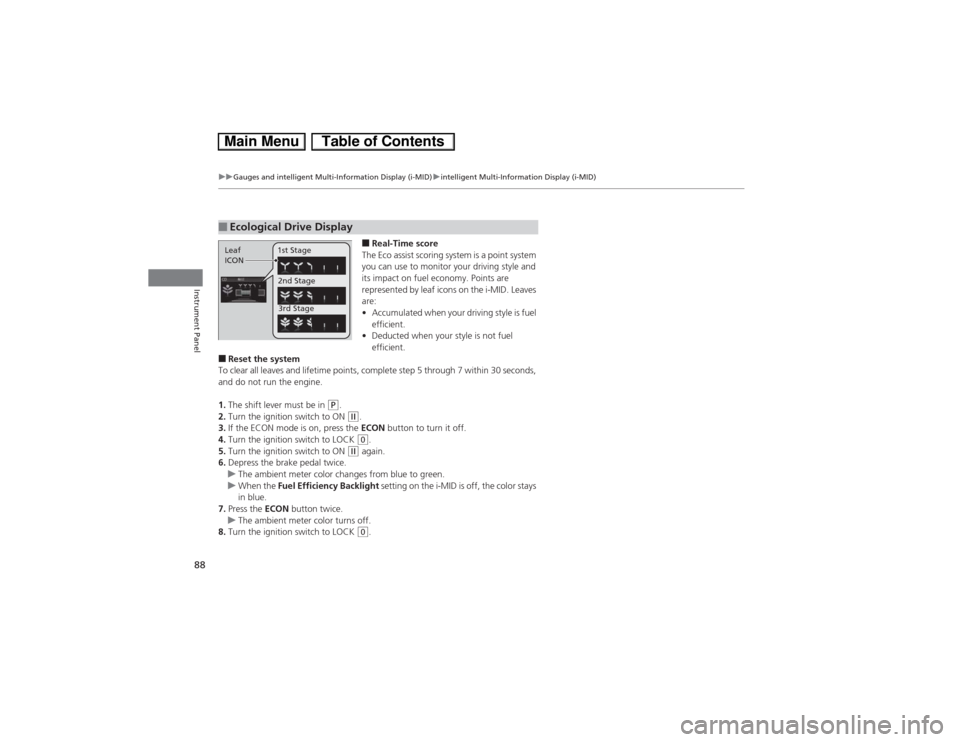
■Real-Time score
The Eco assist scoring system is a point system
you can use to monitor your driving style and
its impact on fuel economy. Points are
represented by leaf icons on the i-MID. Leaves
are:
•Accumulated when your driving style is fuel
efficient.
•Deducted when your style is not fuel
efficient.
■Reset the system
To clear all leaves and lifetime points, complete step 5 through 7 within 30 seconds,
and do not run the engine.
1.The shift lever must be in
(P.
2.Turn the ignition switch to ON (w.
3.If the ECON mode is on, press the ECON button to turn it off.
4.Turn the ignition switch to LOCK (0.
5.Turn the ignition switch to ON
(w again.
6.Depress the brake pedal twice.
uThe ambient meter color changes from blue to green.
uWhen the Fuel Efficiency Backlight setting on the i-MID is off, the color stays
in blue.
7.Press the ECON button twice.
uThe ambient meter color turns off.
8.Turn the ignition switch to LOCK (0.
■Ecological Drive DisplayLeaf
ICON1st Stage
2nd Stage
3rd Stage
Page 97 of 346
96
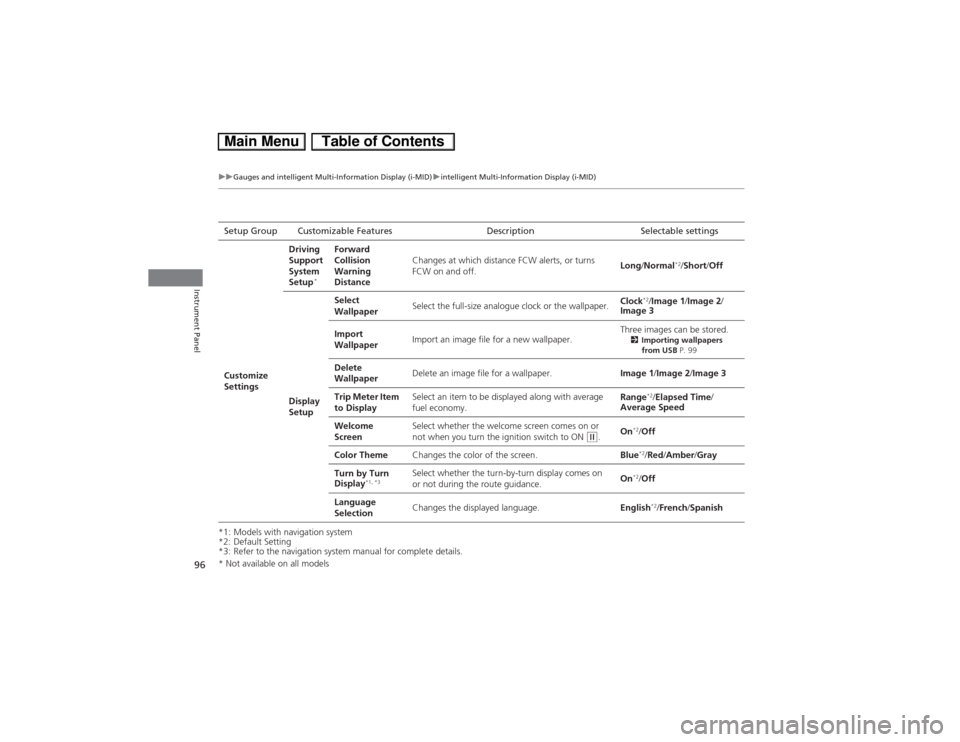
uuGauges and intelligent Multi-Information Display (i-MID)uintelligent Multi-Information Display (i-MID)
Instrument Panel
*1: Models with navigation system
*2: Default Setting
*3: Refer to the navigation system manual for complete details.Setup Group Customizable Features Description Selectable settings
Customize
SettingsDriving
Support
System
Setup
*
Forward
Collision
Warning
DistanceChanges at which distance FCW alerts, or turns
FCW on and off.Long/Normal
*2/Short/Off
Display
SetupSelect
WallpaperSelect the full-size analogue clock or the wallpaper.Clock
*2/Image 1/Image 2/
Image 3
Import
WallpaperImport an image file for a new wallpaper.Three images can be stored.
2Importing wallpapers
from USB P. 99
Delete
WallpaperDelete an image file for a wallpaper.Image 1/Image 2/Image 3
Trip Meter Item
to DisplaySelect an item to be displayed along with average
fuel economy.Range
*2/Elapsed Time/
Average Speed
Welcome
ScreenSelect whether the welcome screen comes on or
not when you turn the ignition switch to ON
(w.On
*2/Off
Color ThemeChanges the color of the screen.Blue*2/Red/Amber/Gray
Turn by Turn
Display
*1, *3
Select whether the turn-by-turn display comes on
or not during the route guidance.On
*2/Off
Language
SelectionChanges the displayed language.English*2/French/Spanish
* Not available on all models
Page 144 of 346
143
Features
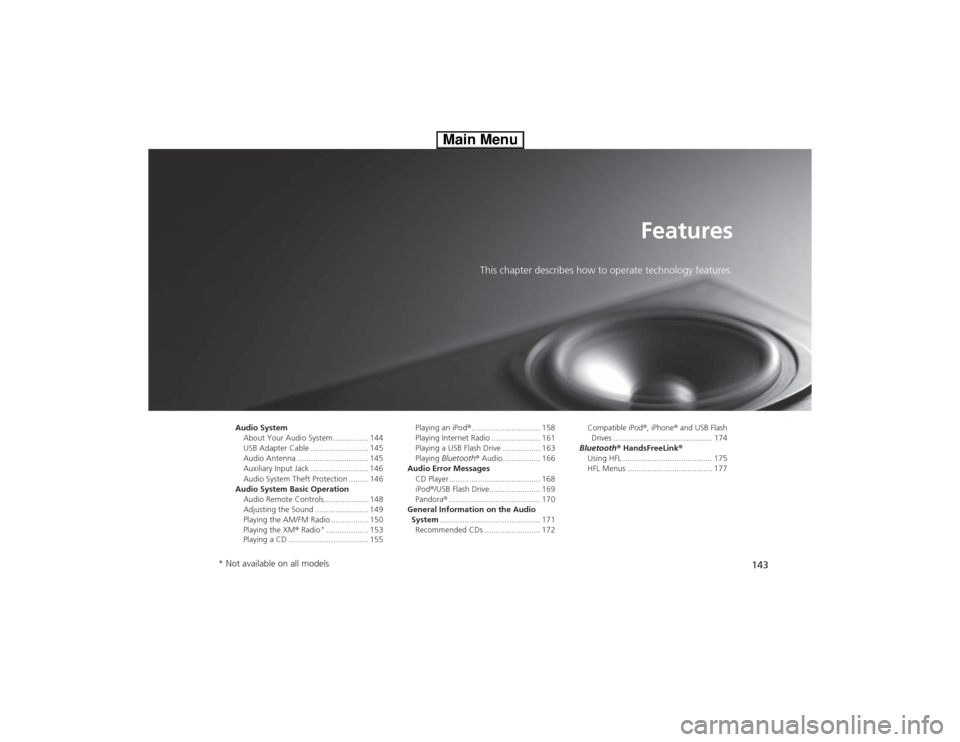
This chapter describes how to operate technology features.
Audio System
About Your Audio System ................ 144
USB Adapter Cable .......................... 145
Audio Antenna ................................ 145
Auxiliary Input Jack .......................... 146
Audio System Theft Protection ......... 146
Audio System Basic Operation
Audio Remote Controls .................... 148
Adjusting the Sound ........................ 149
Playing the AM/FM Radio ................. 150
Playing the XM® Radio
*................... 153
Playing a CD .................................... 155Playing an iPod®............................... 158
Playing Internet Radio ...................... 161
Playing a USB Flash Drive ................. 163
Playing Bluetooth® Audio................. 166
Audio Error Messages
CD Player ......................................... 168
iPod®/USB Flash Drive....................... 169
Pandora®......................................... 170
General Information on the Audio
System............................................. 171
Recommended CDs ......................... 172Compatible iPod®, iPhone® and USB Flash
Drives .............................................. 174
Bluetooth® HandsFreeLink®
Using HFL ........................................ 175
HFL Menus ...................................... 177
* Not available on all models
Page 145 of 346
144Features
Audio SystemAbout Your Audio SystemOn models with navigation system, see the Navigation System Manual for operation
of the audio system, Bluetooth® HandsFreeLink®, and voice commands for these
features.
The audio system features AM/FM radio and the XM® Radio service
*. It can also play
audio CDs, WMA/MP3/AAC files, iPod®, iPhone®, USB flash drives, and Bluetooth®
devices.
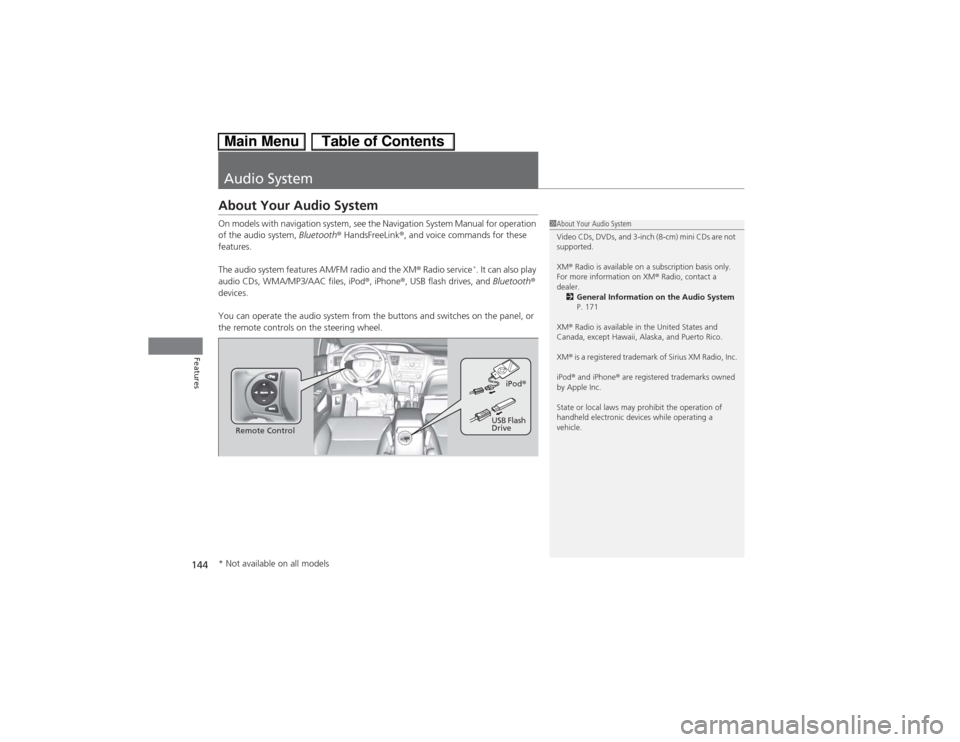
You can operate the audio system from the buttons and switches on the panel, or
the remote controls on the steering wheel.
1About Your Audio System
Video CDs, DVDs, and 3-inch (8-cm) mini CDs are not
supported.
XM® Radio is available on a subscription basis only.
For more information on XM® Radio, contact a
dealer.
2General Information on the Audio System
P. 171
XM® Radio is available in the United States and
Canada, except Hawaii, Alaska, and Puerto Rico.
XM® is a registered trademark of Sirius XM Radio, Inc.
iPod® and iPhone® are registered trademarks owned
by Apple Inc.
State or local laws may prohibit the operation of
handheld electronic devices while operating a
vehicle.
Remote ControliPod®
USB Flash
Drive
* Not available on all models