2013 FORD TAURUS infotainment
[x] Cancel search: infotainmentPage 9 of 541
MyFord Touch™ (If Equipped) 435
Infotainment display...................................441
Voice recognition.....................................442
Listening to music.....................................449
Phone features.......................................474
Information Menu.....................................481
Menu features........................................492
Settings............................................494
Climate features......................................501
Navigation system.....................................504
Appendices 516
Index 534
The information contained in this publication was correct at the time of going to
print. In the interest of continuous development, we reserve the right to change
specifications, design or equipment at any time without notice or obligation. No
part of this publication may be reproduced, transmitted, stored in a retrieval
system or translated into any language in any form by any means without our
written permission. Errors and omissions excepted.
© Ford Motor Company 2011
Table of Contents9
2013 Taurus
Owners Guide gf, 1st Printing
USA(fus)
Page 103 of 541
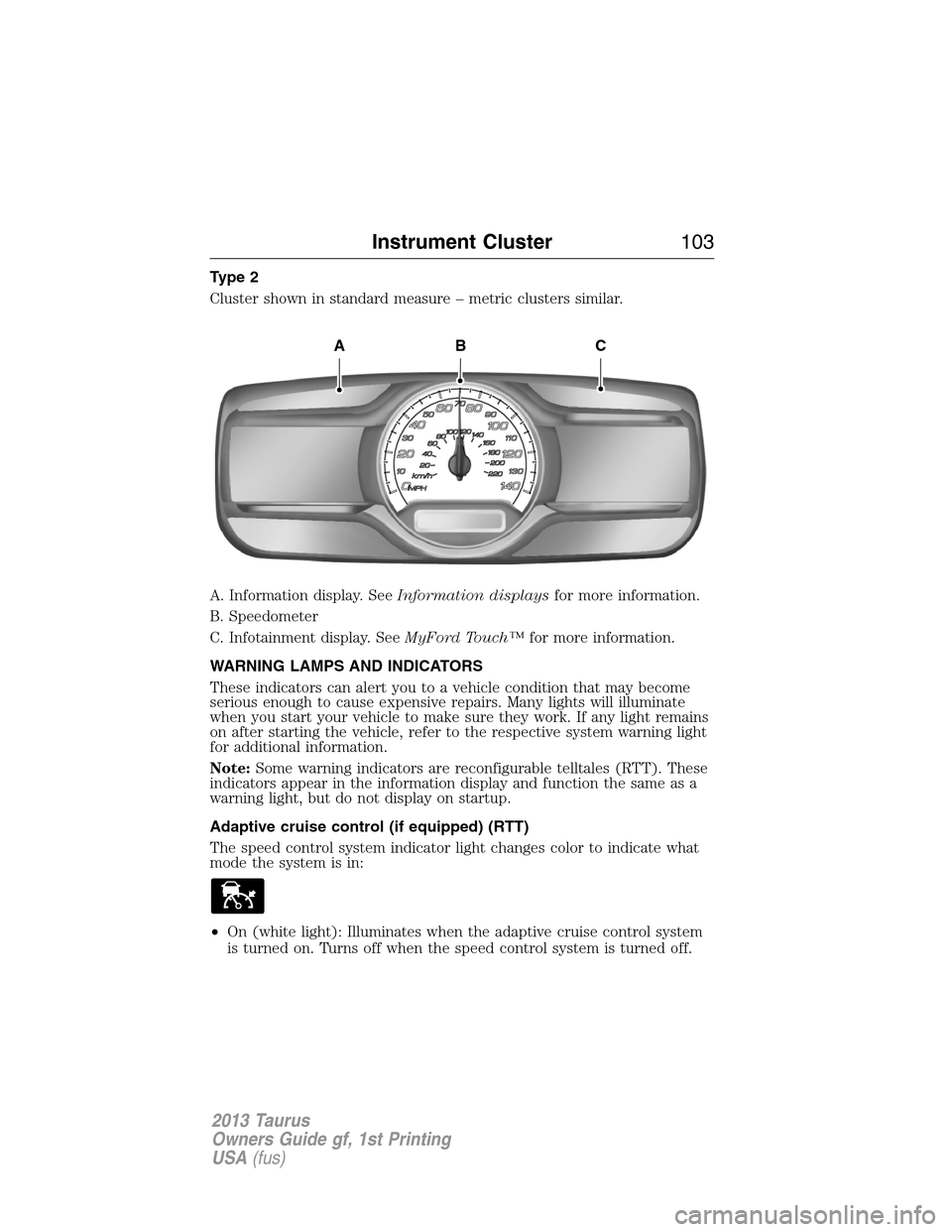
Type 2
Cluster shown in standard measure – metric clusters similar.
A. Information display. SeeInformation displaysfor more information.
B. Speedometer
C. Infotainment display. SeeMyFord Touch™for more information.
WARNING LAMPS AND INDICATORS
These indicators can alert you to a vehicle condition that may become
serious enough to cause expensive repairs. Many lights will illuminate
when you start your vehicle to make sure they work. If any light remains
on after starting the vehicle, refer to the respective system warning light
for additional information.
Note:Some warning indicators are reconfigurable telltales (RTT). These
indicators appear in the information display and function the same as a
warning light, but do not display on startup.
Adaptive cruise control (if equipped) (RTT)
The speed control system indicator light changes color to indicate what
mode the system is in:
•On (white light): Illuminates when the adaptive cruise control system
is turned on. Turns off when the speed control system is turned off.
ABC
Instrument Cluster103
2013 Taurus
Owners Guide gf, 1st Printing
USA(fus)
Page 437 of 541
Press to access your home screen.
Depending on your vehicle’s option package and software, your
screens may vary in appearance from the screens shown in this
section. Your features may also be limited depending on your market.
Check with your authorized dealer for availability.
Customizing Your Home Screen
Press the house icon to access the home screen.
Using the Touch-Sensitive Controls on Your System
Your vehicle’s centerstack has touch-sensitive switches for your
infotainment and climate control systems. To turn a feature on and off,
just touch the graphic with your finger. To get the best performance from
the touch-sensitive controls:
•Do not press hard on the controls. They are sensitive to light touch.
•Use your bare finger to touch the center of a touch-control graphic.
Touching off-center of the graphic may cause a nearby control to turn
on or off.
•Make sure your hands are clean and dry.
•Since the touchscreen operates based on the touch of a finger, you
may have trouble using it if you are wearing gloves.
•Metal and other conductive material should be kept away from the
surface of the touchscreen as this may cause electronic interference
(i.e. control activation).
Depending on your vehicle and option package, you may also have these
controls on your bezel:
•Power: Turn the media (or climate features) on or off.
•VOL: Increase or decrease the volume.
•Fan: Increase or decrease the fan speed.
•Seek and Tune buttons: Use as you normally would in media modes.
•Eject: Eject a CD.
•SOURCE: Touch the word repeatedly to see all available media modes.
The screen does not change, but you see the media changes in the
lower left status bar.
MyFord Touch™ (If Equipped)437
2013 Taurus
Owners Guide gf, 1st Printing
USA(fus)
Page 441 of 541
ACCESSING AND ADJUSTING MODES THROUGH YOUR
INFOTAINMENT DISPLAY (IF EQUIPPED)
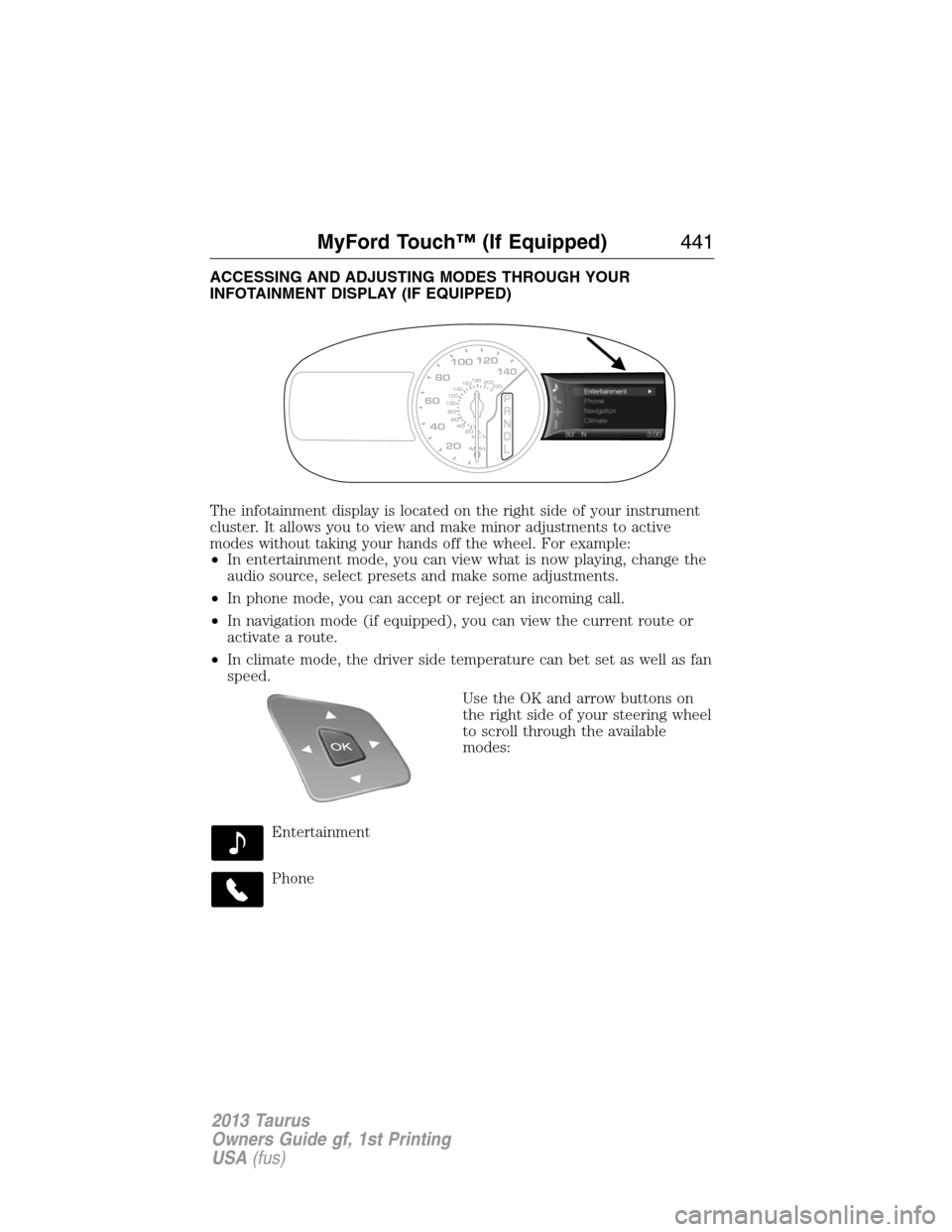
The infotainment display is located on the right side of your instrument
cluster. It allows you to view and make minor adjustments to active
modes without taking your hands off the wheel. For example:
•In entertainment mode, you can view what is now playing, change the
audio source, select presets and make some adjustments.
•In phone mode, you can accept or reject an incoming call.
•In navigation mode (if equipped), you can view the current route or
activate a route.
•In climate mode, the driver side temperature can bet set as well as fan
speed.
Use the OK and arrow buttons on
the right side of your steering wheel
to scroll through the available
modes:
Entertainment
Phone
km/h
80
60
40
20
0
20
0 40 60 80
100120140160180
200
220
100120140
MPH
MyFord Touch™ (If Equipped)441
2013 Taurus
Owners Guide gf, 1st Printing
USA(fus)
Page 483 of 541
1. Select Connect to Services to initiate an outgoing call to SYNC
Services using your phone.
2. Once connected, follow the voice prompts to request your desired
Service such as Traffic or Directions. You can also say “What are my
choices?” to receive a complete list of available services from which
to choose.
3. To return to the services menu, say “Services” or for help, say “Help”.
Receiving Turn-by-Turn Directions
1. When connected to SYNC Services, say “Directions” or “Business
Search”. To find the closest business or type of business to your
current location just say “Business Search” and then “Search Near
Me”. If you need further assistance in finding a location you can say
“Operator” at any time within a Directions or Business search to
speak with a live operator. You may also be prompted to speak with
an operator. The live operator can assist you by searching for
businesses by name or by category, residential addresses by street
address or by name or specific street intersections. Operator Assist is
a feature of your SYNC Services subscription. For more information
on Operator Assist visit www.SYNCMyRide.com/support.
2. Follow the voice prompts to select your Destination. After the route
download is complete, the phone call is automatically ended.
If your vehicle is not equipped with the navigation feature:
•Turn-by-turn directions appear in the infotainment display, in the
status bar of your touchscreen system and also on the SYNC Services
screen. You also receive driving instructions from audible prompts.
•When on an active route, you can select Route Summary or Route
Status using the touchscreen controls or voice commands to view the
Route summary turn list or the Route Status ETA. You can also turn
voice guidance on or off, cancel the route or update the route.
If you miss a turn, SYNC automatically asks if you want the route
updated. Just say, “Yes” when prompted and a new route will be
delivered to your vehicle.
If your vehicle is equipped with the navigation feature, SYNC Services
downloads your requested destination to the navigation system. The
navigation system then calculates the route and provides driving
instructions. Refer to theNavigation Featuressection for more
information.
MyFord Touch™ (If Equipped)483
2013 Taurus
Owners Guide gf, 1st Printing
USA(fus)
Page 537 of 541

G
Gas cap (see Fuel cap) ............ 186
Gauges ............................... 102–103
odometer ................................. 112
trip odometer .......................... 112
H
Hazard flashers ......................... 258
HD Radio™ ............................... 451
Headlamps
aiming ...................................... 302
bulb specifications .................. 308
flash to pass .............................. 89
high beam ........................... 89, 91
replacing bulbs ....................... 304
Head restraints ......................... 155
Heated steering wheel .............. 501
Heating .............. 142, 144, 146, 148
Help ............................................ 500
Homelink wireless control
system ........................................ 168
Home screen ............................. 437
Hood .......................................... 281
How to use voice commands ... 443
I
Ignition ............................... 177, 354
Illuminated visor mirror ..... 99–100
Information displays ................. 109
Infotainment display ................. 441
Inspection/maintenance (I/M)
testing ........................................ 191
Instrument panel
cleaning ................................... 313cluster ...................................... 103
Intelligent Access Key ................ 56
J
Jack ............................................ 339
positioning ............................... 339
storage ..................................... 339
Joining two calls
(multiparty/conference call) .... 398
Jump-starting your vehicle ...... 259
K
Keyless entry system
autolock ..................................... 71
keypad ....................................... 74
locking and unlocking doors .... 75
programming entry code ......... 74
Keys ....................................... 56, 77
positions of the ignition ......... 177
L
Lamps
bulb replacement
specifications chart ................ 308
headlamps, flash to pass .......... 89
interior lamps ........................... 94
replacing bulbs ....................... 304
LATCH anchors ........................... 28
Lights, warning and indicator .. 103
Listening to music .................... 449
Loading pictures ....................... 492
Load limits ................................. 240
Locks
autolock ..................................... 71
childproof .................................. 32
doors .......................................... 69
Index537
2013 Taurus
Owners Guide gf, 1st Printing
USA(fus)