2013 FORD SUPER DUTY ESP
[x] Cancel search: ESPPage 462 of 563
Support
The SYNC support team is available to help you with any questions you
aren’t able to answer on your own.
Monday-Saturday, 8:30 am-8pm EST
In the United States, call: 1–888–270–1055
In Canada, call: 1–800–565–3673
Times are subject to change due to holidays.
Safety information
WARNING:Driving while distracted can result in loss of vehicle
control, accident and injury. Ford strongly recommends that
drivers use extreme caution when using any device that may take their
focus off the road. Your primary responsibility is the safe operation of
the vehicle. We recommend against the use of any handheld device
while driving, encourage the use of voice-operated systems when
possible and that you become aware of applicable state and local laws
that may affect use of electronic devices while driving.
•Do not attempt to service or repair SYNC®. See your authorized
dealer.
•Do not operate playing devices if the power cords and/or cables are
broken, split or damaged. Carefully place cords and/or cables where
they will not be stepped on or interfere with the operation of pedals,
seats and/or compartments, or safe driving abilities.
•Do not leave playing devices in the vehicle in extreme conditions as it
could cause damage to your device. Refer to your device’s user guide
for further information.
•For your safety, some SYNC® functions are speed dependent and
cannot be performed when the vehicle is traveling at speeds greater
than 3 mph (5 km/h).
•Ensure that you review your device’s user guide before using with
SYNC®.
MyFord Touch® (If Equipped)461
2013 F-250/350/450/550(f23)
Owners Guide gf, 1st Printing
USA(fus)
Page 464 of 563
Privacy information
When a cellular phone is connected to SYNC®, SYNC® creates a profile
within your vehicle that is linked to that cellular phone. This profile is
created in order to offer you more cellular features and to operate more
efficiently. Among other things, this profile may contain data about your
cellular phone book, text messages (read and unread), and call history,
including history of calls when your cell phone was not connected to
SYNC®. In addition, if you connect a media device, SYNC® creates and
retains an index of media content supported by SYNC®. SYNC® also
records a short development log of approximately 10 minutes of all
recent SYNC® activity. The log profile and other SYNC® data may be
used to improve SYNC® and help diagnose any problems that may occur.
The cellular profile, media device index, and development log will remain
in the vehicle unless you delete it and are generally accessible only in
the vehicle when the cellular phone or media player is connected. If you
no longer plan to use SYNC® or the vehicle, we recommend you perform
a Master Reset to erase all information stored in SYNC®.
SYNC® data cannot be accessed without special equipment and access
to the vehicle’s SYNC® module. Ford Motor Company and Ford of
Canada will not access SYNC® data for any purpose other than as
described absent consent, a court order, or where required by law
enforcement, other government authorities, or other third parties acting
with lawful authority. Other parties may seek to access the information
independently of Ford Motor Company and Ford of Canada. For further
privacy information, see the sections on 911 Assist™ (if equipped),
Vehicle Health Report (if equipped), and Traffic, Directions and
Information (if equipped).
USING VOICE RECOGNITION
This system helps you control many features using voice commands. This
allows you to keep your hands on the wheel and focus on what is in
front of you. The system provides feedback through audible tones,
prompts, questions and spoken confirmations depending on the situation
and the chosen level of interaction (voice settings).
The system also asks short questions (confirmation prompts) when it is
not sure of your request or when there are multiple possible responses
to your request.
When using voice commands, words and icons may appear in the lower
left status bar indicating the status of the voice session (such as
Listening, Success, Failed, Paused or Try Again).
MyFord Touch® (If Equipped)463
2013 F-250/350/450/550(f23)
Owners Guide gf, 1st Printing
USA(fus)
Page 475 of 563
HD Radio Reception and Station Troubleshooting
Potential Reception Issues
Reception areaIf you are listening to a multicast station and
you are on the fringe of the reception area,
the station may mute due to weak signal
strength.
If you are listening to HD1, the system
switches back to the analog broadcast until
the digital broadcast is available again.
However, if you are listening to any of the
possible HD2 through HD7 multicast
channels, the station mutes and stays muted
unless it is able to connect to the digital
signal again.
Station blendingWhen the system first receives a station
(aside from HD2-HD7 multicast stations), it
first plays the station in the analog version.
Once the receiver verifies the station is an HD
Radio station, it shifts to the digital version.
Depending on the station quality, you may
hear a slight sound change when the station
changes from analog to digital. Blending is the
shift from analog to digital sound or digital
back to analog sound.
In order to provide the best possible experience, use the contact form to
report any station issues found while listening to a station broadcasting
with HD Radio technology. Independent entities own and operate each
station. These stations are responsible for making sure all audio streams
and data fields are accurate.
Potential Station Issues
Issue Cause Action
Echo, stutter, skip or
repeat in audio.
Increase or decrease
in audio volume.This is poor time
alignment by the radio
broadcaster.No action required.
This is a broadcast
issue.
474MyFord Touch® (If Equipped)
2013 F-250/350/450/550(f23)
Owners Guide gf, 1st Printing
USA(fus)
Page 476 of 563
Potential Station Issues
Issue Cause Action
Sound fading or
blending in and out.The radio is shifting
between analog and
digital audio.No action required.
The reception issue
may clear up as you
continue to drive.
There is an audio
mute delay when
selecting HD2 or HD3,
multicast preset or
Direct Tune.The digital multicast is
not available until the
HD Radio broadcast is
decoded. Once
decoded, the audio is
available.No action required.
This is normal
behavior. Wait until
the audio is available.
Cannot access HD2 or
HD3 multicast channel
when recalling a
preset or from a direct
tune.The previously stored
multicast preset or
direct tune is not
available in your
current reception area.No action required.
The station is not
available in your
current location.
Text information does
not match currently
playing audio.Data service issue by
the radio broadcaster.Fill out the station
issue form at website
listed below.
*
There is no text
information shown for
currently selected
frequency.Data service issue by
the radio broadcaster.Fill out the station
issue form at website
listed below.
*
HD2-HD7 stations not
found whenScanis
pressed.PressingScandisables
HD2-HD7 channel
search.No action required.
This is normal
behavior.
*http://www.ibiquity.com/automotive/report_radio_station_experiences
HD Radio™ Technology manufactured under license from iBiquity Digital
Corp. U.S. and foreign patents. HD Radio™ and the HD and HD Radio
logos are proprietary trademarks of iBiquity Digital Corp. Ford Motor
Company and iBiquity Digital Corp. are not responsible for the content
sent using HD Radio technology. Content may be changed, added or
deleted at any time at the station owner’s discretion.
MyFord Touch® (If Equipped)475
2013 F-250/350/450/550(f23)
Owners Guide gf, 1st Printing
USA(fus)
Page 479 of 563
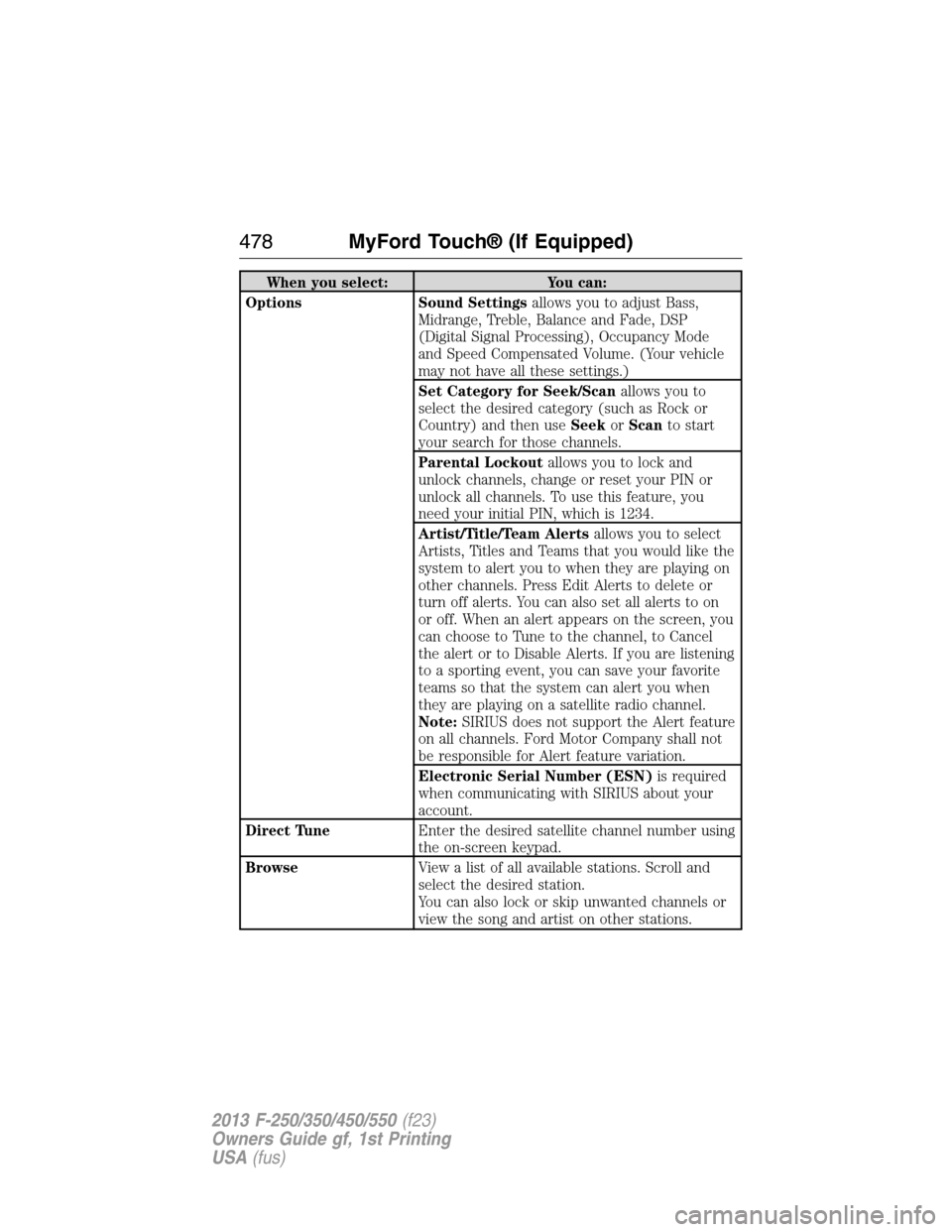
When you select: You can:
Options Sound Settingsallows you to adjust Bass,
Midrange, Treble, Balance and Fade, DSP
(Digital Signal Processing), Occupancy Mode
and Speed Compensated Volume. (Your vehicle
may not have all these settings.)
Set Category for Seek/Scanallows you to
select the desired category (such as Rock or
Country) and then useSeekorScanto start
your search for those channels.
Parental Lockoutallows you to lock and
unlock channels, change or reset your PIN or
unlock all channels. To use this feature, you
need your initial PIN, which is 1234.
Artist/Title/Team Alertsallows you to select
Artists, Titles and Teams that you would like the
system to alert you to when they are playing on
other channels. Press Edit Alerts to delete or
turn off alerts. You can also set all alerts to on
or off. When an alert appears on the screen, you
can choose to Tune to the channel, to Cancel
the alert or to Disable Alerts. If you are listening
to a sporting event, you can save your favorite
teams so that the system can alert you when
they are playing on a satellite radio channel.
Note:SIRIUS does not support the Alert feature
on all channels. Ford Motor Company shall not
be responsible for Alert feature variation.
Electronic Serial Number (ESN)is required
when communicating with SIRIUS about your
account.
Direct TuneEnter the desired satellite channel number using
the on-screen keypad.
BrowseView a list of all available stations. Scroll and
select the desired station.
You can also lock or skip unwanted channels or
view the song and artist on other stations.
478MyFord Touch® (If Equipped)
2013 F-250/350/450/550(f23)
Owners Guide gf, 1st Printing
USA(fus)
Page 481 of 563
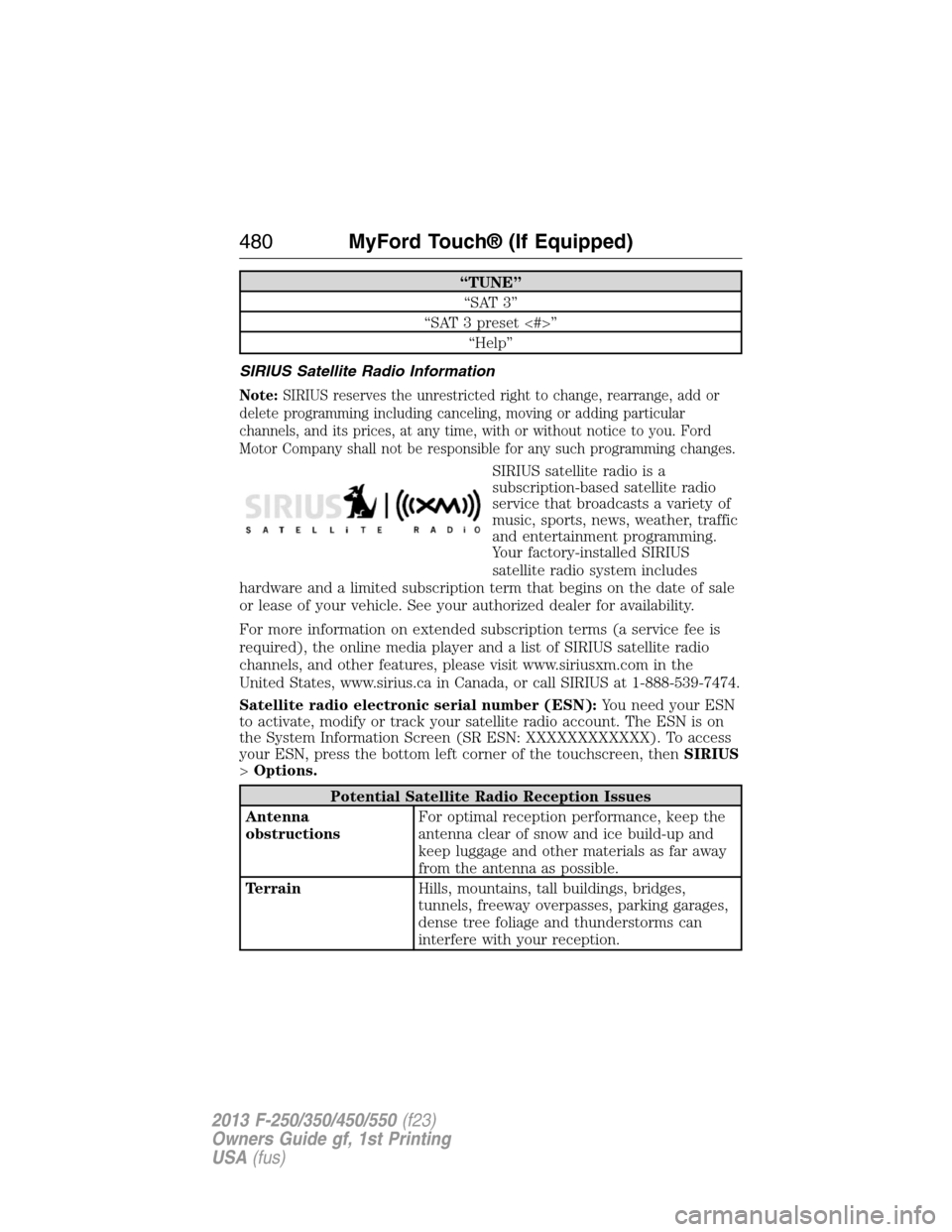
“TUNE”
“SAT 3”
“SAT 3 preset <#>”
“Help”
SIRIUS Satellite Radio Information
Note:SIRIUS reserves the unrestricted right to change, rearrange, add or
delete programming including canceling, moving or adding particular
channels, and its prices, at any time, with or without notice to you. Ford
Motor Company shall not be responsible for any such programming changes.
SIRIUS satellite radio is a
subscription-based satellite radio
service that broadcasts a variety of
music, sports, news, weather, traffic
and entertainment programming.
Your factory-installed SIRIUS
satellite radio system includes
hardware and a limited subscription term that begins on the date of sale
or lease of your vehicle. See your authorized dealer for availability.
For more information on extended subscription terms (a service fee is
required), the online media player and a list of SIRIUS satellite radio
channels, and other features, please visit www.siriusxm.com in the
United States, www.sirius.ca in Canada, or call SIRIUS at 1-888-539-7474.
Satellite radio electronic serial number (ESN):You need your ESN
to activate, modify or track your satellite radio account. The ESN is on
the System Information Screen (SR ESN: XXXXXXXXXXXX). To access
your ESN, press the bottom left corner of the touchscreen, thenSIRIUS
>Options.
Potential Satellite Radio Reception Issues
Antenna
obstructionsFor optimal reception performance, keep the
antenna clear of snow and ice build-up and
keep luggage and other materials as far away
from the antenna as possible.
TerrainHills, mountains, tall buildings, bridges,
tunnels, freeway overpasses, parking garages,
dense tree foliage and thunderstorms can
interfere with your reception.
480MyFord Touch® (If Equipped)
2013 F-250/350/450/550(f23)
Owners Guide gf, 1st Printing
USA(fus)
Page 489 of 563
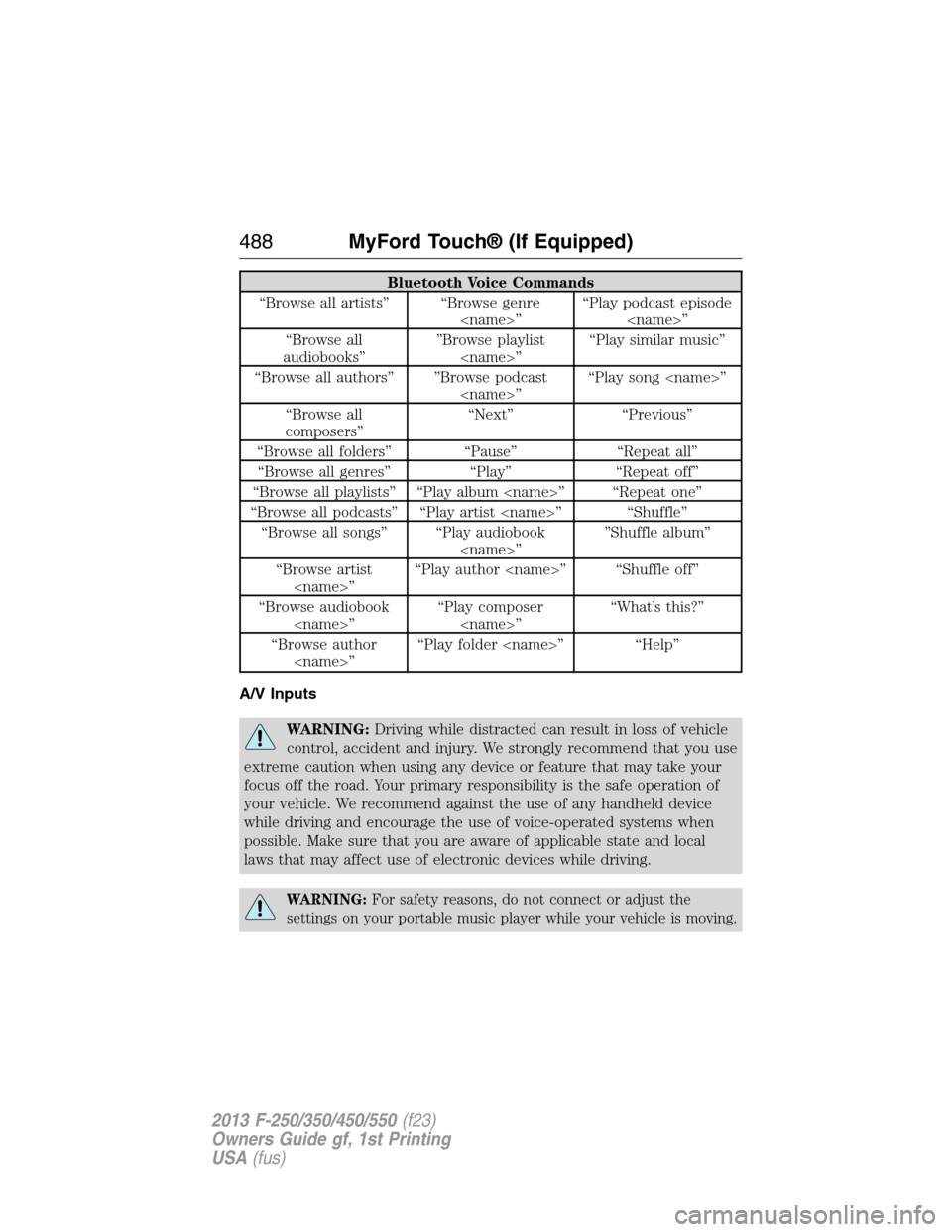
Bluetooth Voice Commands
“Browse all artists” “Browse genre
“Browse all
audiobooks””Browse playlist
“Browse all authors” ”Browse podcast
“Browse all
composers”“Next” “Previous”
“Browse all folders” “Pause” “Repeat all”
“Browse all genres” “Play” “Repeat off”
“Browse all playlists” “Play album
“Browse all podcasts” “Play artist
“Browse all songs” “Play audiobook
“Browse artist
“Browse audiobook
“Browse author
A/V Inputs
WARNING:Driving while distracted can result in loss of vehicle
control, accident and injury. We strongly recommend that you use
extreme caution when using any device or feature that may take your
focus off the road. Your primary responsibility is the safe operation of
your vehicle. We recommend against the use of any handheld device
while driving and encourage the use of voice-operated systems when
possible. Make sure that you are aware of applicable state and local
laws that may affect use of electronic devices while driving.
WARNING:For safety reasons, do not connect or adjust the
settings on your portable music player while your vehicle is moving.
488MyFord Touch® (If Equipped)
2013 F-250/350/450/550(f23)
Owners Guide gf, 1st Printing
USA(fus)
Page 492 of 563
Pairing Your Phone for the First Time
WARNING:Driving while distracted can result in loss of vehicle
control, accident and injury. Ford strongly recommends that
drivers use extreme caution when using any device that may take their
focus off the road. Your primary responsibility is the safe operation of
the vehicle. We recommend against the use of any handheld device
while driving, encourage the use of voice-operated systems when
possible and that you become aware of applicable state and local laws
that may affect use of electronic devices while driving.
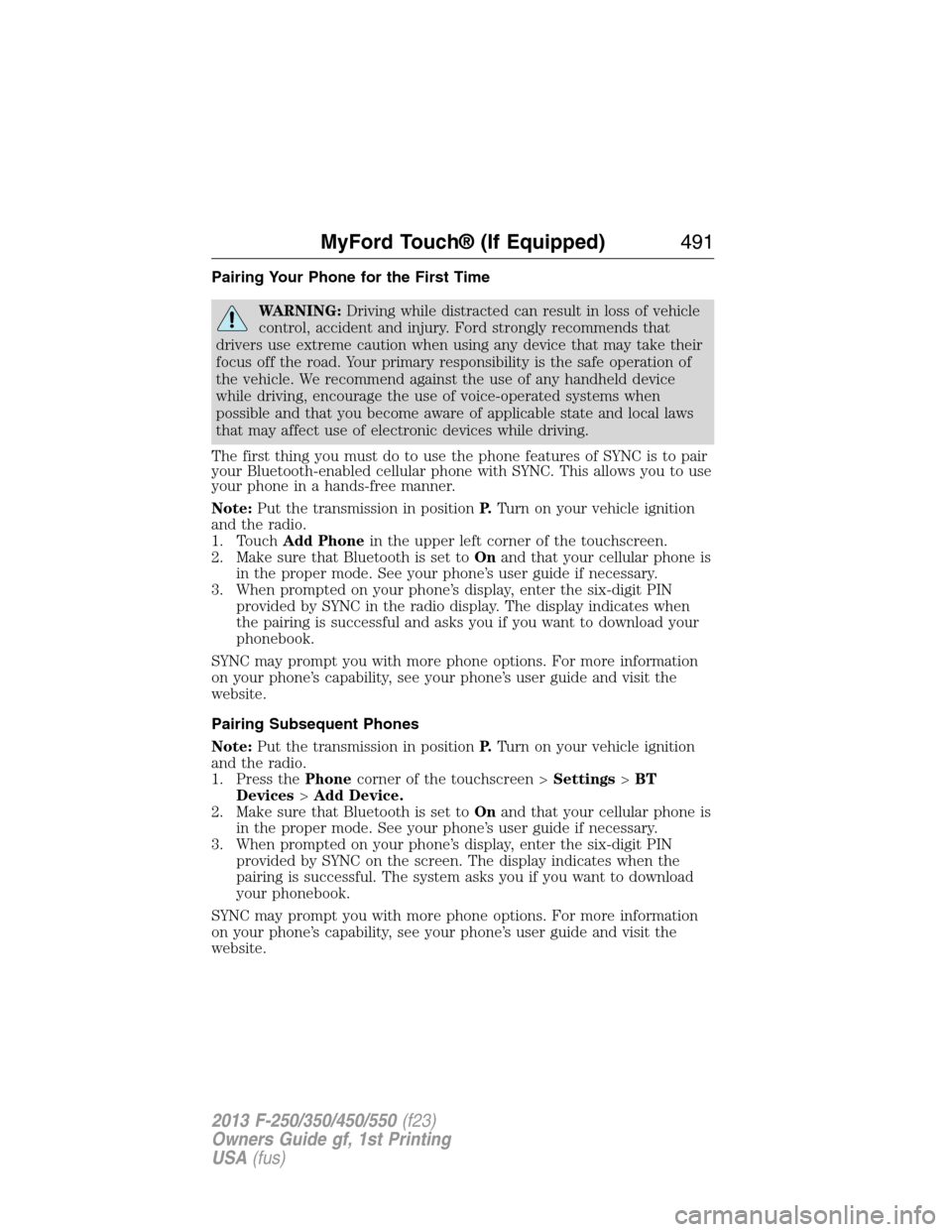
The first thing you must do to use the phone features of SYNC is to pair
your Bluetooth-enabled cellular phone with SYNC. This allows you to use
your phone in a hands-free manner.
Note:Put the transmission in positionP.Turn on your vehicle ignition
and the radio.
1. TouchAdd Phonein the upper left corner of the touchscreen.
2. Make sure that Bluetooth is set toOnand that your cellular phone is
in the proper mode. See your phone’s user guide if necessary.
3. When prompted on your phone’s display, enter the six-digit PIN
provided by SYNC in the radio display. The display indicates when
the pairing is successful and asks you if you want to download your
phonebook.
SYNC may prompt you with more phone options. For more information
on your phone’s capability, see your phone’s user guide and visit the
website.
Pairing Subsequent Phones
Note:Put the transmission in positionP.Turn on your vehicle ignition
and the radio.
1. Press thePhonecorner of the touchscreen >Settings>BT
Devices>Add Device.
2. Make sure that Bluetooth is set toOnand that your cellular phone is
in the proper mode. See your phone’s user guide if necessary.
3. When prompted on your phone’s display, enter the six-digit PIN
provided by SYNC on the screen. The display indicates when the
pairing is successful. The system asks you if you want to download
your phonebook.
SYNC may prompt you with more phone options. For more information
on your phone’s capability, see your phone’s user guide and visit the
website.
MyFord Touch® (If Equipped)491
2013 F-250/350/450/550(f23)
Owners Guide gf, 1st Printing
USA(fus)