2013 FORD SUPER DUTY CD player
[x] Cancel search: CD playerPage 445 of 563
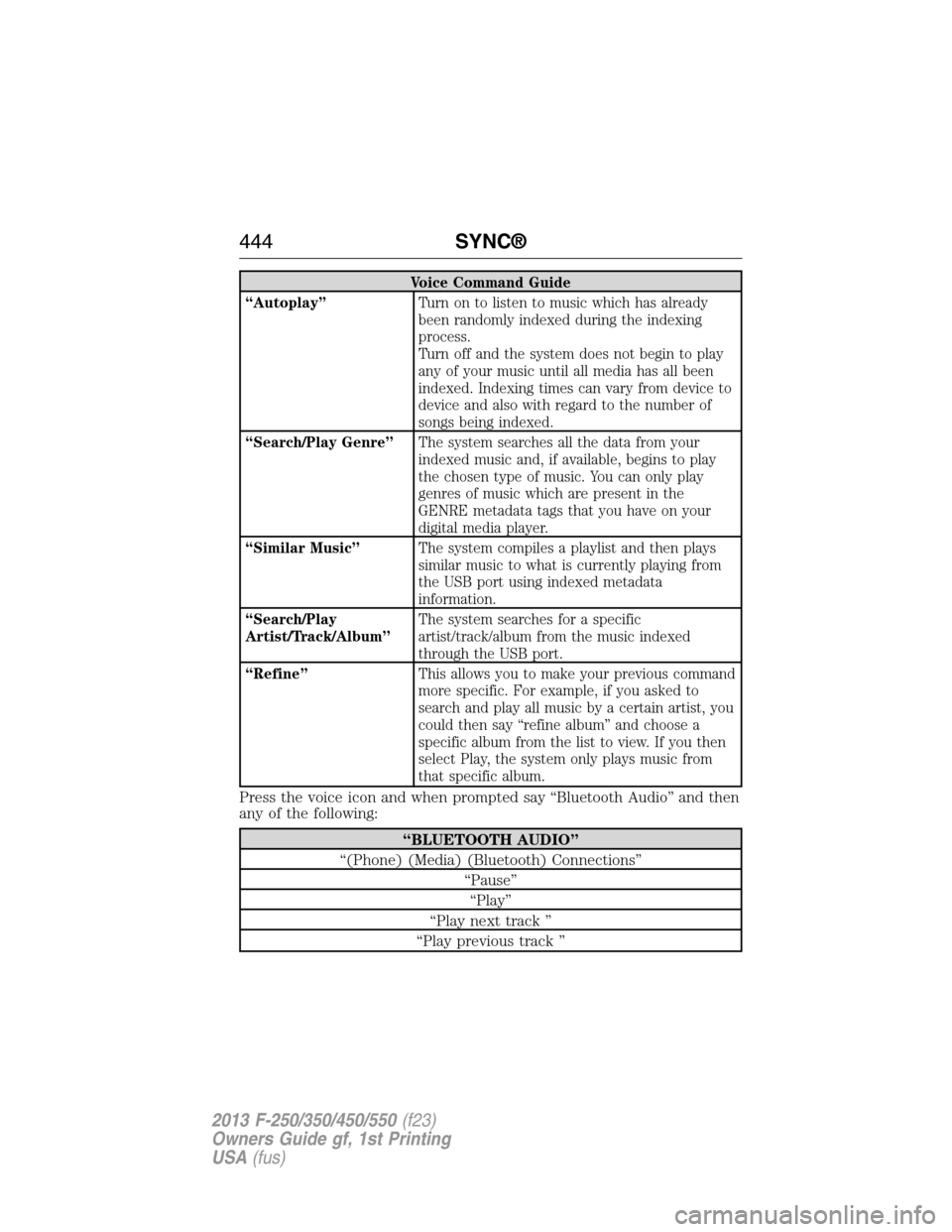
Voice Command Guide
“Autoplay”Turn on to listen to music which has already
been randomly indexed during the indexing
process.
Turn off and the system does not begin to play
any of your music until all media has all been
indexed. Indexing times can vary from device to
device and also with regard to the number of
songs being indexed.
“Search/Play Genre”The system searches all the data from your
indexed music and, if available, begins to play
the chosen type of music. You can only play
genres of music which are present in the
GENRE metadata tags that you have on your
digital media player.
“Similar Music”The system compiles a playlist and then plays
similar music to what is currently playing from
the USB port using indexed metadata
information.
“Search/Play
Artist/Track/Album”The system searches for a specific
artist/track/album from the music indexed
through the USB port.
“Refine”This allows you to make your previous command
more specific. For example, if you asked to
search and play all music by a certain artist, you
could then say “refine album” and choose a
specific album from the list to view. If you then
select Play, the system only plays music from
that specific album.
Press the voice icon and when prompted say “Bluetooth Audio” and then
any of the following:
“BLUETOOTH AUDIO”
“(Phone) (Media) (Bluetooth) Connections”
“Pause”
“Play”
“Play next track ”
“Play previous track ”
444SYNC®
2013 F-250/350/450/550(f23)
Owners Guide gf, 1st Printing
USA(fus)
Page 446 of 563
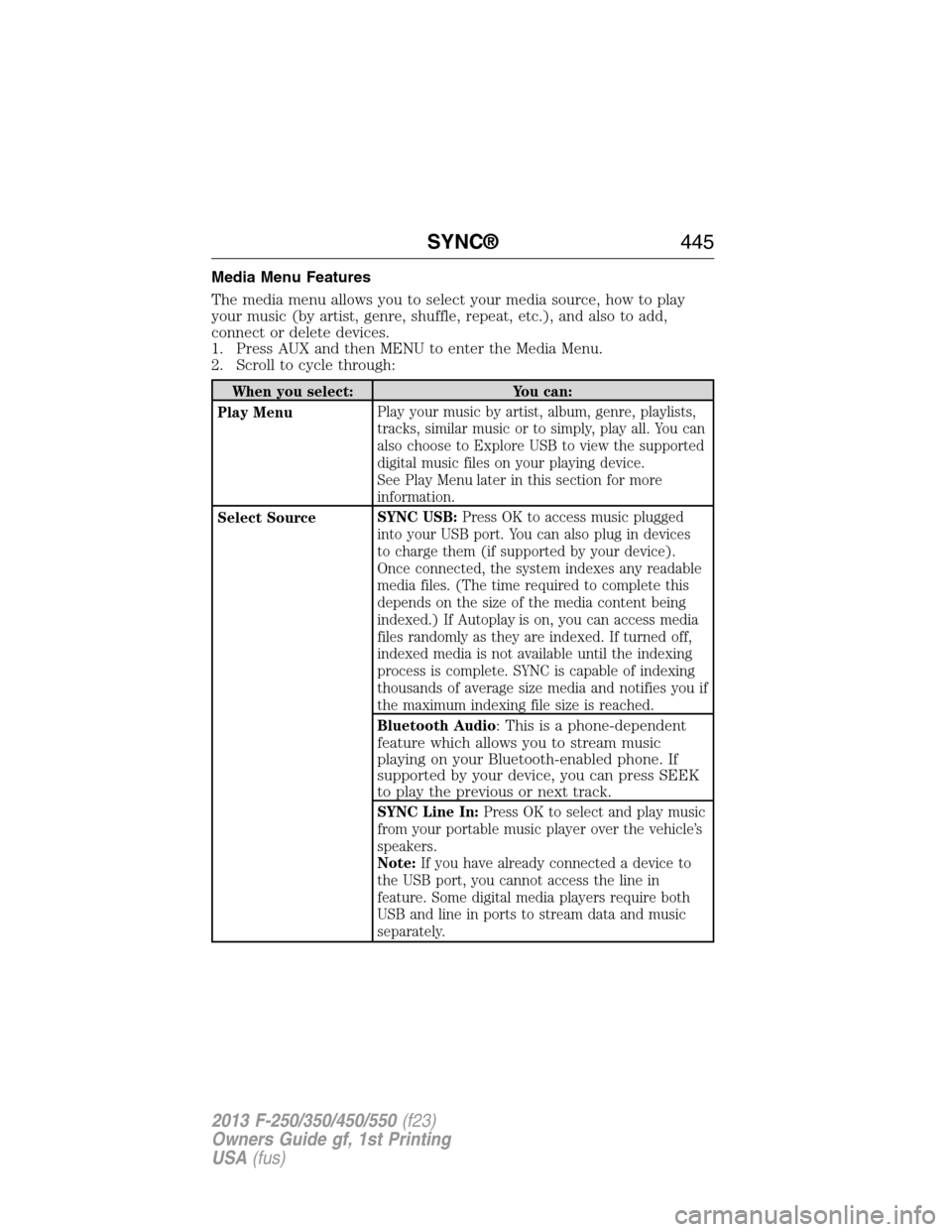
Media Menu Features
The media menu allows you to select your media source, how to play
your music (by artist, genre, shuffle, repeat, etc.), and also to add,
connect or delete devices.
1. Press AUX and then MENU to enter the Media Menu.
2. Scroll to cycle through:
When you select: You can:
Play MenuPlay your music by artist, album, genre, playlists,
tracks, similar music or to simply, play all. You can
also choose to Explore USB to view the supported
digital music files on your playing device.
See Play Menu later in this section for more
information.
Select SourceSYNC USB:Press OK to access music plugged
into your USB port. You can also plug in devices
to charge them (if supported by your device).
Once connected, the system indexes any readable
media files. (The time required to complete this
depends on the size of the media content being
indexed.) If Autoplay is on, you can access media
files randomly as they are indexed. If turned off,
indexed media is not available until the indexing
process is complete. SYNC is capable of indexing
thousands of average size media and notifies you if
the maximum indexing file size is reached.
Bluetooth Audio
: This is a phone-dependent
feature which allows you to stream music
playing on your Bluetooth-enabled phone. If
supported by your device, you can press SEEK
to play the previous or next track.
SYNC Line In:Press OK to select and play music
from your portable music player over the vehicle’s
speakers.
Note:If you have already connected a device to
the USB port, you cannot access the line in
feature. Some digital media players require both
USB and line in ports to stream data and music
separately.
SYNC®445
2013 F-250/350/450/550(f23)
Owners Guide gf, 1st Printing
USA(fus)
Page 447 of 563
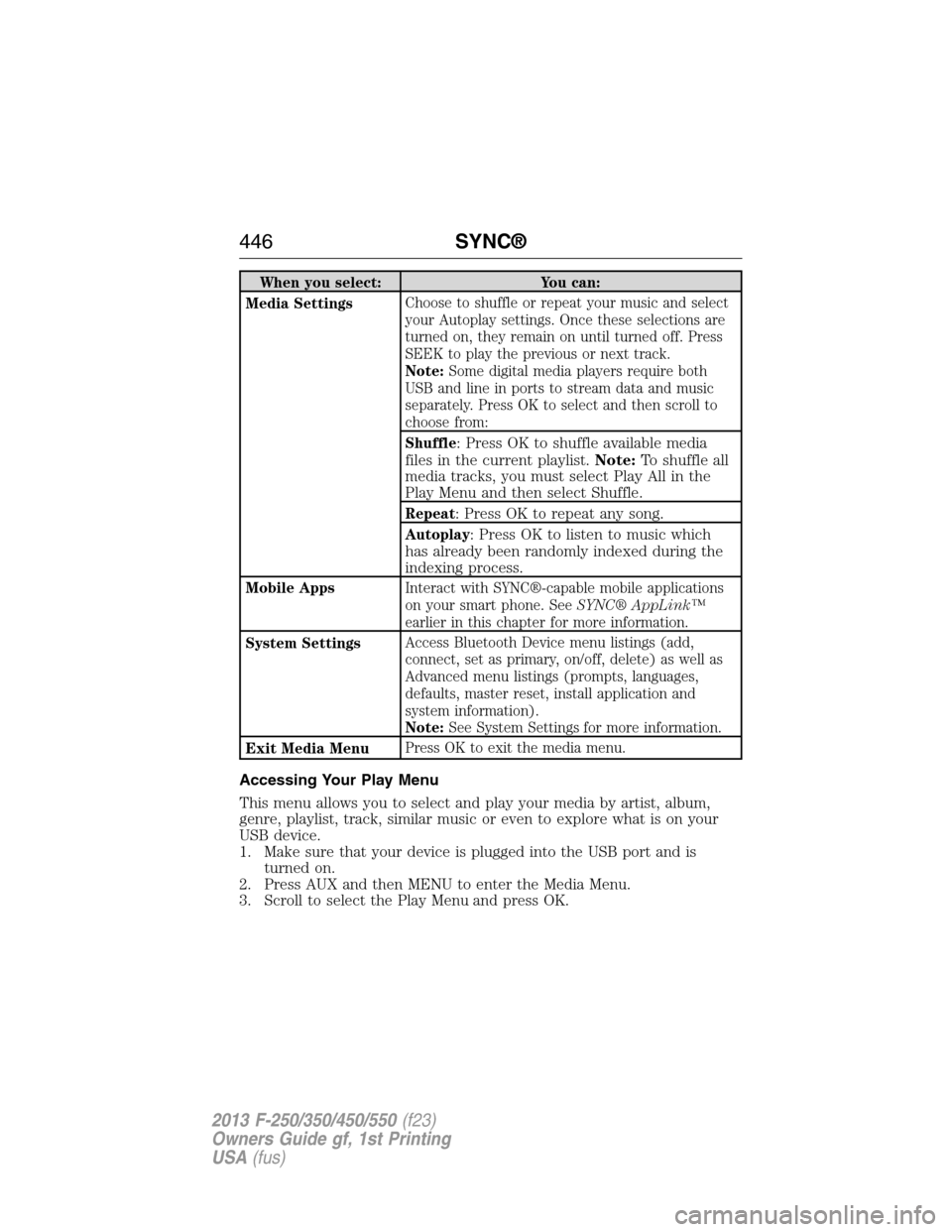
When you select: You can:
Media SettingsChoose to shuffle or repeat your music and select
your Autoplay settings. Once these selections are
turned on, they remain on until turned off. Press
SEEK to play the previous or next track.
Note:Some digital media players require both
USB and line in ports to stream data and music
separately. Press OK to select and then scroll to
choose from:
Shuffle
: Press OK to shuffle available media
files in the current playlist.Note:To shuffle all
media tracks, you must select Play All in the
Play Menu and then select Shuffle.
Repeat: Press OK to repeat any song.
Autoplay: Press OK to listen to music which
has already been randomly indexed during the
indexing process.
Mobile AppsInteract with SYNC®-capable mobile applications
on your smart phone. SeeSYNC® AppLink™
earlier in this chapter for more information.
System SettingsAccess Bluetooth Device menu listings (add,
connect, set as primary, on/off, delete) as well as
Advanced menu listings (prompts, languages,
defaults, master reset, install application and
system information).
Note:See System Settings for more information.
Exit Media MenuPress OK to exit the media menu.
Accessing Your Play Menu
This menu allows you to select and play your media by artist, album,
genre, playlist, track, similar music or even to explore what is on your
USB device.
1. Make sure that your device is plugged into the USB port and is
turned on.
2. Press AUX and then MENU to enter the Media Menu.
3. Scroll to select the Play Menu and press OK.
446SYNC®
2013 F-250/350/450/550(f23)
Owners Guide gf, 1st Printing
USA(fus)
Page 464 of 563
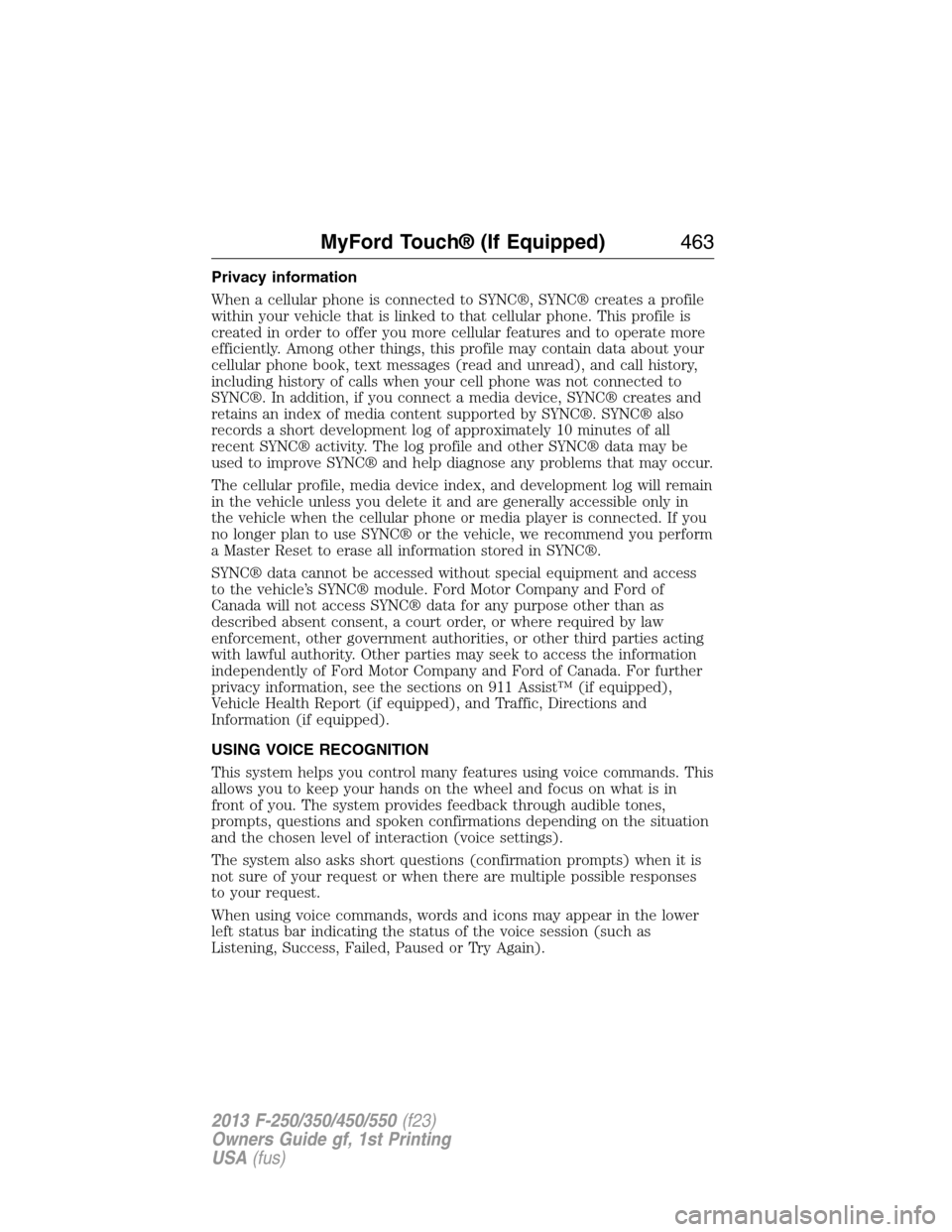
Privacy information
When a cellular phone is connected to SYNC®, SYNC® creates a profile
within your vehicle that is linked to that cellular phone. This profile is
created in order to offer you more cellular features and to operate more
efficiently. Among other things, this profile may contain data about your
cellular phone book, text messages (read and unread), and call history,
including history of calls when your cell phone was not connected to
SYNC®. In addition, if you connect a media device, SYNC® creates and
retains an index of media content supported by SYNC®. SYNC® also
records a short development log of approximately 10 minutes of all
recent SYNC® activity. The log profile and other SYNC® data may be
used to improve SYNC® and help diagnose any problems that may occur.
The cellular profile, media device index, and development log will remain
in the vehicle unless you delete it and are generally accessible only in
the vehicle when the cellular phone or media player is connected. If you
no longer plan to use SYNC® or the vehicle, we recommend you perform
a Master Reset to erase all information stored in SYNC®.
SYNC® data cannot be accessed without special equipment and access
to the vehicle’s SYNC® module. Ford Motor Company and Ford of
Canada will not access SYNC® data for any purpose other than as
described absent consent, a court order, or where required by law
enforcement, other government authorities, or other third parties acting
with lawful authority. Other parties may seek to access the information
independently of Ford Motor Company and Ford of Canada. For further
privacy information, see the sections on 911 Assist™ (if equipped),
Vehicle Health Report (if equipped), and Traffic, Directions and
Information (if equipped).
USING VOICE RECOGNITION
This system helps you control many features using voice commands. This
allows you to keep your hands on the wheel and focus on what is in
front of you. The system provides feedback through audible tones,
prompts, questions and spoken confirmations depending on the situation
and the chosen level of interaction (voice settings).
The system also asks short questions (confirmation prompts) when it is
not sure of your request or when there are multiple possible responses
to your request.
When using voice commands, words and icons may appear in the lower
left status bar indicating the status of the voice session (such as
Listening, Success, Failed, Paused or Try Again).
MyFord Touch® (If Equipped)463
2013 F-250/350/450/550(f23)
Owners Guide gf, 1st Printing
USA(fus)
Page 472 of 563
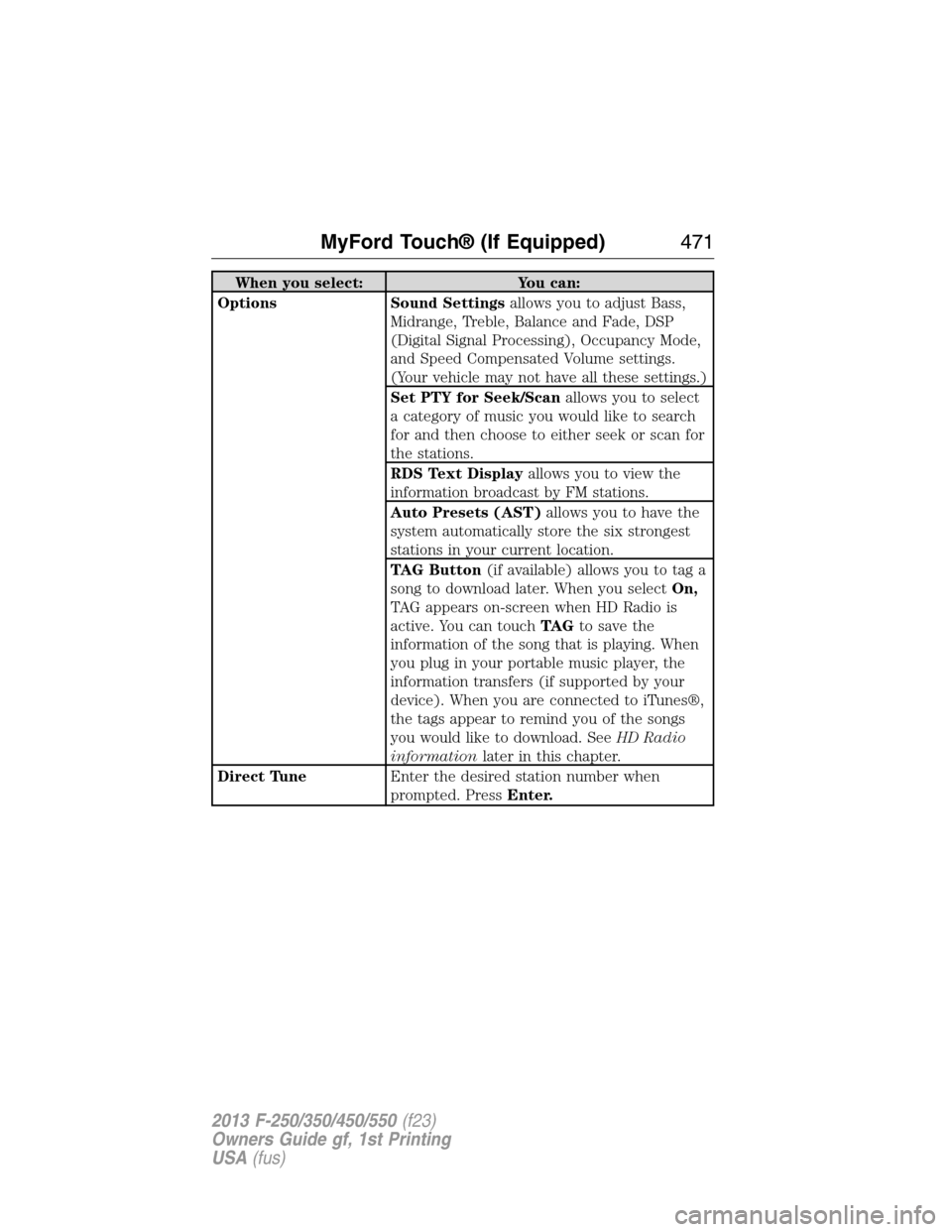
When you select: You can:
Options Sound Settingsallows you to adjust Bass,
Midrange, Treble, Balance and Fade, DSP
(Digital Signal Processing), Occupancy Mode,
and Speed Compensated Volume settings.
(Your vehicle may not have all these settings.)
Set PTY for Seek/Scanallows you to select
a category of music you would like to search
for and then choose to either seek or scan for
the stations.
RDS Text Displayallows you to view the
information broadcast by FM stations.
Auto Presets (AST)allows you to have the
system automatically store the six strongest
stations in your current location.
TAG Button(if available) allows you to tag a
song to download later. When you selectOn,
TAG appears on-screen when HD Radio is
active. You can touchTA Gto save the
information of the song that is playing. When
you plug in your portable music player, the
information transfers (if supported by your
device). When you are connected to iTunes®,
the tags appear to remind you of the songs
you would like to download. SeeHD Radio
informationlater in this chapter.
Direct TuneEnter the desired station number when
prompted. PressEnter.
MyFord Touch® (If Equipped)471
2013 F-250/350/450/550(f23)
Owners Guide gf, 1st Printing
USA(fus)
Page 473 of 563
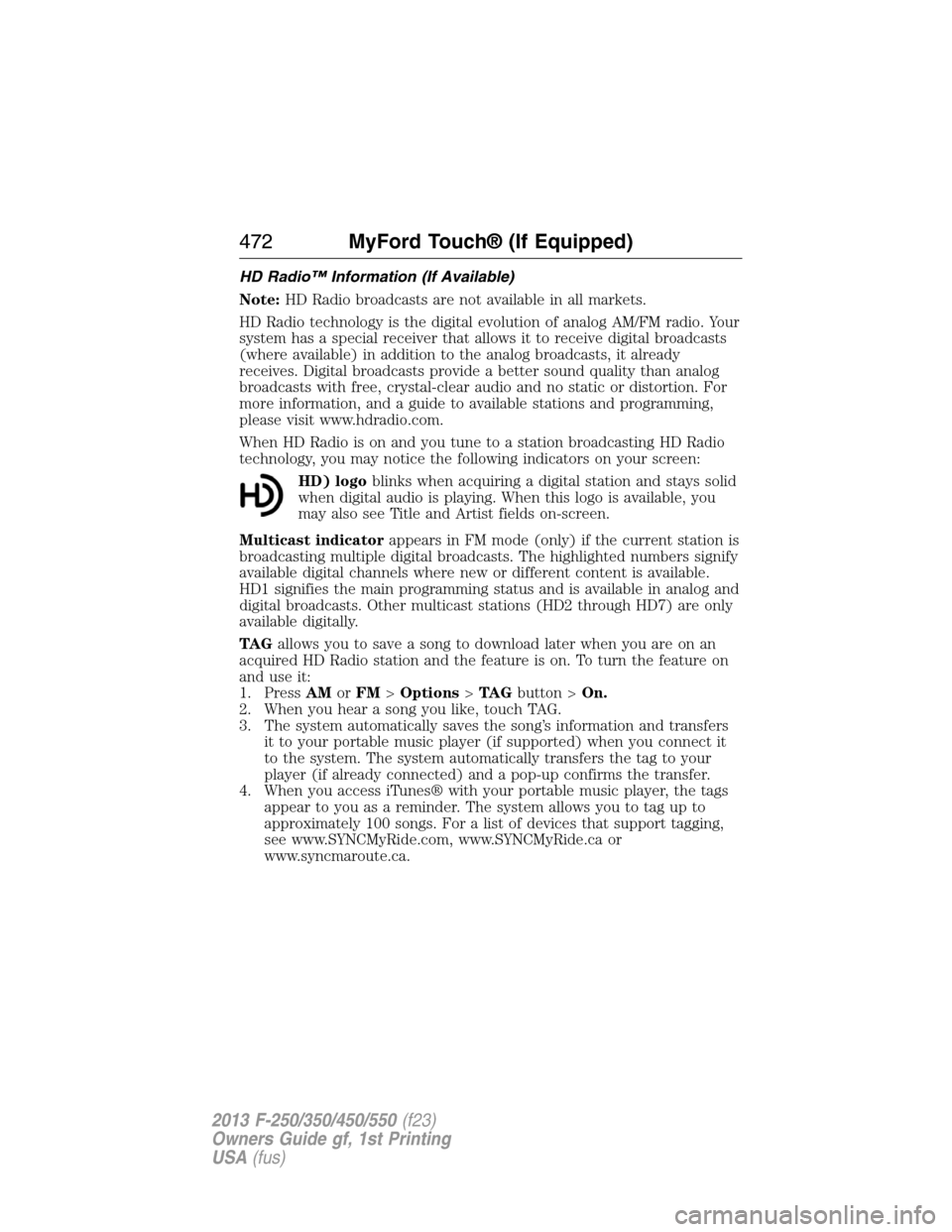
HD Radio™ Information (If Available)
Note:HD Radio broadcasts are not available in all markets.
HD Radio technology is the digital evolution of analog AM/FM radio. Your
system has a special receiver that allows it to receive digital broadcasts
(where available) in addition to the analog broadcasts, it already
receives. Digital broadcasts provide a better sound quality than analog
broadcasts with free, crystal-clear audio and no static or distortion. For
more information, and a guide to available stations and programming,
please visit www.hdradio.com.
When HD Radio is on and you tune to a station broadcasting HD Radio
technology, you may notice the following indicators on your screen:
HD) logoblinks when acquiring a digital station and stays solid
when digital audio is playing. When this logo is available, you
may also see Title and Artist fields on-screen.
Multicast indicatorappears in FM mode (only) if the current station is
broadcasting multiple digital broadcasts. The highlighted numbers signify
available digital channels where new or different content is available.
HD1 signifies the main programming status and is available in analog and
digital broadcasts. Other multicast stations (HD2 through HD7) are only
available digitally.
TA Gallows you to save a song to download later when you are on an
acquired HD Radio station and the feature is on. To turn the feature on
and use it:
1. PressAMorFM>Options>TA Gbutton >On.
2. When you hear a song you like, touch TAG.
3. The system automatically saves the song’s information and transfers
it to your portable music player (if supported) when you connect it
to the system. The system automatically transfers the tag to your
player (if already connected) and a pop-up confirms the transfer.
4. When you access iTunes® with your portable music player, the tags
appear to you as a reminder. The system allows you to tag up to
approximately 100 songs. For a list of devices that support tagging,
see www.SYNCMyRide.com, www.SYNCMyRide.ca or
www.syncmaroute.ca.
472MyFord Touch® (If Equipped)
2013 F-250/350/450/550(f23)
Owners Guide gf, 1st Printing
USA(fus)
Page 481 of 563
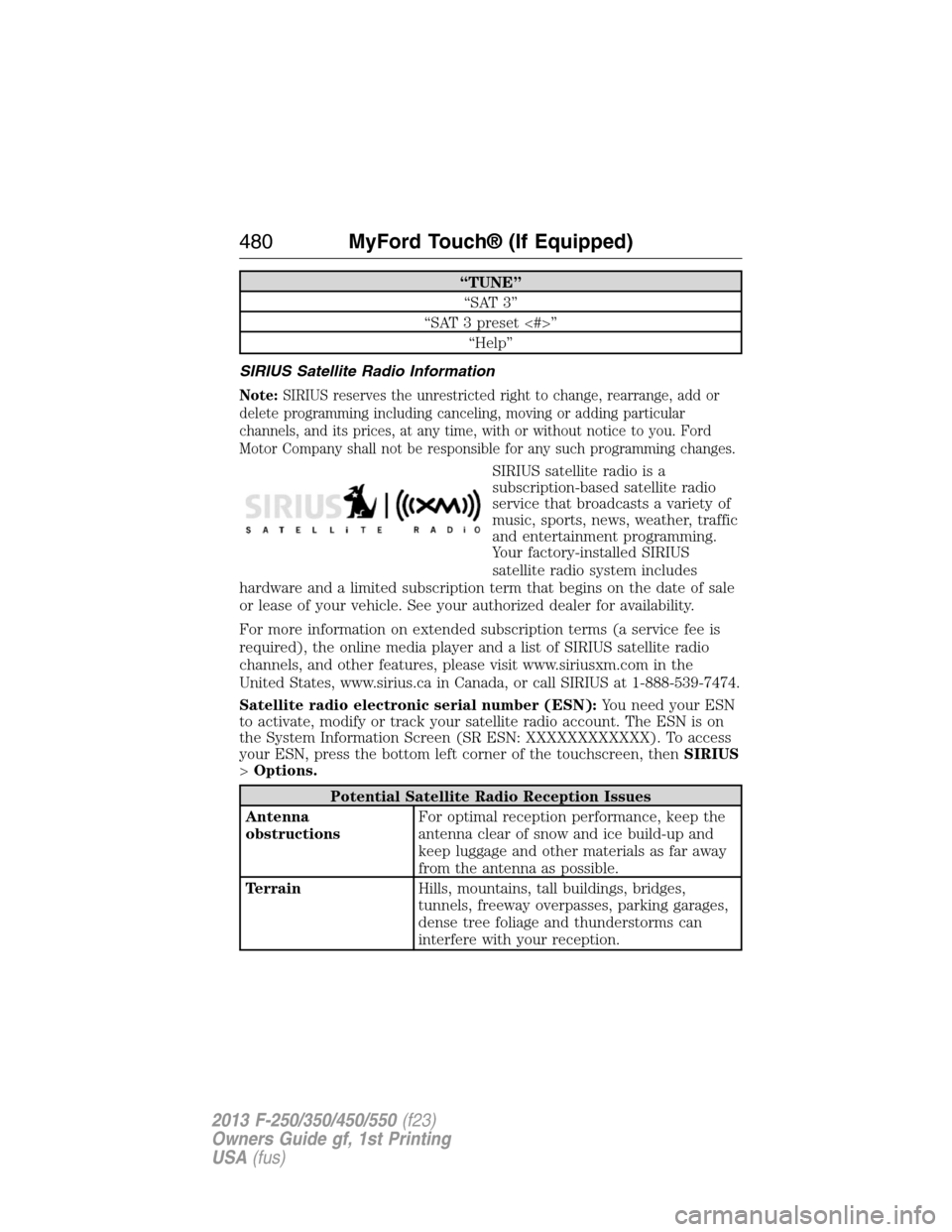
“TUNE”
“SAT 3”
“SAT 3 preset <#>”
“Help”
SIRIUS Satellite Radio Information
Note:SIRIUS reserves the unrestricted right to change, rearrange, add or
delete programming including canceling, moving or adding particular
channels, and its prices, at any time, with or without notice to you. Ford
Motor Company shall not be responsible for any such programming changes.
SIRIUS satellite radio is a
subscription-based satellite radio
service that broadcasts a variety of
music, sports, news, weather, traffic
and entertainment programming.
Your factory-installed SIRIUS
satellite radio system includes
hardware and a limited subscription term that begins on the date of sale
or lease of your vehicle. See your authorized dealer for availability.
For more information on extended subscription terms (a service fee is
required), the online media player and a list of SIRIUS satellite radio
channels, and other features, please visit www.siriusxm.com in the
United States, www.sirius.ca in Canada, or call SIRIUS at 1-888-539-7474.
Satellite radio electronic serial number (ESN):You need your ESN
to activate, modify or track your satellite radio account. The ESN is on
the System Information Screen (SR ESN: XXXXXXXXXXXX). To access
your ESN, press the bottom left corner of the touchscreen, thenSIRIUS
>Options.
Potential Satellite Radio Reception Issues
Antenna
obstructionsFor optimal reception performance, keep the
antenna clear of snow and ice build-up and
keep luggage and other materials as far away
from the antenna as possible.
TerrainHills, mountains, tall buildings, bridges,
tunnels, freeway overpasses, parking garages,
dense tree foliage and thunderstorms can
interfere with your reception.
480MyFord Touch® (If Equipped)
2013 F-250/350/450/550(f23)
Owners Guide gf, 1st Printing
USA(fus)
Page 486 of 563
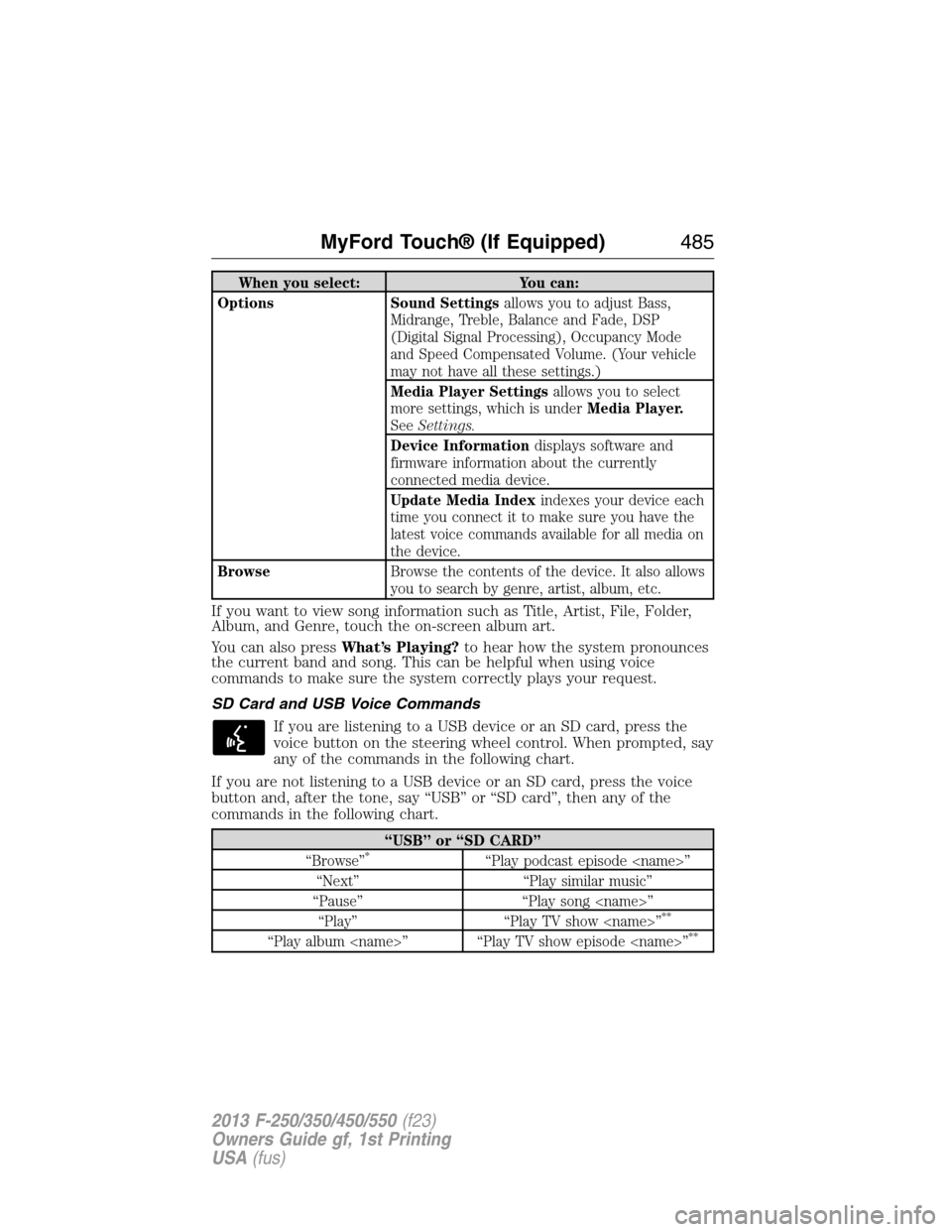
When you select: You can:
Options Sound Settingsallows you to adjust Bass,
Midrange, Treble, Balance and Fade, DSP
(Digital Signal Processing), Occupancy Mode
and Speed Compensated Volume. (Your vehicle
may not have all these settings.)
Media Player Settingsallows you to select
more settings, which is underMedia Player.
SeeSettings.
Device Informationdisplays software and
firmware information about the currently
connected media device.
Update Media Indexindexes your device each
time you connect it to make sure you have the
latest voice commands available for all media on
the device.
BrowseBrowse the contents of the device. It also allows
you to search by genre, artist, album, etc.
If you want to view song information such as Title, Artist, File, Folder,
Album, and Genre, touch the on-screen album art.
You can also pressWhat’s Playing?to hear how the system pronounces
the current band and song. This can be helpful when using voice
commands to make sure the system correctly plays your request.
SD Card and USB Voice Commands
If you are listening to a USB device or an SD card, press the
voice button on the steering wheel control. When prompted, say
any of the commands in the following chart.
If you are not listening to a USB device or an SD card, press the voice
button and, after the tone, say “USB” or “SD card”, then any of the
commands in the following chart.
“USB” or “SD CARD”
“Browse”*“Play podcast episode
“Next” “Play similar music”
“Pause” “Play song
“Play” “Play TV show
**
“Play album
MyFord Touch® (If Equipped)485
2013 F-250/350/450/550(f23)
Owners Guide gf, 1st Printing
USA(fus)