2013 FORD FUSION (AMERICAS) turn signal
[x] Cancel search: turn signalPage 343 of 458

Vehicle Health Report and Services (Traffic, Directions and Information) issues
Possible solution(s)
Possible cause(s)
Issue
· Make sure that your VIN is
correctly listed in your
account.
When you register your
account, you must choose a
preferred dealer. If it already
lists a dealer, try selecting
another dealer and logging
out. Log back in, change it
back to your preferred
dealer, and retrieve the
report.
The preferred dealer
information did not load
correctly.
I am unable to retrieve the
report on the website, or I
receive a system error.
· Update your cellular
number in your account on
the website.
· This could be due to your
phone's compatibility.
· Bad signal strength.
I am unable to submit a
report.
· Make sure you have full
signal strength and that your
Bluetooth volume level has
been turned up.
· You did not activate your
phone on the website.
· Try deleting your phone
and performing a clean
pairing.
· This is a free feature, but
you must first register online
to use it.
· You did not activate this
phone for this service.
· Your phone has ID blocker
active.
I heard a commercial when
I tried to use Traffic, Direc-
tions and Information.
· Turn off ID blocker on your
phone as the system recog-
nizes you by your phone
number.
· Make sure the currently
connected phone is the
same one that is registered
on your SYNCMyRide
account.
340
Fusion/Mondeo (CC7) SYNC™
Page 348 of 458
Press to select any of the following:
•
AM
• FM
• SIRIUS
• CD
• USB
• BT Stereo
• SD Card
• A/V In
Using the Touch-Sensitive
Controls on Your System
To turn a feature on and off, just touch the
graphic with your finger. To get the best
performance from the touch-sensitive
controls:
• Do not press hard on the controls. They
are sensitive to light touch.
• Use your bare finger to touch the center
of a touch-control graphic. Touching
off-center of the graphic may affect
operation of a nearby control.
• Make sure your hands are clean and
dry.
• Since the touchscreen operates based
on the touch of a finger, you may have
trouble using it if you are wearing
gloves.
• Keep metal and other conductive
material away from the surface of the
touchscreen as this may cause
electronic interference (for example,
inadvertently turning on a feature other
than the one you meant to turn on).
Depending on your vehicle and option
package, you may also have these controls
on your bezel:
• Power: Switch the media or climate
features off and on.
• VOL: Control the volume of playing
media. •
Fan: Control the speed of the climate
system fan.
• Seek and Tune buttons: Use as you
normally would in media modes.
• Eject: Eject a CD from the
entertainment system.
• SOURCE:
Touch the word repeatedly
to see all available media modes. The
screen does not change, but you see
the media change in the lower left
status bar.
• SOUND:
Touch the word to access the
Sound menu where you can adjust
settings such as: Bass, Treble,
Midrange, Balance and Fade, DSP
(Digital Signal Processing), Occupancy
Mode and Speed Compensated
Volume. (Your vehicle may not have
all of these sound options.)
• Hazard flasher: Switch the hazard
flashers off and on.
Cleaning the Touchscreen Display
Use a clean, soft cloth such as one used
for cleaning glasses. If dirt or fingerprints
are still visible, apply a small amount of
alcohol to the cloth. Do not pour or spray
alcohol onto the display. Do not use
detergent or any type of solvent to clean
the display.
Support
The SYNC support team is available to
help you with any questions you are not
able to answer on your own.
Monday-Saturday, 8:30am-8:00pm EST.
In the United States, call: 1-888-270-1055
In Canada, call: 1-800-565-3673
Times are subject to change due to
holidays.
345
Fusion/Mondeo (CC7) MyFord Touch
™
(If Equipped)
Page 358 of 458

SETTINGS
Clock
A
Display
B
Sound
C
Vehicle
D
Settings
E
HelpF Under this menu, you can set
your clock, access and adjust the
display, sound and vehicle
settings as well as access settings for
specific modes or the help feature.
Clock
Note: You cannot manually set the date.
Your vehicle ’s GPS does this for you.
Note: If the battery has been disconnected,
your vehicle needs to acquire a GPS signal
to update the clock. Once your vehicle
acquires the signal, it may take a few
minutes for the update to display the correct
time. 1. Press the Settings icon > Clock.
2. Press
+ and - to adjust the time.
From this screen, you can also make other
adjustments such as 12-hour or 24-hour
mode, activate GPS time synchronization
and have the system automatically update
new time zones.
You can also turn the outside air
temperature display off and on. It appears
at the top center of the touchscreen, next
to the time and date.
355
Fusion/Mondeo (CC7) MyFord Touch
™
(If Equipped)A
B
C
D
E
F
E161968 E142607 E142607
Page 365 of 458
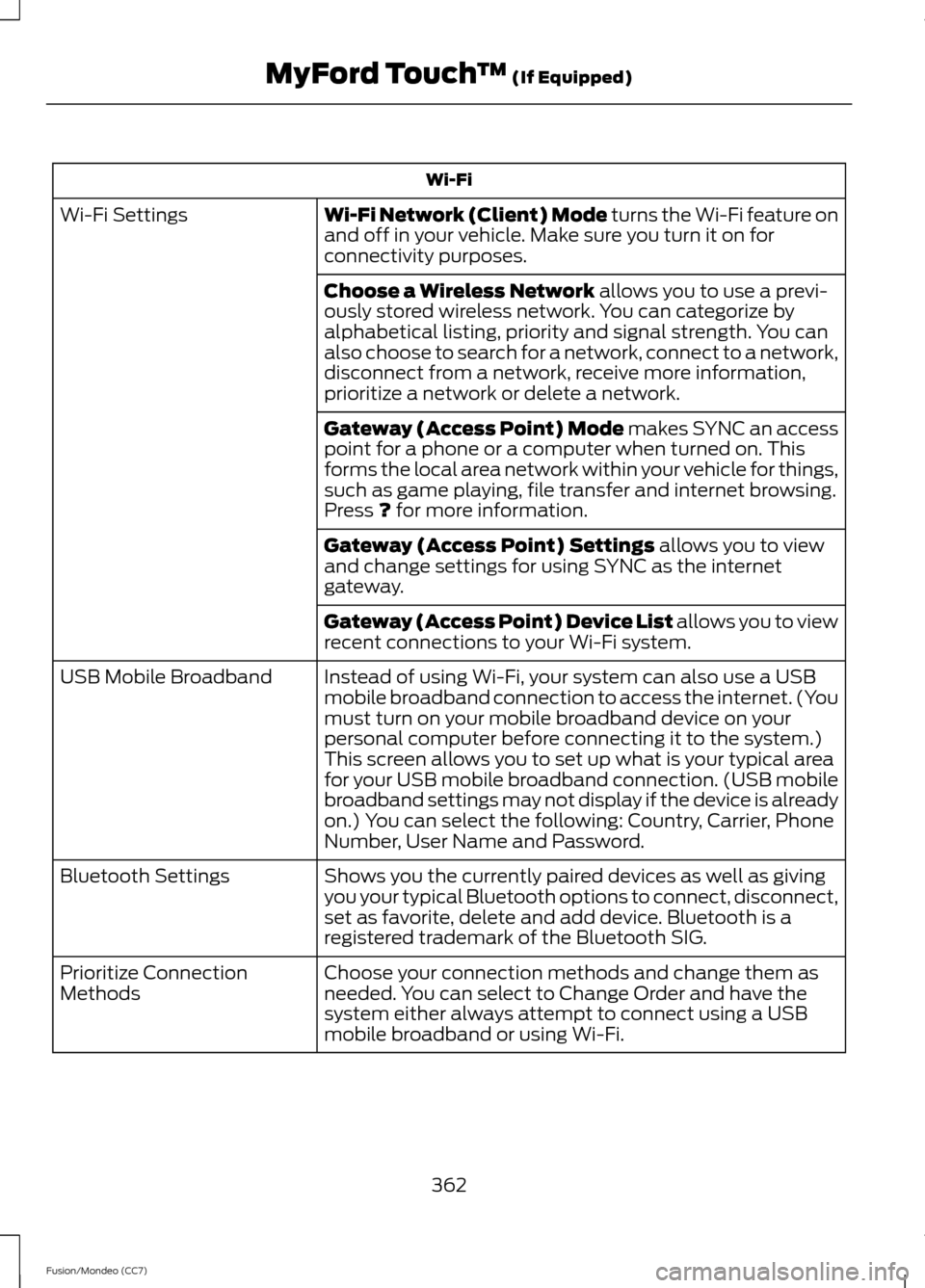
Wi-Fi
Wi-Fi Network (Client) Mode turns the Wi-Fi feature on
and off in your vehicle. Make sure you turn it on for
connectivity purposes.
Wi-Fi Settings
Choose a Wireless Network
allows you to use a previ-
ously stored wireless network. You can categorize by
alphabetical listing, priority and signal strength. You can
also choose to search for a network, connect to a network,
disconnect from a network, receive more information,
prioritize a network or delete a network.
Gateway (Access Point) Mode makes SYNC an access
point for a phone or a computer when turned on. This
forms the local area network within your vehicle for things,
such as game playing, file transfer and internet browsing.
Press
? for more information.
Gateway (Access Point) Settings
allows you to view
and change settings for using SYNC as the internet
gateway.
Gateway (Access Point) Device List allows you to view
recent connections to your Wi-Fi system.
Instead of using Wi-Fi, your system can also use a USB
mobile broadband connection to access the internet. (You
must turn on your mobile broadband device on your
personal computer before connecting it to the system.)
This screen allows you to set up what is your typical area
for your USB mobile broadband connection. (USB mobile
broadband settings may not display if the device is already
on.) You can select the following: Country, Carrier, Phone
Number, User Name and Password.
USB Mobile Broadband
Shows you the currently paired devices as well as giving
you your typical Bluetooth options to connect, disconnect,
set as favorite, delete and add device. Bluetooth is a
registered trademark of the Bluetooth SIG.
Bluetooth Settings
Choose your connection methods and change them as
needed. You can select to Change Order and have the
system either always attempt to connect using a USB
mobile broadband or using Wi-Fi.
Prioritize Connection
Methods
362
Fusion/Mondeo (CC7) MyFord Touch
™
(If Equipped)
Page 371 of 458
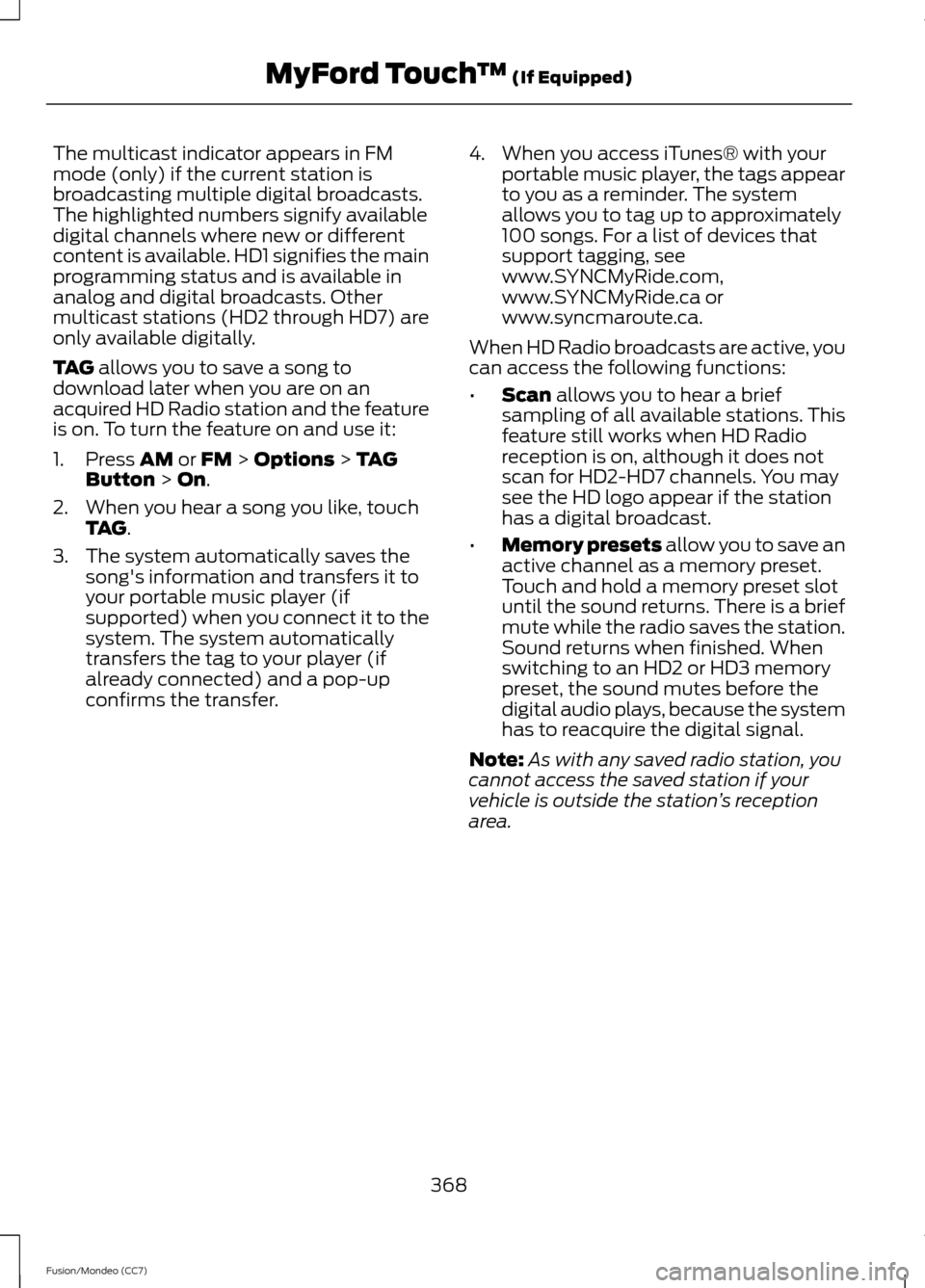
The multicast indicator appears in FM
mode (only) if the current station is
broadcasting multiple digital broadcasts.
The highlighted numbers signify available
digital channels where new or different
content is available. HD1 signifies the main
programming status and is available in
analog and digital broadcasts. Other
multicast stations (HD2 through HD7) are
only available digitally.
TAG allows you to save a song to
download later when you are on an
acquired HD Radio station and the feature
is on. To turn the feature on and use it:
1. Press
AM or FM > Options > TAG
Button > On.
2. When you hear a song you like, touch TAG
.
3. The system automatically saves the song's information and transfers it to
your portable music player (if
supported) when you connect it to the
system. The system automatically
transfers the tag to your player (if
already connected) and a pop-up
confirms the transfer. 4. When you access iTunes® with your
portable music player, the tags appear
to you as a reminder. The system
allows you to tag up to approximately
100 songs. For a list of devices that
support tagging, see
www.SYNCMyRide.com,
www.SYNCMyRide.ca or
www.syncmaroute.ca.
When HD Radio broadcasts are active, you
can access the following functions:
• Scan
allows you to hear a brief
sampling of all available stations. This
feature still works when HD Radio
reception is on, although it does not
scan for HD2-HD7 channels. You may
see the HD logo appear if the station
has a digital broadcast.
• Memory presets
allow you to save an
active channel as a memory preset.
Touch and hold a memory preset slot
until the sound returns. There is a brief
mute while the radio saves the station.
Sound returns when finished. When
switching to an HD2 or HD3 memory
preset, the sound mutes before the
digital audio plays, because the system
has to reacquire the digital signal.
Note: As with any saved radio station, you
cannot access the saved station if your
vehicle is outside the station ’s reception
area.
368
Fusion/Mondeo (CC7) MyFord Touch
™
(If Equipped)
Page 375 of 458
"TUNE"
"HD <#>"*
"<87.9-107.9>"
"Preset <#>"
"FM"
"Help"
"FM <87.9-107.9>"
"FM <87.9-107.9> HD <#>"
* If available
SIRIUS® Satellite Radio (If
Activated) Press the lower left corner of the
touchscreen, and then select the
SIRIUS tab.
Memory Presets
Save a channel by pressing and holding
one of the memory preset areas. There is
a brief mute while the radio saves the
channel. Sound returns when finished.
ALERT
Save the current song, artist, or team as a
favorite. The system alerts you when it
plays again on any channel.
Replay
Replay audio on the current channel. You
can replay approximately 45 minutes of
audio as long as you have remained tuned
to the current station. Changing stations
erases the previous audio.
While in replay mode:
• Press and release the seek buttons to
hear the previous or next song.
• Press and hold the seek buttons to
reverse or fast forward in the current
track. •
Press play or pause to play or pause
the audio.
• Press
Replay to return to live audio if
you have been using the feature to
replay audio.
Scan
Touch this button to hear a brief sampling
of channels.
Options
Touch this button to view and adjust
various media settings.
Sound Settings
Touch this button to adjust settings for:
• Bass
• Midrange
• Treble
• Balance and Fade
• DSP (Digital Signal processing)
• Occupancy Mode
• Speed Compensated Volume.
Note: Your vehicle may not have all these
sound settings.
Set Category for Seek/Scan
This allows you to select a category of
music you would like to search for. You can
then choose to either seek or scan for the
stations playing that category.
372
Fusion/Mondeo (CC7) MyFord Touch
™
(If Equipped)E142611
Page 378 of 458
Troubleshooting tips
Action
Cause
Radio display
The signal is blocked. When
you move into an open area,
the signal should return.
The signal is lost from the
SIRIUS satellite or SIRIUS
tower to your vehicle
antenna.
No Signal.
No action required. The
process may take up to
three minutes.
Update of channel
programming in progress.
Updating.
Contact SIRIUS at 1-888-
539-7474 to resolve
subscription issues.
Your satellite service is no
longer available.
Call SIRIUS
1-888-539-7474.
Use the channel guide to
turn off the Lock or Skip
function on that station.
All the channels in the
selected category are either
skipped or locked.
No Channels Available.
No action required.
SIRIUS has updated the
channels available for your
vehicle.
Subscription Updated.
SIRIUS Satellite Radio Voice
Commands If you are listening to SIRIUS
satellite radio, press the voice
button on the steering wheel
controls. When prompted, say any of the
following commands. If you are not listening to SIRIUS satellite
radio, press the voice button and, after the
tone, say "SIRIUS", then any of the
following commands."SIRIUS"
"SAT 2 preset <#>"
"<0-223>"
"SAT 3"
"
"SAT 3 preset <#>"
"Preset <#>"
"SIRIUS off"
"SAT"
"SIRIUS on"
"SAT preset <#>"
"Sports game"*
"SAT 1"
375
Fusion/Mondeo (CC7) MyFord Touch
™ (If Equipped)E142599
Page 380 of 458
CD
Press the lower left corner of the
touchscreen, and then select the
CD tab.
You can also advance and reverse the
current track or current folder, if applicable.
Repeat
Touch this button to repeat the currently
playing track, all tracks on the disc or turn
the feature off if already on.
Shuffle
Touch this button to play the tracks or
entire albums in random order, or turn the
feature off if already on.
Scan
Touch this button to hear a brief sampling
of all available tracks.
More Info
Touch this button to see disc information.
Options
Sound Settings
Touch this button to adjust settings for: •
Bass
• Midrange
• Treble
• Balance and Fade
• DSP (Digital Signal processing)
• Occupancy Mode
• Speed Compensated Volume.
Note: Your vehicle may not have all these
sound settings.
Compression
Touch this button to turn the compression
feature on and off.
Browse
Touch this button to look through all
available CD tracks.
CD Voice Commands If you are listening to a CD, press
the voice button on the steering
wheel controls. When prompted,
say any of the following commands.
If you are not listening to a CD, press the
voice button and, after the tone, say "CD",
then any of the following commands. "CD"
"Pause" "Play"
"Play next track"
"Play previous track" "Play track <1-512>" "Repeat"
"Repeat folder" *
377
Fusion/Mondeo (CC7) MyFord Touch
™
(If Equipped)E142611 E142599