2013 FORD FUSION (AMERICAS) start stop button
[x] Cancel search: start stop buttonPage 87 of 458
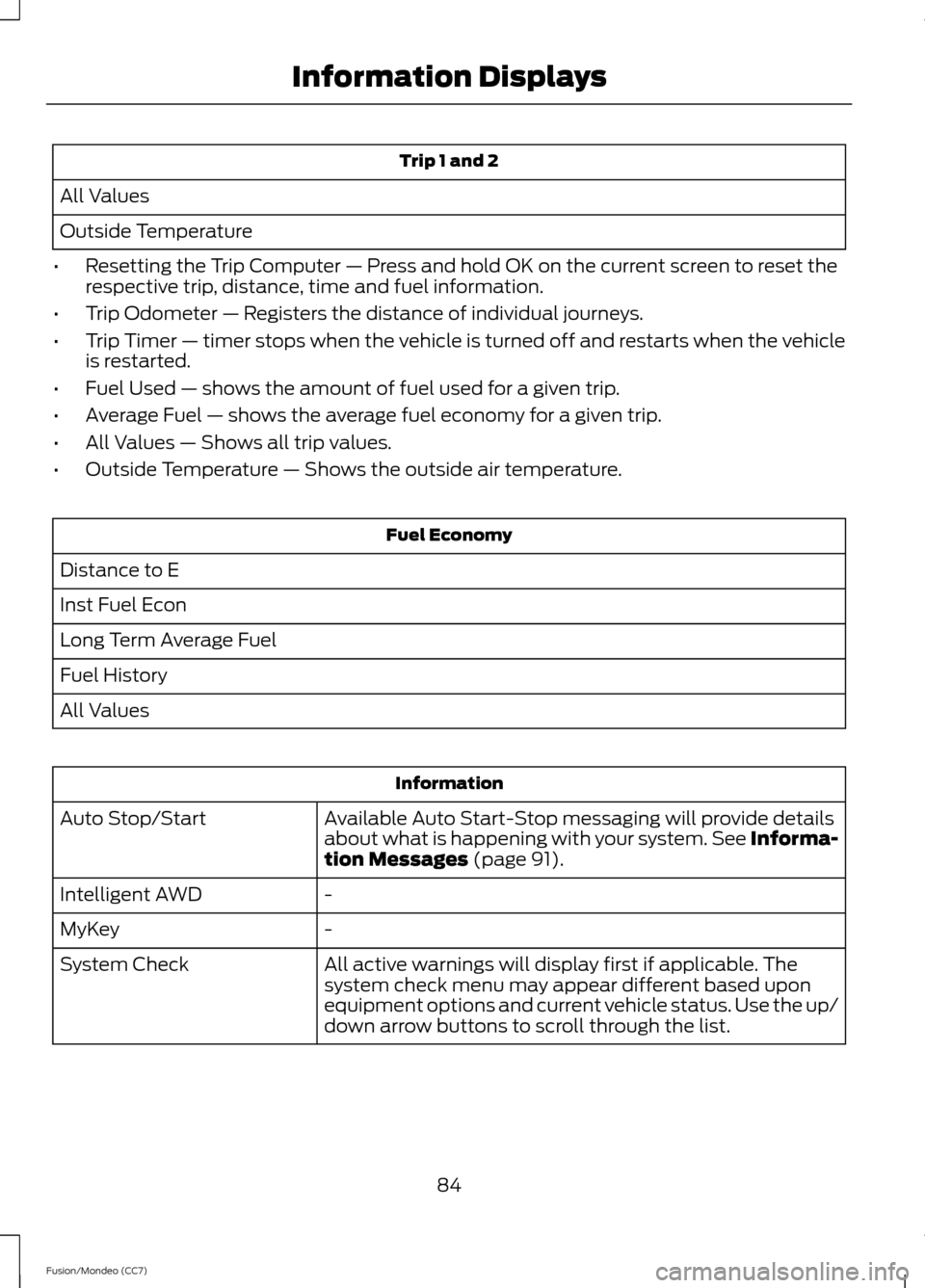
Trip 1 and 2
All Values
Outside Temperature
• Resetting the Trip Computer — Press and hold OK on the current screen to reset the
respective trip, distance, time and fuel information.
• Trip Odometer — Registers the distance of individual journeys.
• Trip Timer — timer stops when the vehicle is turned off and restarts when the vehicle
is restarted.
• Fuel Used — shows the amount of fuel used for a given trip.
• Average Fuel — shows the average fuel economy for a given trip.
• All Values — Shows all trip values.
• Outside Temperature — Shows the outside air temperature. Fuel Economy
Distance to E
Inst Fuel Econ
Long Term Average Fuel
Fuel History
All Values Information
Available Auto Start-Stop messaging will provide details
about what is happening with your system. See Informa-
tion Messages (page 91).
Auto Stop/Start
-
Intelligent AWD
-
MyKey
All active warnings will display first if applicable. The
system check menu may appear different based upon
equipment options and current vehicle status. Use the up/
down arrow buttons to scroll through the list.
System Check
84
Fusion/Mondeo (CC7) Information Displays
Page 91 of 458
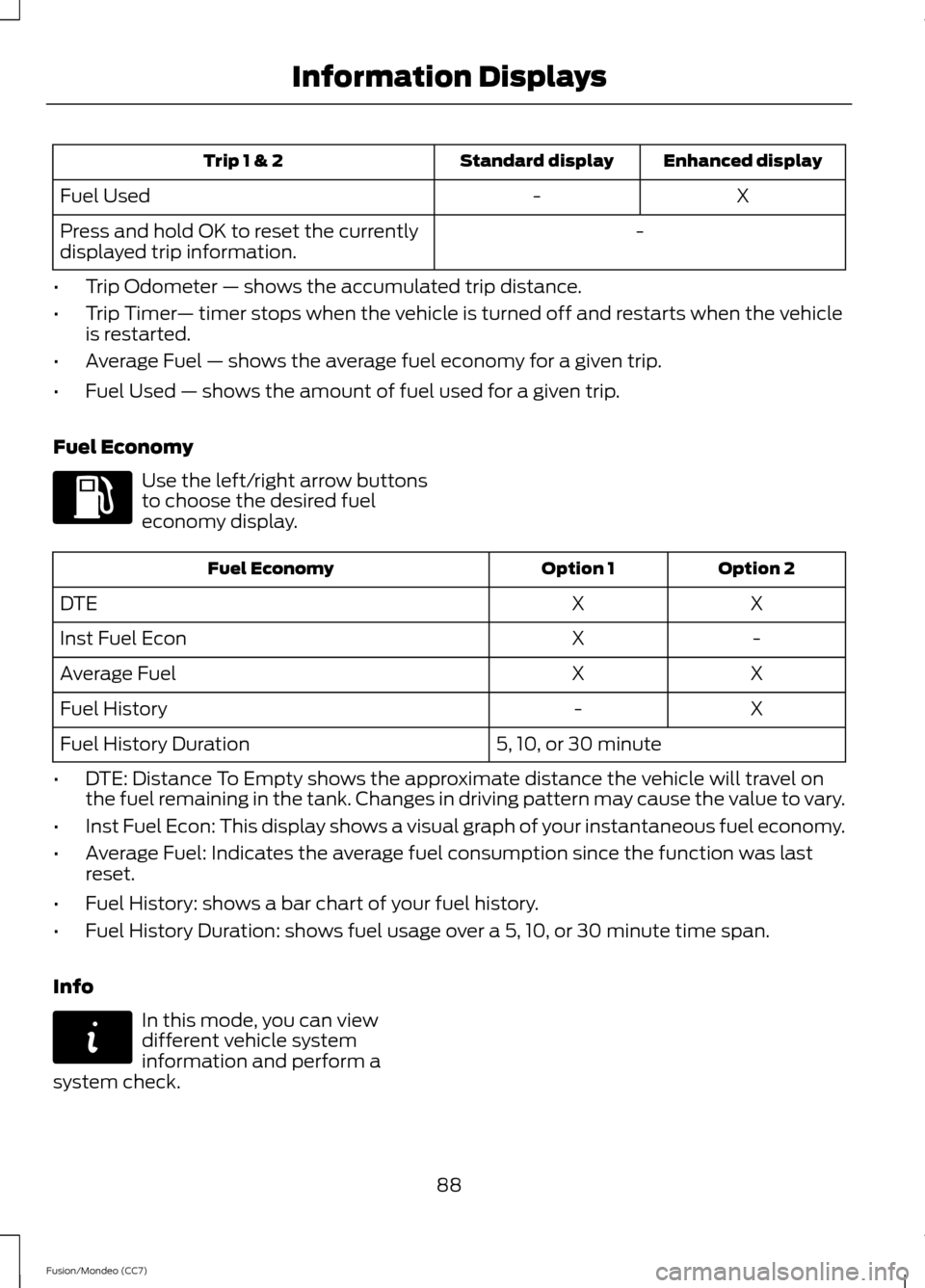
Enhanced display
Standard display
Trip 1 & 2
X
-
Fuel Used
-
Press and hold OK to reset the currently
displayed trip information.
• Trip Odometer — shows the accumulated trip distance.
• Trip Timer — timer stops when the vehicle is turned off and restarts when the vehicle
is restarted.
• Average Fuel — shows the average fuel economy for a given trip.
• Fuel Used — shows the amount of fuel used for a given trip.
Fuel Economy Use the left/right arrow buttons
to choose the desired fuel
economy display.
Option 2
Option 1
Fuel Economy
X
X
DTE
-
X
Inst Fuel Econ
X
X
Average Fuel
X
-
Fuel History
5, 10, or 30 minute
Fuel History Duration
• DTE: Distance To Empty shows the approximate distance the vehicle will travel on
the fuel remaining in the tank. Changes in driving pattern may cause the value to vary.
• Inst Fuel Econ: This display shows a visual graph of your instantaneous fuel economy.
• Average Fuel: Indicates the average fuel consumption since the function was last
reset.
• Fuel History: shows a bar chart of your fuel history.
• Fuel History Duration: shows fuel usage over a 5, 10, or 30 minute time span.
Info In this mode, you can view
different vehicle system
information and perform a
system check.
88
Fusion/Mondeo (CC7) Information DisplaysE144640 E144642
Page 92 of 458
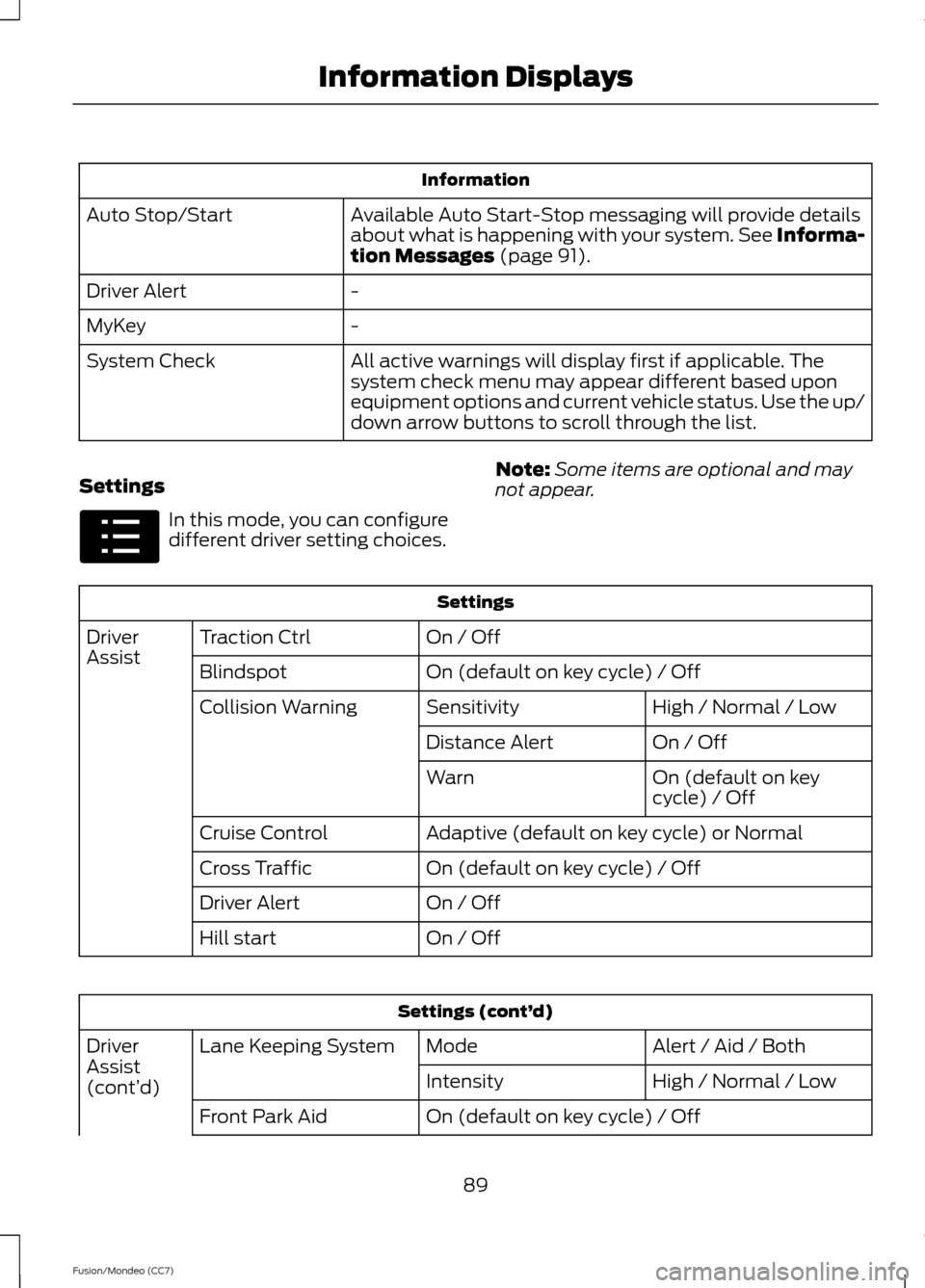
Information
Available Auto Start-Stop messaging will provide details
about what is happening with your system. See Informa-
tion Messages (page 91).
Auto Stop/Start
-
Driver Alert
-
MyKey
All active warnings will display first if applicable. The
system check menu may appear different based upon
equipment options and current vehicle status. Use the up/
down arrow buttons to scroll through the list.
System Check
Settings In this mode, you can configure
different driver setting choices.
Note:
Some items are optional and may
not appear. Settings
On / Off
Traction Ctrl
Driver
Assist
On (default on key cycle) / Off
Blindspot
High / Normal / Low
Sensitivity
Collision Warning
On / Off
Distance Alert
On (default on key
cycle) / Off
Warn
Adaptive (default on key cycle) or Normal
Cruise Control
On (default on key cycle) / Off
Cross Traffic
On / Off
Driver Alert
On / Off
Hill start Settings (cont’
d)
Alert / Aid / Both
Mode
Lane Keeping System
Driver
Assist
(cont’ d) High / Normal / Low
Intensity
On (default on key cycle) / Off
Front Park Aid
89
Fusion/Mondeo (CC7) Information DisplaysE100023
Page 97 of 458
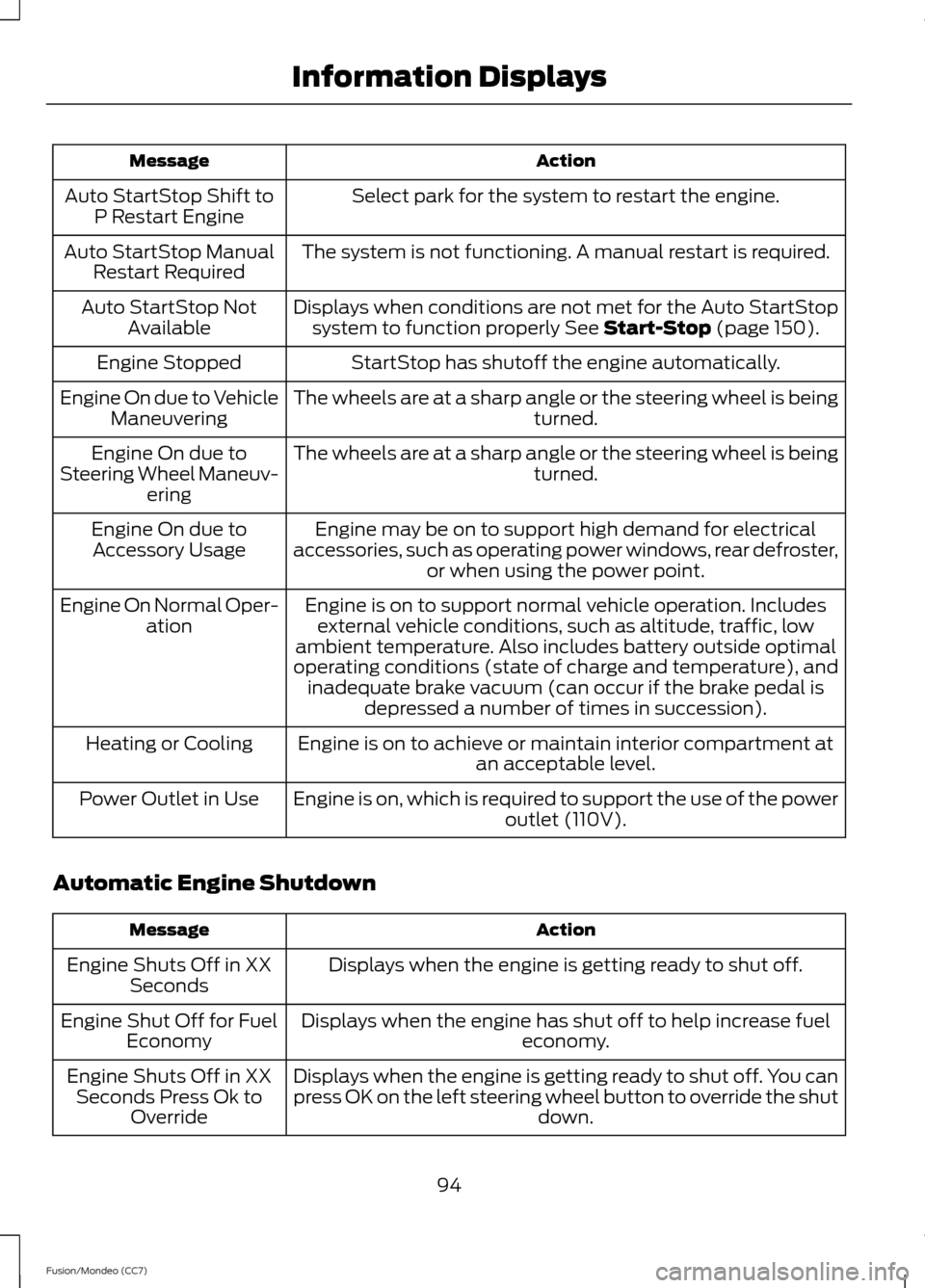
Action
Message
Select park for the system to restart the engine.
Auto StartStop Shift to
P Restart Engine
The system is not functioning. A manual restart is required.
Auto StartStop Manual
Restart Required
Displays when conditions are not met for the Auto StartStopsystem to function properly See Start-Stop (page 150).
Auto StartStop Not
Available
StartStop has shutoff the engine automatically.
Engine Stopped
The wheels are at a sharp angle or the steering wheel is being turned.
Engine On due to Vehicle
Maneuvering
The wheels are at a sharp angle or the steering wheel is being turned.
Engine On due to
Steering Wheel Maneuv- ering
Engine may be on to support high demand for electrical
accessories, such as operating power windows, rear defroster, or when using the power point.
Engine On due to
Accessory Usage
Engine is on to support normal vehicle operation. Includesexternal vehicle conditions, such as altitude, traffic, low
ambient temperature. Also includes battery outside optimal
operating conditions (state of charge and temperature), and inadequate brake vacuum (can occur if the brake pedal is depressed a number of times in succession).
Engine On Normal Oper-
ation
Engine is on to achieve or maintain interior compartment at an acceptable level.
Heating or Cooling
Engine is on, which is required to support the use of the power outlet (110V).
Power Outlet in Use
Automatic Engine Shutdown Action
Message
Displays when the engine is getting ready to shut off.
Engine Shuts Off in XX
Seconds
Displays when the engine has shut off to help increase fuel economy.
Engine Shut Off for Fuel
Economy
Displays when the engine is getting ready to shut off. You can
press OK on the left steering wheel button to override the shut down.
Engine Shuts Off in XX
Seconds Press Ok to Override
94
Fusion/Mondeo (CC7) Information Displays
Page 101 of 458
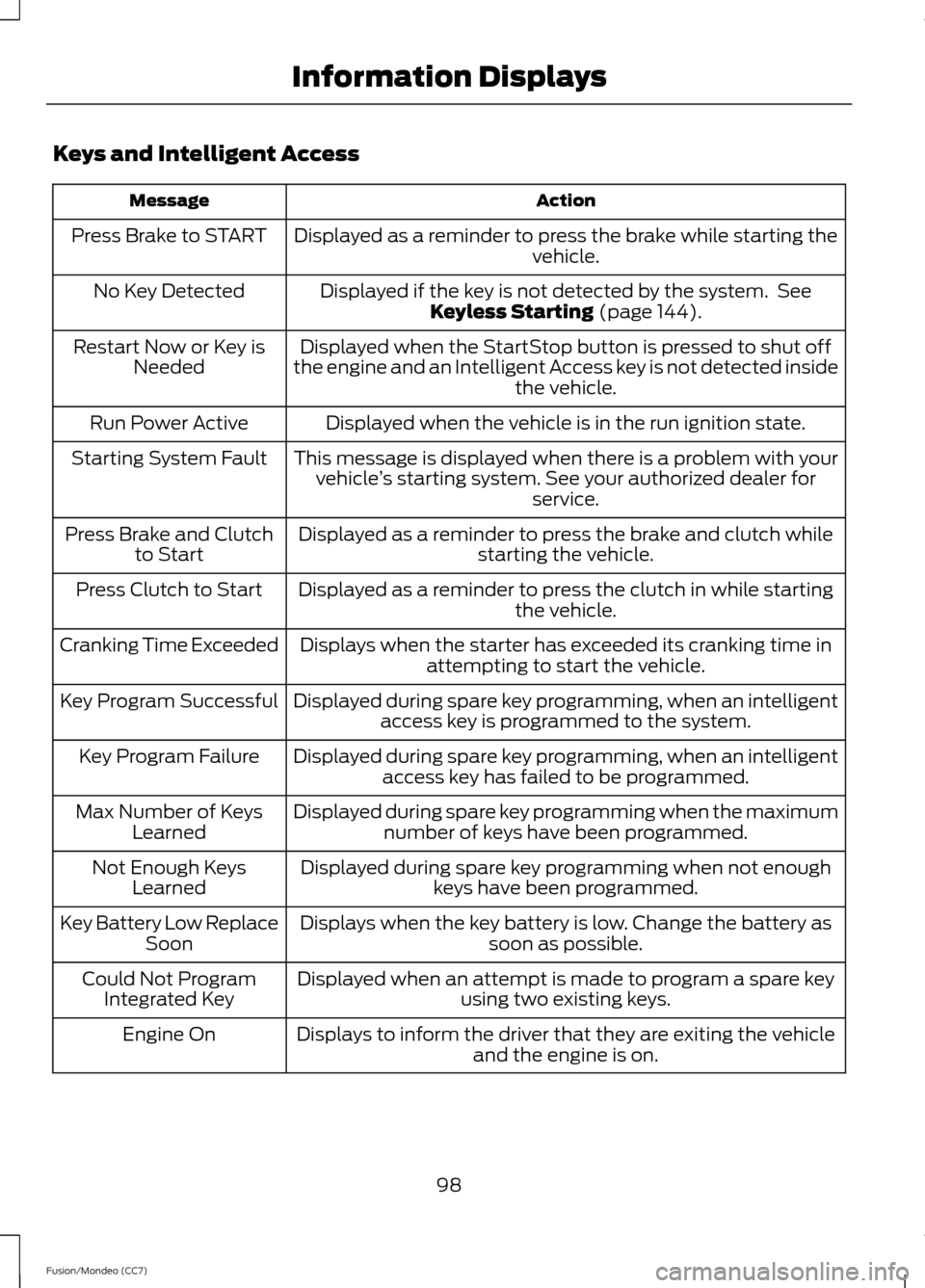
Keys and Intelligent Access
Action
Message
Displayed as a reminder to press the brake while starting the vehicle.
Press Brake to START
Displayed if the key is not detected by the system. SeeKeyless Starting (page 144).
No Key Detected
Displayed when the StartStop button is pressed to shut off
the engine and an Intelligent Access key is not detected inside the vehicle.
Restart Now or Key is
Needed
Displayed when the vehicle is in the run ignition state.
Run Power Active
This message is displayed when there is a problem with yourvehicle ’s starting system. See your authorized dealer for
service.
Starting System Fault
Displayed as a reminder to press the brake and clutch whilestarting the vehicle.
Press Brake and Clutch
to Start
Displayed as a reminder to press the clutch in while starting the vehicle.
Press Clutch to Start
Displays when the starter has exceeded its cranking time inattempting to start the vehicle.
Cranking Time Exceeded
Displayed during spare key programming, when an intelligentaccess key is programmed to the system.
Key Program Successful
Displayed during spare key programming, when an intelligentaccess key has failed to be programmed.
Key Program Failure
Displayed during spare key programming when the maximumnumber of keys have been programmed.
Max Number of Keys
Learned
Displayed during spare key programming when not enoughkeys have been programmed.
Not Enough Keys
Learned
Displays when the key battery is low. Change the battery as soon as possible.
Key Battery Low Replace
Soon
Displayed when an attempt is made to program a spare key using two existing keys.
Could Not Program
Integrated Key
Displays to inform the driver that they are exiting the vehicleand the engine is on.
Engine On
98
Fusion/Mondeo (CC7) Information Displays
Page 105 of 458
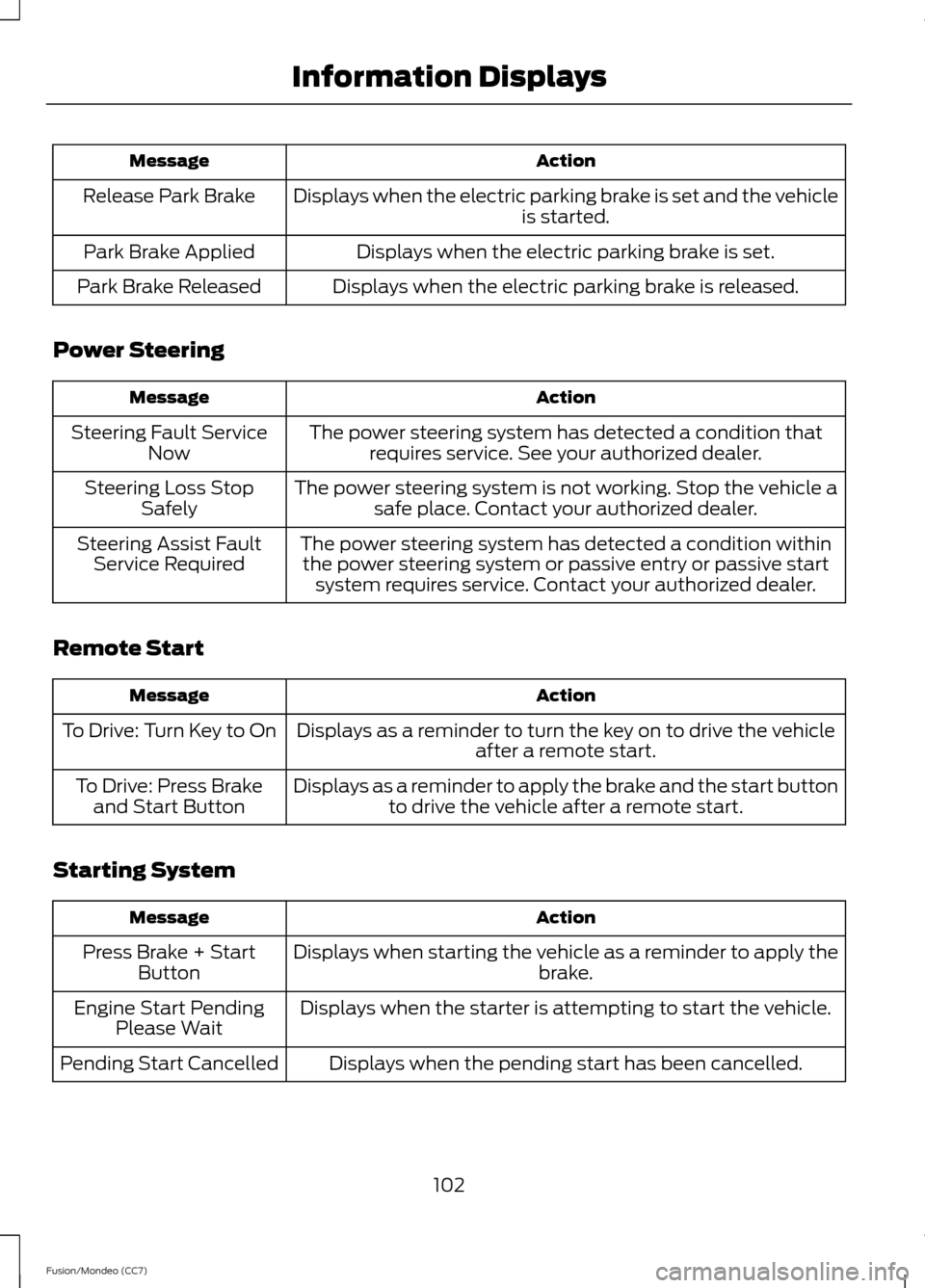
Action
Message
Displays when the electric parking brake is set and the vehicle is started.
Release Park Brake
Displays when the electric parking brake is set.
Park Brake Applied
Displays when the electric parking brake is released.
Park Brake Released
Power Steering Action
Message
The power steering system has detected a condition thatrequires service. See your authorized dealer.
Steering Fault Service
Now
The power steering system is not working. Stop the vehicle asafe place. Contact your authorized dealer.
Steering Loss Stop
Safely
The power steering system has detected a condition withinthe power steering system or passive entry or passive start system requires service. Contact your authorized dealer.
Steering Assist Fault
Service Required
Remote Start Action
Message
Displays as a reminder to turn the key on to drive the vehicle after a remote start.
To Drive: Turn Key to On
Displays as a reminder to apply the brake and the start buttonto drive the vehicle after a remote start.
To Drive: Press Brake
and Start Button
Starting System Action
Message
Displays when starting the vehicle as a reminder to apply the brake.
Press Brake + Start
Button
Displays when the starter is attempting to start the vehicle.
Engine Start Pending
Please Wait
Displays when the pending start has been cancelled.
Pending Start Cancelled
102
Fusion/Mondeo (CC7) Information Displays
Page 136 of 458
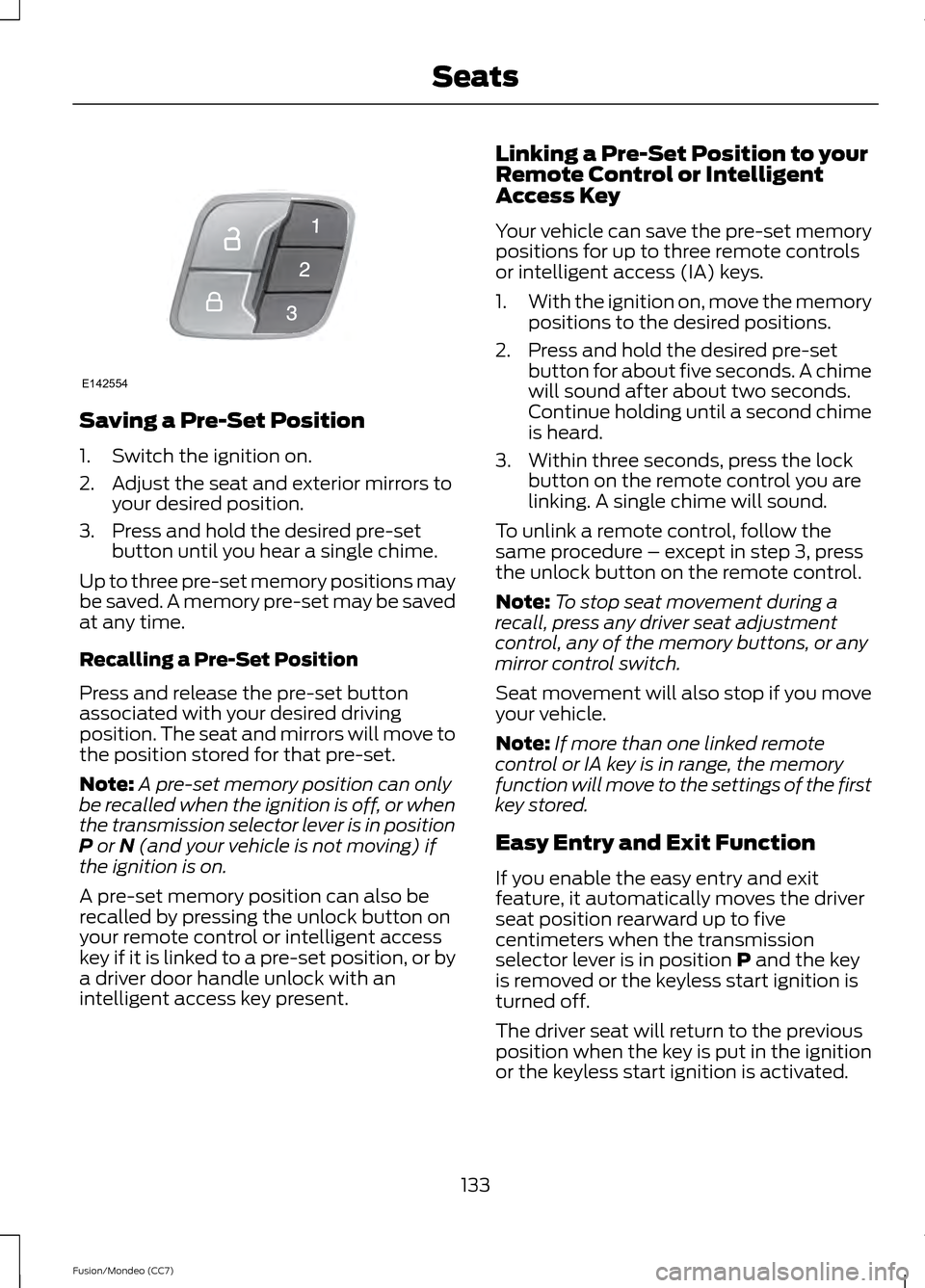
Saving a Pre-Set Position
1. Switch the ignition on.
2. Adjust the seat and exterior mirrors to
your desired position.
3. Press and hold the desired pre-set button until you hear a single chime.
Up to three pre-set memory positions may
be saved. A memory pre-set may be saved
at any time.
Recalling a Pre-Set Position
Press and release the pre-set button
associated with your desired driving
position. The seat and mirrors will move to
the position stored for that pre-set.
Note: A pre-set memory position can only
be recalled when the ignition is off, or when
the transmission selector lever is in position
P or N (and your vehicle is not moving) if
the ignition is on.
A pre-set memory position can also be
recalled by pressing the unlock button on
your remote control or intelligent access
key if it is linked to a pre-set position, or by
a driver door handle unlock with an
intelligent access key present. Linking a Pre-Set Position to your
Remote Control or Intelligent
Access Key
Your vehicle can save the pre-set memory
positions for up to three remote controls
or intelligent access (IA) keys.
1.
With the ignition on, move the memory
positions to the desired positions.
2. Press and hold the desired pre-set button for about five seconds. A chime
will sound after about two seconds.
Continue holding until a second chime
is heard.
3. Within three seconds, press the lock button on the remote control you are
linking. A single chime will sound.
To unlink a remote control, follow the
same procedure – except in step 3, press
the unlock button on the remote control.
Note: To stop seat movement during a
recall, press any driver seat adjustment
control, any of the memory buttons, or any
mirror control switch.
Seat movement will also stop if you move
your vehicle.
Note: If more than one linked remote
control or IA key is in range, the memory
function will move to the settings of the first
key stored.
Easy Entry and Exit Function
If you enable the easy entry and exit
feature, it automatically moves the driver
seat position rearward up to five
centimeters when the transmission
selector lever is in position
P and the key
is removed or the keyless start ignition is
turned off.
The driver seat will return to the previous
position when the key is put in the ignition
or the keyless start ignition is activated.
133
Fusion/Mondeo (CC7) SeatsE142554
Page 140 of 458
HomeLink Wireless Control
System (If Equipped)
WARNING
Do not use the system with any
garage door opener that does not
have the safety stop and reverse
feature as required by U.S. Federal Safety
Standards (this includes any garage door
opener manufactured before April 1, 1982).
A garage door opener which cannot detect
an object, signaling the door to stop and
reverse, does not meet current federal
safety standards. Using a garage door
opener without these features increases
the risk of serious injury or death. Note:
Make sure that the garage door and
security device are free from obstruction
when you are programming. Do not program
the system with the vehicle in the garage.
Note: Make sure you keep the original
remote control transmitter for use in other
vehicles as well as for future system
programming.
Note: We recommend that upon the sale
or lease termination of your vehicle, you
erase the programmed function buttons for
security reasons. See Erasing the function
button codes later in this section.
Note: You can program a maximum of
three devices. To change or replace any of
the three devices after it has been initially
programmed, you must first erase the
current settings. See Erasing the function
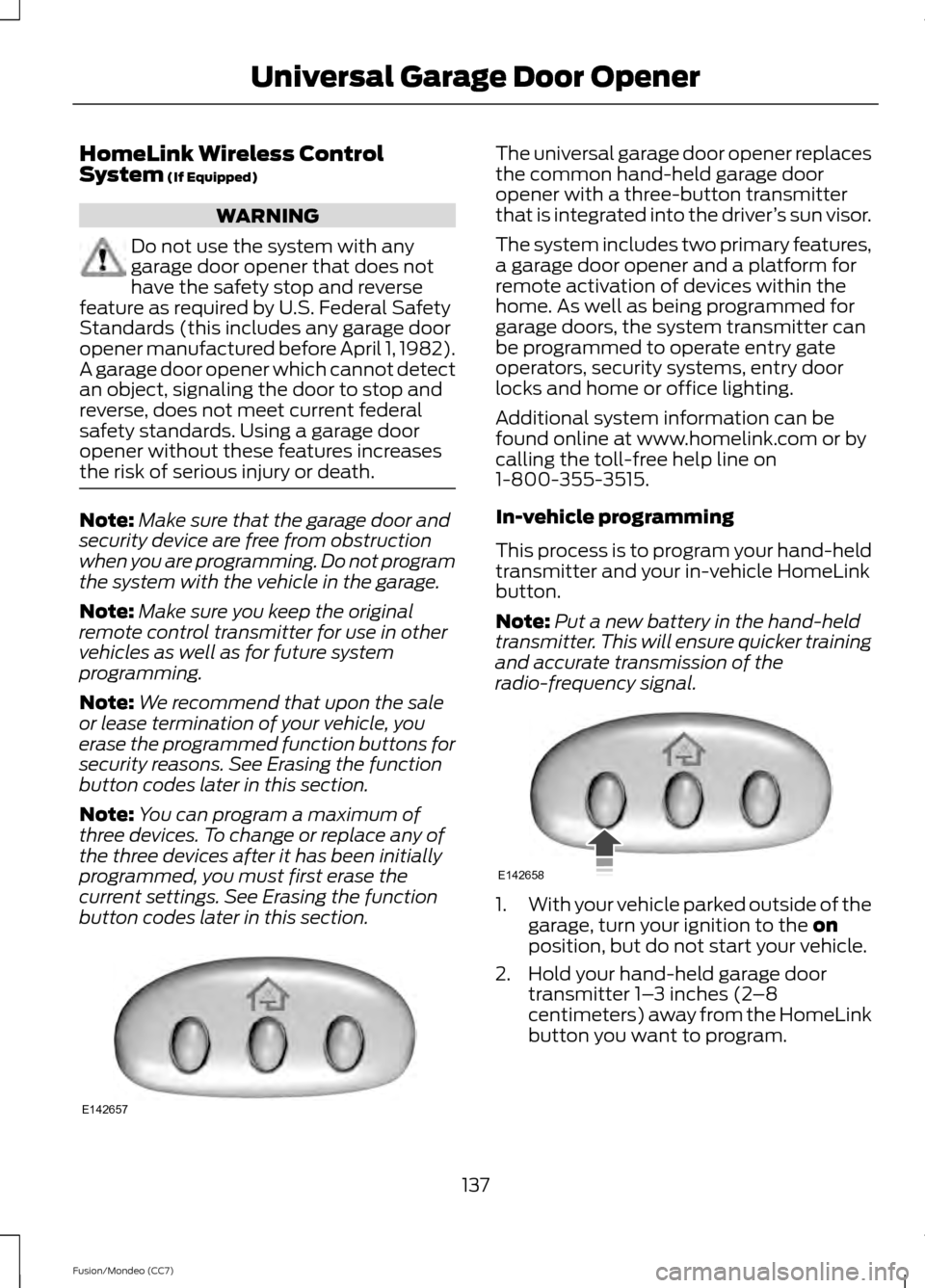
button codes later in this section. The universal garage door opener replaces
the common hand-held garage door
opener with a three-button transmitter
that is integrated into the driver
’s sun visor.
The system includes two primary features,
a garage door opener and a platform for
remote activation of devices within the
home. As well as being programmed for
garage doors, the system transmitter can
be programmed to operate entry gate
operators, security systems, entry door
locks and home or office lighting.
Additional system information can be
found online at www.homelink.com or by
calling the toll-free help line on
1-800-355-3515.
In-vehicle programming
This process is to program your hand-held
transmitter and your in-vehicle HomeLink
button.
Note: Put a new battery in the hand-held
transmitter. This will ensure quicker training
and accurate transmission of the
radio-frequency signal. 1.
With your vehicle parked outside of the
garage, turn your ignition to the
on
position, but do not start your vehicle.
2. Hold your hand-held garage door transmitter 1– 3 inches (2–8
centimeters) away from the HomeLink
button you want to program.
137
Fusion/Mondeo (CC7) Universal Garage Door OpenerE142657 E142658