Page 139 of 576
Keys and Intelligent
Access MessagesAction / Description
Starting System Fault This message is displayed when there is a
problem with your vehicle’s starting system.
See your authorized dealer for service.
Lane Keeping
System MessagesAction / Description
Lane keeping Sys.
Malfunction Service
requiredThe system has malfunctioned. Contact your
authorized dealer as soon as possible.
Front Camera
Temporarily Not
AvailableThe system has detected a condition that has
caused the system to be temporarily
unavailable.
Front Camera Low
Visibility Clean ScreenThe system has detected a condition the
requires the windshield to be cleaned to
operate properly.
Front Camera
Malfunction Service
RequiredThe system has malfunctioned. Contact your
authorized dealer as soon as possible.
Keep Hands on
Steering WheelDisplayed when the system requests the driver
to keep their hands on the steering wheel.
Maintenance
MessagesAction / Description
LOW Engine Oil
PressureStop the vehicle as soon as safely possible,
turn off the engine. Check the oil level. If the
warning stays on or continues to come on with
your engine running, contact your authorized
dealer as soon as possible.
Change Engine Oil
SoonDisplayed when the engine oil life remaining is
10% or less.
Oil Change Required Displayed when the oil life left reaches 0%.
Engine Coolant Over
TempDisplayed when the engine coolant
temperature is excessively high.
Information Displays139
2013 Explorer(exp)
Owners Guide gf, 1st Printing
USA(fus)
Page 143 of 576
Passenger Sensing
System MessagesAction / Description
Remove Objects Near
Passenger SeatDisplayed when objects are by the passenger
seat. After the objects are moved away from
the seat, if the warning stays on or continues
to come on contact your authorized dealer as
soon as possible.
Reminder Messages Action / Description
Steering Lock Turn
Wheel to UnlockDisplays when you need to turn the steering
wheel in order to disengage the steering lock.
Shift to Park Displays as a reminder to shift into park.
Tire Messages Action / Description
Low Tire Pressure Displays when one or more tires on your
vehicle have low tire pressure.
Tire Pressure Monitor
FaultDisplays when the tire pressure monitoring
system is malfunctioning. If the warning stays
on or continues to come on, contact your
authorized dealer.
Tire Pressure Sensor
FaultDisplayed when a tire pressure sensor is
malfunctioning, or your spare tire is in use.
For more information on how the system
operates under these conditions, refer toTi r e
Pressure Monitoring System (TPMS)in the
Wheels and tireschapter. If the warning stays
on or continues to come on, contact your
authorized dealer as soon as possible.
Information Displays143
2013 Explorer(exp)
Owners Guide gf, 1st Printing
USA(fus)
Page 146 of 576
MyFord™ SYSTEM
WARNING:Driving while distracted can result in loss of vehicle
control, accident and injury. Ford strongly recommends that you
use extreme caution when using any device or feature that may take
your focus off the road. Your primary responsibility is the safe operation
of the vehicle. We recommend against the use of any handheld device
while driving, encourage the use of voice-operated systems when
possible and that you become aware of applicable state and local laws
that may affect use of electronic devices while driving.
Note:Some features such as SIRIUS satellite radio may not be available
in your location. Check with your authorized dealer.
AB
O
NMLKJ
EI
H
C
FG
D
146Audio System
2013 Explorer(exp)
Owners Guide gf, 1st Printing
USA(fus)
Page 150 of 576
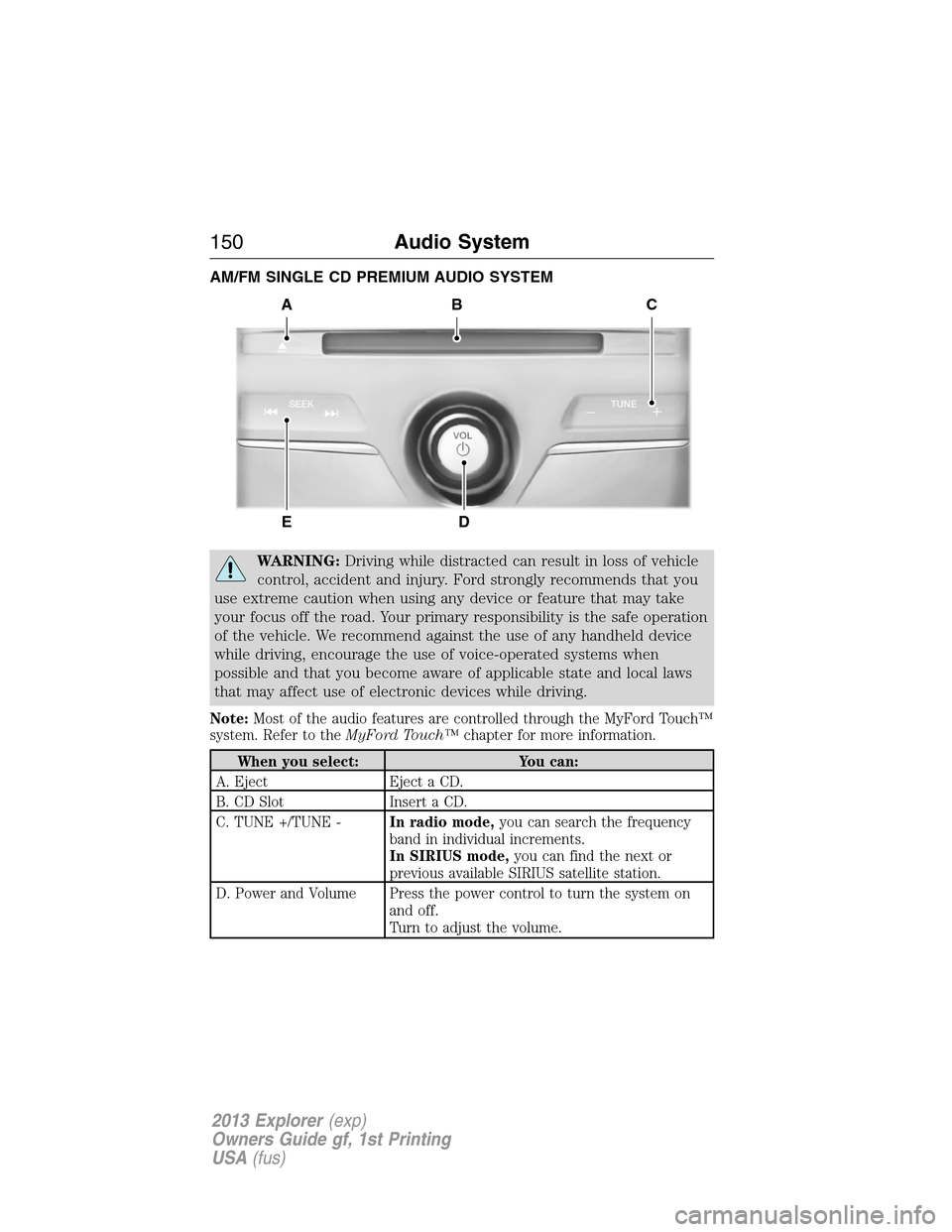
AM/FM SINGLE CD PREMIUM AUDIO SYSTEM
WARNING:Driving while distracted can result in loss of vehicle
control, accident and injury. Ford strongly recommends that you
use extreme caution when using any device or feature that may take
your focus off the road. Your primary responsibility is the safe operation
of the vehicle. We recommend against the use of any handheld device
while driving, encourage the use of voice-operated systems when
possible and that you become aware of applicable state and local laws
that may affect use of electronic devices while driving.
Note:Most of the audio features are controlled through the MyFord Touch™
system. Refer to theMyFord Touch™chapter for more information.
When you select: You can:
A. Eject Eject a CD.
B. CD Slot Insert a CD.
C. TUNE +/TUNE -In radio mode,you can search the frequency
band in individual increments.
In SIRIUS mode,you can find the next or
previous available SIRIUS satellite station.
D. Power and Volume Press the power control to turn the system on
and off.
Turn to adjust the volume.
A
ED
BC
150Audio System
2013 Explorer(exp)
Owners Guide gf, 1st Printing
USA(fus)
Page 151 of 576
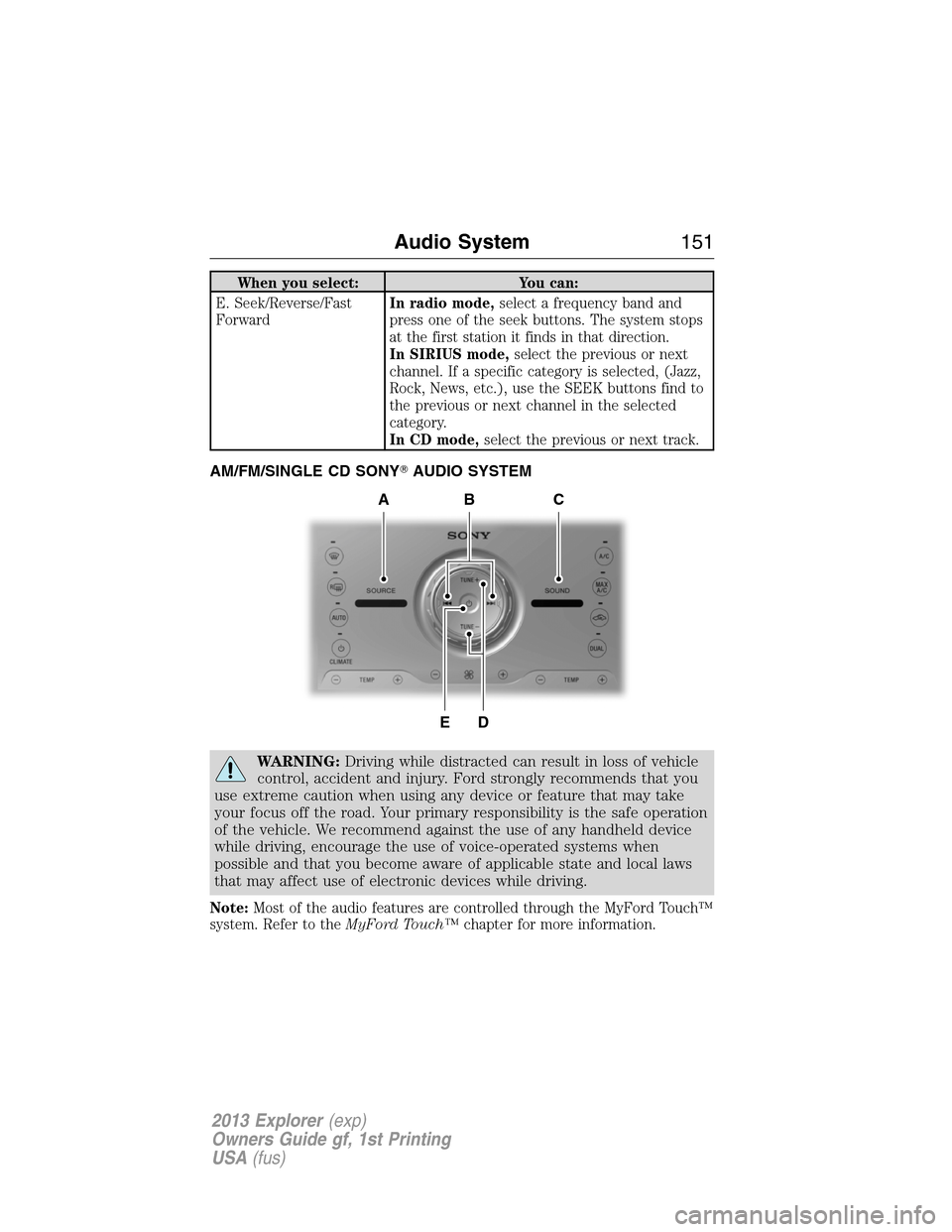
When you select: You can:
E. Seek/Reverse/Fast
ForwardIn radio mode,select a frequency band and
press one of the seek buttons. The system stops
at the first station it finds in that direction.
In SIRIUS mode,select the previous or next
channel. If a specific category is selected, (Jazz,
Rock, News, etc.), use the SEEK buttons find to
the previous or next channel in the selected
category.
In CD mode,select the previous or next track.
AM/FM/SINGLE CD SONY�AUDIO SYSTEM
WARNING:Driving while distracted can result in loss of vehicle
control, accident and injury. Ford strongly recommends that you
use extreme caution when using any device or feature that may take
your focus off the road. Your primary responsibility is the safe operation
of the vehicle. We recommend against the use of any handheld device
while driving, encourage the use of voice-operated systems when
possible and that you become aware of applicable state and local laws
that may affect use of electronic devices while driving.
Note:Most of the audio features are controlled through the MyFord Touch™
system. Refer to theMyFord Touch™chapter for more information.
DE
ACB
Audio System151
2013 Explorer(exp)
Owners Guide gf, 1st Printing
USA(fus)
Page 152 of 576
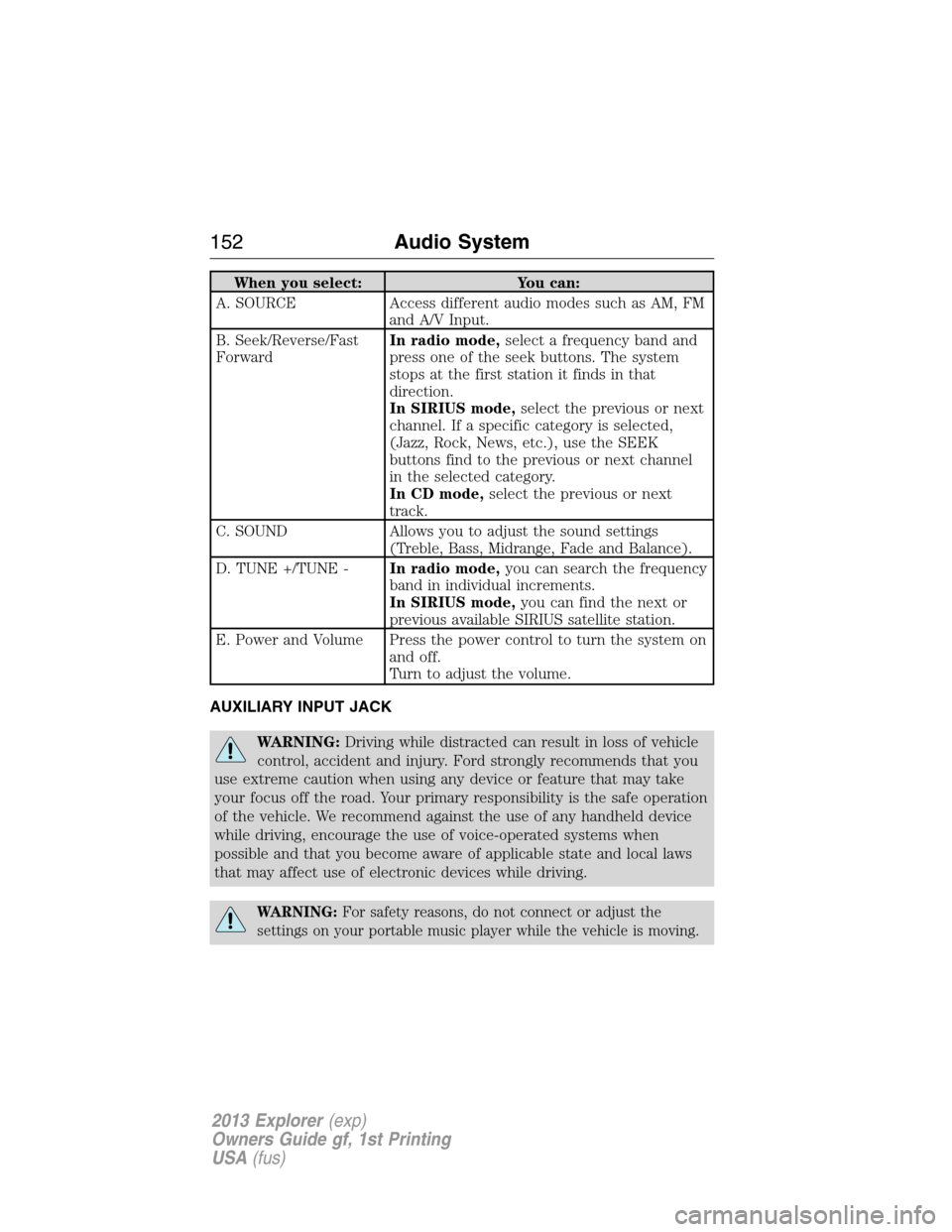
When you select: You can:
A. SOURCE Access different audio modes such as AM, FM
and A/V Input.
B. Seek/Reverse/Fast
ForwardIn radio mode,select a frequency band and
press one of the seek buttons. The system
stops at the first station it finds in that
direction.
In SIRIUS mode,select the previous or next
channel. If a specific category is selected,
(Jazz, Rock, News, etc.), use the SEEK
buttons find to the previous or next channel
in the selected category.
In CD mode,select the previous or next
track.
C. SOUND Allows you to adjust the sound settings
(Treble, Bass, Midrange, Fade and Balance).
D. TUNE +/TUNE -In radio mode,you can search the frequency
band in individual increments.
In SIRIUS mode,you can find the next or
previous available SIRIUS satellite station.
E. Power and Volume Press the power control to turn the system on
and off.
Turn to adjust the volume.
AUXILIARY INPUT JACK
WARNING:Driving while distracted can result in loss of vehicle
control, accident and injury. Ford strongly recommends that you
use extreme caution when using any device or feature that may take
your focus off the road. Your primary responsibility is the safe operation
of the vehicle. We recommend against the use of any handheld device
while driving, encourage the use of voice-operated systems when
possible and that you become aware of applicable state and local laws
that may affect use of electronic devices while driving.
WARNING:For safety reasons, do not connect or adjust the
settings on your portable music player while the vehicle is moving.
152Audio System
2013 Explorer(exp)
Owners Guide gf, 1st Printing
USA(fus)
Page 153 of 576

WARNING:Store the portable music player in a secure location,
such as the center console or the glove box, when the vehicle is
in motion. Hard objects may become projectiles in a collision or sudden
stop, which may increase the risk of serious injury. The audio extension
cable must be long enough to allow the portable music player to be
safely stored while the vehicle is in motion.
The auxiliary input jack (AIJ) allows
you to connect and play music from
your portable music player through
the vehicle speakers. You can use
any portable music player designed
for use with headphones. Your audio
extension cable must have male
1/8 in. (3.5 mm) connectors at each
end.
1. Make sure the vehicle, radio and portable music player are turned off
and the vehicle is in P (Park).
2. Plug the extension cable from the portable music player into the AIJ.
3. Turn on the radio. Select either a tuned FM station or a CD.
4. Adjust the volume as desired.
5. Turn on your portable music player and adjust its volume to 1/2.
6. Press AUX until LINE or LINE IN appears in the display. You should
hear music from your device even if it is low.
7. Adjust the volume on your portable music player until it reaches the
volume level of the FM station or CD. Do this by switching back and
forth between the AUX and FM or CD controls.
Audio System153
2013 Explorer(exp)
Owners Guide gf, 1st Printing
USA(fus)
Page 154 of 576
USB PORT
WARNING:Driving while distracted can result in loss of vehicle
control, accident and injury. Ford strongly recommends that you
use extreme caution when using any device or feature that may take
your focus off the road. Your primary responsibility is the safe operation
of the vehicle. We recommend against the use of any handheld device
while driving, encourage the use of voice-operated systems when
possible and that you become aware of applicable state and local laws
that may affect use of electronic devices while driving.
The USB port is located in the center console. It allows you to plug in
media playing devices, memory sticks and charge devices (if supported).
Refer to the SYNC�material for more information.
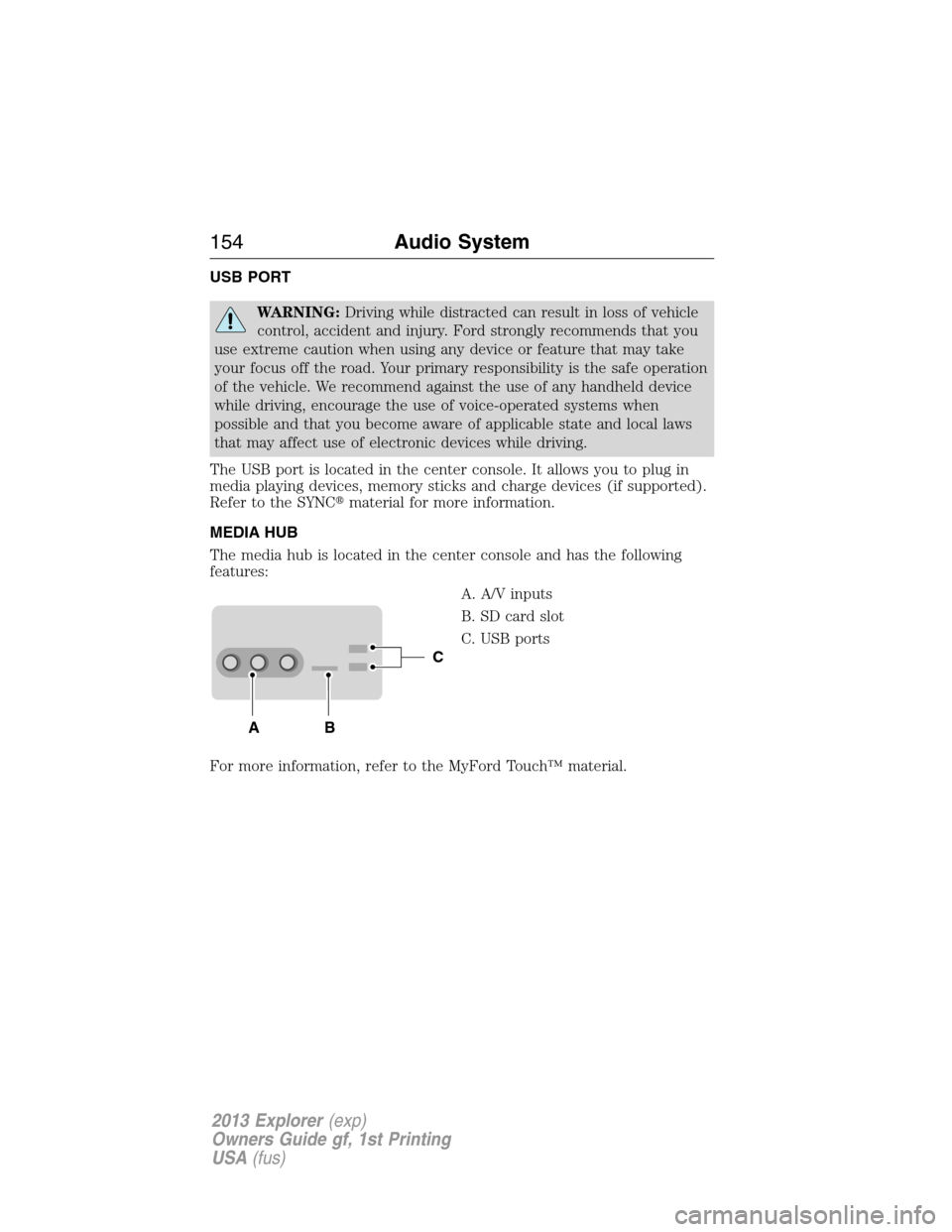
MEDIA HUB
The media hub is located in the center console and has the following
features:
A. A/V inputs
B. SD card slot
C. USB ports
For more information, refer to the MyFord Touch™ material.
C
BA
154Audio System
2013 Explorer(exp)
Owners Guide gf, 1st Printing
USA(fus)