Page 391 of 526

3. Scroll until Advanced appears and select OK.
4. Scroll to select from the following options:
If you select: You can:
PromptsGet help from SYNC by using questions, helpful
hints or asking you for a specific action. To turn
these prompts on or off:
1. Press OK to select and scroll to select between
on or off.
2. Press OK when the desired selection appears
in the display. SYNC takes you back to the
Advanced menu.
LanguagesChoose between English, Francais and Espanol.
Once selected, all of SYNC’s radio displays and
prompts are in the selected language.
1. Press OK to select and then scroll through the
languages.
2. Press OK when the desired selection appears
in the display. If you change the language setting,
the display indicates that the system is updating.
When complete, SYNC takes you back to the
Advanced menu.
Factory DefaultsReturn to the factory default settings. This
selection does not erase your indexed information
(phonebook, call history, text messages and
paired devices).
1. Press OK to select and then press OK again
when Restore Defaults? appears in the display.
2. Press OK to confirm.
Master ResetCompletely erase all information stored on SYNC
(phonebook, call history, text messages and
paired devices) and return to the factory default
settings.
Press OK to select. The display indicates when
complete and SYNC takes you back to the
Advanced menu.
Install Application?Install applications you have downloaded.
Press OK and scroll to select. Press OK to
confirm.
SYNC�391
2013 Edge(edg)
Owners Guide gf, 1st Printing
USA(fus)
Page 393 of 526

Note:Before setting this feature on, ensure that you read the 911
Assist™ privacy notice later in this section for important information.
Note:If 911 Assist™ is turned on or off by any user, that setting applies
for all paired phones. If 911 Assist™ is turned off, a voice message plays
and/or a display message/icon comes on when the vehicle is started after
a previously paired phone connects.
Note:Every phone operates differently. While SYNC�911 Assist™ works
with most cellular phones, some may have trouble using this feature.
If a crash deploys an airbag or activates the fuel pump shut-off, your
SYNC equipped vehicle may be able to contact emergency services by
dialing 911 through a paired and connectedBluetooth-enabled phone.
For more information about 911 Assist™, visit www.SYNCMyRide.com or
www.syncmaroute.ca.
•For information on airbag deployment, refer to theSupplementary
Restraints Systemchapter.
•For information on the fuel pump shut-off, refer to theRoadside
Emergencieschapter.
Setting 911 Assist™ On
Perform the following:
1. Press the phone button to enter the Phone Menu.
2. Scroll until 911 Assist is selected.
3. Press OK to confirm and enter the 911 Assist menu.
4. Scroll to select between On and Off selections.
5. Press OK when the desired option appears in the radio display. Set
On or Set Off appears in the display as confirmation.
Off selections include: Off with reminder and Off without reminder. Off
with reminder provides a display and voice reminder at phone connection
at vehicle start. Off without reminder provides a display reminder only
without a voice reminder at phone connection.
To make sure that 911 Assist™ works properly:
•SYNC�must be powered and working properly at the time of the
incident and throughout feature activation and use.
•SYNC�911 Assist™ feature must be set on prior to the incident.
•A Bluetooth-enabled and compatible phone has to be paired and
connected to SYNC�.
•A connected Bluetooth-enabled phone must have the ability to make
and maintain an outgoing call at the time of the incident.
SYNC�393
2013 Edge(edg)
Owners Guide gf, 1st Printing
USA(fus)
Page 400 of 526

MEDIA FEATURES
You can access and play music from your digital music player over the
vehicle’s speaker system using the system’s media menu or voice
commands. You can also sort and play your music by specific categories
such as artists, albums, etc.
SYNC is capable of hosting nearly any digital media player including:
iPod�, Zune™, “Plays from device” players, and most USB drives. SYNC
also supports audio formats such as MP3, WMA, WAV and ACC.
Connecting Your Digital Media Player via the USB Port
Note:If your digital media player has a power switch, ensure that the
device is turned on.
To connect using voice commands:
1. Plug the device into the vehicle’s USB port.
2. Press the voice icon and when prompted, say “USB”.
3. You can now play music by saying any of the appropriate voice
commands. Refer to the media voice commands.
To connect using the system menu:
1. Plug the device into the vehicle’s USB port.
2. Press AUX and then MENU to enter the Media Menu.
3. Scroll until Select Source appears and press OK.
4. Scroll to select USB and press OK.
5. Depending on how many digital media files are on your connected
device, Indexing may appear in the radio display. When indexing is
complete, the screen returns to the Play Menu.
6. Press OK and scroll through selections of:
•Play All
•Albums
•Genres
•Playlists
•Tracks
•Explore USB
•Similar Music
•Return
When the desired selection appears in the display, press OK to build your
desired music selection.
400SYNC�
2013 Edge(edg)
Owners Guide gf, 1st Printing
USA(fus)
Page 429 of 526
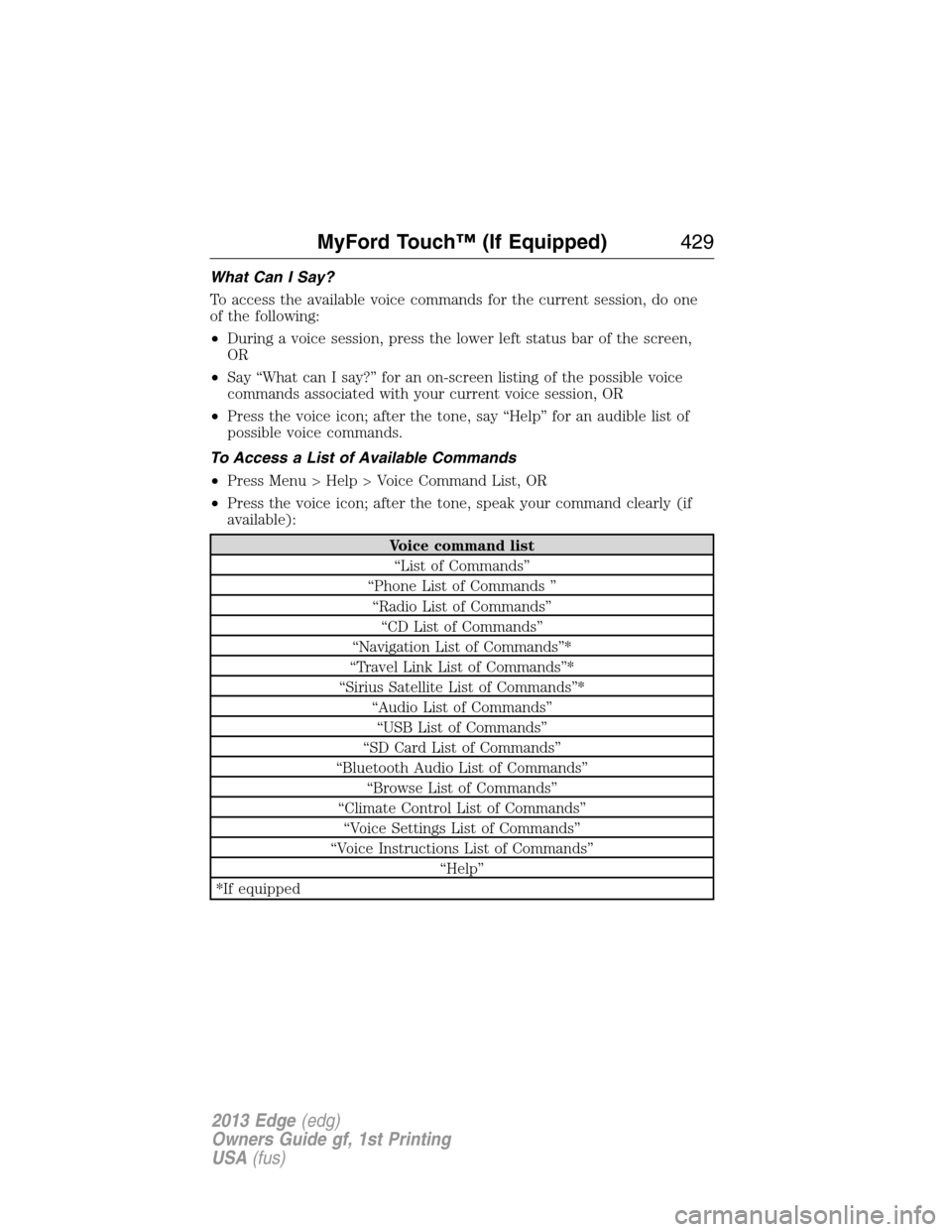
What Can I Say?
To access the available voice commands for the current session, do one
of the following:
•During a voice session, press the lower left status bar of the screen,
OR
•Say “What can I say?” for an on-screen listing of the possible voice
commands associated with your current voice session, OR
•Press the voice icon; after the tone, say “Help” for an audible list of
possible voice commands.
To Access a List of Available Commands
•Press Menu > Help > Voice Command List, OR
•Press the voice icon; after the tone, speak your command clearly (if
available):
Voice command list
“List of Commands”
“Phone List of Commands ”
“Radio List of Commands”
“CD List of Commands”
“Navigation List of Commands”*
“Travel Link List of Commands”*
“Sirius Satellite List of Commands”*
“Audio List of Commands”
“USB List of Commands”
“SD Card List of Commands”
“Bluetooth Audio List of Commands”
“Browse List of Commands”
“Climate Control List of Commands”
“Voice Settings List of Commands”
“Voice Instructions List of Commands”
“Help”
*If equipped
MyFord Touch™ (If Equipped)429
2013 Edge(edg)
Owners Guide gf, 1st Printing
USA(fus)
Page 434 of 526
LISTENING TO MUSIC
Your system offers many media options. You can access these options
using the touchscreen or voice commands.
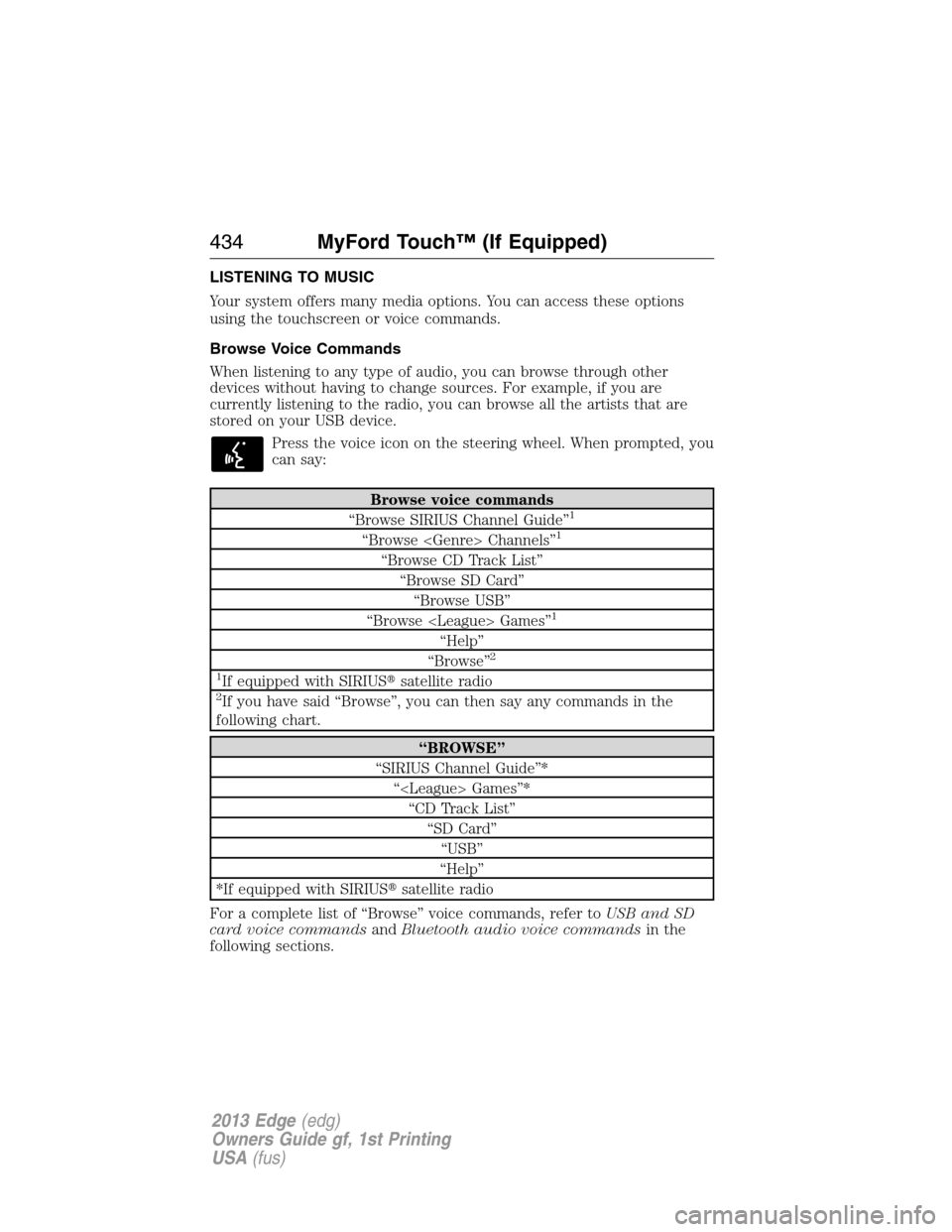
Browse Voice Commands
When listening to any type of audio, you can browse through other
devices without having to change sources. For example, if you are
currently listening to the radio, you can browse all the artists that are
stored on your USB device.
Press the voice icon on the steering wheel. When prompted, you
can say:
Browse voice commands
“Browse SIRIUS Channel Guide”1
“Browse Channels”1
“Browse CD Track List”
“Browse SD Card”
“Browse USB”
“Browse Games”
1
“Help”
“Browse”2
1
If equipped with SIRIUS�satellite radio2If you have said “Browse”, you can then say any commands in the
following chart.
“BROWSE”
“SIRIUS Channel Guide”*
“ Games”*
“CD Track List”
“SD Card”
“USB”
“Help”
*If equipped with SIRIUS�satellite radio
For a complete list of “Browse” voice commands, refer toUSB and SD
card voice commandsandBluetooth audio voice commandsin the
following sections.
434MyFord Touch™ (If Equipped)
2013 Edge(edg)
Owners Guide gf, 1st Printing
USA(fus)
Page 435 of 526
AM/FM Radio
Press the lower left corner of the touchscreen and then select
theAMorFMtab.
To change between AM and FM, just touch one of the tabs. To
change between AM1/AM AST or the FM/FM1/FM2/FM AST presets,
repeatedly touch the lower left corner of the touchscreen.
When you select: You can:
One of the memory
preset areas (on the
right side of the
screen)Save a station by pressing and holding one of
the memory preset areas. There is a brief
mute while the station is being saved, then
sound returns when it’s done.
Direct Tune Enter the desired station number when
prompted. Press Enter.
Browse View a list of all available stations. Scroll and
select the desired station.
HD Radio Turn the feature on. This enables you to
receive radio broadcasts digitally (where
available), providing free, crystal clear sound.
Refer to theHD Radio™ informationin the
following section.
MyFord Touch™ (If Equipped)435
2013 Edge(edg)
Owners Guide gf, 1st Printing
USA(fus)
Page 436 of 526

When you select: You can:
Options Adjust more audio system settings:
Sound Settingsallows you to adjust Bass,
Treble, Midrange, Balance and Fade, THX
Deep Note Demo (if equipped), DSP (if
equipped), Occupancy Mode (if equipped),
and Speed Compensated Volume settings.
Set PTY for Seek/Scanallows you to select
a category of music you would like to search
for and then choose to either seek or scan for
the stations.
RDS Text Display On/Offallows you to
always view the information broadcast by FM
stations by selecting On.
Auto Presets (AST) - Autostoreallows you
to have the system automatically store the six
strongest stations in your current location.
These do not override any presets stored in
any of the AM or FM frequency bands.
TAG Button On/Off (if available)allows
you to tag a song to download later.
When you select On, the TAG icon appears
on-screen when HD radio is active. You can
press TAG to save the information of the song
that is playing. When you plug in your
portable music player, the information is
transferred (if supported by your device).
When you are connected to iTunes�, the tags
appear to remind you of the songs you’d like
to download. Refer to theHD Radio™
informationlater in this chapter.
436MyFord Touch™ (If Equipped)
2013 Edge(edg)
Owners Guide gf, 1st Printing
USA(fus)
Page 437 of 526
Radio Voice Commands
If you are listening to the radio, press the voice button on the
steering wheel controls. When prompted, say any of the
commands in the following chart.
If you are not listening to the radio, press the voice button and, after the
tone, say “Radio”, then any of the commands in the following chart.
“RADIO”
“Radio On”
“Radio Off”
“Set PTY”
“AM”
“AM <530–1710>”
“AM Preset <#>”
“AM Autoset”
“AM Autoset Preset <#>”
“FM”
“FM1”
“FM2”
“FM <87.9–107.9>”
“FM Preset <#>”
“FM 1 Preset <#>”
“FM 2 Preset <#>”
“FM Autoset”
“FM Autoset Preset <#>”
“Preset <#>”
“FM <87.9-107.9> HD <#>”
1
“HD <#>”1
“Tune”2
“Browse”3
“Help”1If available2If you have said, “Tune”, refer to the following “Tune” chart.3If you have said, “Browse”, refer to theBrowse voice commands
earlier in this section.
MyFord Touch™ (If Equipped)437
2013 Edge(edg)
Owners Guide gf, 1st Printing
USA(fus)

