Page 313 of 416

USING VOICE RECOGNITION
This system helps you control many features using voice commands. This
allows you to keep your hands on the wheel and focus on what is in
front of you.
Initiating a Voice Session
Push the voice icon; a tone sounds and Listening appears in the
display. Say any of the following:
Say: If you want to:
“Phone” Make calls.
“USB” Access the device connected to your USB
port.
“Bluetooth Audio” Stream audio from your phone.
“Line in” Access the device connected to the auxiliary
input jack.
“Cancel” Cancel the requested action.
“SYNC” Return to the main menu.
“Voice settings” Adjust the level of voice interaction and
feedback.
“Vehicle Health Report” Run a vehicle health report.
*
“Services” Access the SYNC Services portal.*
“Mobile apps” Access mobile applications.*
“Help” Hear a list of voice commands available in the
current mode.
*If equipped, U.S. only.
System Interaction and Feedback
The system provides feedback through audible tones, prompts, questions
and spoken confirmations depending on the situation and the chosen
level of interaction (voice settings). You can customize the voice
recognition system to provide more or less instruction and feedback.
The default setting is to a higher level of interaction in order to help you
learn to use the system. You can change these settings at any time.
SYNC�313
2013 Econoline(eco)
Owners Guide gf, 1st Printing
USA(fus)
Page 384 of 416
Creating a Playlist
Press the MEDIA hard button, then select the Jukebox tab on the
touchscreen.
1. Select Options.
2. Select Edit Playlists, then which playlist you would like to create.
3. Select which category you would like to access from your saved music.
4. Select the desired songs and then press Add. The system shows you
the currently selected songs. You can choose to Edit Name to change
the name of the playlist, Delete Playlist to remove it, Add Tracks to the
playlist or Sort Playlist.
5. When you are done making any adjustments to the playlist, select Edit
Name to rename your playlist.
Jukebox Voice Commands
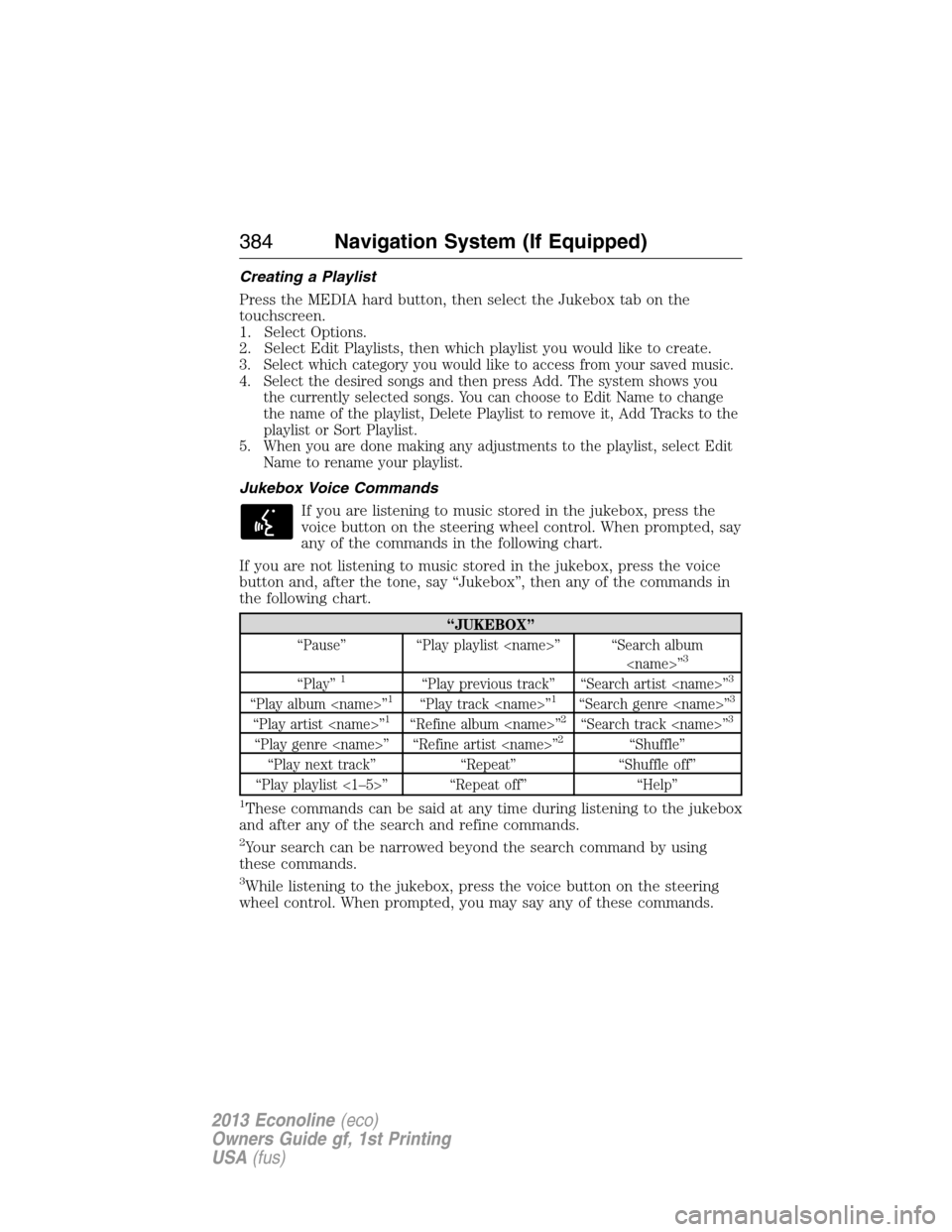
If you are listening to music stored in the jukebox, press the
voice button on the steering wheel control. When prompted, say
any of the commands in the following chart.
If you are not listening to music stored in the jukebox, press the voice
button and, after the tone, say “Jukebox”, then any of the commands in
the following chart.
“JUKEBOX”
“Pause” “Play playlist ” “Search album
”
3
“Play”1“Play previous track” “Search artist ”3
“Play album ”1“Play track ”1“Search genre ”3
“Play artist ”1“Refine album ”2“Search track ”3
“Play genre ” “Refine artist ”2“Shuffle”
“Play next track” “Repeat” “Shuffle off”
“Play playlist <1–5>” “Repeat off” “Help”
1These commands can be said at any time during listening to the jukebox
and after any of the search and refine commands.
2Your search can be narrowed beyond the search command by using
these commands.
3While listening to the jukebox, press the voice button on the steering
wheel control. When prompted, you may say any of these commands.
384Navigation System (If Equipped)
2013 Econoline(eco)
Owners Guide gf, 1st Printing
USA(fus)
Page 403 of 416

End user notice
Microsoft�Windows�Mobile for Automotive Important Safety
Information
This system Ford SYNC™ contains software that is licensed to
Manufacturer FORD MOTOR COMPANY by an affiliate of Microsoft
Corporation pursuant to a license agreement. Any removal, reproduction,
reverse engineering or other unauthorized use of the software from this
system in violation of the license agreement is strictly prohibited and
may subject you to legal action.
Read and follow instructions
Before using your Windows Automotive-based system, read and follow all
instructions and safety information provided in this end user manual
(“User’s Guide”). Not following precautions found in this User’s Guide
can lead to an accident or other serious consequences.
Keep User’s Guide in Vehicle
When kept in the vehicle, the User’s Guide will be a ready reference for
you and other users unfamiliar with the Windows Automotive-based
system. Please make certain that before using the system for the first
time, all persons have access to the User’s Guide and read its
instructions and safety information carefully.
WARNING:Operating certain parts of this system while driving
can distract your attention away from the road, and possibly
cause an accident or other serious consequences. Do not change
system settings or enter data non-verbally (using your hands) while
driving. Stop the vehicle in a safe and legal manner before attempting
these operations. This is important since while setting up or changing
some functions you might be required to distract your attention away
from the road and remove your hands from the wheel.
General operation
Voice Command Control
Functions within the Windows Automotive-based system may be
accomplished using only voice commands. Using voice commands while
driving allows you to operate the system without removing your hands
from the wheel.
Prolonged Views of Screen
Do not access any function requiring a prolonged view of the screen while
you are driving. Pull over in a safe and legal manner before attempting to
Appendices403
2013 Econoline(eco)
Owners Guide gf, 1st Printing
USA(fus)
Page:
< prev 1-8 9-16 17-24