2013 FORD B MAX Eco
[x] Cancel search: EcoPage 227 of 298

Downloaded from www.Manualslib.com manuals search engine Track Selection
•Press the seek down button once toreplay the current track. If pressedwithin two seconds of the start of atrack, the previous track plays.
•Press the up or down arrow buttons toselect the required track, then pressOK.
You can select a track by using the numerickeypad. Dial the required track numberuntil complete (for example, 1 then 2 fortrack 12), or dial the number and directlypress OK.
Fast Forward and Reverse
Press and hold the seek down or upbuttons to search backward or forwardwithin the tracks on the disc.
Shuffle and Random
Random track playback, also known asshuffle, plays all tracks on the CD inrandom order.
Press function button 2.
Note:When an MP3 CD is playing, you canhave the system shuffle tracks for the wholeCD, or within the current folder. Pressingfunction button 2 toggles these options.
Use the seek up or down button to selectthe next track to shuffle, if required.
Repeat Compact Disc Tracks
Press function button 1.
Note:When an MP3 or WMA CD is playing,you can have the system repeat the currenttrack or all tracks within the current folder.Pressing function button 1 toggles theseoptions.
Compact Disc Track Scanning
Press function button 3.
Note:When an MP3 or WMA CD is playing,you can have the system scan tracks on theCD or within the current folder. Pressingfunction button 3 toggles these options.
MP3 and WMA File Playback
MP3 (MPEG 1 Audio Layer-3) or WMA(Windows media audio) is a standardtechnology and format for compressingaudio data. This allows a more efficientuse of the media.
You can play MP3 files recorded onCD-ROM, CD-R and CD-RW formats. Thedisc must be in the ISO 9660 level 1 or level2 format, or Joliet or Romeo in theexpansion format. You can also use a discrecorded in multi session.
ISO 9660 Format
This is the most common internationalstandard for the logical format of files andfolders on a CD-ROM.
There are several specification levels. InLevel 1, file names must be in the 8.3format (no more than eight characters inthe name, no more than three charactersin the extension .MP3 and .WMA) and incapital letters.
Folder names can be no longer than eightcharacters. There can be no more thaneight folder levels (trees). Level 2specifications allow file names up to 31characters long.
Each folder can have up to eight trees.
For Joliet or Romeo in the expansionformat, consider these restrictions whenconfiguring your CD writing software.
Multi Session
This recording method enables adding ofdata using the track-at-once method.
225B-MAX (CB2) Vehicles Built From: 25-06-2012, Vehicles Built Up To: 31-12-2013Audio System
Page 228 of 298

Downloaded from www.Manualslib.com manuals search engine Conventional CDs begin at a CD controlarea called the lead-in and end at an areacalled lead-out. A multi session CD is a CDhaving multiple sessions, with eachsegment from lead-in to lead-out regardedas a single session.
CD-Extra: The format that records audio(audio CD data) as tracks on session 1, andrecords data as tracks on session 2.
Mixed CD: In this format, data records astrack 1 and audio (audio CD data) recordsas track 2.
File Formats
With formats other than ISO 9660 level 1and level 2, folder names or file names maynot display correctly.
When naming, be sure to add the fileextension .MP3 or .WMA to the file name.
If you put the extension .MP3 or .WMA toa file other than MP3 or WMA, the unitcannot recognize the file correctly andgenerates random noise that coulddamage your speakers.
The following discs take a longer time tostart playback.
•A disc recorded with complicated treestructure.
•A disc recorded in multi session.
•A non-finalized disc, where you can addmore data.
Playing a Multi Session Disc
When the first track of the first session isaudio CD data only, the audio CD data ofthe first session plays. Non-audio CD data,MP3 or WMA file information (such astrack number and time) displays with nosound.
When the first track of the first session isnot audio CD data:
•If an MP3 or WMA file is on the disc, thesystem skips these file and other data.Audio CD data is not recognized.
•If no MP3 or WMA file is in the disc,nothing plays. Audio CD data is notrecognized.
MP3 and WMA Files Playback Order
The playback order of the folders and filesare as shown.
Note:The system skips any folder that doesnot include an MP3 or WMA file.
To specify a desired playback order beforethe folder or file name, input the order bynumber (for example, 01 or 02) then recordthe contents onto a disc. The order differsdepending on the writing software.
ID3 Tag Version 2
The following occurs when an MP3 orWMA file containing a tag plays:
226B-MAX (CB2) Vehicles Built From: 25-06-2012, Vehicles Built Up To: 31-12-2013Audio System
Page 229 of 298
Downloaded from www.Manualslib.com manuals search engine •When skipping a portion of a tag (atthe beginning of the track) there is nosound output. Skip time changesdepending on the tag capacity.Example: At 64 kbytes, it is about 2seconds (with RealJukebox).
•The displayed elapsed playing timewhen skipping a portion of the tag isinaccurate. For MP3 files of a bit rateother than 128 kbps, time does notdisplay accurately during playback.
•When an MP3 file is created with MP3conversion software (such asRealJukebox - a registered trademarkof RealNetworks Inc.), the taggenerates automatically.
MP3 or WMA Navigation
You can record MP3 tracks on the CD inseveral ways. You can place them in theroot directory like a conventional audio CD,or in folders that may represent categories,such as album, artist, or genre.
The normal playing sequence on CDs withmultiple folders is:
•Play the tracks within the root (toplevel) first
•Then the tracks in any folder(s) withinthe root
•Then move onto the second folder, andso forth.
To navigate to a track:
1.Press the up or down arrow buttons toenter the track list.
2.Navigate the hierarchy using the arrowbuttons to select another folder ortrack (file).
3.Press OK to select a highlighted track.
MP3 and WMA Display Options
When an MP3 or WMA disc is playing,certain information encoded in each trackcan display. Such information normallyincludes:
•The file name.
•The folder name.
•ID3 information, which might be thealbum or artist name.
The unit normally shows the file name thatis playing. To select one of the other itemsof information, press INFO repeatedly untilthe required item appears in the display.
Note:If the ID3 information selected isunavailable,NO MP3 or WMA TAG appearsin the display.
CD Text Display Options
When an audio disc with CD text is playing,limited information encoded in each trackcan display. Such information normallyincludes:
•The disc name.
•The artist name.
•The track name.
Note:You can select these display optionsin the same way as MP3 displays.NO DISCNAME or NO TRACK NAME appears in thedisplay if there is no encoded information.
Ending Compact Disc Playback
To restore radio reception on all units,press RADIO.
Note:The CD does not eject. The discpauses at the point where radio receptionreturned.
To resume CD playback, press CD again.
227B-MAX (CB2) Vehicles Built From: 25-06-2012, Vehicles Built Up To: 31-12-2013Audio System
Page 230 of 298

Downloaded from www.Manualslib.com manuals search engine AUXILIARY INPUT JACK
WARNINGS
Driving while distracted can result inloss of vehicle control, accident andinjury. We strongly recommend thatyou use extreme caution when using anydevice or feature that may take your focusoff the road. Your primary responsibility isthe safe operation of your vehicle. Werecommend against the use of anyhandheld device while driving andencourage the use of voice-operatedsystems when possible. Make sure you areaware of all applicable local laws that mayaffect the use of electronic devices whiledriving.
For safety reasons, do not connector adjust the settings on yourportable music player while yourvehicle is moving.
Store the portable music player in asecure location, such as the centerconsole or the glove box, when yourvehicle is in moving. Hard objects maybecome projectiles in a collision or suddenstop, which may increase the risk of seriousinjury. The audio extension cable must belong enough to allow the portable musicplayer to be safely stored while yourvehicle is moving.
The auxiliary input jack allows you toconnect and play music from your portablemusic player through your vehicle speakers.You can use any portable music playerdesigned for use with headphones. Youraudio extension cable must have maleone-eighth inch (three and one-halfmillimeter) connectors at each end.
1.Make sure your vehicle is stationarywith the radio and portable musicplayers turned off.
2.Plug the extension cable from theportable music player into the auxiliaryinput jack.
3.Switch the radio on. Select either atuned FM station or a CD.
4.Adjust the volume as desired.
5.Switch the portable music player onand adjust its volume to half itsmaximum level.
6.Press AUX until LINE or LINE INappears in the display. You should hearmusic from your device even if it is low.
7.Adjust the volume on your portablemusic player until it reaches the volumelevel of the FM station or CD. Do thisby switching back and forth betweenthe AUX and FM or CD controls.
228B-MAX (CB2) Vehicles Built From: 25-06-2012, Vehicles Built Up To: 31-12-2013Audio System
Page 232 of 298

Downloaded from www.Manualslib.com manuals search engine Press the relevant button on the unit bezelto access the system functions. This willtake you into the selected mode.
For instructions on how to operate theaudio unit and the available navigationfeatures, see the relevant audio unitprocedure. See Audio System (page 190).
Loading Map Data
WARNINGS
The indicated maximum speed maynot be applicable to your vehicle. Itis always your responsibility tocontrol your vehicle, supervise any systemand obey the correct speed limit. Failureto do so could result in loss of vehiclecontrol.
The front glass on the liquid crystaldisplay may break if hit with a hardobject. If the glass breaks, do nottouch the liquid crystalline material. In caseof contact with the skin, wash immediatelywith soap and water.
Note:Do not switch the ignition on orattempt to start the engine while thesoftware is updating.
Note:Do not clean the unit with solventsor aerosol cleaning agents. Use only a dampcloth.
Note:The navigation SD card must be inthe SD card slot to operate the navigationsystem. If you need a replacement SD card,see an authorized dealer.
Note:The SD card slot is spring-loaded. Toremove the SD card, push the card in andrelease it. Do not attempt to remove thecard without first pushing it in. This couldcause damage.
1.Load the navigation SD card into theslot.
2.Press the NAV button. The road safetywarning confirms the map data importwas successful.
3.The system is now ready to use.
For map updates and system upgrades,see an authorized dealer.
Note:You can only use Ford licensed data.
Road Safety
WARNING
Driving while distracted can result inloss of vehicle control, crash andinjury. We strongly recommend thatyou use extreme caution when using anydevice that may take your focus off theroad. Your primary responsibility is the safeoperation of your vehicle. We recommendagainst the use of any handheld devicewhile driving and encourage the use ofvoice-operated systems when possible.Make sure you are aware of all applicablelocal laws that may affect the use ofelectronic devices while driving.
230B-MAX (CB2) Vehicles Built From: 25-06-2012, Vehicles Built Up To: 31-12-2013Navigation
Page 234 of 298

Downloaded from www.Manualslib.com manuals search engine Navigation
District
Start guidance
TATraffic*
TMC for route
All TMC
Block next section
Route sections list
Unblock rte sctn
Start guidanceHome address*
Change address
Last destinations*
Favourites (A-Z)Favourites*
POIs nearbyPoints of interest*
Near destination
Along motorway
POIs near address
Search by name
New tourTour planning*
Stored tours
Store position*
EcoRouteRoute options*
Fast
Short
Always ask
LeisurelyDriver:
Normal
232B-MAX (CB2) Vehicles Built From: 25-06-2012, Vehicles Built Up To: 31-12-2013Navigation
Page 235 of 298
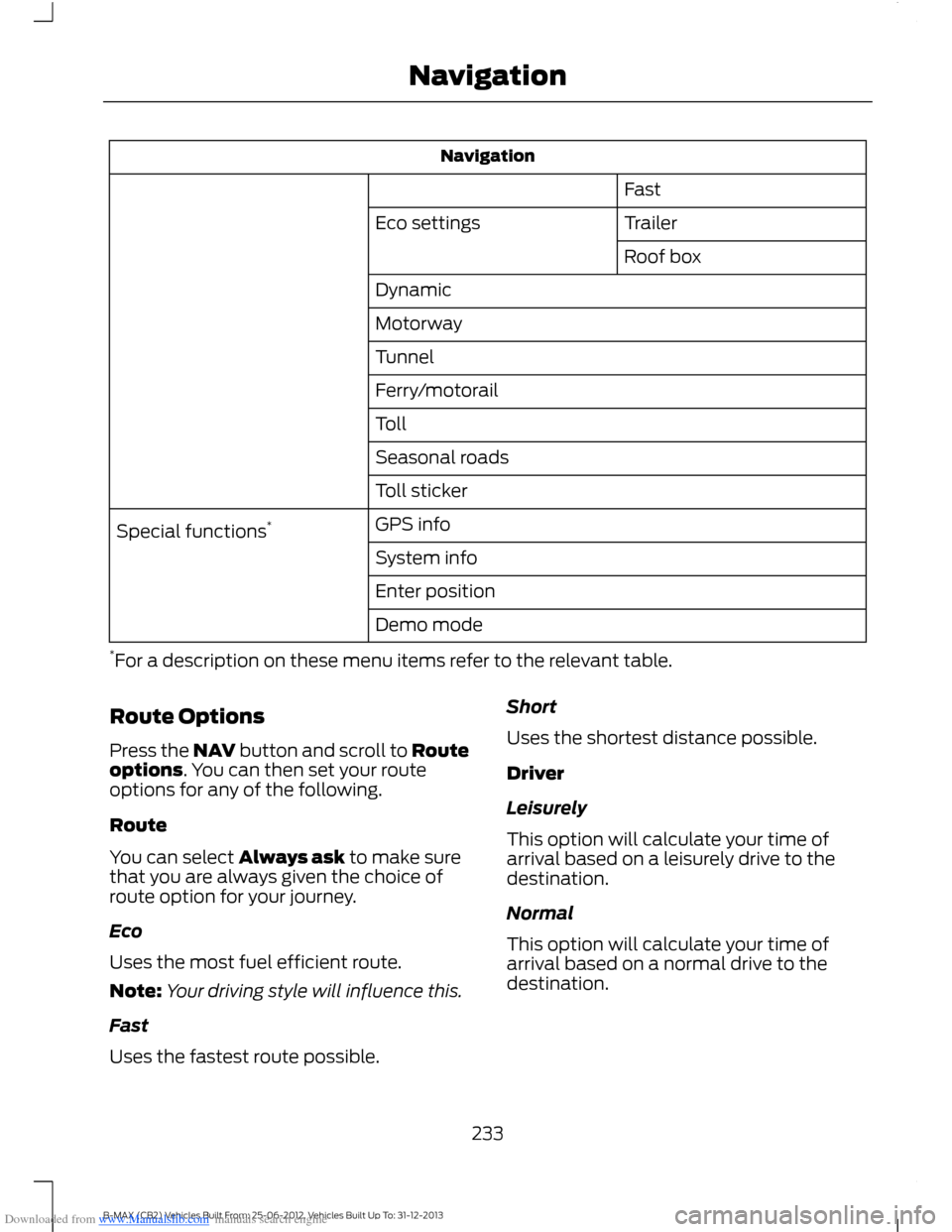
Downloaded from www.Manualslib.com manuals search engine Navigation
Fast
TrailerEco settings
Roof box
Dynamic
Motorway
Tunnel
Ferry/motorail
Toll
Seasonal roads
Toll sticker
GPS infoSpecial functions*
System info
Enter position
Demo mode
*For a description on these menu items refer to the relevant table.
Route Options
Press the NAV button and scroll to Routeoptions. You can then set your routeoptions for any of the following.
Route
You can select Always ask to make surethat you are always given the choice ofroute option for your journey.
Eco
Uses the most fuel efficient route.
Note:Your driving style will influence this.
Fast
Uses the fastest route possible.
Short
Uses the shortest distance possible.
Driver
Leisurely
This option will calculate your time ofarrival based on a leisurely drive to thedestination.
Normal
This option will calculate your time ofarrival based on a normal drive to thedestination.
233B-MAX (CB2) Vehicles Built From: 25-06-2012, Vehicles Built Up To: 31-12-2013Navigation
Page 236 of 298

Downloaded from www.Manualslib.com manuals search engine Fast
This option will calculate your time ofarrival based on a fast drive to thedestination.
Eco Settings
Trailer
Use this feature to change the economysettings of your journey relating to whetheror not you are towing a trailer and if so thesize of trailer being towed.
Roof Box
Use this feature to change the economysettings of your journey relating to the useof a roof box.
Dynamic
When switched on, and if the unit isreceiving a valid traffic message channelsignal, the route will be automaticallyupdated to take into account real timetraffic incidents or congestion.
Note:This feature can be useful in avoidingdelays or hold ups on journeys.
Freeway
When switched off the system will avoidfreeways on your route and automaticallyupdate your route distance and timings.
Tunnel
When switched off the system will avoidtunnels on your route and automaticallyupdate your route distance and timings.
Ferries and Car Trains
When switched off the system will avoidferry crossings and car train facilities onyour route and automatically update yourroute distance and timings.
Toll
When switched off the system will avoidtoll roads on your route and automaticallyupdate your route distance and timings.
Seasonal Roads
When switched off the system will avoidseasonal roads (for example, mountainpasses) on your route and automaticallyupdate your route distance and timings.
Toll Sticker
When switched off the system will avoidtoll routes and automatically update yourroute distance and timings.
Information
Press the information button to viewdetails of your current location or journey.During active route guidance pressing thisbutton will repeat the last navigationinstruction.
Setting Your NavigationPreferences
Select settings for the system to take intoaccount when planning your route.
234B-MAX (CB2) Vehicles Built From: 25-06-2012, Vehicles Built Up To: 31-12-2013Navigation