Page 147 of 350
Rear Seat Release ButtonsFolded Rear Seats
3
UNDERSTANDING THE FEATURES OF YOUR VEHICLE 145
Page 149 of 350
UNDERSTANDING YOUR INSTRUMENT PANEL
CONTENTS
�INSTRUMENT PANEL FEATURES ..........149
� INSTRUMENT CLUSTER .................151
� INSTRUMENT CLUSTER DESCRIPTIONS . . . .152
� ELECTRONIC VEHICLE INFORMATION
CENTER (EVIC) ...................... .161
▫ EVIC Control Buttons ..................161
▫ Electronic Vehicle Information Center (EVIC)
Setup Menu ........................ .162
▫ Trip Computer ...................... .164
� SALES CODE (RAB) RADIO ..............167▫
Introduction ........................ .167
▫ Suggestions ......................... .167
▫ Technical Specifications .................169
▫ Quick Guide ........................ .170
▫ General Information ....................173
▫ Functions And Adjustments ..............175
▫ Radio ............................. .182
▫ SiriusXM Satellite Radio — If Equipped ......184
▫ CD Player .......................... .187
▫ CD MP3 Player ...................... .189
4
Page 163 of 350
ELECTRONIC VEHICLE INFORMATION CENTER
(EVIC)
The Electronic Vehicle Information Center (EVIC) fea-
tures a driver-interactive display that is located in the
instrument cluster.The EVIC consists of the following:
•
System Status
• Vehicle Information Warning Message Displays
• Personal Settings (Customer-Programmable Features)
• Outside Temperature Display
• Trip Computer Functions
EVIC Control Buttons
The EVIC control buttons are located on the right side of
the Instrument Cluster. There are three control buttons
that are used to navigate through the EVIC functions and
personal settings:
•+ button
• – button
Electronic Vehicle Information Center (EVIC) Display
4
UNDERSTANDING YOUR INSTRUMENT PANEL 161
Page 164 of 350

•MENU ESC button
Press the MENU ESC button briefly to access the menu
and/or go to next screen or to confirm the required menu
option. Press and hold the MENU ESC button (approxi-
mately one second) to return to the main screen. Press the + button to scroll upward through the dis-
played menu and the related options or to increase the
displayed value. Press the – button to scroll downward
through the displayed menu and the related options or to
decrease the value displayed.
+ and – buttons activate different functions according to
the following situations:
•
To scroll the menu options upwards or downwards.
• To increase or decrease values during settings.
When opening one of the front doors, the EVIC display
will turn on the clock and the miles or kilometers covered
(if equipped) for a few seconds.
Electronic Vehicle Information Center (EVIC)
Setup Menu
The menu comprises a series of functions arranged in a
cycle. Press the + and – buttons to access the different
options and settings (setup).
EVIC Control Buttons
162 UNDERSTANDING YOUR INSTRUMENT PANEL
Page 165 of 350
The setup menu can be activated by pressing the MENU
ESC button. Single presses on the + or – buttons will
scroll through the setup menu options. The menu in-
cludes the following functions:
•Charging Schedule
• Set Date
• Set Time
• Standard Units
• Languages
• Audio Display
• Battery % Display
• Auto Door Lock
• Remote Unlock
• Daytime Running Lights •
Button Volume
• Hill Start Assist
• Stored Warning
• Connectivity ID
• Restore Factory Settings
• Exit Menu
Selecting An Option Of The Main Menu Without
Submenu:
1. Briefly press the MENU ESC button to select the main menu option to set.
2. Press the + or – button (by single presses) to select the new setting.
3. Briefly press the MENU ESC button to store the new setting and go back to the main menu option previ-
ously selected.
4
UNDERSTANDING YOUR INSTRUMENT PANEL 163
Page 174 of 350
BUTTONGENERAL FUNCTIONSMODE
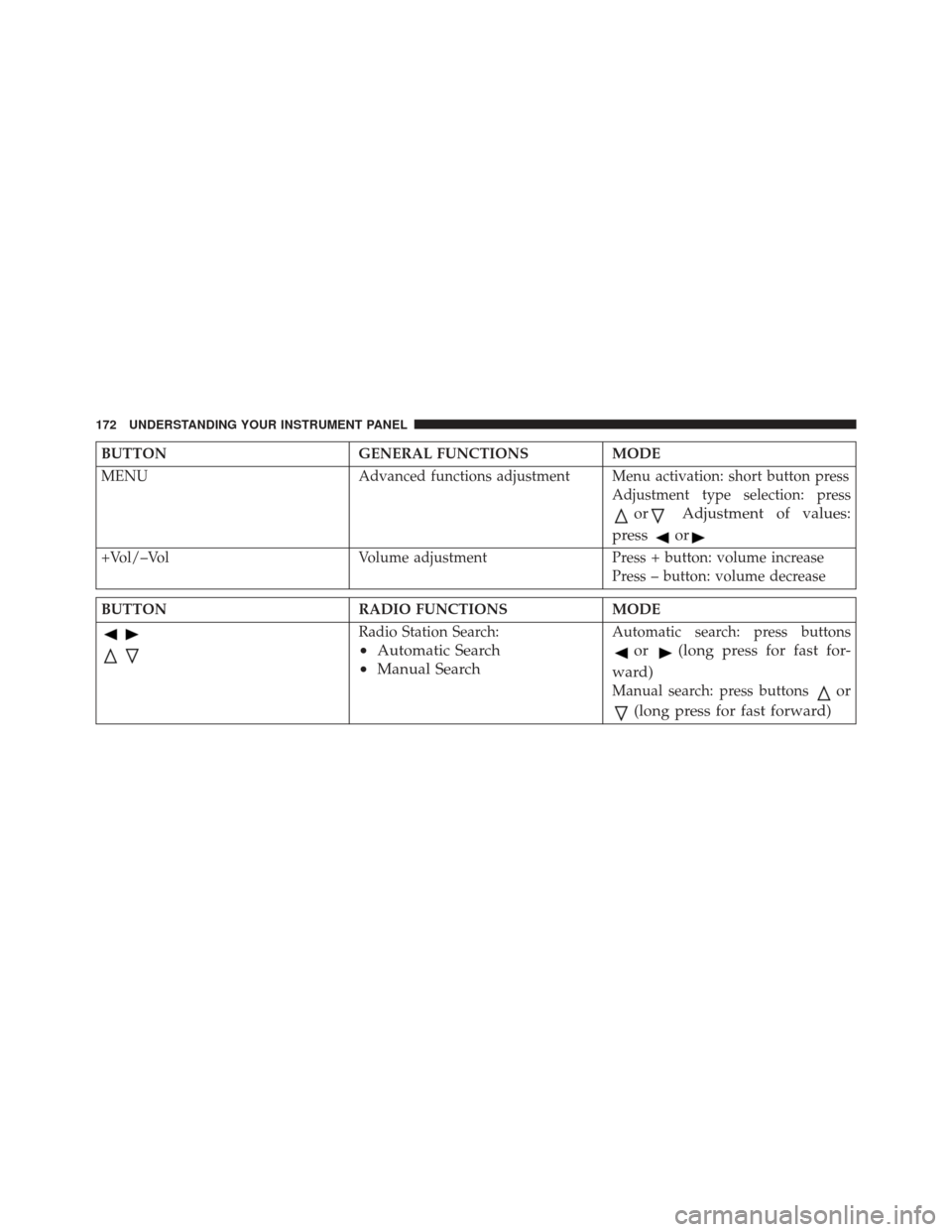
MENU Advanced functions adjustment Menu activation: short button press
Adjustment type selection: press
orAdjustment of values:
press
or
+Vol/–Vol Volume adjustmentPress + button: volume increase
Press – button: volume decrease
BUTTON RADIO FUNCTIONSMODE
Radio Station Search:
•Automatic Search
• Manual Search
Automatic search: press buttons
or(long press for fast for-
ward)
Manual search: press buttonsor
(long press for fast forward)
172 UNDERSTANDING YOUR INSTRUMENT PANEL
Page 178 of 350

Selecting The CD Function
By briefly pressing the MEDIA button, the CD audio
source can be selected (only if a CD is loaded).
Volume Adjustment
To adjust the volume, press the buttons +Vol or –Vol to
increase/decrease the volume.
Mute/Pause Function
Press thebutton briefly to activate the MUTE func-
tion. The volume will gradually decrease and the word-
ing “TUNER Mute” will be shown on the display (in
radio mode) or “CD Pause” (in CD mode).
Press the
button again to deactivate the MUTE func-
tion. The volume will gradually increase until it reaches
the previously set level. When the volume level is changed using the dedicated
controls, the Mute function is deactivated and the vol-
ume is adjusted to the new level selected.
Audio Adjustment
The functions that can be selected from the audio menu
change depending on the context: AM/FM/MEDIA/
SATELLITE.
Press the AUDIO button briefly to change the Audio
functions. After the AUDIO button is first pressed, the
display will show the Bass level value for the source
activated at that time (e.g. in FM mode the display will
show the wording “FM Bass +2”).
Use the buttons
orto scroll through the Menu
functions. To change the setting of the selected function,
use the
orbuttons.
The current status of the selected function appears on the
display.
176 UNDERSTANDING YOUR INSTRUMENT PANEL
Page 179 of 350
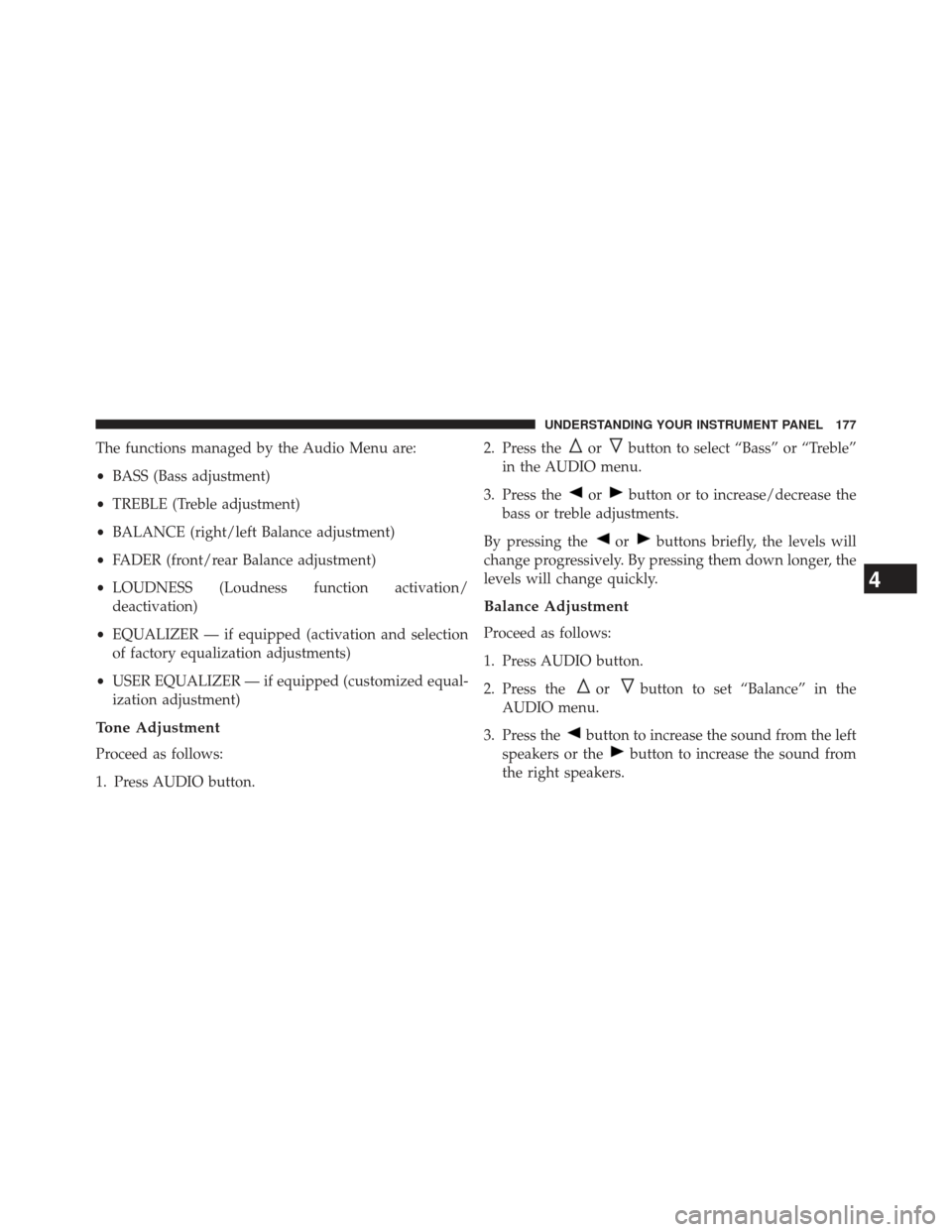
The functions managed by the Audio Menu are:
•BASS (Bass adjustment)
• TREBLE (Treble adjustment)
• BALANCE (right/left Balance adjustment)
• FADER (front/rear Balance adjustment)
• LOUDNESS (Loudness function activation/
deactivation)
• EQUALIZER — if equipped (activation and selection
of factory equalization adjustments)
• USER EQUALIZER — if equipped (customized equal-
ization adjustment)
Tone Adjustment
Proceed as follows:
1. Press AUDIO button. 2. Press the
orbutton to select “Bass” or “Treble”
in the AUDIO menu.
3. Press the
orbutton or to increase/decrease the
bass or treble adjustments.
By pressing the
orbuttons briefly, the levels will
change progressively. By pressing them down longer, the
levels will change quickly.
Balance Adjustment
Proceed as follows:
1. Press AUDIO button.
2. Press the
orbutton to set “Balance” in the
AUDIO menu.
3. Press the
button to increase the sound from the left
speakers or the
button to increase the sound from
the right speakers.
4
UNDERSTANDING YOUR INSTRUMENT PANEL 177