Page 313 of 630

•Transmission Temperature Warning Light
This light indicates that the transmission fluid
temperature is running hot. This may occur
with severe usage, such as trailer towing. If this
light turns on, safely pull over and stop the
vehicle. Then, shift the transmission into NEUTRAL and
run the engine at idle or faster until the light turns off.
CAUTION!
Continuous driving with the Transmission Tempera-
ture Warning Light illuminated will eventually cause
severe transmission damage or transmission failure.
WARNING!
If you continue operating the vehicle when the Trans-
mission Temperature Warning Light is illuminated you
could cause the fluid to boil over, come in contact with
hot engine or exhaust components and cause a fire.
Oil Change Due
Your vehicle is equipped with an engine oil change
indicator system. The “Oil Change Due” message will
flash in the EVIC display for approximately 10 seconds
after a single chime has sounded to indicate the next
scheduled oil change interval. The engine oil change
indicator system is duty cycle based, which means the
engine oil change interval may fluctuate dependent upon
your personal driving style.
4
UNDERSTANDING YOUR INSTRUMENT PANEL 311
Page 317 of 630

Elapsed Time
Shows the total elapsed time of travel since the last reset.
Elapsed time will increment when the ignition is in the
ON/RUN position.
To Reset The Display
Reset will only occur while a resettable function is being
displayed. Press and release the SELECT button once to
clear the resettable function.
Tire PSI
Press and release the UP or DOWN button until “Tire
PSI:” displays highlighted in the EVIC. Press the SELECT
button to view a graphic of the vehicle with a tire
pressure value at each corner of the graphic.
Vehicle Info (Customer Information Features)
Press and release the UP or DOWN button until “Vehicle
Info” displays in the EVIC and press the SELECT button.
Press the UP and DOWN button to scroll through the
available information displays.
•Coolant Temp
Displays the actual coolant temperature.
•Oil Temperature
Displays the actual oil temperature.
•Oil Pressure
Displays the actual oil pressure.
•Trans Temperature
Displays the actual transmission temperature.
•Engine Hours
Displays the number of hours of engine operation.
4
UNDERSTANDING YOUR INSTRUMENT PANEL 315
Page 322 of 630

Clock
•Set Time
Touch the Set Time soft-key to change this display. When
in this display, you may select the time display settings.
To make your selection, touch the Set Time soft-key,
adjust the hours and minutes using the up and down
soft-keys, select AM or PM, select 12 hr or 24 hr. Then
touch the arrow back soft-key when all selections are
complete.
•Show Time Status
Touch the Show Time Status soft-key to change this
display. When in this display, you may turn on or shut off
the digital clock in the status bar. To change the Show
Time Status setting, press and release the ON or OFF
soft-key. Then touch the arrow back soft-key.•Sync Time – If EquippedTouch the Sync Time soft-key to change this display. When in
this display, you may have the radio set the time automati-
cally. To change the Sync Time setting, press and release the
ON or OFF soft-key. Then touch the arrow back soft-key.
Safety / Assistance
•Park Assist
Touch the Park Assist soft-key to change this display. The
Rear Park Assist system will scan for objects behind the
vehicle when the transmission shift lever is in REVERSE
and the vehicle speed is less than 11 mph (18 km/h). The
system can be enabled with Sound Only, Sound and
Display, or turned OFF. To change the Park Assist status,
press and release the OFF, Sound Only or Sounds and
Display soft-key. Then touch the arrow back soft-key.
Refer to “ParkSense® Rear Park Assist” in “Understand-
ing The Features Of Your Vehicle” for system function
and operating information.
320 UNDERSTANDING YOUR INSTRUMENT PANEL
Page 324 of 630

•Daytime Running Lights – If Available
Touch the Daytime Running Lights soft-key to change
this display. When this feature is selected, the headlights
will turn on whenever the engine is running. To make
your selection, touch the Daytime Running Lights soft-
key and select ON or OFF. Then touch the arrow back
soft-key.
•Steering Directed Lights – If Equipped
Touch the Steering Directed Lights soft-key to change this
display. When this feature is selected, the headlights turn
relative to a change in direction of the steering wheel. To
make your selection, touch the Steering Directed Lights
soft-key and select ON or OFF. Then touch the arrow
back soft-key.•Flash Lights With Lock
Touch the Flash Headlights With Lock soft-key to change
this display. When this feature is selected, the headlights
will flash when the doors are locked or unlocked with the
Remote Keyless Entry (RKE) transmitter. This feature
may be selected with or without the sound horn on lock
feature selected. To make your selection, touch the Flash
Headlights With Lock soft-key and select ON or OFF.
Then touch the arrow back soft-key.
Doors & Locks
•Auto Unlock On Exit
Touch the Auto Unlock On Exit soft-key to change this
display. When this feature is selected, all doors will
unlock when the vehicle is stopped and the transmission
is in the PARK or NEUTRAL position and the driver’s
door is opened. To make your selection, touch the Auto
Unlock On Exit soft-key and select ON or OFF. Then
touch the arrow back soft-key.
322 UNDERSTANDING YOUR INSTRUMENT PANEL
Page 334 of 630

•Time Format
When in this display, you may select the time format
display setting. Touch the Time Format soft-key until a
check-mark appears next to the 12hrs or 24hrs setting,
showing that setting has been selected. Touch the back
arrow soft-key to return to the previous menu.
•Show Time In Status Bar
When in this display, you may turn on or shut off the
digital clock in the status bar. To change the Show Time
Status setting touch the Show Time in Status Bar soft-key
until a check-mark appears next to setting, showing that
setting has been selected. Touch the back arrow soft-key
to return to the previous menu.Safety / Assistance
After pressing the Safety / Assistance soft-key the fol-
lowing settings will be available.
•Park Assist
The Rear Park Assist system will scan for objects behind
the vehicle when the transmission shift lever is in RE-
VERSE and the vehicle speed is less than 11 mph
(18 km/h). The system can be enabled with Sound Only,
Sound and Display, or turned OFF. To change the Park
Assist status, touch and release the OFF, Sound Only or
Sounds and Display button. Then touch the arrow back
soft-key. Refer to “ParkSense® Rear Park Assist” in
“Understanding The Features Of Your Vehicle” for sys-
tem function and operating information.
332 UNDERSTANDING YOUR INSTRUMENT PANEL
Page 337 of 630

•Steering Directed Lights – If Equipped
When this feature is selected, the headlights turn relative
to a change in direction of the steering wheel. To make
your selection, touch the Steering Directed Lights softkey,
until a check-mark appears next to setting, showing that
setting has been selected. Touch the back arrow soft-key
to return to the previous menu.
•Flash Headlights With Lock
When this feature is selected, the headlights will flash
when the doors are locked or unlocked with the Remote
Keyless Entry (RKE) transmitter. This feature may be
selected with or without the sound horn on lock feature
selected. To make your selection, touch the Flash Head-
lights with Lock soft-key, until a check-mark appears next
to setting, showing that setting has been selected. Touch the
back arrow soft-key to return to the previous menu.
Doors & Locks
After pressing the Doors & Locks soft-key the following
settings will be available.
•Auto Unlock On Exit
When this feature is selected, all doors will unlock when
the vehicle is stopped and the transmission is in the
PARK or NEUTRAL position and the driver’s door is
opened. To make your selection, touch the Auto Unlock
On Exit soft-key, until a check-mark appears next to
setting, showing that setting has been selected. Touch the
back arrow soft-key to return to the previous menu.
4
UNDERSTANDING YOUR INSTRUMENT PANEL 335
Page 349 of 630

NOTE:
•The VES™ system will retain the last setting when
turned off.
•Viewing a DVD on the Touch-Screen radio screen is
not available in all states/provinces, and the vehicle
must be stopped, and the shift lever must be in the
PARK position for vehicles with automatic transmis-
sion. In vehicles with manual transmission the parking
brake must be engaged.
•Touching the screen on a Touch-Screen radio while a
DVD is playing brings up basic remote control func-
tions for DVD play such as scene selection, Play, Pause,
FF, RW, and Stop. Pressing the X in the upper corner
will turn off the remote control screen functions.Using The Remote
1. Touch the “MORE” soft-key.
2. Touch the “Rear Entertainment” soft-key to display
the Rear Entertainment Controls.
3. If the Rear Entertainment is turned off, touch the
“Power” soft-key.
4.
Touch the “1” or “2” Source soft-key based on the channel
you want to change and touch the “Disc” softkey. To exit
touch the “X” at the top right of the screen.4
UNDERSTANDING YOUR INSTRUMENT PANEL 347
Page 350 of 630
NOTE:
•Viewing a DVD on the Touch-Screen radio screen is
not available in all states/provinces, and the vehicle
must be stopped, and the shift lever must be in the
PARK position for vehicles with automatic transmis-
sion. In vehicles with manual transmission the parking
brake must be engaged.
•Touching the screen on a Touch-Screen radio while a
DVD is playing full screen brings up basic control
functions for DVD play such as DVD Menu, Seek
Up/Down, Navigating through the menus, Exit. The
basic control functions screen will time out and disap-
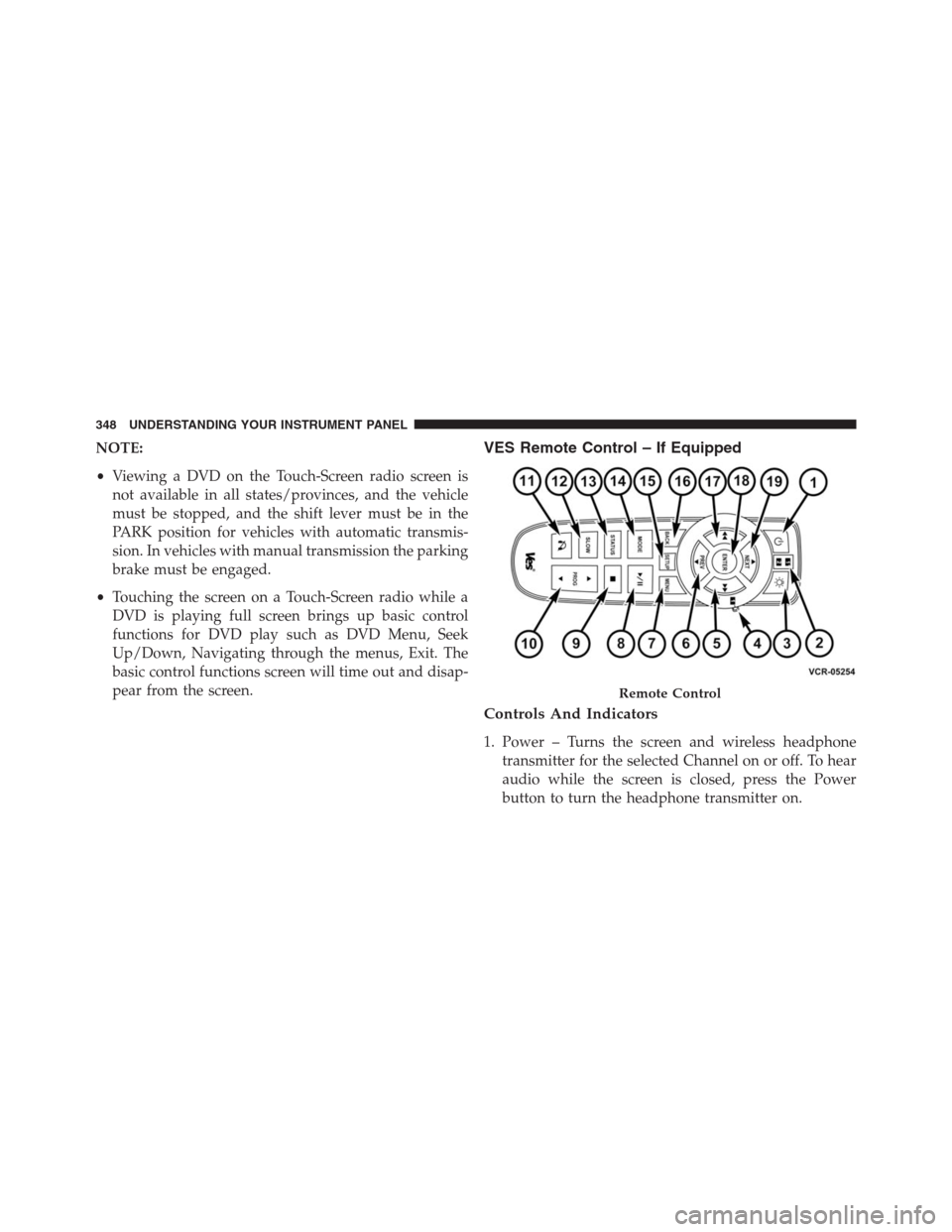
pear from the screen.VES Remote Control – If Equipped
Controls And Indicators
1. Power – Turns the screen and wireless headphone
transmitter for the selected Channel on or off. To hear
audio while the screen is closed, press the Power
button to turn the headphone transmitter on.
Remote Control
348 UNDERSTANDING YOUR INSTRUMENT PANEL