Page 336 of 630

•Headlight Illumination On Approach
When this feature is selected, the headlights will activate
and remain on for 0, 30, 60, or 90 seconds when the doors
are unlocked with the Remote Keyless Entry (RKE)
transmitter. To change the Illuminated Approach status,
touch the + or - soft-key to select your desired time
interval. Touch the back arrow soft-key to return to the
previous menu.
•Headlights With Wipers — If Equipped
When this feature is selected, and the headlight switch is
in the AUTO position, the headlights will turn on ap-
proximately 10 seconds after the wipers are turned on.
The headlights will also turn off when the wipers are
turned off if they were turned on by this feature. To make
your selection, touch the Headlights With Wipers softkey,
until a check-mark appears next to setting, showing that
setting has been selected. Touch the back arrow soft-key
to return to the previous menu.•Auto Dim High Beams “SmartBeam™” —
If Equipped
When this feature is selected, the high beam headlights
will deactivate automatically under certain conditions. To
make your selection, touch the Auto High Beams softkey,
until a check-mark appears next to setting, showing that
setting has been selected. Touch the back arrow soft-key
to return to the previous menu. Refer to “Lights/ Smart-
Beam™ — If Equipped” in “Understanding The Features
Of Your Vehicle” for further information.
•Daytime Running Lights – If Available
When this feature is selected, the headlights will turn on
whenever the engine is running. To make your selection,
touch the Daytime Running Lights soft-key, until a
check-mark appears next to setting, showing that setting
has been selected. Touch the back arrow soft-key to
return to the previous menu.
334 UNDERSTANDING YOUR INSTRUMENT PANEL
Page 337 of 630

•Steering Directed Lights – If Equipped
When this feature is selected, the headlights turn relative
to a change in direction of the steering wheel. To make
your selection, touch the Steering Directed Lights softkey,
until a check-mark appears next to setting, showing that
setting has been selected. Touch the back arrow soft-key
to return to the previous menu.
•Flash Headlights With Lock
When this feature is selected, the headlights will flash
when the doors are locked or unlocked with the Remote
Keyless Entry (RKE) transmitter. This feature may be
selected with or without the sound horn on lock feature
selected. To make your selection, touch the Flash Head-
lights with Lock soft-key, until a check-mark appears next
to setting, showing that setting has been selected. Touch the
back arrow soft-key to return to the previous menu.
Doors & Locks
After pressing the Doors & Locks soft-key the following
settings will be available.
•Auto Unlock On Exit
When this feature is selected, all doors will unlock when
the vehicle is stopped and the transmission is in the
PARK or NEUTRAL position and the driver’s door is
opened. To make your selection, touch the Auto Unlock
On Exit soft-key, until a check-mark appears next to
setting, showing that setting has been selected. Touch the
back arrow soft-key to return to the previous menu.
4
UNDERSTANDING YOUR INSTRUMENT PANEL 335
Page 338 of 630
•Flash Headlight With Lock
When this feature is selected, the headlights will flash
when the doors are locked or unlocked with the Remote
Keyless Entry (RKE) transmitter. To make your selection,
touch the Flash Lights With Lock soft-key, until a check-
mark appears next to setting, showing that setting has
been selected. Touch the back arrow soft-key to return to
the previous menu.
•Sound Horn With Lock
When this feature is selected, the horn will sound when
the remote start is activated. To make your selection,
touch the Sound Horn With Lock soft-key, until a check-
mark appears next to setting, showing that setting has
been selected. Touch the back arrow soft-key to return to
the previous menu.•Sound Horn With Remote Start
When this feature is selected, the horn will sound when
the remote start is activated. To make your selection,
touch the Sound Horn With Remote Start soft-key, until a
check-mark appears next to setting, showing that setting
has been selected. Touch the back arrow soft-key to
return to the previous menu.
•1st Press Of Key Fob Unlocks
When Unlock Driver Door Only On 1st Press is selected,
only the driver’s door will unlock on the first press of the
Remote Keyless Entry (RKE) transmitter UNLOCK but-
ton. When Driver Door 1st Press is selected, you must
press the RKE transmitter UNLOCK button twice to
unlock the passenger’s doors. When Unlock All Doors
On 1st Press is selected, all of the doors will unlock on the
first press of the RKE transmitter UNLOCK button.
336 UNDERSTANDING YOUR INSTRUMENT PANEL
Page 340 of 630

•Auto-On Driver Heated Seat With Vehicle Start — If
Equipped
When this feature is selected the driver’s heated seat will
automatically turn on when temperatures are below 40° F
(4.4° C). To make your selection, touch the Auto Heated
Seats soft-key, until a check-mark appears next to setting,
showing that setting has been selected. Touch the back
arrow soft-key to return to the previous menu.
Engine Off Options
After pressing the Engine Off Options soft-key the fol-
lowing settings will be available.
•Engine Off Power Delay
When this feature is selected, the power window
switches, radio, Uconnect® system (if equipped), DVD
video system (if equipped), power sunroof (if equipped),
and power outlets will remain active for up to 10 minutesafter the ignition is cycled to OFF. Opening either front
door will cancel this feature. To change the Engine Off
Power Delay status touch the 0 seconds, 45 seconds,
5 minutes or 10 minutes soft-key. Then touch the arrow
back soft-key.
•Headlight Off Delay
When this feature is selected, the driver can choose to
have the headlights remain on for 0, 30, 60, or 90 seconds
when exiting the vehicle. To change the Headlight Off
Delay status touch the + or - soft-key to select your
desired time interval. Touch the back arrow soft-key to
return to the previous menu.
Compass Settings
After pressing the Compass Settings soft-key the follow-
ing settings will be available.
338 UNDERSTANDING YOUR INSTRUMENT PANEL
Page 345 of 630
Single Video Screen
NOTE:Typically there are two different ways to operate
the features of the Video Entertainment System (VES)™.
•The Remote Control
•The Touch-Screen Radio (If Equipped)
Play A DVD
1. Press the EJECT button on the radio faceplate (Touch-
Screen).
2. Insert the DVD with the label facing up. The radio
automatically selects the appropriate mode after the
disc is recognized and displays the menu screen or
starts playing the first track.
3. Ensure the VES™ Remote Control and the Headphone
switch is on Channel 1.
Using The Remote Control
1. Press the MODE button on the Remote Control.
2.
While looking at the video screen, highlight DISC
by either pressing Up/Down/Left/Right buttons or
by repeatedly pressing the MODE button, then press
ENTER on the Remote Control.
Select DISC Mode On The VES Screen
4
UNDERSTANDING YOUR INSTRUMENT PANEL 343
Page 346 of 630
NOTE:The VES™ system will retain the last setting
when turned off.
Play Video Games
Connect the video game console to the Auxiliary RCA
input jacks located on the back of the center console.
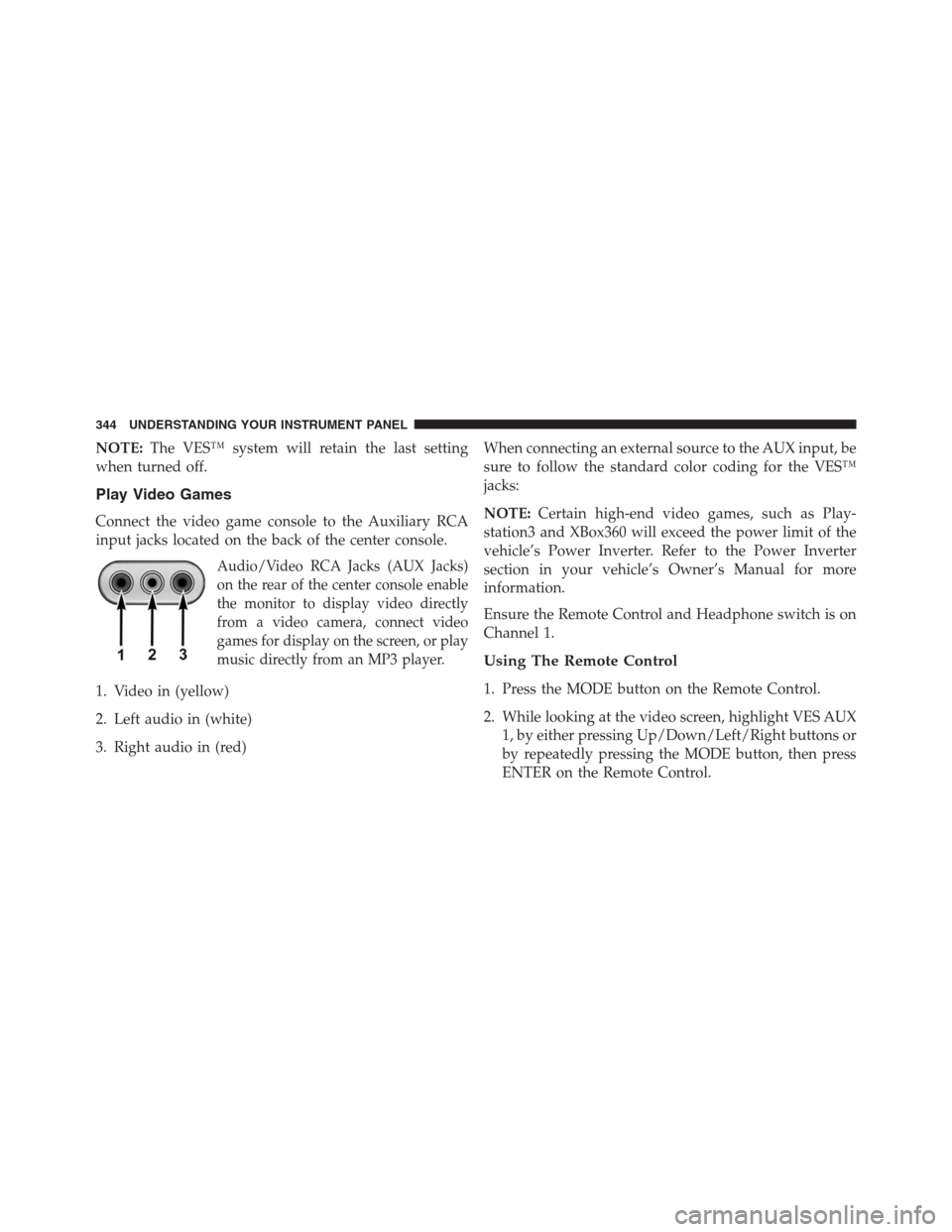
Audio/Video RCA Jacks (AUX Jacks)
on the rear of the center console enable
the monitor to display video directly
from a video camera, connect video
games for display on the screen, or play
music directly from an MP3 player.
1. Video in (yellow)
2. Left audio in (white)
3. Right audio in (red)When connecting an external source to the AUX input, be
sure to follow the standard color coding for the VES™
jacks:
NOTE:Certain high-end video games, such as Play-
station3 and XBox360 will exceed the power limit of the
vehicle’s Power Inverter. Refer to the Power Inverter
section in your vehicle’s Owner’s Manual for more
information.
Ensure the Remote Control and Headphone switch is on
Channel 1.
Using The Remote Control
1. Press the MODE button on the Remote Control.
2. While looking at the video screen, highlight VES AUX
1, by either pressing Up/Down/Left/Right buttons or
by repeatedly pressing the MODE button, then press
ENTER on the Remote Control.
344 UNDERSTANDING YOUR INSTRUMENT PANEL
Page 347 of 630

Using The Touch-Screen Radio Controls
1. Touch the “MORE” soft-key.
2. Touch the “Rear Entertainment” soft-key to display
the Rear Entertainment Controls.
3. If the Rear Entertainment is turned off, touch the
“Power” soft-key.
4. Touch the “1” or “2” Source soft-key for the channel
desired and touch the “AUX” soft-key.
Listen To An Audio Source On Channel 2 While A
Video Is Playing On Channel 1
Ensure the Remote Control and Headphone switch is on
Channel 2.
Using The Remote Control
1.Press the MODE button on the Remote Control and the
Mode Select Screen will display, unless a video is playing
then only a small banner will appear on the bottom of the
screen.
2. While looking at the video screen, either press Up/
Down/Left/Right on the Remote Control to highlight
the desired audio source or repeatedly press the
MODE button on the remote until the desired audio
source appears on the screen.
Using The Touch-Screen Radio Controls
1. Touch the “MORE” soft-key.
2. Touch the “Rear Entertainment” soft-key to display
the Rear Entertainment Controls.
3. If the Rear Entertainment is turned off, touch the
“Power” soft-key.
4. Touch the “1” or “2” Source soft-key for the channel
desired and touch the “AUX” soft-key.4
UNDERSTANDING YOUR INSTRUMENT PANEL 345
Page 348 of 630

Important Notes For Single Video Screen System
•VES™ is able to transmit two channels of stereo audio
simultaneously.
•In split screen mode the left side equates to Channel 1
and right side equates to Channel 2.
•If a video source is selected on Channel 1, then
Channel 2 is for audio only. Selecting a video source
(DVD) will not show the video on the screen.
•When selecting a video source on Channel 1, the video
will display on the screen and the audio could be
heard on Channel 1 in the headphones.
•Audio can be heard through the headphones even
when the Video Screen is closed.
Play A DVD Using The Touch-Screen Radio
1. Insert the DVD with the label facing up. The radio
automatically selects the appropriate mode after the
disc is recognized and displays the menu screen or
starts playing the first track.
2. To watch a DVD on Screen 1 for second row passen-
gers, ensure the Remote Control and Headphone
switch is on Channel 1.
Using The Remote Control
1. Press the MODE button on the Remote Control.
2. While looking at Screen 1, highlight DISC by either
pressing Up/Down/Left/Right buttons or by repeat-
edly pressing the MODE button, then press ENTER.
346 UNDERSTANDING YOUR INSTRUMENT PANEL
