Page 343 of 630

•Music Info Cleanup
This feature helps organize music files for optimized
music navigation. To make your selection, touch the
Music Info Cleanup soft-key, select On or Off followed by
pressing the arrow back soft-key.
Phone/Bluetooth
After pressing the Phone/Bluetooth soft-key the follow-
ing settings will be available.
•Paired Devices
This feature shows which phones are paired to the
Phone/Bluetooth system. For further information, refer
to the Uconnect® Supplement.
SiriusXM Setup
After pressing the SIRIUS Setup soft-key the following
settings will be available.•Channel Skip
SiriusXM can be programmed to designate a group of
channels that are the most desirable to listen to or to
exclude undesirable channels while scanning. To make
your selection, touch the Channel Skip soft-key, select the
channels you would like to skip followed by pressing the
arrow back soft-key.
•Subscription Information
New vehicle purchasers or lessees will receive a free
limited time subscription to SiriusXM Satellite Radio
with your radio. Following the expiration of the free
services, it will be necessary to access the information on
the Subscription Information screen in order to re-
subscribe.
Touch the Subscription Info soft-key to access the Sub-
scription Information screen.
4
UNDERSTANDING YOUR INSTRUMENT PANEL 341
Page 344 of 630
Write down the SIRIUS ID numbers for your receiver. To
reactivate your service, either call the number listed on
the screen or visit the provider online.
NOTE:
SiriusXM Travel Link is a separate subscription.
UCONNECT® MULTIMEDIA — VIDEO
ENTERTAINMENT SYSTEM (VES)™ —
If Equipped
Getting Started
•Screen located in the overhead console: Unfold the
overhead LCD screen by pushing the button on the
overhead console behind the screen.
•With the ignition switch in the ON or ACC position,
turn the radio on by pushing the ON/OFF Volume
Control knob.
•
When the Video Screen are open and a DVD is inserted
into the radio, the screen turns on automatically, the
headphone transmitters turn on and playback begins.
Overhead Video Screen
342 UNDERSTANDING YOUR INSTRUMENT PANEL
Page 345 of 630
Single Video Screen
NOTE:Typically there are two different ways to operate
the features of the Video Entertainment System (VES)™.
•The Remote Control
•The Touch-Screen Radio (If Equipped)
Play A DVD
1. Press the EJECT button on the radio faceplate (Touch-
Screen).
2. Insert the DVD with the label facing up. The radio
automatically selects the appropriate mode after the
disc is recognized and displays the menu screen or
starts playing the first track.
3. Ensure the VES™ Remote Control and the Headphone
switch is on Channel 1.
Using The Remote Control
1. Press the MODE button on the Remote Control.
2.
While looking at the video screen, highlight DISC
by either pressing Up/Down/Left/Right buttons or
by repeatedly pressing the MODE button, then press
ENTER on the Remote Control.
Select DISC Mode On The VES Screen
4
UNDERSTANDING YOUR INSTRUMENT PANEL 343
Page 346 of 630
NOTE:The VES™ system will retain the last setting
when turned off.
Play Video Games
Connect the video game console to the Auxiliary RCA
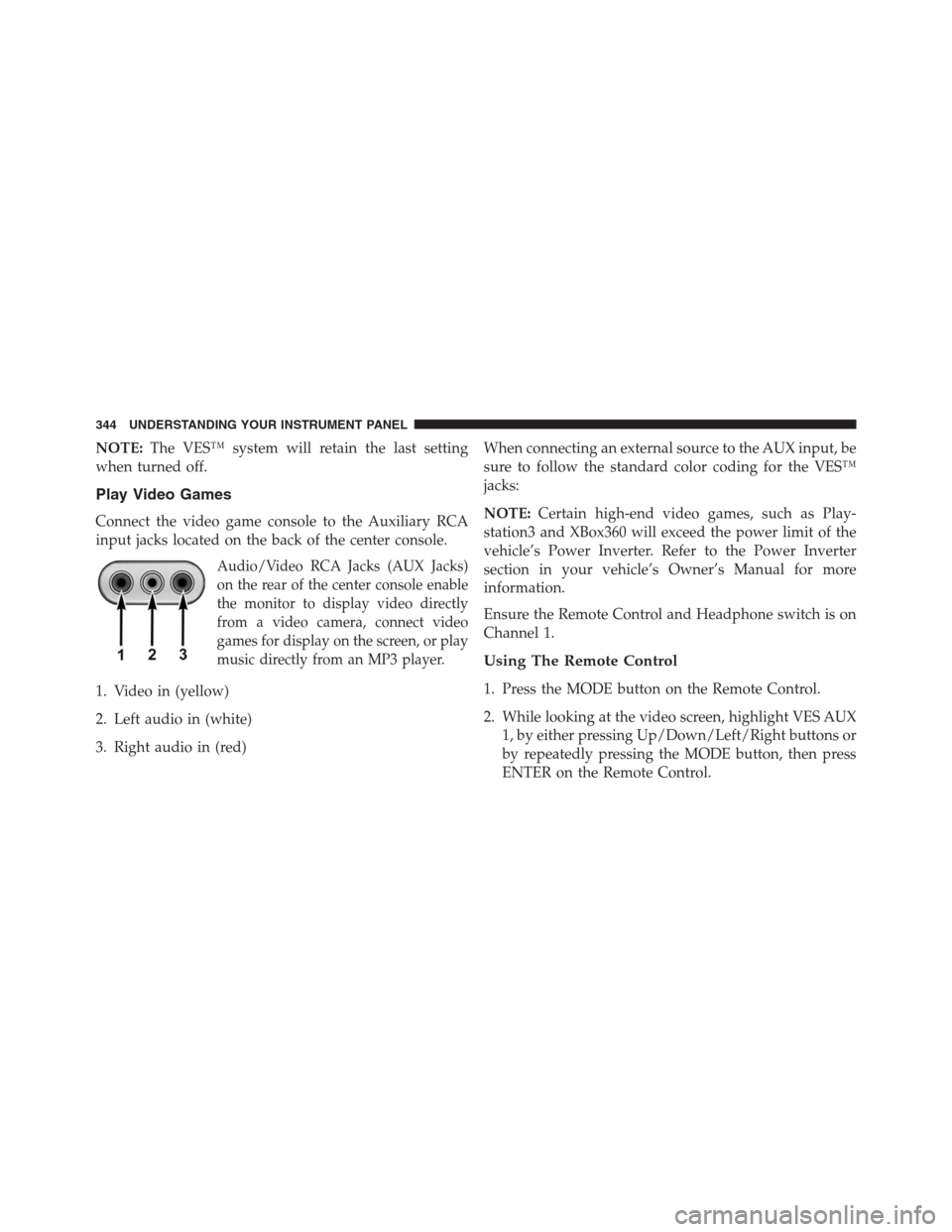
input jacks located on the back of the center console.
Audio/Video RCA Jacks (AUX Jacks)
on the rear of the center console enable
the monitor to display video directly
from a video camera, connect video
games for display on the screen, or play
music directly from an MP3 player.
1. Video in (yellow)
2. Left audio in (white)
3. Right audio in (red)When connecting an external source to the AUX input, be
sure to follow the standard color coding for the VES™
jacks:
NOTE:Certain high-end video games, such as Play-
station3 and XBox360 will exceed the power limit of the
vehicle’s Power Inverter. Refer to the Power Inverter
section in your vehicle’s Owner’s Manual for more
information.
Ensure the Remote Control and Headphone switch is on
Channel 1.
Using The Remote Control
1. Press the MODE button on the Remote Control.
2. While looking at the video screen, highlight VES AUX
1, by either pressing Up/Down/Left/Right buttons or
by repeatedly pressing the MODE button, then press
ENTER on the Remote Control.
344 UNDERSTANDING YOUR INSTRUMENT PANEL
Page 347 of 630

Using The Touch-Screen Radio Controls
1. Touch the “MORE” soft-key.
2. Touch the “Rear Entertainment” soft-key to display
the Rear Entertainment Controls.
3. If the Rear Entertainment is turned off, touch the
“Power” soft-key.
4. Touch the “1” or “2” Source soft-key for the channel
desired and touch the “AUX” soft-key.
Listen To An Audio Source On Channel 2 While A
Video Is Playing On Channel 1
Ensure the Remote Control and Headphone switch is on
Channel 2.
Using The Remote Control
1.Press the MODE button on the Remote Control and the
Mode Select Screen will display, unless a video is playing
then only a small banner will appear on the bottom of the
screen.
2. While looking at the video screen, either press Up/
Down/Left/Right on the Remote Control to highlight
the desired audio source or repeatedly press the
MODE button on the remote until the desired audio
source appears on the screen.
Using The Touch-Screen Radio Controls
1. Touch the “MORE” soft-key.
2. Touch the “Rear Entertainment” soft-key to display
the Rear Entertainment Controls.
3. If the Rear Entertainment is turned off, touch the
“Power” soft-key.
4. Touch the “1” or “2” Source soft-key for the channel
desired and touch the “AUX” soft-key.4
UNDERSTANDING YOUR INSTRUMENT PANEL 345
Page 348 of 630

Important Notes For Single Video Screen System
•VES™ is able to transmit two channels of stereo audio
simultaneously.
•In split screen mode the left side equates to Channel 1
and right side equates to Channel 2.
•If a video source is selected on Channel 1, then
Channel 2 is for audio only. Selecting a video source
(DVD) will not show the video on the screen.
•When selecting a video source on Channel 1, the video
will display on the screen and the audio could be
heard on Channel 1 in the headphones.
•Audio can be heard through the headphones even
when the Video Screen is closed.
Play A DVD Using The Touch-Screen Radio
1. Insert the DVD with the label facing up. The radio
automatically selects the appropriate mode after the
disc is recognized and displays the menu screen or
starts playing the first track.
2. To watch a DVD on Screen 1 for second row passen-
gers, ensure the Remote Control and Headphone
switch is on Channel 1.
Using The Remote Control
1. Press the MODE button on the Remote Control.
2. While looking at Screen 1, highlight DISC by either
pressing Up/Down/Left/Right buttons or by repeat-
edly pressing the MODE button, then press ENTER.
346 UNDERSTANDING YOUR INSTRUMENT PANEL
Page 350 of 630
NOTE:
•Viewing a DVD on the Touch-Screen radio screen is
not available in all states/provinces, and the vehicle
must be stopped, and the shift lever must be in the
PARK position for vehicles with automatic transmis-
sion. In vehicles with manual transmission the parking
brake must be engaged.
•Touching the screen on a Touch-Screen radio while a
DVD is playing full screen brings up basic control
functions for DVD play such as DVD Menu, Seek
Up/Down, Navigating through the menus, Exit. The
basic control functions screen will time out and disap-
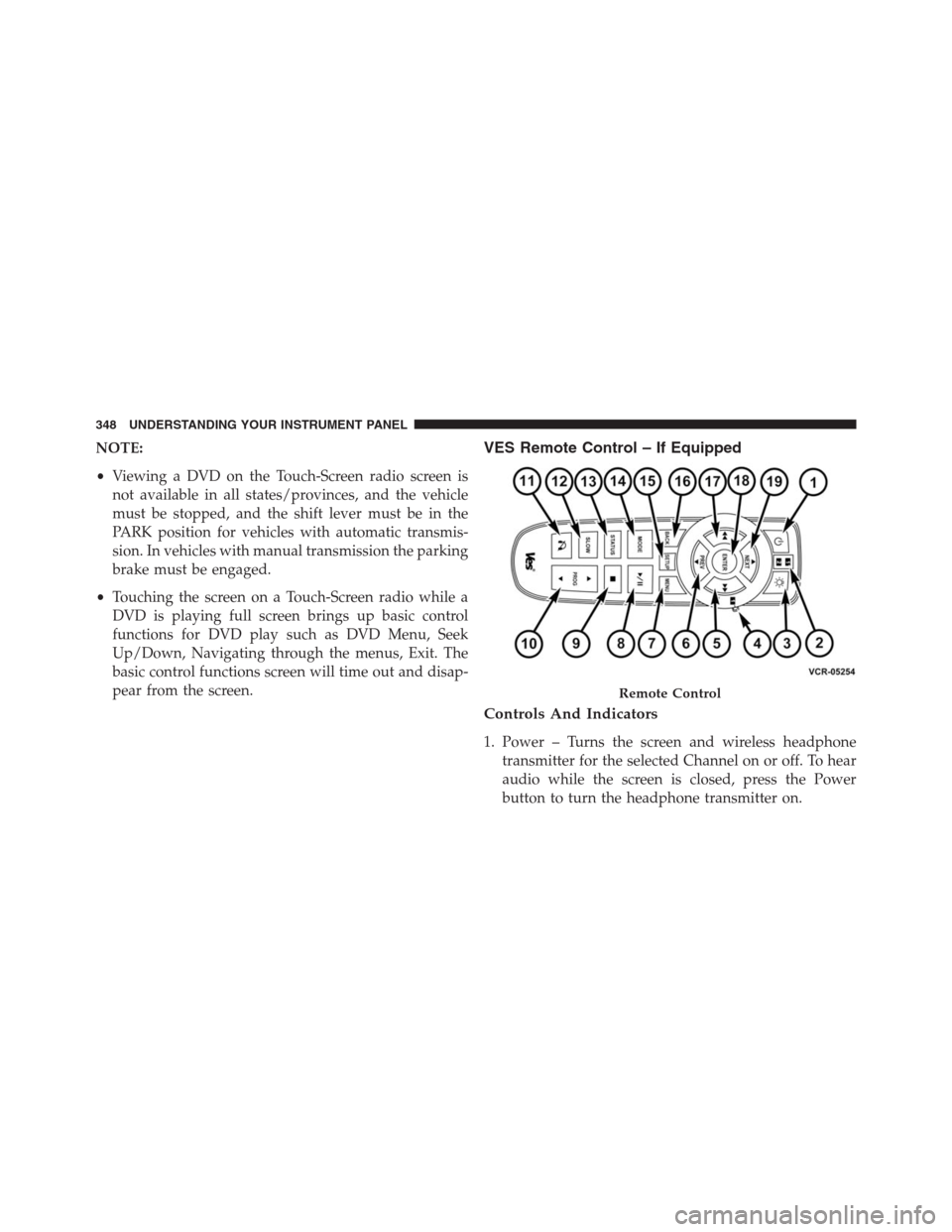
pear from the screen.VES Remote Control – If Equipped
Controls And Indicators
1. Power – Turns the screen and wireless headphone
transmitter for the selected Channel on or off. To hear
audio while the screen is closed, press the Power
button to turn the headphone transmitter on.
Remote Control
348 UNDERSTANDING YOUR INSTRUMENT PANEL
Page 351 of 630

2. Channel Selector Indicators – When a button is
pressed, the currently affected channel or channel
button is illuminated momentarily.
3. Light – Turns the remote control backlighting on or off.
The remote backlighting turns off automatically after
five seconds.
4. Channel/Screen Selector Switch - Indicates which
channel is being controlled by the remote control.
When the selector switch is in the Channel 1 position,
the remote controls the functionality of headphone
Channel 1 (right side of the screen). When the selector
switch is in the Channel 2, position the remote controls
the functionality of headphone Channel 2 (left side of
the screen).
5.��– In radio modes, press to seek the next tunable
station. In disc modes, press and hold to fast forward
through the current audio track or video chapter. In
menu modes use to navigate in the menu.6.�/Prev – In radio modes, press to select to the
previous station. In disc modes, press to advance to the
start of the current or previous audio track or video
chapter. In menu modes, use to navigate in the menu.
7. MENU – Press to return to the main menu of a DVD
disc, to select a satellite audio or video channel from
the Station list, or select playback modes (SCAN/
RANDOM for a CD).
8.�/�(Play/Pause) – Begin/resume or pause disc play.
9.▪(Stop) – Stops disc play.
10. PROG Up/Down – When listening to a radio mode,
pressing PROG Up selects the next preset and press-
ing PROG Down selects the previous preset stored in
the radio.
11. MUTE – Press to mute the headphone audio output
for the selected channel.
4
UNDERSTANDING YOUR INSTRUMENT PANEL 349