Page 377 of 683
Toggle the MUSIC TYPE button again to select the music
type.
By pressing the SEEK button when the Music Type
function is active, the radio will be tuned to the next
channel with the same selected Music Type name.
If a preset button is activated while in the Music Type
(Program Type) mode, the Music Type mode will be
exited and the radio will tune to the preset channel.
SETUP Button
Pressing the SETUP button allows you to select the
following items:
•Display Sirius ID number — Press the AUDIO/
SELECT button to display the Sirius ID number. This
number is used to activate, deactivate, or change the
Sirius subscription.
SET Button – To Set the Pushbutton Memory
When you are receiving a channel that you wish to
commit to pushbutton memory, press the SET button.
The symbol SET 1 will now show in the display window.
Select the button (1-6) you wish to lock onto this channel
and press and release that button. If a button is not
selected within five seconds after pressing the SET but-
ton, the channel will continue to play but will not be
stored into pushbutton memory.
You may add a second channel to each pushbutton by
repeating the above procedure with this exception: Press
the SET button twice and SET 2 will show in the display
window. Each button can be set for SET 1 and SET 2. This
allows a total of 12 Satellite channels to be stored into
pushbutton memory. The channels stored in SET 2 memory
can be selected by pressing the pushbutton twice.
Every time a preset button is used, a corresponding
button number will display.
4
UNDERSTANDING YOUR INSTRUMENT PANEL 375
Page 381 of 683
•Jump backward in the current track by pressing and
holding the <
long enough will jump to the beginning of the current
track.
•Jump forward in the current track by pressing and
holding theFF>> button.
•A single press backward <> will
jump backward or forward respectively, for five sec-
onds.
•Use the <> buttons to jump to the
previous or next track. Pressing theSEEK>> button
during play mode will jump to the next track in the
list, or press the VR button and say�Next or Previous
Track�.•While a track is playing, press theINFObutton to see
the associated metadata (artist, track title, album, etc.)
for that track. Pressing theINFObutton again jumps
to the next screen of data for that track. Once all
screens have been viewed, the lastINFObutton press
will go back to the play mode screen on the radio.
•
Pressing theREPEATbutton will change the audio
device mode to repeat the current playing track or press
the VR button and say�Repeat ON�or�Repeat Off�.
•Press theSCANbutton to use iPod®/USB/MP3 de-
vice scan mode, which will play the first 10 seconds of
each track in the current list and then forward to the
next song. To stop SCAN mode and start playing the
desired track, when it is playing the track, press the
SCANbutton again. During Scan mode, pressing the
<> buttons will select the previous
and next tracks.
4
UNDERSTANDING YOUR INSTRUMENT PANEL 379
Page 382 of 683
•RNDbutton (available on sales code RES radio only):
Pressing this button toggles between Shuffle ON and
Shuffle OFF modes for the iPod® or external USB
device, or press the VR button and say�Shuffle ON�or
�Shuffle Off�.IftheRNDicon is showing on the radio
display, then the shuffle mode is ON.
List Or Browse Mode
During Play mode, pressing any of the buttons described
below, will bring up List mode. List mode enables
scrolling through the list of menus and tracks on the
audio device.
•TUNEcontrol knob: TheTUNEcontrol knob functions
in a similar manner as the scroll wheel on the audio
device or external USB device.
•Turning it clockwise (forward) and counterclockwise
(backward) scrolls through the lists, displaying the
track detail on the radio display. Once the track to be
played is highlighted on the radio display, press theTUNEcontrol knob to select and start playing the
track. Turning theTUNEcontrol knob fast will scroll
through the list faster. During fast scroll, a slight
delay in updating the information on the radio
display may be noticeable.
•During all List modes, the iPod® displays all lists in
“wrap-around” mode. So if the track is at the bottom
of the list, just turn the wheel backward (counter-
clockwise) to get to the track faster.
•In List mode, the radioPRESETbuttons are used as
shortcuts to the following lists on the iPod® or
external USB device.
•Preset 1 – Playlists
•Preset 2 – Artists
•Preset 3 – Albums
•Preset 4 – Genres
•Preset 5 – Audiobooks
•Preset 6 – Podcasts
380 UNDERSTANDING YOUR INSTRUMENT PANEL
Page 383 of 683
•Pressing a PRESET button will display the current
list on the top line and the first item in that list on the
second line.
•
To exit List mode without selecting a track, press the
samePRESETbutton again to go back toPlay mode.
•LISTbutton: TheLISTbutton will display the top
level menu of the iPod® or external USB device. Turn
theTUNEcontrol knob to list the top-menu item to be
selected and press theTUNEcontrol knob. This will
display the next sub-menu list item on the audio
device, then follow the same steps to go to the desired
track in that list. Not all iPod® or external USB device
sub-menu levels are available on this system.
•MUSIC TYPEbutton: TheMUSIC TYPEbutton is
another shortcut button to the genre listing on your
audio device.
CAUTION!
•Leaving the iPod® or external USB device (or any
supported device) anywhere in the vehicle in ex-
treme heat or cold can alter the operation or dam-
age the device. Follow the device manufacturer ’s
guidelines.
•Placing items on the iPod® or external USB device,
or connections to the iPod® or external USB device
in the vehicle, can cause damage to the device
and/or to the connectors.
WARNING!
Do not plug in or remove the iPod® or external USB
device while driving. Failure to follow this warning
could result in an accident.
4
UNDERSTANDING YOUR INSTRUMENT PANEL 381
Page 392 of 683
Dual Video Screen
NOTE:Typically there are two different ways to operate
the features of the Video Entertainment System (VES™).
•The Remote Control
•The Touch-Screen Radio (If Equipped)
Play A DVD Using The Touch-Screen Radio
NOTE:Headunit DVD player does not play Blu-Ray
discs.
1. Press the OPEN/CLOSE or LOAD hard-key on the
radio faceplate (Touch-Screen).
2. Insert the DVD with the label facing up. The radio
automatically selects the appropriate mode after the
disc is recognized and displays the menu screen or
starts playing the first track.3. To watch a DVD on Screen 1 for second row passen-
gers, ensure the Remote Control and Headphone
switch is on Channel 1.
4. To watch a DVD on Screen 2 for third row passengers,
ensure the Remote Control and Headphone switch is
on Channel 2.
Using The Remote Control
1. Press the SOURCE button on the Remote Control.
2. While looking at Screen 1 or 2, highlight DISC by
either pressing Up/Down/Left/Right buttons or by
repeatedly pressing the SOURCE button, then press
ENTER/OK.
390 UNDERSTANDING YOUR INSTRUMENT PANEL
Page 394 of 683
3. Touch the 1 or 2 soft-key and then the DISC soft-key in
the MEDIA column. To exit touch the back arrow at
the top left of the screen.
NOTE:
•To view a DVD on the radio press the RADIO/MEDIA
hard-key, on the radio faceplate, then touch the DISC
tab soft-key and then the VIEW VIDEO soft-key.
•
Viewing a DVD on the Touch-Screen radio screen is not
available in all states/provinces, and the vehicle must be
stopped, and the shift lever must be in the PARK position
for vehicles with automatic transmission. In vehicles with
manual transmission the parking brake must be engaged.
•Touching the screen on a Touch-Screen radio while a
DVD is playing brings up basic remote control functions
for DVD play such as scene selection, Play, Pause, FF,
RW, and Stop. Pressing the X in the upper corner will
turn off the remote control screen functions.
Play A DVD Using The VES™ Player (If Equipped)
1.Insert the DVD with the label facing up. The VES™
player automatically selects the appropriate mode after
the disc is recognized and starts playing the DVD.
NOTE:The VES™ player has basic DVD control func-
tion such as Menu, Play, Pause, FF, RW and Stop
2.
To watch a DVD on Screen 1 for second row passengers,
ensure the Remote Control and Headphone switch is on
Channel 1.
3. To watch a DVD on Screen 2 for third row passengers,
ensure the Remote Control and Headphone switch is
on Channel 2.
392 UNDERSTANDING YOUR INSTRUMENT PANEL
Page 397 of 683
NOTE:
•To view a DVD on the radio press the RADIO/MEDIA
hard-key, on the radio faceplate, then touch the DISC
tab soft-key and then the VIEW VIDEO soft-key.
•Viewing a DVD on the Touch-Screen radio screen is
not available in all states/provinces, and the vehicle
must be stopped, and the shift lever must be in the
PARK position for vehicles with automatic transmis-
sion. In vehicles with manual transmission the parking
brake must be engaged.
Play A Blu-ray Disc Using The Blu-ray Player
(If Equipped)
1. Insert the Blu-ray disc with the label facing up. The
Blu-ray player automatically selects the appropriate
mode after the disc is recognized and starts playing
the Blu-ray disc.NOTE:The Blu-ray player has basic control functions
such as Menu, Play, Pause, FF, RW and Stop.
2. To watch a Blu-ray disc on Screen 1 for second row
passengers, ensure the Remote Control and Head-
phone switch is on Channel 1.
3. To watch a Blu-ray disc on Screen 2 for third row
passengers, ensure the Remote Control and Head-
phone switch is on Channel 2.
Using The Remote Control
1. Press the SOURCE button on the Blu-ray player Re-
mote Control.
2. While looking at Screen 1 or 2, highlight Blu-ray by
either pressing Up/Down/Left/Right buttons or by
repeatedly pressing the SOURCE button, then press
OK on the Remote Control.
4
UNDERSTANDING YOUR INSTRUMENT PANEL 395
Page 399 of 683
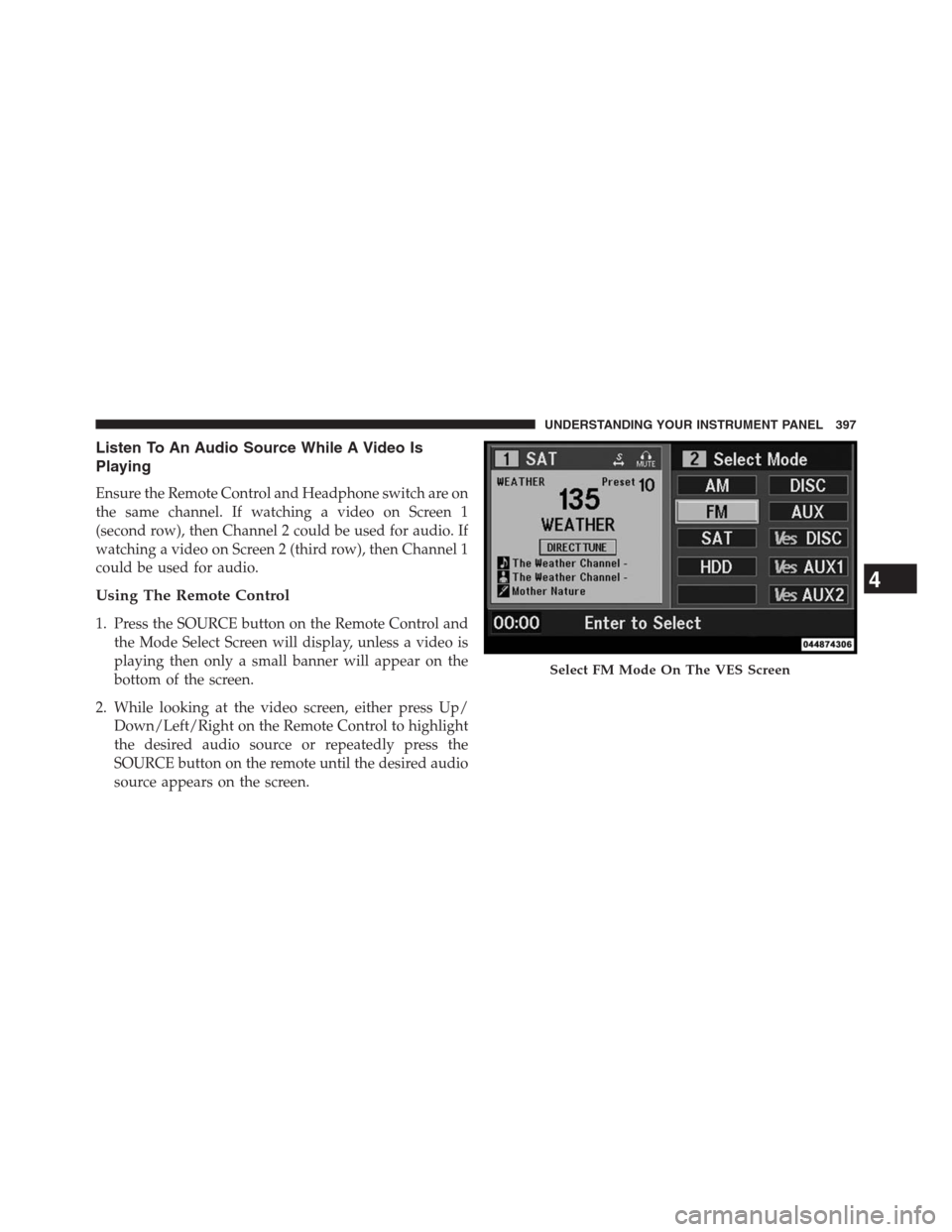
Listen To An Audio Source While A Video Is
Playing
Ensure the Remote Control and Headphone switch are on
the same channel. If watching a video on Screen 1
(second row), then Channel 2 could be used for audio. If
watching a video on Screen 2 (third row), then Channel 1
could be used for audio.
Using The Remote Control
1. Press the SOURCE button on the Remote Control and
the Mode Select Screen will display, unless a video is
playing then only a small banner will appear on the
bottom of the screen.
2. While looking at the video screen, either press Up/
Down/Left/Right on the Remote Control to highlight
the desired audio source or repeatedly press the
SOURCE button on the remote until the desired audio
source appears on the screen.
Select FM Mode On The VES Screen
4
UNDERSTANDING YOUR INSTRUMENT PANEL 397