Page 392 of 683
Dual Video Screen
NOTE:Typically there are two different ways to operate
the features of the Video Entertainment System (VES™).
•The Remote Control
•The Touch-Screen Radio (If Equipped)
Play A DVD Using The Touch-Screen Radio
NOTE:Headunit DVD player does not play Blu-Ray
discs.
1. Press the OPEN/CLOSE or LOAD hard-key on the
radio faceplate (Touch-Screen).
2. Insert the DVD with the label facing up. The radio
automatically selects the appropriate mode after the
disc is recognized and displays the menu screen or
starts playing the first track.3. To watch a DVD on Screen 1 for second row passen-
gers, ensure the Remote Control and Headphone
switch is on Channel 1.
4. To watch a DVD on Screen 2 for third row passengers,
ensure the Remote Control and Headphone switch is
on Channel 2.
Using The Remote Control
1. Press the SOURCE button on the Remote Control.
2. While looking at Screen 1 or 2, highlight DISC by
either pressing Up/Down/Left/Right buttons or by
repeatedly pressing the SOURCE button, then press
ENTER/OK.
390 UNDERSTANDING YOUR INSTRUMENT PANEL
Page 394 of 683
3. Touch the 1 or 2 soft-key and then the DISC soft-key in
the MEDIA column. To exit touch the back arrow at
the top left of the screen.
NOTE:
•To view a DVD on the radio press the RADIO/MEDIA
hard-key, on the radio faceplate, then touch the DISC
tab soft-key and then the VIEW VIDEO soft-key.
•
Viewing a DVD on the Touch-Screen radio screen is not
available in all states/provinces, and the vehicle must be
stopped, and the shift lever must be in the PARK position
for vehicles with automatic transmission. In vehicles with
manual transmission the parking brake must be engaged.
•Touching the screen on a Touch-Screen radio while a
DVD is playing brings up basic remote control functions
for DVD play such as scene selection, Play, Pause, FF,
RW, and Stop. Pressing the X in the upper corner will
turn off the remote control screen functions.
Play A DVD Using The VES™ Player (If Equipped)
1.Insert the DVD with the label facing up. The VES™
player automatically selects the appropriate mode after
the disc is recognized and starts playing the DVD.
NOTE:The VES™ player has basic DVD control func-
tion such as Menu, Play, Pause, FF, RW and Stop
2.
To watch a DVD on Screen 1 for second row passengers,
ensure the Remote Control and Headphone switch is on
Channel 1.
3. To watch a DVD on Screen 2 for third row passengers,
ensure the Remote Control and Headphone switch is
on Channel 2.
392 UNDERSTANDING YOUR INSTRUMENT PANEL
Page 397 of 683
NOTE:
•To view a DVD on the radio press the RADIO/MEDIA
hard-key, on the radio faceplate, then touch the DISC
tab soft-key and then the VIEW VIDEO soft-key.
•Viewing a DVD on the Touch-Screen radio screen is
not available in all states/provinces, and the vehicle
must be stopped, and the shift lever must be in the
PARK position for vehicles with automatic transmis-
sion. In vehicles with manual transmission the parking
brake must be engaged.
Play A Blu-ray Disc Using The Blu-ray Player
(If Equipped)
1. Insert the Blu-ray disc with the label facing up. The
Blu-ray player automatically selects the appropriate
mode after the disc is recognized and starts playing
the Blu-ray disc.NOTE:The Blu-ray player has basic control functions
such as Menu, Play, Pause, FF, RW and Stop.
2. To watch a Blu-ray disc on Screen 1 for second row
passengers, ensure the Remote Control and Head-
phone switch is on Channel 1.
3. To watch a Blu-ray disc on Screen 2 for third row
passengers, ensure the Remote Control and Head-
phone switch is on Channel 2.
Using The Remote Control
1. Press the SOURCE button on the Blu-ray player Re-
mote Control.
2. While looking at Screen 1 or 2, highlight Blu-ray by
either pressing Up/Down/Left/Right buttons or by
repeatedly pressing the SOURCE button, then press
OK on the Remote Control.
4
UNDERSTANDING YOUR INSTRUMENT PANEL 395
Page 401 of 683
Important Notes For Dual Video Screen System
•VES is able to transmit two channels of stereo audio
and video simultaneously.
•The Blu-ray Disc Player can play CDs, DVDs and
Blu-ray Discs.
•The DVD Player can play CDs and DVDs.
•In split screen mode the left side equates to Channel 1
and the right side equates to Channel 2.
•Selecting a video source on Channel 1, the video
source will display on the second row screen or Screen
1 and can be heard on Channel 1.•Selecting a video source on Channel 2, the video
source will display on the third row screen or Screen 2
and can be heard on Channel 2.
•The 2nd row screen and 3rd row screen of the Video
Entertainment System can play two separate discs by
utilizing the touch-screen radio DVD player and Blu-
ray Disc Player.
•Audio can be heard through the headphones even
when the screen(s) are closed.
4
UNDERSTANDING YOUR INSTRUMENT PANEL 399
Page 404 of 683
15. SETUP – When in a video mode, press the SETUP
button to access the display settings (see the display
settings section) to access the DVD setup menu, select
the menu button on the radio. When a disc is loaded
in the DVD player (if equipped) and the VES™ mode
is selected and the disc is stopped, press the SETUP
button to access the DVD Setup menu. (see the DVD
Setup Menu of this manual.)
16. BACK – When navigating in menu mode, press to
return to the previous screen. When navigating a
DVDs disc menu, the operation depends on the disc’s
contents.17.��– In radio modes, press to seek to the previous
tunable station. In disc modes, press and hold to fast
rewind through the current audio track or video
chapter. In menu modes use to navigate in the menu.
18. ENTER/OK – Press to select the highlighted option
in a menu.
19.�/ NEXT – In radio modes, press to select to the
next station. In disc modes, press to advance to the
next audio track or video chapter. In menu modes,
use to navigate in the menu.
402 UNDERSTANDING YOUR INSTRUMENT PANEL
Page 405 of 683
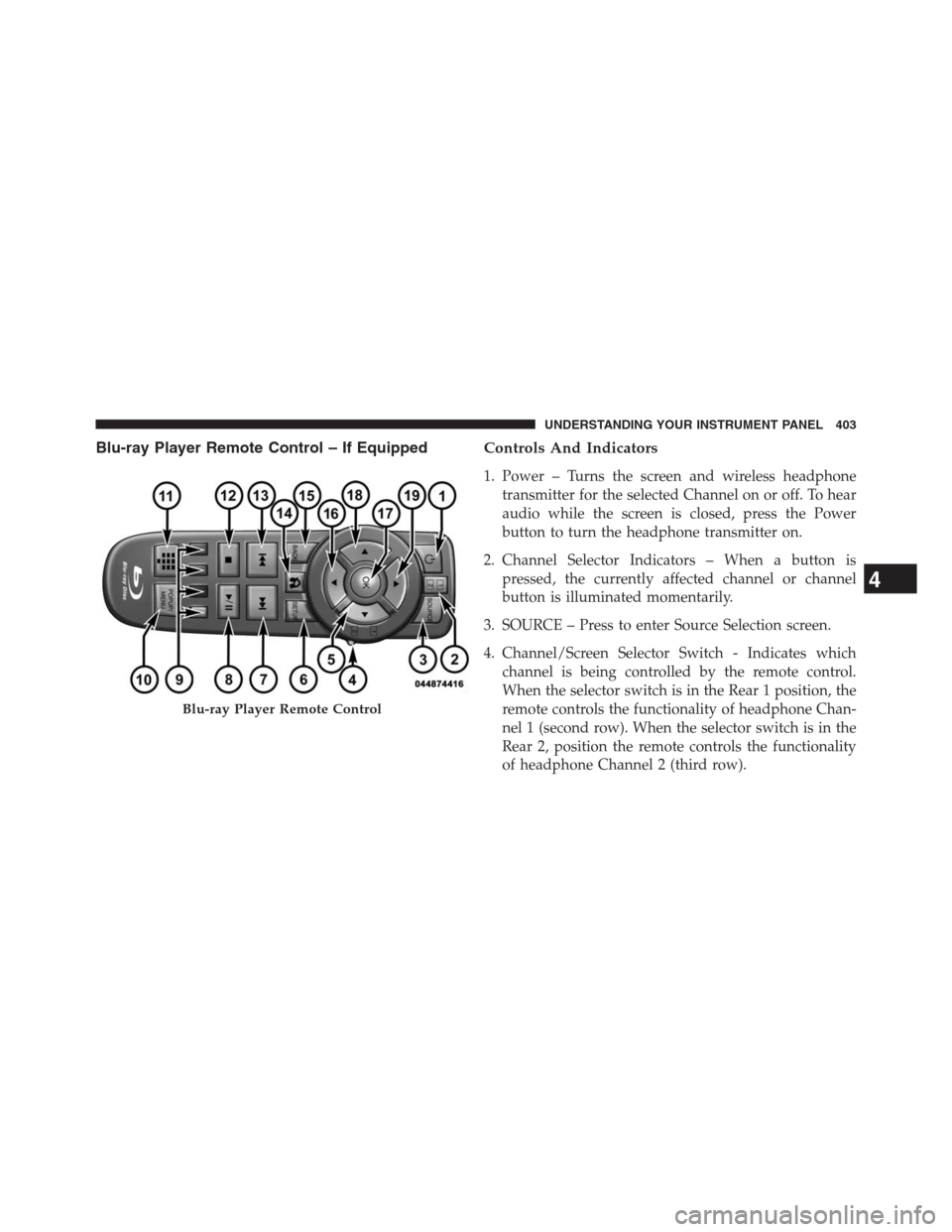
Blu-ray Player Remote Control – If EquippedControls And Indicators
1. Power – Turns the screen and wireless headphone
transmitter for the selected Channel on or off. To hear
audio while the screen is closed, press the Power
button to turn the headphone transmitter on.
2. Channel Selector Indicators – When a button is
pressed, the currently affected channel or channel
button is illuminated momentarily.
3. SOURCE – Press to enter Source Selection screen.
4. Channel/Screen Selector Switch - Indicates which
channel is being controlled by the remote control.
When the selector switch is in the Rear 1 position, the
remote controls the functionality of headphone Chan-
nel 1 (second row). When the selector switch is in the
Rear 2, position the remote controls the functionality
of headphone Channel 2 (third row).
Blu-ray Player Remote Control
4
UNDERSTANDING YOUR INSTRUMENT PANEL 403
Page 406 of 683
5.�– Press to navigate menus.
6. SETUP – Press to access the Blu-ray Setup menu
screen. When a disc is loaded in the Blu-ray player (if
equipped) and the VES™ mode is selected and the
disc is stopped, press the SETUP button to access the
Blu-ray Setup menu.
7.���– Press and release to jump to the next available
audio track or video chapter. Press and hold to fast
forward through the current audio track or video
chapter.
8.�/�(Play/Pause) – Begin/resume or pause disc play.
9. Four Colored Buttons – Press to access Blu-ray disc
features.
10. POPUP/MENU – Press to access the Blu-ray main
menu when in Blu-ray or DVD mode. Press to start
Scan or start Random track functions in CD or HDD
modes.11. KEYPAD – Press to navigate chapters or titles.
12.▪(Stop) – Stops disc play.
13.���– Press and release to jump to the previous
audio track or video chapter. Press and hold to fast
rewind through the current audio track or video
chapter.
14. Mutes headphone audio.
15. BACK – Press to exit out of menus or return to source
selection screen.
16.�– Press to navigate menus.
17. OK – Press to select the highlighted option in a menu.
18.�– Press to navigate menus.
19.�– Press to navigate menus.
404 UNDERSTANDING YOUR INSTRUMENT PANEL
Page 408 of 683
Locking The Remote Control
All remote control functionality can be disabled as a
parental control feature.
•To disable the Remote Control from making any
changes, press the Video Lock button on the DVD
player (if equipped). If the vehicle is not equipped
with a DVD player, follow the radio’s instructions to
turn Video Lock on. The radio and the video screen(s)
indicate when Video Lock is active.
•Pressing the Video Lock again or turning the ignition
OFF turns Video Lock OFF and allows remote control
operation of the VES™.
Replacing The Remote Control Batteries
The remote control requires two AAA batteries for op-
eration. To replace the batteries:
•Locate the battery compartment on the back of the
remote, then slide the battery cover downward.
•Replace the batteries, making sure to orient them
according to the polarity diagram shown.
•Replace the battery compartment cover.
406 UNDERSTANDING YOUR INSTRUMENT PANEL