Page 360 of 631
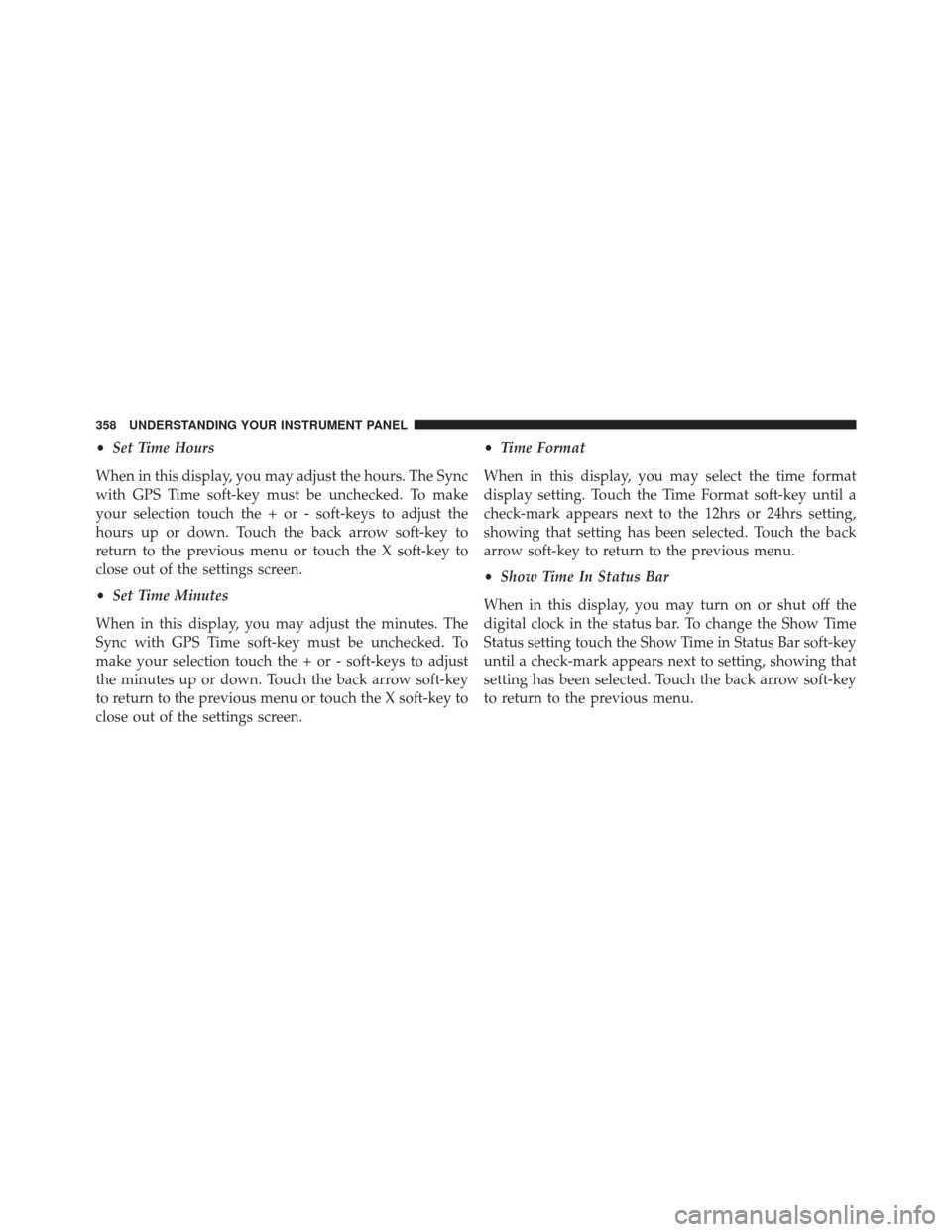
•Set Time Hours
When in this display, you may adjust the hours. The Sync
with GPS Time soft-key must be unchecked. To make
your selection touch the + or - soft-keys to adjust the
hours up or down. Touch the back arrow soft-key to
return to the previous menu or touch the X soft-key to
close out of the settings screen.
• Set Time Minutes
When in this display, you may adjust the minutes. The
Sync with GPS Time soft-key must be unchecked. To
make your selection touch the + or - soft-keys to adjust
the minutes up or down. Touch the back arrow soft-key
to return to the previous menu or touch the X soft-key to
close out of the settings screen. •
Time Format
When in this display, you may select the time format
display setting. Touch the Time Format soft-key until a
check-mark appears next to the 12hrs or 24hrs setting,
showing that setting has been selected. Touch the back
arrow soft-key to return to the previous menu.
• Show Time In Status Bar
When in this display, you may turn on or shut off the
digital clock in the status bar. To change the Show Time
Status setting touch the Show Time in Status Bar soft-key
until a check-mark appears next to setting, showing that
setting has been selected. Touch the back arrow soft-key
to return to the previous menu.
358 UNDERSTANDING YOUR INSTRUMENT PANEL
Page 361 of 631
Safety / Assistance
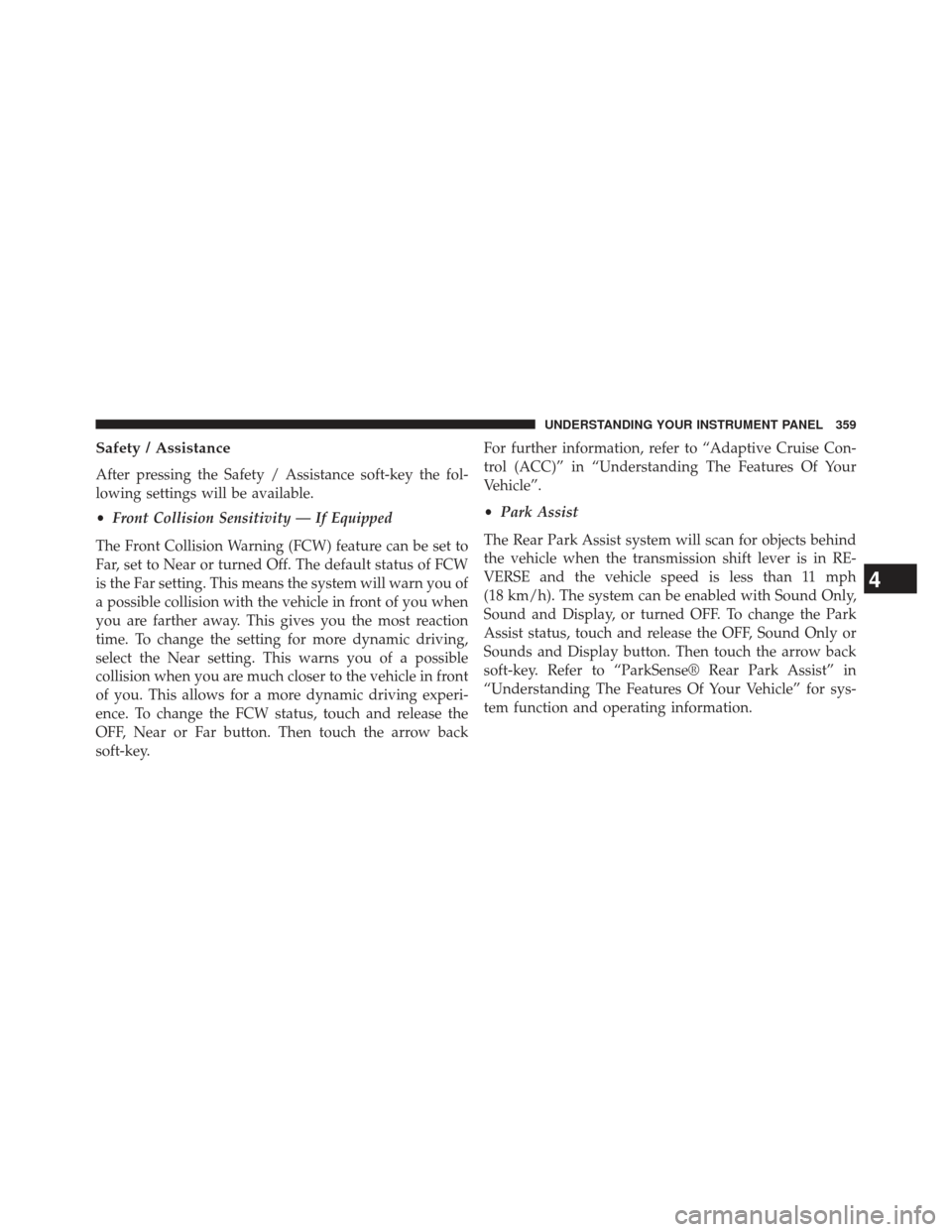
After pressing the Safety / Assistance soft-key the fol-
lowing settings will be available.
•Front Collision Sensitivity — If Equipped
The Front Collision Warning (FCW) feature can be set to
Far, set to Near or turned Off. The default status of FCW
is the Far setting. This means the system will warn you of
a possible collision with the vehicle in front of you when
you are farther away. This gives you the most reaction
time. To change the setting for more dynamic driving,
select the Near setting. This warns you of a possible
collision when you are much closer to the vehicle in front
of you. This allows for a more dynamic driving experi-
ence. To change the FCW status, touch and release the
OFF, Near or Far button. Then touch the arrow back
soft-key. For further information, refer to “Adaptive Cruise Con-
trol (ACC)” in “Understanding The Features Of Your
Vehicle”.
•
Park Assist
The Rear Park Assist system will scan for objects behind
the vehicle when the transmission shift lever is in RE-
VERSE and the vehicle speed is less than 11 mph
(18 km/h). The system can be enabled with Sound Only,
Sound and Display, or turned OFF. To change the Park
Assist status, touch and release the OFF, Sound Only or
Sounds and Display button. Then touch the arrow back
soft-key. Refer to “ParkSense® Rear Park Assist” in
“Understanding The Features Of Your Vehicle” for sys-
tem function and operating information.
4
UNDERSTANDING YOUR INSTRUMENT PANEL 359
Page 363 of 631
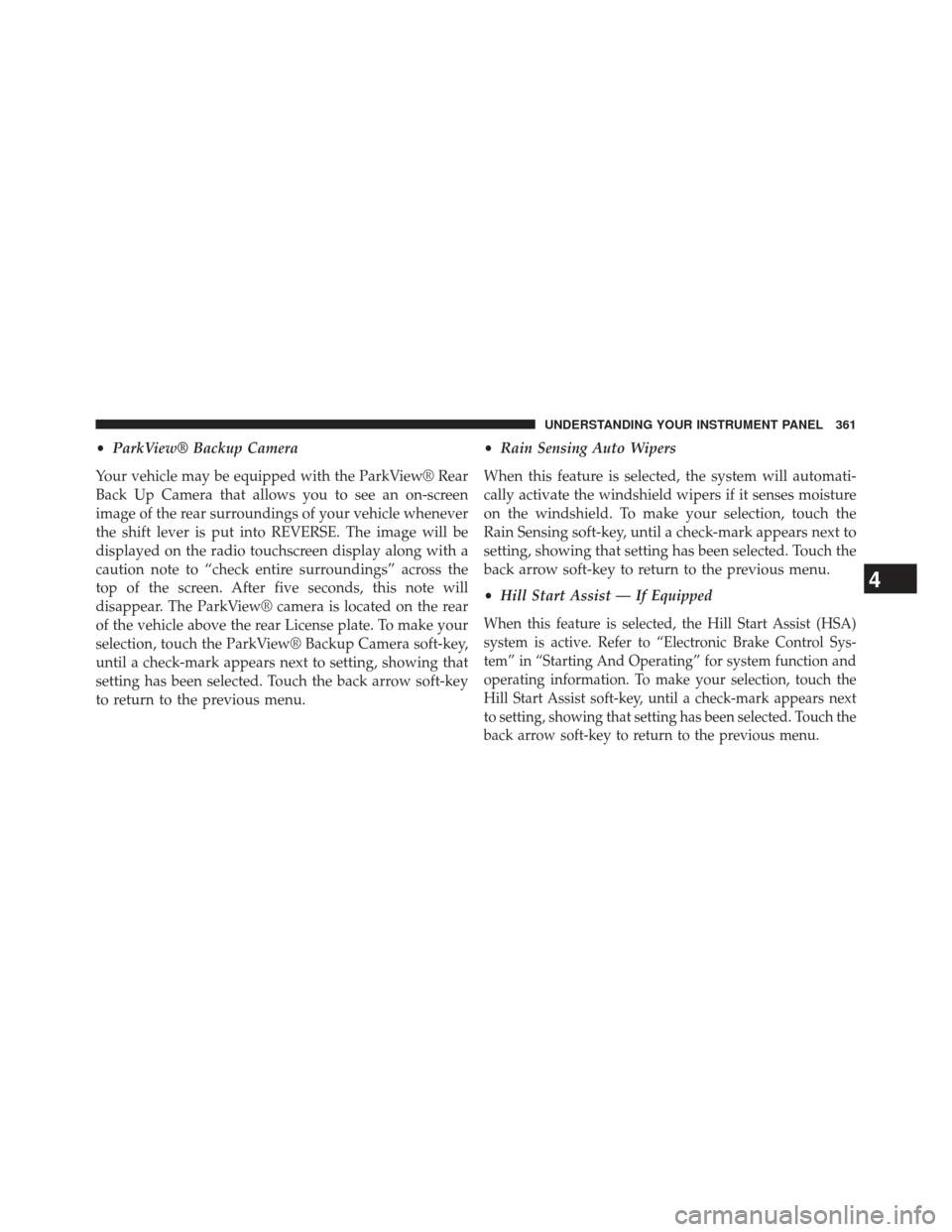
•ParkView® Backup Camera
Your vehicle may be equipped with the ParkView® Rear
Back Up Camera that allows you to see an on-screen
image of the rear surroundings of your vehicle whenever
the shift lever is put into REVERSE. The image will be
displayed on the radio touchscreen display along with a
caution note to “check entire surroundings” across the
top of the screen. After five seconds, this note will
disappear. The ParkView® camera is located on the rear
of the vehicle above the rear License plate. To make your
selection, touch the ParkView® Backup Camera soft-key,
until a check-mark appears next to setting, showing that
setting has been selected. Touch the back arrow soft-key
to return to the previous menu. •
Rain Sensing Auto Wipers
When this feature is selected, the system will automati-
cally activate the windshield wipers if it senses moisture
on the windshield. To make your selection, touch the
Rain Sensing soft-key, until a check-mark appears next to
setting, showing that setting has been selected. Touch the
back arrow soft-key to return to the previous menu.
• Hill Start Assist — If Equipped
When this feature is selected, the Hill Start Assist (HSA)
system is active. Refer to “Electronic Brake Control Sys-
tem” in “Starting And Operating” for system function and
operating information. To make your selection, touch the
Hill Start Assist soft-key, until a check-mark appears next
to setting, showing that setting has been selected. Touch the
back arrow soft-key to return to the previous menu.
4
UNDERSTANDING YOUR INSTRUMENT PANEL 361
Page 370 of 631
•Variance
Compass Variance is the difference between Magnetic
North and Geographic North. To compensate for the
differences the variance should be set for the zone where
the vehicle is driven, per the zone map. Once properly
set, the compass will automatically compensate for the
differences, and provide the most accurate compass
heading.
NOTE: Keep magnetic materials away from the top of
the instrument panel, such as iPod’s, Mobile Phones,
Laptops and Radar Detectors. This is where the compass
module is located, and it can cause interference with the
compass sensor, and it may give false readings. •
Perform Compass Calibration
Touch the Calibration soft-key to change this setting. This
compass is self-calibrating, which eliminates the need to
manually reset the compass. When the vehicle is new, the
compass may appear erratic and the EVIC will display
CAL until the compass is calibrated. You may also
Compass Variance Map
368 UNDERSTANDING YOUR INSTRUMENT PANEL
Page 371 of 631
calibrate the compass by pressing the ON soft-key and
completing one or more 360-degree turns (in an area free
from large metal or metallic objects) until the CAL
indicator displayed in the EVIC turns off. The compass
will now function normally.
Audio
After pressing the Audio soft-key the following settings
will be available.
•Balance/Fade
When in this display you may adjust the Balance and
Fade settings.
• Equalizer
When in this display you may adjust the Bass, Mid and
Treble settings. Adjust the settings with the + and –
setting soft-keys or by selecting any point on the scale
between the + and – soft-keys. Then touch the arrow back
soft-key. NOTE:
Bass/Mid/Treble allow you to simply slide your
finger up or down to change the setting as well as touch
directly on the desired setting.
• Speed Adjusted Volume
This feature increases or decreases volume relative to
vehicle speed. To change the Speed Adjusted Volume
touch the Off, 1, 2 or 3 soft-key. Then touch the arrow
back soft-key.
• Music Info Cleanup
This feature helps organize music files for optimized
music navigation. To make your selection, touch the
Music Info Cleanup soft-key, select On or Off followed by
pressing the arrow back soft-key.4
UNDERSTANDING YOUR INSTRUMENT PANEL 369
Page 377 of 631

NOTE:If you experience difficulty in playing a particular
disc, it may be damaged (i.e., scratched, reflective coating
removed, a hair, moisture or dew on the disc) oversized,
or have protection encoding. Try a known good disc
before considering disc player service.
RADIO OPERATION AND MOBILE PHONES
Under certain conditions, the mobile phone being on in
your vehicle can cause erratic or noisy performance from
your radio. This condition may be lessened or eliminated
by relocating the mobile phone antenna. This condition is
not harmful to the radio. If your radio performance does
not satisfactorily “clear” by the repositioning of the
antenna, it is recommended that the radio volume be
turned down or off during mobile phone operation when
not using Uconnect® (if equipped).
CLIMATE CONTROLS
The air conditioning and heating system is designed to
make you comfortable in all types of weather. This
system can be operated through either the Automatic
Climate Controls on the instrument panel or through the
Uconnect® system display.
When the Uconnect® system is in different modes (Ra-
dio, Player, Settings, More, etc.) the driver and passenger
temperature settings will be indicated at the top of the
display.
4
UNDERSTANDING YOUR INSTRUMENT PANEL 375
Page 386 of 631
NOTE:In cold weather, use of Recirculation mode may
lead to excessive window fogging. The recirculation feature
may be unavailable (soft-key greyed out) if conditions exist
that could create fogging on the inside of the windshield.
On systems with Manual Climate Controls, the Recircula-
tion mode is not allowed in Defrost mode to improve
window clearing operation. Recirculation will be disabled
automatically if this mode is selected. Attempting to use
Recirculation while in this mode will cause the LED in the
control button to blink and then turn off.
Automatic Temperature Control (ATC)
ATC Hard-keys are located in the center of the instru-
ment panel.
Soft-keys are accessible on the Uconnect® Touch-screen.
Automatic Operation
1. Press the AUTO hard-key or soft-key button (4) on the Automatic Temperature Control (ATC) Panel.
2. Next, adjust the temperature you would like the system to maintain by adjusting the driver and pas-
senger temperature hard or soft control buttons (8, 9,
14, 15). Once the desired temperature is displayed, the
system will achieve and automatically maintain that
comfort level.
3. When the system is set up for your comfort level, it is not necessary to change the settings. You will experi-
ence the greatest efficiency by simply allowing the
system to function automatically.
384 UNDERSTANDING YOUR INSTRUMENT PANEL
Page 387 of 631
NOTE:
•It is not necessary to move the temperature settings for
cold or hot vehicles. The system automatically adjusts
the temperature, mode, and blower speed to provide
comfort as quickly as possible.
• The temperature can be displayed in U.S. or Metric
units by selecting the US/M customer-programmable
feature. Refer to the “Uconnect® System Settings” in
this section of the manual.
To provide you with maximum comfort in the Automatic
mode, during cold start-ups the blower fan will remain
on low until the engine warms up. The blower will
increase in speed and transition into Auto mode.Manual Operation
The system allows for manual selection of blower speed,
air distribution mode, A/C status and recirculation control.
The blower fan speed can be set to any fixed speed by
adjusting the blower control. The fan will now operate at
a fixed speed until additional speeds are selected. This
allows the front occupants to control the volume of air
circulated in the vehicle and cancel the Auto mode.
The operator can also select the direction of the airflow
by selecting one of the available mode settings. A/C
operation and Recirculation control can also be manually
selected in Manual operation.
4
UNDERSTANDING YOUR INSTRUMENT PANEL 385