Page 137 of 520
Turn SMS Incoming Announcement ON/OFF
Turning the SMS Incoming Announcement OFF will stop
the system from announcing the new incoming mes-
sages.
•Press the
button.
•After the “Ready” prompt and the following beep, say
“Setup, SMS Incoming Message Announcement,” you
will then be given a choice to change it.
Bluetooth® Communication Link
Mobile phones have been found to lose connection to the
Uconnect® Phone. When this happens, the connection
can generally be reestablished by switching the phone
off/on. Your mobile phone is recommended to remain in
Bluetooth® ON mode.
Power-Up
After switching the ignition key from OFF to either the
ON or ACC position, or after a language change, you
must wait at least fifteen seconds prior to using the
system.
3
UNDERSTANDING THE FEATURES OF YOUR VEHICLE 135
Page 143 of 520
General Information
This device complies with Part 15 of the FCC rules and
RSS 210 of Industry Canada. Operation is subject to the
following conditions:
•Changes or modifications not expressly approved by
the party responsible for compliance could void the
user’s authority to operate the equipment.
• This device may not cause harmful interference.
• This device must accept any interference received,
including interference that may cause undesired op-
eration.
VOICE COMMAND — IF EQUIPPED
Voice Command System Operation
The Uconnect® Voice Command system allows
you to control your AM, FM radio, disc player,
USB Mass Storage Class device, iPod® family
of devices, Bluetooth® Streaming Audio de-
vice, and a memo recorder.
NOTE: Take care to speak into the Voice Interface Sys-
tem as calmly and normally as possible. The ability of the
Voice Interface System to recognize user voice commands
may be negatively affected by rapid speaking or a raised
voice level.3
UNDERSTANDING THE FEATURES OF YOUR VEHICLE 141
Page 145 of 520
To hear the first available Menu, press the Voice Com-
mand
button and say “Help” or “Main Menu”.
Commands
The Voice Command system understands two types of
commands. Universal commands are available at all
times. Local commands are available if the supported
radio mode is active.
Changing The Volume
1. Start a dialogue by pressing the Voice Command
button.
2. Say a command (e.g., “Help”).
3. Use the ON/OFF VOLUME rotary knob to adjust the volume to a comfortable level while the Voice Com-
mand system is speaking. Please note the volume
setting for Voice Command is different than the audio
system.
Main Menu
Start a dialogue by pressing the Voice Command
button. You may say “Main Menu” to switch to
the main menu.
In this mode, you can say the following commands:
• “Radio AM” (to switch to the radio AM mode)
• “Radio FM” (to switch to radio FM mode)
• “Disc” (to switch to the disc mode)
• “USB” (to switch to USB mode)
• “Bluetooth Streaming” (to switch to Bluetooth®
Streaming mode)
• “Memo” (to switch to the memo recorder)
• “System Setup” (to switch to system setup)3
UNDERSTANDING THE FEATURES OF YOUR VEHICLE 143
Page 147 of 520
Disc Mode
To switch to the disc mode, say “Disc”. In this mode, you
may say the following commands:
•“Track” (#) (to change the track)
• “Next Track” (to play the next track)
• “Previous Track” (to play the previous track)
• “Main Menu” (to switch to the main menu)
USB Mode
To switch to USB mode, say “USB”. In this mode, you
may say the following commands:
•“Next Track” (to play the next track)
• “Previous Track” (to play the previous track)
• “Play” (to play a Artist Name, Playlist Name, Album
Name, Track Name, etc.)
Bluetooth® Streaming (BT) Mode
To switch to Bluetooth® Streaming (BT) mode, say
“Bluetooth Streaming”. In this mode, you may say the
following commands:
• “Next Track” (to play the next track)
• “Previous Track” (to play the previous track)
• “List” (to list an Artist, Playlist, Album, Track, etc.)
Memo Mode
To switch to the voice recorder mode, say “Memo”. In
this mode, you may say the following commands:
•“New Memo” (to record a new memo) — During the
recording, you may press the Voice Command
button to stop recording. You proceed by say-
ing one of the following commands:
– “Save” (to save the memo)
– “Continue” (to continue recording)
– “Delete” (to delete the recording)
3
UNDERSTANDING THE FEATURES OF YOUR VEHICLE 145
Page 209 of 520
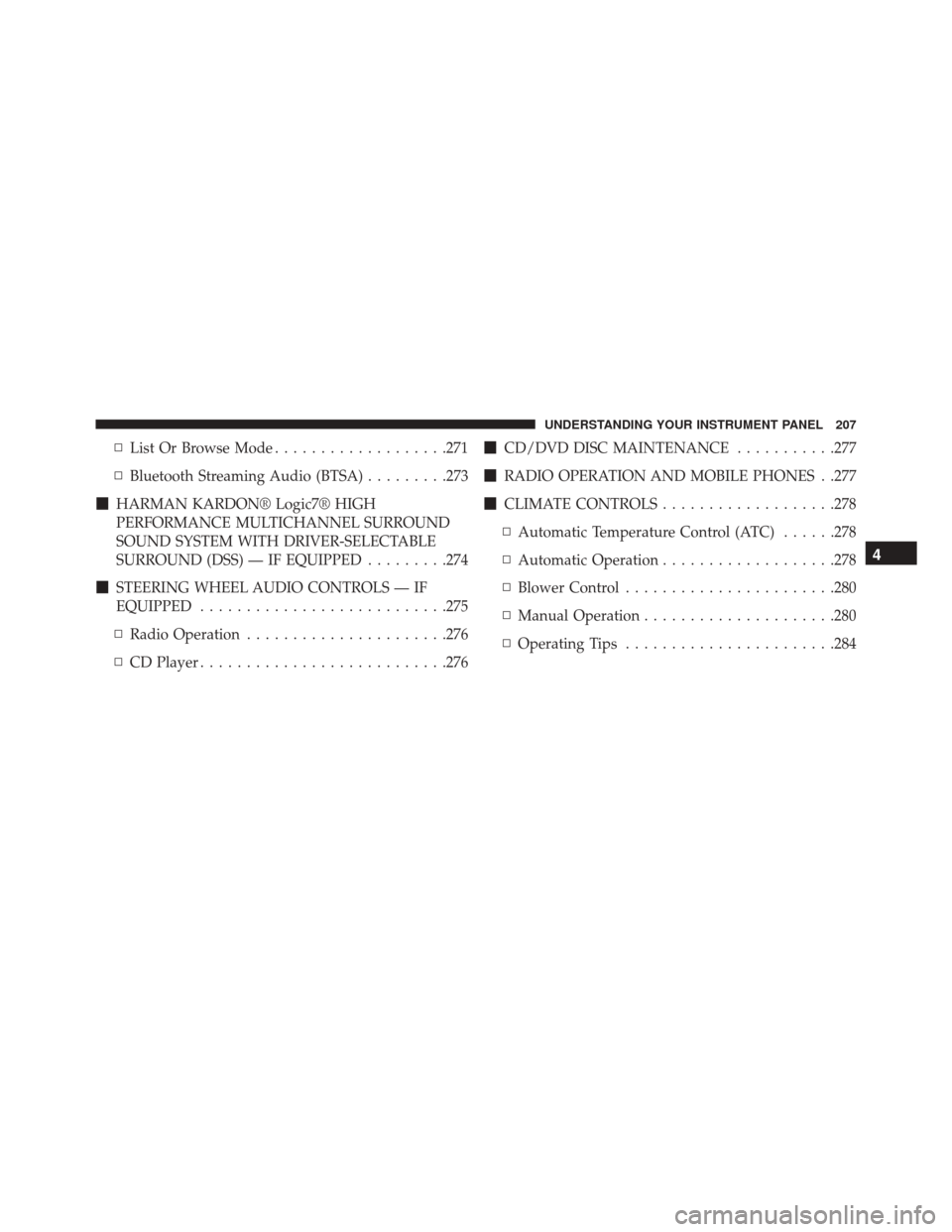
▫List Or Browse Mode ...................271
▫ Bluetooth Streaming Audio (BTSA) .........273
� HARMAN KARDON® Logic7® HIGH
PERFORMANCE MULTICHANNEL SURROUND
SOUND SYSTEM WITH DRIVER-SELECTABLE
SURROUND (DSS) — IF EQUIPPED .........274
� STEERING WHEEL AUDIO CONTROLS — IF
EQUIPPED .......................... .275
▫ Radio Operation ..................... .276
▫ CD Player .......................... .276�
CD/DVD DISC MAINTENANCE ...........277
� RADIO OPERATION AND MOBILE PHONES . .277
� CLIMATE CONTROLS ...................278
▫ Automatic Temperature Control (ATC) ......278
▫ Automatic Operation ...................278
▫ Blower Control ...................... .280
▫ Manual Operation .....................280
▫ Operating Tips ...................... .284
4
UNDERSTANDING YOUR INSTRUMENT PANEL 207
Page 256 of 520
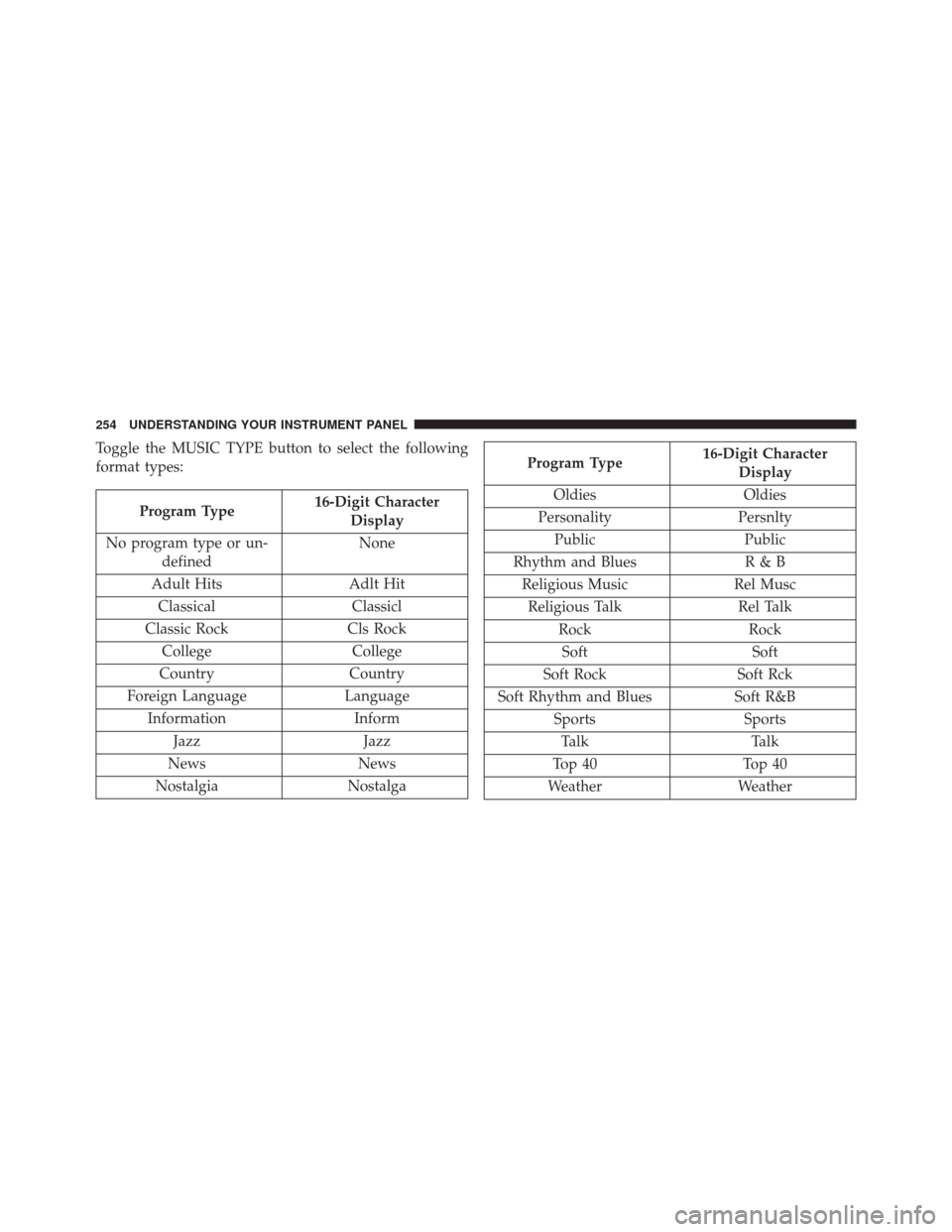
Toggle the MUSIC TYPE button to select the following
format types:
Program Type16-Digit Character
Display
No program type or un- defined None
Adult Hits Adlt Hit
Classical Classicl
Classic Rock Cls Rock
College College
Country Country
Foreign Language Language
Information Inform
Jazz Jazz
News News
Nostalgia Nostalga
Program Type16-Digit Character
Display
Oldies Oldies
Personality Persnlty
Public Public
Rhythm and Blues R & B
Religious Music Rel Musc
Religious Talk Rel Talk
Rock Rock
Soft Soft
Soft Rock Soft Rck
Soft Rhythm and Blues Soft R&B
Sports Sports
Talk Talk
Top 40 Top 40
Weather Weather
254 UNDERSTANDING YOUR INSTRUMENT PANEL
Page 275 of 520
WARNING!
Do not plug in or remove the iPod® or external USB
device while driving. Failure to follow this warning
could result in an accident.
Bluetooth Streaming Audio (BTSA)
Music can be streamed from your cellular phone to the
Uconnect® phone system.
Controlling BTSA Using Radio Buttons
To enter BTSA mode, press either “AUX” button on the
radio or press the VR button and say “Bluetooth Stream-
ing Audio”.
Play Mode
When switched to BTSA mode, some audio devices can
start playing music over the vehicle’s audio system, but
some devices require the music to be initiated on thedevice first, then it will get streamed to the Uconnect®
phone system. Seven devices can be paired to the
Uconnect® phone system, but just one can be selected
and played.
Selecting A Different Audio Device
1. Press the PHONE button to begin.
2. After the
�Ready�prompt and following the beep, say
�Setup�, then say �Select Audio Devices�.
3. Say the name of the audio device or ask the Uconnect® phone system to list the audio devices.
Next Track
Use the SEEK UP button, or press the VR button on the
radio and say “Next Track”, to jump to the next music
track on your cellular phone.
4
UNDERSTANDING YOUR INSTRUMENT PANEL 273
Page 276 of 520

Previous Track
Use the SEEK DOWN button, or press the VR button on
the radio and say “Previous Track”, to jump to the
previous music track on your cellular phone.
Browse
Browsing is not available on a Bluetooth Streaming
Audio (BTSA) device. Only the current song that is
playing will display info.
HARMAN KARDON® Logic7® HIGH
PERFORMANCE MULTICHANNEL SURROUND
SOUND SYSTEM WITH DRIVER-SELECTABLE
SURROUND (DSS) — IF EQUIPPED
Your vehicle is equipped with a Harman Kardon® audio
system with GreenEdge™ technology that offers superior
sound quality, higher Sound Pressure Levels (SPL) and
reduced energy consumption. The new system utilizesproprietary amplifier and speaker technologies deliver-
ing substantial increases in component and system effi-
ciency levels.
The 12 Channel Class D GreenEdge high efficiency
amplifier is governed by a high voltage tracking power
supply and drives a 7.4-channel playback architecture.
The Harman Kardon® audio system offers the ability to
choose Logic 7 surround sound for any audio source. The
GreenEdge high-efficiency speaker designs ensure the
system has higher SPL and a dramatic increase in dy-
namic sound quality. The speakers are tuned for maxi-
mum efficiency and perfectly matched to the amplifier
output stage ensuring state of the art multi-seat surround
sound processing.
Logic7® multichannel surround-sound technology deliv-
ers an immersive, accurate sound-stage to every seating
position This surround effect is available for audio from
any source - AM/FM/CD/ Satellite Radio or dashboard
274 UNDERSTANDING YOUR INSTRUMENT PANEL