2013 CHRYSLER TOWN AND COUNTRY ad blue
[x] Cancel search: ad bluePage 3 of 140

INTRODUCTION/WELCOME
WELCOME FROM CHRYSLER
GROUPLLC ..................3
CONTROLS AT A GLANCE
DRIVER COCKPIT...............6
INSTRUMENT CLUSTER ...........8
GETTING STARTED
KEYFOB ....................10
REMOTE START...............12
KEYLESS ENTER-N-GO™ ...........12
THEFT ALARM ................15
SEATBELT ...................16
SUPPLEMENTAL RESTRAINT
SYSTEM (SRS) — AIR BAGS .........17
CHILD RESTRAINTS .............18
FRONTSEATS ................20
REAR SEATS ..................21
HEATEDSEATS ................25
HEATED STEERING WHEEL ........26
TILT/TELESCOPING STEERING
COLUMN ...................27
ADJUSTABLE PEDALS ............27
OPERATING YOUR VEHICLE
ENGINE BREAK-IN
RECOMMENDATIONS............28
TURN SIGNAL/WIPER/WASHER/
HIGH BEAM LEVER ..............28
HEADLIGHT SWITCH AND HALO
LIGHTSWITCH ................30
SPEED CONTROL ...............31
ELECTRONIC RANGE SELECTION (ERS) . . 32FUEL ECONOMY (ECON) MODE .....33
MANUAL CLIMATE CONTROLS ......34
THREE ZONE MANUAL CLIMATE
CONTROLS ..................35
THREE ZONE AUTOMATIC
TEMPERATURE CONTROLS (ATC) ....36
PARKSENSE® REAR PARK ASSIST .....38
PARKVIEW® REAR BACK-UP CAMERA . . 38
BLIND SPOT MONITORING WITH
REAR CROSS PATH ..............38
POWER SLIDING SIDE DOORS . . . ....39
POWERLIFTGATE ..............39
POWER SUNROOF . . . ..........40
WIND BUFFETING ..............41
ELECTRONICS
YOUR VEHICLE'S SOUND SYSTEM ....42
Uconnect® 130 .................44
Uconnect® 130 WITH SiriusXM SATELLITE
RADIO .....................46 Uconnect® 430/430N
..............49
Uconnect® 730N ................59
SiriusXM SATELLITE RADIO/TRAVEL
LINK ......................70
STEERING WHEEL AUDIO
CONTROLS ..................73
SETTING THE ANALOG CLOCK . . . . . 73
iPod®/USB/MP3 CONTROL .........74
Uconnect® Phone ................75
Uconnect® VOICE COMMAND . . . ....77
Bluetooth® STREAMING AUDIO . . . . . . 80
VIDEO ENTERTAINMENT
SYSTEM (VES™) ................80
ELECTRONIC VEHICLE
INFORMATION CENTER (EVIC) ......82
PROGRAMMABLE FEATURES .......82
UNIVERSAL GARAGE DOOR OPENER
(HomeLink®) ..................84
POWER INVERTER ..............86
POWER OUTLETS ..............87
UTILITY
IN-FLOOR STORAGE – STOW'N GO® . . . 89
ROOF LUGGAGE RACK ..........89
TRAILER TOWING WEIGHTS
(MAXIMUM TRAILER WEIGHT
RATINGS) ...................90
RECREATIONAL TOWING
(BEHIND MOTORHOME, ETC.) ......90
WHAT TO DO IN EMERGENCIES
ROADSIDE ASSISTANCE...........91
INSTRUMENT CLUSTER WARNING
LIGHTS .....................91
IF YOUR ENGINE OVERHEATS . . . ....95
JACKING AND TIRE CHANGING . . . . . 96
JUMP-STARTING . . ............106
SHIFT LEVER OVERRIDE . . .......108
TOWING A DISABLED VEHICLE . . . . . 108
FREEING A STUCK VEHICLE .......108
EVENT DATA RECORDER (EDR) . . . . . 109
MAINTAINING YOUR VEHICLE
OPENING THE HOOD ...........110
ADDING FUEL . . ..............111
ENGINE COMPARTMENT .........112
FLUIDSANDCAPACITIES .........113
MAINTENANCE SCHEDULE .......114
MAINTENANCE RECORD .........118
FUSES .....................119
TIRE PRESSURES ...............122
WHEEL AND WHEEL TRIM CARE . . . . . 123
EXTERIOR BULBS ..............123
TABLE OF CONTENTS
Page 77 of 140
Uconnect® Phone
• To determine if your vehicle is equipped with Uconnect® Phone, press the “Uconnect® Phone”button
located on the radio faceplate. If your vehicle has this feature, you will hear a voice
prompt. If not, you will see a message on the radio “Uconnect phone not available”.
• The Uconnect® Phone is a voice-activated, hands-free, in-vehicle communications system with Voice Command Capability (see Voice Command section).
NOTE:
To access the tutorial, press the “Uconnect® Phone” button
. After the BEEP, say “tutorial.”
Press any hard-key/button or touch the display (Touch-Screen radio) to cancel the “tutorial”.
• The Uconnect® Phone allows you to dial a phone number with your mobile phone using simple voice commands.
• Refer to your vehicle Owner's Manual on the DVD for further details.
NOTE:
The Uconnect® Phone requires a mobile phone equipped with the Bluetooth® Hands-Free
Profile, Version 1.0 or higher. For Uconnect® Customer Support: U.S. residents -
visit www.UconnectPhone.com or call 1–877–855–8400. Canadian residents -
visit www.UconnectPhone.com or call, 1-800-465–2001 (English) or 1-800-387-9983 (French).
This site will provide specific instructions based on the type of mobile phone being paired.
Phone Pairing
NOTE:
Pairing is a one - time initial setup before using the phone. Prior to starting the pairing procedure
ensure all additional phones within the vehicle have their Bluetooth® disabled.
• Press the “Phone”
button to begin.
• Wait for the “ready” prompt and BEEP.
• After the BEEP, say ”setup” or “Uconnect device setup”.
• After the BEEP, say “device pairing”.
• After the BEEP, say “pair a device”.
• Follow the audible prompts.
• You will be asked to say a four-digit Personal Identification Number (PIN), which you will
later need to enter into your mobile phone.
You can say any four-digit PIN. You will not
need to remember this PIN after the initial
pairing process.
• You will then be prompted to give the phone pairing a name (each phone paired should have a unique name).
ELECTRONICS
75
Page 78 of 140
• Next you will be asked to give this new pairing a priority of 1 through 7 (up to seven phonesmay be paired); 1 is the highest and 7 is the lowest priority. The system will only connect to the
highest priority phone that exists within the proximity of the vehicle.
• You will then need to start the pairing procedure on your cell phone. Follow the Bluetooth® instructions in your cell phone Owner's Manual to complete the phone pairing setup.
Phonebook
Phonebook Download – Automatic Phonebook Transfer From Mobile Phone
•
If equipped and specifically supported by your phone, Uconnect® Phone automatically down-
loads names (text names) and number entries from your mobile phone’s phonebook. Specific
Bluetooth® Phones with Phone Book Access Profile may support this feature. Automatic Transfer
is indicated by a green arrow at the bottom of the screen. See www.UconnectPhone.com for
supported phones.
• Automatic download and update, if sup- ported, begins as soon as the Bluetooth®
wireless phone connection is made to the
Uconnect® Phone. For example, after you
start the vehicle.
NOTE:
The mobile phone may require authorization
prior to download.
• A maximum of 1000 entries per phone will be downloaded and updated every time a phone is connected to the Uconnect® Phone.
• Depending on the maximum number of entries downloaded, there may be a short delay before the latest downloaded names can be used. Until then, if available, the previously
downloaded phonebook is available for use.
• Only the phonebook of the currently connected mobile phone is accessible.
• Only the mobile phone’s phonebook is downloaded. The SIM card phonebook is not part of the Mobile phonebook.
• This downloaded phonebook cannot be edited or deleted on the Uconnect® Phone. These can only be edited on the mobile phone. The changes are transferred and updated to
Uconnect® Phone on the next phone connection.
Making A Phone Call
• Press the “Phone” button.
• After the BEEP, say “dial” (or “call” a name).
• After the BEEP, say number (or name).
Receiving A Call – Accept (And End)
• When an incoming call rings/is announced on Uconnect®, press the Phone button.
• To end a call, press the Phone button
.
ELECTRONICS
76
Page 80 of 140
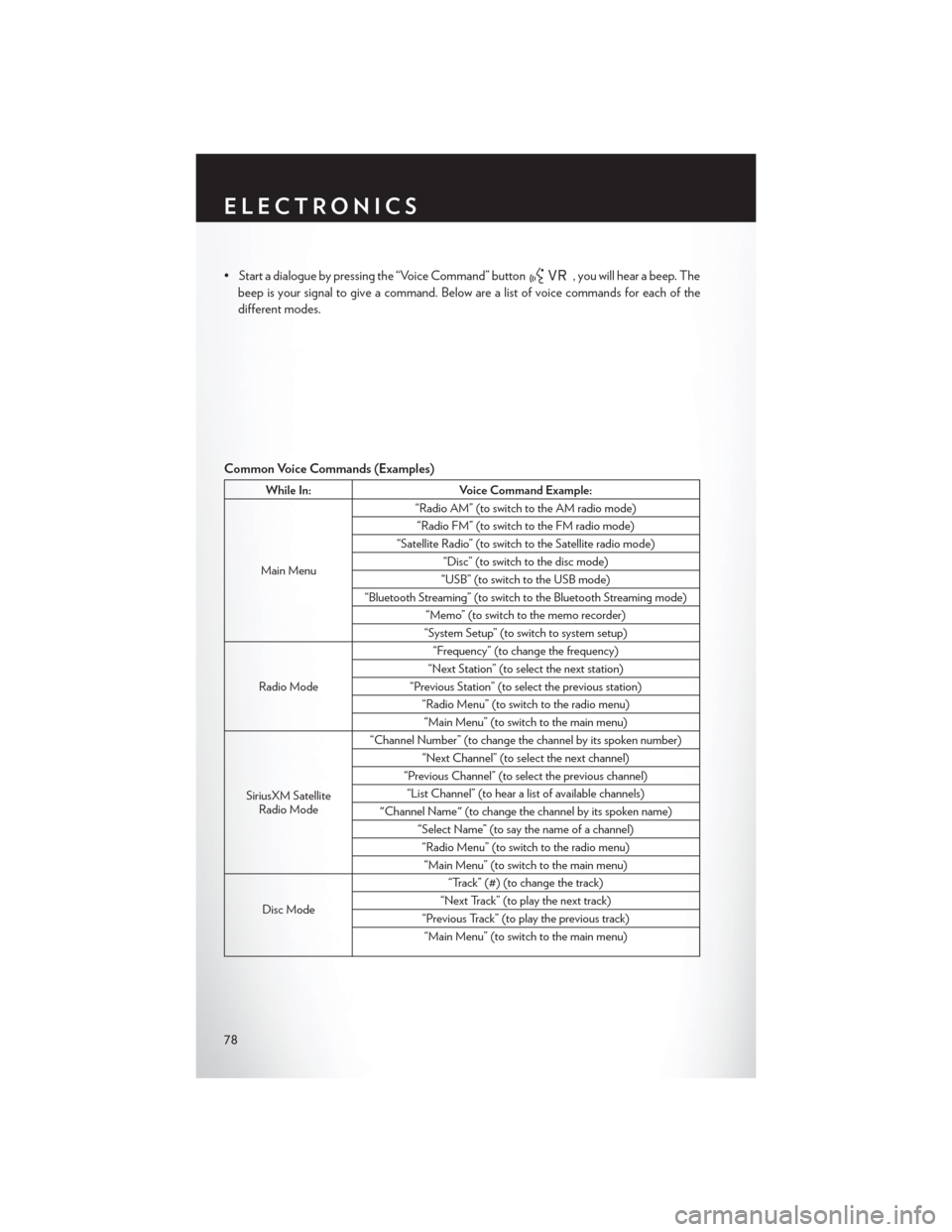
• Start a dialogue by pressing the “Voice Command” button, you will hear a beep. The
beep is your signal to give a command. Below are a list of voice commands for each of the
different modes.
Common Voice Commands (Examples)
While In: Voice Command Example:
Main Menu “Radio AM” (to switch to the AM radio mode)
“Radio FM” (to switch to the FM radio mode)
“Satellite Radio” (to switch to the Satellite radio mode) “Disc” (to switch to the disc mode)
“USB” (to switch to the USB mode)
“Bluetooth Streaming” (to switch to the Bluetooth Streaming mode) “Memo” (to switch to the memo recorder)
“System Setup” (to switch to system setup)
Radio Mode “Frequency” (to change the frequency)
“Next Station” (to select the next station)
“Previous Station” (to select the previous station) “Radio Menu” (to switch to the radio menu)“Main Menu” (to switch to the main menu)
SiriusXM Satellite Radio Mode “Channel Number” (to change the channel by its spoken number)
“Next Channel” (to select the next channel)
“Previous Channel” (to select the previous channel) “List Channel” (to hear a list of available channels)
"Channel Name" (to change the channel by its spoken name) “Select Name” (to say the name of a channel)“Radio Menu” (to switch to the radio menu)“Main Menu” (to switch to the main menu)
Disc Mode “Track” (#) (to change the track)
“Next Track” (to play the next track)
“Previous Track” (to play the previous track) “Main Menu” (to switch to the main menu)
ELECTRONICS
78
Page 81 of 140
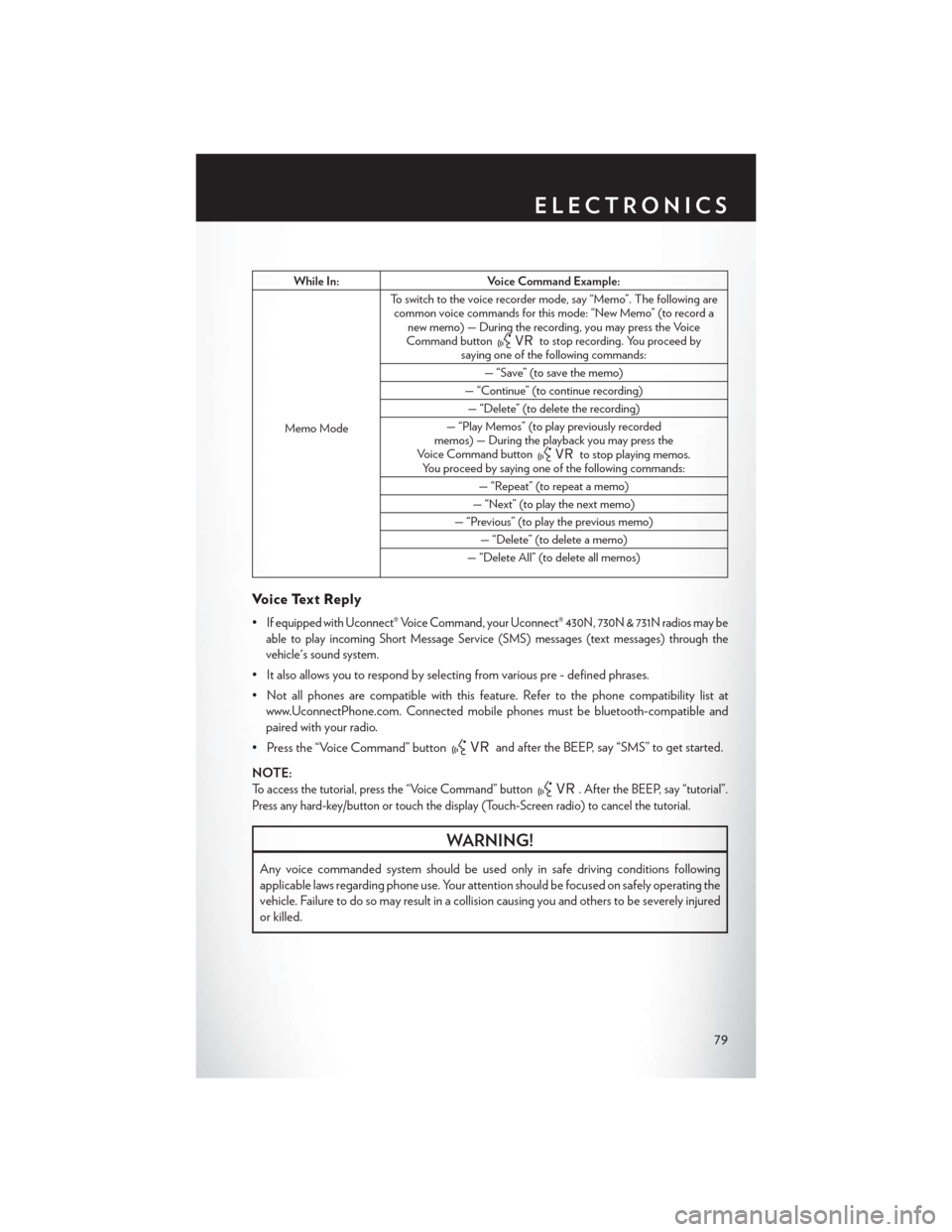
While In:Voice Command Example:
Memo Mode To switch to the voice recorder mode, say “Memo”. The following are
common voice commands for this mode: “New Memo” (to record a new memo) — During the recording, you may press the Voice
Command button
to stop recording. You proceed by
saying one of the following commands:
— “Save” (to save the memo)
— “Continue” (to continue recording) — “Delete” (to delete the recording)
— “Play Memos” (to play previously recorded
memos) — During the playback you may press the
Voice Command button
to stop playing memos.
You proceed by saying one of the following commands:
— “Repeat” (to repeat a memo)
— “Next” (to play the next memo)
— “Previous” (to play the previous memo) — “Delete” (to delete a memo)
— “Delete All” (to delete all memos)
Voice Text Reply
•If equipped with Uconnect® Voice Command, your Uconnect® 430N, 730N & 731N radios may be
able to play incoming Short Message Service (SMS) messages (text messages) through the
vehicle's sound system.
• It also allows you to respond by selecting from various pre - defined phrases.
• Not all phones are compatible with this feature. Refer to the phone compatibility list at www.UconnectPhone.com. Connected mobile phones must be bluetooth-compatible and
paired with your radio.
• Press the “Voice Command” button
and after the BEEP, say “SMS” to get started.
NOTE:
To access the tutorial, press the “Voice Command” button. After the BEEP, say “tutorial”.
Press any hard-key/button or touch the display (Touch-Screen radio) to cancel the tutorial.
WARNING!
Any voice commanded system should be used only in safe driving conditions following
applicable laws regarding phone use. Your attention should be focused on safely operating the
vehicle. Failure to do so may result in a collision causing you and others to be severely injured
or killed.
ELECTRONICS
79
Page 82 of 140
Bluetooth® STREAMING AUDIO
•If equipped with Uconnect® Voice Com-
mand, your Bluetooth-equipped iPod® de-
vices, cell phones or other media players, may
also be able to stream music to your vehicles
speakers. Your connected device must be
Bluetooth-compatible, and paired with your
radio (see Uconnect® Phone for pairing in-
structions).
• Non-Touch-Screen Radios: Press the
“AUX” button on the radio faceplate until "BT" or “Audio Streaming” is displayed on the radio
screen.
• Touch-Screen-Radios: Press the “RADIO/MEDIA” or “MEDIA” hard-key and then touch
the “AUX” soft-key tab.
VIDEO ENTERTAINMENT SYSTEM (VES™)
System Operation
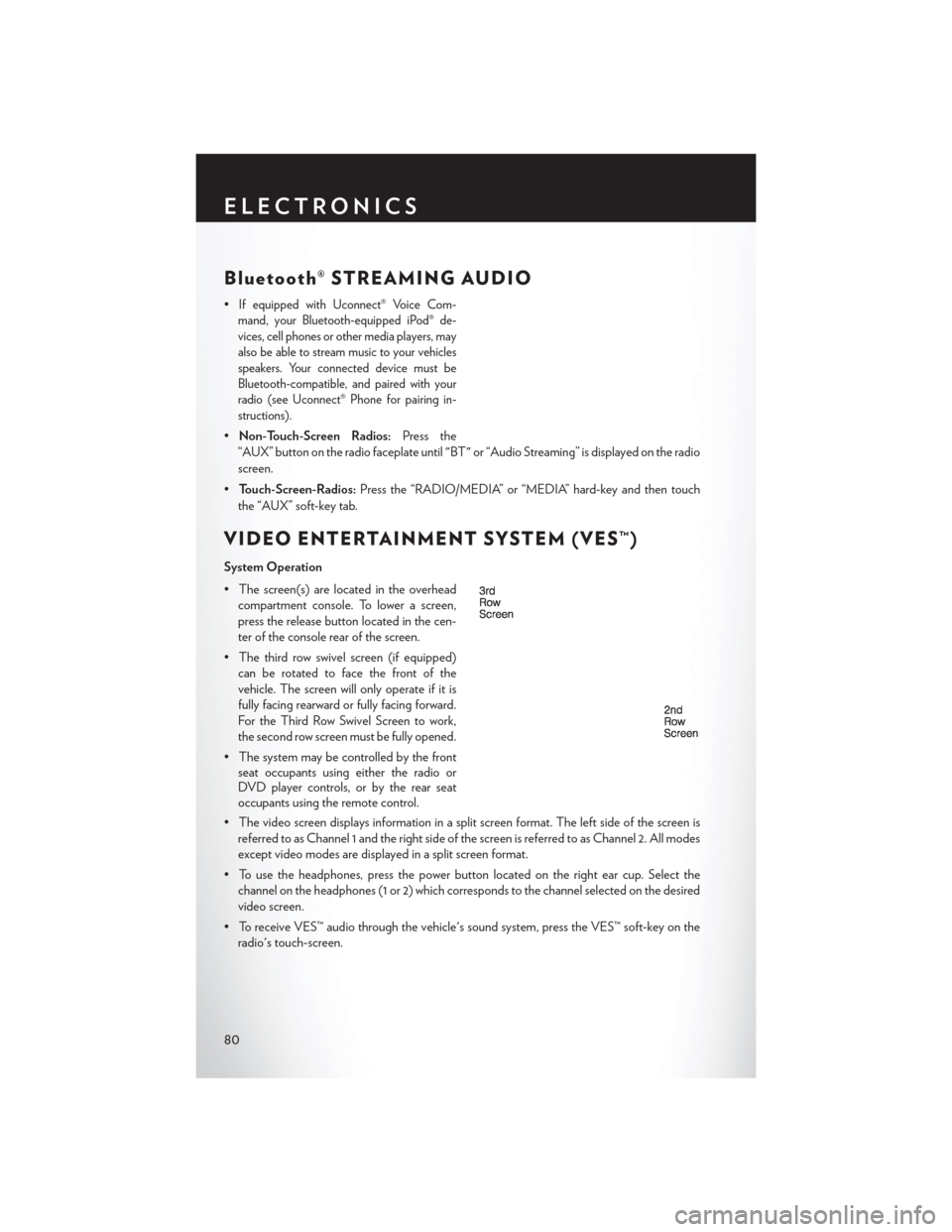
• The screen(s) are located in the overhead compartment console. To lower a screen,
press the release button located in the cen-
ter of the console rear of the screen.
• The third row swivel screen (if equipped) can be rotated to face the front of the
vehicle. The screen will only operate if it is
fully facing rearward or fully facing forward.
For the Third Row Swivel Screen to work,
the second row screen must be fully opened.
• The system may be controlled by the front seat occupants using either the radio or
DVD player controls, or by the rear seat
occupants using the remote control.
• The video screen displays information in a split screen format. The left side of the screen is referred to as Channel 1 and the right side of the screen is referred to as Channel 2. All modes
except video modes are displayed in a split screen format.
• To use the headphones, press the power button located on the right ear cup. Select the channel on the headphones (1 or 2) which corresponds to the channel selected on the desired
video screen.
• To receive VES™ audio through the vehicle's sound system, press the VES™ soft-key on the radio's touch-screen.
ELECTRONICS
80
Page 122 of 140

Integrated Power Module (fuses)
• The Integrated Power Module (fuses) is located in the engine compartment near the battery.This center contains cartridge fuses, mini-fuses and relays.
Cavity Cartridge Fuse Mini-Fuse Description
J1 40 Amp Green Power Folding Seat
J2 30 Amp Pink Power Liftgate Module
J3 30 Amp Pink Rear Door Module (RR Door Node)
J4 25 Amp Natural Driver Door Node
J5 25 Amp Natural Passenger Door Node
J6 40 Amp Green Anti-Lock Brake System (ABS) Pump/ESP
J7 30 Amp Pink Anti-Lock Brake System (ABS) Valve/ESP
J8 40 Amp Green Power Memory Seat (If Equipped)
J9 40 Amp Green PZEV Motor/Flex Fuel
J10 30 Amp Pink Headlamp Wash Relay/Manifold Tuning
Valve
J11 30 Amp Pink Power Sliding Door Module/Thatchum
Relay Lock Feed
J12 30 Amp Pink HVAC Rear Blower, Radiator Fan Motor
J13 60 Amp Yellow Ignition Off Draw (IOD) — Main
J14 40 Amp Green Rear Window Defogger
J15 40 Amp Green Front Blower
J17 40 Amp Green Starter Solenoid
J18 20 Amp Blue Powertrain Control Module (PCM) Trans
Range
J19 60 Amp Yellow Radiator Fan
J20 30 Amp Pink Front Wiper LO/HI
J21 20 Amp Blue Front/Rear Washer
J22 25 Amp Natural Sunroof Module
M1 15 Amp Blue Center High Mounted Stop Light
(CHMSL)/Brake Switch
M2 20 Amp Yellow Trailer Lighting, Front Fog Lamps,
Intelligent Battery Sensor (IBS)
M3 20 Amp Yellow Front/Rear Axle Locker, Vacuum Pump
Motor
M4 10 Amp Red Trailer Tow
M5 25 Amp natural Inverter
M6 20 Amp Yellow Power Outlet #1 (ACC), Rain Sensor
M7 20 Amp Yellow Power Outlet #2 (BATT/ACC SELECT)
M8 20 Amp Yellow Front Heated Seat (If Equipped)
M9 20 Amp Yellow Rear Heated Seat (If Equipped)
MAINTAINING YOUR VEHICLE
120
Page 123 of 140

Cavity Cartridge Fuse Mini-Fuse Description
M1015 Amp Blue Ignition Off Draw — Vehicle Entertainment
System (IOD-VES), Satellite Digital
Audio Receiver (SDARS), DVD, Hands-
Free Module (HFM), Universal Garage
Door Opener (UGDO), Vanity Lamp
(VANITY LP), Streaming Video Module
M11 10 Amp Red (Ignition Off Draw) IOD-HVAC/ATC
M12 30 Amp Green Amplifier (AMP)/Radio
M13 20 Amp Yellow Ignition Off Draw— Cabin Compartment
Node (IOD-CCN), SIREN, Clock Module
(CLK MOD), Multi-Function Control
Switch (MULTIFCTN SW)/ITM
M14 20 Amp Yellow Trailer Tow — If Equipped
M15 20 Amp Yellow Rear View Mirror (RR VW MIR), Cabin
Compartment Node (CCN), Multi-
Function Control Switch (MULTIFTCN
SW), Tire Pressure Monitor (TPM), Glow
Plug Module (GLW PLG MOD) — Export
Diesel Only, Assy-Shifter (Hall Effect),
Acoustic Noise Cancellation (ANC)
M16 10 Amp Red Occupant Restraint Controller/Occupant
Classification Module (ORC/OCM)
M17 15 Amp Blue Left Tail/License/Park Lamp (LT-TAIL/LIC/
PRK LMP), Running Lamps
M18 15 Amp Blue Right Tail/Park/Run Lamp (RT-TAIL/PRK/
RUN LMP)
M19 25 Amp Natural Auto Shut Down (ASD #1 and #2)
M20 15 Amp Blue Cabin Compartment Node Interior Light
(CCN INT LIGHT), Switch Bank (SW
BANK), Steering Control Module (SCM),
Switch Steering Wheel
M21 20 Amp Yellow Auto Shut Down (ASD #3)
M22 10 Amp Red Right Horn (RT HORN (HI/LOW)
M23 10 Amp Red Left Horn (LT HORN (LT HORN
(HI/LOW)
M24 25 Amp Natural Rear Wiper (REAR WIPER)
M25 20 Amp Yellow Fuel Pump (FUEL PUMP), Diesel Lift
Pump (DSL LIFT PUMP) — Export Only
M26 10 Amp Red Power Mirror Switch (PWR MIRR SW),
Driver Window Switch (DRVR WIND SW)
M27 10 Amp Red Wireless Ignition Module, Keyless Entry
Module
M28 10 Amp Red Next Generation Controller (NGC), PCM,
Transmission Feed (TRANS FEED), TCM
M29 10 Amp Red Occupant Classification Module (OCM)
MAINTAINING YOUR VEHICLE
121