Page 300 of 592
�Uconnect® SETTINGS ...................326
▫ Hard-Keys ......................... .326
▫ Soft-Keys .......................... .327
▫ Customer Programmable Features —
Uconnect® 8.4 Settings ..................327
� SETTING THE ANALOG CLOCK ...........342
� iPod®/USB/MP3 CONTROL ..............343
� HARMAN KARDON® Logic7® HIGH
PERFORMANCE MULTICHANNEL SURROUND
SOUND SYSTEM WITH DRIVER-SELECTABLE
SURROUND (DSS) — IF EQUIPPED .........343�
STEERING WHEEL AUDIO CONTROLS ......344
▫ Radio Operation ..................... .345
▫ CD Player .......................... .345
� CD/DVD DISC MAINTENANCE ...........346
� RADIO OPERATION AND MOBILE PHONES . .346
� CLIMATE CONTROLS ...................347
▫ General Overview .....................347
▫ Climate Control Functions ...............353
▫ Automatic Temperature Control (ATC) ......354
▫ Operating Tips ...................... .356
298 UNDERSTANDING YOUR INSTRUMENT PANEL
Page 314 of 592
ELECTRONIC VEHICLE INFORMATION CENTER
(EVIC)
The Electronic Vehicle Information Center (EVIC) fea-
tures a driver-interactive display that is located in the
instrument cluster.This system allows the driver to select a variety of useful
information by pressing the switches mounted on the
steering wheel. The EVIC consists of the following:
•
Radio Info
• Fuel Economy Info
• Cruise Control Info
• Digital Vehicle Speed
• Trip Info
• Tire Pressure
• Vehicle Info
• Stored Warning Messages
• Turn Menu OFF
Electronic Vehicle Information Center (EVIC)
312 UNDERSTANDING YOUR INSTRUMENT PANEL
Page 332 of 592

until a check-mark appears next to the setting, showing
that setting has been selected. Touch the back arrow
soft-key to return to the previous menu.
Clock
After pressing the Clock soft-key the following settings
will be available.
•Sync Time With GPS
When in this display, you may automatically have the
radio set the time. To change the Sync Time setting touch
the Sync with GPS Time soft-key until a check-mark
appears next to the setting, showing that setting has been
selected. Touch the back arrow soft-key to return to the
previous menu.
• Set Time Hours
When in this display, you may adjust the hours. The Sync
with GPS Time soft-key must be unchecked. To make
your selection touch the + or - soft-keys to adjust the hours up or down. Touch the back arrow soft-key to
return to the previous menu or touch the X soft-key to
close out of the settings screen.
•
Set Time Minutes
When in this display, you may adjust the minutes. The
Sync with GPS Time soft-key must be unchecked. To
make your selection touch the + or - soft-keys to adjust
the minutes up or down. Touch the back arrow soft-key
to return to the previous menu or touch the X soft-key to
close out of the settings screen.
• Time Format
When in this display, you may select the time format
display setting. Touch the Time Format soft-key until a
check-mark appears next to the 12hrs or 24hrs setting,
showing that setting has been selected. Touch the back
arrow soft-key to return to the previous menu.
330 UNDERSTANDING YOUR INSTRUMENT PANEL
Page 335 of 592
image of the rear surroundings of your vehicle whenever
the shift lever is put into REVERSE. The image will be
displayed on the radio touchscreen display along with a
caution note to “check entire surroundings” across the
top of the screen. After five seconds, this note will
disappear. The ParkView® camera is located on the rear
of the vehicle above the rear License plate. To make your
selection, touch the ParkView® Backup Camera soft-key,
until a check-mark appears next to setting, showing that
setting has been selected. Touch the back arrow soft-key
to return to the previous menu.
•Rain Sensing Auto Wipers
When this feature is selected, the system will automati-
cally activate the windshield wipers if it senses moisture
on the windshield. To make your selection, touch the
Rain Sensing soft-key, until a check-mark appears next to
setting, showing that setting has been selected. Touch the
back arrow soft-key to return to the previous menu. •
Hill Start Assist — If Equipped
When this feature is selected, the Hill Start Assist (HSA)
system is active. Refer to “Electronic Brake Control
System” in “Starting And Operating” for system function
and operating information. To make your selection, touch
the Hill Start Assist soft-key, until a check-mark appears
next to setting, showing that setting has been selected.
Touch the back arrow soft-key to return to the previous
menu.
Lights
After pressing the Lights soft-key the following settings
will be available.
• Headlight Illumination On Approach
When this feature is selected, the headlights will activate
and remain on for 0, 30, 60, or 90 seconds when the doors
are unlocked with the Remote Keyless Entry (RKE)
transmitter. To change the Illuminated Approach status,
4
UNDERSTANDING YOUR INSTRUMENT PANEL 333
Page 340 of 592
•Auto-On Driver Heated/Ventilated Seat & Steering
Wheel With Vehicle Start — If Equipped
When this feature is selected the driver’s heated seat and
heated steering wheel will automatically turn on when
temperatures are below 40° F (4.4° C). When tempera-
tures are above 80° F (26.7° C) the driver vented seat will
turn on. To make your selection, touch the Auto Heated
Seats soft-key, until a check-mark appears next to setting,
showing that setting has been selected. Touch the back
arrow soft-key to return to the previous menu.
Engine Off Options
After pressing the Engine Off Options soft-key the fol-
lowing settings will be available.
• Easy Exit Seat
This feature provides automatic driver seat positioning to
enhance driver mobility when entering and exiting the
vehicle. To make your selection, touch the Easy Exit Seats soft-key, until a check-mark appears next to setting,
showing that setting has been selected. Touch the back
arrow soft-key to return to the previous menu.
•
Engine Off Power Delay
When this feature is selected, the power window
switches, radio, Uconnect® phone system (if equipped),
DVD video system (if equipped), power sunroof (if
equipped), and power outlets will remain active for up to
10 minutes after the ignition is cycled to OFF. Opening
either front door will cancel this feature. To change the
Engine Off Power Delay status touch the 0 seconds,
45 seconds, 5 minutes or 10 minutes soft-key. Then touch
the arrow back soft-key.
• Headlight Off Delay
When this feature is selected, the driver can choose to
have the headlights remain on for 0, 30, 60, or 90 seconds
when exiting the vehicle. To change the Headlight Off
338 UNDERSTANDING YOUR INSTRUMENT PANEL
Page 344 of 592
•Subscription Information
New vehicle purchasers or lessees will receive a free
limited time subscription to SiriusXM Satellite Radio
with your radio. Following the expiration of the free
services, it will be necessary to access the information on
the Subscription Information screen in order to re-
subscribe.
Touch the Subscription Info soft-key to access the Sub-
scription Information screen.
Write down the SIRIUS ID numbers for your receiver. To
reactivate your service, either call the number listed on
the screen or visit the provider online.
NOTE: SiriusXM Travel Link is a separate subscription.SETTING THE ANALOG CLOCK
To set the analog clock at the top center of the instrument
panel, press and hold the button until the setting is
correct.
Setting The Analog Clock
342 UNDERSTANDING YOUR INSTRUMENT PANEL
Page 346 of 592
Logic7® multichannel surround-sound technology deliv-
ers an immersive, accurate sound-stage to every seating
position. This surround effect is available for audio from
any source - AM/FM/CD/ Satellite Radio or dashboard
AUX input; and is activated through the Uconnect®
System. Refer to “Surround Sound” under “Uconnect®
Settings” in “Understanding Your Instrument Panel”.
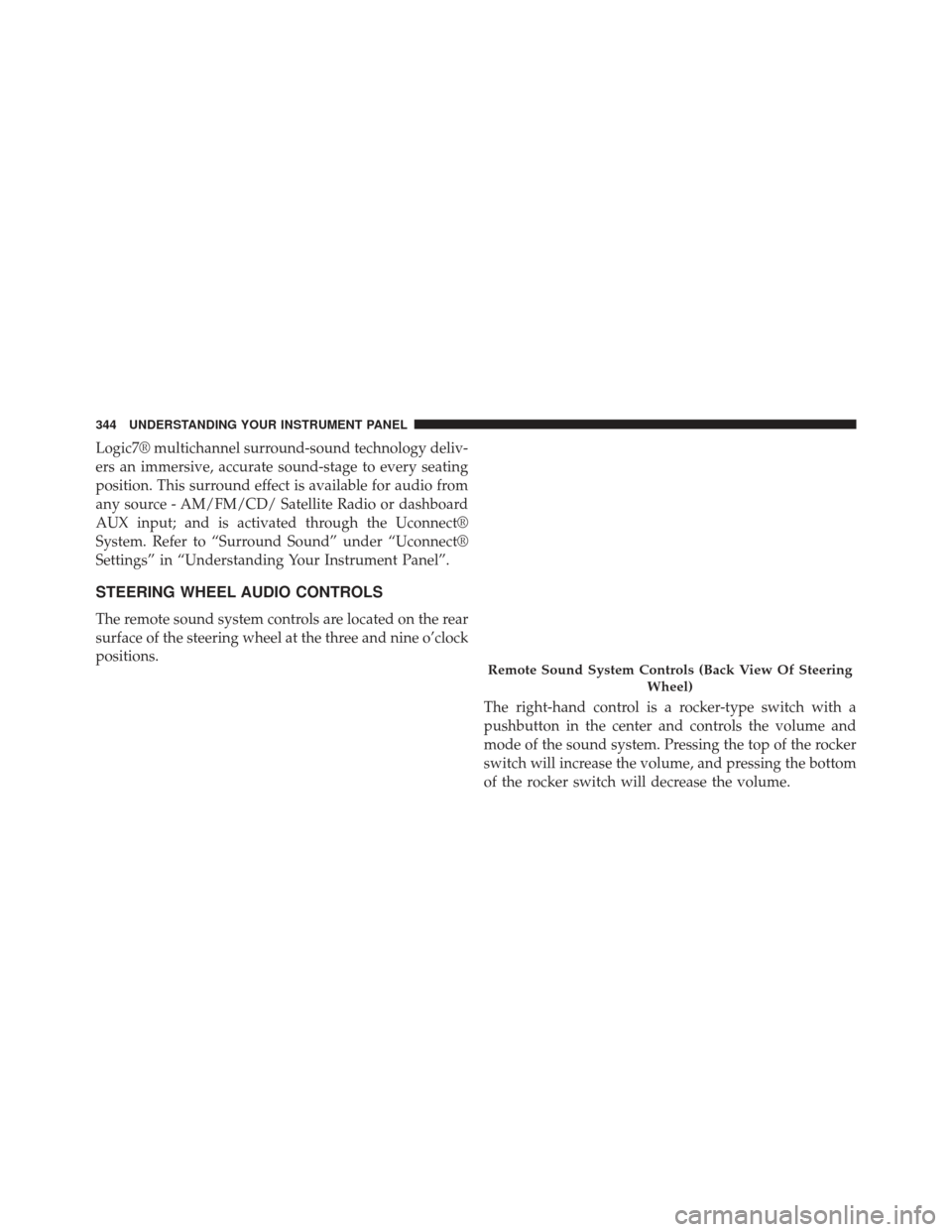
STEERING WHEEL AUDIO CONTROLS
The remote sound system controls are located on the rear
surface of the steering wheel at the three and nine o’clock
positions.The right-hand control is a rocker-type switch with a
pushbutton in the center and controls the volume and
mode of the sound system. Pressing the top of the rocker
switch will increase the volume, and pressing the bottom
of the rocker switch will decrease the volume.
Remote Sound System Controls (Back View Of SteeringWheel)
344 UNDERSTANDING YOUR INSTRUMENT PANEL
Page 347 of 592
Pressing the center button will make the radio switch
between the various modes available (AM/FM/SAT/
CD/HDD/AUX/VES, etc.).
The left-hand control is a rocker-type switch with a
pushbutton in the center. The function of the left-hand
control is different depending on which mode you are in.
The following describes the left-hand control operation in
each mode.
Radio Operation
Pressing the top of the switch will “Seek” up for the next
listenable station and pressing the bottom of the switch
will “Seek” down for the next listenable station.
The button located in the center of the left-hand control
will tune to the next preset station that you have pro-
grammed in the radio preset pushbutton.
CD Player
Pressing the top of the switch once will go to the next
track on the CD. Pressing the bottom of the switch once
will go to the beginning of the current track, or to the
beginning of the previous track if it is within one second
after the current track begins to play.
If you press the switch up or down twice, it plays the
second track; three times, it will play the third, etc.
The center button on the left side rocker switch has no
function for a single-disc CD player. However, when a
multiple-disc CD player is equipped on the vehicle, the
center button will select the next available CD in the
player.
4
UNDERSTANDING YOUR INSTRUMENT PANEL 345