2013 CHEVROLET TRAX radio
[x] Cancel search: radioPage 106 of 408
Black plate (2,1)Chevrolet TRAX Owner Manual - 2013 - CRC - 3/6/13
5-2 Instruments and Controls
Controls
Steering Wheel
Adjustment
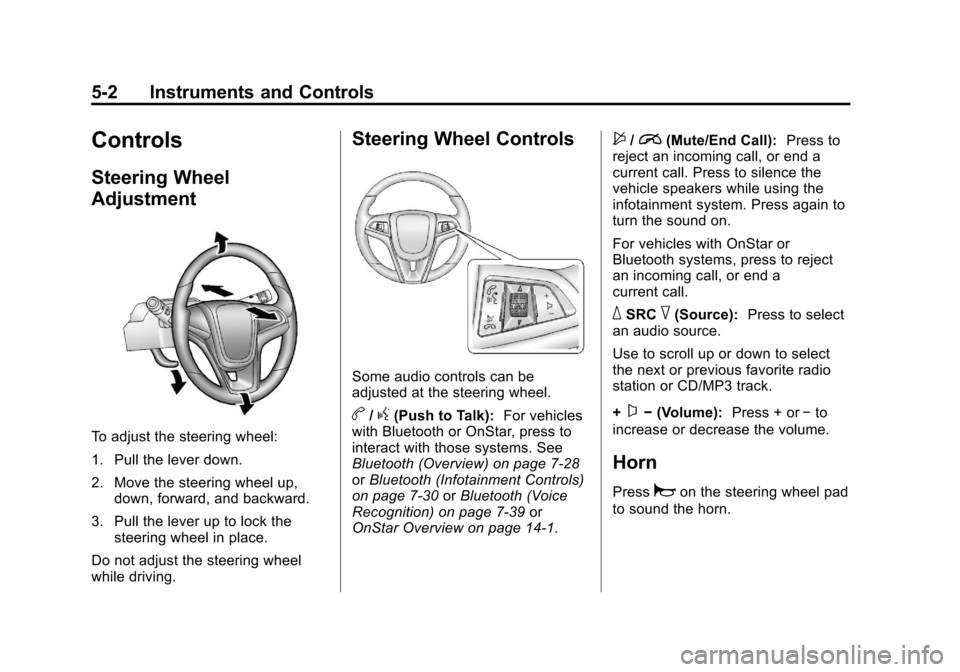
To adjust the steering wheel:
1. Pull the lever down.
2. Move the steering wheel up,down, forward, and backward.
3. Pull the lever up to lock the steering wheel in place.
Do not adjust the steering wheel
while driving.
Steering Wheel Controls
Some audio controls can be
adjusted at the steering wheel.
b/g(Push to Talk): For vehicles
with Bluetooth or OnStar, press to
interact with those systems. See
Bluetooth (Overview) on page 7‑28
or Bluetooth (Infotainment Controls)
on page 7‑30 orBluetooth (Voice
Recognition) on page 7‑39 or
OnStar Overview on page 14‑1.
$/i(Mute/End Call): Press to
reject an incoming call, or end a
current call. Press to silence the
vehicle speakers while using the
infotainment system. Press again to
turn the sound on.
For vehicles with OnStar or
Bluetooth systems, press to reject
an incoming call, or end a
current call.
_SRC^(Source): Press to select
an audio source.
Use to scroll up or down to select
the next or previous favorite radio
station or CD/MP3 track.
+
x− (Volume): Press + or−to
increase or decrease the volume.
Horn
Pressaon the steering wheel pad
to sound the horn.
Page 109 of 408

Black plate (5,1)Chevrolet TRAX Owner Manual - 2013 - CRC - 3/6/13
Instruments and Controls 5-5
4. Usew xto change to the
correct zone number.
5. Press SET/CLR to confirm the setting.
Recalibrating the Compass
Whenever the DIC or the battery is
disconnected, the compass must be
recalibrated. To do this, the vehicle
must be driven in circles. Only
calibrate the compass in a
magnetically clean and safe
location, such as an open parking
lot, where driving the vehicle in
circles is not a danger. It is
suggested to calibrate away from
tall buildings, utility wires, manhole
covers, or other industrial structures,
if possible.
If code 125 is displayed on the DIC,
the compass needs to be
recalibrated. Use the DIC buttons to begin
recalibrating the compass:
1. While the vehicle is in P (Park),
press the MENU button to
display the DIC menu.
2. Press and hold SET/CLR while the Set Cal display is active.
3. Drive the vehicle in tight circles. The display will begin to flash.
Continue driving in circles for
about 30 seconds. The compass
direction will be displayed.
Clock
Radio Without Touchscreen
The infotainment system controls
are used to access the time and
date settings through the menu
system. See Operation on page 7‑8
for information about how to use the
menu system.
Setting the Time and Date
1. PressH.
2. Select Set Time or Set Date. 3. Turn the Menu/Tune knob to the
desired value.
4. Press the Menu/Tune knob to select the value.
5. Turn the Menu/Tune knob to change the desired value.
6. To save and return to the Time Settings menu, press
/BACK
button at any time.
Setting the 12/24 Hour Format
1. Press theH.
2. Select Set Time Format.
3. Press the Menu/Tune knob to select the 12 hour or 24 hour
display format.
Setting the Month and Day
Format
1. Press theH.
2. Select Set Date Format.
3. Turn the Menu/Tune knob to the desired setting.
Page 110 of 408

Black plate (6,1)Chevrolet TRAX Owner Manual - 2013 - CRC - 3/6/13
5-6 Instruments and Controls
4. Press the Menu/Tune knob toselect the DD/MM/YYYY (day/
month/year), MM/DD/YYYY
(month/day/year), or YYYY/MM/
DD (year/month/day) display
format.
Radio With Touchscreen
The infotainment system controls
are used to access the time and
date settings through the menu
system. See Operation on page 7‑8
for information about how to use the
menu system.
Setting the Time and Date
1. PressD, and then press
settings.
2. Press time and date settings, and then set time and date.
3. Press
yorzto adjust the
value.
4. Press OK.
Setting the 12/24 Hour Format
1. PressD, and then press
settings.
2. Press time and date settings, and then set time format.
3. Select 12/24 HR Format.
Setting the Month and Day
Format
1. PressD, and then press
settings.
2. Press time and date settings, and then set date format.
3. Set the date display to DD/MM/ YYYY (day/month/year), MM/
DD/YYYY (month/day/year),
or YYYY/MM/DD (year/month/
day) display format.
Power Outlets
The accessory power outlets can be
used to plug in electrical equipment,
such as a cell phone or MP3 player. The vehicle has an accessory
power outlet in front of the
cupholders on the center stack.
There may also be one on the rear
of the center console.
Remove the cover to access and
replace when not in use.
{WARNING
Power is always supplied to the
outlets. Do not leave electrical
equipment plugged in when the
vehicle is not in use because the
vehicle could catch fire and cause
injury or death.
Notice: Leaving electrical
equipment plugged in for an
extended period of time while the
vehicle is off will drain the
battery. Always unplug electrical
equipment when not in use and
do not plug in equipment that
exceeds the maximum 20 ampere
rating.
Page 117 of 408

Black plate (13,1)Chevrolet TRAX Owner Manual - 2013 - CRC - 3/6/13
Instruments and Controls 5-13
If the off symbol is lit on the
passenger airbag status indicator, it
means that the passenger sensing
system has turned off the front
outboard passenger frontal airbag
and knee airbag.
If, after several seconds, both status
indicator lights remain on, or if there
are no lights at all, there may be a
problem with the lights or the
passenger sensing system. See
your dealer for service.
{WARNING
If the airbag readiness light ever
comes on and stays on, it means
that something may be wrong
with the airbag system. To help
avoid injury to yourself or others,
have the vehicle serviced right
away. SeeAirbag Readiness
Light on page 5‑12 for more
information, including important
safety information.
Charging System Light
This light will come on briefly when
the ignition is turned on, and the
engine is not running, as a check to
show it is working.
It should go out when the engine is
started. If it stays on, or comes on
while driving, there may be a
problem with the electrical charging
system. Have it checked by your
dealer. Driving while this light is on
could drain the battery. If a short
distance must be driven with the
light on, turn off all accessories,
such as the radio and air
conditioner, to help reduce the drain
on the battery.
Malfunction
Indicator Lamp
A computer system called OBD II
(On-Board Diagnostics-Second
Generation) monitors the operation
of the vehicle to ensure emissions
are at acceptable levels, helping to
maintain a clean environment. The
malfunction indicator lamp comes
on when the vehicle is placed in
ON/RUN, as a check to show it is
working. If it does not, have the
vehicle serviced by your dealer. See
Ignition Positions on page 9‑14 for
more information.
If the malfunction indicator lamp
comes on while the engine is
running, this indicates that the
Page 131 of 408

Black plate (27,1)Chevrolet TRAX Owner Manual - 2013 - CRC - 3/6/13
Instruments and Controls 5-27
Vehicle Messages
DIC messages display when the
status of the vehicle has changed
and action may be needed to
correct the condition. Multiple
messages appear one after another.
Press any of the DIC buttons on the
turn signal lever to acknowledge
and clear them from the display.
More urgent messages cannot be
cleared from the DIC display. All
messages should be taken
seriously. Clearing messages will
not correct the problem.
Vehicle messages appear as code
numbers.
15:Center High Mounted Brake
Lamp Failure
16: Service Brake Lamps
21: Left Front Position Lamp
Failure
22: Right Front Position Lamp
Failure 23:
Back-up Lamp Failure
24: License Plate Lamp Failure
25: Left Front Turn Indicator Failure
26: Left Rear Turn Indicator Failure
27: Right Front Turn Indicator
Failure
28: Right Rear Turn Indicator
Failure
73: Service All Wheel Drive System
82: Change Engine Oil Soon
84: Engine Power Is Reduced
89: Service Vehicle Soon
125: Compass Calibrating —Drive
in Circles
173: All Wheel Drive Off
Vehicle
Personalization
Personalization Menu (Radio
Without Touchscreen)
The audio system controls and
touchscreen are used to access the
personalization menus for
customizing vehicle features.
The following are all possible
personalization features. Depending
on the vehicle, some may not be
available.
CONFIG (Configuration): Press to
access the Configuration
Settings Menu.
MENU/TUNE: Turn to scroll
through the menus or setup items.
Press to enter the menus and select
the menu items.
/BACK : Press to exit, or return to
the previous screen or menu.
Page 132 of 408
Black plate (28,1)Chevrolet TRAX Owner Manual - 2013 - CRC - 3/6/13
5-28 Instruments and Controls
To access a menu:
1. Press the CONFIG button.
2. Turn the MENU/TUNE knob toselect the desired menu.
3. Press the MENU/TUNE knob.
Settings menus and functions may
vary depending on vehicle option.
Press the CONFIG button and the
following list of menu items may be
available:
.Languages
.Time and Data Settings
.Radio Settings
.Vehicle Settings
.Comfort & Convenience
.Collision/Detection Systems
Language
Select the Language menu and the
following may be displayed:
.English
.French
.Spanish
1. Turn MENU/TUNE to the desired language.
2. Press the MENU/TUNE knob to select.
Press
/BACK to go back to the
last menu.
Time and Data Settings
Select the Time and Data Settings
menu and the following may be
displayed:
.Set Time
.Set Data
.Set Time Format
.Set Date Format
.Auto Time Adjust
Set Time
Select this to manually set the time.
1. Turn the MENU/TUNE knob to the desired value.
2. Press the MENU/TUNE knob to select the value. 3. Turn the MENU/TUNE knob to
change the desired value.
4. To save and return to the Time Settings menu, press
/BACK
button at any time.
Set Date
Select this to manually set the date.
1. Turn the MENU/TUNE knob to the desired value.
2. Press the MENU/TUNE knob to select the value.
3. Turn the MENU/TUNE knob to change the desired value.
4. To save and return to the Time Settings menu, press
/BACK
button at any time.
Set Time Format
Select this to set the 12/24 hour
format.
1. Press the MENU/TUNE knob to select the 12 hour or 24 hour
display format.
Page 133 of 408

Black plate (29,1)Chevrolet TRAX Owner Manual - 2013 - CRC - 3/6/13
Instruments and Controls 5-29
Set Date Format
Select this to set the month and day
format.
1. Turn the MENU/TUNE knob tothe desired setting.
2. Press the MENU/TUNE knob to select the DD/MM/YYYY (day/
month/year), MM/DD/YYYY
(month/day/year), or YYYY/MM/
DD (year/month/day) display
format.
Auto Time Adjust
Select this to turn the auto time
adjust on or off.
1. Press the MENU/TUNE knob to turn On or Off.
Radio Settings
Select the Radio Settings menu and
the following may be displayed:
.Auto Volume
.Maximum Startup Volume
.Radio Favorites Auto Volume
The auto volume feature
automatically adjusts the radio
volume to compensate for road and
wind noise as the vehicle speeds up
or slows down, so that the volume
level is consistent.
1. Turn the MENU/TUNE knob to
the desired value.
2. Press the MENU/TUNE knob to select the value.
Maximum Startup Volume
Select this to manually set the
startup volume of the radio.
1. Turn the MENU/TUNE knob to increase or decrease the value.
2. To save press the MENU/TUNE or
/BACK button.
Radio Favorites
This feature allows for the manually
setting of the number of favorite
pages.
1. Turn the MENU/TUNE knob to select 1-6. 2. Press the MENU/TUNE knob to
select the value.
Vehicle Settings
Select the Radio Settings menu and
the following may be displayed:
.Comfort and Convenience
.Collision/Detection Systems
.Lighting
.Power Door Locks
.Lock, Unlock, Settings
.Vehicle Factory Settings
Comfort and Convenience
Select the Comfort and
Convenience menu and the
following may be displayed:
.Chime Volume
.Auto Wipe in Reverse Gear
Chime Volume
Select this to set the chime volume
level to Normal or High.
1. Turn the MENU/TUNE knob to select Chime Volume.
Page 136 of 408

Black plate (32,1)Chevrolet TRAX Owner Manual - 2013 - CRC - 3/6/13
5-32 Instruments and Controls
Personalization Menu (Radio
With Touchscreen)
Settings can be made with the
ignition ON and the vehicle not
moving.
The following are all possible
personalization features. Depending
on the vehicle, some may not be
available.
D(Home):Press to access the
Home Page Menu.
QorR: Press to scroll through the
menus or setup items.
4: Press to exit, or return to the
previous screen or menu.
To access the menu:
1. Press
D.
2. Press Settings.
3. Press Vehicle Settings.
Press the menu item to select it.
Each of the menus is detailed in the
following information. Settings menus and functions may
vary depending on vehicle option.
The following list of menu items may
be available:
.Climate & Air Quality
.Cluster display info
.Comfort & Convenience
.Collision/detection
.Lighting
.Power Door Locks
.Lock, Unlock Settings
.Rear Camera Option
.Vehicle Factory Settings
.Sport Mode Settings
.Language
.Text Scroll
.Touch Beep Volume
.Max Startup Volume
.About
.DivX®VOD
Climate and Air Quality
Select the Climate and Air Quality
menu and the following may be
displayed:
.Auto Fan Speed
.Auto Compartment Zone Temp
.Rear Zone Temp
.Air Quality Sensor
.Air Conditioning Mode
.Auto Defog
.Auto Rear Defog
.Auto Cooled Vented Seats
.Auto Heated Seats
.Remote Start Auto Seat Cool
.Remote Start Heated Seats
Auto Fan Speed
This allows the selection of the
automatic fan speed. It can be
adjusted to run lower or higher than
normal.