2013 CHEVROLET SPARK service
[x] Cancel search: servicePage 115 of 350

Black plate (25,1)Chevrolet Spark Owner Manual - 2013 - crc - 9/11/12
Instruments and Controls 5-25
18:Left Low Beam Failure
20: Right Low Beam Failure
21: Check Left Position Lamp
22: Check Right Position Lamp
23: Reversing Lamp Failure
24: License Plate Lamp Failure
25: Left Front Turn Indicator Failure
26: Left Rear Turn Indicator Failure
27: Right Front Turn Indicator
Failure
28: Right Rear Turn Indicator
Failure
58: Winter Tire Recognition
65: Theft Attempted
75: Service AC System
81: Service Transmission
82: Change Engine Oil Soon
89: Service Vehicle Soon
95: Service AirbagVehicle
Personalization
Personalization Menu (Radio
without Touchscreen)
The audio system controls and
touchscreen are used to access the
personalization menus for
customizing vehicle features.
The following are all possible
personalization features. Depending
on the vehicle, some may not be
available.
CONFIG (Configuration): Press to
access the Configuration
Settings Menu.
MENU/TUNE: Turn to scroll
through the menus or setup items.
Press to enter the menus and select
the menu items.
/BACK : Press to exit, or return to
the previous screen or menu.
To access a menu:
1. Press the CONFIG button. 2. Turn the MENU/TUNE knob to
select the desired menu.
3. Press the MENU/TUNE knob.
Settings menus and functions may
vary depending on vehicle option.
Press the CONFIG button and the
following list of menu items may be
available:
.Languages
.Time and Data Settings
.Radio Settings
.Vehicle Settings
.Comfort & Convenience
Language
Select the Language menu and the
following may be displayed:
.English
.French
.Spanish
1. Turn MENU/TUNE to the desired language.
Page 139 of 350
Black plate (9,1)Chevrolet Spark Owner Manual - 2013 - crc - 9/11/12
Infotainment System 7-9
Tone Settings:Press menu, then
tone settings from the AM or
FM menu.
.EQ (Equalizer): PressSorTto
select a sound style or turn off
the sound style.
.Bass, Mid (Midrange), or Treble:
Press −or + to change the
desired sound style from −12
to +12.
.Fader or Balance: Adjust the
front/rear or left/right speakers.
.Reset: Restore the settings back
to default settings.
Press OK to exit Tone Settings.
Radio
AM-FM Radio
Playing the Radio without
Touchscreen
Audio Source Menu
O/ VOL (Power/Volume): Press to
turn the system on and off. Turn to
increase or decrease the volume.
MENU/TUNE: Turn to change the
radio station.
RADIO/BAND: Press to select AM
and FM.
INFO: Press to display additional
information that may be available for
the current song.
FAV 123: Press to open the
favorites list and select a
favorite page.
Preset Buttons 1–6: Press to
select preset stations.
Radio Broadcast Data
System (RBDS)
RBDS is a service by FM stations
that makes it easier to find radio
stations with fault-free reception.
RBDS stations are indicated by the
program name instead of the
broadcasting frequency.
View RBDS Broadcast
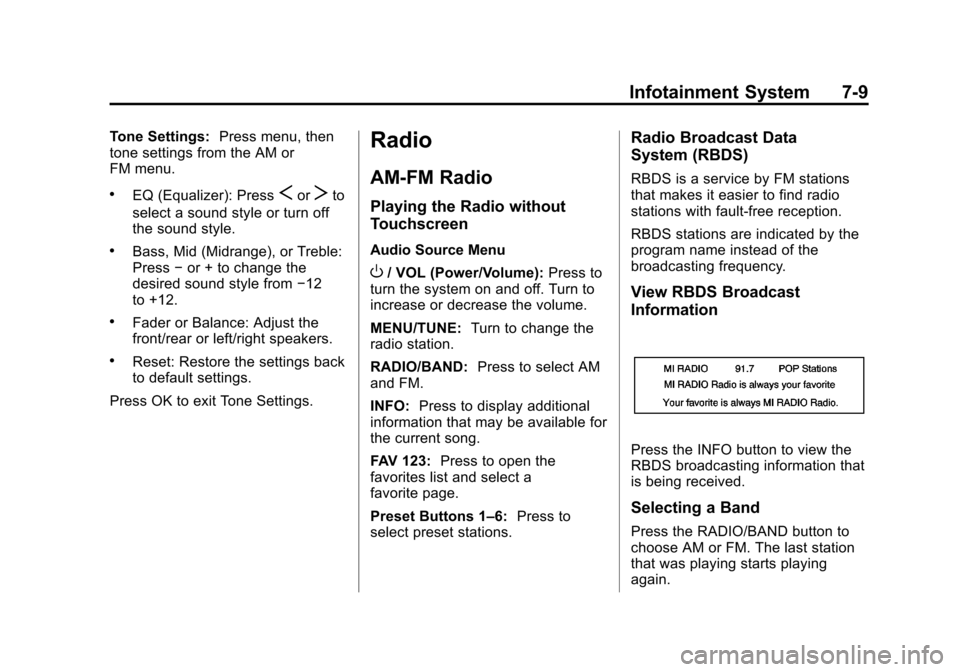
Information
Press the INFO button to view the
RBDS broadcasting information that
is being received.
Selecting a Band
Press the RADIO/BAND button to
choose AM or FM. The last station
that was playing starts playing
again.
Page 143 of 350

Black plate (13,1)Chevrolet Spark Owner Manual - 2013 - crc - 9/11/12
Infotainment System 7-13
Update Station List
.From the AM or FM menu, press
update AM or FM station list on
the screen. The broadcasting list
updating will begin.
.During the AM or FM
broadcasting list update, press
Cancel to stop the updates.
Storing a Station as a Favorite
Stations from all bands can be
stored in any order in the favorite
pages.
Up to five stations can be stored in
each of the seven favorites pages.Storing Stations
To store the station to a position in
the list, press the corresponding
button 1−5 until a beep is heard.
1. Select the desired station.
2. Press
SorTto select the
desired page of saved favorites.
3. Hold down any of the preset buttons to save the current radio
station to that button of the
selected favorites page.
To change a preset button, tune to
the new desired radio station and
hold the button.
Satellite Radio
Vehicles with a SiriusXM®Satellite
Radio tuner and a valid SiriusXM
Satellite subscription can receive
SiriusXM programming.
SiriusXM Satellite Radio
Service
SiriusXM is a satellite radio service
based in the 48 contiguous United
States and 10 Canadian provinces.
SiriusXM Satellite Radio has a wide
variety of programming and
commercial-free music, coast to
coast, and in digital-quality sound.
A service fee is required to receive
the SiriusXM service. For more
information, contact SiriusXM at
www.siriusxm.com or
1-866-635-2349 (U.S.), and
www.xmradio.ca or 1-877-209-0079
(Canada).
Listening to SiriusXM Radio
1. PressD.
2. Press
eaudio.
Page 146 of 350

Black plate (16,1)Chevrolet Spark Owner Manual - 2013 - crc - 9/11/12
7-16 Infotainment System
AM
The range for most AM stations is
greater than for FM, especially at
night. The longer range can cause
station frequencies to interfere with
each other. Static can occur when
things like storms and power lines
interfere with radio reception. When
this happens, try reducing the treble
on the radio.
SiriusXM®Satellite Radio
Service
SiriusXM Satellite Radio Service
gives digital radio reception from
coast to coast in the 48 contiguous
United States, and in Canada. Just
as with FM, tall buildings or hills can
interfere with satellite radio signals,
causing the sound to fade in and
out. In addition, traveling or standing
under heavy foliage, bridges,
garages, or tunnels may cause loss
of the SiriusXM signal for a period
of time.
Cellular Phone Usage
Cellular phone usage can cause
interference with the vehicle's radio.
Multi-Band Antenna
The multi-band antenna is on the
roof of the vehicle. The antenna is
used for the AM-FM radio, OnStar,
the SiriusXM Satellite Radio Service
System, and GPS (Global
Positioning System), if the vehicle
has these features. Keep the
antenna clear of obstructions for
clear reception.
Audio Players
USB Port
Using the USB Port
The infotainment system can play
music or movies by connecting an
auxiliary device to the USB port,
if equipped.
USB Support
The USB connector is in the center
stack, and uses the USB 2.0
standard.
USB Supported Devices
.USB Flash Drives
.Portable USB Hard Drives
.2G–5G iPod nano®
.1G–3G iPod touch®
.120GB/160GB iPod classic®
.3G/3GS/4/4S iPhone®
Not all iPods and USB drives are
compatible with the USB port.
Page 149 of 350

Black plate (19,1)Chevrolet Spark Owner Manual - 2013 - crc - 9/11/12
Infotainment System 7-19
Using the AUX Movie Menu
1. Press MENU from the AUXmovie screen. The AUX menu is
displayed. 2. Press the desired menu.
.tone settings: Adjust the
sound setup. See
“Tone
Settings” under“Radio
Controls with Touchscreen”
in Operation on page 7‑6.
.clock/temp display: To
display the clock and
temperature on the full
screen, select On or Off.
.display settings: Adjust the
brightness and contrast of
the screen.
3. Press
4.
Navigation
OnStar®System
If equipped, this vehicle has a
comprehensive, in-vehicle system
that can connect to a live Advisor
for Emergency, Security, Navigation,
Connection, and Diagnostic
Services.
For safety, some features are
disabled while the vehicle is in
motion.
Control Panel Overview
OnStar Light
The OnStar system status light is
next to the OnStar buttons. If the
status light is:
.Solid Green: System is ready.
.Flashing Green: On a call.
.Red: Indicates a problem.
Page 150 of 350

Black plate (20,1)Chevrolet Spark Owner Manual - 2013 - crc - 9/11/12
7-20 Infotainment System
OnStar Buttons
X:Press to speak to an Advisor.
.Make a call, end a call,
or answer an incoming call.
.Give OnStar Hands-Free Calling
voice commands.
.Give OnStar Turn-by-Turn
Navigation voice commands.
Requires the available Directions
and Connections service plan.
Q: Press to connect to an
Advisor.
.Verify account information or
update contact information.
.Get driving directions. Requires
the available Directions and
Connections service plan.
.Receive On-Demand
Diagnostics for a check on the
vehicle’s key operating systems.
.Receive Roadside Assistance.
]: Press to connect to an
Emergency Advisor. Hands-Free Calling
Press
Xto make a call, end a call,
and answer an incoming call.
Press
Xto give OnStar Hands-Free
Calling voice commands.
Press
Xto give OnStar
Turn-by-Turn Navigation voice
commands for automated directions.
.Press1to hide the
Turn-by-Turn Navigation screen.
When the route is changed, the
Turn-by-Turn Navigation screen
is displayed. The Turn-by-Turn
Navigation screen is only
displayed on the AM/FM/XM
radio mode and AUX/USB/
iPod mode.
.Press$to mute the
Turn-by-Turn Navigation voice
guidance.
.Pressqto move to the
navigation settings menu.
‐ Press update route to update
the route, then press Yes.
Press Cancel route to cancel it
or No to not update the route.
‐ Press cancel route to cancel
the route, then press Yes. The
navigation settings menu
disappears and the
Turn-by-Turn Navigation voice
guidance is shut down.
‐ Press my destination to check
the destination. The
destination name and
remaining distance to
destination are displayed on
the screen for about
five seconds. Then the current
Turn-by-Turn Navigation
information is displayed.
Page 151 of 350

Black plate (21,1)Chevrolet Spark Owner Manual - 2013 - crc - 9/11/12
Infotainment System 7-21
‐Press route preview to preview
the route. The distance
information among turns from
current position to destination
can be checked. Check the
distance information by
pressing
QorR. If there is no
operation for about
five seconds, the current
Turn-by-Turn Navigation
information is displayed.
‐ Press repeat to repeat the
Turn-by-Turn Navigation voice
guidance.
‐ While the route is calculating,
the Cancel route menu is only
activated.
Blue OnStar
Press
Qto be connected to a
specially trained OnStar Advisor
who can verify account information
and answer questions about the
system. Emergency
With Automatic Crash Response,
the built-in system can automatically
connect to help in a crash even if
you cannot ask for it.
Press
]to connect to an
Emergency Advisor. GPS
technology is used to identify the
vehicle location and can provide
critical information to emergency
personnel. The Advisor is also
trained to offer critical assistance in
emergency situations.
OnStar SMS
When the Short Message Service
(SMS) is received by the vehicle, a
pop-up screen with the message is
displayed.
OnStar Welcome
When the user joins and operates
the OnStar service for the first time,
the pop-up screen “Get OnStar
started now please push the blue
button” is displayed.
Phone
Bluetooth (Overview)
For vehicles equipped with
Bluetooth®capability, the system
can interact with many Bluetooth
phones, PDAs, or other devices to:
.Place and receive hands-free
calls.
.Transmit hands-free data.
.Play audio streaming files.
The device most be paired first. See
“Pairing” under Bluetooth
(Infotainment Controls) Bluetooth
(Overview) on page 7‑21 or
Bluetooth (Infotainment Controls) on
page 7‑23.
To minimize driver distraction,
before driving, and with the vehicle
parked:
.Become familiar with the
features of the cell phone.
Organize the phone book and
contact lists clearly and delete
Page 161 of 350

Black plate (31,1)Chevrolet Spark Owner Manual - 2013 - crc - 9/11/12
Infotainment System 7-31
Making a Call with Speed Dial
Numbers
Press and hold the speed dial
number using the keypad on the
telephone screen.
Only speed dial numbers already
stored on the cell phone can be
used for speed dial calls. Up to
two-digit speed dial numbers are
supported.
For two-digit speed dial numbers,
press and hold the second digit to
make a call to the speed dial
number.Downloadable
Applications
Smartphone Link
(Overview)
Before Using Smartphone Link
If equipped, the vehicle can connect
to Pandora
®and Stitcher
SmartRadio™ through the
infotainment system. The
applications must be downloaded to
the device first.
Pandora is a free Internet radio
service that streams personalized
radio stations based on artists,
songs, genres, and comedians.
Create stations using the Pandora
website or smartphone application,
then use
-(thumbs up) or,
(thumbs down) to personalize
stations. To set up an account, or for
more information, go to
www.pandora.com. Pandora may
not be available in Canada or
Mexico. Stitcher SmartRadio is an Internet
radio service that streams news,
sports, and entertainment shows
through the audio system. Create
personalized, on-demand stations or
discover new shows through
Stitcher's preset stations. To set up
an account, download the
application from the Android Market
or iTunes Store, or go to
www.stitcher.com.
A phone or tablet with Internet
connection and the Pandora and/or
Stitcher application installed is
required. Personal cell phone data
plans are used. Make sure the latest
version is installed on the device
and the volume is turned up.
Supported Smartphone
Applications
Pandora.iPod®/iPhone®, through the USB
connection.
.Android™ phone, through
Bluetooth®wireless.