2013 CHEVROLET SONIC auxiliary
[x] Cancel search: auxiliaryPage 9 of 382

Black plate (3,1)Chevrolet Sonic Owner Manual - 2013 - 2nd PrintReady - 10/18/12
In Brief 1-3
1.Air Vents on page 8‑3.
2. Exterior Lamp Controls on
page 6‑1.
3. Instrument Panel Illumination
Control on page 6‑5.
4. Turn and Lane-Change Lever. See Turn and Lane-Change
Signals on page 6‑4.
5. Instrument Cluster on page 5‑8.
6. Horn on page 5‑2.
7. Windshield Wiper/Washer on
page 5‑3.
8. Display Screen.
9. Infotainment on page 7‑1.
10. Instrument Panel Storage on
page 4‑1.
USB Port on page 7‑20 (Inside
IP Storage) (If Equipped).
Auxiliary Devices on page 7‑24
(Inside IP Storage)
(If Equipped).
11. Hood Release. See Hood on
page 10‑4. 12. Data Link Connector (DLC)
(Out of View). See Malfunction
Indicator Lamp on page 5‑12.
13. Cruise Control on page 9‑31.
14. Steering Wheel Adjustment on
page 5‑2.
15. Steering Wheel Controls on
page 5‑2.
16. Ignition Switch. See Ignition
Positions on page 9‑14.
17. Central Locking System on
page 2‑7.
18. Climate Control Systems on
page 8‑1.
19. Power Outlets on page 5‑6.
20. Safety Locks on page 2‑7.
21. Traction Control System (TCS)
on page 9‑28/StabiliTrak
®
System on page 9‑29.
22. Shift Lever. See Automatic
Transmission on page 9‑21
(If Equipped) or Manual
Transmission on page 9‑24
(If Equipped). 23.
Hazard Warning Flashers on
page 6‑3.
24. Passenger Sensing System on
page 3‑24.
Page 21 of 382

Black plate (15,1)Chevrolet Sonic Owner Manual - 2013 - 2nd PrintReady - 10/18/12
In Brief 1-15
Storing Stations
To store the station to a position in
the list, press the corresponding
button 1−5 until a beep is heard.
1. Select the desired station.
2. Press
SorTto select the
desired page of saved favorites.
3. Hold down any of the preset buttons to save the current radio
station to that button of the
selected favorites page.
To change a preset button, tune to
the new desired radio station and
hold the button.
See “Storing a Favorite Station”
under AM-FM Radio on page 7‑12.
Setting the Clock
SeeClock on page 5‑4.
Satellite Radio
SiriusXM®is a satellite radio service
based in the 48 contiguous United
States and 10 Canadian provinces.
SiriusXM satellite radio has a wide
variety of programming and
commercial-free music, coast to
coast, and in digital-quality sound.
A fee is required to receive the
SiriusXM service.
Refer to:
.www.siriusxm.com or call
1-866-635-2349 (U.S.).
.www.xmradio.ca or call
1-877-209-0079 (Canada)
See Satellite Radio on page 7‑16.
Portable Audio Devices
Some vehicles have a 3.5 mm
(1/8 in) auxiliary input and a USB
port in the storage area to the right
of the infotainment system. A second AUX input is on the front
of the infotainment system,
if equipped. External devices such
as iPods
®, laptop computers, MP3
players, CD changers, and USB
storage devices may be connected,
depending on the audio system.
See Auxiliary Devices on page 7‑24.
Bluetooth®
The Bluetooth®system allows users
with a Bluetooth-enabled mobile
phone to make and receive
hands-free calls using the vehicle
audio system and controls.
The Bluetooth-enabled mobile
phone must be paired with the
in-vehicle Bluetooth system before it
can be used in the vehicle. Not all
phones will support all functions.
See Bluetooth (Voice Recognition)
on page 7‑37 orBluetooth
(Overview) on page 7‑26 or
Bluetooth (Infotainment Controls) on
page 7‑28 andHands-Free Phone
on page 7‑42.
Page 93 of 382
Black plate (1,1)Chevrolet Sonic Owner Manual - 2013 - 2nd PrintReady - 10/11/12
Storage 4-1
Storage
Storage Compartments
Instrument Panel Storage . . . . . 4-1
Glove Box . . . . . . . . . . . . . . . . . . . . 4-1
Luggage/Load Locations
Load Compartment(Hatchback) . . . . . . . . . . . . . . . . . 4-1
Additional Storage Features
Cargo Cover (Hatchback) . . . . . 4-2
Storage
Compartments
Instrument Panel Storage
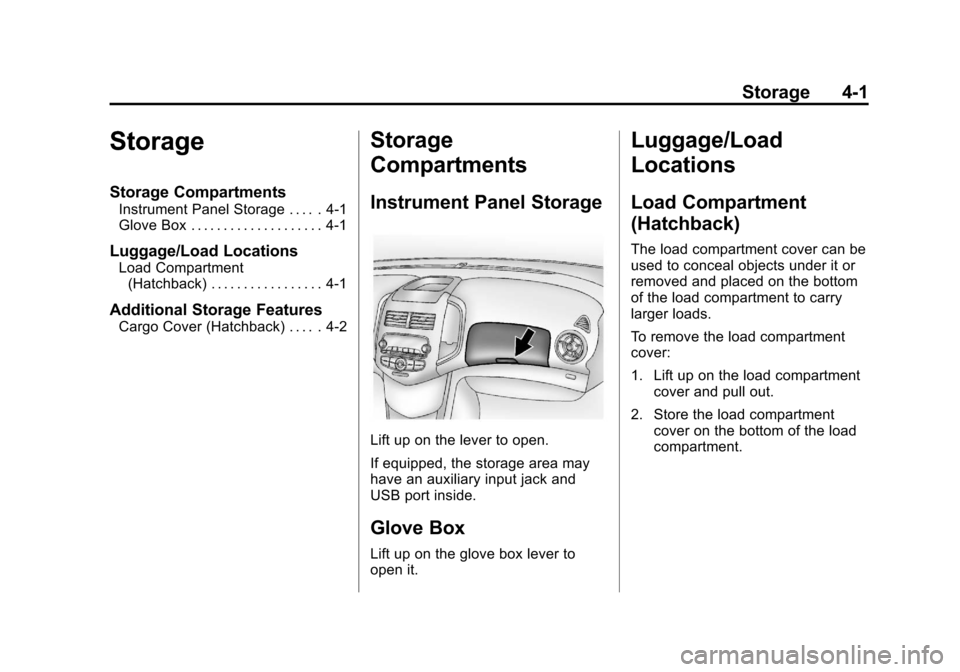
Lift up on the lever to open.
If equipped, the storage area may
have an auxiliary input jack and
USB port inside.
Glove Box
Lift up on the glove box lever to
open it.
Luggage/Load
Locations
Load Compartment
(Hatchback)
The load compartment cover can be
used to conceal objects under it or
removed and placed on the bottom
of the load compartment to carry
larger loads.
To remove the load compartment
cover:
1. Lift up on the load compartment
cover and pull out.
2. Store the load compartment cover on the bottom of the load
compartment.
Page 133 of 382
Black plate (1,1)Chevrolet Sonic Owner Manual - 2013 - 2nd PrintReady - 10/11/12
Infotainment System 7-1
Infotainment
System
Introduction
Infotainment . . . . . . . . . . . . . . . . . . . 7-1
Theft-Deterrent Feature . . . . . . . 7-2
Overview (AM-FM Radio) . . . . . 7-3
Overview (Radio withCD/USB) . . . . . . . . . . . . . . . . . . . . 7-5
Overview (Radio with Touchscreen) . . . . . . . . . . . . . . . . 7-7
Home Page (Radio with Touchscreen) . . . . . . . . . . . . . . . . 7-7
Operation . . . . . . . . . . . . . . . . . . . . . 7-8
Radio
AM-FM Radio . . . . . . . . . . . . . . . . 7-12
Satellite Radio . . . . . . . . . . . . . . . 7-16
Radio Reception . . . . . . . . . . . . . 7-17
Satellite Radio Antenna . . . . . . 7-18
Multi-Band Antenna . . . . . . . . . . 7-18
Audio Players
CD Player . . . . . . . . . . . . . . . . . . . 7-18
USB Port . . . . . . . . . . . . . . . . . . . . 7-20
Auxiliary Devices . . . . . . . . . . . . 7-24
Bluetooth Audio . . . . . . . . . . . . . . 7-25
Phone
Bluetooth (Overview) . . . . . . . . 7-26
Bluetooth (Infotainment Controls) . . . . . . . . . . . . . . . . . . . 7-28
Bluetooth (Voice Recognition) . . . . . . . . . . . . . . . 7-37
Hands-Free Phone . . . . . . . . . . 7-42
Downloadable Applications
Smartphone Link (Overview) . . . . . . . . . . . . . . . . . 7-45
Smartphone Link (Pandora) . . . . . . . . . . . . . . . . . . 7-47
Smartphone Link (Stitcher) . . . . . . . . . . . . . . . . . . . 7-48
Bluetooth Phone/Devices
Pictures and Movies (AudioSystem) . . . . . . . . . . . . . . . . . . . . 7-50
Pictures and Movies (Picture System) . . . . . . . . . . . . . . . . . . . . 7-55
Pictures and Movies (Movie System) . . . . . . . . . . . . . . . . . . . . 7-56
Trademarks and License
Agreements
Trademarks and LicenseAgreements . . . . . . . . . . . . . . . . 7-58
Introduction
Infotainment
Determine which radio the vehicle
has and read the following pages to
become familiar with its features.
{WARNING
Taking your eyes off the road for
extended periods could cause a
crash resulting in injury or death
to you or others. Do not give
extended attention to infotainment
tasks while driving.
This system provides access to
many audio and non-audio listings.
To minimize taking your eyes off the
road while driving, do the following
while the vehicle is parked:
.Become familiar with the
operation and controls of the
audio system.
Page 139 of 382

Black plate (7,1)Chevrolet Sonic Owner Manual - 2013 - 2nd PrintReady - 10/11/12
Infotainment System 7-7
Overview (Radio with Touchscreen)
1.zVOLy(Volume)
.Press to decrease or
increase the volume.
2.
O(Power)
.Press and hold to turn the
power on or off. 3.
D(Home Page)
.Press to go to the Home
Page. See
Home Page
(Radio with Touchscreen)
on page 7‑7.
Home Page (Radio with
Touchscreen)
Touchscreen Buttons
Touchscreen buttons show on the
screen when available. When a
function is unavailable, the button
may gray out. When a function is
selected, the button may highlight.
Home Page Features
PressFto go to the Home Page.
eaudio: Press to select AM, FM,
SiriusXM (if equipped), USB/iPod/
Bluetooth Audio, or AUX.
Gpicture & movie: Press to view
a picture, movie, or auxiliary video.
Page 146 of 382

Black plate (14,1)Chevrolet Sonic Owner Manual - 2013 - 2nd PrintReady - 10/11/12
7-14 Infotainment System
O(Power):Press and hold to turn
the system on and off.
D(Home Page): Press to enter
the Home Page.
RDS (Radio Data System)
The radio may have RDS. The RDS
feature is available for use only on
FM stations that broadcast RDS
information. This feature only works
when the information from the radio
station is available. In rare cases, a
radio station could broadcast
incorrect information that causes the
radio features to work improperly.
If this happens, contact the radio
station.
While the radio is tuned to an
FM-RDS station, the station name
or call letters display.
Selecting a Band
PressD, audio, then SourceRto
choose AM, FM, or SiriusXM®,
if equipped. The last station that
was playing starts playing again.
Selecting an Auxiliary Device
Connect the auxiliary device to the
AUX input terminal. Play will begin
when the system has finished
reading the information on the
device.
If the storage device is already
connected, press
D, audio, Source
R, select AUX from the drop
down menu.
Selecting a Station
Seek Tuning
If the radio station is not known:
Press
gSEEKlto automatically
search for available radio stations. Hold and drag to the left or right of
the radio station to automatically
search for available radio stations.
Manual Tuning
Continue pressing
qTUNErto
manually change the radio station.
Favorite List
.From the AM or FM menu, press
favorite list on the screen.
.PressQorRto scroll through
the list. Press on the station to
select it.
Page 152 of 382
Black plate (20,1)Chevrolet Sonic Owner Manual - 2013 - 2nd PrintReady - 10/11/12
7-20 Infotainment System
Playing Tracks in Random Order
Turn the MENU/TUNE knob and set
Shuffle Songs to On.
Fast Forward and Rewind
Press and hold SEEK
¨or©SEEK
to fast forward or rewind within the
current track.
Selecting an MP3 Track
Using the control buttons:
.Press SEEK¨or©SEEK to
select the next or previous track.
.Turn the MENU/TUNE knob.
Using the CD Menu:
1. Turn the MENU/TUNE knob.
2. Select Playlists/Folders.
3. Select the playlist or folder.
4. Select the track.
Searching for MP3 Tracks
The search feature may take some
time to display the information after
reading the disc due to the amount of information stored on the disc.
FM automatically plays while the
disc is being read.
Tracks can be searched by:
.Playlists
.Artists
.Albums
.Song Titles
.Genres
.Folder View
To search for tracks:
1. Turn the MENU/TUNE knob.
2. Select Search.
3. Select: Playlists, Artists, Albums, Song Titles, Genres,
or Folder View.
4. Select the track.
USB Port
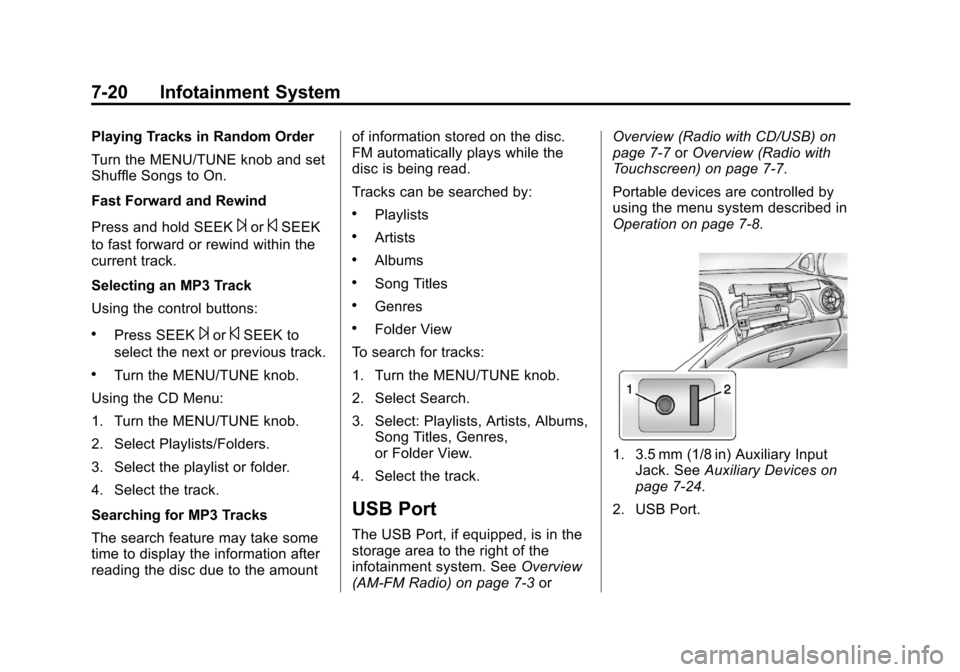
The USB Port, if equipped, is in the
storage area to the right of the
infotainment system. See Overview
(AM-FM Radio) on page 7‑3 orOverview (Radio with CD/USB) on
page 7‑7
orOverview (Radio with
Touchscreen) on page 7‑7.
Portable devices are controlled by
using the menu system described in
Operation on page 7‑8.
1. 3.5 mm (1/8 in) Auxiliary Input Jack. See Auxiliary Devices on
page 7‑24.
2. USB Port.
Page 155 of 382
Black plate (23,1)Chevrolet Sonic Owner Manual - 2013 - 2nd PrintReady - 10/11/12
Infotainment System 7-23
Shuffle Functionality
Turn the MENU/TUNE knob and set
Shuffle Songs (Random) to On
or Off.
On:Plays current tracks in random
order.
Off: Plays current tracks in
sequential order.
Repeat Functionality
Turn the MENU/TUNE knob and set
Repeat to On or Off.
Repeat On: Repeats the current
track.
Repeat Off: Playback starts from
the beginning of the current track
after the last track finishes.
Radio With Touchscreen
The infotainment system can play
music or movies by connecting an
auxiliary device to the USB port,
if equipped. USB Support
USB Supported Devices
.USB Flash Drives
.Portable USB Hard Drives
.2G-5G iPod nano®
.1G-3G iPod touch®
.120GB/160GB iPod classic®
.3G/3GS/4/4S iPhone®
Not all iPods and USB drives are
compatible with the USB port.
Make sure the iPod has the latest
firmware from Apple
®for proper
operation. iPod firmware can be
updated using the latest iTunes
®
application. See www.apple.com/
itunes.
For help with identifying your iPod,
go to www.apple.com/support.
The USB port can play both lower
and upper case .mp3, .wma, .ogg,
and .wav files stored on a USB
storage device. USB Supported File and Folder
Structure
The Infotainment system supports:
.Up to 2,500 folders.
.Up to 10 folders in depth.
.Up to 2,500 music files.
.Up to 2,500 photo files.
.Up to 250 movie files.
.ID3 Tag (versions 1.0/1.1/2.2/
2.3/2.4).
.FAT16.
.FAT32.
.exFAT.
Connecting a USB Storage
Device or iPod/iPhone
To connect a USB storage device,
connect the device to the USB port.
To connect an iPod/iPhone, connect
one end of the device’
s cable to the
iPod/iPhone and the other end to
the USB port.