2013 CHEVROLET SONIC automatic
[x] Cancel search: automaticPage 140 of 382
Black plate (8,1)Chevrolet Sonic Owner Manual - 2013 - 2nd PrintReady - 10/11/12
7-8 Infotainment System
7telephone:Press to activate
the phone features (if equipped).
See Bluetooth (Voice Recognition)
on page 7‑37 orBluetooth
(Overview) on page 7‑26 or
Bluetooth (Infotainment Controls) on
page 7‑28.
^smartphone link: Press to listen
to Pandora or Stitcher. See
Smartphone Link (Overview) on
page 7‑45 orSmartphone Link
(Pandora) on page 7‑47 or
Smartphone Link (Stitcher) on
page 7‑48.
8settings: Press to access the
Personalization menu. See Vehicle
Personalization on page 5‑26.
Operation
Radio Controls Without
Touchscreen
The infotainment system is operated
by using the pushbuttons,
multifunction knobs, menus shown
on the display, and steering wheel
controls, if equipped.
Turning the System On or Off
O/VOL (Power/Volume): Press to
turn the system on and off.
Automatic Switch-Off
If the infotainment system is on after
the ignition is turned off, the system
will turn off automatically after
10 minutes.
Volume Control
O/VOL (Power/Volume): Turn to
adjust the volume.
5/>(Phone/Mute): For vehicles
with OnStar, press and hold
5/>
to mute the infotainment system.
Press and hold
5/>again, or turn
the
O/VOL knob to cancel mute.
For vehicles without OnStar, press
5/>to mute the infotainment
system. Press
5/>again, or turn
the
O/VOL knob to cancel mute.
Menu System
Controls
The MENU/TUNE knob, MENU/
TUNE button, and
/BACK button
are used to navigate the menu
system.
MENU/TUNE Knob:
Turn to:
.Enter the menu system.
.Highlight a menu option.
.Select a value.
MENU/TUNE Button:
Press to:
.Select or activate the highlighted
menu option.
.Confirm a set value.
.Turn a system setting on or off.
/BACK:
Press to:
.Exit a menu.
Page 142 of 382
Black plate (10,1)Chevrolet Sonic Owner Manual - 2013 - 2nd PrintReady - 10/11/12
7-10 Infotainment System
1. Press the TONE button.
2. Select Treble, Midrange,or Bass.
3. Turn the MENU/TUNE knob to select the value between
-12 and +12.
Press the
/BACK button to go
back to the Tone Settings menu.
Adjusting the Fader and Balance
1. Press the TONE button.
2. Select Fader or Balance.
3. Turn the MENU/TUNE knob to select the value between
-15 and +15.
Press the
/BACK button to go
back to the Tone Settings menu.
Adjusting the EQ (Equalizer)
For vehicles with an equalizer:
1. Press the TONE button.
2. Select EQ.
3. Select the setting for Pop, Rock, Classical, Talk, or Country. Press the
/BACK button to go
back to the Tone Settings menu.
System Settings
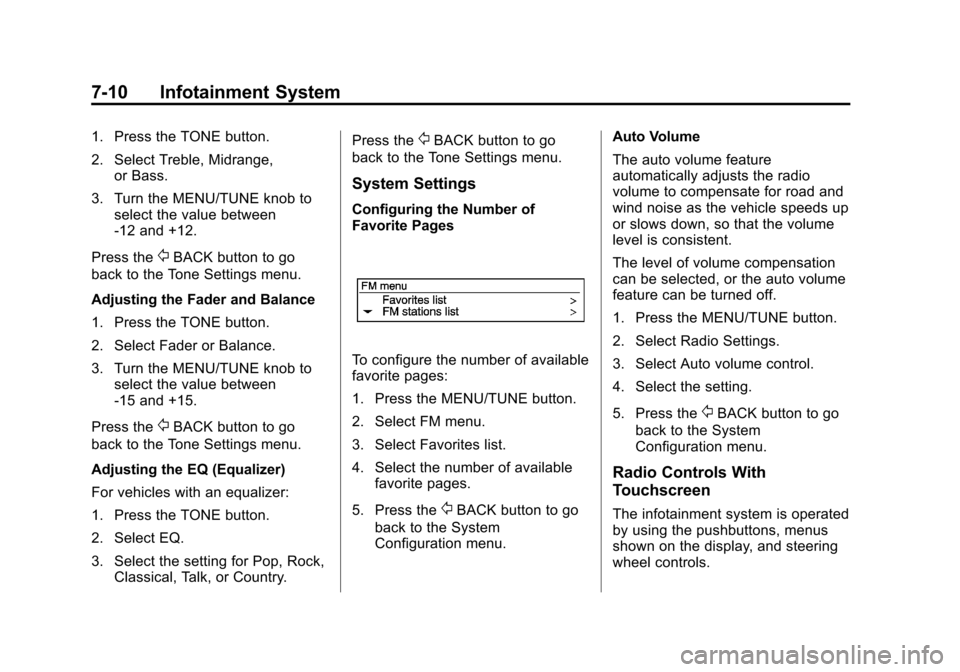
Configuring the Number of
Favorite Pages
To configure the number of available
favorite pages:
1. Press the MENU/TUNE button.
2. Select FM menu.
3. Select Favorites list.
4. Select the number of available favorite pages.
5. Press the
/BACK button to go
back to the System
Configuration menu. Auto Volume
The auto volume feature
automatically adjusts the radio
volume to compensate for road and
wind noise as the vehicle speeds up
or slows down, so that the volume
level is consistent.
The level of volume compensation
can be selected, or the auto volume
feature can be turned off.
1. Press the MENU/TUNE button.
2. Select Radio Settings.
3. Select Auto volume control.
4. Select the setting.
5. Press the
/BACK button to go
back to the System
Configuration menu.
Radio Controls With
Touchscreen
The infotainment system is operated
by using the pushbuttons, menus
shown on the display, and steering
wheel controls.
Page 143 of 382
Black plate (11,1)Chevrolet Sonic Owner Manual - 2013 - 2nd PrintReady - 10/11/12
Infotainment System 7-11
Turning the System On or Off
O(Power):Press and hold to turn
the radio on and off.
Automatic Switch-Off
If the infotainment system has been
turned on after the ignition is turned
off, the system will turn off
automatically after 10 minutes.
Volume Control
zVOLy(Volume): Press to
increase or decrease the volume or
press the volume bar.
>(Mute): PresszVOLy, then
press
>to mute and unmute the
system.
System Settings
Auto Volume
This feature automatically adjusts
the radio volume to compensate for
road and wind noise.
The level of volume compensation
can be selected, or the feature can
be turned off. 1. Press
D.
2. Select Settings.
3. Select Radio Settings.
4. Select the setting by pressing
S
orT.
5. Press the
4.
Audio Settings
The audio settings can be set for
each radio band and each audio
player source.
Tone Settings: Press menu, then
tone settings from the AM or
FM menu.
.EQ (Equalizer): PressSorTto
select a sound style or turn off
the sound style.
.Bass, Mid (Midrange), or Treble:
Press −or + to change the
desired sound style from −12
to +12.
.Fader or Balance: Adjust the
front/rear or left/right speakers.
.Reset: Restore the settings back
to default settings.
Press OK to exit Tone Settings.
Page 144 of 382
Black plate (12,1)Chevrolet Sonic Owner Manual - 2013 - 2nd PrintReady - 10/11/12
7-12 Infotainment System
Radio
AM-FM Radio
Radio Controls Without
Touchscreen
The buttons used to control the
radio are:
P/VOL:Press to turn the radio on
and off.
RADIO/BAND: Press to choose
between AM, FM, and SiriusXM
®,
if equipped.
MENU/TUNE Knob: Turn to
navigate the available menus. Turn
to search for stations.
INFO: Press to display additional
information that may be available for
the current song.
SEEK
¨: Press to search for the
next station.
©SEEK: Press to search for the
previous station. FAV 1-2-3:
Press to open the
favorites list and select the
favorites page.
1−6: Press to select preset
stations.
RDS (Radio Data System)
The radio may have RDS. The RDS
feature is available for use only on
FM stations that broadcast RDS
information. This feature only works
when the information from the radio
station is available. In rare cases, a
radio station could broadcast
incorrect information that causes the
radio features to work improperly.
If this happens, contact the radio
station.
While the radio is tuned to an
FM-RDS station, the station name
or call letters display.
Radio Menus
Radio menus are available for AM
and FM.
Turn the MENU/TUNE knob to open
the main radio menu for that band.
Selecting a Band
Press the RADIO/BAND button to
choose AM, FM, or SiriusXM,
if equipped. The last station that
was playing starts playing again.
Selecting a Station
Seek Tuning
If the radio station is not known:
Briefly press SEEK
¨or©SEEK to
automatically search for the next
available station. If a station is not
found, the radio switches to a more
sensitive search level. If a station
still is not found, the frequency that
was last active begins to play.
If the radio station is known:
Press and hold SEEK
¨or©SEEK
until the station on the display is
reached, then release the button.
Favorites List
1. Turn the MENU/TUNE knob.
2. Select Favorites List.
3. Select the station.
Page 145 of 382

Black plate (13,1)Chevrolet Sonic Owner Manual - 2013 - 2nd PrintReady - 10/11/12
Infotainment System 7-13
Station Lists
1. Turn the MENU/TUNE knob.
2. Select AM or FM Station List. Allreceivable stations in the current
reception area are displayed. If a
station list has not been created,
an automatic station search
is done.
3. The first station in the list will play.
Category Lists
Most stations that broadcast an
RDS program type code specify the
type of programming transmitted.
Some stations change the program
type code depending on the
content. The system stores the RDS
stations sorted by program type in
the FM category list.
To search for a programming type
determined by station:
1. Turn the MENU/TUNE knob.
2. Select FM category list. A list of all available programming types
displays. 3. Select the programming type.
A list of stations that transmit
programming of the selected
type displays.
4. Select the station. The category lists are updated
when the station lists are
updated.
Updating Station and Category
Lists
If stations stored in the station list
can no longer be received:
1. Turn the MENU/TUNE knob.
2. Select Update AM or FM Station List, if the stations stored in the
station list are no longer
received. A station search will be
completed and the first station in
the updated list will play.
To cancel the station search, press
the MENU/TUNE button.Storing a Station as a Favorite
Stations from all bands can be
stored in any order in the favorite
pages.
Up to six stations can be stored in
each favorite page and the number
of available favorite pages can
be set.
Storing Stations
To store the station to a position in
the list, press the corresponding
button 1 to 6 until a beep is heard.
Retrieving Stations
Press the FAV 1-2-3 button to open
a favorite page or to switch to
another favorite page. Briefly press
one of the 1 to 6 buttons to retrieve
the station.
Radio Controls With
Touchscreen
Audio Source Menu
zVOLy(Volume): Press to
increase or decrease the volume.
Page 146 of 382

Black plate (14,1)Chevrolet Sonic Owner Manual - 2013 - 2nd PrintReady - 10/11/12
7-14 Infotainment System
O(Power):Press and hold to turn
the system on and off.
D(Home Page): Press to enter
the Home Page.
RDS (Radio Data System)
The radio may have RDS. The RDS
feature is available for use only on
FM stations that broadcast RDS
information. This feature only works
when the information from the radio
station is available. In rare cases, a
radio station could broadcast
incorrect information that causes the
radio features to work improperly.
If this happens, contact the radio
station.
While the radio is tuned to an
FM-RDS station, the station name
or call letters display.
Selecting a Band
PressD, audio, then SourceRto
choose AM, FM, or SiriusXM®,
if equipped. The last station that
was playing starts playing again.
Selecting an Auxiliary Device
Connect the auxiliary device to the
AUX input terminal. Play will begin
when the system has finished
reading the information on the
device.
If the storage device is already
connected, press
D, audio, Source
R, select AUX from the drop
down menu.
Selecting a Station
Seek Tuning
If the radio station is not known:
Press
gSEEKlto automatically
search for available radio stations. Hold and drag to the left or right of
the radio station to automatically
search for available radio stations.
Manual Tuning
Continue pressing
qTUNErto
manually change the radio station.
Favorite List
.From the AM or FM menu, press
favorite list on the screen.
.PressQorRto scroll through
the list. Press on the station to
select it.
Page 149 of 382

Black plate (17,1)Chevrolet Sonic Owner Manual - 2013 - 2nd PrintReady - 10/11/12
Infotainment System 7-17
programming favorites for the
chosen number of numbered
pages.
SiriusXM Radio Messages
UPDATING:The encryption code
in the receiver is being updated, and
no action is required. This process
should take no longer than
30 seconds.
NO SIGNAL: The system is
functioning correctly, but the vehicle
is in a location that is blocking the
SiriusXM signal. When the vehicle is
moved into an open area, the signal
should return.
LOADING: The audio system is
acquiring and processing audio and
text data. No action is needed. This
message should disappear shortly.
OFF AIR: This channel is not
currently in service. Tune in to
another channel.
CH UNAVAILABLE: This
previously assigned channel is no
longer assigned. Tune to another station. If this station was one of the
presets, choose another station for
that preset button.
RADIO ID:
If tuned to channel 0,
this message alternates with the
SiriusXM Radio eight-digit radio ID
label. This label is needed to
activate the service.
CHECK XM TUNER: If this
message does not clear within a
short period of time, the receiver
could have a fault. Consult with your
dealer.
Radio Reception
Frequency interference and static
can occur during normal radio
reception if items such as cell phone
chargers, vehicle convenience
accessories, and external electronic
devices are plugged into the
accessory power outlet. If there is
interference or static, unplug the
item from the accessory power
outlet.
AM
The range for most AM stations is
greater than for FM, especially at
night. The longer range can cause
station frequencies to interfere with
each other. For better radio
reception, most AM radio stations
boost the power levels during the
day, and then reduce these levels
during the night. Static can also
occur when things like storms and
power lines interfere with radio
reception. When this happens, try
reducing the treble on the radio.
FM Stereo
FM signals only reach about 16 to
65 km (10 to 40 mi). Although the
radio has a built-in electronic circuit
that automatically works to reduce
interference, some static can occur,
especially around tall buildings or
hills, causing the sound to fade in
and out.
Page 152 of 382
Black plate (20,1)Chevrolet Sonic Owner Manual - 2013 - 2nd PrintReady - 10/11/12
7-20 Infotainment System
Playing Tracks in Random Order
Turn the MENU/TUNE knob and set
Shuffle Songs to On.
Fast Forward and Rewind
Press and hold SEEK
¨or©SEEK
to fast forward or rewind within the
current track.
Selecting an MP3 Track
Using the control buttons:
.Press SEEK¨or©SEEK to
select the next or previous track.
.Turn the MENU/TUNE knob.
Using the CD Menu:
1. Turn the MENU/TUNE knob.
2. Select Playlists/Folders.
3. Select the playlist or folder.
4. Select the track.
Searching for MP3 Tracks
The search feature may take some
time to display the information after
reading the disc due to the amount of information stored on the disc.
FM automatically plays while the
disc is being read.
Tracks can be searched by:
.Playlists
.Artists
.Albums
.Song Titles
.Genres
.Folder View
To search for tracks:
1. Turn the MENU/TUNE knob.
2. Select Search.
3. Select: Playlists, Artists, Albums, Song Titles, Genres,
or Folder View.
4. Select the track.
USB Port
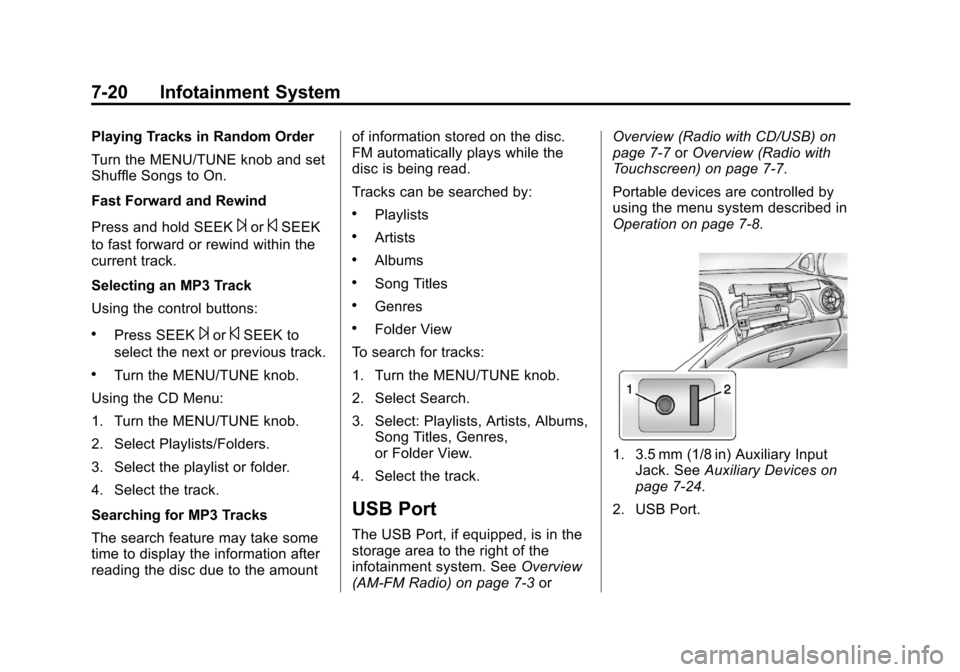
The USB Port, if equipped, is in the
storage area to the right of the
infotainment system. See Overview
(AM-FM Radio) on page 7‑3 orOverview (Radio with CD/USB) on
page 7‑7
orOverview (Radio with
Touchscreen) on page 7‑7.
Portable devices are controlled by
using the menu system described in
Operation on page 7‑8.
1. 3.5 mm (1/8 in) Auxiliary Input Jack. See Auxiliary Devices on
page 7‑24.
2. USB Port.