2013 CHEVROLET CAMARO light
[x] Cancel search: lightPage 163 of 404
Black plate (5,1)Chevrolet Camaro Owner Manual (Include Mex) - 2012
Infotainment System 7-5
MENU/SELECT:Press to:
.Enter the menu system.
.Select or activate the highlighted
menu option.
.Confirm a set value.
.Switch a system setting on
or off.
Turn to:
.Highlight a menu option.
.Select a value.
/BACK: Press to:
.Exit a menu.
.Return from a submenu screen
to the previous menu screen.
.Delete the last character in a
sequence. Selecting a Menu Option
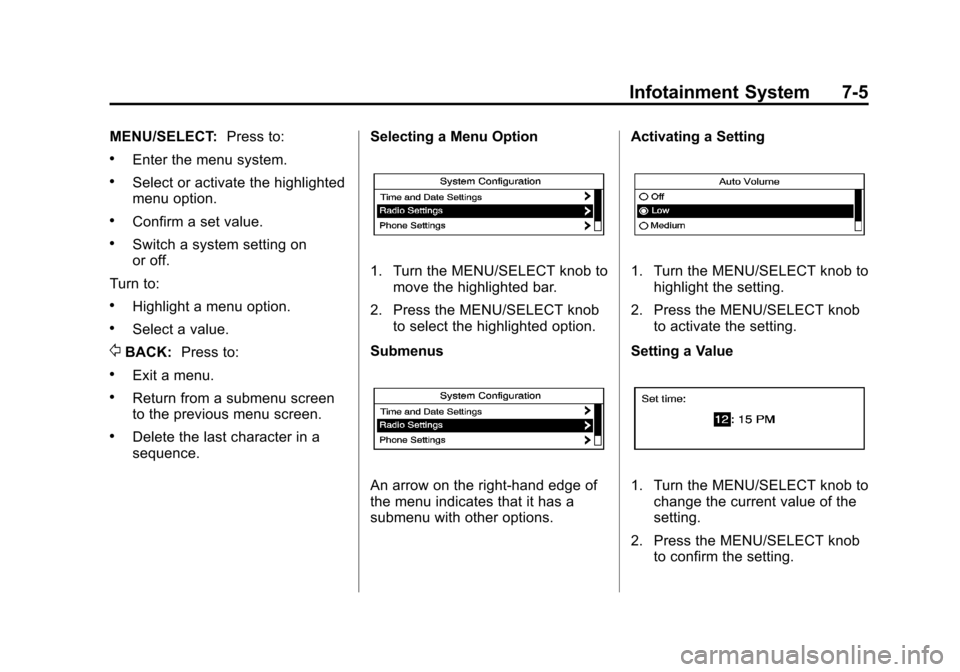
1. Turn the MENU/SELECT knob to
move the highlighted bar.
2. Press the MENU/SELECT knob to select the highlighted option.
Submenus
An arrow on the right‐hand edge of
the menu indicates that it has a
submenu with other options. Activating a Setting
1. Turn the MENU/SELECT knob to
highlight the setting.
2. Press the MENU/SELECT knob to activate the setting.
Setting a Value
1. Turn the MENU/SELECT knob to change the current value of the
setting.
2. Press the MENU/SELECT knob to confirm the setting.
Page 164 of 404

Black plate (6,1)Chevrolet Camaro Owner Manual (Include Mex) - 2012
7-6 Infotainment System
Turning a Function On or Off
1. Turn the MENU/SELECT knob tohighlight the function.
2. Press the MENU/SELECT knob to turn the function on or off.
Entering a Character Sequence
1. Turn the MENU/SELECT knob to highlight the character.
2. Press the MENU/SELECT knob to select the character. Press the
/BACK button to delete
the last character or press and hold
/BACK to delete the entire
character sequence.
Audio Settings
The audio settings can be set for
each radio band and each audio
player source.
To adjust the audio setting, press
the TONE button and select the
audio setting. Press the
/BACK
button to go back to the Tone
Settings menu.
To quickly reset an audio setting
value to 0:
1. Highlight the option.
2. Press and hold the MENU/ SELECT knob until the value
changes to 0. Adjusting the Treble, Midrange,
and Bass
1. Select Treble, Midrange,
or Bass.
2. Select the value.
Adjusting the Fader and Balance
1. Select Fader or Balance.
2. Select the value.
Page 168 of 404

Black plate (10,1)Chevrolet Camaro Owner Manual (Include Mex) - 2012
7-10 Infotainment System
trial or when you subscribe, you will
get unlimited access to XM Radio
Online for when you are not in the
vehicle. A service fee is required to
receive the XM service. If XM
service needs to be reactivated, the
radio will display "No Subscription
Please Renew" on channel XM1.
For more information, contact XM at
www.xmradio.com or call
1-800-929-2100 in the U.S. and
www.xmradio.ca or call
1-877-438-9677 in Canada.
Control Buttons
The buttons used to control the XM
radio are:
RADIO/BAND:Press to turn the
radio on and choose between AM,
FM, and XM.
7SEEK /6SEEK: Press to
search for stations.
FAV: Press to open the
favorites list.
1‐6: Press to select preset stations. MENU/SELECT:
Turn to search for
stations.
Selecting the XM Band
Press the RADIO/BAND button to
choose between the AM, FM, and
XM bands. The last station played in
that band begins to play when that
band is selected.
XM Categories
XM stations are organized in
categories.
Removing or Adding Categories
1. Press the CONFIG button.
2. Select XM Categories.
3. Turn the MENU/SELECT knob to
highlight the category.
4. Press the MENU/SELECT knob to remove or add the category.
Selecting an XM Station
XM stations can be selected by
using
7SEEK,6SEEK, the
MENU/SELECT knob, or the menu
system. To select an XM station using
7
SEEK or6SEEK, do one of the
following:
.Press and release7SEEK or
6SEEK to go to the previous or
next station.
.Press and hold7SEEK or6
SEEK to scroll through the
previous or next stations until
the station is reached.
To select an XM station using the
MENU/SELECT knob:
1. Turn the MENU/SELECT knob to highlight an XM station.
2. Press the MENU/SELECT knob to select the station, or leave the
station highlighted.
To select a station using the menu:
1. Press the MENU/SELECT knob.
2. Select XM Stations List.
3. Select the station.
Page 171 of 404
Black plate (13,1)Chevrolet Camaro Owner Manual (Include Mex) - 2012
Infotainment System 7-13
Cellular Phone Usage
Cellular phone usage may cause
interference with the vehicle's radio.
This interference may occur when
making or receiving phone calls,
charging the phone's battery,
or simply having the phone on. This
interference can cause an increased
level of static while listening to the
radio. If static is received while
listening to the radio, unplug the
cellular phone and turn it off.
Fixed Mast Antenna
The fixed mast antenna can
withstand most car washes without
being damaged as long as it is
securely attached to the base. If
the mast becomes slightly bent,
straighten it out by hand. If the
mast is badly bent, replace it.
Occasionally check to make sure
the antenna is tightened to its base.
If tightening is required, tighten by
hand until fully seated plus
one quarter turn.
Backglass Antenna
The AM-FM antenna is integrated
with the rear window defogger,
located in the rear window. Make
sure that the inside surface of the
rear window is not scratched and
that the lines on the glass are not
damaged. If the inside surface is
damaged, it could interfere with
radio reception. For proper radio
reception, the antenna connector
needs to be properly attached to
the post on the glass.
If a cellular telephone antenna
needs to be attached to the glass,
make sure that the grid lines for the
AM-FM antenna are not damaged.
There is enough space between
the grid lines to attach a cellular
telephone antenna without
interfering with radio reception.Notice:
Using a razor blade or
sharp object to clear the inside
rear window can damage the rear
window antenna and/or the rear
window defogger. Repairs would
not be covered by the vehicle
warranty. Do not clear the inside
rear window with sharp objects.
Notice: Do not apply aftermarket
glass tinting with metallic film.
The metallic film in some tinting
materials will interfere with or
distort the incoming radio
reception. Any damage caused to
your backglass antenna due to
metallic tinting materials will not
be covered by the vehicle
warranty.
Page 172 of 404

Black plate (14,1)Chevrolet Camaro Owner Manual (Include Mex) - 2012
7-14 Infotainment System
Diversity Antenna System
For vehicles with convertible tops,
the AM-FM antenna is a hidden
self‐tuning system and is located
in the rear spoiler. It optimizes the
AM and FM signals relative to the
vehicle's position and radio station
source. No maintenance or
adjustments are needed. Do not
place loads on the spoiler. If the
spoiler is replaced, be sure it is
replaced with the correct GM parts
for the best AM and FM reception.
Satellite Radio Antenna
For vehicles with XM Satellite Radio
Service, the antenna is located on
the decklid of the vehicle. Keep the
antenna clear of obstructions for
clear radio reception.
Audio Players
CD Player
The CD player can play audio CDs
and MP3 CDs.
The CD player will not play 8 cm
(3 in) CDs.
Care of CDs
Sound quality can be reduced due
to disc quality, recording method,
quality of the music recorded, and
how the disc has been handled.
Handle discs carefully and store
them in their original cases or other
protective cases away from direct
sunlight and dust. If the bottom
surface of a disc is damaged, the
disc may not play properly or at all.
Do not touch the bottom surface of
a disc while handling it; this could
damage the surface. Pick up discs
by grasping the outer edges or the
edge of the hole and the outer edge.
If the bottom surface of a disc is
dirty, take a soft lint‐free cloth,
or dampen a clean soft cloth in amild neutral detergent solution
mixed with water, and clean it. Wipe
the disc from the center to the
outer edge.
Care of the CD Player
Do not add a label to a disc, as it
could get caught in the CD player.
If a label is needed, label the top of
the recorded disc with a
marking pen.
Do not use disc lens cleaners
because they could contaminate the
lens of the disc optics and damage
the CD player.
Notice:
If a label is added to a
CD, more than one CD is inserted
into the slot at a time, or an
attempt is made to play scratched
or damaged CDs, the CD player
could be damaged. While using
the CD player, use only CDs in
good condition without any label,
load one CD at a time, and keep
the CD player and the loading slot
free of foreign materials, liquids,
and debris.
Page 182 of 404

Black plate (24,1)Chevrolet Camaro Owner Manual (Include Mex) - 2012
7-24 Infotainment System
3. Select Bluetooth.
4. Select Pair Device (Phone).A four‐digit Personal
Identification Number (PIN)
appears on the display. THe PIN
is used in Step 6.
5. Start the pairing process on the cell phone to be paired to the
vehicle. See the cell phone
manufacturer's user guide for
information on this process.
6. Locate the device named “Your
Vehicle” in the list on the cell
phone. Follow the instructions
on the cell phone to enter the
PIN provided in Step 4. After the
PIN is successfully entered, the
system prompts you to provide a
name for the paired cell phone.
This name will be used to
indicate which phones are
paired and connected to the
vehicle. The system responds
with “
successfully paired” after the
pairing process is complete. 7. Repeat Steps 1 through 6 to pair
additional phones.
Listing All Paired and Connected
Phones
1. Press the CONFIG button.
2. Select Phone Settings or Bluetooth Settings.
3. Select Bluetooth.
4. Select Device List.
Deleting a Paired Phone
1. Press the CONFIG button.
2. Select Phone Settings or Bluetooth Settings.
3. Select Bluetooth.
4. Select Device List.
5. Select the phone to delete and follow the on screen prompts. Linking to a Different Phone
To link to a different phone, the new
phone must be in the vehicle and
available to be connected to the
Bluetooth system before the
process is started.
1. Press the CONFIG button.
2. Select Phone Settings or
Bluetooth Settings.
3. Select Bluetooth.
4. Select Device List.
5. Select the new phone to link to and follow the on screen
prompts.
If delete is selected, the
highlighted phone will be
deleted.
Making a Call Using
Phone Book
For cell phones that support the
phone book feature, the Bluetooth
system can use the contacts stored
on your cell phone to make calls.
See your cell phone's owner's guide
Page 192 of 404
Black plate (2,1)Chevrolet Camaro Owner Manual (Include Mex) - 2012
8-2 Climate Controls
#and the air conditioning system
is turned on and air is recirculated
inside the vehicle.
Air Delivery Mode Control: To
change the current mode, press one
of the following:
F (Vent): Air is directed to the
instrument panel outlets.
* (Bi-Level): Air is directed to the
instrument panel outlets and the
floor outlets.
7 (Floor): Air is directed to the
floor outlets.
W(Defog): Clears the windows of
fog or moisture. Air is directed to the
windshield and floor outlets.
0(Defrost): Clears the
windshield of fog or frost more
quickly. Air is directed to the
windshield and side window outlets.
For best results, clear all snow and
ice from the windshield before
defrosting.
Do not drive the vehicle until all
windows are clear.
Air Conditioning
#(Air Conditioning): Press to
turn the air conditioning on or off.
An indicator light turns on. If the
fan is turned off or the outside
temperature falls below freezing,
the air conditioning will not work.
The air conditioning might
automatically come on when
0is
selected.
)(Recirculation): Press to turn
on the recirculation. An indicator
light comes on. Air is recirculated
inside the vehicle. It helps to quickly
cool the air inside the vehicle or
prevent outside air and odors from
entering.
Operation in the recirculation mode
while the air conditioner is off
increases humidity and may cause
the windows to fog.
Recirculation is not available in the
defrost or defog modes.
To improve fuel efficiency and to
cool the vehicle faster, recirculation
may be automatically selected in warm weather. The recirculation
light will not come on. Press the
)
to select recirculation; press it again
to select outside air.
Rear Window Defogger
1(Rear Defogger):
Press to
turn the rear window defogger on
or off. The rear window defogger
turns off automatically after about
12 minutes. It can also be turned off
by turning the ignition to ACC/
ACCESSORY or LOCK/OFF.
If turned on again it runs for about
six minutes before turning off. At
higher vehicle speeds, the rear
defogger can stay on continuously.
Do not drive the vehicle until all
windows are clear.
Notice: Do not use a razor blade
or sharp object to clear the inside
rear window. Do not adhere
anything to the defogger grid
lines in the rear glass. These
actions may damage the rear
defogger. Repairs would not be
covered by your warranty.
Page 201 of 404

Black plate (7,1)Chevrolet Camaro Owner Manual (Include Mex) - 2012
Driving and Operating 9-7
If the vehicle is used for racing,
competitive driving, sustained high
speed, or events that generate
excessive wheel slip, the rear axle
fluid temperatures will be higher
than would occur in normal driving.
We recommend that the rear axle
fluid be drained and refilled with
new fluid after every six hours of
racing or competitive driving. See
Recommended Fluids and
Lubricants on page 11‑13for what
fluid to use.
Regularly inspect the driveshaft/
propshaft couplings and halfshaft
boots for cracking or grease
leakage. It is not recommended that
the vehicle be used for ongoing race
track/competitive driving.Driving on Wet Roads
Rain and wet roads can reduce
vehicle traction and affect your
ability to stop and accelerate.
Always drive slower in these types
of driving conditions and avoid
driving through large puddles and
deep‐standing or flowing water.
{WARNING
Wet brakes can cause crashes.
They might not work as well in a
quick stop and could cause
pulling to one side. You could
lose control of the vehicle.
After driving through a large
puddle of water or a car/vehicle
wash, lightly apply the brake
pedal until the brakes work
normally.
(Continued)
WARNING (Continued)
Flowing or rushing water creates
strong forces. Driving through
flowing water could cause the
vehicle to be carried away. If this
happens, you and other vehicle
occupants could drown. Do not
ignore police warnings and be
very cautious about trying to drive
through flowing water.