2013 CHEVROLET CAMARO buttons
[x] Cancel search: buttonsPage 168 of 404

Black plate (10,1)Chevrolet Camaro Owner Manual (Include Mex) - 2012
7-10 Infotainment System
trial or when you subscribe, you will
get unlimited access to XM Radio
Online for when you are not in the
vehicle. A service fee is required to
receive the XM service. If XM
service needs to be reactivated, the
radio will display "No Subscription
Please Renew" on channel XM1.
For more information, contact XM at
www.xmradio.com or call
1-800-929-2100 in the U.S. and
www.xmradio.ca or call
1-877-438-9677 in Canada.
Control Buttons
The buttons used to control the XM
radio are:
RADIO/BAND:Press to turn the
radio on and choose between AM,
FM, and XM.
7SEEK /6SEEK: Press to
search for stations.
FAV: Press to open the
favorites list.
1‐6: Press to select preset stations. MENU/SELECT:
Turn to search for
stations.
Selecting the XM Band
Press the RADIO/BAND button to
choose between the AM, FM, and
XM bands. The last station played in
that band begins to play when that
band is selected.
XM Categories
XM stations are organized in
categories.
Removing or Adding Categories
1. Press the CONFIG button.
2. Select XM Categories.
3. Turn the MENU/SELECT knob to
highlight the category.
4. Press the MENU/SELECT knob to remove or add the category.
Selecting an XM Station
XM stations can be selected by
using
7SEEK,6SEEK, the
MENU/SELECT knob, or the menu
system. To select an XM station using
7
SEEK or6SEEK, do one of the
following:
.Press and release7SEEK or
6SEEK to go to the previous or
next station.
.Press and hold7SEEK or6
SEEK to scroll through the
previous or next stations until
the station is reached.
To select an XM station using the
MENU/SELECT knob:
1. Turn the MENU/SELECT knob to highlight an XM station.
2. Press the MENU/SELECT knob to select the station, or leave the
station highlighted.
To select a station using the menu:
1. Press the MENU/SELECT knob.
2. Select XM Stations List.
3. Select the station.
Page 169 of 404

Black plate (11,1)Chevrolet Camaro Owner Manual (Include Mex) - 2012
Infotainment System 7-11
Selecting a Station by Category
1. Press the MENU/SELECT knob.
2. Select XM Category List. A list ofall programming types available
displays.
3. Select the programming type.
4. Select the station.
Storing and Retrieving
Favorites
Stations from all bands can be
stored in any order in the favorite
pages.
Up to six stations can be stored in
each favorite page and the number
of available favorite pages can
be set.
Storing a Station as a Favorite
To store the station to a position in
the list, press and hold the
corresponding 1‐6 button until the
station can be heard again. Retrieving Stations
Press the FAV button to open a
favorite page or to switch to another
favorite page. Briefly press one of
the 1‐6 buttons to retrieve the
station.
XM Messages
XL (Explicit Language
Channels):
These channels, or any
others, can be blocked by request,
by calling 1-800-929-2100 in the
U.S. and 1-877-438-9677 in
Canada.
XM Updating: The encryption code
is being updated; no action is
required.
Loading XM: The audio system is
acquiring and processing audio and
text data; no action is needed.
Channel Off Air: This channel is
not currently in service.
Channel Unauth: This channel is
blocked or cannot be received with
the XM subscription package. Channel Unavail:
This previously
assigned channel is no longer
assigned.
No Artist Info: No artist
information is available.
No Title Info: No song title
information is available.
No CAT Info: No category
information is available.
No Information: No text or
informational messages are
available.
No Subscription Please
Renew: XM subscription needs
to be reactivated. Contact XM at
www.xmradio.com or call
1-800-929-2100 in the U.S. and
www.xmradio.ca or call
1-877-438-9677 in Canada.
No XM Signal: The vehicle may be
in a location that where the XM
signal is being blocked. When the
vehicle is moved, the signal should
return.
Page 173 of 404

Black plate (15,1)Chevrolet Camaro Owner Manual (Include Mex) - 2012
Infotainment System 7-15
Control Buttons
The buttons used to control the CD
player are:
CD/AUX:Press to choose between
the CD and AUX player.
7SEEK /6SEEK: Press to
select tracks or to fast forward or
rewind within a track.
MENU/SELECT: Turn to select
tracks.
INFO: Press to display additional
information about the CD that may
be available.
Z(Eject): Press to remove
the CD.
Inserting a CD
With the printed side facing up,
insert a disc into the CD slot until it
is drawn in.
Removing a CD
PressZ.
The disc is pushed out of the
CD slot. If the disc is not removed after it is
ejected, it is pulled back in after a
few seconds.
Playing a CD or MP3 CD
Press the CD/AUX button if there is
a disc in the player; it begins
playing.
Information about the disc and
current track is shown on the
display depending on the data
stored.
Selecting a CD Track
Using the control buttons:
Press
7SEEK or6SEEK to
select the previous or next track.
Turn the MENU/SELECT knob
counterclockwise or clockwise to
select the previous or next track.
Using the CD Menu:
1. Press the MENU/SELECT knob.
2. Select Tracks list.
3. Select the track. Playing Tracks in Random Order
Press the MENU/SELECT knob and
then set Shuffle Songs to On.
Fast Forward and Rewind
Press and hold
7SEEK or6
SEEK to fast forward or rewind
within the current track.
Selecting an MP3 Track
Using the control buttons:
Press
7SEEK or6SEEK to
select the previous or next track.
Turn the MENU/SELECT knob
counterclockwise or clockwise to
select the previous or next track.
Using the CD Menu:
1. Press the MENU/SELECT knob.
2. Select Playlists/Folders.
3. Select the playlist or folder.
4. Select the track.
Page 180 of 404

Black plate (22,1)Chevrolet Camaro Owner Manual (Include Mex) - 2012
7-22 Infotainment System
.Pair cell phone(s) to the vehicle.
The system may not work with
all cell phones. See“Pairing”in
this section for more information.
.If the cell phone has voice
dialing capability, learn to use
that feature to access the
address book or contact list. See
“Voice Pass-Thru” in this section
for more information.
.See “Storing and Deleting Phone
Numbers” in this section for
more information.
{WARNING
When using a cell phone, it can
be distracting to look too long or
too often at the screen of the
phone or the infotainment
(navigation) system. Taking your
eyes off the road too long or too
often could cause a crash
resulting in injury or death. Focus
your attention on driving. Vehicles with a Bluetooth system
can use a Bluetooth‐capable cell
phone with a Hands‐Free Profile to
make and receive phone calls. The
infotainment system and voice
recognition are used to control the
system. The system can be used
while in ON/RUN or ACC/
ACCESSORY. The range of the
Bluetooth system can be up to 9.1 m
(30 ft). Not all phones support all
functions and not all phones work
with the Bluetooth system. See
www.gm.com/bluetooth for more
information about compatible
phones.Bluetooth Controls
Use the buttons located on the
infotainment system and the
steering wheel to operate the
Bluetooth system.
Steering Wheel Controls
b/g(Push To Talk) :
Press to
answer incoming calls, confirm
system information, and start voice
recognition.
$/i(End Call/Mute): Press to
end a call, reject a call, or cancel an
operation.
Infotainment System Controls
If equipped, the infotainment system
allows certain controls to be
selected on the infotainment display.
For information about how to
navigate the menu system using the
infotainment controls, see Operation
on page 7‑4.
PHONE: Press to enter the Phone
main menu.
Voice Recognition
The voice recognition system uses
commands to control the system
and dial phone numbers.
Noise: The system may not
recognize voice commands if there
is too much background noise.
When to Speak: A tone sounds to
indicate that the system is ready for
a voice command. Wait for the tone
and then speak.
Page 233 of 404
Black plate (39,1)Chevrolet Camaro Owner Manual (Include Mex) - 2012
Driving and Operating 9-39
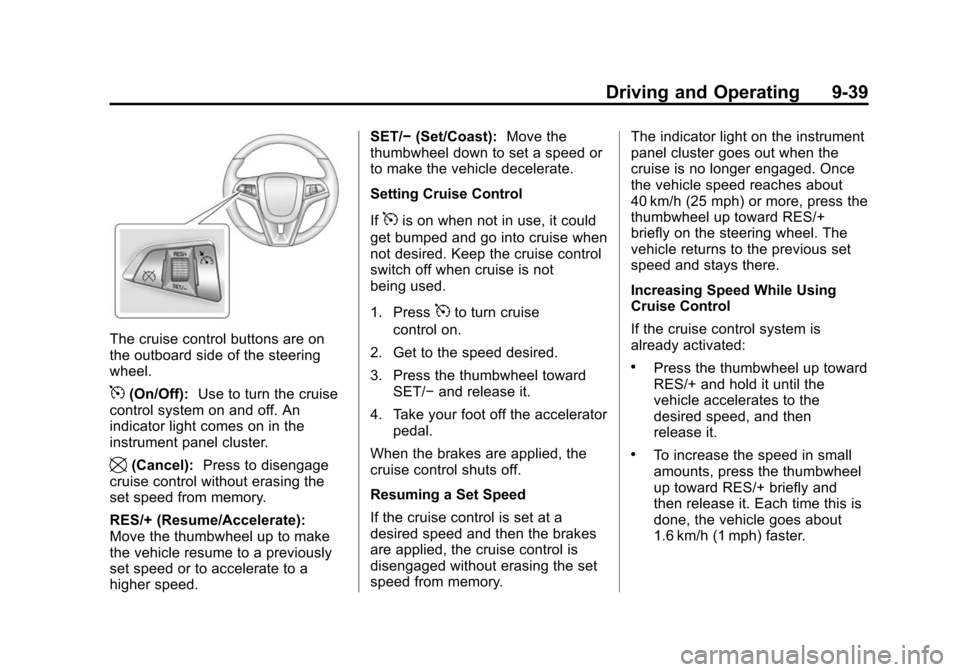
The cruise control buttons are on
the outboard side of the steering
wheel.
5(On/Off):Use to turn the cruise
control system on and off. An
indicator light comes on in the
instrument panel cluster.
\(Cancel): Press to disengage
cruise control without erasing the
set speed from memory.
RES/+ (Resume/Accelerate):
Move the thumbwheel up to make
the vehicle resume to a previously
set speed or to accelerate to a
higher speed. SET/−
(Set/Coast): Move the
thumbwheel down to set a speed or
to make the vehicle decelerate.
Setting Cruise Control
If
5is on when not in use, it could
get bumped and go into cruise when
not desired. Keep the cruise control
switch off when cruise is not
being used.
1. Press
5to turn cruise
control on.
2. Get to the speed desired.
3. Press the thumbwheel toward SET/− and release it.
4. Take your foot off the accelerator pedal.
When the brakes are applied, the
cruise control shuts off.
Resuming a Set Speed
If the cruise control is set at a
desired speed and then the brakes
are applied, the cruise control is
disengaged without erasing the set
speed from memory. The indicator light on the instrument
panel cluster goes out when the
cruise is no longer engaged. Once
the vehicle speed reaches about
40 km/h (25 mph) or more, press the
thumbwheel up toward RES/+
briefly on the steering wheel. The
vehicle returns to the previous set
speed and stays there.
Increasing Speed While Using
Cruise Control
If the cruise control system is
already activated:
.Press the thumbwheel up toward
RES/+ and hold it until the
vehicle accelerates to the
desired speed, and then
release it.
.To increase the speed in small
amounts, press the thumbwheel
up toward RES/+ briefly and
then release it. Each time this is
done, the vehicle goes about
1.6 km/h (1 mph) faster.
Page 385 of 404

Black plate (1,1)Chevrolet Camaro Owner Manual (Include Mex) - 2012
OnStar 14-1
OnStar
OnStar Overview
OnStar Overview . . . . . . . . . . . . 14-1
OnStar Services
Emergency . . . . . . . . . . . . . . . . . . 14-2
Security . . . . . . . . . . . . . . . . . . . . . . 14-2
Navigation . . . . . . . . . . . . . . . . . . . 14-2
Connections . . . . . . . . . . . . . . . . . 14-4
Diagnostics . . . . . . . . . . . . . . . . . . 14-5
OnStar Additional Information
OnStar AdditionalInformation . . . . . . . . . . . . . . . . . 14-5
OnStar Overview
If equipped, this vehicle has a
comprehensive, in-vehicle system
that can connect to a live Advisor
for Emergency, Security, Navigation,
Connection, and Diagnostic
Services. The OnStar system status light is
next to the OnStar buttons. If the
status light is:
.Solid Green: System is ready.
.Flashing Green: On a call.
.Red: Indicates a problem.
Push
Qor call 1‐888‐4‐ONSTAR
(1‐888‐466‐7827) to speak to an
Advisor.
Push
Xto:
.Make a call, end a call,
or answer an incoming call.
.Give OnStar Hands-Free Calling
voice commands.
.Give OnStar Turn-by-Turn
Navigation voice commands.
Requires the available Directions
and Connections service plan.