2013 BMW M3 COUPE esc
[x] Cancel search: escPage 146 of 311

141
Things to remember when driving
Driving tips
Securing cargo
>
Secure smaller and lighter items using
retaining straps, a trunk net, or draw straps.
> Heavy-duty cargo straps for securing larger
and heavier objects are available at your
BMW center. Four lashing eyes are pro-
vided for attaching the cargo straps. Two
are located on the side walls of the trunk 1
and two additional ones are located on the
inside wall of the trunk 2.
Comply with the information enclosed with
the load-securing devices.
Convertible: before opening the hardtop,
fold down the trunk pa rtition. Make sure
the trunk is loaded corre ctly; otherwise parts of
the hardtop can be damaged, refer to
page 128.<
Always position and secure the cargo as
described above, so that it cannot endan-
ger the car's occupants, for example if sudden
braking or swerving is necessary.
Never exceed either the approved gross vehicle
weight or either of the approved axle loads, refer
to page 281, as excessive loads can pose a
safety hazard, and may also place you in viola-
tion of traffic safety laws.
Heavy or hard objects should not be carried
loose inside the car, sinc e they could be thrown
around, for example as a result of heavy braking,
sudden swerves, etc., and endanger the
occupants.
Only attach the cargo st raps using the lashing
eyes shown in the illust ration. Do not secure
cargo with the anchors fo r tether straps, refer
to page 60, ; otherwise, these could be
damaged. <
Coupe: roof-mounted
luggage rack
A special rack system is available as an option
f o r y o u r B M W . C o m p l y w i t h t h e d i r e c t i o n s g i v e n
in the installation instructions.
Mounting points
The mounting points are located in the roof.
Loading roof-mounted luggage rack
Because roof racks raise the vehicle's center of
gravity when loaded, they have a major effect on
vehicle handling and steering response.
You should therefore always remember not to
exceed the approved roof load capacity, the
approved gross vehicle we ight or the axle loads
when loading the rack.
You can find the applicable data under Weights
on page 281.
The roof load must be distributed uniformly and
should not be too larg e in area. Heavy items
should always be placed at the bottom. Be sure
that adequate clearance is maintained for tilting
the glass roof, and that objects do not project
into the opening path of the trunk lid.
Fasten roof-mounted cargo correctly and
securely to prevent it fr om shifting or falling off
during the trip.
Drive smoothly. Avoid sudden acceleration and
braking maneuvers. Take corners gently.
00320051004F004C00510048000300280047004C0057004C005200510003
Page 148 of 311

This chapter describes how you can
enter destinations and specify your route
so that your navigation system guides you
reliably to your destination.
Navigation
00320051004F004C00510048000300280047004C0057004C005200510003
Page 149 of 311
144
NavigationNavigation system
Navigation system
Vehicle equipment
In this chapter, all pr oduction, country, and
optional equipment that is offered in the model
range is described. Equipment is also described
that is not available because of, for example,
selected options or country version. This also
applies to safety related functions and systems.
General information
The navigation system can determine the pre-
cise position of the vehicle, with the aid of satel-
lites and vehicle sensors, and can reliably guide
you to every entered destination.
Enter data only with the vehicle station-
ary, and always give priority to the appli-
cable traffic regulations in the event of any con-
tradiction between traffi c and road conditions
and the instructions issu ed by the navigation
system. Failure to take to this precaution can
place you in violation of the law and put vehicle
occupants and other road users in danger. <
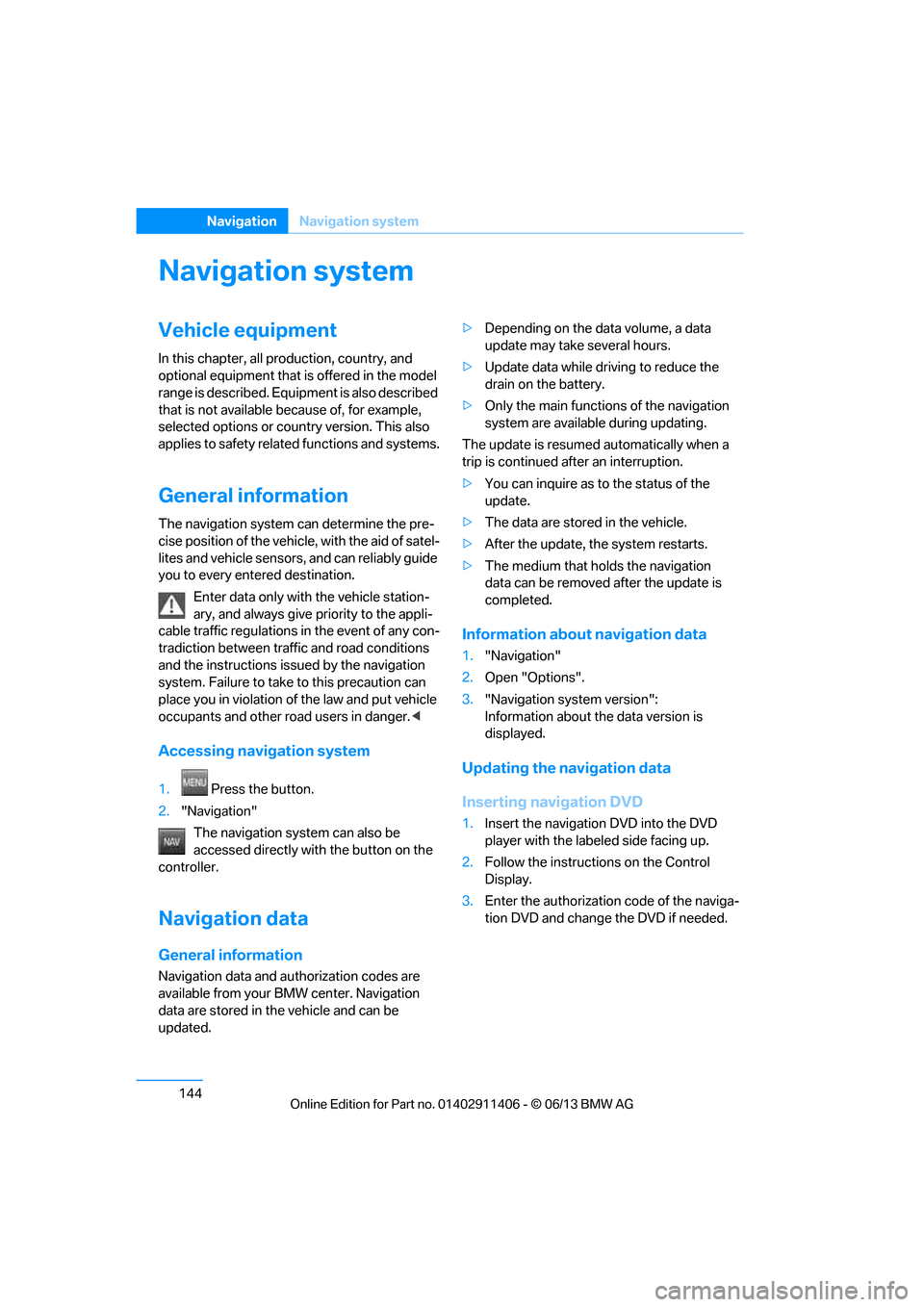
Accessing navigation system
1.Press the button.
2. "Navigation"
The navigation syst em can also be
accessed directly with the button on the
controller.
Navigation data
General information
Navigation data and au thorization codes are
available from your BMW center. Navigation
data are stored in the vehicle and can be
updated. >
Depending on the data volume, a data
update may take several hours.
> Update data while dr iving to reduce the
drain on the battery.
> Only the main functions of the navigation
system are available during updating.
The update is resumed automatically when a
trip is continued after an interruption.
> You can inquire as to the status of the
update.
> The data are stored in the vehicle.
> After the update, the system restarts.
> The medium that holds the navigation
data can be removed after the update is
completed.
Information about navigation data
1."Navigation"
2. Open "Options".
3. "Navigation system version":
Information about the data version is
displayed.
Updating the navigation data
Inserting navigation DVD
1.Insert the navigation DVD into the DVD
player with the labe led side facing up.
2. Follow the instructions on the Control
Display.
3. Enter the authorization code of the naviga-
tion DVD and change the DVD if needed.
00320051004F004C00510048000300280047004C0057004C005200510003
Page 151 of 311
146
NavigationDestination entry
Destination entry
Vehicle equipment
In this chapter, all pr oduction, country, and
optional equipment that is offered in the model
range is described. Equipment is also described
that is not available because of, for example,
selected options or country version. This also
applies to safety related functions and systems.
General information
In entering your destination you can select from
the following options:
> Entering a destination manually, see below
> Selecting destination from address book,
refer to page 148
> Last destinations, refer to page 149
> Special destinations, refer to page 149
> Entering a destination on the map, refer to
page 151
> Selecting home addr ess, refer to page149
> Destination entry via voice, refer to
page 152
> Destination entry via BMW Assist, refer to
page 151
You can also store a navigation destination on
the programmable memo ry keys, refer to
page 25.
Entering a destination
manually
To make it easier to enter town/city names and
street names, the system assists you with auto-
matic name completion and entry comparison,
refer to page 155. This makes it possible to
enter different spellings and completes your
entry automatically so that stored town/city
names and street names can be accessed
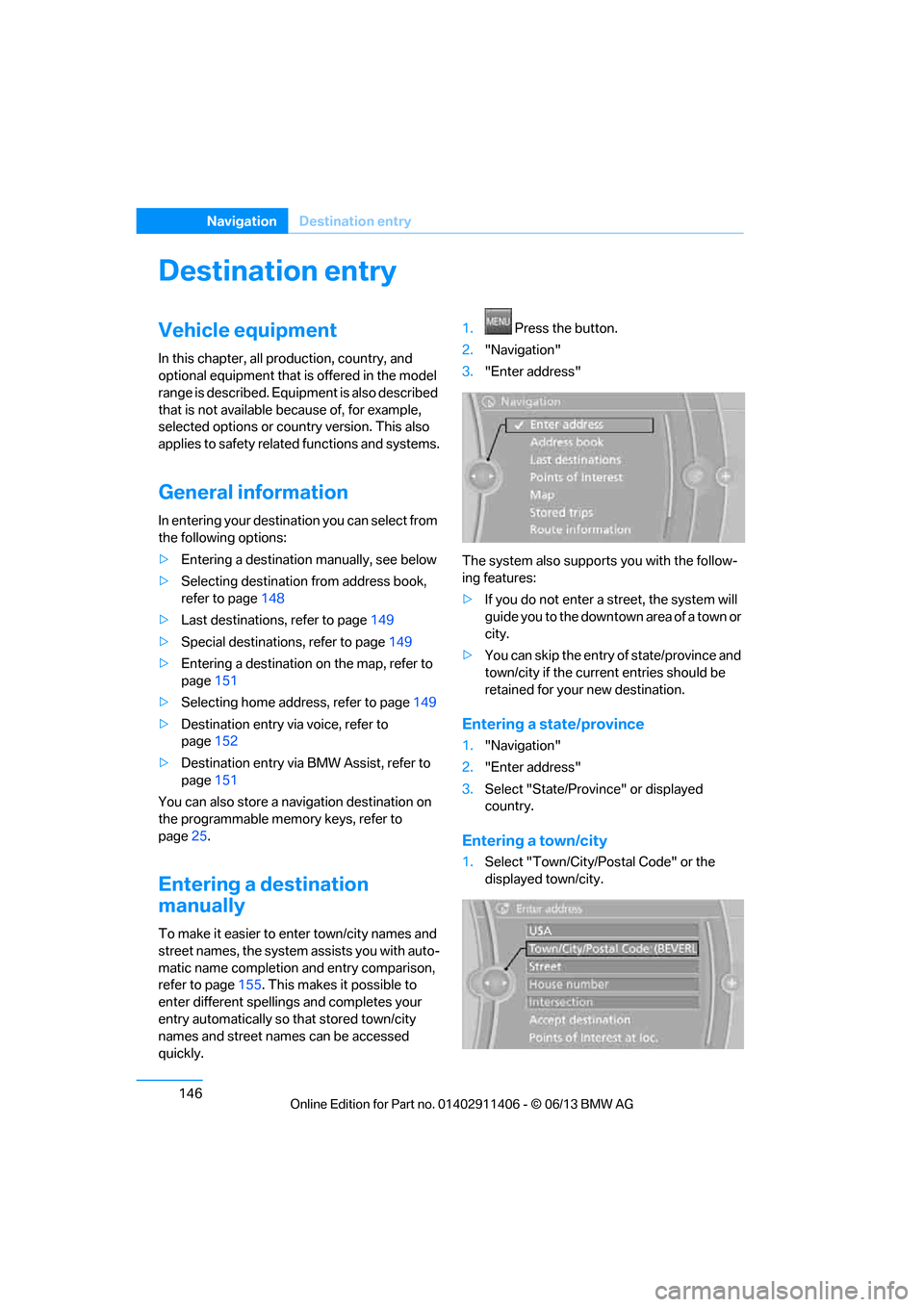
quickly. 1.
Press the button.
2. "Navigation"
3. "Enter address"
The system also supports you with the follow-
ing features:
> If you do not enter a street, the system will
guide you to the downtown area of a town or
city.
> You can skip the entry of state/province and
town/city if the curren t entries should be
retained for your new destination.
Entering a state/province
1. "Navigation"
2. "Enter address"
3. Select "State/Provi nce" or displayed
country.
Entering a town/city
1. Select "Town/City/Postal Code" or the
displayed town/city.
00320051004F004C00510048000300280047004C0057004C005200510003
Page 160 of 311

155
Destination guidance
Navigation
Destination guidance
Vehicle equipment
In this chapter, all production, country, and
optional equipment that is offered in the model
range is described. Equipment is also described
that is not available because of, for example,
selected options or coun
try version. This also
applies to safety related functions and systems.
Starting destination
guidance
1. "Navigation"
2. Entering a destination, refer to page 146.
3. "Accept destination"
4. "Start guidance"
The route is displayed on the Control Display
after it is calculated.
In the map view, the distance to the destination/
intermediate destinat ion and the estimated
time of arrival are displayed.
The arrow display appears on the Control
Display, if so desired.
Terminating destination
guidance
1. "Navigation"
2. "Map"
3. "Guidance".
4. "Stop guidance"
Continuing destination
guidance
If the destination was not reached during the
last trip, destination gu idance can be resumed.
"Resume guidance"
Route criteria
General information
> You can influence the calculated route by
selecting certain trip criteria.
> Route criteria can be changed during desti-
nation entry and during route guidance.
> Street types are part of the navigation data
and are taken into account in route plan-
ning, e.g. avoiding highways.
> The proposed route can differ from
personal experience.
> The settings are stored for the remote
control currently in use.
> Route guidance with traffic bulletins, refer
to page 161.
Changing route criteria
1."Navigation"
2. "Map"
3. "Route preference"
4. Selecting a criterion:
> "Fast route": time-optimized route
through a combination of the least pos-
sible distance and stretches of road that
allow rapid driving.
> "ECO PRO route": optimized combi-
nation of the fastest and shortest possi-
ble route.
> "Short route": short distance without
taking time into account.
> "Alternative routes": are suggested,
where possible, during active route
guidance.
The individual suggestions are labeled in
color.
00320051004F004C00510048000300280047004C0057004C005200510003
Page 168 of 311

163
What to do if …
Navigation
What to do if …
Vehicle equipment
In this chapter, all production, country, and
optional equipment that is offered in the model
range is described. Equipment is also described
that is not available because of, for example,
selected options or coun
try version. This also
applies to safety related functions and systems.
What to do if…
> The current position cannot be displayed?
The position is in an unrecognized region, in
a poor reception area, or the system is in the
process of determining the position.
Reception is generally available when you
are in the open.
> The destination guidance d o e s n o t a c c e p t a
destination without a street name?
A downtown area canno t be determined for
the town or city that has been entered. Input
any street in the selected town/city and
start destination guidance.
> The destination guidance d o e s n o t a c c e p t a
destination?
The destination data is not contained in the
navigation data. Choo se a destination as
close as possible to the original one.
> The letters for a destination cannot be
selected during destination entry?
The stored data do no t contain the data of
the destination. Select a destination that is
as close as possible to the original.
> The map view is disp layed in grayscale?
"Traffic conditions/gray map" active: the
Control Display changes to a grayscale
display. This enables a better view of the
traffic bulletins.
> Voice instructions are no longer issued
before intersections during destination
guidance? The area has not been fully recorded yet, or
you have left the recommended route and
the system requires a few seconds to calcu-
late a new route suggestion.
00320051004F004C00510048000300280047004C0057004C005200510003
Page 170 of 311

Operation of the radio, CD equipment and
external audio devices as well as their tone settings are described in this chapter.
Entertainment
00320051004F004C00510048000300280047004C0057004C005200510003
Page 171 of 311

166
EntertainmentOn/off and tone
On/off and tone
Vehicle equipment
In this chapter, all pr oduction, country, and
optional equipment that is offered in the model
range is described. Equipment is also described
that is not available because of, for example,
selected options or country version. This also
applies to safety related functions and systems.
General information
The following audio and video sources share
the same control elements and adjustments:
> Radio
> CD/DVD player
> Video
> External devices, e.g. MP3 player
Controls
The audio and video sources can be controlled
using the:
>Buttons near th e CD/DVD player
> iDrive
> Buttons on the steering wheel, refer to
page 13
> Programmable memory keys, refer to
page 25
> Voice activation system
Buttons near the CD/DVD player
1Sound output for entertainment on/off,
volume
>Press: switch on/off
When you switch on the unit, the last set
radio station or track is played.
> Turn: adjusting the volume
2 Eject the CD/DVD
3 CD/DVD drive
4FM/AM : change the radio station
waveband
5MODE : change the audio and video
sources
6 Station scan/track search
> Change the radio station
> Select the track for the CD/DVD player
and certain multimedia devices
Switching on/off
To switch the entertainment audio output on or
off:
Press knob 1 next to the CD/DVD player.
This symbol on the Co ntrol Display indicates
that sound output is switched off.
The sound output is available for approx.
20 minutes after the ignition was switched off.
For sound output, switch the unit back on.
Adjusting volume
Turn knob 1 next to the CD/DVD player until the
desired volume is obtained.
You can also adjust the volume with buttons on
the steering wheel, refer to page 13.
00320051004F004C00510048000300280047004C0057004C005200510003