2013 BMW ACTIVEHYBRID3 fuel
[x] Cancel search: fuelPage 74 of 220
DisplaysVehicle equipment
All standard, country-specific and optional
equipment that is offered in the model series is
described in this chapter. Therefore, equipmentis also described that is not available in a vehicle,
e. g., because of the selected optional equip‐
ment or country variant. This also applies for
safety-related functions and systems.
Instrument cluster
Overview, instrument cluster
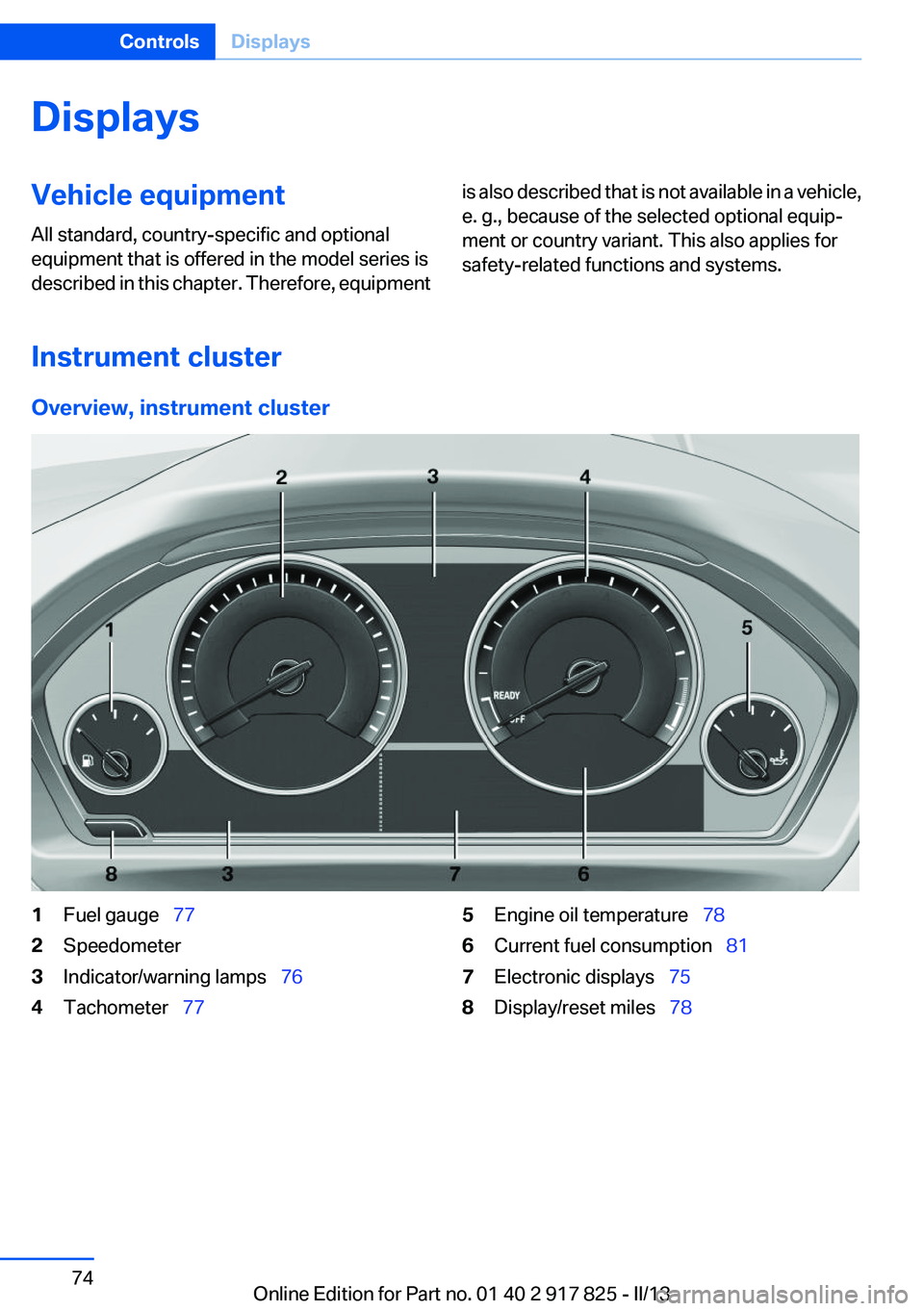
1Fuel gauge 772Speedometer3Indicator/warning lamps 764Tachometer 775Engine oil temperature 786Current fuel consumption 817Electronic displays 758Display/reset miles 78Seite 74ControlsDisplays74
Online Edition for Part no. 01 40 2 917 825 - II/13
Page 77 of 220

Text messages
Text messages in combination with a symbol in
the instrument cluster explain a Check Control
message and the meaning of the indicator and
warning lamps.
Supplementary text messages
Addition information, such as on the cause of a
fault or the required action, can be called up via
Check Control.
The supplementary text of urgent messages is
displayed on the Control Display automatically.
Symbols
Depending on the Check Control message, the
following functions can be selected.▷ "Owner's Manual"
Display additional information about the
Check Control message in the Integrated
Owner's Manual.▷ "Service request"
Contact the service partner.▷ "Roadside Assistance"
Contact Roadside Assistance.
Hiding Check Control messages
Press the computer button on the turn signal
lever.
▷Some Check Control messages are dis‐
played continuously and are not cleared un‐
til the malfunction is eliminated. If several
malfunctions occur at once, the messages
are displayed consecutively.These messages can be hidden for approx.
8 seconds. After this time, they are dis‐
played again automatically.▷Other Check Control messages are hidden
automatically after approx. 20 seconds.
They are stored and can be displayed again
later.
Displaying stored Check Control
messages
1."Vehicle Info"2."Vehicle status"3. "Check Control"4.Select the text message.
Messages after trip completion
Special messages that are displayed during
driving are displayed again after the ignition is
switched off.
Fuel gauge The vehicle inclination may
cause the display to vary.
US models: the arrow beside the
fuel pump symbol shows which
side of the vehicle the fuel filler
flap is on.
Hints on refueling, refer to page 166.
Tachometer
Always avoid engine speeds in the red warning
field. In this range, the fuel supply is interrupted
to protect the engine.
Seite 77DisplaysControls77
Online Edition for Part no. 01 40 2 917 825 - II/13
Page 79 of 220
▷When a dynamic driving style is used, such
as when cornering quickly, operation of the
engine is not always ensured.
The Check Control message appears continu‐
ously below a range of approx. 30 miles/50 km.
Refuel promptly
Refuel no later than at a range of
30 miles/50 km, or operation of the engine is not
ensured and damage may occur.◀
Displaying the cruising range
1."Settings"2."Info display"3."Additional indicators"
The range is displayed in the instrument cluster.
Displays of the hybrid system
Displays in the instrument cluster
The concept
The display depends on the system's operating
condition. The following functions of the hybrid
system are shown in the instrument cluster.
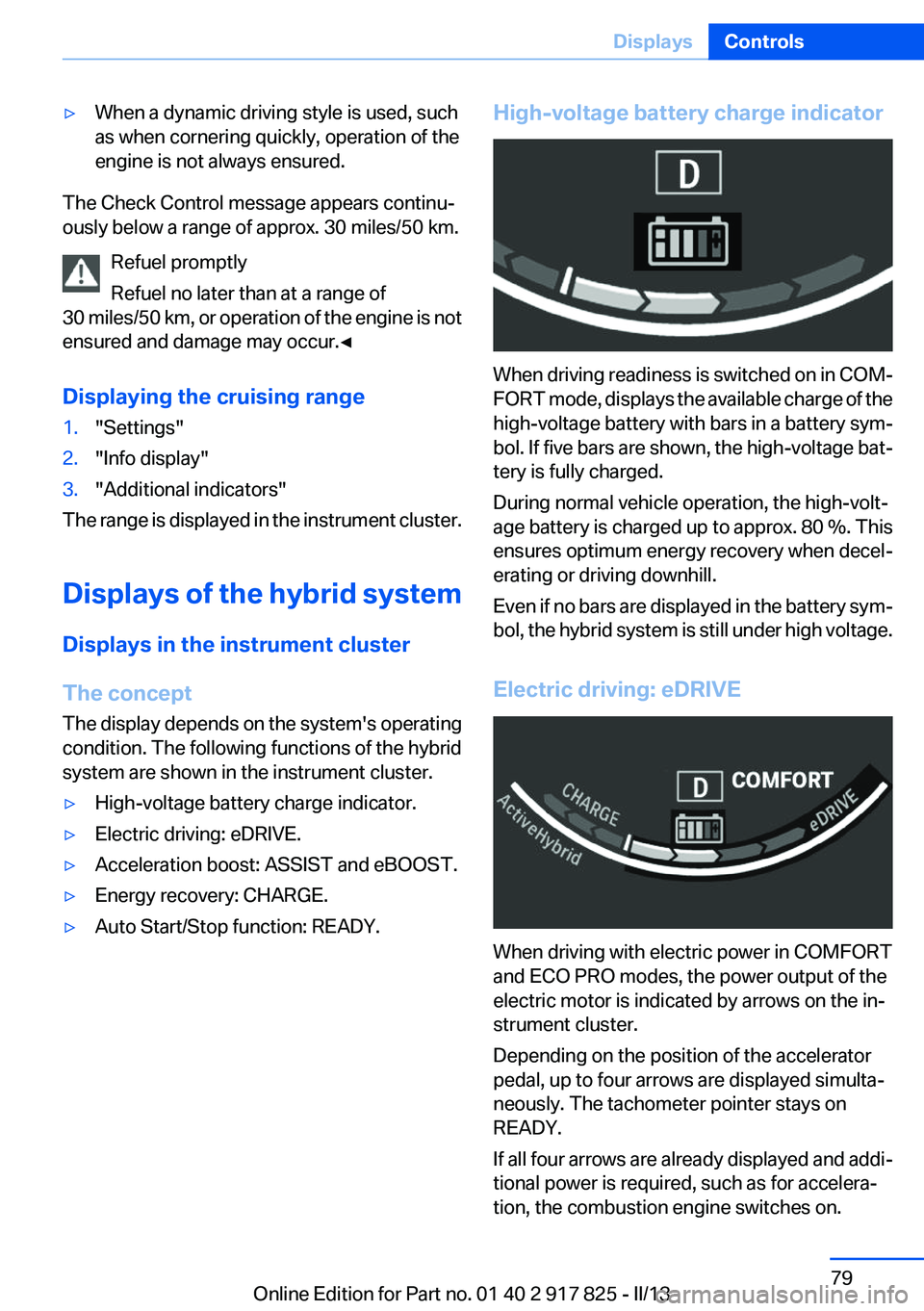
▷High-voltage battery charge indicator.▷Electric driving: eDRIVE.▷Acceleration boost: ASSIST and eBOOST.▷Energy recovery: CHARGE.▷Auto Start/Stop function: READY.High-voltage battery charge indicator
When driving readiness is switched on in COM‐
FORT mode, displays the available charge of the
high-voltage battery with bars in a battery sym‐
bol. If five bars are shown, the high-voltage bat‐
tery is fully charged.
During normal vehicle operation, the high-volt‐
age battery is charged up to approx. 80 %. This
ensures optimum energy recovery when decel‐
erating or driving downhill.
Even if no bars are displayed in the battery sym‐
bol, the hybrid system is still under high voltage.
Electric driving: eDRIVE
When driving with electric power in COMFORT
and ECO PRO modes, the power output of the
electric motor is indicated by arrows on the in‐
strument cluster.
Depending on the position of the accelerator
pedal, up to four arrows are displayed simulta‐
neously. The tachometer pointer stays on
READY.
If all four arrows are already displayed and addi‐
tional power is required, such as for accelera‐
tion, the combustion engine switches on.
Seite 79DisplaysControls79
Online Edition for Part no. 01 40 2 917 825 - II/13
Page 80 of 220
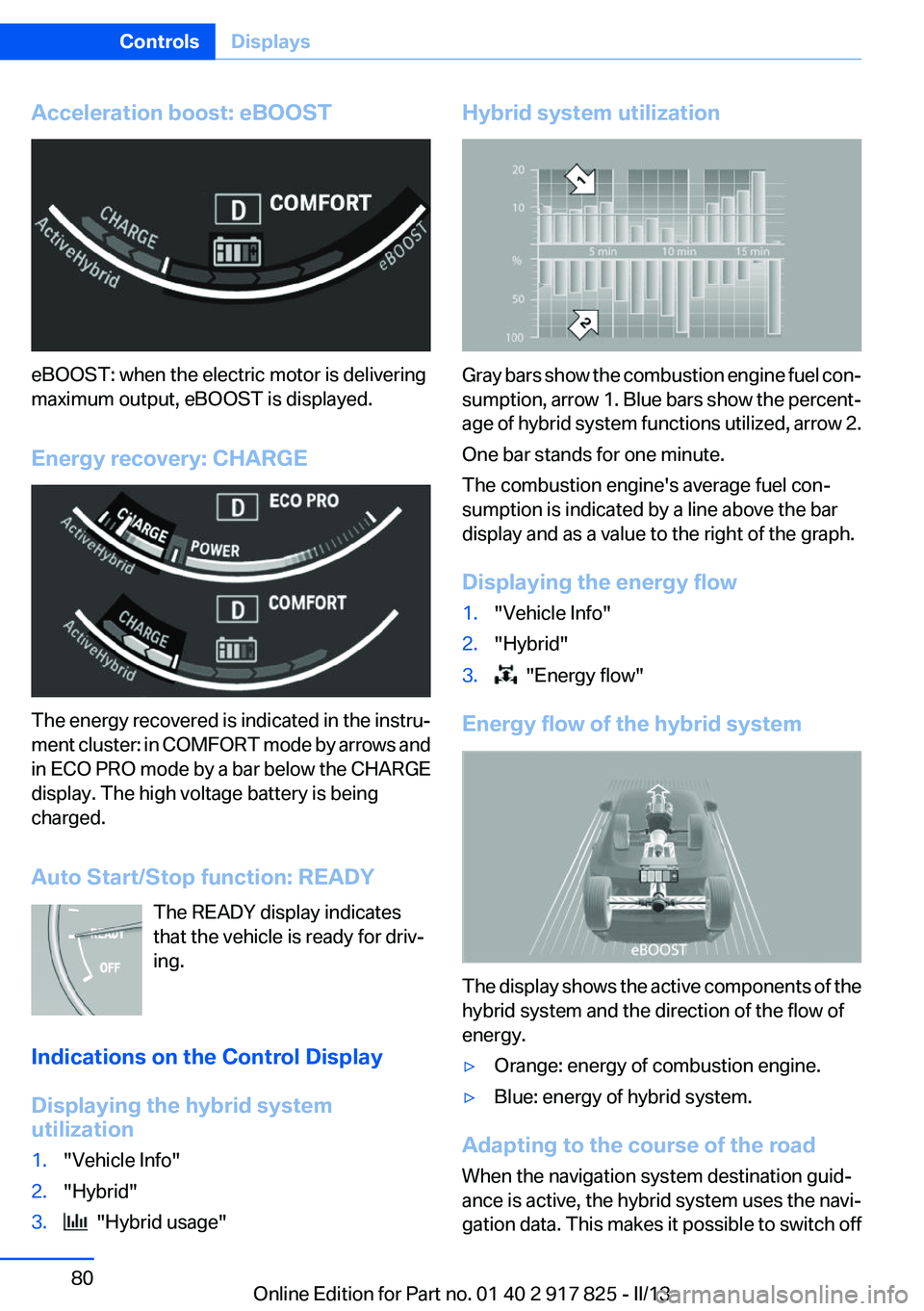
Acceleration boost: eBOOST
eBOOST: when the electric motor is delivering
maximum output, eBOOST is displayed.
Energy recovery: CHARGE
The energy recovered is indicated in the instru‐
ment cluster: in COMFORT mode by arrows and
in ECO PRO mode by a bar below the CHARGE
display. The high voltage battery is being
charged.
Auto Start/Stop function: READY The READY display indicates
that the vehicle is ready for driv‐
ing.
Indications on the Control Display
Displaying the hybrid system
utilization
1."Vehicle Info"2."Hybrid"3. "Hybrid usage"Hybrid system utilization
Gray bars show the combustion engine fuel con‐
sumption, arrow 1. Blue bars show the percent‐
age of hybrid system functions utilized, arrow 2.
One bar stands for one minute.
The combustion engine's average fuel con‐
sumption is indicated by a line above the bar
display and as a value to the right of the graph.
Displaying the energy flow
1."Vehicle Info"2."Hybrid"3. "Energy flow"
Energy flow of the hybrid system
The display shows the active components of the
hybrid system and the direction of the flow of
energy.
▷Orange: energy of combustion engine.▷Blue: energy of hybrid system.
Adapting to the course of the road
When the navigation system destination guid‐
ance is active, the hybrid system uses the navi‐
gation data. This makes it possible to switch off
Seite 80ControlsDisplays80
Online Edition for Part no. 01 40 2 917 825 - II/13
Page 81 of 220
the combustion engine upon reaching the des‐
tination zone even before reaching the destina‐
tion. The vehicle is powered only by the electric
motor.
The symbol indicates that the vehicle will
switch off the combustion engine when it enters
the destination zone.
Current fuel consumption
Instrument cluster Displays the current fuel con‐
sumption. You can check
whether you are currently driving
in an efficient and environmen‐
tally-friendly manner.
This display is available in the SPORT driving
mode.
Current consumption can be displayed in the
onboard computer, refer to page 84, in any
driving mode.
Service requirements
The concept
The driving distance or the time to the next
scheduled maintenance is displayed briefly after
the ignition is switched on.
The current service requirements can be read
out from the remote control by the service spe‐
cialist.
Display
Data regarding the service status or legally man‐
dated inspections of the vehicle are automati‐
cally transmitted to your service center before a
service due date.
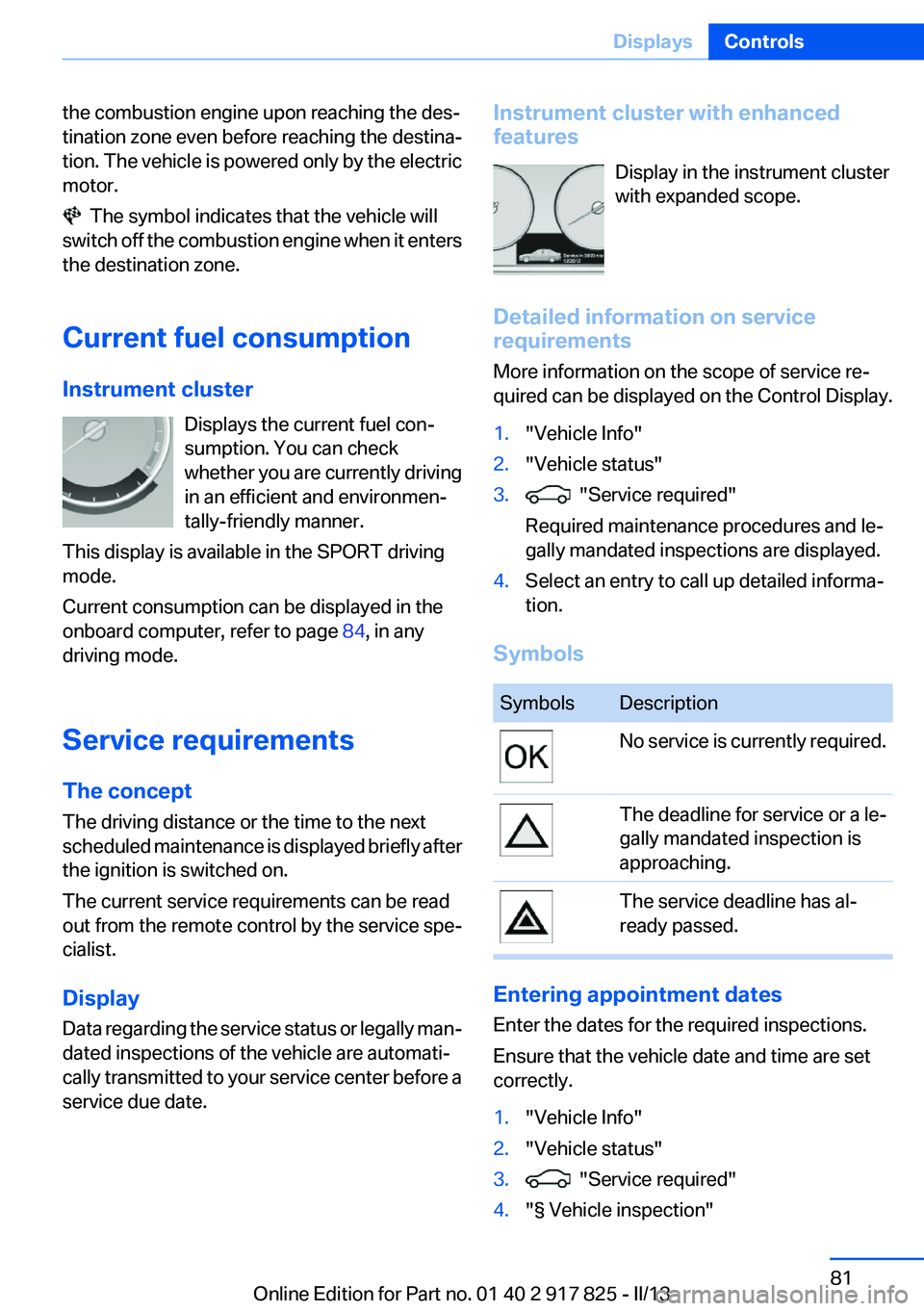
Instrument cluster with enhanced
features
Display in the instrument cluster
with expanded scope.
Detailed information on service
requirements
More information on the scope of service re‐
quired can be displayed on the Control Display.1."Vehicle Info"2."Vehicle status"3. "Service required"
Required maintenance procedures and le‐
gally mandated inspections are displayed.4.Select an entry to call up detailed informa‐
tion.
Symbols
SymbolsDescriptionNo service is currently required.The deadline for service or a le‐
gally mandated inspection is
approaching.The service deadline has al‐
ready passed.
Entering appointment dates
Enter the dates for the required inspections.
Ensure that the vehicle date and time are set
correctly.
1."Vehicle Info"2."Vehicle status"3. "Service required"4."§ Vehicle inspection"Seite 81DisplaysControls81
Online Edition for Part no. 01 40 2 917 825 - II/13
Page 85 of 220
Information at a glance
Repeatedly pressing the button on the turn sig‐
nal lever calls up the following information on the
info display:▷Range.▷Average fuel consumption.▷Current fuel consumption.▷Average speed.▷Date.▷Speed limit detection.▷Time of arrival.
When destination guidance is activated in
the navigation system.▷Distance to destination.
When destination guidance is activated in
the navigation system.▷Arrow view of navigation system.
When destination guidance is activated in
the navigation system.
When the arrow view in the Head-up Display
is inactive.▷ECO PRO bonus range.▷Charge state of the high-voltage battery as
a percentage.
Adjusting the info display
You can select what information from the on‐
board computer is to be displayed on the info
display of the instrument cluster.
1."Settings"2."Info display"3.Select the desired displays.
Information in detail
Range
Displays the estimated cruising range available
with the remaining fuel.
It is calculated based on your driving style over
the last 20 miles/30 km.
If there is only enough fuel left for less than
45 miles/80 km, the color of the display changes.
Average fuel consumption
This is calculated for the period during which the
engine is running.
The average fuel consumption is calculated for
the distance traveled since the last reset by the
onboard computer.
Average speed
Periods in which the vehicle is parked with the
engine manually stopped do not enter into the
calculation of the average speed.
Resetting average values
Press and hold the computer button on the turn
signal lever.
Distance to destination
The distance remaining to the destination is dis‐
played if a destination is entered in the naviga‐
tion system before the trip is started.
The distance to the destination is adopted au‐
tomatically.
Time of arrival The estimated time of arrival is
displayed if a destination is en‐
tered in the navigation system
before the trip is started.
The time must be correctly set.
Speed limit detection
Description of the speed limit detection, refer to
page 82, function.
Speed limit
Display of a speed limit which, when reached,
should cause a warning to be issued.
The warning is repeated if the vehicle speed
drops below the set speed limit once by at least
3 mph/5 km/h.Seite 85DisplaysControls85
Online Edition for Part no. 01 40 2 917 825 - II/13
Page 86 of 220
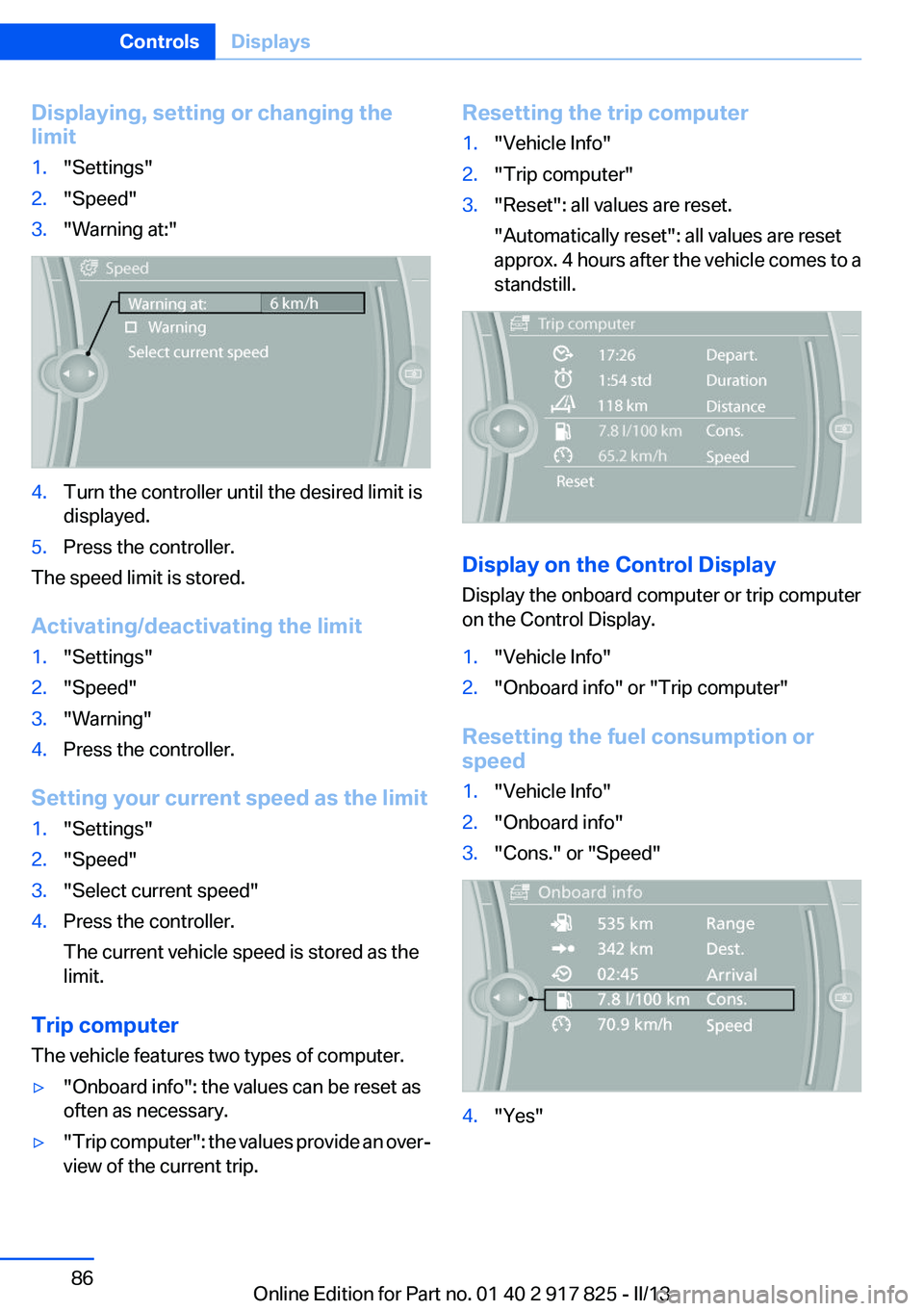
Displaying, setting or changing the
limit1."Settings"2."Speed"3."Warning at:"4.Turn the controller until the desired limit is
displayed.5.Press the controller.
The speed limit is stored.
Activating/deactivating the limit
1."Settings"2."Speed"3."Warning"4.Press the controller.
Setting your current speed as the limit
1."Settings"2."Speed"3."Select current speed"4.Press the controller.
The current vehicle speed is stored as the
limit.
Trip computer
The vehicle features two types of computer.
▷"Onboard info": the values can be reset as
often as necessary.▷" Trip computer": the values provide an over‐
view of the current trip.Resetting the trip computer1."Vehicle Info"2."Trip computer"3."Reset": all values are reset.
"Automatically reset": all values are reset
approx. 4 hours after the vehicle comes to a
standstill.
Display on the Control Display
Display the onboard computer or trip computer
on the Control Display.
1."Vehicle Info"2."Onboard info" or "Trip computer"
Resetting the fuel consumption or
speed
1."Vehicle Info"2."Onboard info"3."Cons." or "Speed"4."Yes"Seite 86ControlsDisplays86
Online Edition for Part no. 01 40 2 917 825 - II/13
Page 88 of 220
Language
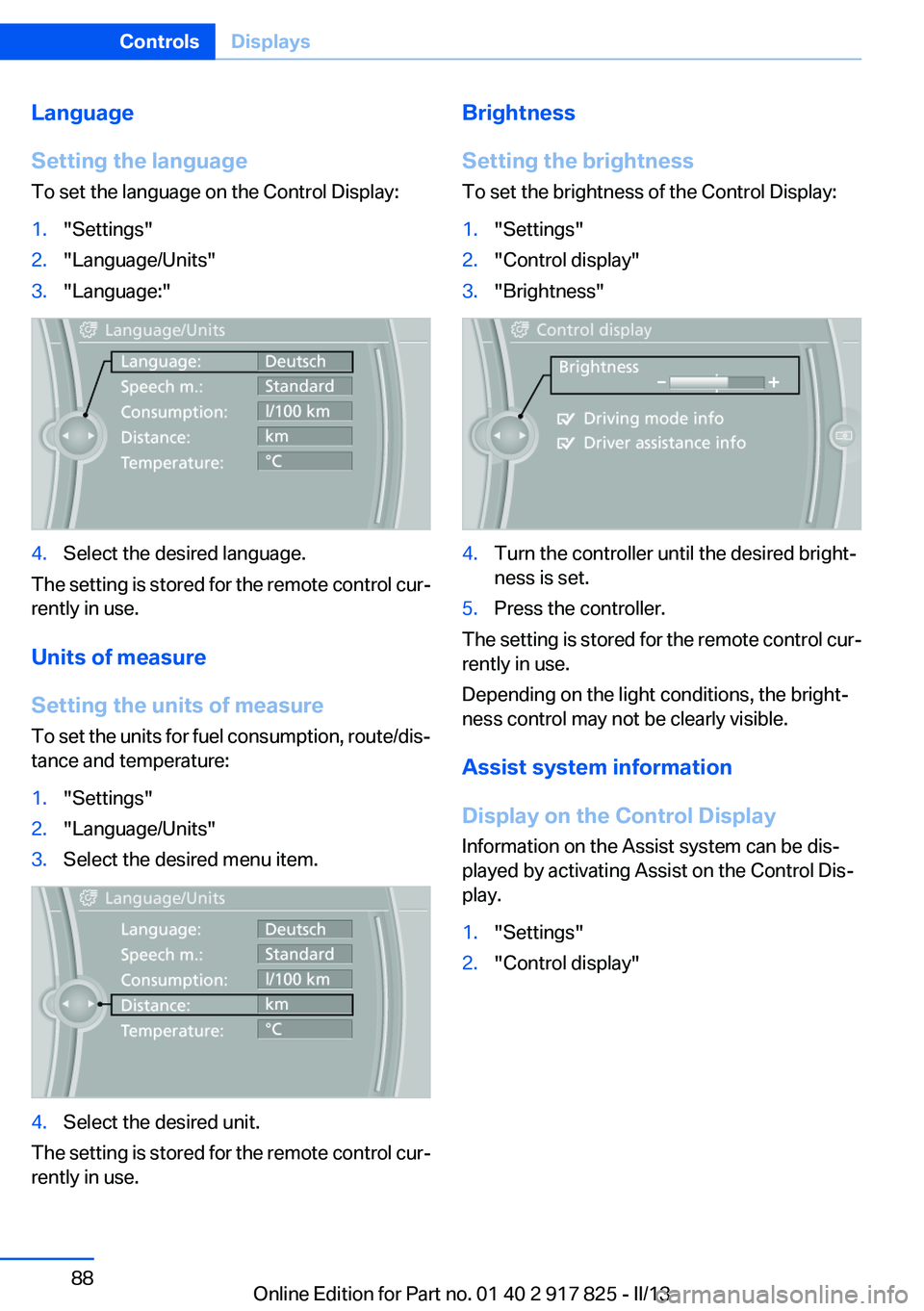
Setting the language
To set the language on the Control Display:1."Settings"2."Language/Units"3."Language:"4.Select the desired language.
The setting is stored for the remote control cur‐
rently in use.
Units of measure
Setting the units of measure
To set the units for fuel consumption, route/dis‐
tance and temperature:
1."Settings"2."Language/Units"3.Select the desired menu item.4.Select the desired unit.
The setting is stored for the remote control cur‐
rently in use.
Brightness
Setting the brightness
To set the brightness of the Control Display:1."Settings"2."Control display"3."Brightness"4.Turn the controller until the desired bright‐
ness is set.5.Press the controller.
The setting is stored for the remote control cur‐
rently in use.
Depending on the light conditions, the bright‐
ness control may not be clearly visible.
Assist system information
Display on the Control Display
Information on the Assist system can be dis‐
played by activating Assist on the Control Dis‐
play.
1."Settings"2."Control display"Seite 88ControlsDisplays88
Online Edition for Part no. 01 40 2 917 825 - II/13