2013 BMW 335IS COUPE service
[x] Cancel search: servicePage 185 of 308
184
EntertainmentMusic collection
Music collection
Vehicle equipment
In this chapter, all production, country, and
optional equipment that is offered in the model
range is described. Equipment is also described
that is not available because of, for example,
selected options or country version. This also
applies to safety related functions and systems.
Storing music
The music tracks from CDs, DVDs and USB
devices can be stored in the music collection in
the vehicle and played from there.
>Audio CD: tracks are converted into a com-
pressed audio format when they are stored.
If available, information on the album, such
as the artist, is stored as well.
> CD/DVD or USB device with compressed
audio files: the entire content of the CD/
DVD or the USB device is stored in the vehi-
cle as an album. After storing, the tracks and
directories can be deleted individually. Files
a r e o n ly s t o re d in t h e W M A , M P 3 , M 4 A , a n d
AAC formats.
Tracks with DRM copy protection can be
stored in the vehicle but cannot be played
back.
Regularly back up the music data; other-
wise, it could be lost if there is a fault on
the hard disc. <
Music recognition technology and
related data are provided by
Gracenote®. Gracenote® is the industry stan-
dard in music recognition technology and
related content delivery. For more information,
please visit www.gracenote.com.
CD and music-related data from Gracenote,
Inc., copyright © 2000-2009 Gracenote.
Gracenote Software, copyright © 2000-2009
Gracenote. This product and service may prac- tice one or more of the following U.S. Patents:
5.987.525, 6.061.680, 6.154.773, 6.161.132,
6.230.192, 6.230.207, 6.240.459 and
6.330.593 as well as other granted or pending
patents. Some services supplied under license
from Open Globe, Inc. for U.S. Patent:
6.304.523.
Gracenote and CDDB are registered trade-
marks of Gracenote. The Gracenote logo and
logotype, and the "Powered by Gracenote"
logo are trademarks of Gracenote.Storing files from CDs/DVDs
CDs/DVDs can only be stored from the CD/DVD
player.
1.
Insert a CD/DVD into the CD/DVD player.
2. "CD/Multimedia"
3. "CD/DVD"
4. Select the symbol for the CD/DVD
player.
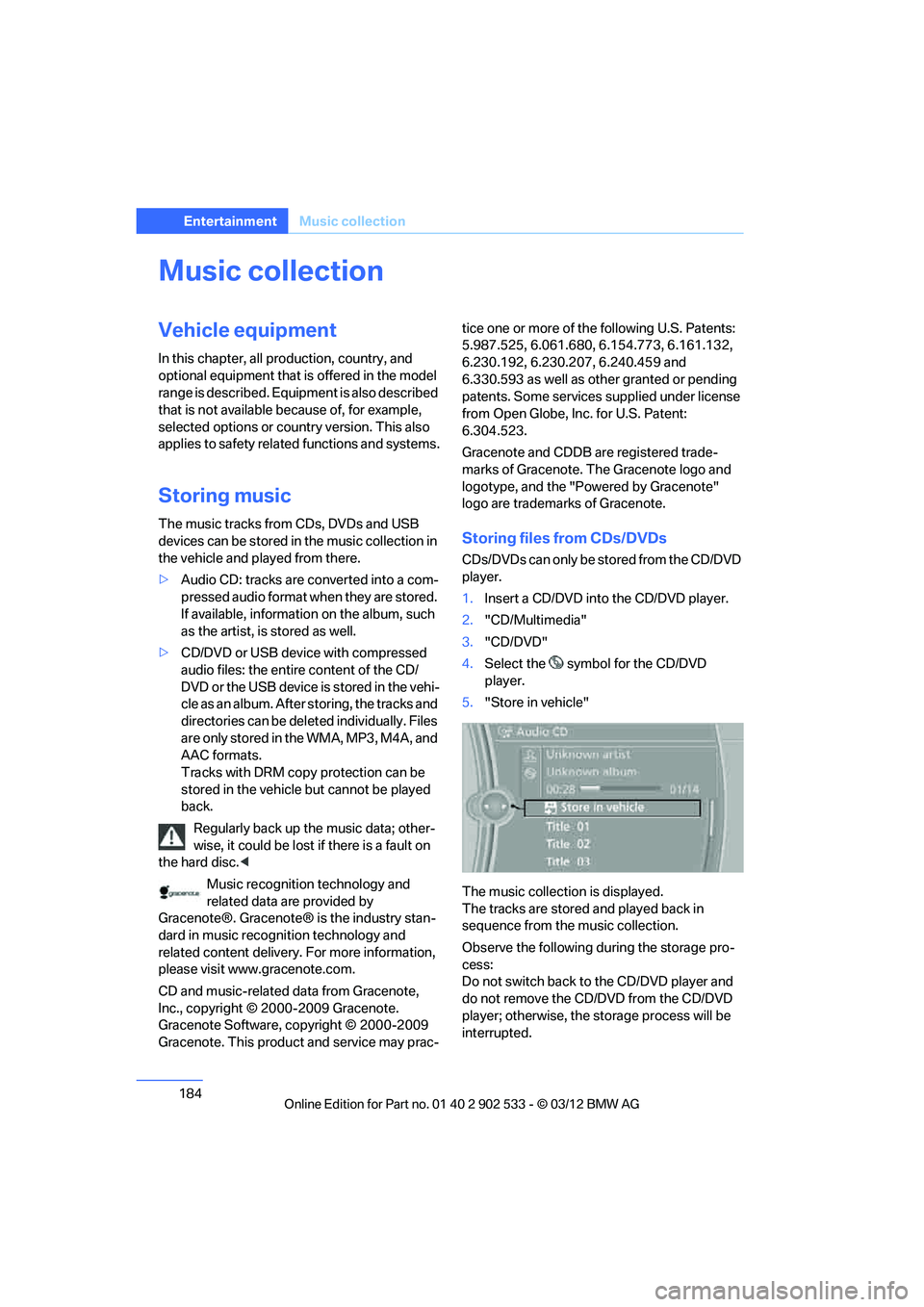
5. "Store in vehicle"
The music collection is displayed.
The tracks are stored and played back in
sequence from the music collection.
Observe the following during the storage pro-
cess:
Do not switch back to the CD/DVD player and
do not remove the CD/DVD from the CD/DVD
player; otherwise, the storage process will be
interrupted.
00320051004F004C00510048000300280047004C0057004C005200510003
Page 186 of 308
185
Music collection
Entertainment
You can switch to the other audio sources with-
out interrupting the storage process. Tracks
from the current CD/DVD can also be called up,
if they have been stored already.
Interrupting storage
1.
"CD/Multimedia"
2. "CD/DVD"
3. "Storing..."
4. "Cancel storing"
The storage process is interrupted and can be
continued at any time.
Continuing the storage process
1. "CD/Multimedia"
2. "CD/DVD"
3. Select the symbol for the CD/DVD
player.
4. "Continue storing"
The storing of the CD/DVD continues at the
beginning of the track at which storing was
interrupted.
Album information
During storage, information such as the name
of the artist is stored with the track, if this infor-
mation is available in the vehicle database or on
the CD.
To update the database, contact your service
center.
Storing from a USB device
To store music, a suitable device must be con-
nected to the USB interface in the glove com-
partment.
> Suitable devices: USB mass storage
devices, such as USB flash drives or MP3
players with a USB interface.
> Unsuitable devices: USB hard drive, USB
hubs, USB memory card readers with multi-
ple inserts, Apple iPod/iPhone.
Music from Apple iPods/iPhones can be
played via the USB audio interface in the
center armrest.
> File systems: popular file systems for USB
devices are supported. The format FAT 32
is recommended.
Music from a USB device can be stored
only via the USB interface in the glove
compartment. <
1. Connect the USB device to the USB inter-
face in the glove compartment.
2. "CD/Multimedia"
3. "Music collection"
4. Open "Options".
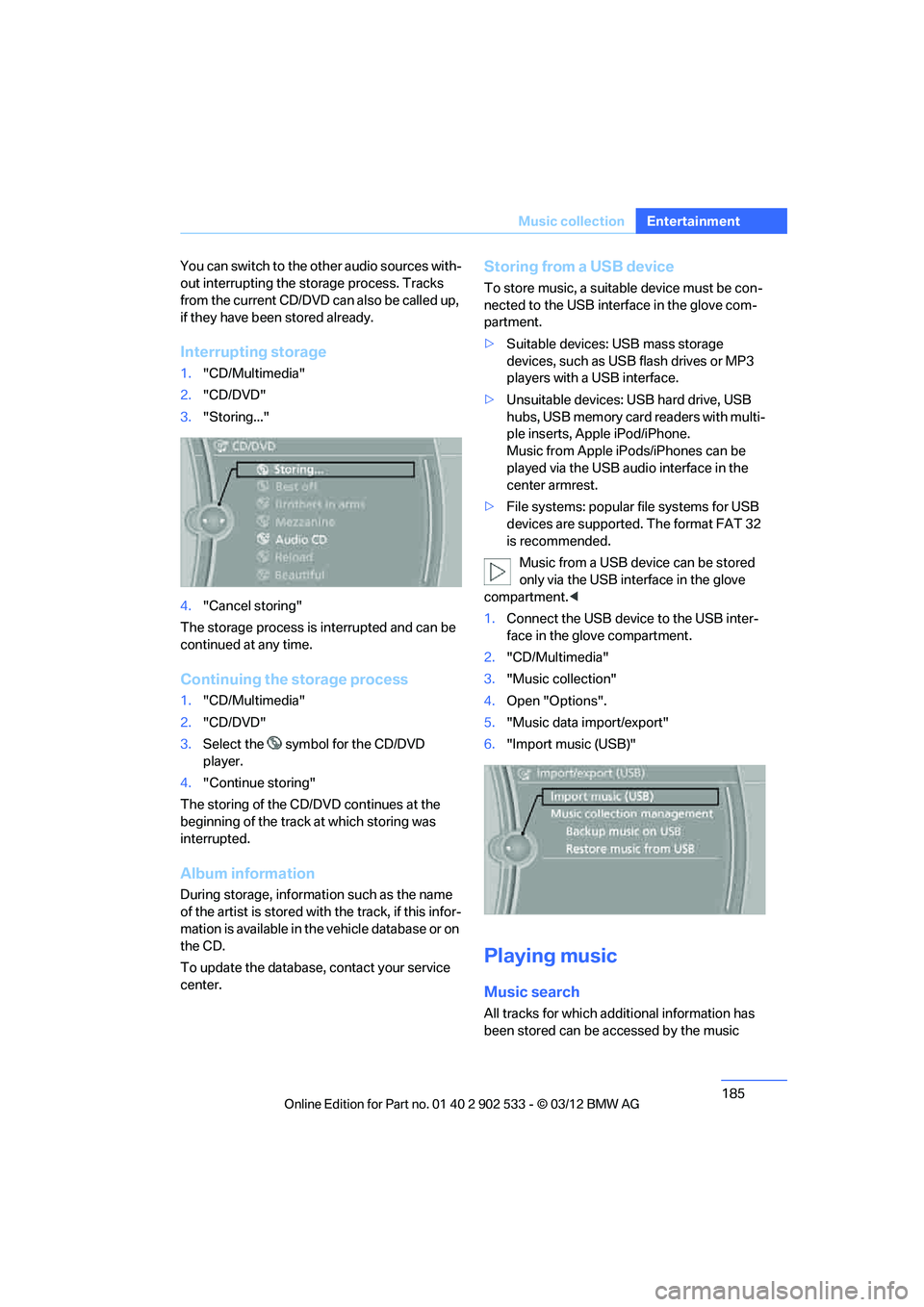
5. "Music data import/export"
6. "Import music (USB)"
Playing music
Music search
All tracks for which additional information has
been stored can be accessed by the music
00320051004F004C00510048000300280047004C0057004C005200510003
Page 200 of 308
This chapter describes how to use the
telephone, BMW Assist and BMW TeleService.
Communications
00320051004F004C00510048000300280047004C0057004C005200510003
Page 207 of 308
206
CommunicationsTe l e p h o n e
Entering phone numbers
Dialing a number
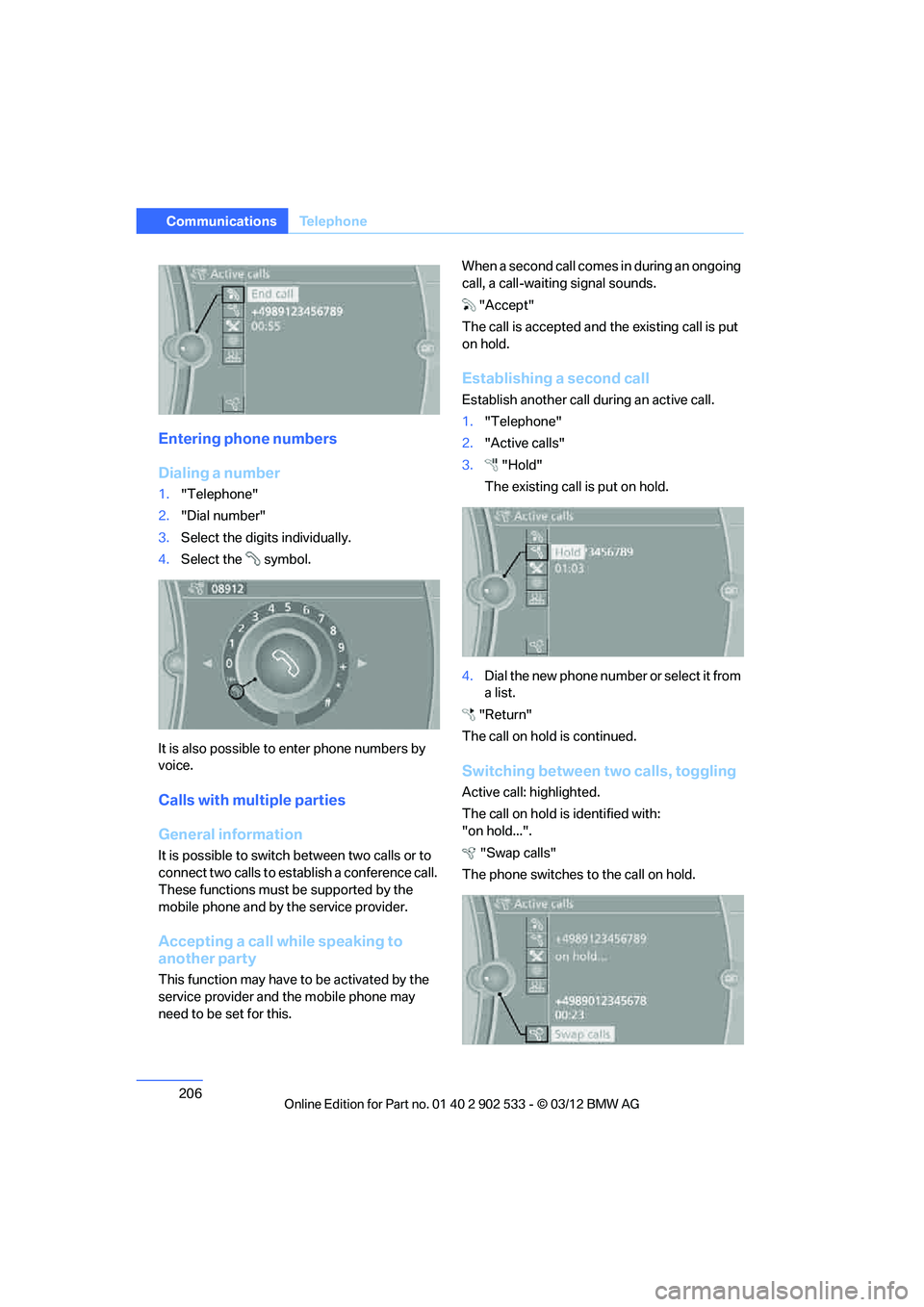
1."Telephone"
2. "Dial number"
3. Select the digits individually.
4. Select the symbol.
It is also possible to enter phone numbers by
voice.
Calls with multiple parties
General information
It is possible to switch between two calls or to
connect two calls to establish a conference call.
These functions must be supported by the
mobile phone and by the service provider.
Accepting a call while speaking to
another party
This function may have to be activated by the
service provider and the mobile phone may
need to be set for this. When a second call comes in during an ongoing
call, a call-waiting signal sounds.
"Accept"
The call is accepted and the existing call is put
on hold.
Establishing a second call
Establish another call during an active call.
1. "Telephone"
2. "Active calls"
3. "Hold"
The existing call is put on hold.
4. Dial the new phone number or select it from
a list.
"Return"
The call on hold is continued.
Switching between two calls, toggling
Active call: highlighted.
The call on hold is identified with:
"on hold...". "Swap calls"
The phone switches to the call on hold.
00320051004F004C00510048000300280047004C0057004C005200510003
Page 208 of 308
207
Te l e p h o n e
Communications
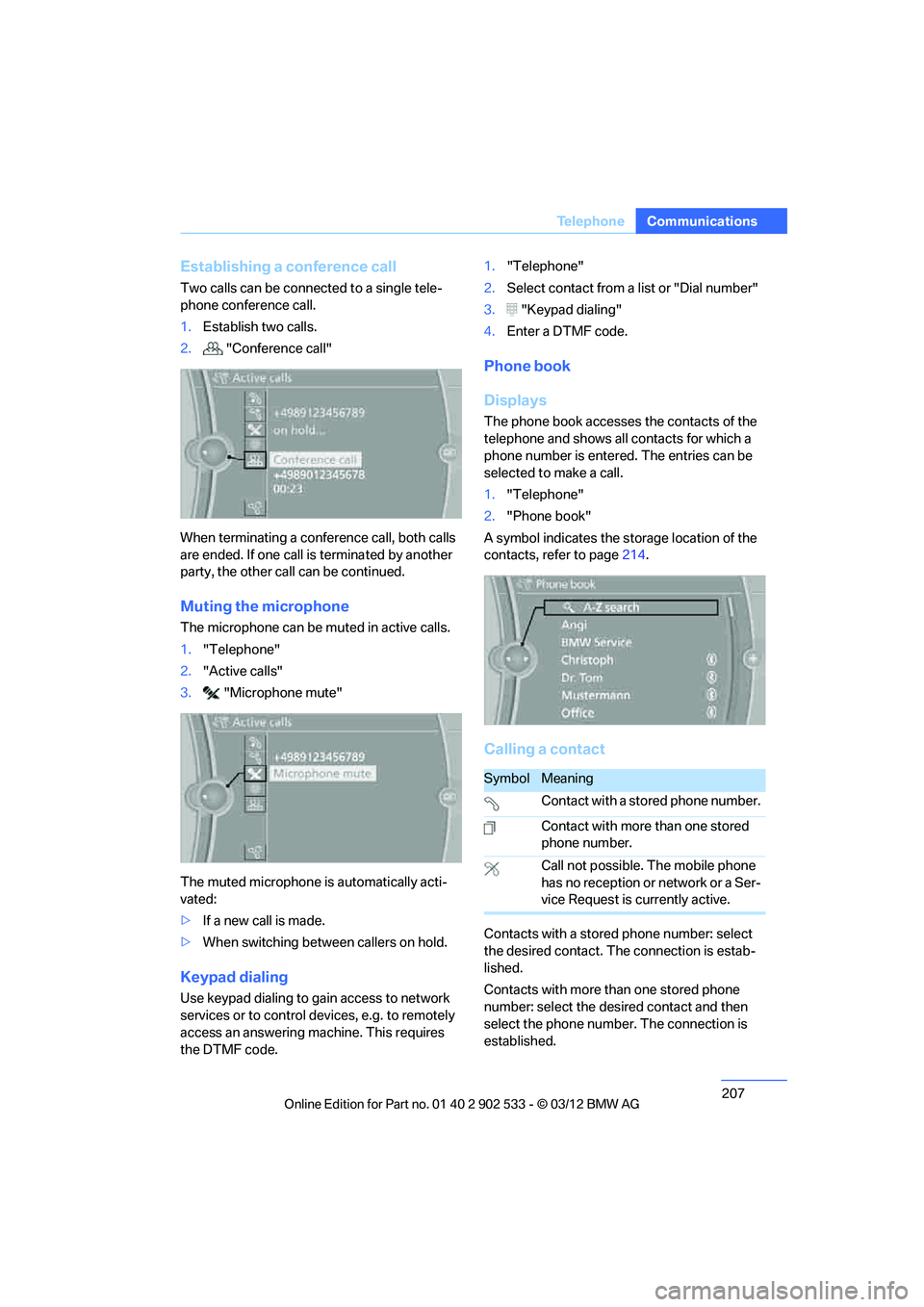
Establishing a conference call
Two calls can be connected to a single tele-
phone conference call.
1.
Establish two calls.
2. "Conference call"
When terminating a conference call, both calls
are ended. If one call is terminated by another
party, the other call can be continued.
Muting the microphone
The microphone can be muted in active calls.
1. "Telephone"
2. "Active calls"
3. "Microphone mute"
The muted microphone is automatically acti-
vated:
> If a new call is made.
> When switching between callers on hold.
Keypad dialing
Use keypad dialing to gain access to network
services or to control devices, e.g. to remotely
access an answering machine. This requires
the DTMF code. 1.
"Telephone"
2. Select contact from a list or "Dial number"
3. "Keypad dialing"
4. Enter a DTMF code.
Phone book
Displays
The phone book accesses the contacts of the
telephone and shows all contacts for which a
phone number is entered. The entries can be
selected to make a call.
1."Telephone"
2. "Phone book"
A symbol indicates the storage location of the
contacts, refer to page 214.
Calling a contact
Contacts with a stored phone number: select
the desired contact. Th e connection is estab-
lished.
Contacts with more than one stored phone
number: select the desired contact and then
select the phone number. The connection is
established.
SymbolMeaning
Contact with a stored phone number.
Contact with more than one stored
phone number.
Call not possible. The mobile phone
has no reception or network or a Ser-
vice Request is currently active.
00320051004F004C00510048000300280047004C0057004C005200510003
Page 217 of 308
216
CommunicationsOffice
The display of all contact pictures is activated or
deactivated.
Deleting contacts
Only contacts that are stored in the vehicle are
deleted. The contacts on the mobile phone
cannot be deleted.
1."Office"
2. "Contacts"
3. Highlight the contact.
4. "Options"
5. "Delete contact" or "Delete all contacts".
Messages
General information
The displaying of text messages and emails
from the mobile phone depends on whether the
mobile phone supports transmission into the
vehicle from the mobile phone. Text messages
and e-mails may not be supported by the ser-
vice provider or the function may have to be
separately activated. After a mobile phone is
paired for the first time, the transmission may
take several minutes. Messages are only dis-
played completely when the vehicle is stopped.
Messages from the auxiliary phone are not
transmitted.
To display various messages:
>Text messages.
> Messages from My info.
> Messages from the BMW Concierge ser-
vice.
> Messages from BMW Info.
> Emails from the mobile phone.
Displaying messages
1."Office"
2. "Messages"
Message type
A symbol indicates the type of message.
Read message.
Unread message.
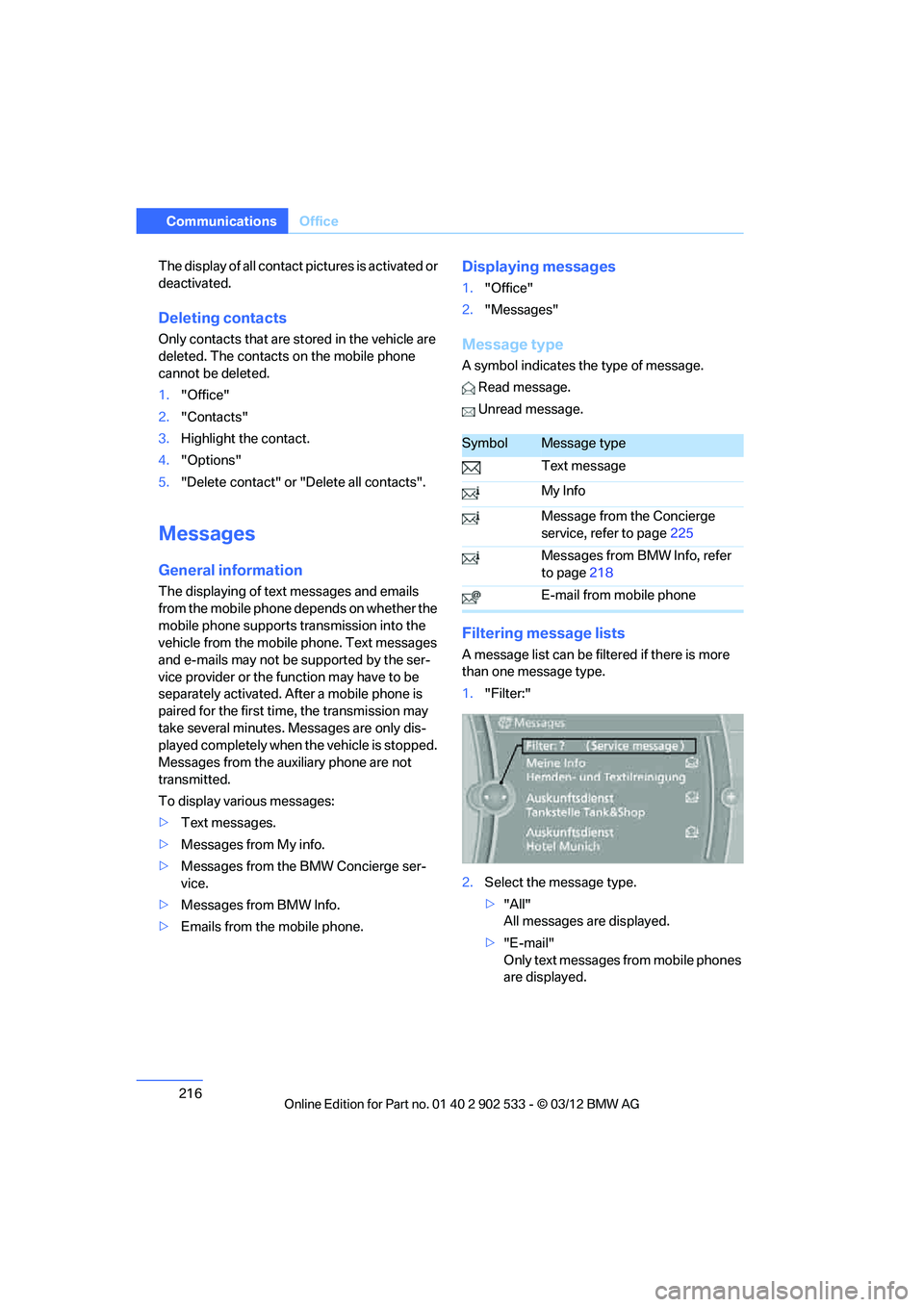
Filtering message lists
A message list can be filtered if there is more
than one message type.
1. "Filter:"
2. Select the message type.
>"All"
All messages are displayed.
> "E-mail"
Only text messages from mobile phones
are displayed.
SymbolMessage type
Text message
My Info
Message from the Concierge
service, refer to page 225
Messages from BMW Info, refer
to page 218
E-mail from mobile phone
00320051004F004C00510048000300280047004C0057004C005200510003
Page 218 of 308
217
Office
Communications
>
"Services messages"
Only messages from the BMW Con-
cierge service, My Info, and BMW Info
are displayed.
> "Text message"
Only text messages from mobile phones
are displayed.
Deleting messages
Messages from the Concierge service, My Info,
BMW Info, and BMW Online can be deleted.
To delete a message:
1. "Office"
2. "Messages"
3. Select the desired message.
4. Open "Options".
5. Open "Delete message".
To delete all messages:
1. "Office"
2. "Messages"
3. Open "Options".
4. "Delete all messages"
Text message
Calling a text message sender
1.Select the desired message.
2. Select the symbol.
Saving sender in the contacts
1.Highlight the desired message.
2. Open "Options".
3. "Store as new contact" or "Add to existing
contact"
Using contact data
Contact data from deadlines, tasks, text mes-
sages, e-mails and notes can be stored or
selected, see page 220.
Reading text messages aloud
Having text messages read aloud, refer to
page 221.
My Info
Selecting additional functions
Additional functions are available when a mes-
sage is selected.
Messages from the Concierge service
Saving an address
1. Select the desired message.
2. Open "Options".
3. "Store contact in vehicle"
SymbolFunction
"Start guidance" or "Add as another
destination"
"Call"
If the message contains a number, a
telephone connection is estab-
lished.
"Select phone number"
If the message contains more than
one number, select the desired
number from the list. A telephone
connection is established.
00320051004F004C00510048000300280047004C0057004C005200510003
Page 225 of 308
224
CommunicationsConnectedDrive
ConnectedDrive
Vehicle equipment
In this chapter, all production, country, and
optional equipment that is offered in the model
range is described. Equipment is also described
that is not available because of, for example,
selected options or country version. This also
applies to safety related functions and systems.
BMW Assist
General information
BMW Assist provides a number of different ser-
vices. For example, the position data of the
vehicle can be transmitted to the BMW Assist
Response Center when an Emergency Request
is sent.
Many BMW Assist services depend on the con-
tract individually agreed upon.
After the contract has expired, the BMW Assist
system will be deactivated by the BMW Assist
Response Center without you having to visit a
BMW center. After the BMW Assist system has
been deactivated, no BMW Assist services will
be available. The BMW Assist system can be
reactivated by a BMW center after a new con-
tract has been signed.
Requirements
>The installed BMW Assist system is logged
into a mobile phone network. This network
must be capable of transmitting the ser-
vices.
> To transmit position data, the vehicle must
be able to determine its current position.
> To activate and update BMW Assist, a GPS
signal must be available. >
The BMW Assist service contract was
signed with your BMW center or with the
BMW Assist Response Center. The service
must have been fully enabled.
> BMW Assist is activated.
Services offered
>Emergency Request: when you press the
SOS button, a connection to the BMW
A s s i s t R e s p o n s e C e n t e r i s e s t a b l i s h e d . T h e
BMW Assist Response Center then speaks
with you and takes further steps to help you.
> Automatic Emergency Request: under cer-
tain conditions, a connection to the BMW
Assist Response Center is established after
a serious accident. If possible, the BMW
Assist Response Center then speaks with
you and takes further steps to help you.
> Enhanced Roadside Assistance:
BMW Roadside Assistance can be con-
tacted if assistance is needed in the event of
a breakdown. If possible, the vehicle data
and position data are transmitted during
this call.
> Customer Relations: connection to Cus-
tomer Relations for information on all
aspects of your vehicle.
> BMW TeleService: the data on your vehi-
cle's service status or required inspections
are transmitted to your BMW center, either
automatically before a service due date or
when you request a service appointment.
> Remote Door Unlock: the BMW Assist
Response Center provides assistance if, for
example, the remote control is not available
and the vehicle needs to be opened.
> Stolen Vehicle Recovery: after you report to
the police that your vehicle was stolen, the
BMW Assist Response Center can deter-
mine its position.
00320051004F004C00510048000300280047004C0057004C005200510003