2013 BMW 335IS COUPE service
[x] Cancel search: servicePage 88 of 308
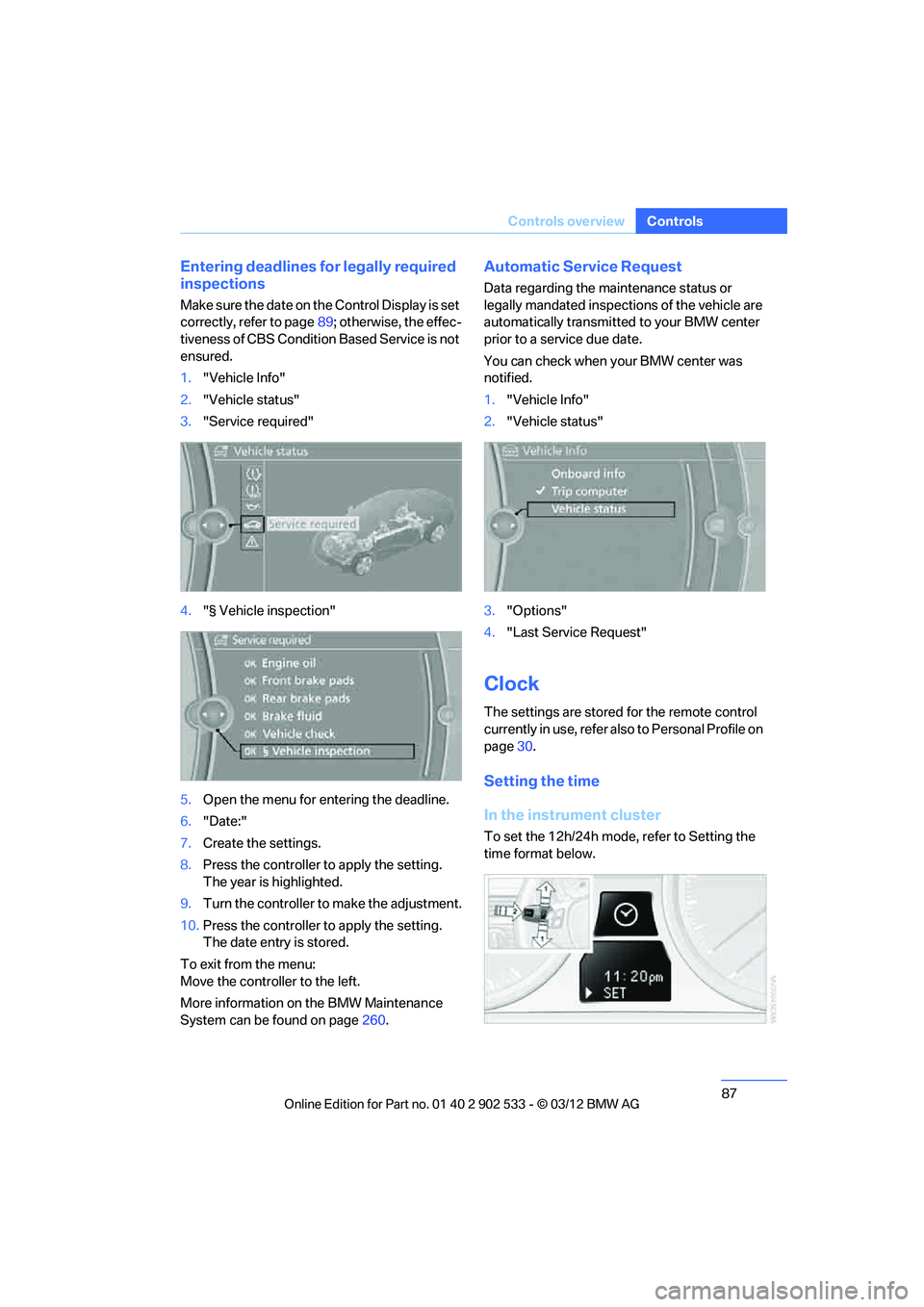
87
Controls overview
Controls
Entering deadlines for legally required
inspections
Make sure the date on the Control Display is set
correctly, refer to page
89; otherwise, the effec-
tiveness of CBS Condition Based Service is not
ensured.
1. "Vehicle Info"
2. "Vehicle status"
3. "Service required"
4. "§ Vehicle inspection"
5. Open the menu for entering the deadline.
6. "Date:"
7. Create the settings.
8. Press the controller to apply the setting.
The year is highlighted.
9. Turn the controller to make the adjustment.
10. Press the controller to apply the setting.
The date entry is stored.
To exit from the menu:
Move the controller to the left.
More information on the BMW Maintenance
System can be found on page 260.
Automatic Service Request
Data regarding the maintenance status or
legally mandated inspections of the vehicle are
automatically transmitted to your BMW center
prior to a service due date.
You can check when your BMW center was
notified.
1."Vehicle Info"
2. "Vehicle status"
3. "Options"
4. "Last Service Request"
Clock
The settings are stored for the remote control
currently in use, refer also to Personal Profile on
page 30.
Setting the time
In the instrument cluster
To set the 12h/24h mode, refer to Setting the
time format below.
00320051004F004C00510048000300280047004C0057004C005200510003
Page 91 of 308
90
ControlsControls overview
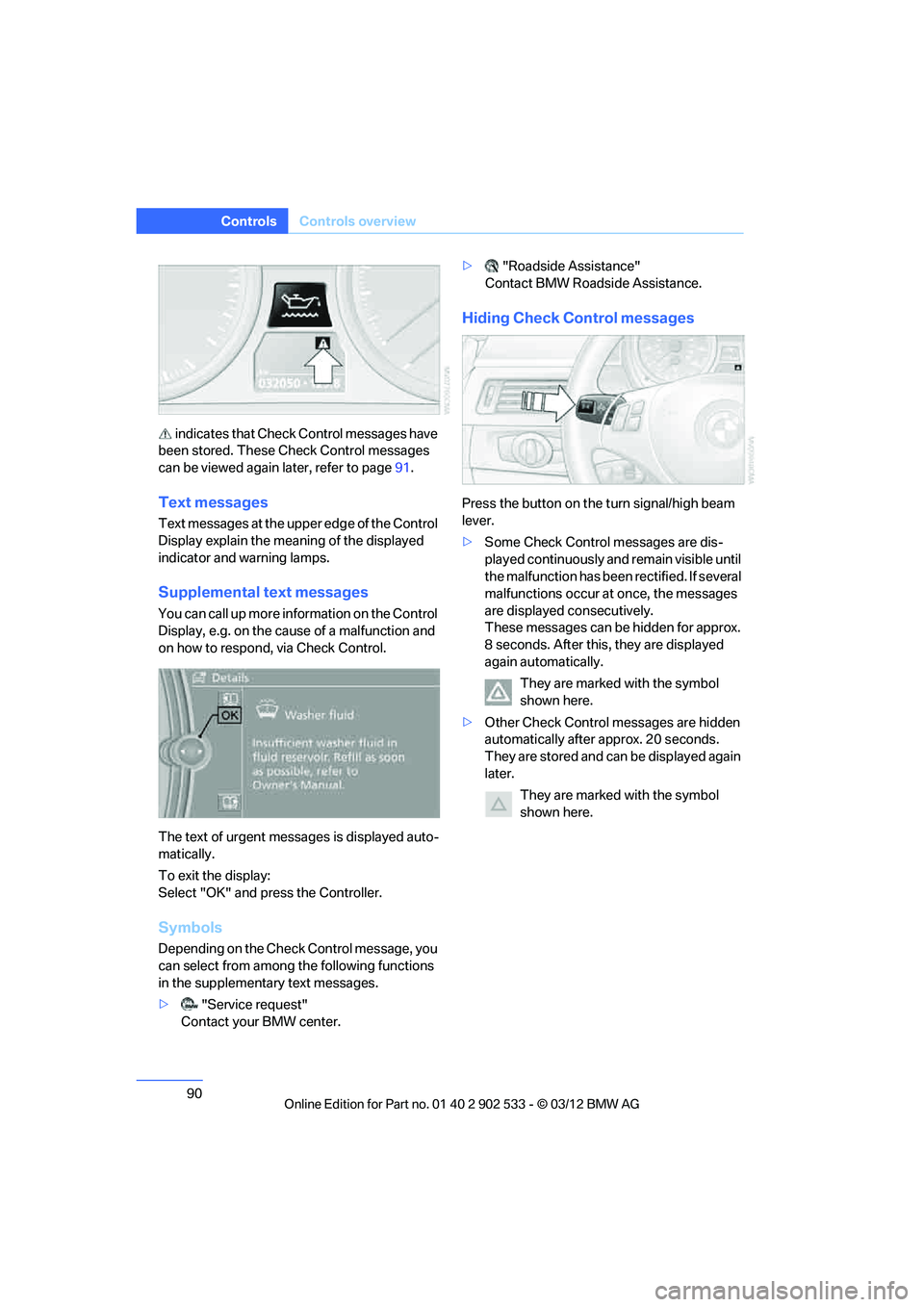
indicates that Check Control messages have
been stored. These Check Control messages
can be viewed again later, refer to page 91.
Text messages
Text messages at the upper edge of the Control
Display explain the meaning of the displayed
indicator and warning lamps.
Supplemental text messages
You can call up more in formation on the Control
Display, e.g. on the cause of a malfunction and
on how to respond, via Check Control.
The text of urgent messages is displayed auto-
matically.
To exit the display:
Select "OK" and press the Controller.
Symbols
Depending on the Check Control message, you
can select from among the following functions
in the supplementary text messages.
> "Service request"
Contact your BMW center. >
"Roadside Assistance"
Contact BMW Roadside Assistance.
Hiding Check Control messages
Press the button on the turn signal/high beam
lever.
> Some Check Control messages are dis-
played continuously and remain visible until
the malfunction has been rectified. If several
malfunctions occur at once, the messages
are displayed consecutively.
These messages can be hidden for approx.
8 seconds. After this, they are displayed
again automatically.
They are marked with the symbol
shown here.
> Other Check Control messages are hidden
automatically after approx. 20 seconds.
They are stored and can be displayed again
later.
They are marked with the symbol
shown here.
00320051004F004C00510048000300280047004C0057004C005200510003
Page 108 of 308
107
Technology for driving comfort and safety
Controls
Have the rollover protection system checked
after an unexpected activation.
Never move the retractable hardtop when
the rollover protection system is in the
activated position.
Do not make any modifications to the individual
components of the rollover protection system
or its cabling.
Work on the rollover protection system should
be performed only by your BMW center.
Incorrectly performed work on the system may
lead to system failure or incorrect operation.
To check the system and ensure flawless long-
term operation, always observe the service
intervals, refer to page 85.<
00320051004F004C00510048000300280047004C0057004C005200510003
Page 137 of 308
136
Driving tipsThings to remember when driving
Things to rememb er when driving
Vehicle equipment
In this chapter, all production, country, and
optional equipment that is offered in the model
range is described. For this reason, descrip-
tions will be given of some equipment that may
not be available in a vehicle, for example due to
the special options or national-market version
selected. This also applies to safety related
functions and systems.
Break-in period
Moving parts need breaking -in time to adjust to
each other. Please follow the instructions below
in order to achieve the optimal service life and
economy of operation for your vehicle.
Engine and differential
Always obey all official speed limits.
Up to 1,200 miles/2,000 km
Drive at varying engine and road speeds, but do
not exceed an engine speed of 4,500 rpm or a
road speed of 100 mph/160 km/h.
Avoid full-throttle operation and use of the
transmission's kickdown mode.
After driving 1,200 miles/2,000 km
Engine and vehicle speeds can be gradually
increased.
Tires
Due to technical factors associated with their
manufacture, tires do not achieve their full trac-
tion potential until after an initial break-in
period. Therefore, drive cautiously during the
first 200 miles/300 km.
Brake system
Brakes require an initial break-in period of
approx. 300 miles/500 km to achieve optimized
contact and wear patterns between brake pads
and rotors. Drive cautiously during this break-in
period.
Clutch
The function of the clutch reaches its optimal
level only after a distance driven of approx.
300 miles/500 km. During this break-in period,
engage the clutch gently.
Following part replacement
The same break-in procedures should be
observed if any of the components mentioned
above have to be renewed in the course of the
vehicle's operating life.
Saving fuel
The fuel consumption of your vehicle depends
on several factors. You can lower fuel consump-
tion and the environmental impact by taking
certain measures, adjusting your driving style
and having the vehicle serviced regularly.
Remove any unneeded cargo
Additional weight increases fuel consumption.
Remove any mounted parts after you
have finished using them
Remove unneeded additional mirrors, the roof
rack and the rear luggage rack after use.
Mounted parts affect the vehicle's aerodynam-
ics and increase fuel consumption.
Close the windows and glass roof
An open glass roof or window causes higher air
resistance and thus increases fuel consump-
tion.
00320051004F004C00510048000300280047004C0057004C005200510003
Page 138 of 308
137
Things to remember when driving
Driving tips
Check tire inflation pressure regularly
Check the tire inflation pressure at least twice a
month and before embarkin
g on a long journey,
and correct it if necessary.
Low tire inflation pressure causes higher rolling
resistance and thus increases fuel consumption
and tire wear.
Set off immediately
Do not let the engine warm up while the car is
still standing, but set off immediately at moder-
ate engine speed. This is the fastest way for the
cold engine to reach its operating temperature.
Drive defensively
Avoid unnecessary acceleration and braking
maneuvers. To do so, keep an adequate dis-
tance between you and the vehicle in front of
you. A defensive and smooth driving style
keeps fuel consumption down.
Avoid high engine speeds
Only use first gear when setting off. In second
and higher gears, accelerate without hesitation
or pauses. When accelerating, shift up before
reaching high engine speeds.
When you reach the desired speed, shift into
the highest applicable gear and drive with the
engine speed as low as possible and at a con-
stant speed.
As a rule: driving at low engine speeds lowers
fuel consumption and reduces wear.
Coasting
When approaching a red light, take your foot off
the accelerator and coast to a stop in the high-
est applicable gear.
On a downhill slope, take your foot off the accel-
erator and coast in a suitable gear.
The fuel supply is interrupted when coasting.
Switch off the engine during lengthy
stops
Switch off the engine when stopping for lengthy
periods, e.g. at traffic lights, railroad crossings
or in traffic congestions.
Switch off functions you do not need at
the moment
Functions such as the air conditioner, seat
heating or rear window defroster draw large
amounts of power and consume additional fuel.
Especially in city traffic and in stop-and-go driv-
ing they have a considerable impact. Therefore,
switch these functions off when they are not
really needed.
Have the vehicle serviced
Have the vehicle serviced regularly to achieve
good economy and a long vehicle life. BMW
recommends having the vehicle serviced at
your BMW center. Also note the BMW Mainte-
nance System, refer to page 260.
General driving notes
Close the trunk lid
Only drive with the trunk closed. Failure to
do so may endanger passengers or other
road users or may damage the vehicle in the
event of an accident or a braking and evasive
maneuver. In addition, exhaust gas may flow
into the passenger compartment. <
If special circumstances make it absolutely nec-
essary to drive with the trunk open:
1. Close all windows and the glass roof.
2. Greatly increase the air volume of the auto-
matic climate control system, refer to
page 116.
3. Drive cautiously.
Hot exhaust system
In all vehicles, extremely high tempera-
tures are generated in the exhaust sys-
00320051004F004C00510048000300280047004C0057004C005200510003
Page 152 of 308
151
Destination entry
Navigation
8.
Select the special destination.
Details are displayed.
If several details are stored, then you can
scroll through the pages.
If a phone number is available, a connection
can be established, if desired.
9. Select the symbol.
10. "Start guidance" or "Add as another desti-
nation". Adding destination as another des-
tination, refer to page 154.
Displaying special destinations
List of special destinations: the special destina-
tions are displayed in order of their distance and
are displayed with a direction arrow pointing
toward the destination.
With the Professional navigation system:
In the split screen, special destinations from the
selected category are displayed as symbols in
the map view. The display depends on the map
scale and the category.
Destination entry via BMW Assist
A connection to the BMW Concierge service is
established, refer to page 225.
1. "Navigation"
2. "Enter address"
3. Open "Options".
4. "BMW Assist dest. entry"
Displaying special destinations in the
map
To display symbols of the special destinations
in the map:
1."Navigation"
2. "Map"
3. Open "Options". 4.
"Display Points of Interest"
5. Select the settings.
Destination entry via map
If you only know the location of a destination or
street, then you can enter the destination with
the aid of the map.
Selecting the destination
1."Navigation"
2. "Map"
The current position of the vehicle is displayed
on the map.
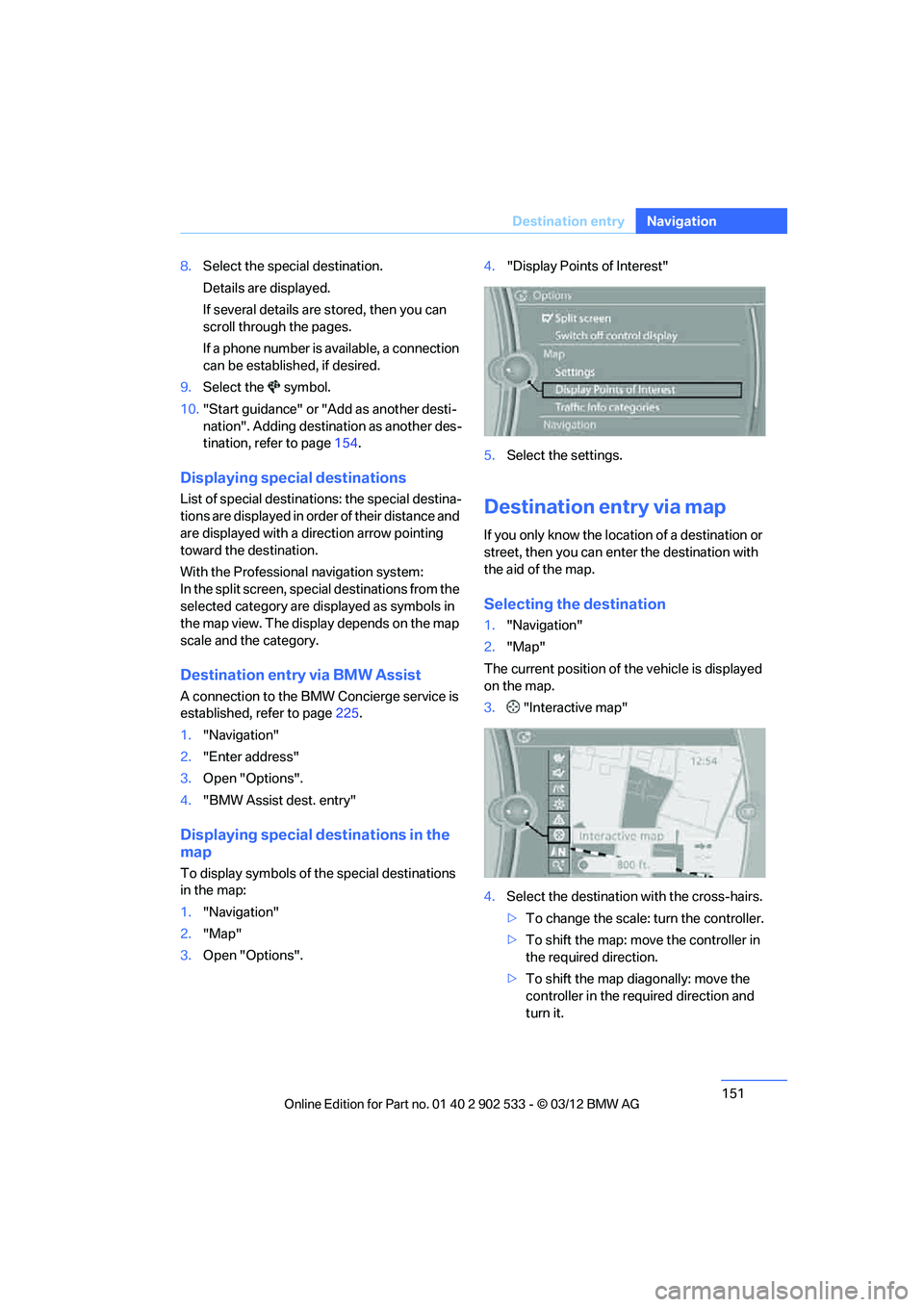
3. "Interactive map"
4. Select the destination with the cross-hairs.
>To change the scale: turn the controller.
> To shift the map: move the controller in
the required direction.
> To shift the map diagonally: move the
controller in the required direction and
turn it.
00320051004F004C00510048000300280047004C0057004C005200510003
Page 160 of 308
159
Destination guidance
Navigation
Automatic scaling of the map
In the map view facing north, turn the controller
in any direction until AUTO is displayed as the
map scale.
The map shows the entire range from your loca-
tion to the destination.
Settings for the map view
The map is shown on the Control Display.
1.
Open "Options".
2. "Settings"
Set the optimized map view.
> "Day/night mode"
Select and adjust depending on light condi-
tions.
"Traffic conditions/gray map" active:
Settings are not taken into account.
> "Satellite images"
Depending on the availability and resolu-
tion, satellite images are displayed in scales
of approx. 1 mile to 600 miles/2 km to
1,000 km.
> "Perspective view in 3D"
Displays a three-dimensional view. Promi-
nent areas that are contained in the naviga-
tion data are displayed on the map in 3D.
> "Traffic conditions/gray map"
The map is optimized for displaying traffic
bulletins. Symbols for the special destina-
tions are no longer displayed.
Map view for the split screen display
The map view for the split screen can be
selected separately from the main screen.
1.Open "Options".
2. "Split screen"
3. Move the controller to the right repeatedly
until the split screen content is selected.
4. Select "Split screen content" or scale. 5.
Select the map view:
>"Arrow display"
> "Map facing north"
> "Map direction of travel"
> "Map view with perspective"
> "Position"
> "Exit ramp view"
> "Traffic conditions/gray map"
6. To change the scale: switch to the split
screen and turn the controller.
Traffic bulletins
Overview
>You can display the traffic bulletins from
radio stations that broadcast the TMC
(Traffic Message Channel) of a traffic infor-
mation service. Bulletins about traffic
obstructions and hazards are continuously
updated.
> Traffic bulletins are indicated by symbols on
the map.
> Traffic bulletins for the surrounding area are
stored in a list.
The symbol in the toolbar of the map view
turns red if a traffic bulletin relates to the calcu-
lated route.
Real Time Traffic Information End-User
Provisions
Certain BMW models equipped with navigation
have the capability to display real-time traffic
information. If your system has this capability
the following additional terms and conditions
apply:
An End-User shall no longer have the right to
use the Traffic Data in the event that the End-
User is in material breach of the terms and con-
ditions contained herein.
A. Total Traffic Network, a division of Clear
Channel Broadcasting, In c. ("Total Traffic Net-
00320051004F004C00510048000300280047004C0057004C005200510003
Page 162 of 308
161
Destination guidance
Navigation
Symbols in the map view
Depending on the scale of the map and the
location of the traffic obstruction along the
route, the symbols for the traffic obstructions
are displayed.
Additional information in the map view
Depending on the map scale, a traffic obstruc-
tion's length, direction and impact are displayed
on the map using triangles or gray bars along
the calculated route.
>
Red: traffic congestion
> Orange: stop-and-go traffic
> Yellow: heavy traffic
> Green: clear roads
> Gray: general traffic in formation, e.g. con-
struction zone
The bulletins displayed depend in the respec-
tive traffic information service.
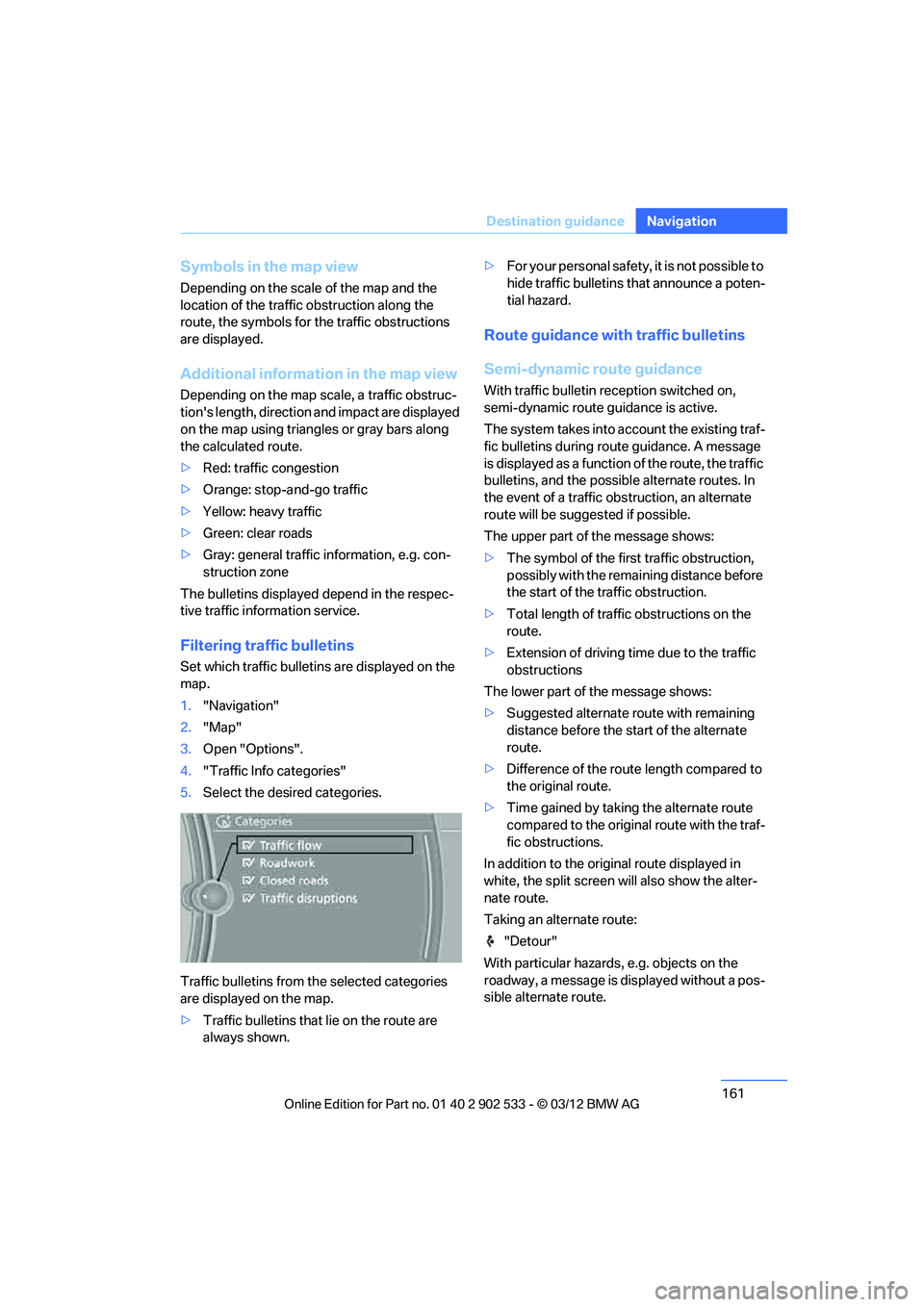
Filtering traffic bulletins
Set which traffic bulletins are displayed on the
map.
1. "Navigation"
2. "Map"
3. Open "Options".
4. "Traffic Info categories"
5. Select the desired categories.
Traffic bulletins from the selected categories
are displayed on the map.
> Traffic bulletins that lie on the route are
always shown. >
For your personal safety, it is not possible to
hide traffic bulletins that announce a poten-
tial hazard.
Route guidance with traffic bulletins
Semi-dynamic route guidance
With traffic bulletin reception switched on,
semi-dynamic route guidance is active.
The system takes into account the existing traf-
fic bulletins during route guidance. A message
is displayed as a function of the route, the traffic
bulletins, and the possible alternate routes. In
the event of a traffic obstruction, an alternate
route will be suggested if possible.
The upper part of the message shows:
>The symbol of the first traffic obstruction,
possibly with the remaining distance before
the start of the traffic obstruction.
> Total length of traffic obstructions on the
route.
> Extension of driving time due to the traffic
obstructions
The lower part of the message shows:
> Suggested alternate route with remaining
distance before the start of the alternate
route.
> Difference of the route length compared to
the original route.
> Time gained by taking the alternate route
compared to the original route with the traf-
fic obstructions.
In addition to the original route displayed in
white, the split screen will also show the alter-
nate route.
Taking an alternate route: "Detour"
With particular hazards, e.g. objects on the
roadway, a message is displayed without a pos-
sible alternate route.
00320051004F004C00510048000300280047004C0057004C005200510003