2013 BMW 3 SERIES CONVERTIBLE open top
[x] Cancel search: open topPage 146 of 311

141
Things to remember when driving
Driving tips
Securing cargo
>
Secure smaller and lighter items using
retaining straps, a trunk net, or draw straps.
> Heavy-duty cargo straps for securing larger
and heavier objects are available at your
BMW center. Four lashing eyes are pro-
vided for attaching the cargo straps. Two
are located on the side walls of the trunk 1
and two additional ones are located on the
inside wall of the trunk 2.
Comply with the information enclosed with
the load-securing devices.
Convertible: before opening the hardtop,
fold down the trunk pa rtition. Make sure
the trunk is loaded corre ctly; otherwise parts of
the hardtop can be damaged, refer to
page 128.<
Always position and secure the cargo as
described above, so that it cannot endan-
ger the car's occupants, for example if sudden
braking or swerving is necessary.
Never exceed either the approved gross vehicle
weight or either of the approved axle loads, refer
to page 281, as excessive loads can pose a
safety hazard, and may also place you in viola-
tion of traffic safety laws.
Heavy or hard objects should not be carried
loose inside the car, sinc e they could be thrown
around, for example as a result of heavy braking,
sudden swerves, etc., and endanger the
occupants.
Only attach the cargo st raps using the lashing
eyes shown in the illust ration. Do not secure
cargo with the anchors fo r tether straps, refer
to page 60, ; otherwise, these could be
damaged. <
Coupe: roof-mounted
luggage rack
A special rack system is available as an option
f o r y o u r B M W . C o m p l y w i t h t h e d i r e c t i o n s g i v e n
in the installation instructions.
Mounting points
The mounting points are located in the roof.
Loading roof-mounted luggage rack
Because roof racks raise the vehicle's center of
gravity when loaded, they have a major effect on
vehicle handling and steering response.
You should therefore always remember not to
exceed the approved roof load capacity, the
approved gross vehicle we ight or the axle loads
when loading the rack.
You can find the applicable data under Weights
on page 281.
The roof load must be distributed uniformly and
should not be too larg e in area. Heavy items
should always be placed at the bottom. Be sure
that adequate clearance is maintained for tilting
the glass roof, and that objects do not project
into the opening path of the trunk lid.
Fasten roof-mounted cargo correctly and
securely to prevent it fr om shifting or falling off
during the trip.
Drive smoothly. Avoid sudden acceleration and
braking maneuvers. Take corners gently.
00320051004F004C00510048000300280047004C0057004C005200510003
Page 163 of 311

158
NavigationDestination guidance
1Toolbar
2 Route segment with traffic obstruction
3 Road sign for traffic obstruction
4 Planned route
5 Current location
6 Upper status box
7 Lower status box
Lines on the map
Streets and roads are depicted with different
colors and lines according to their classification.
Dotted lines represent railroad and ferry con-
nections. National borders are depicted with
thin lines.
Traffic obstructions
Small triangles along the planned route identify
route segments with traffic obstructions,
depending on map scale. The direction of the
triangles indicates the di rection of the obstruc-
tion.
Road signs classify the obstructions.
> Red road sign: the obstruction relates to the
planned route or direction of travel.
> Gray road sign: the obstruction does not
relate to the planned route or direction of
travel.
Traffic bulletins, refer to page 159.
Planned route
After route guidance is started, the planned
route is displa yed on the map.
Status boxes
Show/hide: press the controller.
>Upper status box: time, phone details, and
entertainment details.
> Lower status box: symbol for active route
guidance, traffic bulletin status, arrival time,
and distance from destination.
Toolbar
The following functions are available directly in
the map view:
Changing the map section
"Interactive map"
> To shift the map: move the controller in the
required direction.
> To shift the map diag onally: move the con-
troller in the required direction and turn it.
Changing scale
1.Select the symbol.
2. Turn the controller to adjust the scale.
Automatic scaling of the map
In the map view facing no rth, turn the controller
in any direction until AUTO is displayed as the
map scale.
The map shows the entire range from your
location to the destination.
Settings for the map view
The map is shown on the Control Display.
1. Open "Options".
2. "Settings"
Set the optimized map view.
SymbolFunction
Starting/stopping destination
guidance
Switching voice instructions on/
off
Changing route criteria or
selecting route alternatives
Special destinations
Displaying traffic bulletins
Interactive map
Map view settings
Changing scale
00320051004F004C00510048000300280047004C0057004C005200510003
Page 166 of 311

161
Destination guidance
Navigation
Additional information in the map view
Depending on the map scale, a traffic obstruc-
tion's length, direction
and impact are displayed
on the map using triangles or gray bars along
the calculated route.
> Red: traffic congestion
> Orange: stop-and-go traffic
> Yellow: heavy traffic
> Green: clear roads
> Gray: general traffic information, e.g.
construction zone
The bulletins displayed depend in the respec-
tive traffic information service.
Filtering traffic bulletins
Set which traffic bulletins are displayed on the
map.
1. "Navigation"
2. "Map"
3. Open "Options".
4. "Traffic Info categories"
5. Select the desired categories.
Traffic bulletins from th e selected categories
are displayed on the map.
> Traffic bulletins that lie on the route are
always shown.
> For your personal safety, it is not possible to
hide traffic bulletins that announce a poten-
tial hazard.
Route guidance with traffic bulletins
Semi-dynamic route guidance
With traffic bulletin re ception switched on,
semi-dynamic route guidance is active.
The system takes into ac count the existing traf-
fic bulletins during route guidance. A message
is displayed as a function of the route, the traffic
bulletins, and the possible alternate routes. In
the event of a traffic obstruction, an alternate
route will be suggested if possible.
The upper part of the message shows:
> The symbol of the first traffic obstruction,
possibly with the remaining distance before
the start of the traffic obstruction.
> Total length of traffic obstructions on the
route.
> Extension of driving ti me due to the traffic
obstructions
The lower part of the message shows:
> Suggested alternate route with remaining
distance before the st art of the alternate
route.
> Difference of the route length compared to
the original route.
> Time gained by taking the alternate route
compared to the original route with the
traffic obstructions.
In addition to the original route displayed in
white, the split screen will also show the alter-
nate route.
Taking an alternate route:
"Detour"
With particular hazards, e.g. objects on the
roadway, a message is displayed without a
possible alternate route.
00320051004F004C00510048000300280047004C0057004C005200510003
Page 182 of 311

177
Satellite radio
Entertainment
Managing favorites
Activating/deactivating favorites
Favorites can be activated or deactivated
globally and individually.
1.
"Satellite radio"
2. "Manage favorites"
3. Select "Activate alert" or desired favorites.
The setting is stored for the remote control
currently in use.
Deleting favorites
1. "Satellite radio"
2. "Manage favorites"
3. Highlight the favorites you wish to delete.
4. Open "Options".
5. "Delete entry"
Traffic Jump
Traffic and weather information for a selected
region are broadcast at intervals of a few
minutes.
Selecting region
1."Radio"
2. "Satellite radio"
3. Open "Options".
4. "Set jump"
5. Select the desired region.
The region is stored for the remote control
currently in use.
Activating/deactivating Jump
1. "Radio"
2. "Satellite radio"
3. "Jump to:"
As soon as information about the selected
region becomes availabl e, it is broadcast.
A new panel appears in the display.
Cancel Traffic Jump: "Cancel".
Select one of the symbol s to deactivate Traffic
Jump.
Automatic update
About twice a year, Sirius carries out an update
of the names and positions of the channels. The
update occurs automati cally and can take sev-
eral minutes.
Notes
> Under some circumstances, reception may
not be possible, e.g. under certain environ-
mental or topographical conditions. The
satellite radio has no influence on this.
> The signal may not be available in tunnels or
underground garages or near trees, moun-
tains, or other powerful sources of radio
interference.
SymbolMeaning
Information will be broadcast
soon.
Information is currently being
broadcast.
00320051004F004C00510048000300280047004C0057004C005200510003
Page 185 of 311

180
EntertainmentCD/DVD player
Fast forward/reverse
Press and hold the button for the
corresponding direction.
Video playback
Country codes
Only DVDs with the code of the home region
can be played back; also refer to the information
on your DVD.
Starting playback
For your own safety, the video image is only dis-
played up to approx. 2 mph/3 km/h and in some
market-specific versions, only with the parking
brake engaged or the selector lever of the auto-
matic transmission is in the park position.
DVD video
1. "CD/Multimedia"
2. "CD/DVD"
3. Select a DVD with video content. 4.
"DVD menu"
5. Start the DVD via the DVD menu.
VCD/SVCD
1."CD/Multimedia"
2. "CD/DVD"
3. Select a CD/DVD with video content.
4. "Select track"
5. Select the desired track.
The CD/DVD is started.
Video menu
To open the Video menu:
1. Turn the controller during playback.
2. Press the controller when "Back" is
displayed.
The Video menu is displayed:
CodeRegion
1USA, Canada
2 Japan, Europe, Middle East, South Africa
3Southeast Asia
4 Australia, Central and South America, New Zealand
5 Northwest Asia, North Africa
6China
0 All regions
SymbolFunction
Open the DVD menu
Starting playback
Pause
Stop
Next chapter/next track
Previous chapter/previous
track
Fast forward
Reverse
00320051004F004C00510048000300280047004C0057004C005200510003
Page 186 of 311
181
CD/DVD player
Entertainment
In fast forward/reverse: the speed increases
every time the controller is pressed. To stop,
start playback.
DVD menu
1.
If necessary, turn the controller to open the
Video menu.
2. "DVD menu"
The DVD menu is displayed. The display
depends on the contents of the DVD.
> To select menu items: move and press the
controller.
> To change to the Video menu: turn the
controller and select "Back".
DVD/VCD settings
For some DVDs, settings can only be made via
the DVD menu; also refer to the information on
your DVD.
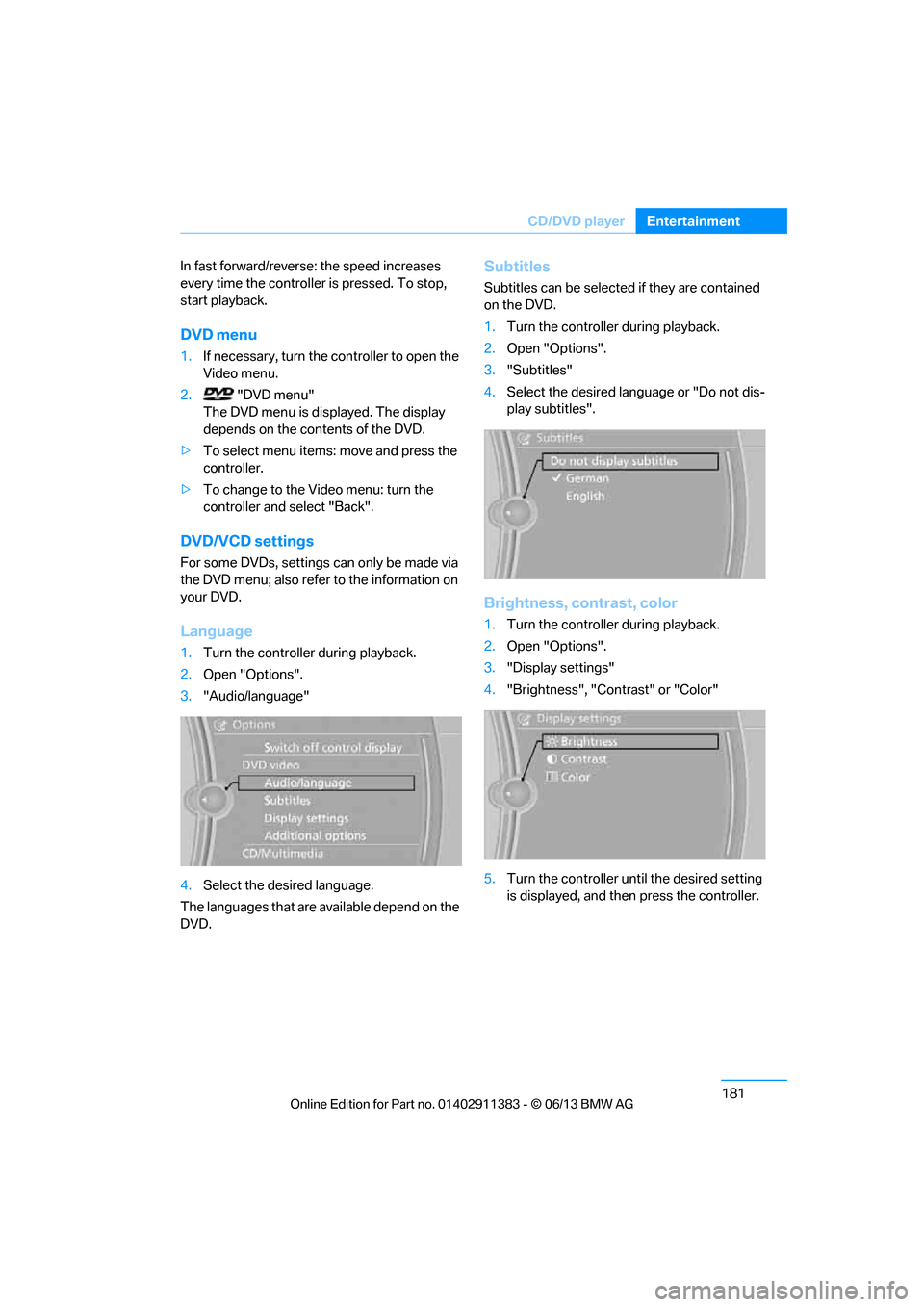
Language
1.Turn the controller during playback.
2. Open "Options".
3. "Audio/language"
4. Select the desired language.
The languages that are available depend on the
DVD.
Subtitles
Subtitles can be selected if they are contained
on the DVD.
1. Turn the controller during playback.
2. Open "Options".
3. "Subtitles"
4. Select the desired language or "Do not dis-
play subtitles".
Brightness, contrast, color
1.Turn the controller during playback.
2. Open "Options".
3. "Display settings"
4. "Brightness", "Contrast" or "Color"
5. Turn the controller unt il the desired setting
is displayed, and then press the controller.
00320051004F004C00510048000300280047004C0057004C005200510003
Page 187 of 311
182
EntertainmentCD/DVD player
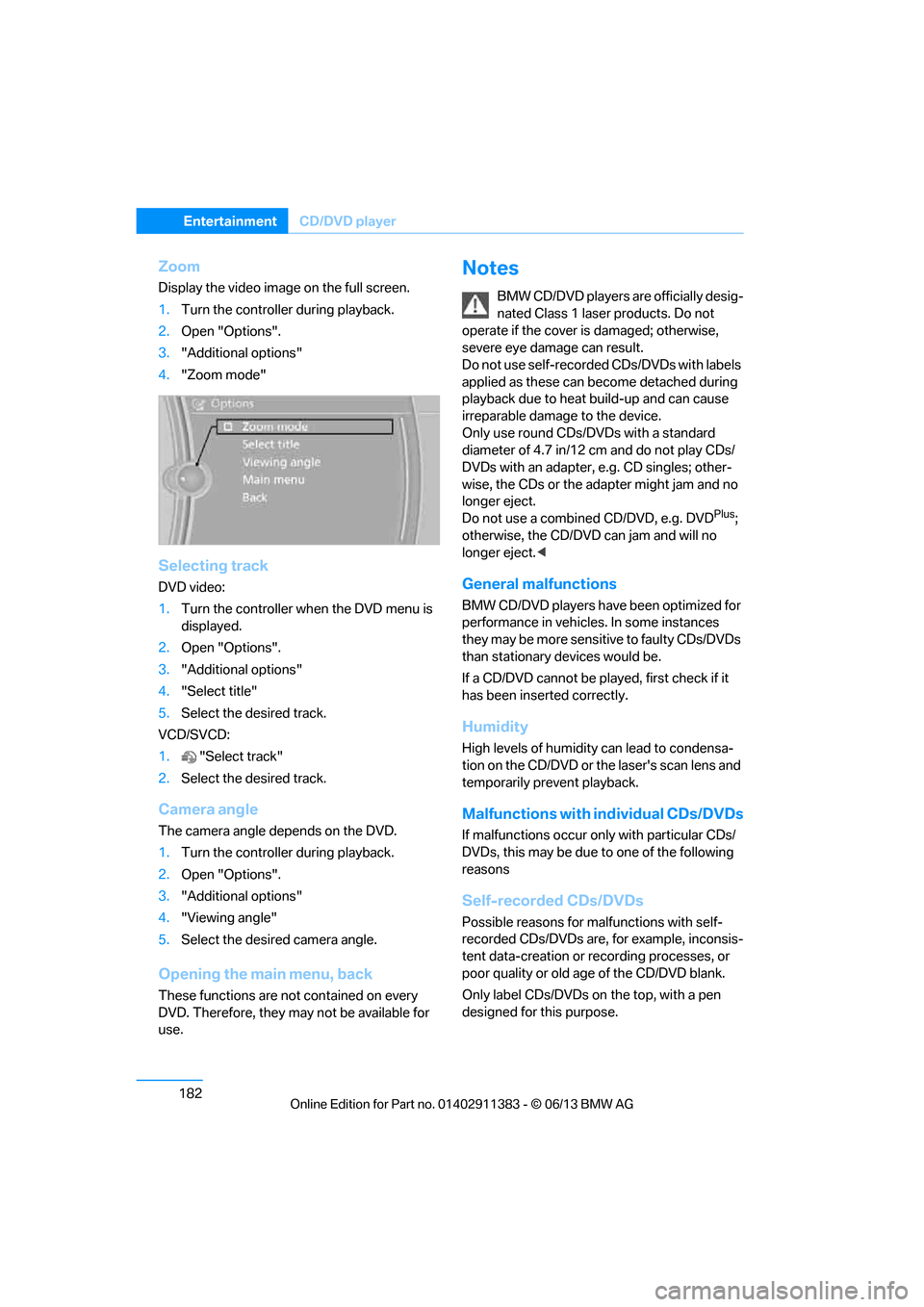
Zoom
Display the video image on the full screen.
1.Turn the controller during playback.
2. Open "Options".
3. "Additional options"
4. "Zoom mode"
Selecting track
DVD video:
1.Turn the controller wh en the DVD menu is
displayed.
2. Open "Options".
3. "Additional options"
4. "Select title"
5. Select the desired track.
VCD/SVCD:
1. "Select track"
2. Select the desired track.
Camera angle
The camera angle depends on the DVD.
1.Turn the controller during playback.
2. Open "Options".
3. "Additional options"
4. "Viewing angle"
5. Select the desired camera angle.
Opening the ma in menu, back
These functions are not contained on every
DVD. Therefore, they may not be available for
use.
Notes
BMW CD/DVD players ar e officially desig-
nated Class 1 laser products. Do not
operate if the cover is damaged; otherwise,
severe eye damage can result.
Do not use self-recorded CDs/DVDs with labels
applied as these can become detached during
playback due to heat build-up and can cause
irreparable damage to the device.
Only use round CDs/DVDs with a standard
diameter of 4.7 in/12 cm and do not play CDs/
DVDs with an adapter, e.g. CD singles; other-
wise, the CDs or the ad apter might jam and no
longer eject.
Do not use a combined CD/DVD, e.g. DVD
Plus;
otherwise, the CD/DVD can jam and will no
longer eject. <
General malfunctions
BMW CD/DVD players have been optimized for
performance in vehicles. In some instances
they may be more sensitive to faulty CDs/DVDs
than stationary devices would be.
If a CD/DVD cannot be pl ayed, first check if it
has been inserted correctly.
Humidity
High levels of humidity can lead to condensa-
tion on the CD/DVD or th e laser's scan lens and
temporarily prevent playback.
Malfunctions with individual CDs/DVDs
If malfunctions occur on ly with particular CDs/
DVDs, this may be due to one of the following
reasons
Self-recorded CDs/DVDs
Possible reasons for malfunctions with self-
recorded CDs/DVDs are, for example, inconsis-
tent data-creation or recording processes, or
poor quality or old age of the CD/DVD blank.
Only label CDs/DVDs on the top, with a pen
designed for this purpose.
00320051004F004C00510048000300280047004C0057004C005200510003
Page 191 of 311

186
EntertainmentMusic collection
1."CD/Multimedia"
2. "Music collection"
3. "Music search"
4. Select the desired category.
5. To select the desired entry:
>Open "A-Z search" and enter the
desired input.
or
> Select the desired entry from the list.
6. Select additional categories if desired.
The tracks found are listed in alphabetical
order.
Not all categories need to be selected. For
example, to search for all tracks by a certain
artist, call up that artist only. All of the tracks
by that artist are then displayed.
7. "Start play"
The list of tracks is automatically repeated.
Restarting the music search
"New search"
Music search by voice
For instructions on the voice activation system,
refer to page27.
1. Press the button on the steering wheel.
To select a track directly:
Say the voice command and the name of the
desired track in one command.
Current playback
The list of tracks that wa s generated last by the
music search or the album selected last.
1. "CD/Multimedia"
2. "Music collection"
3. "Current playback"
4. Select the desired track, if necessary.
Top 50
List of the 50 most frequently played tracks.
1."CD/Multimedia"
2. "Music collection"
3. "Top 50"
4. Select the desired track, if necessary.
2.{Music search }
3. Open the desired category, e.g. { Select
artist }.
4. Say the desired entry in the list.
5. Select additional categories if desired.
{ Title … }
00320051004F004C00510048000300280047004C0057004C005200510003