2013 AUDI Q7 wheel
[x] Cancel search: wheelPage 115 of 348

Adaptive cruise control Speed and distance
control system
Description
Applies to vehicles: with adaptive cruise cont rol
The adaptive cruise control driver assistance
program is a combined speed and distance
control system .
Fig . 126 Front bu mper: Pos itio n of r adar sen sor (not
vi sibl e from out side)
Adapt ive cruise control can he lp ma ke driv ing
more relaxed and less tiring , particularly dur
i n g long trips on interstates or other hig hways
that are genera lly st raight. The system can al
so ass ist in stop and go traffic .
The adaptive cruise co ntrol works within a
speed range be tween 0 and 95 mph (150 km/
h). Set ACC to maintain a constant , legal trav
el speed between 20 and 95 mph (30 -150
km/h) that is appropriate for prevailing traffic
conditions. Select a following distance to the
veh icle ahead and ACC will adjust your speed
to maintain that d istance down to a stop . At a
speed below 20 mph (30 km/h), the min imum
speed setting of 20 mph (30 km/h) will be se l ected automati ca lly.
Adaptive cruise control has technical limita
tions that you must know, so p lease read th is
section carefully , understand how the system
wo rks and use it properly at a ll times.
How does it work?
You can operate the adaptive cruise control
using the lever on the steering wheel column
c::> page 116, How is the speed stored? and
Ad apti ve crui se control 11 3
c::> page 118, How is the distance (time inter
val) set? .
Driver information
Important information is brought up in the
speedomete r and in the instr ument clus ter
display as the vehicle is being driven
c::> page 120, Driver informat ion .
What is important for you to know
The adaptive cru ise contro l is set w ith system
spe cified lim its; that is, as a driver, you will
have to adjus t the speed and distance to the
vehicle ahead in some instances
c:> page 124,
Driver intervention prompt
and c::> page 125,
System limitations.
A WARNING
Imp roper use of the adaptive cruise con
trol can cause collisions, other accidents
and serious personal injury.
- Always remember that the adaptive cru ise contro l has limits -it will not slow
the vehicle down or ma inta in the set d is
tance when you dr ive towards an obsta
cle or someth ing o n or nea r the road that
is not movi ng, such as ve hicles stopped
in a tra ffic jam, a sta lled or d is ab led vehi
cle.
- Always remembe r that the adaptive
cru ise con tro l canno t detect a vehi cle
that is driving towards yo u in your traffic
lane and that it cannot detect narrow
vehicles s uch as motorcycles and bicy
cles.
- Never drive at speeds that are too fast
for traffic, road and weather conditions.
- Never follow a vehicle so closely that yo u
cannot stop your vehicle safely. The
adaptive cruise control cannot s low or
brake the vehicle safely when you follow
another vehicle too close ly. Always re
membe r that the adaptive cruise control
has a braking powe r th at is o nly about
30% of the veh icle 's maxim um braking
ab ility. The a uto mat ic bra kin g f unction
canno t bring the veh icle to a s udden or
emergency stop . Always be p repared to
-
Page 128 of 348

126 Adaptive cruise control
Vehicles offset to one side
Applies to vehicles: with adaptive cruise control
Fig. 141 Vehicle traveling a head o utside the detect ion
range of t he rada r se nsor
Vehicles mov ing up ahead but offset i n the
la ne cannot be detected by ACC until they are
in sensor range.
Lane changes by other vehicles
Applies to vehicles: with adaptive cruise control
Fig. 142 A vehicle changes lanes
Vehicles that cut into your lane a sho rt dis
tance in front of you cannot be detected by
ACC until they are in senso r range.
Vehicles that are difficult to detect
Applies to vehicles: with adaptive cruis e contro l
Fig. 143 Two -wheeled vehicle driving ahead
Some vehicles moving up ahead in your lane
of trave l are difficult to detect, for examp le
two -wheeled veh icles, vehicles w ith high
ground clearance, loads sticking out the back .
Vehicles like this are often detected late or in
some situations not at all.
Stationary vehicles
Applies to vehicles: with adaptive cruise contro l
Fig. 144 Turning and stationary ve hicle
Fig. 145 Sheering out and stat ionary veh icle
If a vehicle that has been detected by ACC ex
its the highway or sheers out into the neigh
boring travel lane, and there is a stationary
vehicle ahead of that vehicle, ACC will not de·
tect or react to that stationary vehicle
<=> fig. 144 and c> fig. 145 .
Page 139 of 348

Automatic transmission
tiptronic ®
General information
Your vehicle is equipped with an electronically
controlled automatic transmission. Upshifting
and downshifting takes p lace
automatically.
The transmission is also equipped with tip
tronic ®. It allows the driver to shift gears
manually if desired ¢ page 140.
Driving the automatic transmission
Fig. 157 Shift gate o n the center console : se lector lev
er with release button
Starting the engine
.. The selector lever must be in Nor P.
Starting off
.. Press and hold the brake pedal.
.. Press and hold the release button in these
lector lever handle and move the selector
lever from
P or N to D and release the but
ton ¢.&,. .
.. Wait briefly until the transmission has shift
ed (you will feet a slight movement).
.. Remove your foot from the brake pedal and
accelerate.
Rocking back and forth to become
unstuck
.. Shift only between D and R when the vehi
cle is at a full stop and the engine is running
at id le speed.
Autom atic transm ission 13 7
Stopping
.. Press and hold the brake pedal until the ve
hicle has come to a complete stop.
.. Keep the brake pedal depressed so that the
vehicle cannot roll forward or backward
while it is idling
c> .&,. .
.. Once stopped,
do not depress the accelera
tor pedal to rev up the engine
c> .&, .
Parking
.. Press and hold the brake peda l until the ve
hicle has come to a comp lete stop.
.. Set the parking brake firmly
¢page 110,
Parking .
.. Press and hold the release button in these
lector lever handle, move the selector lever
into
P and then let go of the release button
¢ .&,.
The selector lever must be in Nor P. If one of
the driving positions is engaged a safety
switch will p revent the eng ine from being
started . See also
<=>page 106.
Before you move the selector lever from the P
position, you must always apply the brake
pedal before and while depressing the button
in the handle of the selector lever.
A WARNING
-Unintended vehicle movement can cause
serious injury .
- When the se lector lever is in a driving
pos ition, the vehicle may creep, even at
i dle speed . Therefore do not release
the parking brake o r foot brake until
you are ready to move, because power
i s transmitted to the wheels as soon as
a driving position is engaged .
- Do not accelerate while selecting a
driving position. At this time the en
gine must be at idle speed so that un
due stress is not placed on the clutches
in the transmission .
- Remember: -even when stopped brief-
l y with the automatic transmission in
"D", "S" or "R", engine power is being
transmitted to the wheels. Your vehicle
~
Page 143 of 348
To upshift
• Push the selec tor leve r forw ard to the pl us
pos ition
0 ¢ fig. 160 .
To downshift
• Push the lever to the m in us position
Q .
When acce lerating, the transm iss ion w ill au
tomatically sh ift into the next gear before the
e ngine reaches its maxim um RPM .
If you app ly a light throttle when accelerat
ing , tiptronic ® will automatically shift from
1st to 2nd gear to save fuel. If you apply a
h eavy thrott le, the transmission will stay in
1st gear unt il n ear maximum R PM is reached,
or until the d river sh ifts i nto 2nd gear .
If you take your foot off the accelerator peda l
when dr iv ing down a steep incli ne , tiptronic ®
will downshift from th e se lected gear into the
n ex t lowe r gear until it reaches 1st gea r,
b ased on ro ad s peed and eng ine RPM . A uto
mat ic downshifting is in ter rupted as soon as
you apply t he thrott le again.
@ Tips
- Wh en you sh ift i nto the next lower ge ar,
t h e transmiss io n will dow nshift only
whe n there is no possibility of over-rev
v ing the engine.
- When the kick -down comes on, t he
transmission will s hift down to a lower
gear, depending on ve hicle and engine
speeds .
- tiptron ic® is inoperative w hen the trans
mission is in the fail-sa fe mode.
Autom atic transm ission 141
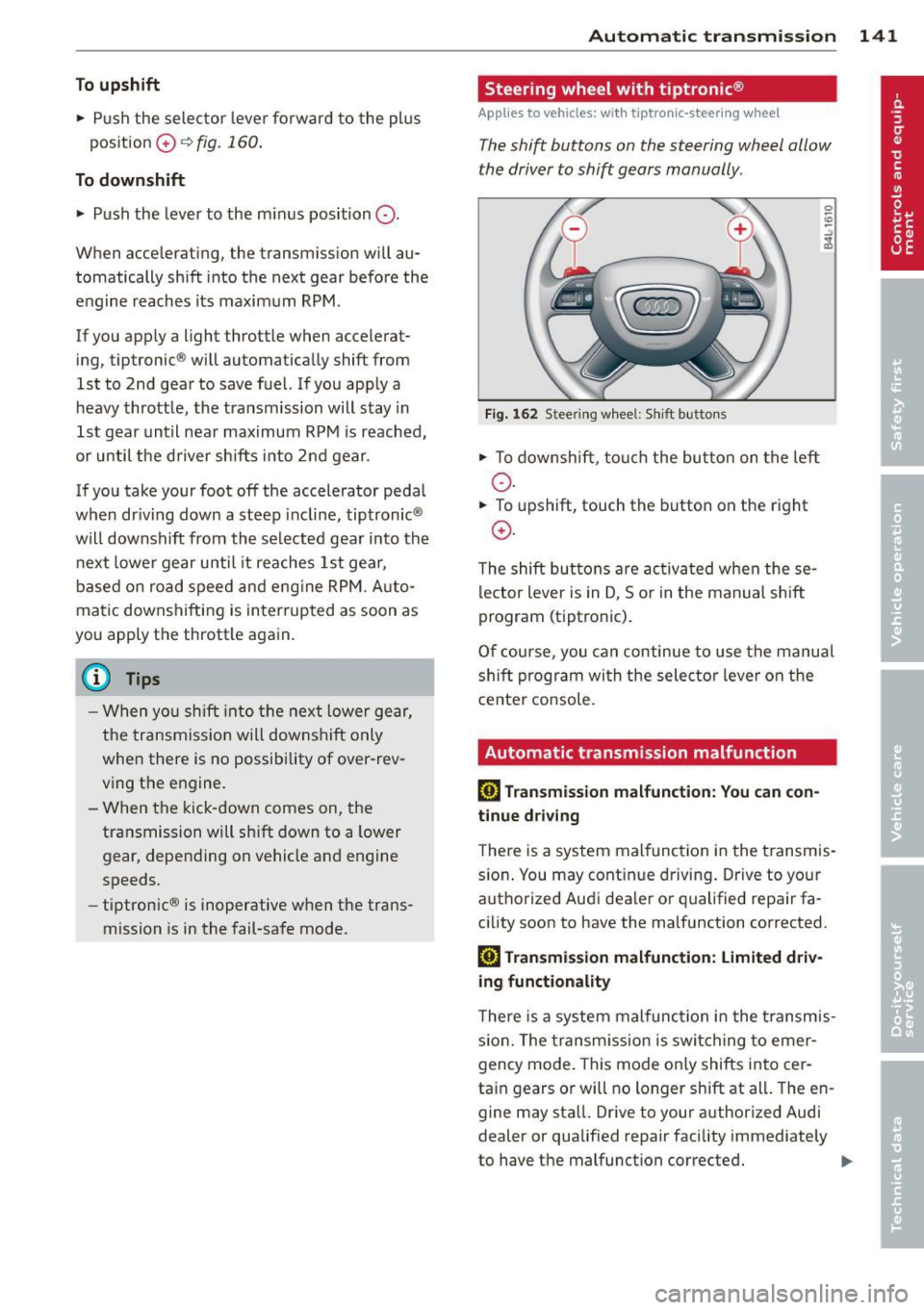
Steering wheel with tiptronic ®
Applies to vehicles: w ith t iptronic-steering wheel
T he shift buttons on the steering wheel allow
the driver to shift gears manually .
Fig. 162 Steering w hee l: S hift b utt ons
• To down shi ft, tou ch the bu tton on t he left
o .
• To upshift, touch the button on the right
0 .
The shift bu ttons are activ at ed when these
lector lever is in D, So r in the manual s hift
program (tiptronic) .
O f c ourse , you can c ontinue to use the manu al
s hift p rogram wi th the selecto r leve r on the
cente r co nsole.
Automatic transmission malfunction
[O] Transmission malfunction : You can con
tinue driving
T he re is a system mal function in the t ransmis
s io n. You may cont in u e dr iving . Drive to yo ur
a utho rized Aud i dea ler or qualified repa ir fa
cility soon to have the malfunction corrected.
[O] Trans mission malfunction : Lim ited driv
ing functionality
T he re is a system mal func tion i n the t ransm is
s io n. The transm ission is swi tching to emer
gency mode. This mode on ly shifts into cer
ta in gears o r will no longer shift at all . The en
gine may sta ll. Drive to your a uthorized Audi
dealer or qualif ied repair facility immediately
to have the malfunction correcte d.
IJJ,,
Page 145 of 348

Parking systems
General information
App lies to vehicles: with rea r park assis t/Audi park ing sys
tem plus w ith rearview camera/front -and rearview cam
era
Depending on your vehicle's equipment, vari
ous parking aids will help you when parking
and maneuvering.
The
rear park assist is an acoustic park assist
system that will give you a sound warning to let you know there is something
behind the
veh icle ¢page
144 .
The Audi parking system plus with rearview
camera
audibly and visually tells you there is
something
in front of and behind the vehicle .
A rearview camera also shows you what is be
hind the vehicle ¢ page
144 .
The Audi parking system plus with front- and
rearview camera
audibly and visually tells you
there is something
in front of and behind the
veh icle. A front and rearview camera also
shows you what is in front of and behind the
veh icle¢ page
148 .
& WARNING
-Always look for traffic and check the area
around your vehicle by looking at it di
rect ly as well. The parking system cannot
replace the driver's attention. The driver
is a lways responsible for safety during
park ing and for all other maneuvers.
- Please note that some surfaces, such as clothing, are not detected by the system.
- Sensors and cameras have blind spots in
wh ich people and objects cannot be de
tected. Be especially cautious of children
and animals.
- The sensors can be displaced by impacts
or damage to the radiator grille, bumper,
wheel housing and the underbody . The
park ing systems may become impaired
as a resu lt. Have your authorized Audi
dealer or qualified workshop check their
function.
- Make sure the sensors are not covered by
stickers, deposits or any other obstruc-
Parking systems 143
tions as it may impair the sensor func
tion. For informat ion on cleaning, refer
to¢ page
247.
([) Note
-Some objects are not detected by the
system under certain circumstances:
- Objects such as barrier chains, trailer
draw bars, vertical poles or fences
- Objects above the sensors such as wall
extensions
- Objects w ith specific surfaces or struc
tures such as chain link fences or pow
der snow.
- If you continue driving closer to a low-ly
ing object, it may disappear from the
sensor range. Note that you w ill no lon
ger be warned about this obstacle.
@ Tips
-The system may provide a warning even
though there are no obstacles in the cov
erage area in some situations, such as:
- certain road surfaces or for long grass.
- externa l ultrasonic sources e .g . from
cleaning vehicles.
- heavy rain, snow or thick vehicle ex
haust.
- We recommend tha t you practice park
ing in a traff ic-free location or parking
lot to become familiar with the system.
When doing this, there should be good
light and weather cond itions.
- You can change the vo lume and pitch of
the s ignals as well as the disp lay
¢page
153.
- Please refer to the instructions for tow
ing a trailer ¢page
153.
-What appears in the MMI display is
somewhat time-delayed.
Page 148 of 348

146 Parking systems
-The camera lens en larges and disto rts
the field of vision. The object appears
both altered and inaccurate on the
screen.
- In certain situations, people or objects in
the display appear closer or further
away:
- objects that do not touch the ground,
such as the bumper of a parked vehicle,
a trailer hitch or the rear of a truck. Do
not use the help lines in this case.
- If driven from a leve l surface onto an
incline, or a downward slope.
- If driven toward protruding objects.
- If the vehicle is carrying too much load
in the rear.
(D Note
-Always read and follow the applicable
warnings
¢ (D in General information on
page 143 .
-The orange colored orientation lines in
the MMI display show the vehicle path
depending on the steering wheel angle .
The front of the vehicle front swings out more than the rear of the vehicle. Main
tain plenty of distance so that your out
side mirror or a corner of your vehicle does not collide with any obstacles.
Switching on and off
Applies to vehicles: with Audi parking system p lus w ith
rearview camera
Fig. 168 Center co nsole: P"A button
Fig. 169 MMI display: Visual distance display
Switching on
.. Switch the MMI on .
.,. Shift into reverse, or
.,. Press t he[!;] button in the center console
¢ fig. 168. A short confirmation tone
sounds and the LED in the button lights up .
Switching between the rearview camera
and visual display
.,. Press the Graphic control button
¢ page 147, fig. 170 ® to see the visual
display.
.,. Press the
Rear view control button to see
the rearview camera image
c> fig. 169.
Switching off
.,. Drive faster than 6 mph (10 km/h), or
.,. Press the [!;] button, or
.,. Switch off the ignition.
Visual display
The red segments in front of and behind the
vehicle
c> fig. 169 help you to determine the
distance between you and an obstacle . As
your vehicle comes closer to the obstacle , the
segments move closer to the vehicle. The col
lision area has been reached when the next to
last segment is displayed . Do not continue
driving farther forward or in reverse
c> .&. in
General information on page 143,
c> @ in
General information on page 143.
(D Tips
-The visual display in the left part of the
display should help you detect the criti
cal vehicle areas .
Page 149 of 348

-You can change the volume and pitch of
the signals as well as the display
Qpage 153.
Cross parking
Applies to vehicles: with Audi parking system plus w ith
rearview camera
This view may be used when parking in a ga
rage or in a parking space.
Fig. 170 MMI display: A im ing at a parking space
Fig. 171 MMI display: Aligning the vehicle
"' Switch the MMI on and select reverse gear.
"' The orange colored orientation lines@
show the direction of travel of the vehicle.
Turn the steering wheel until the orange ori
entation lines appear in the parking space
Q fig. 170. Use the markings @to help you
estimate the distance from an obstacle.
Each marking represents approximately 3 ft
(1 m) . The blue area represents an extension
of the vehicle's outline by approximately
16 ft (Sm) to the rear .
"' While driving in reverse gear, adjust the
steering wheel angle to fit the parking space
with the aid of the orange orientation lines
c::> A in General Information on page 145,
Q@in General Information on page 146.
@ marks the rear bumper. Stop the vehicle
Parking systems 147
when the red orientation line© borders an
obstacle.
Parallel parking
Applies to vehicles: with Audi parking system plus with
rearview camera
This view may be used when parallel parking
along the side of a street.
Fig. 172 MMI display: Blue surface aligned in the park
ing space
Fig. 173 MMI display : Contact of the blue curve w ith
the cu rb
Parking on the right is described here. It is
identical when parking on the left.
If there is an obstacle next to the parking
space (such as a wall), refer to information for
"Parking next to obstacles"
c::> page 148.
"' Activate the turn signal.
"' Position your vehicle next to a parked vehi
cle in front of the desired parking space. The
distance to this vehicle should be approxi
mately 3
ft (1 m).
"' Turn the MMI on and select the reverse
gear. The parking system is turned on and
the
cross parking indicator is displayed .
"' Press the control button on the
MMI con
trols
(D c::> fig. 172. The parallel parking in-
dicator is displayed.
II>
Page 150 of 348

148 Parking system s
• Back up and align you r vehicle so the b lue
area @ borders on the rear end of the vehi
cle or on the parking space line
c:> A in Gen
eral Information on page 145,
c:> (D in Gen
eral Information on page 146 .
The blue
area represents an extension of the vehicle's
outline by app rox imately 16 ft (5 m) to the
rear. The long side of the b lue a rea shou ld
be o n the curb. The enti re blue area must fit
i n to the par kin g space.
• With the veh icle stopped, turn the steer ing
wheel to the right as far as it wi ll go .
• Back into the parking space until t he b lue
curve
c:> fig. 173 touches the curb c:> A in
General Information on page 145,
c:> (D in
General Information on page 146.
Stop the
vehicle .
• With the veh icle stopped, turn the steer ing
wheel to the left as far as it will go .
• Co ntin ue to bac k into the park ing space un
t il the vehicle is parked p aralle l to the c urb
c:> A in General Information on page 145,
c:> (D in General Information on page 146 .
® marks the rear bumper. Stop the vehicle,
at the latest, when the red orientation line
@ borders an obstacle . Keep an eye on the
front of your vehicle wh ile doing this.
P ar king ne xt to ob stacle s
When there is an obstacle (s uch as a wall)
next to the parking space, choose a space with
more space on the sides. Pos ition the long
side of the blue area so that there is sufficient
space from the curb . The area must not be on
the curb . You w ill also need to start turning
the steering whee l much earl ie r. T he re shou ld
be a suffi cient amount of space between the
curb and the b lue curve, and the blue curve
c:> fig. 173 mus t not touch the curb.
@ Tips
The left or right orientation lines and sur
faces wi ll be displayed, depending on the
t urn signa l bei ng use d.
Audi parking system
plus with front- and
rearview camera
Introduction '
Applies to vehicles: with Aud i parking system plus with
front- and rearview camera
In addition to an acoustic and visual parking
system, this parking system contains a front
and rearview camera
c:> page 146. You are as
s isted by various views, such as corner v iews
at the front and rear of the ve hicle, and views
directly in front of or behind the vehicle.
General information
Appli es to vehicles: with Audi parking system plus with
front- and rearview camera
Fig . 1 74 Ins talled locat ion of the front and rea r cam
era
The front camera is found in the radiator grille and the rearview camera is located in the rear
l id
c:> fig . 174 . Make sure that t he lenses are
not cover ed by deposits or any other obst ruc
tio ns as it may impair the system. Fo r in for
mation o n clean ing, re fer to
c:> page 247 .
The orientation lines become less accurate
and the b lue surfaces d imin is h if the Adaptive
Air S uspension* is faulty, the vehicle is lifted
o r car go mode is acti va ted , or if the
Dynami c,
Offroad or Lift
mode is set c:> page 155.
A WARNING
-Always rea d and follow the applicable
warnings
c:> .& in General information on
-
page 143. .,..