2013 AUDI Q7 turn
[x] Cancel search: turnPage 23 of 348

Driver information
display
Introduction
General notes
The driver informa tion display inside the in
strument cluster provides you, the driver,
with much useful information.
Fig. 9 Instr ument cluster: ce nter display
Information from the Driver Information Sys
tem is shown in the display in the center of
the instrument cluster.
When you turn on the ignition and while you
are driving, some functions and vehicle com
ponents are scanned for their operating sta
tus. Malfunctions or required service proce
dures are signalled aud ibly and shown by red
and yellow lighted symbols and rem inders to
the dr iver in the display.
The driver is also shown information about ra
d io and CD operation and directions for the
nav igation system . You can f ind additional in
formation on these subjects in the MMI man
ua l.
The Driver Information System prov ides the
following functions:
Sound system disp lay ¢
page 21
Outside air temperature ¢page22
Digital speedometer ¢page
22
Door open indicator ¢page22
Defective light b ulb ¢poge23
Service interval display ¢page23
Auto Check system ¢
page 30
Driver information ¢page30
Dri
ver inform ation di spl ay 21
Speed warn ing system
Cruise control
Adaptive cruise control *
Selector lever pos ition
Adaptive Air Suspension *
T ire pressure monitori ng
(D Tips
¢page28
--·--¢page24
¢page 111
--..--
¢page 113
¢page 138
¢page298
In the event of a malfunction either a red
or ye llow icon appears in the display . Red
symbols indicate
Dang er ¢ page 31. Yel
l ow symbo ls indicate a
Warning
¢ page 34.
Sound system display
Fig. 10 Display: sound syste m
If priority 1 or pr iority 2 faults are not shown
by the Auto Check Control, the name of the ra
dio station you are tuned to or t he frequency
and the recept ion range are shown in the up
per area of the d isplay.
When the CD is in use, the tit le of the track
being played is shown. The number of the CD
(CDI to CD6) cur rently be ing played is also
s h own.
Page 24 of 348
22 Driver in formation d ispl ay
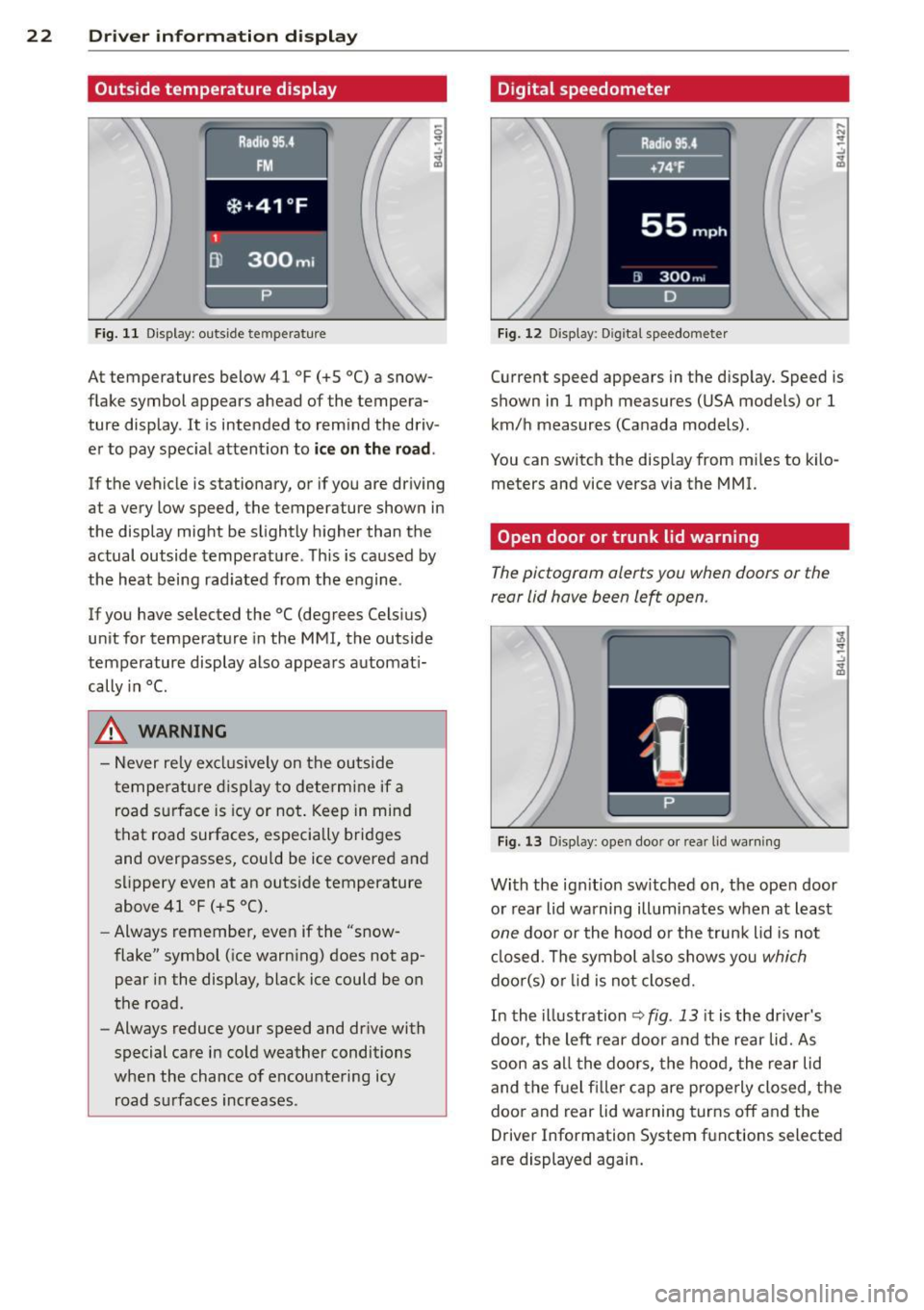
Outside temperature display
Fig. 11 Display : outside temperature
At temperatures below 41 °F (+S °C) a snow
flake symbol appears ahead of the tempera
ture display . It is intended to remind the driv
er to pay spec ial attent ion to
ic e on the roa d.
If the vehicle is stationary, or if you are driving
at a very low speed, the temperature shown in
the display might be slightly higher than the
actual outside temperature . Th is is caused by
the heat being rad iated from the engine .
If you have selected the °C (degrees Celsius)
unit for temperature in the MMI, the outside
temperature display also appears automat i
cally in
°C.
A WARNING
- Never rely excl usively on the outside
temperatu re d isplay to determine if a
road surface is icy or not . Keep in mind
that road surfaces, especially bridges
and overpasses, could be ice covered and
s li ppery even at an outs ide temperature
above 41 °F (+ S °C).
- Always remember, even if the "snow
flake" symbol (ice warn ing) does not ap
pear in the display, black ice could be on
the road.
- Always reduce your speed and dr ive with
special care in cold weather conditions
when the chance of encountering icy road s urfaces increases .
Digital speedometer
Fig. 12 Display: Digi tal speedometer
Current speed appears in the disp lay. Speed is
shown in 1 mph measures (USA models) or 1
km/h measures (Canada models) .
You can switch the disp lay from m iles to kilo
meters and vice versa via the MMI.
Open door or trunk lid warning
The pictogram alerts you when doors or the
rear lid have been left open .
Fig. 13 Display: open doo r or rea r lid wa rning
With the ign it ion sw itched on, the ope n door
or rear lid warning illuminates when at least
one door or the hood or the trunk lid is not
cl osed . The symbol a lso shows you
which
doo r(s) o r lid is not closed.
In the illustration
~ fig . 13 it is the dr iver's
doo r, the left rear door and the rear lid. As
soon as all the doors, the hood, the rear lid
and the f uel filler cap are prope rly closed, the
door and rear lid warning turns off and the
Driver Information System functions selected
are displayed again.
Page 25 of 348

Defective light bulb warning
The defective light bulb warning tells you
when a vehicle light bulb has become defec
tive.
Fig . 14 D isplay : defective lig ht bu lb warn ing
The defective light bu lb warning monitors the
function of the light bulbs . If th is symbol
I
illuminates, a brake light, a turn signal (front
or rear), a headlight, the backup light, a fog
light or a rear fog light has failed.
A WARNING
- light bu lbs are pressurized and could ex
plode while they are being changed caus
ing serious personal injury.
- Work with due care when handling the
high-voltage section of gas discharge
(xenon) lights. Fa ilure to do so could re
s u lt in dea th o r se rious injury.
(D Tips
Have the bulb replaced or the connection
repa ired by you r autho rized Aud i Service
department.
Dri ver inform ation di spl ay 23
Service interval display
The service interval display reminds you when
your next service is due .
Fig . 1 5 Display: Serv ice interva l d isplay
T he schedule for the nex t oi l change or inspec
tion is ca lculated automatica lly and disp layed
accordingly. The disp lay works in two stages:
Service reminder
30 days before t he next service is due, a serv
ice reminde r appea rs in the display whe n you
turn on the ignition
~fig. 15.
After about 5 seconds the display switches
back to norma l. The distance and time re
mai ning are updated each time the ignit ion is
turned on unt il t he da te d ue for se rv ice is
reached.
Service due
When the due date fo r se rvice is reached, the
mes sage
Se rv ice due! appears in the instr u
ment cluster immed iate ly after yo u tur n on
the ignit ion. Addit iona lly, a warning tone
sounds. After about 5 seconds the disp lay
switches back to normal.
Calling up the service schedules
If or when an oil change o r inspection is due,
can be shown in the MMI display by selecting
the service in terval d isplay in the car menu .
Se lect
I CAR I funct io n button > Sy stem s* con
trol button
> S ervice inte rval display or I CAR !
function button > Car sy stem s* contro l but -
ton
> Servicing & chec ks > Service in te rva ls. ..,_
Page 27 of 348

Fue l consumption is reca lculated at interva ls
of 33 yards (30 meters). When the vehicle is
stationary, the most recent fue l consumption
is displayed .
Average speed
The average speed in mph (km/h) since the
l ast time the disp lay was reset appears in the
display .
Elapsed time
The length of time that you have been driving
since you last reset the memory appears in
this display.
Distance
The distance that has been covered since the
l ast time the memory was cleared appears in
the disp lay.
(D Tips
- Fuel consumptions (ave rage and cur
rent), range and speed are displayed in
metric units on Canadian models.
-All stored va lues w ill be lost if the veh i
cle battery is disconnected .
Memories
The trip computer is equipped with two fully
automatic memories as well as an efficiency
program".
Fig. 17 Trip computer d isplay: memo ry level 1
You can switch between the trip computer 1
and 2 and the efficiency program* by pressing
the
! RESET I button @¢ page 25, fig. 18.
You can tell which memo ry level is cur rently
active by the number or the sign in the display
Driver information display 25
¢ fig. 17. The data from the single-trip mem
ory (memory level 1) is being displayed if a
D
appears in the display . If a fJ is shown, then
the data from the total-trip memory is being
displayed (memory level 2). The fuel pump nozzle
iii indicates the efficiency program*
¢page 26.
Single-trip memory (Trip computer 1)
The single-trip memory stores the trip infor
mation from the time the ignition is turned on
until it is turned off. If the trip is continued
within 2 hours from the time the ignition was
turned off, the new data will be included in
the calculat ion of the current trip informa
tion. If the trip is interrupted for
more than 2
hours
the memory is reset automatically.
Total-trip memory (Trip computer 2)
Unlike the single -trip memory, the total -trip
memory is not reset automat ical ly. This per
mits you to evaluate your driv ing data for the
entire period between manua l resets.
Efficiency program*
The efficiency program can help you to use
less fuel ¢
page 26.
Operation
The trip computer is controlled by two
switches on the windshield wiper lever .
Fig. 18 Windsh ield wiper lever : contro ls for the t rip
computer
.. To display the trip computer memory levels,
press the
I RESET ! button®¢ fig. 18 re
peatedly until the desired memory level is
shown in the display . .,.
Page 28 of 348

26 Driver in formation d isplay
• To disp lay trip information within a memory
l evel, press the top or bottom part of the
function selection switch
@ .
The trip computer wi ll not operate unless the
ignition is on. When you turn on the ignition,
the function that was in use when you last
turned the ignit ion off will be d isp layed.
I n addition to informa tion on the trip compu t
e r (trip computer 1, 2 and efficiency pro
gram*), the digital speedometer and informa
tion regard ing the nav igat ion system* can al
so be displayed. To switc h the display between
the different information, tap the
I RESET I but
ton @ briefly .
Setting value s to zer o
To erase the single or total trip comp uter va l
ues, se lect the des ired funct ion and p ress and
hold the
I RESET ! button@ for at least one
second . You ca n also erase* the va lues with
the MMI
¢ page 26.
All values currently displayed in the efficiency
program* are a lso erased with the s ingle tr ip
computer.
(D Tips
All stored values will be lost if the vehicle
battery is disconnected.
MMI settings
Basic settings for the trip computer can be
made in the MMI.
• Se lect: I CARI f u nction button > System s*
control button > Instrument cluster > On·
board computer 1 or On-boa rd computer 2 .
The values i n the single -t rip or the total -trip
memory can a ll be reset to zero at the same
time under
Reset in the menu .
I n addi tion, you can de termine what informa
tion from the trip computer sho uld be shown
in the instrument cluster display. If one of the
p ieces of dr iver information is turned
Off , that
driver information w ill not be shown in the
d isplay. The information will continue to be ca
lculated by the tr ip comp ute r and can be
turned back
On at any time .
(D Tips
- This function is not ava ilable on all
vehicles .
- T he d riving info rm ation in the eff ic iency
program * is also reset to zero with t he
sing le-trip memory.
Efficiency program
Description
Applies to vehicles: with efficiency program
Fig. 1 9 Display: eff iciency prog ra m
• Press the I RESET ! button@¢ page 25 ,
fig . 18
repeatedly unt il the effic iency pro
gram appears i n the display .
T he efficiency program ca n he lp you to use
l ess fuel. It evaluates driving info rmation in
reference to fuel consumption and shows ot h
er equipment influencing consumption. Fuel
economy messages
¢ page 27 provide t ips
for effic ient d riving.
The efficiency program uses distance and con
sumption data from trip computer
l. If the
data a re deleted in the efficiency program,
those values a re also reset in tr ip comp ute r
l.
Page 29 of 348

Other equipment
Applies to vehicles: with efficiency program
Fig. 20 D isplay : ot her equipment
• In the efficiency program, press the func
tion selection switch¢
page 25, fig. 18@
repeatedly until the other equipment ap
pears in the display .
Other equipment that is cu rrently affecting
fuel consumption is lis ted in the eff iciency
program . The display shows up to three other
items of equipment @. The equipment using
the most fuel is l isted first. If more than three
items using fue l are switched on, the equ ip
ment that is currently using the mos t fu el is
d isp layed .
A scale @also shows the current total con
sumpt io n of all other equ ipment .
Fuel economy messages
Applies to vehicles: with efficiency program
Fig. 2 1 Disp lay: fuel eco nomy messa ge
-.:,
~
Fuel economy messages are disp layed when
fuel consumption is inc reased by certain con
d itions . If you follow these fuel economy mes
sages, you can reduce your vehicle's consump
tion of fuel. The messages appear automati
cally and are o nly displayed in the eff ic iency
Dri ver inform ation di spl ay 2 7
program . The fue l economy messages t urn off
automatica lly after a certain period of time .
• To tu rn a fuel economy message off imme
diately after it appears, press the
I RESE T!
button ¢ page 25 , fig. 18@, or
• Press the f unction selection switch
r::!) page 2 5, fig . 18 @ .
{I) Tips
-Once yo u have turned a fuel economy
message off, it will o nly appear again af
ter yo u turn the ign ition on again.
- Th e fuel economy messages are not dis
played in every instance, but rather in in
tervals
over a period of time.
On-Board Diagnostic
system (OBD)
Malfunction Indicator Lamp (MIL)
The Malfunction Indicator Lamp (M IL) ("4 in
the instrument cluster¢
page 14, fig. 8 is
part of the On-Board Diagnos tic (OBD II) sys
tem .
The warning/ind icator light ill um inates when
the ignition is switched on and goes out after
the engine starts and the id le has stabilized.
This indicates that the M IL is working prope r
ly .
If the light does not go out after the engine
is started , or illumina tes while you are dr iv
ing, a malfunction may exist in the engine sys
tem . If the light illuminates, the catalytic con
verter could be damaged .
Con tinue driving
with reduced powe r (avoid
ing sustained high speeds and/or rapid accel
erations) and have the cond ition co rrected .
Contact your a uthorized Aud i dea ler.
If the light illum inates, the elec tronic speed
limiter may also be malfunctioning . For more
information ¢
page 28, Electronic speed
limiter.
An improperl y closed fuel filler cap may also
cau se the MIL light to illum inate (onl y
vehicl es with gas oline engine )¢
page 259 .
Page 31 of 348

will remain in effect until you turn off the igni
tion, assuming that you have not changed or
reset the setting.
The speed warning symbol. (USA models)/
• (Canada mode ls) in the warning 1 display
appears when you exceed the maximum
speed . It goes out when the speed falls below
the stored maximum speed.
The speed warning symbo l wi ll also go out if
the speed
exceeds the stored maximum speed
by more than about 2S mph (40 km/h) for at
least 10 seconds. The stored maximum speed
is deleted.
Setting speed warning 1
<:!;> page 29 .
Speed warn ing 2
Storing warn ing 2 is recommended if you al
ways
want to be reminded of a certa in speed,
for example when you a re traveling in a coun
try that has a general maximum speed limit,
or if you do not want to exceed a specified
speed for winter tires.
The speed warning 2 symbol, . (USA mod
els)/ . (Canada models) appears in the d is
p lay when you exceed the stored speed limit.
Unlike warning 1, it will not go out unti l the
vehicle speed drops below the stored speed
limit.
Setting speed warning 2
r:!;> page 29 .
@ Tips
Even though your vehicle is equipped with
a speed warning system, you should sti ll
watch the speedometer to make sure you are not driving faster than the speed lim it.
Dri ver inform ation di spl ay 29
Speed warning 1: setting a speed limit
Warning threshold 1 is set by the I CH ECKi
button.
Fig . 23 CHECK button in the instrument cluster
Storing the ma ximum speed
"' Drive at the des ired maximu m speed .
"' Briefly p ress the I CH ECK i bu tton
c;> fig. 23.
Resetting the m aximum speed
.. Drive the veh icle at a speed of at least
3 mph (5 km/h)
.. Press the ICHECK I button for more than 2
seconds.
T he speed warn ing symbol . (USA models)/
• (Canada models) will appear briefly in the
display when you release the I CHECK
I button
to indicate t hat the maximum speed has been
stored suc cessf ully.
T he maximum speed rema ins stored until it is
changed by pressing the
I CH ECKi button again
briefly or until it is deleted by a lengthy push
o n the bu tton.
Speed warning 2: setting a speed limit
Warning threshold 2 is set, changed and de
le ted in the MMI .
.. Select: I CAR I function button > Systems*
contro l butto n > In strum ent clu ster >
Spe ed warning . Or
.. Select: ICAR lfunc tion b utton> C ar sy s
tem s*
contro l button > Driver a ssist >
Speed warning.
Warning threshold 2 can be set in the speed
range starting from 20 mph to 150 mph ..,.
Page 32 of 348

30 Driver in formation d ispl ay
(30 km/h to 240 km/h) . Settings can each be
adj usted in intervals of S mph (10 km/h) .
Auto Check Control
Introduction
The Auto-Check control monitors the function
of certain veh icle featu res and components . It
simply makes sure these features and compo nents are work ing proper ly . The Auto -Check
contro l wo rks as long as the ignition is on, as
well as whenever the vehicle is driven.
If a componen t is ma lf u nctioning or if the
n eed for an urgent repair has been detected,
this will appear in the instrument cluster dis
p lay . You w ill a lso hear an audible warn ing
tone . The displays are co lor coded in e ither
red or yellow depending on their level of prior
ity .
A red symbo l means
Dange r, a yellow symbo l
indic ates
Warning . In certain s ituations, in
formation message for the dr iver appear in
addit ion to the red and yellow symbols.
Function te st : automat ic transmi ssion
The Auto -Check Control will automat ica lly
perform a test each time you switch on the ig
n ition. With the selector lever in
P or N , the
following message appears in the display :
When station ary apply foot br ake while s e
lecting gear .
When you select a different gear (for exam
p le :
R , D , etc.), the message wi ll disappear
and the Auto-Check function is d isplayed .
I f there is a m alfu nction, then the malfunc
tion message w ill appear about 15 seconds af
ter the yo u start the vehicle. At t he same time
you will hear a warning tone .
Driver information messages
Driver information messages are shown in the
instrument cluster display in addition to the
red and yellow symbols .
Fig. 24 Ins trume nt cl ust er: CHECK b utto n
For example, if the transmiss ion selec to r l ever
is not in the P position when the engine is
turned off, the following message appears :
Shift to P otherwise vehicle can roll away.
Door s do not l ock if you are not in P .
The ig nition key can only be removed with the
selector in this position . Th is and other mes
sages are bro ugh t up if a func tion cannot be
carr ied out.
Driver messages and red symbols
If a red symbol appea rs in the display, a d river
message can be shown by pressing the
I CH ECK I button.
For example, the symbo l for a problem w ith
engine oil p ressure . appears in the d isp lay .
If you then p ress the
I CHECK I button , the fol
lowing dr iver mess age appears in the display:
Switch off engine ! Oil pr essure too low
The driver message in the display goes out af
ter about 5 seconds . The driver message can
be displayed again by briefly press ing the
I CH ECKi button.
Driver messages and yellow symbols
If a yellow symbol appears in the display, a
driver message is also displayed automatical-
~ ~