Page 359 of 400
357
02 STEERING MOUNTED CONTROLS
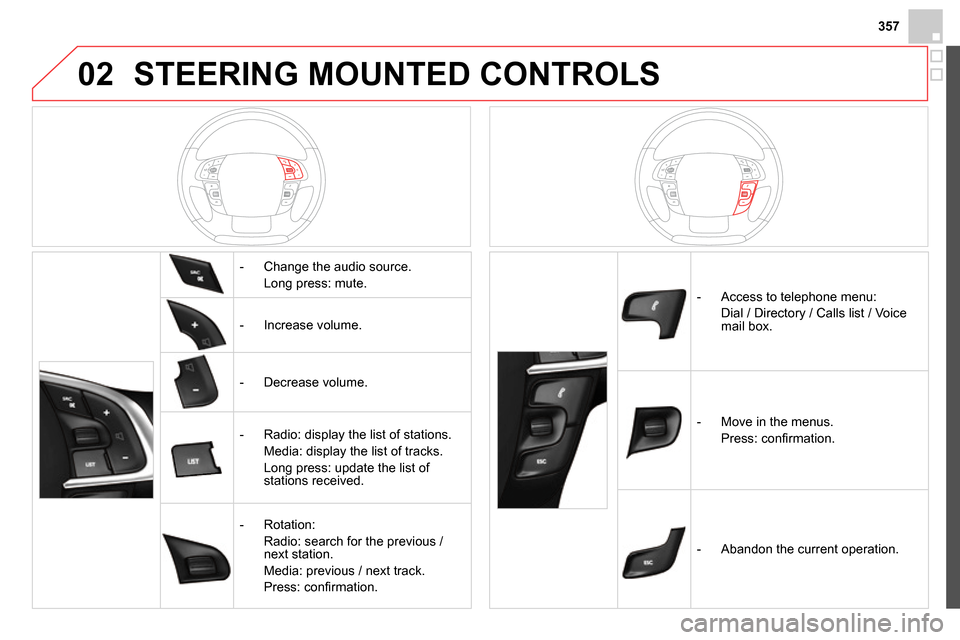
- Change the audio source.
Long press: mute.
- Increase volume.
- Decrease volume.
- Radio: display the list of stations.
Media: display the list of tracks.
Long press: update the list of
stations received.
- Rotation:
Radio: search for the previous /
next station.
Media: previous / next track.
Press: confi rmation.
- Access to telephone menu:
Dial / Directory / Calls list / Voice
mail box.
- Move in the menus.
Press: confi rmation.
- Abandon the current operation.
Page 360 of 400
03
" Multimedia
": Media parameters,
Radio parameters.
" Trip computer
": Warning log.
For a detailed global view of the
menus available, refer to "Screen
menu map" section.
" Bluetooth connection
":
Connections management,
Search for a device.
" Telephone
": Call, Directory
management, Telephone
management, Hang up.
MAIN MENU
" Personalisation-confi guration
": Defi ne
the vehicle parameters, Choice of language,
Display confi guration, Choice of units, Date
and time adjustment.
Screen C
Page 362 of 400
04
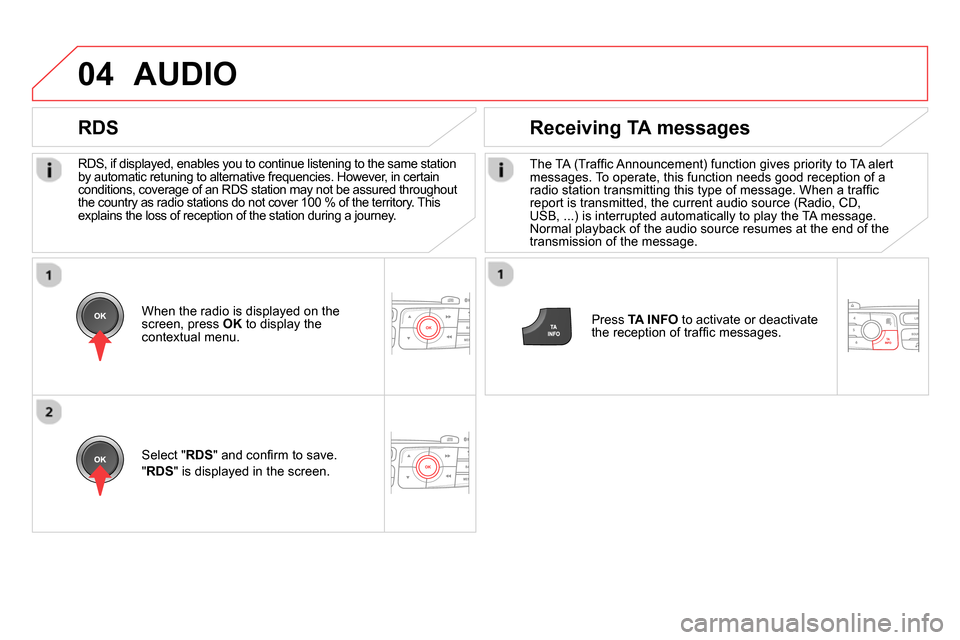
RDS, if displayed, enables you to continue listening to the same station
by automatic retuning to alternative frequencies. However, in certain
conditions, coverage of an RDS station may not be assured throughout
the country as radio stations do not cover 100 % of the territory. This
explains the loss of reception of the station during a journey.
AUDIO
RDS
Receiving TA messages
The TA (Traffi c Announcement) function gives priority to TA alert
messages. To operate, this function needs good reception of a
radio station transmitting this type of message. When a traffi c
report is transmitted, the current audio source (Radio, CD,
USB, ...) is interrupted automatically to play the TA message.
Normal playback of the audio source resumes at the end of the
transmission of the message.
Press TA INFO
to activate or deactivate
the reception of traffi c messages.
When the radio is displayed on the
screen, press OK
to display the
contextual menu.
Select " RDS
" and confi rm to save.
" RDS
" is displayed in the screen.
Page 363 of 400
361
04
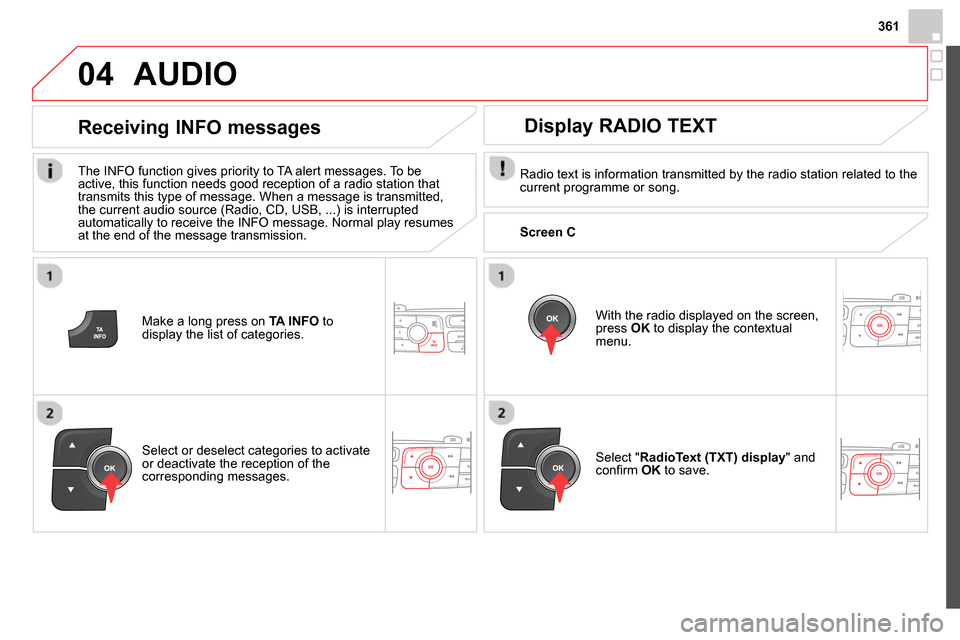
Make a long press on TA INFO
to
display the list of categories.
Receiving INFO messages
The INFO function gives priority to TA alert messages. To be
active, this function needs good reception of a radio station that
transmits this type of message. When a message is transmitted,
the current audio source (Radio, CD, USB, ...) is interrupted
automatically to receive the INFO message. Normal play resumes
at the end of the message transmission.
Select or deselect categories to activate
or deactivate the reception of the
corresponding messages.
AUDIO
Radio text is information transmitted by the radio station related to the
current programme or song.
With the radio displayed on the screen,
press OK
to display the contextual
menu.
Select " RadioText (TXT) display
" and
confi rm OK
to save.
Display RADIO TEXT
Screen C
Page 364 of 400
04 AUDIO
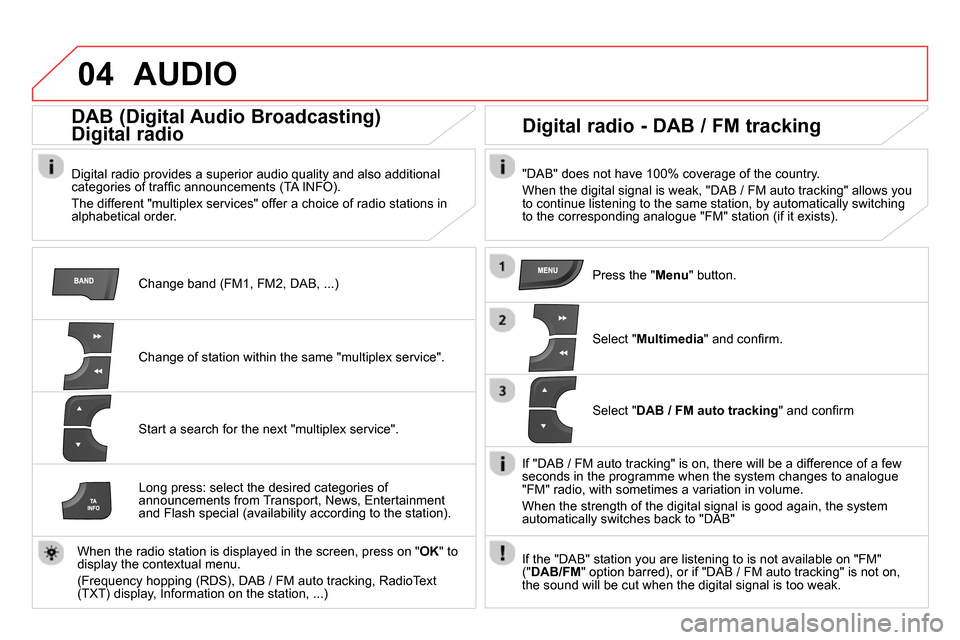
Change band (FM1, FM2, DAB, ...)
DAB (Digital Audio Broadcasting)
Digital radio
Digital radio provides a superior audio quality and also additional
categories of traffi c announcements (TA INFO).
The different "multiplex services" offer a choice of radio stations in
alphabetical order.
Change of station within the same "multiplex service".
Start a search for the next "multiplex service".
Digital radio - DAB / FM tracking
"DAB" does not have 100% coverage of the country.
When the digital signal is weak, "DAB / FM auto tracking" allows you
to continue listening to the same station, by automatically switching
to the corresponding analogue "FM" station (if it exists).
Long press: select the desired categories of
announcements from Transport, News, Entertainment
and Flash special (availability according to the station).
When the radio station is displayed in the screen, press on " OK
" to
display the contextual menu.
(Frequency hopping (RDS), DAB / FM auto tracking, RadioText
(TXT) display, Information on the station, ...)
Press the " Menu
" button.
Select " Multimedia
" and confi rm.
Select " DAB / FM auto tracking
" and confi rm
If "DAB / FM auto tracking" is on, there will be a difference of a few
seconds in the programme when the system changes to analogue
"FM" radio, with sometimes a variation in volume.
When the strength of the digital signal is good again, the system
automatically switches back to "DAB"
If the "DAB" station you are listening to is not available on "FM"
(" DAB/FM
" option barred), or if "DAB / FM auto tracking" is not on,
the sound will be cut when the digital signal is too weak.
Page 367 of 400
365
04
CD, USB
AUDIO
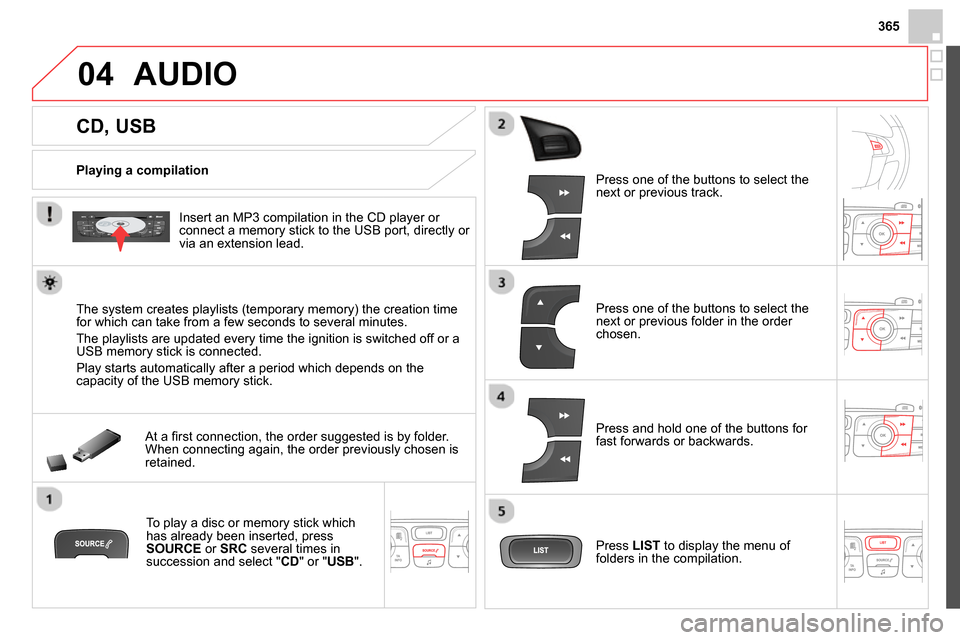
Playing a compilation
Insert an MP3 compilation in the CD player or
connect a memory stick to the USB port, directly or
via an extension lead.
The system creates playlists (temporary memory) the creation time
for which can take from a few seconds to several minutes.
The playlists are updated every time the ignition is switched off or a
USB memory stick is connected.
Play starts automatically after a period which depends on the
capacity of the USB memory stick.
At a fi rst connection, the order suggested is by folder.
When connecting again, the order previously chosen is
retained.
To play a disc or memory stick which
has already been inserted, press
SOURCE
or SRC
several times in
succession and select " CD
" or " USB
".
Press one of the buttons to select the
next or previous track.
Press one of the buttons to select the
next or previous folder in the order
chosen.
Press and hold one of the buttons for
fast forwards or backwards.
Press LIST
to display the menu of
folders in the compilation.
Page 368 of 400
04
Select a line in the list.
Select a track or a folder.
Skip a track.
Up a level in the menu.
AUDIO
USB memory stick - File sorting
Having selected the desired sorting
(" By folders
", " By artists
", " By genres
",
" By playlists
") press OK
.
Then confi rm OK
to save the modifi cations.
- By folders
: all folders containing audio
fi les recognised on the peripheral device,
in alphabetical order without following the
folder structure.
- By artists
: all of the artist names defi ned
in the ID3 Tags, in alphabetical order.
- By genres
: all of the genres defi ned in the
ID3 Tags.
- By playlists
: if playlists have been saved.
Make a long press on LIST
or press
MENU
, select " Multimedia
", then
" Media parameters
" and fi nally " Choice
of track listing
" to display the different
types of sorting.
Page 371 of 400
369
04 AUDIO
Streaming - Playing audio files via
Bluetooth
Depending on the compatibility of the phone
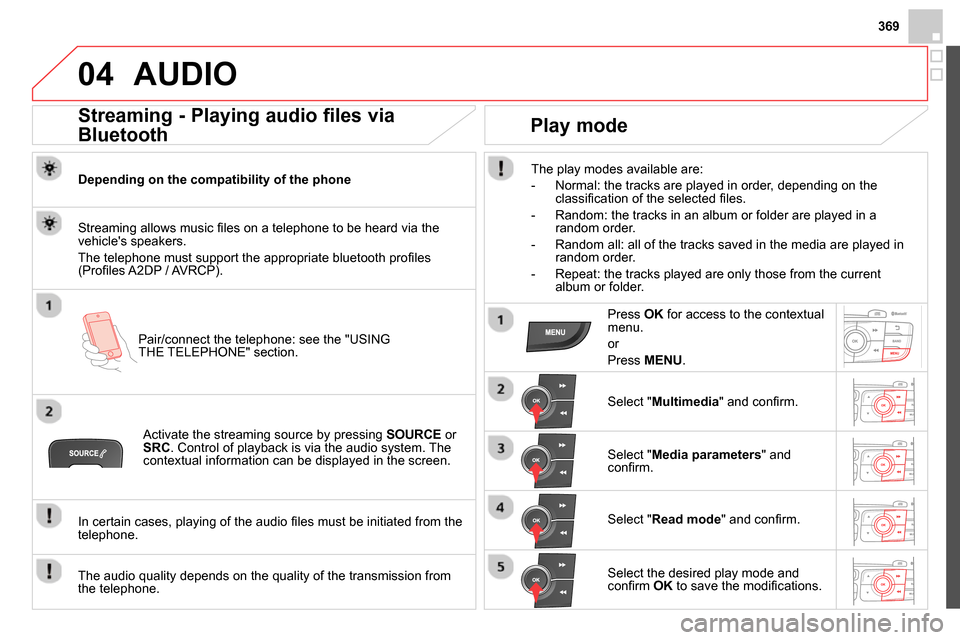
Pair/connect the telephone: see the "USING
THE TELEPHONE" section.
Streaming allows music fi les on a telephone to be heard via the
vehicle's speakers.
The telephone must support the appropriate bluetooth profi les
(Profi les A2DP / AVRCP).
Activate the streaming source by pressing SOURCE
or
SRC
. Control of playback is via the audio system. The
contextual information can be displayed in the screen.
In certain cases, playing of the audio fi les must be initiated from the
telephone.
The audio quality depends on the quality of the transmission from
the telephone.
Play mode
The play modes available are:
- Normal: the tracks are played in order, depending on the
classifi cation of the selected fi les.
- Random: the tracks in an album or folder are played in a
random order.
- Random all: all of the tracks saved in the media are played in
random order.
- Repeat: the tracks played are only those from the current
album or folder.
Press OK
for access to the contextual
menu.
or
Press MENU
.
Select " Multimedia
" and confi rm.
Select " Media parameters
" and
confi rm.
Select " Read mode
" and confi rm.
Select the desired play mode and
confi rm OK
to save the modifi cations.