Page 80 of 516
first rea d and note the introduc
on page 59.
pho ne functions can be accessed by saying voice commands .
Voice commands must be spoken in
the
supp orts the languages sh own in the
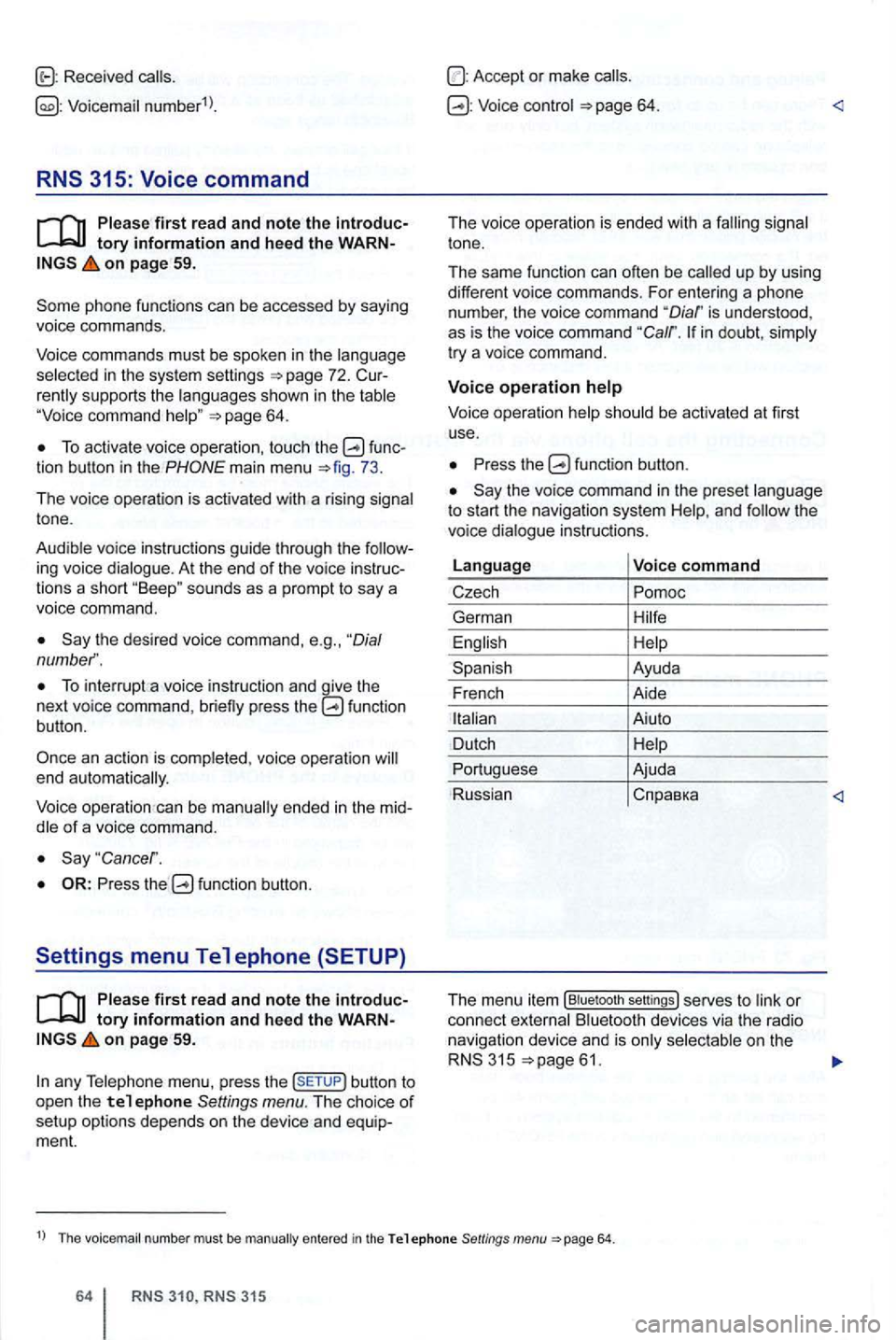
To act ivate voice operation , to u ch tuncmain menu 73.
The voice operation is act ivated with a risin g
the des ired voice command , e .g., "Dial
To inter rupt a vo ice instruction and the
n ext voice command, pre ss fu nction butt on.
an action is completed. voice operation end automatically.
Voice op erat ion c
an be manu ally e nded in the midof a voice command .
"Cancer.
the fun ction button.
Settings menu Telephone
first read and note the introduc
on page 59.
any Telep ho n e m enu , pre ss the button to open the te 1 ephone Settings menu. The choice of
setup option s depends on the device and equip
m ent.
Accept or make
tone .
T he
sam e func tion can often be
is understood , as is the voice command "Calr. in dou bt, try a vo ice command.
Voice operation
Voice operation
the funct ion button .
the voice comm and in the prese t to s tart the naviga tio n sys tem and the
vo ice instr uct ions .
Language Voice command
Ajuda
Ru ssian
The menu item (Biu etooth settin gs) se rves to or
co nn ect Blu etooth devices via the rad io
na viga tio n device and is
315
1
) T h e numb er must be manu ally entered in the Telephone
31 5
Page 82 of 516
find information about:
Phone book . . . . . . . . . . . . . . . . . . . . . . . . . . . . 66
Searching telephone book entries . . . . . . . . . . 67
. . . . . . . . . . . . . . . . . . . . . . . . . . . . . . . 67
Display i
ng and changing phone numbers . . . . 68
Phone book
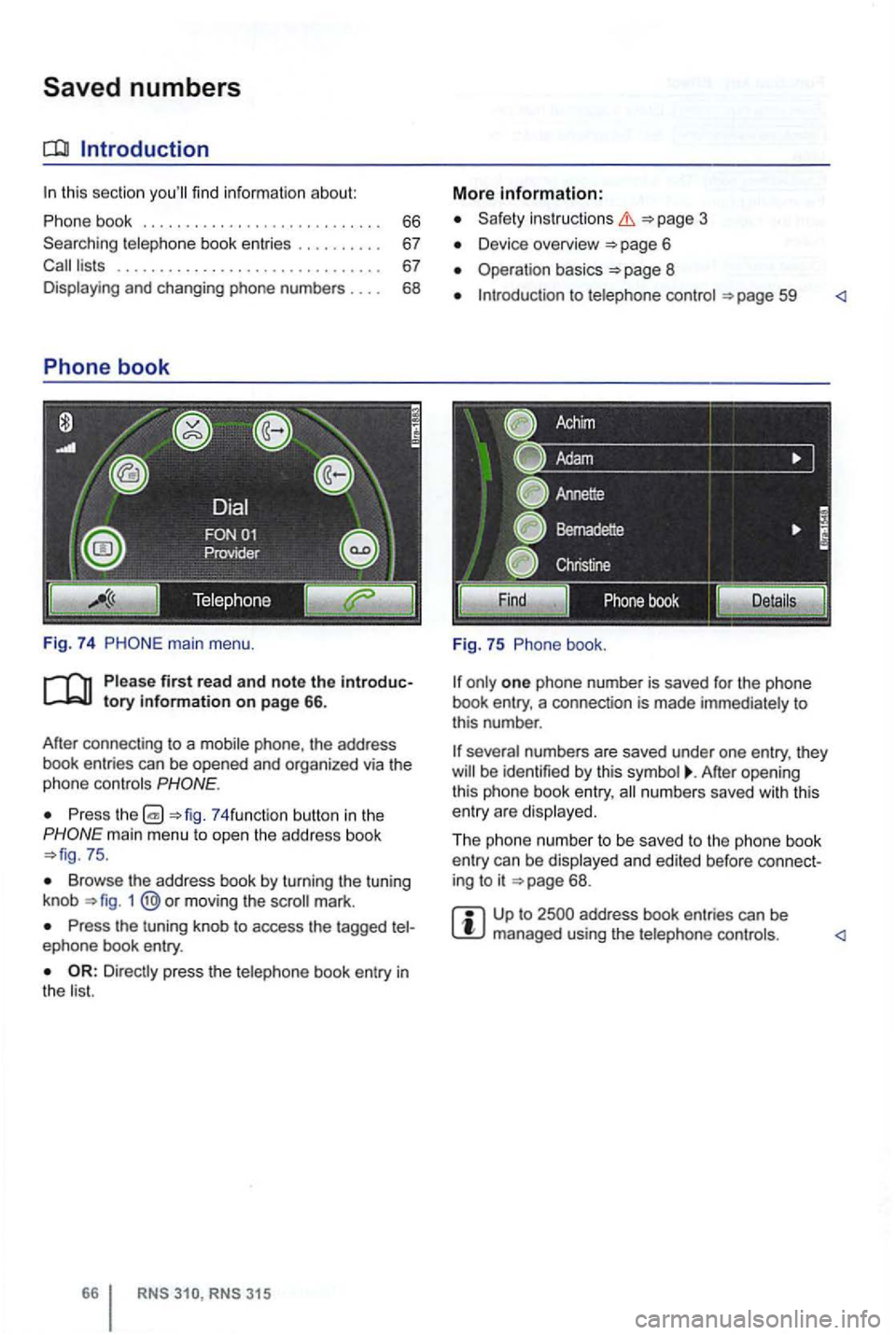
Fig. 74 main menu .
first read and note the introductory information on p age 66.
After connecting
to a phone , the address
book entries can be opened and organized via the
phone controls
Press 74 funct ion button in the
75 .
Browse the address book by turning the tuning
knob 1 moving the mark.
Press the tuning knob to access the tagged ephone book entry.
RNS RNS 315
More information:
Safety instructions 3
Device overview 6
Operation basics
one phone number is saved for the phone
book entry, a connection is made immediately to
this number .
After opening
this phone book entry, numbers saved with this
entry are disp layed.
Th e phone numbe r to be saved to the phone book
entry can be displayed and edited before connect
ing to it
68 .
Up to 2500 address book entries can be managed using the telephone controls.
Page 83 of 516
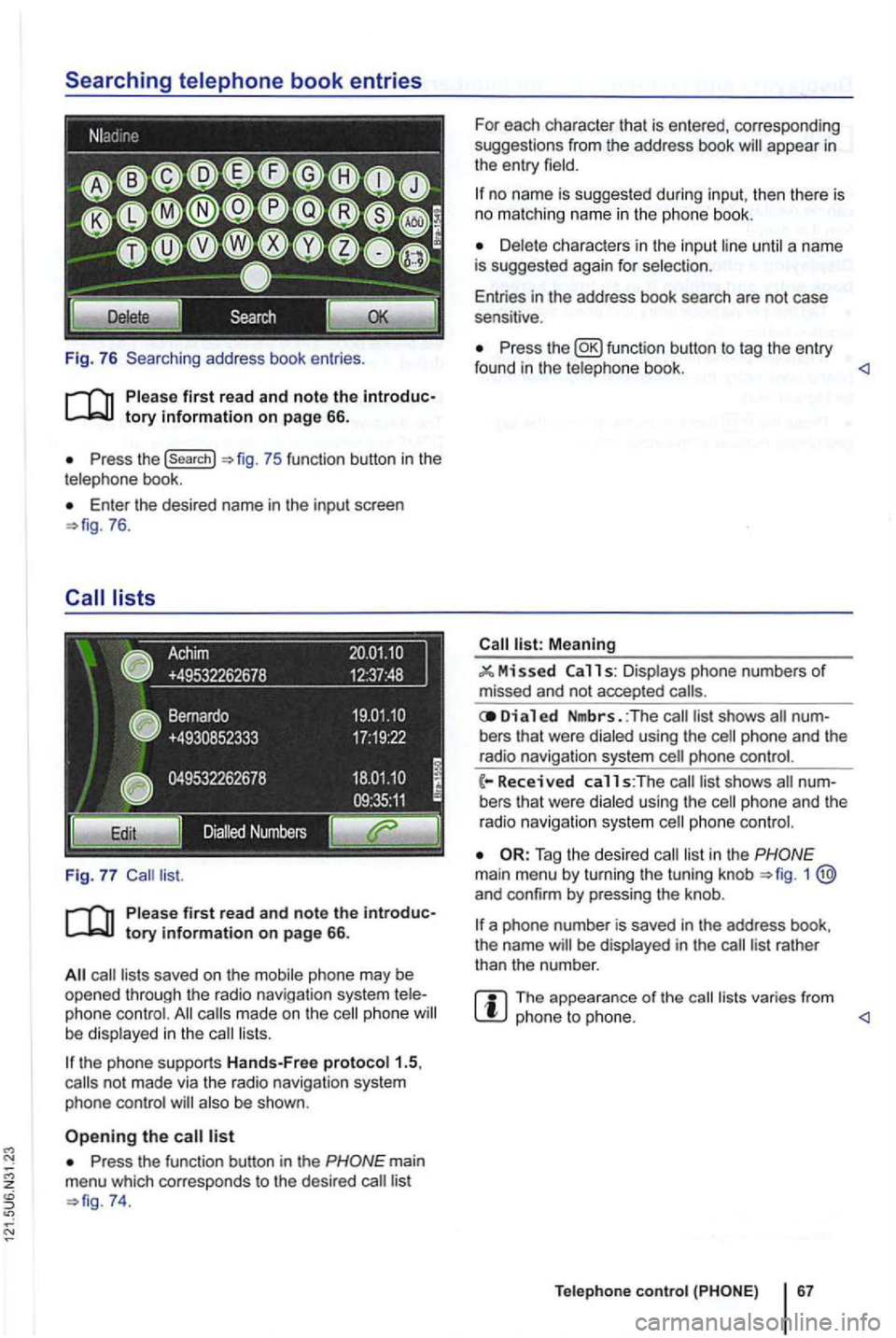
Fig. 76 Searching address book entries .
Press the (search}
Enter th e desired name in the input screen 76.
saved on the mobile phone may be opened through the radio navigation system phone made on the phone lists.
the phone supports Hands-Free proto col1.5,
also be shown .
Press the function button in the
74. For
each character that is entered, corresponding
suggestions from the address book
no name is suggested during input, then th ere is no matching name in the phone book.
until a name
is suggested again for selec tion .
Entries in the address book search are not case
sensitive .
Press the function button to tag the entry
found in the telephone book. <1
Meaning
11 s: Displays phone numbers of missed and not accepted
Di a 1 ed Nmbrs. :The bers that were dialed using the
phone and the
radio navigation system
list in the 1 and confirm by pressing the knob .
a phone number is saved in the address book,
the name be displayed in the
The appearance of the lists varies from phone to phone. <1
Teleph one c ontro l
Page 84 of 516
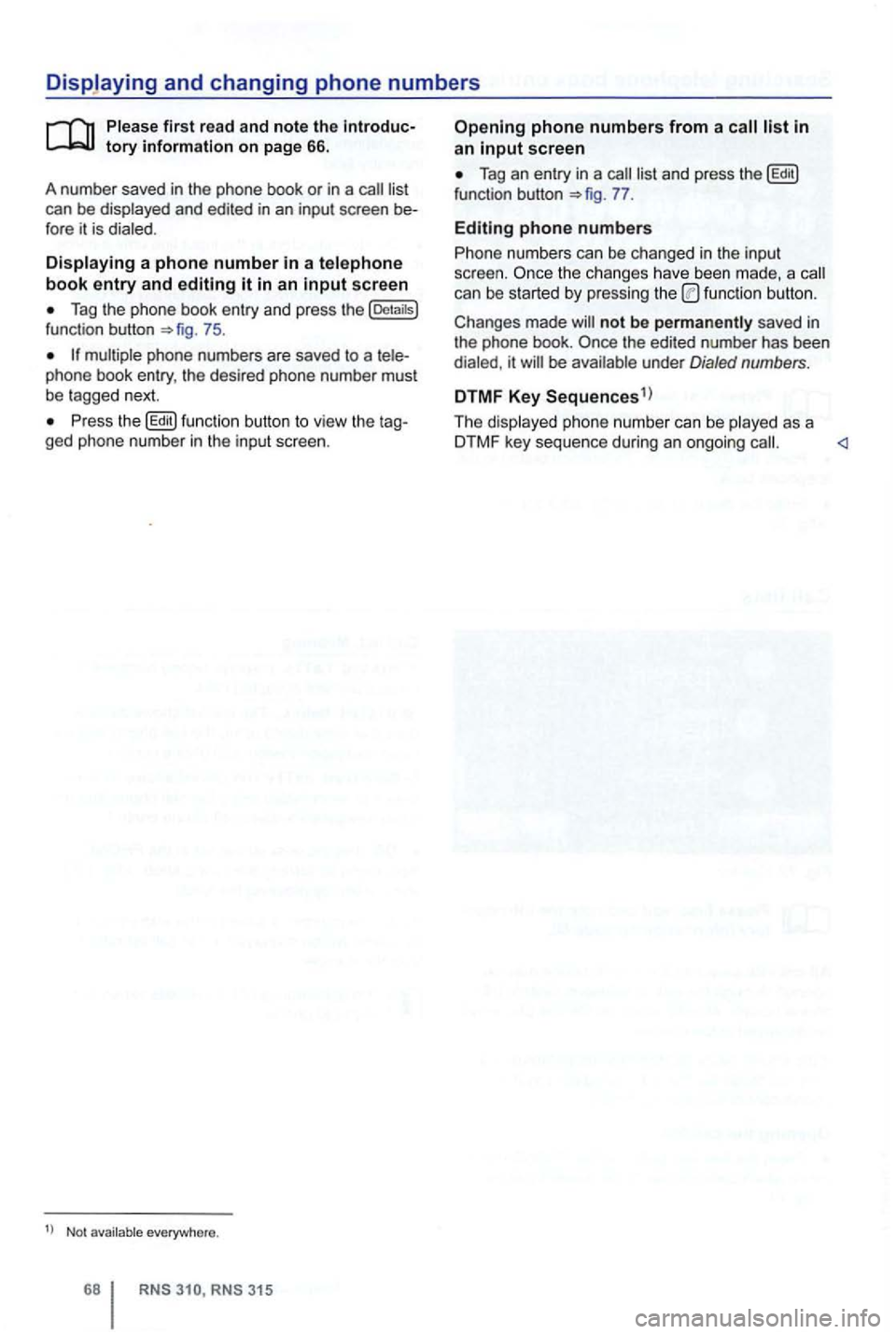
can be displayed and edited in an input screen
Tag the phone book entry and press the [Detaitsl function button 75.
Press the button to view the ged phone number in the input screen.
Not everywhere .
RNS RNS 31 5
screen
Tag an entry in a function button 77.
Editing phone numbers
Phone numbers can be changed in the input
screen. the ch anges have been made , a can be started by pressing the functio n button .
not be saved in
the phone book.
be under Dialed numbers .
DTMF Key Sequences1
)
The displayed ph one number can be played as a
DTMF key sequence during an ongoing
Page 85 of 516
this section find informa tion about:
Accepting, . . . . . . . . 69
Entering a phone number and making a
. 69
Ma king a
. . . . . . . . . . . . . . . . . . . phone
calls ...................................
. . . . . . . . . . . . . . 71
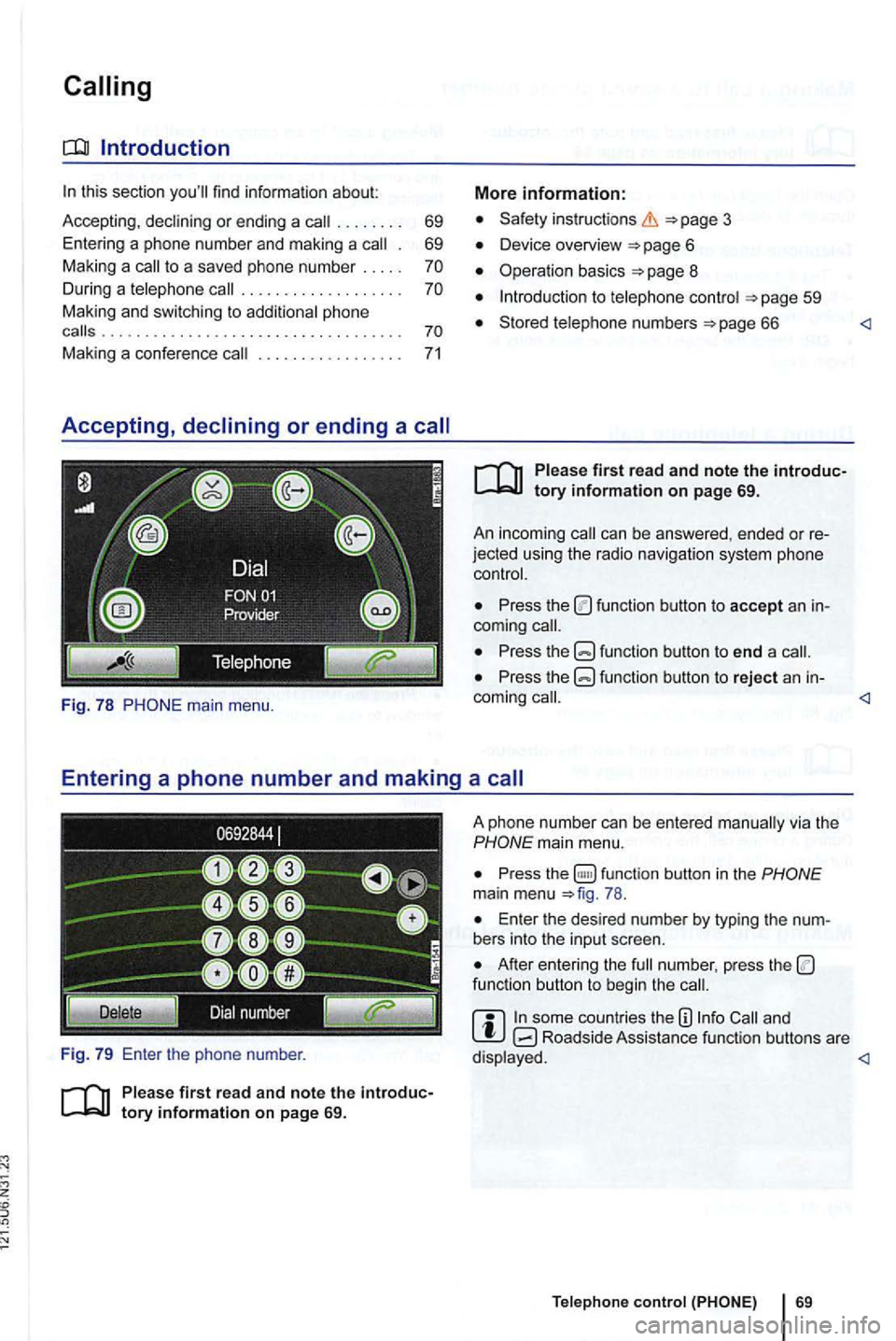
Fig. 7 8
firs t read and note the introduc
Safety in structions
Device overview
Operation basics
to
Stored numbers 66
first read and note the introduc
jected usin g the radio nav igation system phone
Press the function button to accept an
Press the function button to end a
Press the function button to reject an in-
com ing
A phone number can be entered via the main menu .
Pres s function button in the main menu 78 .
Ente r the desir ed num ber by typing the
After entering the funct ion button to beg in the
and Roadside Assista nce fu nction buttons are
Page 86 of 516
Making a to a saved phone number
th e te lephone book or list and 66.
Telephone book entry
Tag the desi re d entry by turning the tuning kn ob 1 and mak e a connection by pressi ng the
t uni ng knob .
Fig.
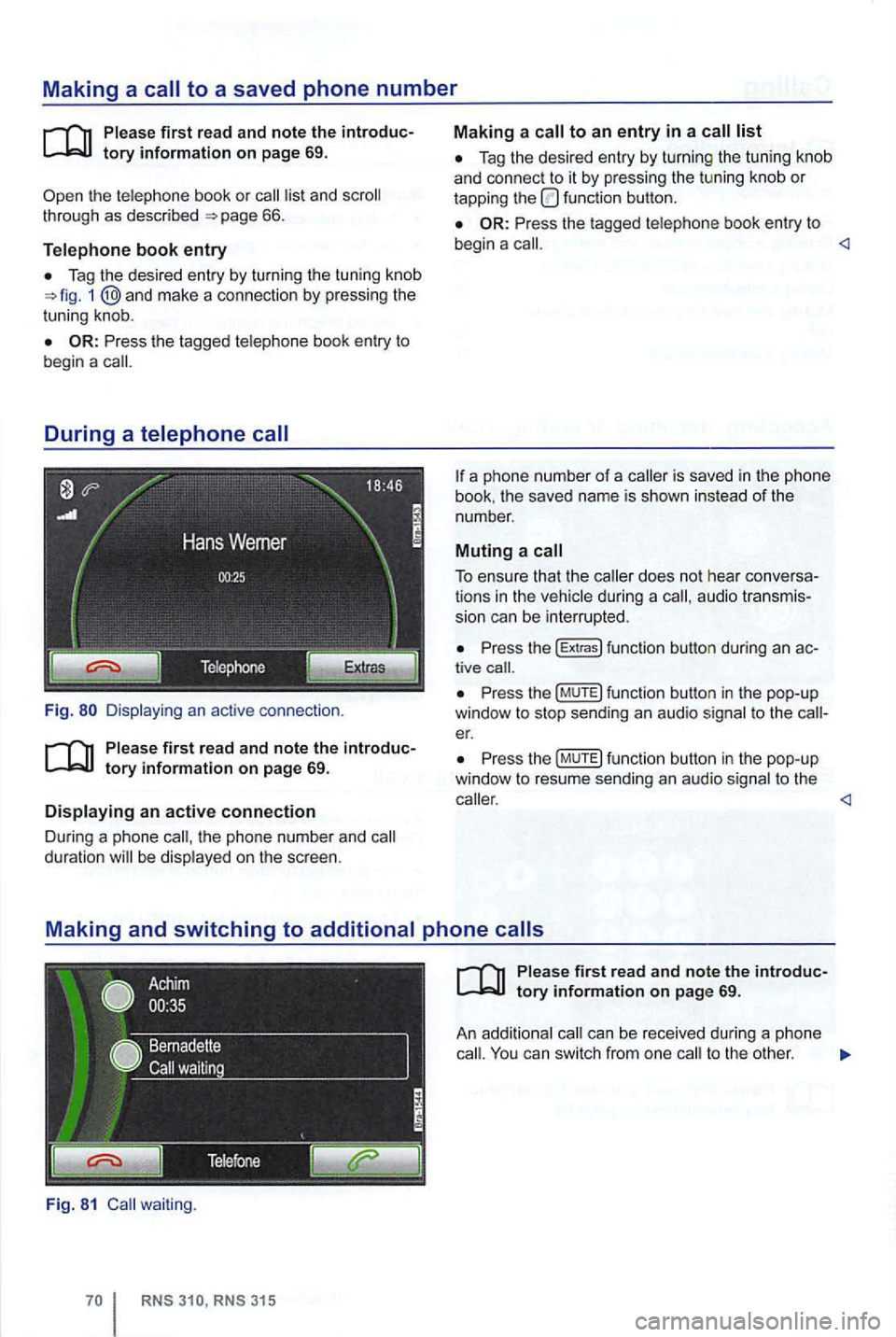
th e pho ne n umber and duration be disp layed on the sc reen .
Fig. 81 waiting .
Tag the desired entry by turnin g the tu nin g knob
a nd con nect to it by pressing the tu ning knob or tapping the function button.
Press the tagged telephone book entry to
begin a
a phone number of a is save d in the phone
book . the save d name is sho wn instead of the
number .
Muting a call
To ensure that the during a audio transmis
s ion can be interrupted .
Press the (E xtr a s) funct ion button during an tive
Pr ess th e (M UTE) fun ction butto n in the pop-up
window to stop sending an audio signal to t he er.
P ress th e (MUTE) function button in the pop-up
window to resu me sendi ng an aud io sig nal to the
can be rece ived during a phone
ca ll. You can switch from one to the other .
Page 87 of 516
another contacts you during a phone the incoming number or nam e be
appear .
and
press f unction butt on.
To accept the second caller, turn the
function button.
be inter rupted but not ended
(Disp lay:
Switching between two
To switch between two callers , press the display of the
dow.
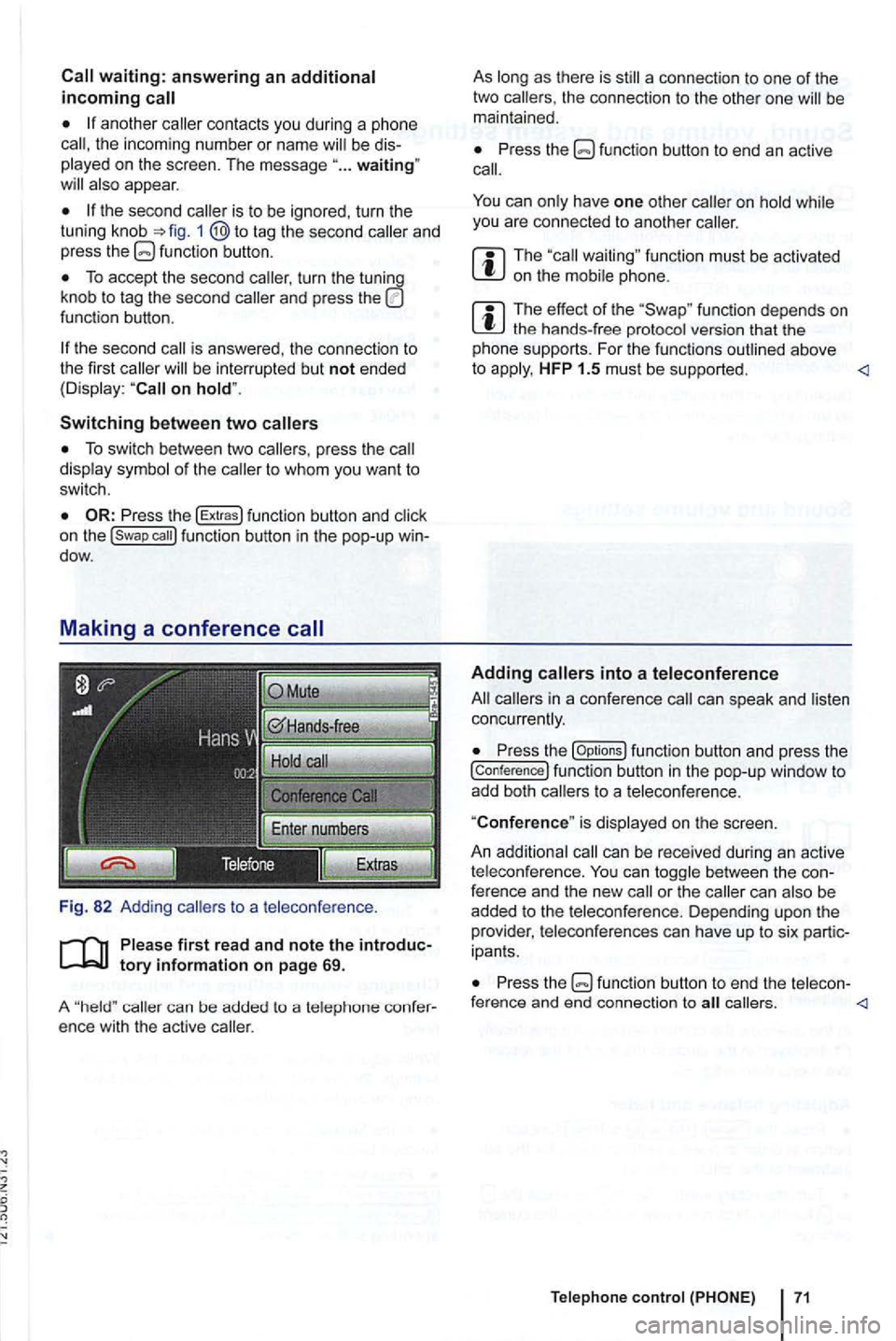
Fig. 82 Adding
callers to a teleconference .
first re ad and note the
caller can be added to a telep hone ence with the active caller.
As
Press the
can have one other you are connected to another caller.
function must be activated on the
function depends on the hands-free protocol version that the
pho ne sup ports. For the funct ions outlined above
to HFP 1.5 must be supported .
Adding into a teleconference
can speak and concurrently.
Press the [Op tions ) function button and press the
[conference) function button in the pop-up window to add both callers to a teleconference.
"
Conference" is displ ayed on the screen.
An addit ional
can be received during an active
t eleco nference. can between the ference and the new call or the can
ipants .
Press the callers .
Telephone control
Page 93 of 516
E
Eject see CD eject . . . . . . . . . . . . . . . . . . .
................ ... .............. 75
EQ settings . . . . . . . . . . . . . . . . . . . . . . . . . 72 EQ (Treble/Mid /Bass) . . . . . . . . . . . . . . . . . . 72
External audio source
CD changer . . . . . . . . . . . . . . 34 externa l data media . . . . . . . . . .............................. MP3 . . . . . . . . . . . . . . . . . . . . . . . . requirements for data media . . . . . . . . . . 24 , 28
External
audio sources B lu etooth audio . . . . . . . . . . . . . . . . 24
External
. . . . . . . . . . . . 36 with front . . . . . . . . . 34
with magazine . . . . . . 35
E xternal data media
see:
MDI...................... .. ..
F
Factory settings . . . . . . . . . .
. . . . . . . . . . . . 24
displays . . . . . . . . . . . . . . . . . . . . 9
Functions omitted . . . . . . . . . . . . . . . . . . 9
. . . . . . . . . . . . . . . . . 13, 75
Function buttons Refer to: F unction buttons . . . . . . . . . .
Function buttons (soft keys) . . . . . . .
G
GALA ................. .............. 72
Geoposition . . . . . . . . . . . . . . . . . . . . . . . 49
H
Hard keys Refer to: Device buttons . . . . . . . . . . . . . 1
. . . . . . . . .
input screens . . . . . . . . . . . . . . . . . . . . . . .
(AUX, MDI) . . . . . . . . . . . . . 28
Instructions safety instruct ions . . . . . . . . . 3
Interference from phone . . . .
. . 55 Introduction . . . . . . . . . . . . . . . . . 3
iPhone see: iPod . . . . .
. . . . . 32 iPod
K
controlling . . . . . . . . . . . . . . . . . 32 . . . . . . . . . . . 29
playback volume . . . . . . . . . . . . . . . . . . . 29
selection menu . . . . . . . . . . . . . . . 32
Keyboard appearance . . . . . . . . . . . . . . . . . . 7 3
Key
tones see: Confirmation To ne . . . . . . . . 73
Kilom e
ter and mileage display...... . . .
. .......................•... 12 . . . . . . . . . . . . . . 72
sys tem ............................ 73
Map Day or Night view . . . .
. . . . . . . . . . 73
speed . . . . . . . . . . . . . . . . . . . . . .................... ... .......
connect ing . . . . . . . . . . . . . . . . . . . . . . . . 31 Error messages . . . . . . . . . . 32
iPod operation . . . . . . . . . . . . . . . . . . . .
. . . . . . . . . . . . . 32 . . . . . . . . . . . . 29
ope ration . . . . . . . . . . . . . . . 31 playback . . . . . . . . . . . . . . . . . 29
requirements . . . . . . . . . . . . . . . . . MEDIA ..................... .......... A UX . . . . . . . . . . . . . . . . . . . . . . . . . . . . . . . . . . . 24
CD audio . . . . . . . . . . . . . . . . . . . . . . . changer . . . . . . . . . . 22 . . . . . . . . 23
chang ing media sources . . . . . . . 26
chang ing track . . . . . . . . . . . . . . . . . . . . 26
displays . . . . . . . . . . . . . . . . . . . . . . . . . 22
ejecti ng a CD . . . . . . . . . . . . . . . . . . . . . 22
extras . . . . . . . . . . . . . . . . 28
Fast forw ard . . . . . . . . 26
Ind
ex 77