Page 373 of 636
373
3-4. Using the hand
s-free phone system (for cellular phone)
3
Interior features
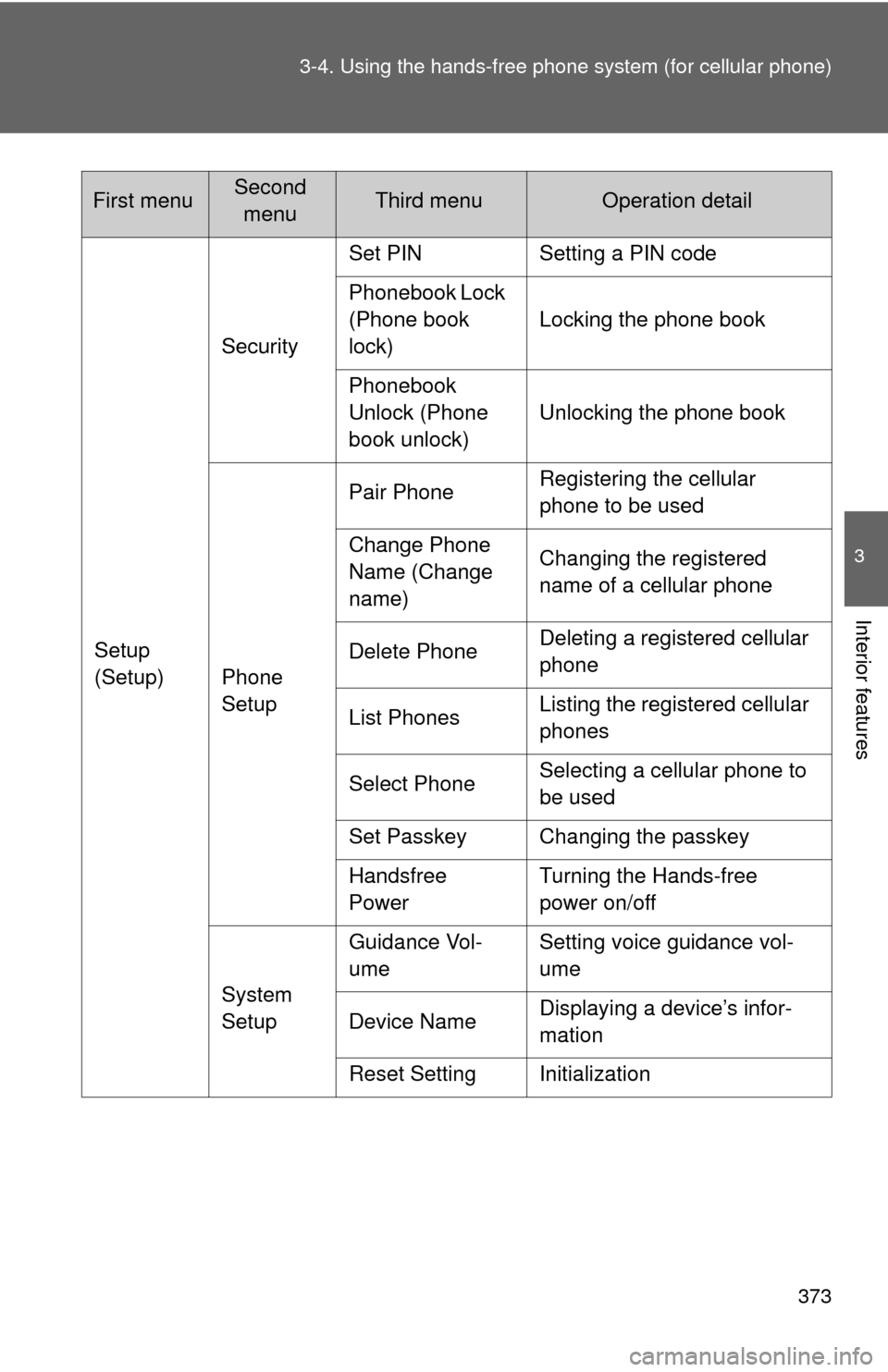
Setup
(Setup)Security
Set PIN Setting a PIN code
Phonebook Lock
(Phone book
lock)
Locking the phone book
Phonebook
Unlock (Phone
book unlock) Unlocking the phone book
Phone
Setup Pair Phone
Registering the cellular
phone to be used
Change Phone
Name (Change
name) Changing the registered
name of a cellular phone
Delete Phone Deleting a registered cellular
phone
List Phones Listing the registered cellular
phones
Select Phone Selecting a cellular phone to
be used
Set Passkey Changing the passkey
Handsfree
Power Turning the Hands-free
power on/off
System
Setup Guidance Vol-
ume
Setting voice guidance vol-
ume
Device Name Displaying a device’s infor-
mation
Reset Setting Initialization
First menuSecond menuThird menuOperation detail
Page 385 of 636
385
3-4. Using the hands-free phone system (for cellular phone)
3
Interior features
Security and system setup
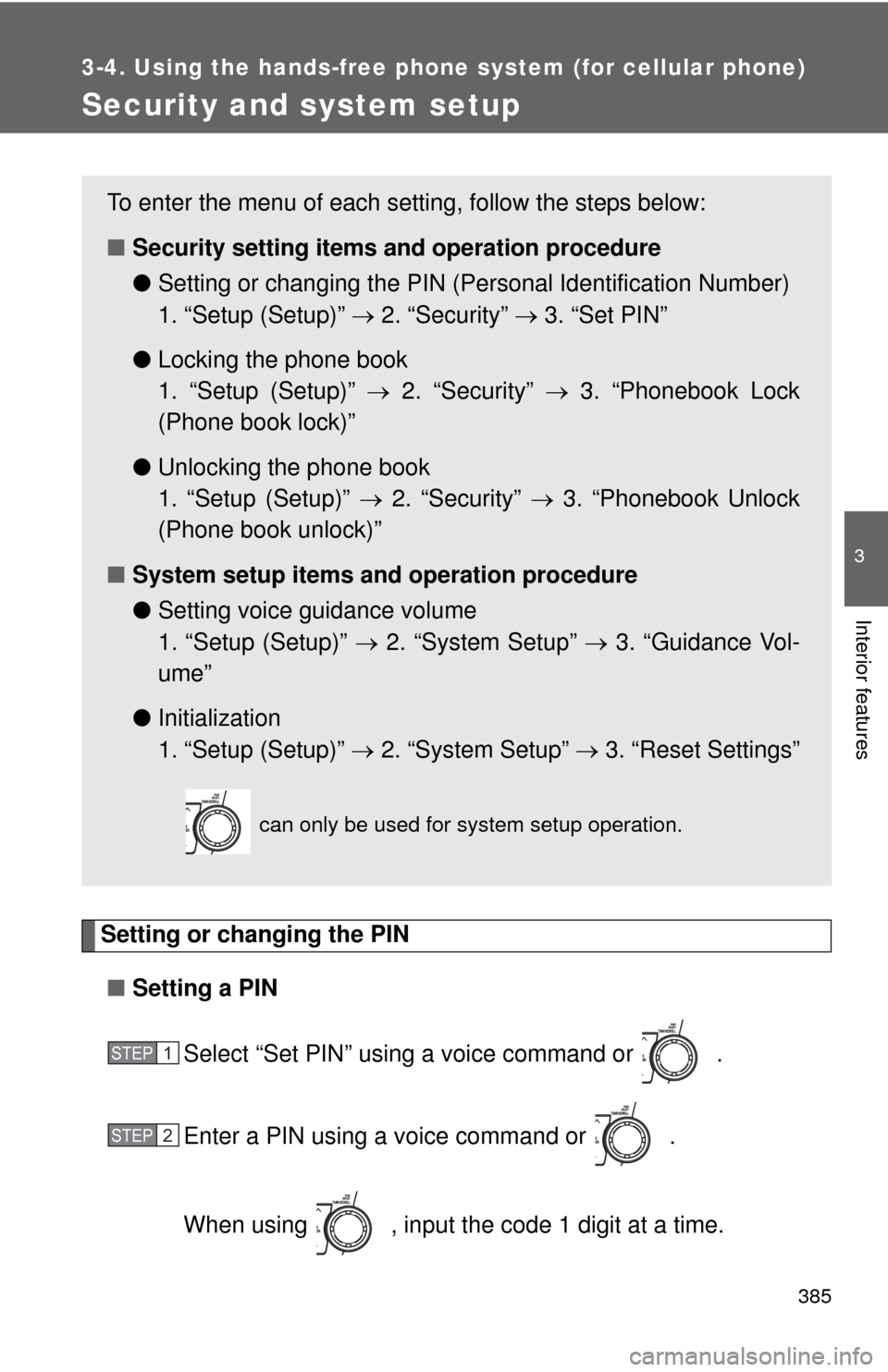
Setting or changing the PIN■ Setting a PIN
Select “Set PIN” using a voice command or .
Enter a PIN using a voice command or .
When using , input the code 1 digit at a time.
To enter the menu of each setting, follow the steps below:
■Security setting items and operation procedure
● Setting or changing t he PIN (Personal Identification Number)
1. “Setup (Setup)” 2. “Security” 3. “Set PIN”
● Locking the phone book
1. “Setup (Setup)” 2. “Security” 3. “Phonebook Lock
(Phone book lock)”
● Unlocking the phone book
1. “Setup (Setup)” 2. “Security” 3. “Phonebook Unlock
(Phone book unlock)”
■ System setup items and operation procedure
●Setting voice guidance volume
1. “Setup (Setup)” 2. “System Setup” 3. “Guidance Vol-
ume”
● Initialization
1. “Setup (Setup)” 2. “System Setup” 3. “Reset Settings”
can only be used for system setup operation.
STEP1
STEP2
Page 388 of 636
388 3-4. Using the hands-free phone system (for cellular phone)
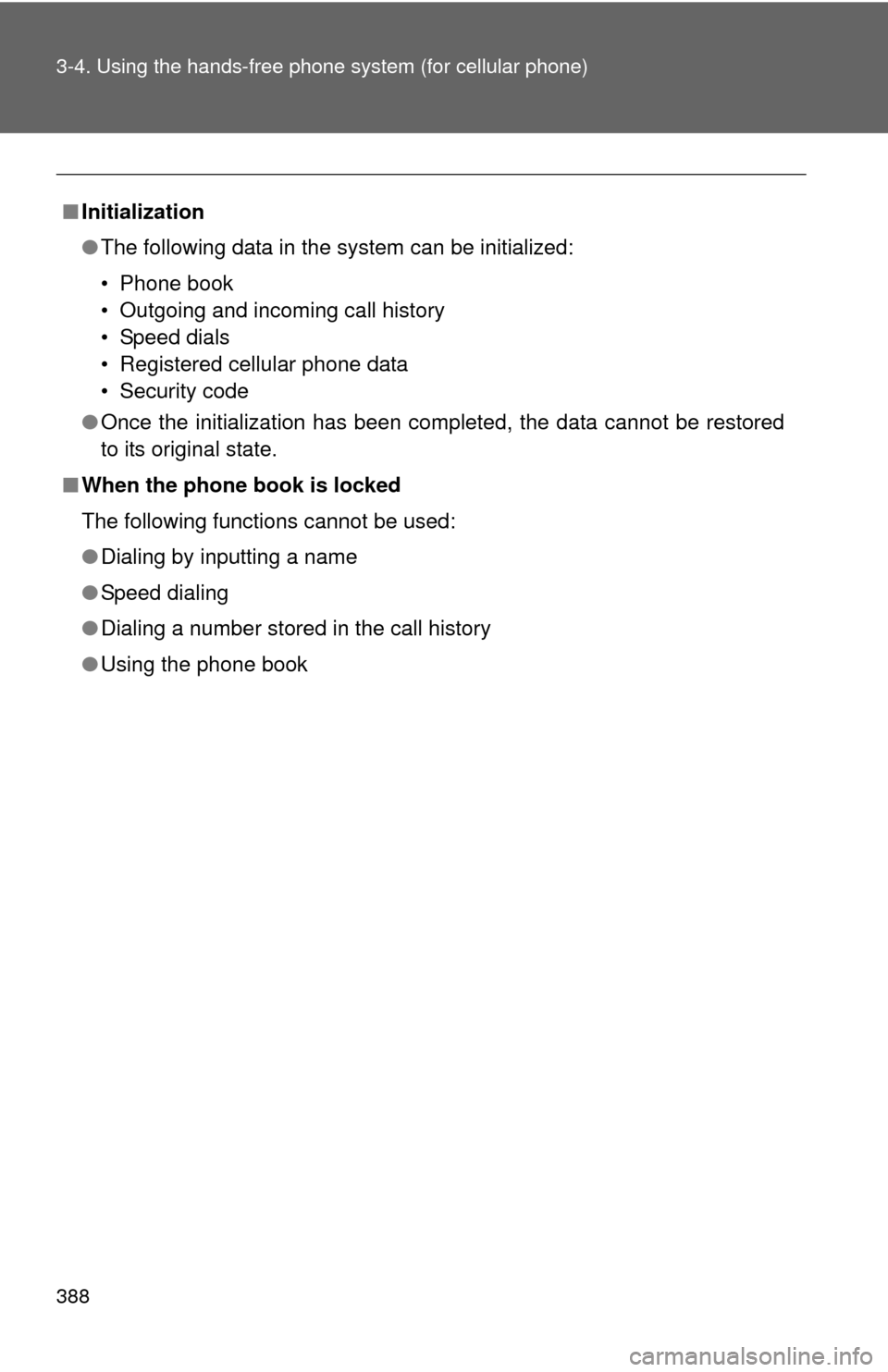
■Initialization
●The following data in the system can be initialized:
• Phone book
• Outgoing and incoming call history
• Speed dials
• Registered cellular phone data
• Security code
● Once the initialization has been completed, the data cannot be restored
to its original state.
■ When the phone book is locked
The following functions cannot be used:
●Dialing by inputting a name
● Speed dialing
● Dialing a number stored in the call history
● Using the phone book
Page 411 of 636
411
3-6. Using the
storage features
3
Interior features
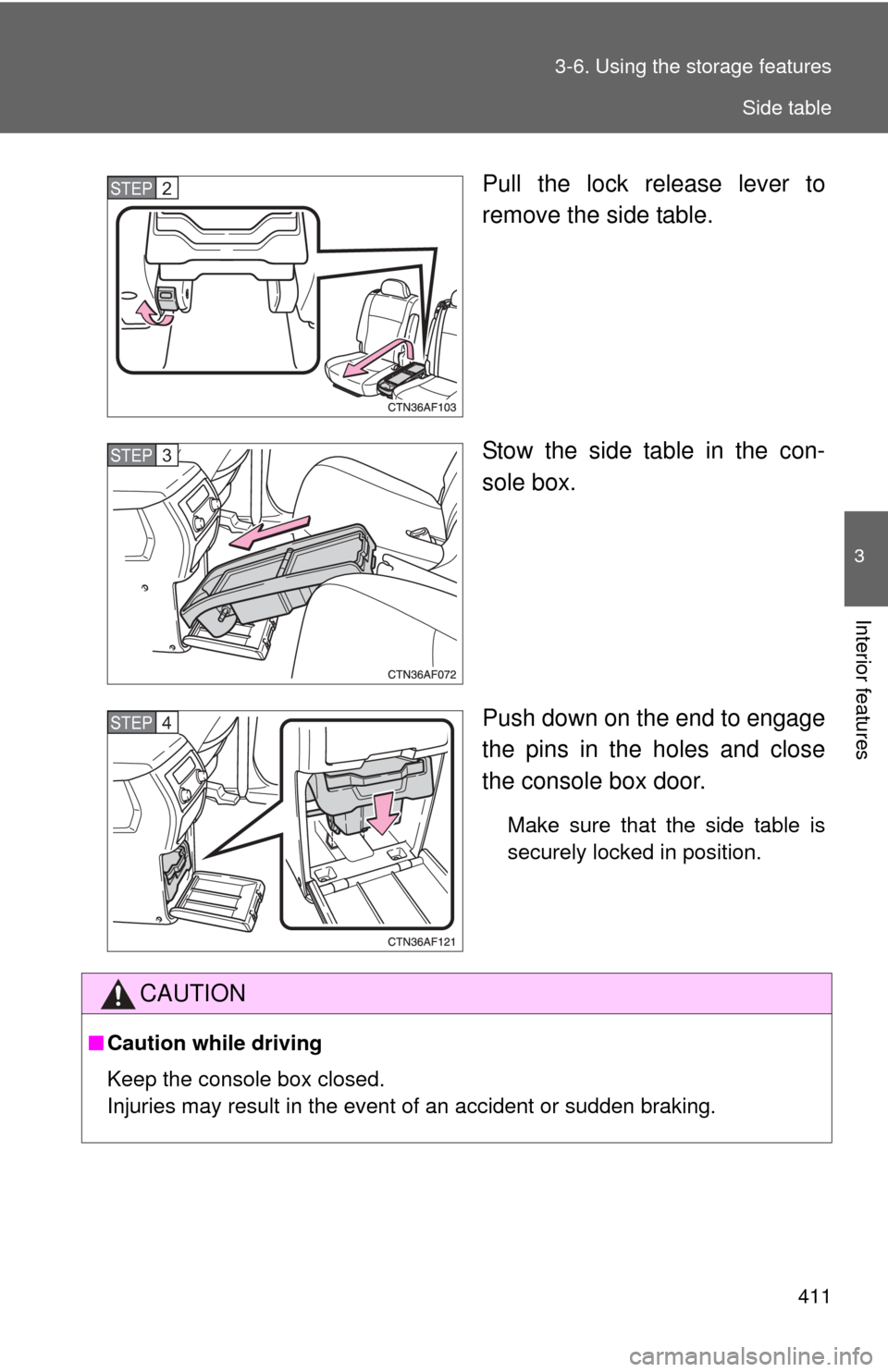
Pull the lock release lever to
remove the side table.
Stow the side table in the con-
sole box.
Push down on the end to engage
the pins in the holes and close
the console box door.
Make sure that the side table is
securely locked in position.
STEP2
STEP3
STEP4
CAUTION
■Caution while driving
Keep the console box closed.
Injuries may result in the event of an accident or sudden braking.
Side table
Page 423 of 636
423
3-7. Other interior features
3
Interior features
Floor mat
CAUTION
Observe the following precautions.
Failure to do so may cause the driver's floor mat to slip, possibly interfering
with the pedals while driving. An unexpectedly high speed may result or it may
become difficult to stop the vehicle, leading to a serious accident.
■When installing the driver's floor mat
●Do not use floor mats designed for other models or different model year
vehicles, even if they are Toyota Genuine floor mats.
● Only use floor mats designed for the driver's seat.
● Always install the floor mat securely using the retaining hooks (clips) pro-
vided.
● Do not use two or more floor mats on top of each other.
● Do not place the floor mat bottom-side up or upside-down.
■ Before driving
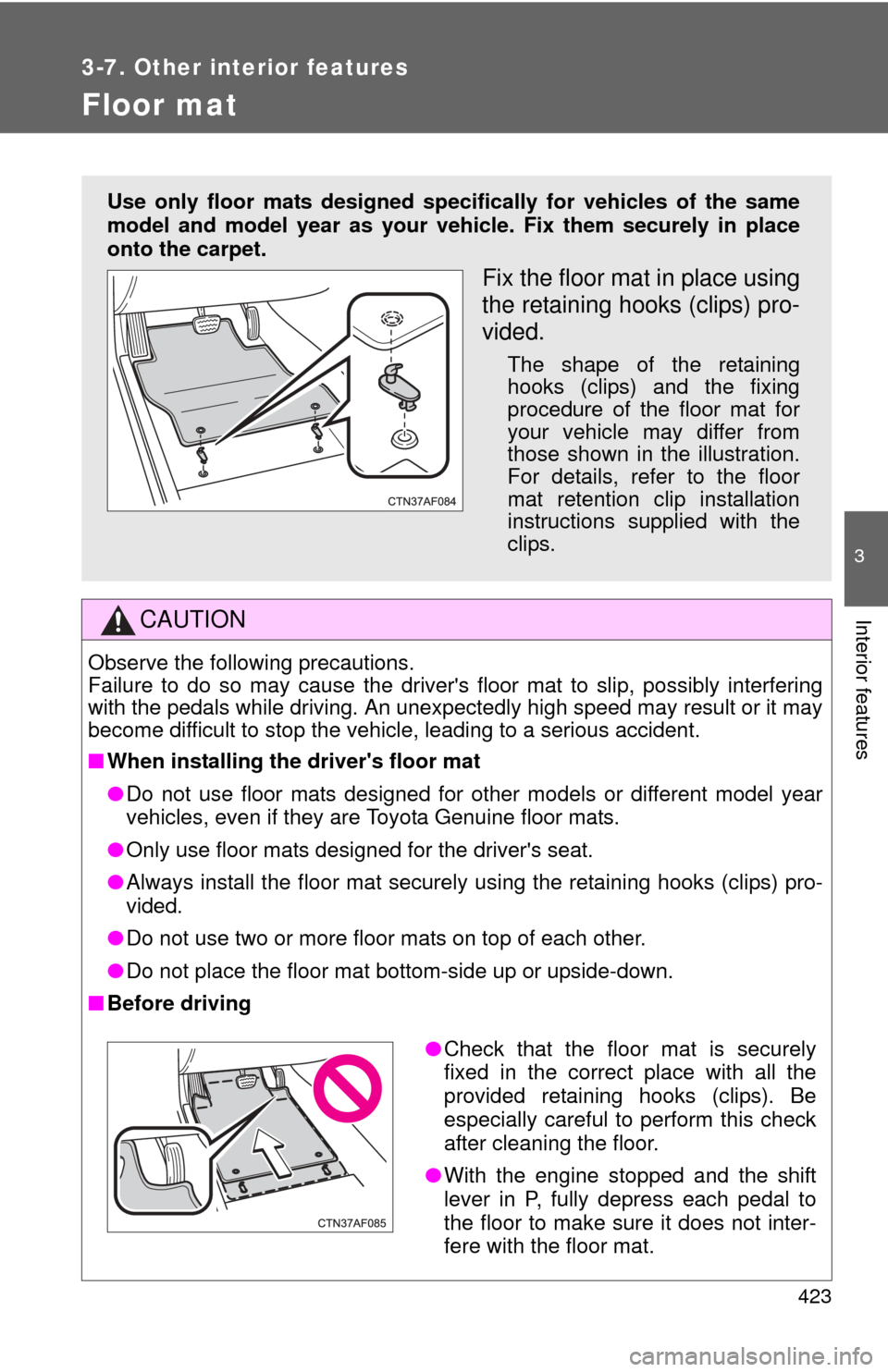
Use only floor mats designed specifically for vehicles of the same
model and model year as your vehic le. Fix them securely in place
onto the carpet.
Fix the floor mat in place using
the retaining hooks (clips) pro-
vided.
The shape of the retaining
hooks (clips) and the fixing
procedure of the floor mat for
your vehicle may differ from
those shown in the illustration.
For details, refer to the floor
mat retention clip installation
instructions supplied with the
clips.
● Check that the floor mat is securely
fixed in the correct place with all the
provided retaining hooks (clips). Be
especially careful to perform this check
after cleaning the floor.
● With the engine stopped and the shift
lever in P, fully depress each pedal to
the floor to make sure it does not inter-
fere with the floor mat.
Page 424 of 636
424
3-7. Other interior features
Luggage compartment features
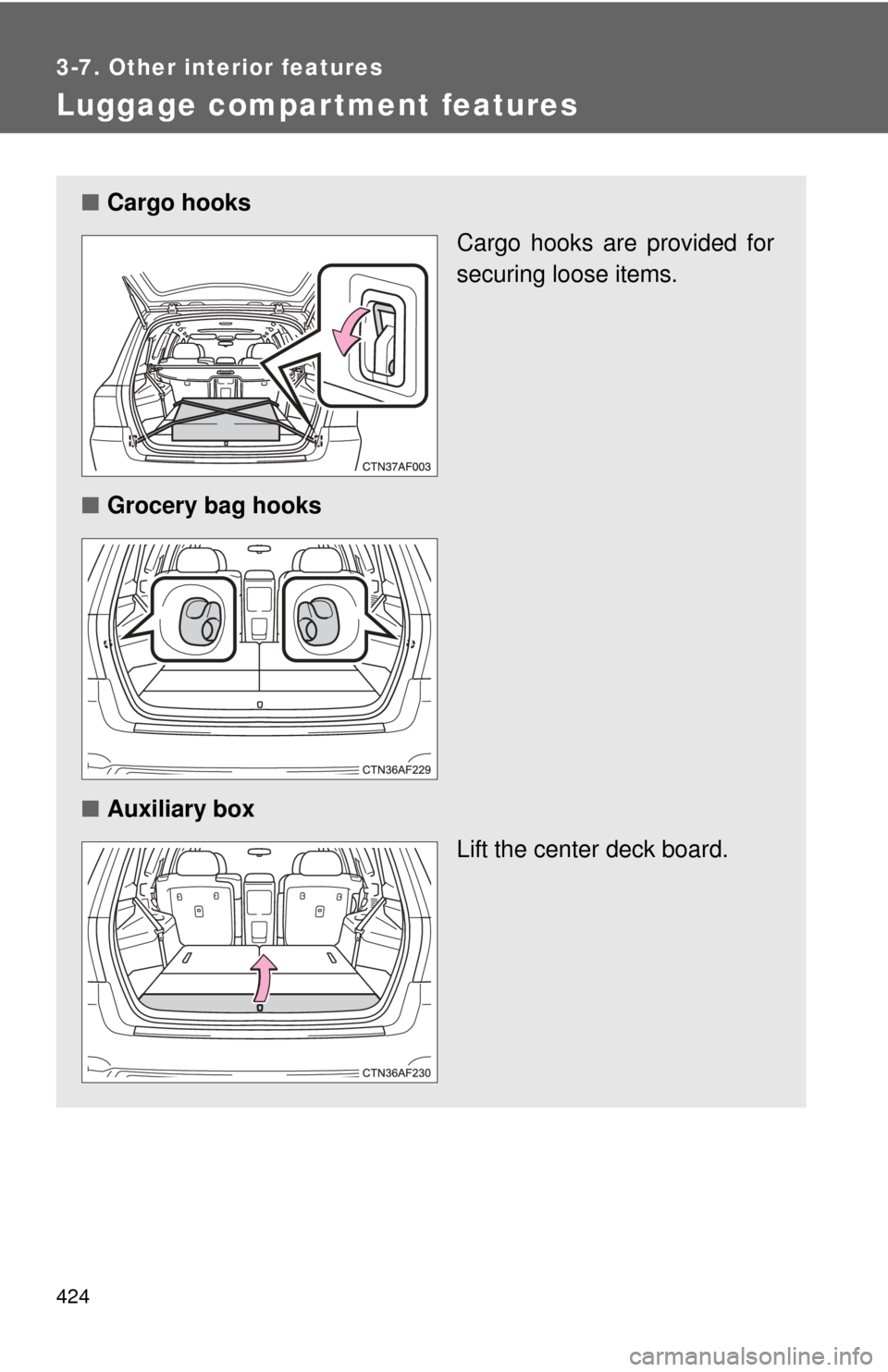
■Cargo hooks
Cargo hooks are provided for
securing loose items.
■ Grocery bag hooks
■ Auxiliary box
Lift the center deck board.
Page 426 of 636
426 3-7. Other interior features
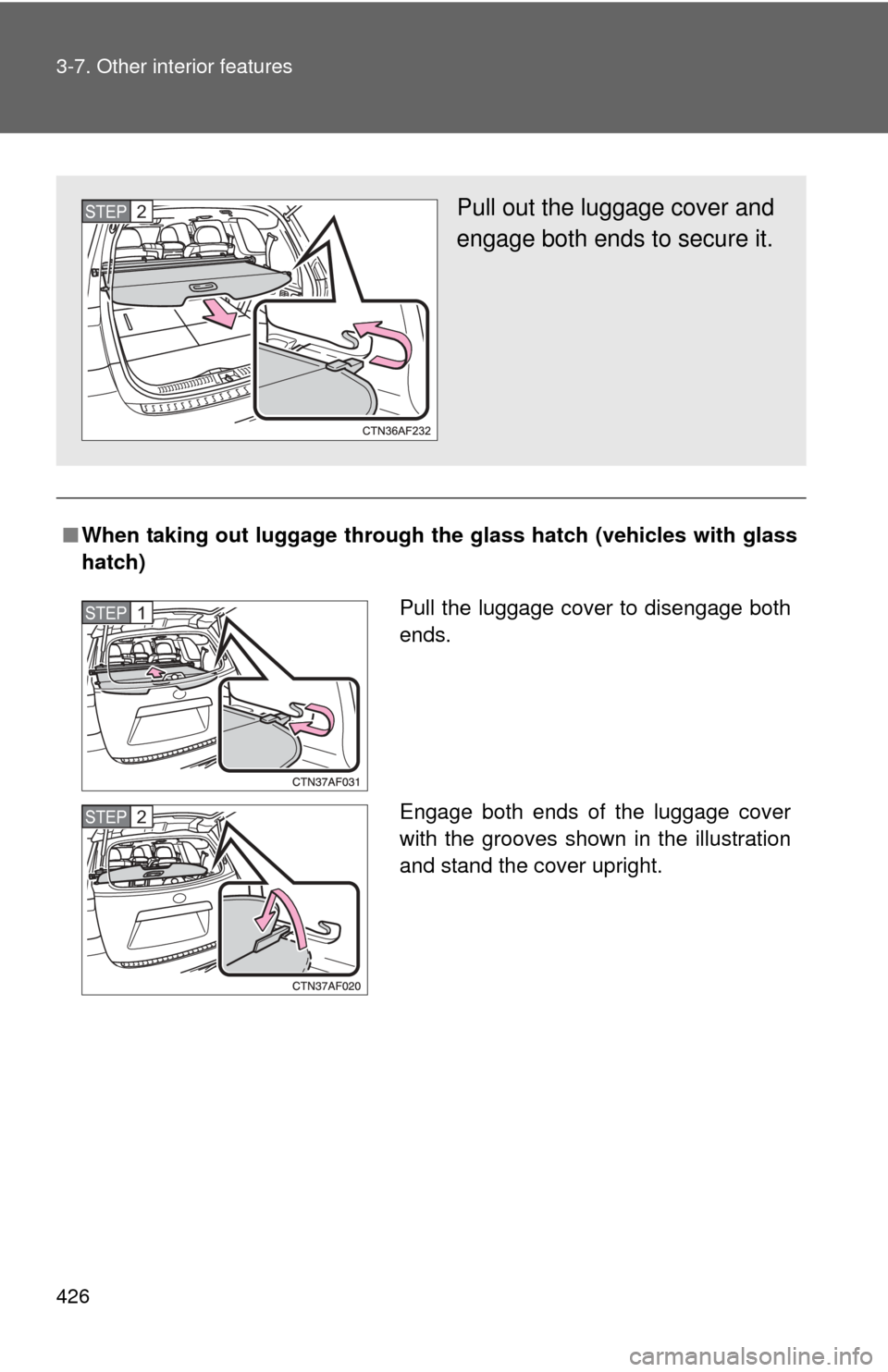
■When taking out luggage through the glass hatch (vehicles with glass
hatch)
Pull out the luggage cover and
engage both ends to secure it.STEP2
Pull the luggage cover to disengage both
ends.
Engage both ends of the luggage cover
with the grooves shown in the illustration
and stand the cover upright.STEP1
STEP2
Page 429 of 636
429
3-7. Other interior features
3
Interior features
Garage door opener
The garage door opener (HomeLink Universal Transceiver) is manufac-
tured under license from HomeLink.
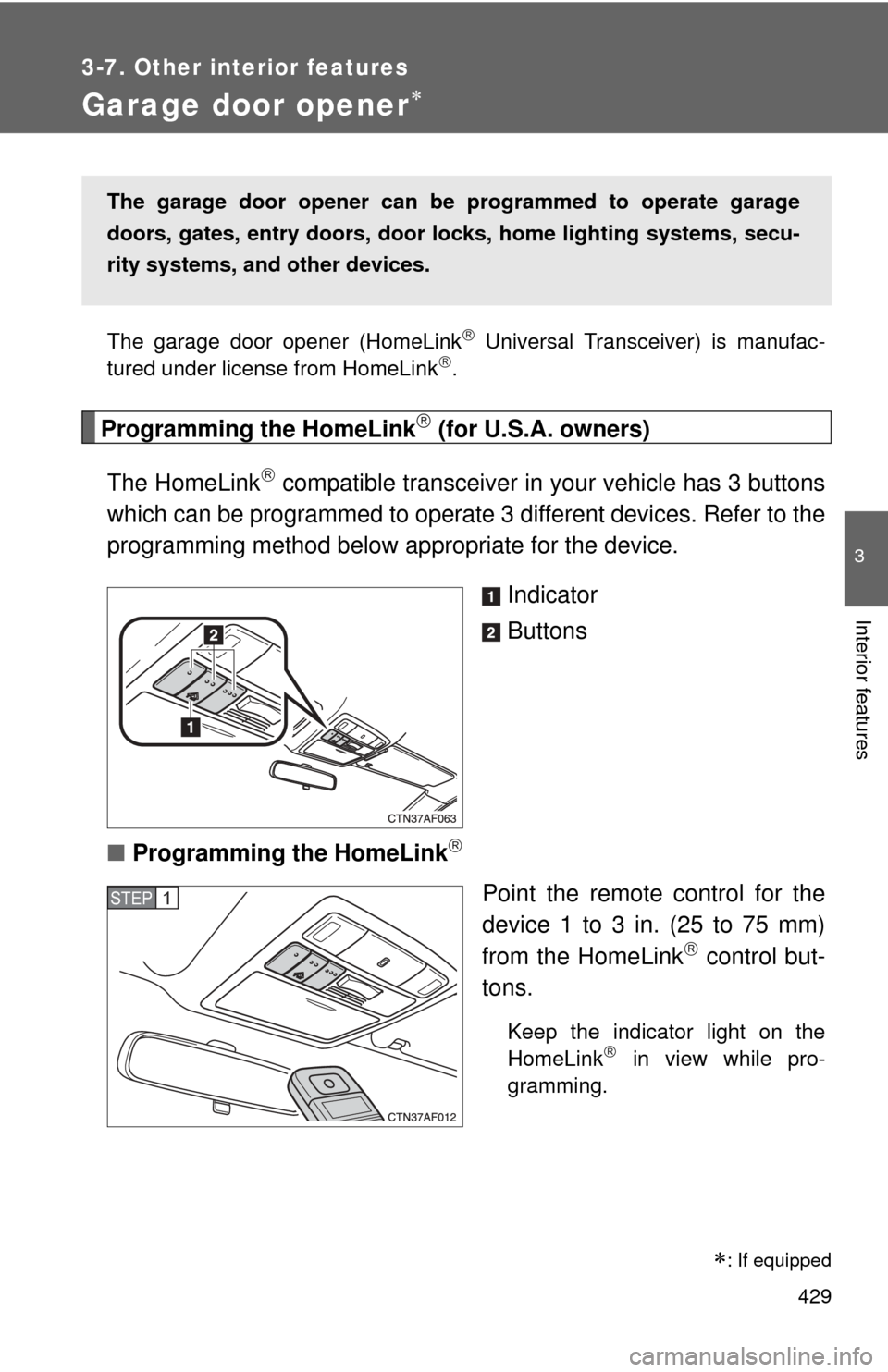
Programming the HomeLink (for U.S.A. owners)
The HomeLink
compatible transceiver in your vehicle has 3 buttons
which can be programmed to operate 3 different devices. Refer to the
programming method below appropriate for the device.
Indicator
Buttons
■ Programming the HomeLink
Point the remote control for the
device 1 to 3 in. (25 to 75 mm)
from the HomeLink
control but-
tons.
Keep the indicator light on the
HomeLink in view while pro-
gramming.
The garage door opener can be programmed to operate garage
doors, gates, entry do ors, door locks, home lighting systems, secu-
rity systems, and other devices.
STEP1
: If equipped