Page 256 of 540
256 3-2. Using the audio system
Playing and pausing songsPress .
Fast-forwarding and reversing songsPress and hold “
” or “ ” on .
Shuffle playback
■ Playing songs from one playlis t or album in random order
Press (RDM).
To cancel, press the button twice.
■ Playing songs from a ll the playlists or albums in random order
Press (RDM) twice.
To cancel, press the button again.
Repeat play
Press (RPT).
To cancel, press the button again.
Even when the repeat play option has not been selected, playback will
automatically continue from the first song in the current play list once the
last song has ended.
Switching the display
Press .
Each time is pressed, the display changes in the following order:
Track title Track title/Artist name Track title/Album name Track
title/Elapsed time
Page 262 of 540
262 3-2. Using the audio system
Random playback■ Playing files from a folder in random order
Press (RDM).
To cancel, press the button twice.
■Playing all the files from a USB memory in random order
Press (RDM) twice.
To cancel, press the button again.
Repeat play
■ Repeating a file
Press (RPT).
To cancel, press the button twice.
■Repeating all the files in a folder
Press (RPT) twice.
To cancel, press the button again.
Switching the display
Press .
Each time is pressed, the display changes in the following order:
Track title Track title/Artist name Track title/Album name Track
title/Elapsed time
Page 265 of 540

265
3-2. Using the audio system
3
Interior features
●
File names
The only files that can be recognized as MP3/WMA and played are those
with the extension .mp3 or .wma.
● ID3 and WMA tags
ID3 tags can be added to MP3 files, making it possible to record the track
title, artist name, etc.
The system is compatible with ID3 Ver. 1.0, 1.1, and Ver. 2.2, 2.3, 2.4 ID3
tags. (The number of characters is based on ID3 Ver. 1.0 and 1.1.)
WMA tags can be added to WMA files, making it possible to record the
track title and artist name in the same way as with ID3 tags.
● MP3 and WMA playback
When a device containing MP3 or WMA files is plugged, all files in the
USB memory device are first checked. Once the file check is finished, the
first MP3 or WMA file is played. To make the file check finish more quickly,
we recommend you do not write in any files other than MP3 or WMA files
or create any unnecessary folders.
● Extensions
If the file extensions .mp3 and .wma are used for files other than MP3 and
WMA files, they will be mistakenly recognized and played as MP3 and
WMA files. This may result in large amounts of interference and damage
to the speakers.
● Playback
• To play MP3 files with steady sound quality, we recommend a fixed bit
rate of at least 128 kbps and a sampling frequency of 44.1 kHz.
• There is a wide variety of freeware and other encoding software for MP3 and WMA files on the market, and depending on the status of the
encoding and the file format, poor sound quality or noise at the start of
playback may result. In some cases, playback may not be possible at
all.
• Microsoft, Windows, and Windows Media are the registered trade- marks of Microsoft Corporation in the U.S.A. and other countries.
Page 271 of 540
271
3-2. Using the audio system
3
Interior features
Using the steering wheel audio switches
Some audio features can be controlled using the switches on the
steering wheel.
Increases/decreases vol-
ume
Radio mode: Selects radio
station
CD mode: Selects tracks,
files (MP3 and WMA) and
discs (type B only)
iPod mode: Selects a song
USB memory mode:
Selects a file and folder
Bluetooth
® audio mode:
Selects a track and album
Turns the power on, selects
an audio source
Page 273 of 540
273
3-2. Using the audio system
3
Interior features
Selecting a track/file or song
Press to select the CD, iPod, USB memory, Bluetooth
®
audio mode.
Press “” or “ ” on to select the desired track/file or
song.
Selecting a folder or album
Press to select the CD, USB memory or Bluetooth
® audio
mode.
Press and hold “ ” or “ ” on until you hear a beep.
Selecting a disc in the CD player (type B only)
Press to select the CD mode.
Press and hold “ ” or “ ” on until you hear a beep.
CAUTION
■To reduce the risk of an accident
Exercise care when operating the audio switches on the steering wheel.
Page 280 of 540
280
3-3. Using the Bluetooth® audio system
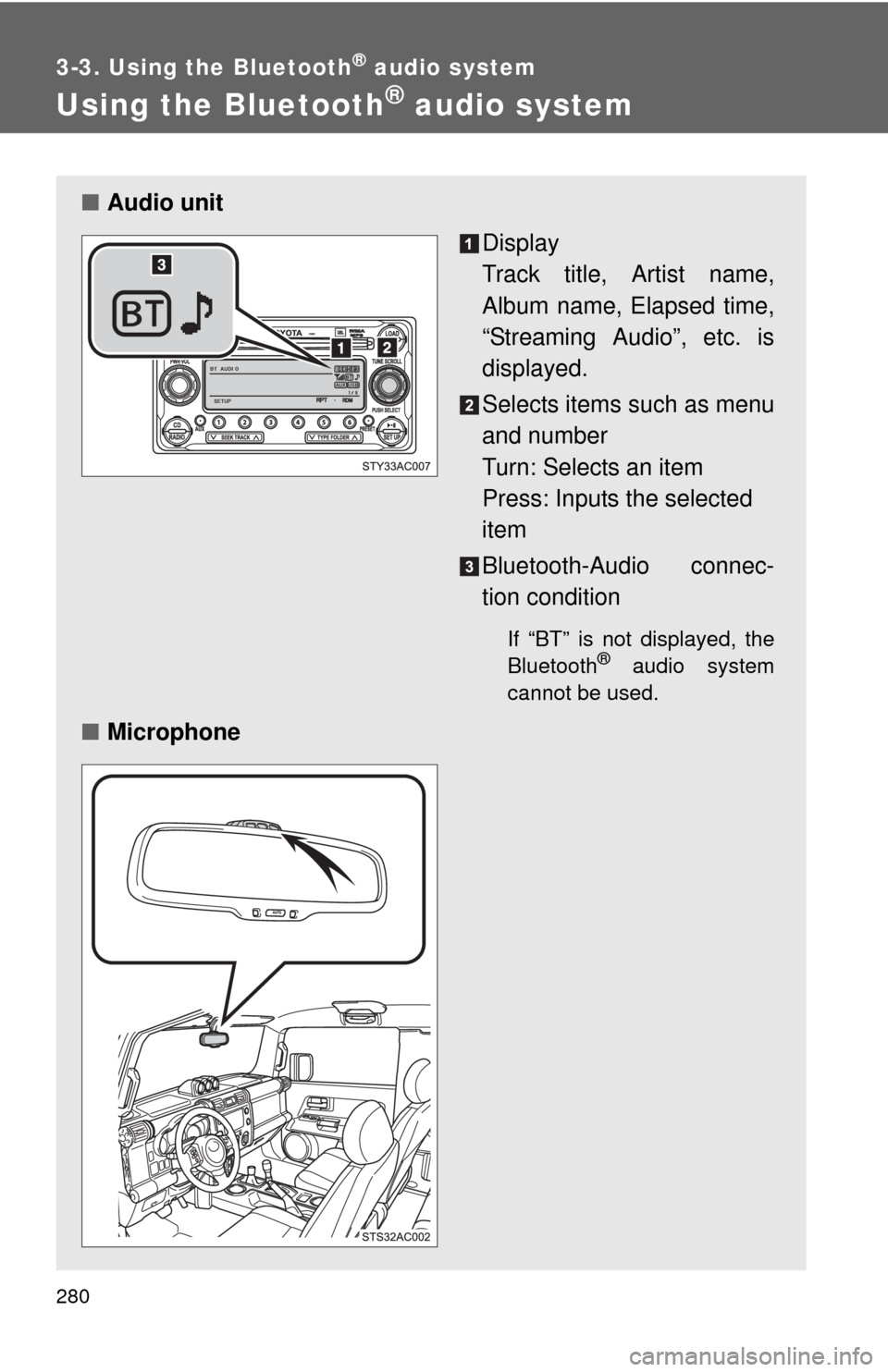
Using the Bluetooth® audio system
■Audio unit
Display
Track title, Artist name,
Album name, Elapsed time,
“Streaming Audio”, etc. is
displayed.
Selects items such as menu
and number
Turn: Selects an item
Press: Inputs the selected
item
Bluetooth-Audio connec-
tion condition
If “BT” is not displayed, the
Bluetooth® audio system
cannot be used.
■ Microphone
Page 285 of 540
285
3-3. Using the Bluetooth® audio system
3
Interior features
Operating a Bluetooth® enabled por table player
Selecting an albumPress “ ” or “ ” on .
Selecting tracks
Press “ ” or “ ” on .
Playing and pausing tracks
Press .
TOYOTASCAN TEXT
LOAD
CDAUXPRESET
PUSH SELECT
SEEK TRACKTYPE FOLDER RADIOSET UP
PWR VOLTUNE SCROLL
PWR VOLPWR VOL
STY33AC008
Playback/pause Displaying text
messages
Selector
knobSelecting
an album
Fast-forwarding and reversing/
selecting tracks Vo l u m e
Power
Selector buttons
Playback
Page 286 of 540
286 3-3. Using the Bluetooth
® audio system
Fast-forwarding and reversing tracksPress and hold “
” or “ ” on .
Switching the display
Press .
Each time is pressed, the display changes in the following order:
Track title Track title/Artist name Track title/Album name Track
title/Elapsed time
Using the steering wheel audio switches
P. 2 7 1
■Bluetooth® audio system functions
Depending on the portable player that is connected to the system, certain
functions may not be available.