Page 278 of 524

278 3-2. Using the audio system
UK_AURIS_HV_EE
iPod problems
To resolve most problems encountered when using your iPod, disconnect
your iPod from the vehicle iPod connection and reset it.
For instructions on how to reset your iPod, refer to your iPod Owner’s Man-
ual.
Display
P. 264
Error messages
“ERROR”: This indicates a problem in the iPod or its connection.
“NO MUSIC”: This indicates that there is no music data in the iPod.
“EMPTY”: This indicates that some available songs are not found in a
selected playlist.
“UPDATE”: This indicates that the version of the iPod is not compatible.
Upgrade your iPod software to the latest version.
Compatible models
Depending on differences between models or software version etc., some
models listed above might be incompatible with this system.
iPod 4th generation and earlier models are not compatible with this system.
iPhone, iPod mini, iPod shuffle and iPod photo are not compatible with this
system.
Items related to standards and limitations are as follows:
Maximum number of lists in device: 9999
Maximum number of songs in device: 65535
Maximum number of songs per list: 65535
ModelGenerationSoftware version
iPod 5th generation Ver. 1.2.0 or higher
iPod nano 1st generation Ver. 1.3.0 or higher
2nd generation Ver. 1.1.2 or higher
3rd generation Ver. 1.0.0 or higher
iPod touch 1st generation Ver. 1.1.0 or higher
iPod classic 1st generation Ver. 1.0.0 or higher
Page 293 of 524
293 3-2. Using the audio system
3
Interior features
UK_AURIS_HV_EE
Changing the audio source
Press when the audio system is turned on. The audio source
changes as follows each time is pressed.
AMFM1FM2FM3CD modeCD changer mode*
1
Bluetooth® audio mode*2 AUXiPod or USB memory mode*2
AM
*1: If installed with a CD changer
*
2: If equipped
Adjusting the volume
Press “+” on to increase the volume and “-” to decrease the
volume.
Hold down “+” or “-” on to continue increasing or decreasing the
volume.
Selecting a radio station
Press to select the radio mode.
Press “” or “” on to select a preset station.
To scan for receivable stations, press and hold “” or “” on
until you hear a beep.
Selecting a track/file or song
Press to select CD, Bluetooth
® audio, iPod or USB
memory mode.
Press “” or “” on to select the desired track/file or
song.
STEP1
STEP2
STEP1
STEP2
Page 321 of 524
321 3-4. Using the hands-free phone system (for cellular phone)
3
Interior features
UK_AURIS_HV_EE
Speed dialing
Press the off-hook switch.
Press the preset button in which the desired number is regis-
tered.
Press the off-hook switch.
When receiving a phone call
Answering the phone
Press the off-hook switch.
Refusing the call
Press the on-hook switch.
Transferring a call
A call can be transferred between the cellular phone and system
while dialing, receiving a call, or during a call. Use one of the follow-
ing methods:
a. Operate the cellular phone.
Refer to the manual that comes with the cellular phone for the oper-
ation of the phone.
b. Press the off-hook switch*.
*: This operation can be performed only when transferring a call
from the cellular phone to the system during a call.
STEP1
STEP2
STEP3
Page 334 of 524
334 3-4. Using the hands-free phone system (for cellular phone)
UK_AURIS_HV_EE
Setting speed dials
Select “Speed Dial” using .
Select the desired data using .
Select the desired preset button, and register the data into
speed dial by either of the following methods:
a. Press the desired preset button, and select “Confirm” using
.
b. Press and hold the desired preset button.
Changing a registered name
Select “Change Name” using .
Select the desired name to be changed using .
Select “Record Name” using and say the new name
after the beep.
The name to be registered will be repeated aloud.
Select “Confirm” using .
STEP1
STEP2
STEP3
STEP1
STEP2
STEP3
STEP4
Page 335 of 524
335 3-4. Using the hands-free phone system (for cellular phone)
3
Interior features
UK_AURIS_HV_EE
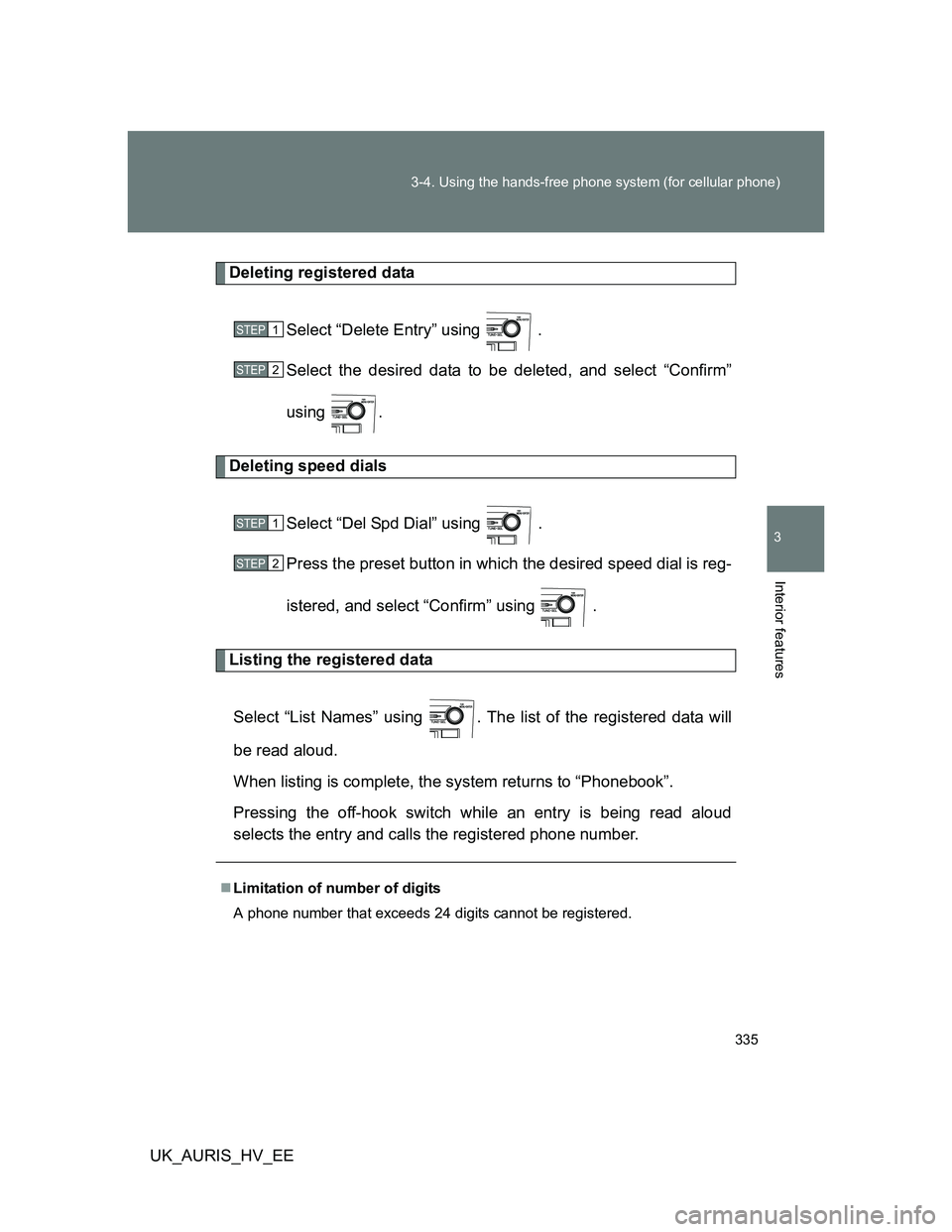
Deleting registered data
Select “Delete Entry” using .
Select the desired data to be deleted, and select “Confirm”
using .
Deleting speed dials
Select “Del Spd Dial” using .
Press the preset button in which the desired speed dial is reg-
istered, and select “Confirm” using .
Listing the registered data
Select “List Names” using . The list of the registered data will
be read aloud.
When listing is complete, the system returns to “Phonebook”.
Pressing the off-hook switch while an entry is being read aloud
selects the entry and calls the registered phone number.
Limitation of number of digits
A phone number that exceeds 24 digits cannot be registered.
STEP1
STEP2
STEP1
STEP2