Page 214 of 420
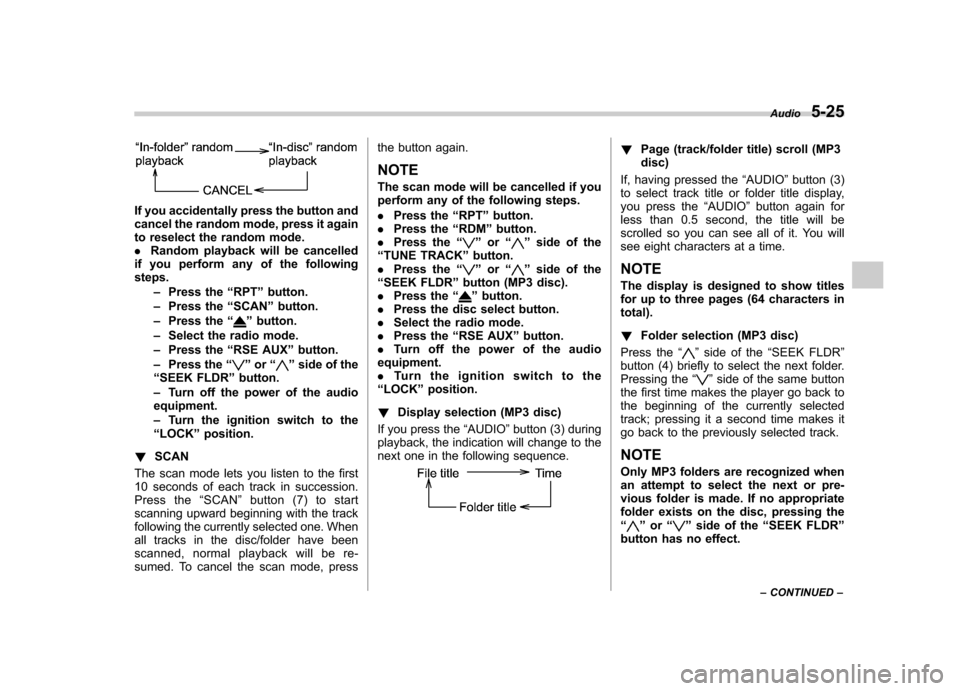
If you accidentally press the button and
cancel the random mode, press it again
to reselect the random mode..Random playback will be cancelled
if you perform any of the followingsteps.
–Press the “RPT ”button.
– Press the “SCAN ”button.
– Press the “
”button.
– Select the radio mode.
– Press the “RSE AUX ”button.
– Press the “
”or “”side of the
“ SEEK FLDR ”button.
– Turn off the power of the audio
equipment. – Turn the ignition switch to the
“ LOCK ”position.
! SCAN
The scan mode lets you listen to the first
10 seconds of each track in succession.
Press the “SCAN ”button (7) to start
scanning upward beginning with the track
following the currently selected one. When
all tracks in the disc/folder have been
scanned, normal playback will be re-
sumed. To cancel the scan mode, press the button again.
NOTE
The scan mode will be cancelled if you
perform any of the following steps. . Press the “RPT ”button.
. Press the “RDM ”button.
. Press the “
”or “”side of the
“ TUNE TRACK ”button.
. Press the “
”or “”side of the
“ SEEK FLDR ”button (MP3 disc).
. Press the “
”button.
. Press the disc select button.
. Select the radio mode.
. Press the “RSE AUX ”button.
. Turn off the power of the audio
equipment. . Turn the ignition switch to the
“ LOCK ”position.
! Display selection (MP3 disc)
If you press the “AUDIO ”button (3) during
playback, the indication will change to the
next one in the following sequence.
! Page (track/folder title) scroll (MP3 disc)
If, having pressed the “AUDIO ”button (3)
to select track title or folder title display,
you press the “AUDIO ”button again for
less than 0.5 second, the title will be
scrolled so you can see all of it. You will
see eight characters at a time. NOTE
The display is designed to show titles
for up to three pages (64 characters intotal). ! Folder selection (MP3 disc)
Press the “
”side of the “SEEK FLDR ”
button (4) briefly to select the next folder.
Pressing the “
”side of the same button
the first time makes the player go back to
the beginning of the currently selected
track; pressing it a second time makes it
go back to the previously selected track. NOTE
Only MP3 folders are recognized when
an attempt to select the next or pre-
vious folder is made. If no appropriate
folder exists on the disc, pressing the“
” or “”side of the “SEEK FLDR ”
button has no effect. Audio
5-25
– CONTINUED –
Page 215 of 420

5-26Audio
!How to unload CDs from the player
! Ejecting a CD from the player
Of the discs loaded, you can select and
remove only one disc.
1. Use the disc select button (9) to select
the disc to be ejected.
2. Briefly press the “
”button (8). The
selected disc will be ejected. The disc
number indicator will flash at this time.
When you remove the ejected disc, the
disc number indicator will turn off.
To remove more discs in succession,
repeat Steps 1 and 2. ! Ejecting all discs from the player (all
disc ejection mode)
1. If you press and hold the “
”button
(8), the player will produce a beep sound
and will enter the all disc ejection mode.
2. Remove the disc that has been
ejected. The other discs loaded will then
be ejected one after another. If you do not
remove the disc that has been ejected, the“ All disc ejection mode ”will be canceled.
NOTE . Avoid driving the vehicle with a CD
sticking out, because vibration might
make it fall out.. If you press the “
”button while the player is in all disc ejection mode,
the mode will be cancelled following
ejection of the disc that is currently
being ejected..
If you press the “CD ”button while
the player is in all disc ejection mode,
the player will draw in the discs that
have been ejected and play them. Audio control buttons
These buttons are located on the spokes
of the steering wheel. They allow the
driver to control audio functions without
taking his/her hands off the steeringwheel. &
MODE button
This button is used to select the desired
audio mode. Each time it is pressed, the
mode changes to the next one in the
following sequence.
*1: The frequency last received in the selected
Page 216 of 420
waveband will be displayed.
*2: Only when a CD is in the player.
*3: Only vehicle equipped with RSE (Rear Seat Entertainment)
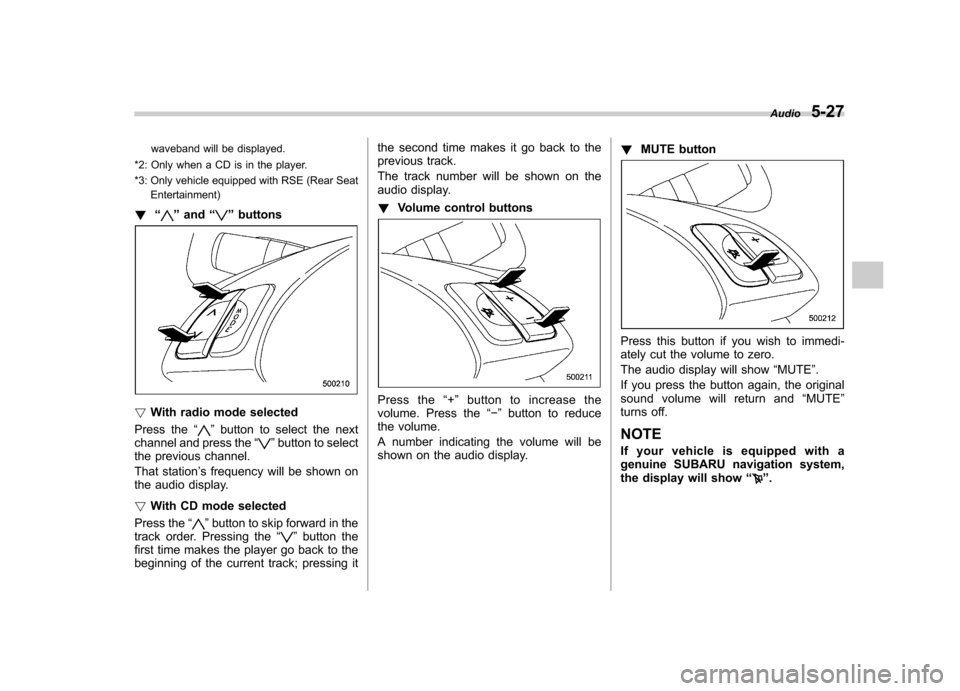
! “
”and “”buttons
! With radio mode selected
Press the “
”button to select the next
channel and press the “”button to select
the previous channel.
That station ’s frequency will be shown on
the audio display. ! With CD mode selected
Press the “
”button to skip forward in the
track order. Pressing the “”button the
first time makes the player go back to the
beginning of the current track; pressing it the second time makes it go back to the
previous track.
The track number will be shown on the
audio display. !
Volume control buttons
Press the “+ ” button to increase the
volume. Press the “ ” button to reduce
the volume.
A number indicating the volume will be
shown on the audio display. !
MUTE button
Press this button if you wish to immedi-
ately cut the volume to zero.
The audio display will show “MUTE ”.
If you press the button again, the original
sound volume will return and “MUTE ”
turns off.
NOTE
If your vehicle is equipped with a
genuine SUBARU navigation system,
the display will show “
”.Audio
5-27
Page 217 of 420

5-28Audio
Auxiliary input jack
You can connect an external audio device
to the vehicle ’s audio system and play
back audio via the vehicle ’s speakers.
An auxiliary (AUX) input jack is equipped
in the lower compartment of the center
console. A stereo mini pin plug (3.5ø) can
be inserted in this jack. The connection
cable is available at electrical appliance or
similar stores.
To use the AUX input jack :
1. Connect a portable audio player to the
AUX input jack.
2. Press the “RSE AUX ”button on the
audio control panel to turn on the auxiliary
audio input.
3. Play back the portable audio player. Refer to the Owner
’s Manual for the
portable audio player.
NOTE . The output sound of the portable
audio player is not loud, and the sound
via the vehicle ’s speakers that are
connected to the vehicle audio set
may be very low. If you turn up the
volume of the audio set, the volume
becomes louder. However, when you
change from one portable audio player
to another one, the volume levels via
the vehicle ’s speakers may be signifi-
cantly louder compared to the prior
device. To avoid a large volume differ-
ence, turn down the volume when you
change between portable audioplayers.. In some cases, when the sound
volume of the portable audio player is
low, the sound becomes bad when you
turn up the volume of the vehicle audio
system. In this case, adjust the sound
volume of the portable audio player.. In some cases, noise occurs be-
cause of a bad connection between the
portable player and the vehicle audio
system. Try cleaning the stereo jack
and audio plug.. If noise is not reduced, check for
disconnection of the cord or malfunc- tions of the portable player.
Page 219 of 420
5-30Audio
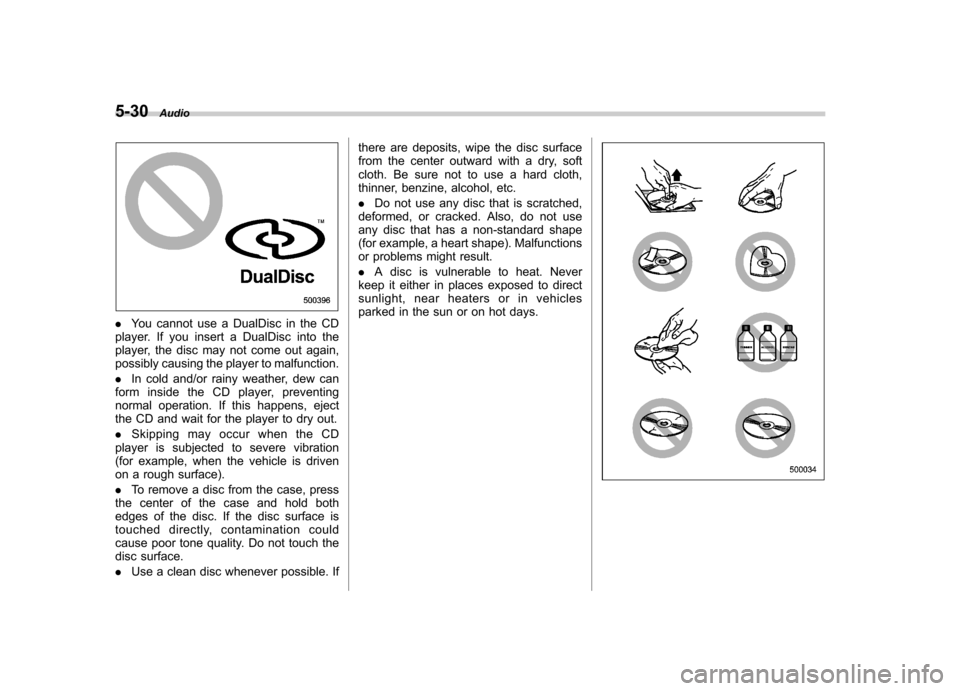
.You cannot use a DualDisc in the CD
player. If you insert a DualDisc into the
player, the disc may not come out again,
possibly causing the player to malfunction. . In cold and/or rainy weather, dew can
form inside the CD player, preventing
normal operation. If this happens, eject
the CD and wait for the player to dry out. . Skipping may occur when the CD
player is subjected to severe vibration
(for example, when the vehicle is driven
on a rough surface). . To remove a disc from the case, press
the center of the case and hold both
edges of the disc. If the disc surface is
touched directly, contamination could
cause poor tone quality. Do not touch the
disc surface. . Use a clean disc whenever possible. If there are deposits, wipe the disc surface
from the center outward with a dry, soft
cloth. Be sure not to use a hard cloth,
thinner, benzine, alcohol, etc. .
Do not use any disc that is scratched,
deformed, or cracked. Also, do not use
any disc that has a non-standard shape
(for example, a heart shape). Malfunctions
or problems might result. . A disc is vulnerable to heat. Never
keep it either in places exposed to direct
sunlight, near heaters or in vehicles
parked in the sun or on hot days.