2012 SUBARU TRIBECA AUX
[x] Cancel search: AUXPage 208 of 420
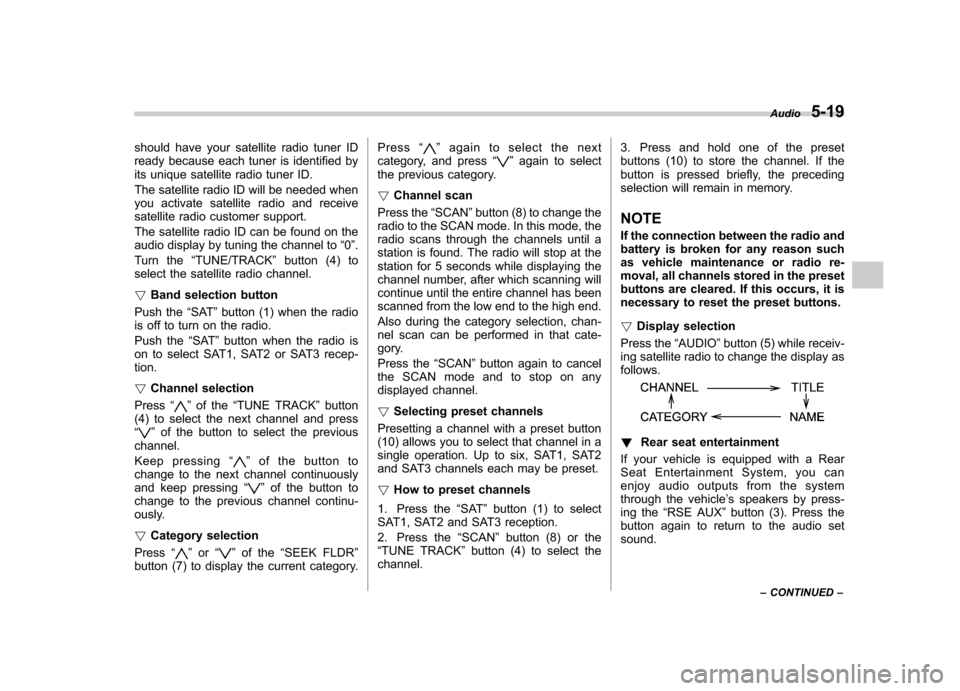
should have your satellite radio tuner ID
ready because each tuner is identified by
its unique satellite radio tuner ID.
The satellite radio ID will be needed when
you activate satellite radio and receive
satellite radio customer support.
The satellite radio ID can be found on the
audio display by tuning the channel to“0 ”.
Turn the “TUNE/TRACK ”button (4) to
select the satellite radio channel. ! Band selection button
Push the “SAT ”button (1) when the radio
is off to turn on the radio.
Push the “SAT ”button when the radio is
on to select SAT1, SAT2 or SAT3 recep- tion. ! Channel selection
Press “
”of the “TUNE TRACK ”button
(4) to select the next channel and press “
” of the button to select the previous
channel.
Keep pressing “
”of the button to
change to the next channel continuously
and keep pressing “
”of the button to
change to the previous channel continu-
ously. ! Category selection
Press “
”or “”of the “SEEK FLDR ”
button (7) to display the current category. Press
“
”again to select the next
category, and press “”again to select
the previous category. ! Channel scan
Press the “SCAN ”button (8) to change the
radio to the SCAN mode. In this mode, the
radio scans through the channels until a
station is found. The radio will stop at the
station for 5 seconds while displaying the
channel number, after which scanning will
continue until the entire channel has been
scanned from the low end to the high end.
Also during the category selection, chan-
nel scan can be performed in that cate-
gory.
Press the “SCAN ”button again to cancel
the SCAN mode and to stop on any
displayed channel. ! Selecting preset channels
Presetting a channel with a preset button
(10) allows you to select that channel in a
single operation. Up to six, SAT1, SAT2
and SAT3 channels each may be preset. ! How to preset channels
1. Press the “SAT ”button (1) to select
SAT1, SAT2 and SAT3 reception.
2. Press the “SCAN ”button (8) or the
“ TUNE TRACK ”button (4) to select the
channel. 3. Press and hold one of the preset
buttons (10) to store the channel. If the
button is pressed briefly, the preceding
selection will remain in memory. NOTE
If the connection between the radio and
battery is broken for any reason such
as vehicle maintenance or radio re-
moval, all channels stored in the preset
buttons are cleared. If this occurs, it is
necessary to reset the preset buttons. !
Display selection
Press the “AUDIO ”button (5) while receiv-
ing satellite radio to change the display as follows.
! Rear seat entertainment
If your vehicle is equipped with a Rear
Seat Entertainment System, you can
enjoy audio outputs from the system
through the vehicle ’s speakers by press-
ing the “RSE AUX ”button (3). Press the
button again to return to the audio setsound. Audio
5-19
– CONTINUED –
Page 212 of 420
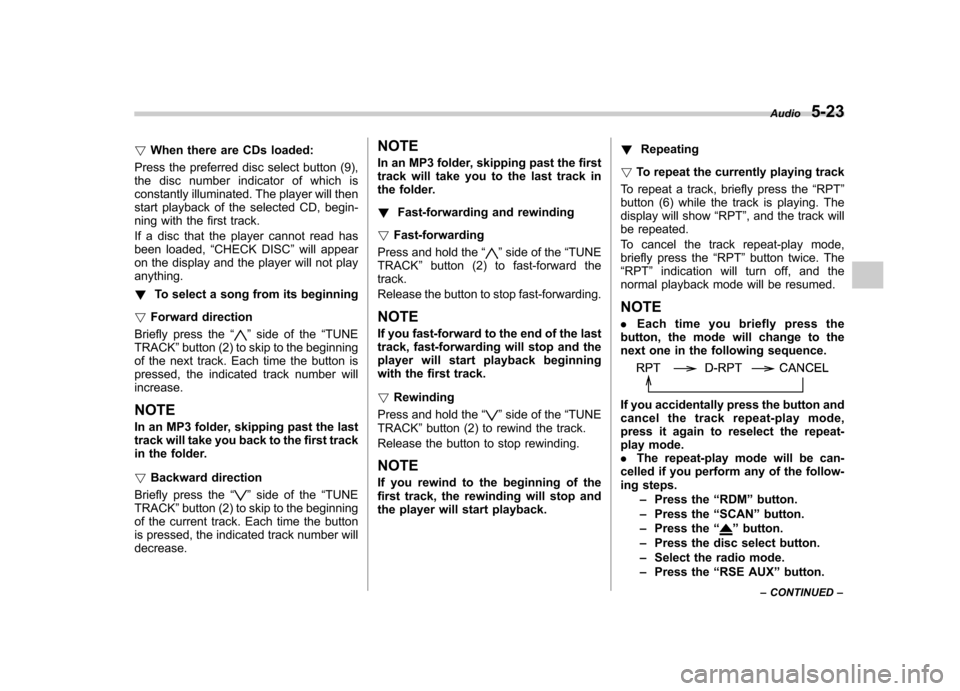
!When there are CDs loaded:
Press the preferred disc select button (9),
the disc number indicator of which is
constantly illuminated. The player will then
start playback of the selected CD, begin-
ning with the first track.
If a disc that the player cannot read has
been loaded, “CHECK DISC ”will appear
on the display and the player will not playanything. ! To select a song from its beginning
! Forward direction
Briefly press the “
”side of the “TUNE
TRACK ”button (2) to skip to the beginning
of the next track. Each time the button is
pressed, the indicated track number willincrease.
NOTE
In an MP3 folder, skipping past the last
track will take you back to the first track
in the folder. ! Backward direction
Briefly press the “
”side of the “TUNE
TRACK ”button (2) to skip to the beginning
of the current track. Each time the button
is pressed, the indicated track number willdecrease. NOTE
In an MP3 folder, skipping past the first
track will take you to the last track in
the folder. !
Fast-forwarding and rewinding
! Fast-forwarding
Press and hold the “
”side of the “TUNE
TRACK ”button (2) to fast-forward the
track.
Release the button to stop fast-forwarding. NOTE
If you fast-forward to the end of the last
track, fast-forwarding will stop and the
player will start playback beginning
with the first track. ! Rewinding
Press and hold the “
”side of the “TUNE
TRACK ”button (2) to rewind the track.
Release the button to stop rewinding. NOTE
If you rewind to the beginning of the
first track, the rewinding will stop and
the player will start playback. !
Repeating
! To repeat the currently playing track
To repeat a track, briefly press the “RPT ”
button (6) while the track is playing. The
display will show “RPT ”, and the track will
be repeated.
To cancel the track repeat-play mode,
briefly press the “RPT ”button twice. The
“ RPT ”indication will turn off, and the
normal playback mode will be resumed.
NOTE . Each time you briefly press the
button, the mode will change to the
next one in the following sequence.If you accidentally press the button and
cancel the track repeat-play mode,
press it again to reselect the repeat-
play mode.. The repeat-play mode will be can-
celled if you perform any of the follow-
ing steps.
–Press the “RDM ”button.
– Press the “SCAN ”button.
– Press the “
”button.
– Press the disc select button.
– Select the radio mode.
– Press the “RSE AUX ”button.
Audio
5-23
– CONTINUED –
Page 213 of 420
5-24Audio
– Press the “
”or “”side of the
“ SEEK FLDR ”button (MP3 disc).
– Turn off the power of the audio
equipment. – Turn the ignition switch to the
“ LOCK ”position.
! To repeat the currently playing disc/ folder
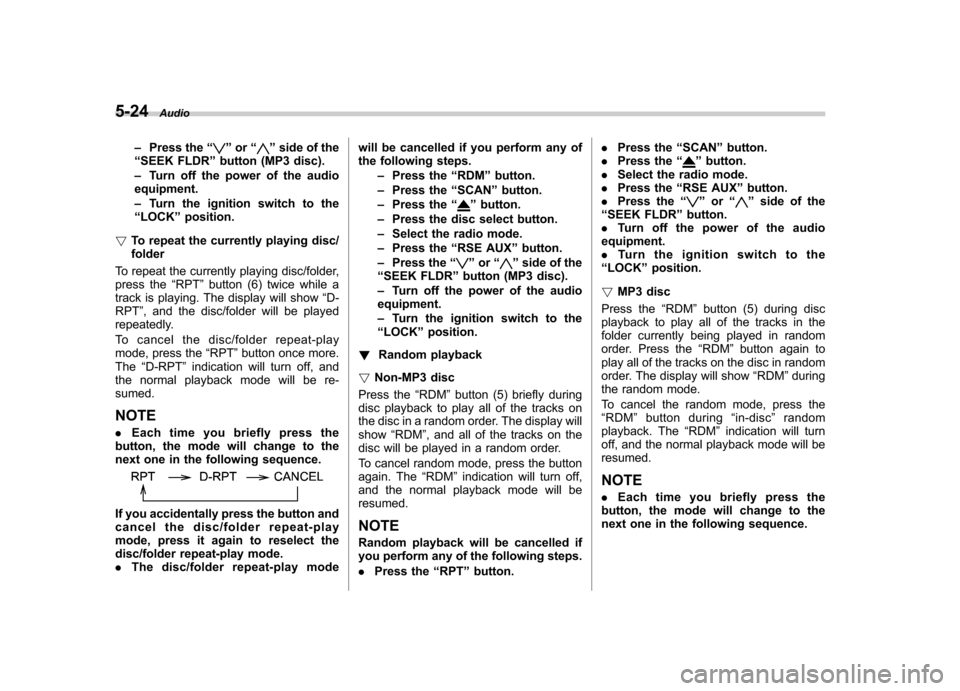
To repeat the currently playing disc/folder,
press the “RPT ”button (6) twice while a
track is playing. The display will show “D-
RPT ”, and the disc/folder will be played
repeatedly.
To cancel the disc/folder repeat-play
mode, press the “RPT ”button once more.
The “D-RPT ”indication will turn off, and
the normal playback mode will be re-sumed.
NOTE . Each time you briefly press the
button, the mode will change to the
next one in the following sequence.
If you accidentally press the button and
cancel the disc/folder repeat-play
mode, press it again to reselect the
disc/folder repeat-play mode.. The disc/folder repeat-play mode will be cancelled if you perform any of
the following steps.
–Press the “RDM ”button.
– Press the “SCAN ”button.
– Press the “
”button.
– Press the disc select button.
– Select the radio mode.
– Press the “RSE AUX ”button.
– Press the “
”or “”side of the
“ SEEK FLDR ”button (MP3 disc).
– Turn off the power of the audio
equipment. – Turn the ignition switch to the
“ LOCK ”position.
! Random playback
! Non-MP3 disc
Press the “RDM ”button (5) briefly during
disc playback to play all of the tracks on
the disc in a random order. The display will show “RDM ”, and all of the tracks on the
disc will be played in a random order.
To cancel random mode, press the button
again. The “RDM ”indication will turn off,
and the normal playback mode will beresumed.
NOTE
Random playback will be cancelled if
you perform any of the following steps. . Press the “RPT ”button. .
Press the “SCAN ”button.
. Press the “
”button.
. Select the radio mode.
. Press the “RSE AUX ”button.
. Press the “
”or “”side of the
“ SEEK FLDR ”button.
. Turn off the power of the audio
equipment. . Turntheignitionswitchtothe
“ LOCK ”position.
! MP3 disc
Press the “RDM ”button (5) during disc
playback to play all of the tracks in the
folder currently being played in random
order. Press the “RDM ”button again to
play all of the tracks on the disc in random
order. The display will show “RDM ”during
the random mode.
To cancel the random mode, press the “ RDM ”button during “in-disc ”random
playback. The “RDM ”indication will turn
off, and the normal playback mode will beresumed.
NOTE . Each time you briefly press the
button, the mode will change to the
next one in the following sequence.
Page 214 of 420
If you accidentally press the button and
cancel the random mode, press it again
to reselect the random mode..Random playback will be cancelled
if you perform any of the followingsteps.
–Press the “RPT ”button.
– Press the “SCAN ”button.
– Press the “
”button.
– Select the radio mode.
– Press the “RSE AUX ”button.
– Press the “
”or “”side of the
“ SEEK FLDR ”button.
– Turn off the power of the audio
equipment. – Turn the ignition switch to the
“ LOCK ”position.
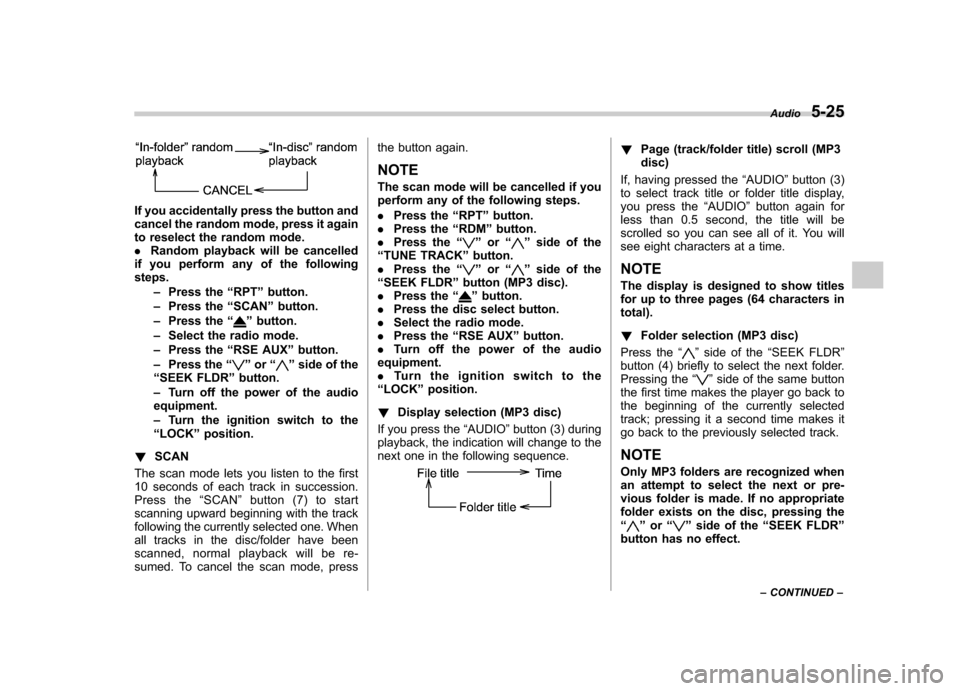
! SCAN
The scan mode lets you listen to the first
10 seconds of each track in succession.
Press the “SCAN ”button (7) to start
scanning upward beginning with the track
following the currently selected one. When
all tracks in the disc/folder have been
scanned, normal playback will be re-
sumed. To cancel the scan mode, press the button again.
NOTE
The scan mode will be cancelled if you
perform any of the following steps. . Press the “RPT ”button.
. Press the “RDM ”button.
. Press the “
”or “”side of the
“ TUNE TRACK ”button.
. Press the “
”or “”side of the
“ SEEK FLDR ”button (MP3 disc).
. Press the “
”button.
. Press the disc select button.
. Select the radio mode.
. Press the “RSE AUX ”button.
. Turn off the power of the audio
equipment. . Turn the ignition switch to the
“ LOCK ”position.
! Display selection (MP3 disc)
If you press the “AUDIO ”button (3) during
playback, the indication will change to the
next one in the following sequence.
! Page (track/folder title) scroll (MP3 disc)
If, having pressed the “AUDIO ”button (3)
to select track title or folder title display,
you press the “AUDIO ”button again for
less than 0.5 second, the title will be
scrolled so you can see all of it. You will
see eight characters at a time. NOTE
The display is designed to show titles
for up to three pages (64 characters intotal). ! Folder selection (MP3 disc)
Press the “
”side of the “SEEK FLDR ”
button (4) briefly to select the next folder.
Pressing the “
”side of the same button
the first time makes the player go back to
the beginning of the currently selected
track; pressing it a second time makes it
go back to the previously selected track. NOTE
Only MP3 folders are recognized when
an attempt to select the next or pre-
vious folder is made. If no appropriate
folder exists on the disc, pressing the“
” or “”side of the “SEEK FLDR ”
button has no effect. Audio
5-25
– CONTINUED –
Page 217 of 420
5-28Audio
Auxiliary input jack
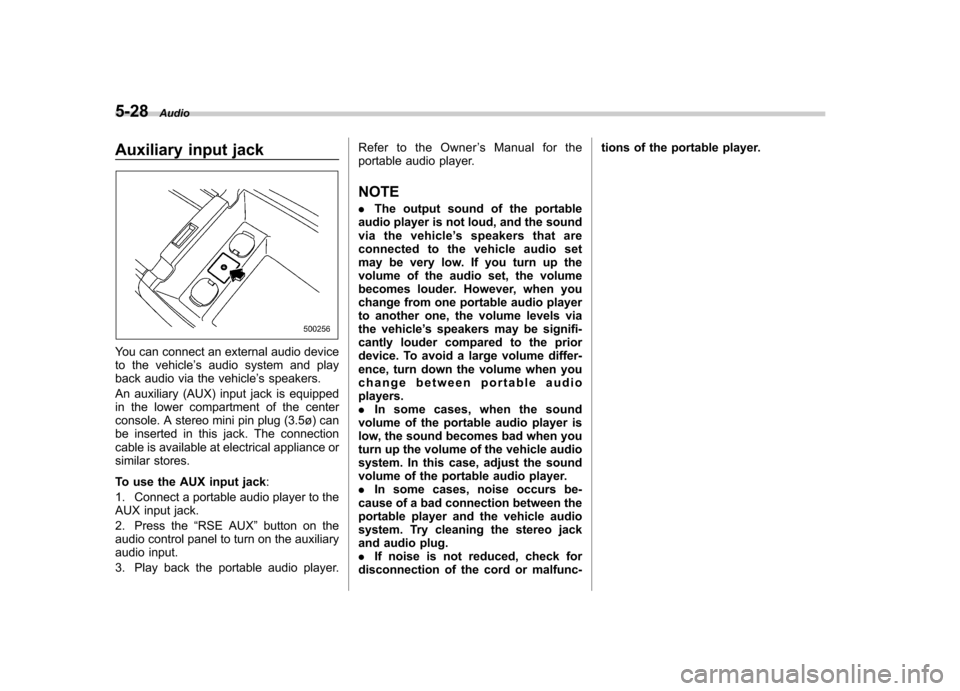
You can connect an external audio device
to the vehicle ’s audio system and play
back audio via the vehicle ’s speakers.
An auxiliary (AUX) input jack is equipped
in the lower compartment of the center
console. A stereo mini pin plug (3.5ø) can
be inserted in this jack. The connection
cable is available at electrical appliance or
similar stores.
To use the AUX input jack :
1. Connect a portable audio player to the
AUX input jack.
2. Press the “RSE AUX ”button on the
audio control panel to turn on the auxiliary
audio input.
3. Play back the portable audio player. Refer to the Owner
’s Manual for the
portable audio player.
NOTE . The output sound of the portable
audio player is not loud, and the sound
via the vehicle ’s speakers that are
connected to the vehicle audio set
may be very low. If you turn up the
volume of the audio set, the volume
becomes louder. However, when you
change from one portable audio player
to another one, the volume levels via
the vehicle ’s speakers may be signifi-
cantly louder compared to the prior
device. To avoid a large volume differ-
ence, turn down the volume when you
change between portable audioplayers.. In some cases, when the sound
volume of the portable audio player is
low, the sound becomes bad when you
turn up the volume of the vehicle audio
system. In this case, adjust the sound
volume of the portable audio player.. In some cases, noise occurs be-
cause of a bad connection between the
portable player and the vehicle audio
system. Try cleaning the stereo jack
and audio plug.. If noise is not reduced, check for
disconnection of the cord or malfunc- tions of the portable player.
Page 218 of 420
Rear Seat Entertainment
(RSE) system operation (ifequipped)
If your vehicle is equipped with the Rear
Seat Entertainment (RSE) system, you
can listen to the audio via the vehicle
speakers. Push the“RSE AUX ”button to
play a DVD using the Rear Seat Entertain-
ment system.
For detailed operating procedures, refer to
the Owner ’s Manual supplement for the
Rear Seat Entertainment (RSE) system.
NOTE . To watch a DVD in the front seats
using the monitor of the navigation
system, park the vehicle in a safe
location and apply the parking brake.
Images of the DVD will not be displayed
on the front monitor unless the parking
brake is applied.. The harman/kardon
®audio system
is a stereo system with 2 channels. If a
harman/kardon
®audio system is
equipped, the Rear Seat Entertainment
(RSE) system may not generate a
satisfying realistic sound when playing
5.1 channel audio sources. Precautions to observe when
handling a compact disc
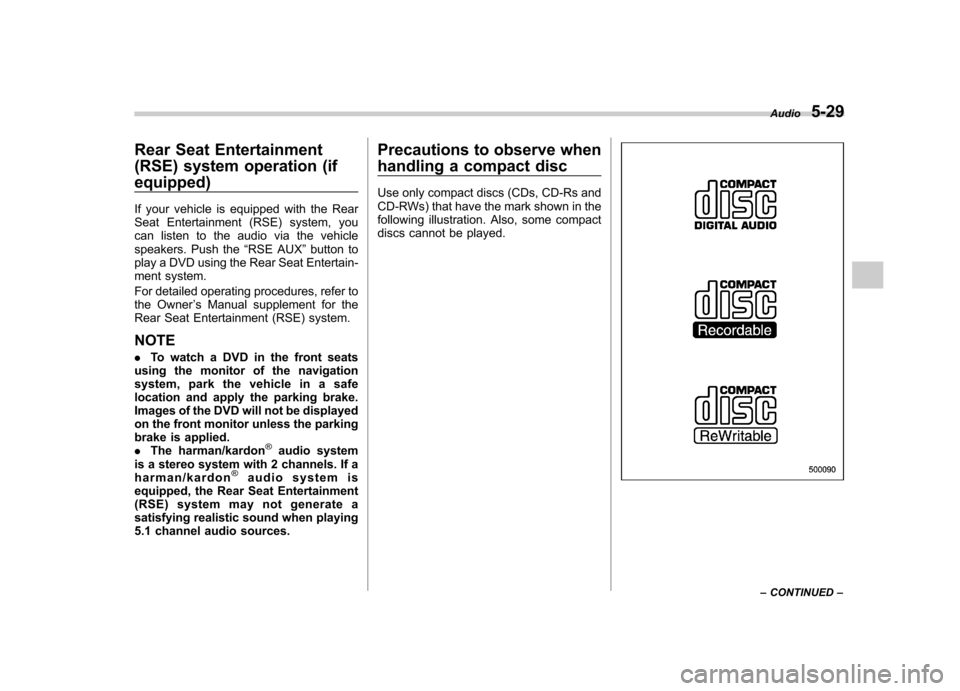
Use only compact discs (CDs, CD-Rs and
CD-RWs) that have the mark shown in the
following illustration. Also, some compact
discs cannot be played.
Audio
5-29
– CONTINUED –
Page 409 of 420
14-2Index
A Abbreviation ................................................................... 3
ABS (Anti-lock Brake System) ..................................... 7-20
Warning light ................................................. 3-15, 7-21
Accessories ....................................................... 5-2, 11-36
Accessory power outlet ............................................... 6-10
Active head restraint ..................................................... 1-6
Air cleaner element ................................................... 11-12
Air conditioner
Automatic climate control system ............................... 4-5
Air filtration system ..................................................... 4-11
Airflow ........................................................................ 4-2
Airflow mode selection .................................................. 4-3
Airflow selection Automatic climate control system ......................... 4-5, 4-8
Alarm system ............................................................ 2-16
All-Wheel Drive warning light ....................................... 3-18
Aluminum wheel ....................................................... 11-27
Cleaning ............................................................... 10-3
Antenna system ........................................................... 5-2
Anti-lock Brake System (ABS) ..................................... 7-20
Arming the system ..................................................... 2-17
Armrest ..................................................................... 1-13
AT OIL TEMP warning light ......................................... 3-13
Audio Antenna system ....................................................... 5-2
Auxiliary input jack ................................................. 5-28
Control button ........................................................ 5-26
Set......................................................................... 5-3
Auto-dimming mirror/compass .............................. 3-38, 3-41
Automatic climate control system ................................... 4-5 Automatic transmission
............................................... 7-12
Fluid ........................................................... 11-14, 12-7
MANUAL mode ...................................................... 7-16
Oil temperature warning light (AT OIL TEMP) ............. 3-13
Select lever ........................................................... 7-13
Shift lock function ................................................... 7-14
Shift lock release .................................................... 7-14
SPORT mode ........................................................ 7-18
Automatic/Emergency Locking Retractor (A/ELR) ........... 1-18
Auxiliary input jack ...................................................... 5-28
BBattery .................................................................... 11-33
Drainage prevention function ..................................... 2-6
Jump starting ......................................................... 9-11
Replacement (remote keyless entry system) .............. 2-11
Booster seat .............................................................. 1-36
Bottle holder ............................................................... 6-9
Brake Assist .................................................................... 7-19
Booster ....................................................... 7-19, 11-18
Fluid ........................................................... 11-17, 12-7
Pad and lining ...................................................... 11-20
Parking ....................................................... 7-28, 11-20
Pedal .................................................................. 11-19
System .................................................................. 7-19
Brake pedal Free play ............................................................. 11-19
Reserve distance .................................................. 11-19
Brake system ............................................................. 7-19
Warning light .......................................................... 3-16